Windows Server containers: images, isolation and Docker

Developers increasingly hand over apps as container images instead of installers. Windows Server containers let you run those images on Server 2025: each app gets its own isolated filesystem and processes, starts in seconds, and runs the same on a laptop, a server or a Kubernetes cluster.

In this lesson you’ll install a container runtime on SRV01, pull a Nano Server image, run and inspect containers, build your own image from a Dockerfile, keep data with a mount, and see which image versions a host can run.

TimeYou needBy the end you can
About 60 minutes, plus image downloadsSRV01 with internet access through LabNet and about 10 GB of space on C:Install Docker on Windows Server, run, inspect and stop containers, build images, use mounts, and explain process and Hyper-V isolation

What it is, in one line

Windows Server containers are lightweight, isolated environments that share the host’s Windows kernel but have their own files, registry and processes, created from images like Nano Server or Server Core.

In Simple Words

Lunch boxes in one fridge

An office fridge holds everyone’s lunch boxes. Each box is sealed, labelled and packed exactly how its owner wants. They all share the same fridge, cold air and power, but nobody’s soup leaks into someone else’s salad.

Containers are those lunch boxes, and the host is the fridge. A VM is more like giving everyone their own small fridge: stronger separation, but much heavier.

An image is the recipe card used to pack a box. Follow the same card anywhere, and you get the same lunch.

Engineer's View

Images, isolation, versions, runtimes

Images: Microsoft publishes base images on mcr.microsoft.com: Nano Server (small, for .NET and modern apps), Server Core (most compatibility, includes PowerShell) and Server (full API set). Tags like ltsc2025 name the Long-Term Servicing Channel release. Your images add layers on top with a Dockerfile.

Isolation: process isolation runs container processes directly on the host kernel, visible in the host’s process list; the image must be a Windows release the host supports (on Server 2025: ltsc2025 and ltsc2022 images). Hyper-V isolation wraps each container in a tiny utility VM with its own kernel, allowing older images and stronger separation, but needs virtualization support, which a VirtualBox VM like SRV01 doesn’t provide.

Runtimes: Windows Server doesn’t ship a container engine. Options are Docker CE/Moby (installed with Microsoft’s script, community supported), Mirantis Container Runtime (commercial), or containerd, which Kubernetes uses on Windows nodes.

Data: a container’s writable layer disappears when it’s removed. Anything that must survive goes in a volume or bind mount from the host. Containers suit stateless app tiers; domain controllers, DHCP and file servers stay as VMs.

How it works, step by step

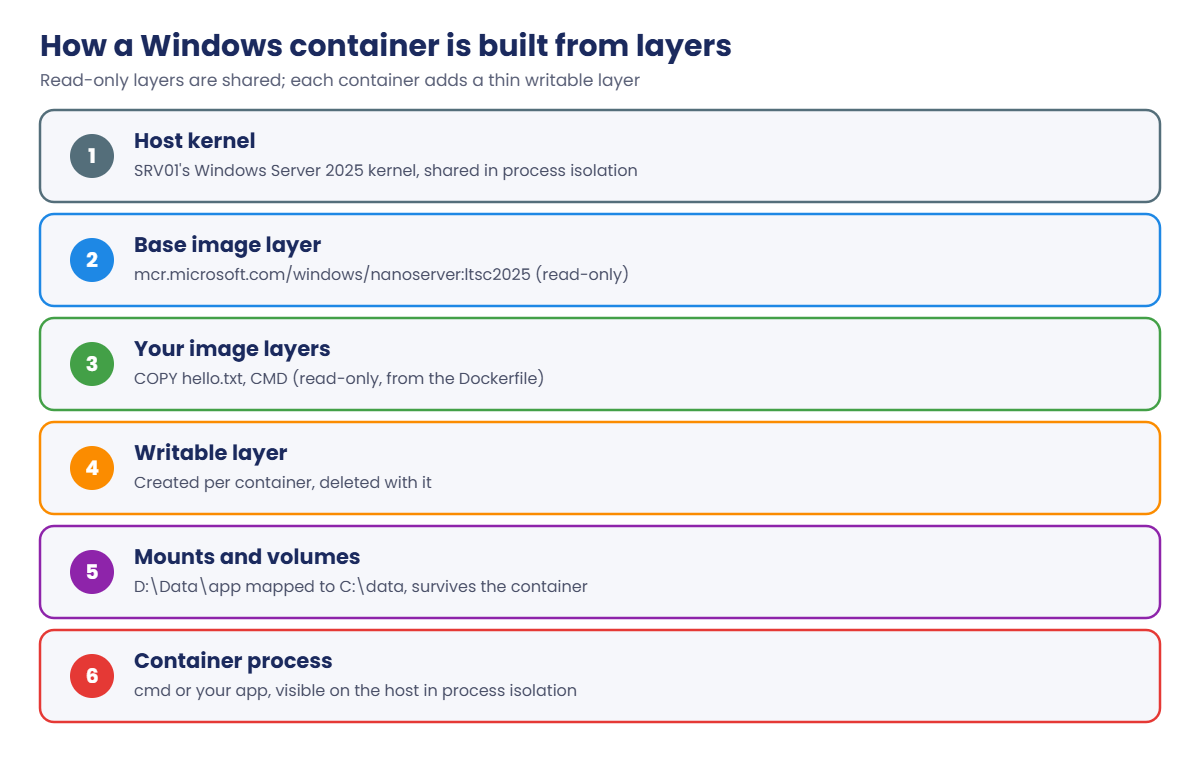
Here’s how a container is put together from layers:

Windows Server containers: kernel, base image, your layers, writable layer and mounts

The base image layers are read-only and shared by every container that uses them, which is why the tenth container starts in seconds and uses little extra disk. Each container only adds a thin writable layer.

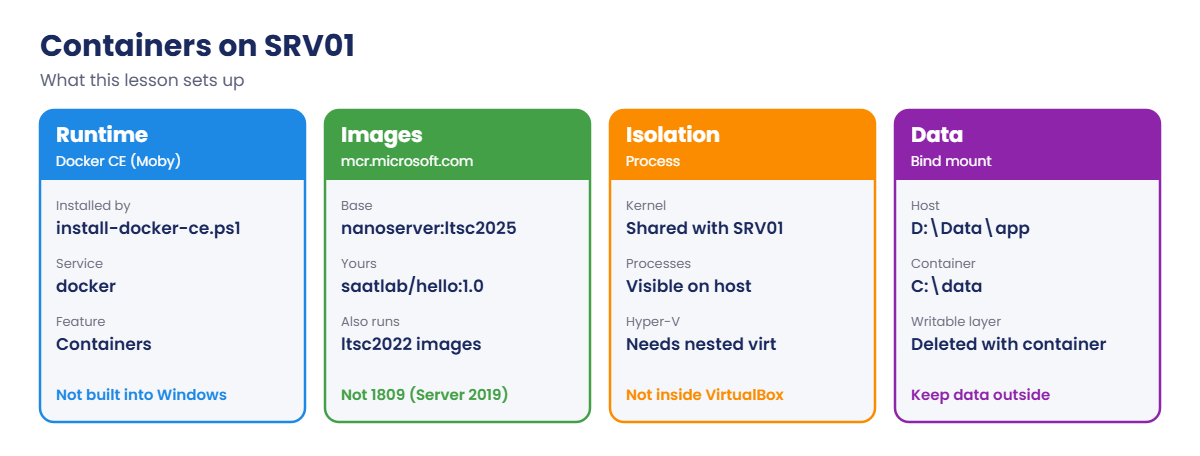
What you’ll run on SRV01:

Windows Server containers on SRV01: runtime, images, isolation and data
  1. Install the Containers feature and Docker CE with Microsoft’s script.
  2. Pull the Nano Server ltsc2025 image and run a one-off container.
  3. Run a long-lived container, look inside it, and find its process on the host.
  4. Build saatlab/hello:1.0 from a Dockerfile.
  5. Persist data with a bind mount to D:\Data.

Hands-on Lab: Windows Server containers on SRV01

Start DC01 and SRV01. Take a snapshot of SRV01 called “Before containers”. Work on SRV01 in PowerShell as administrator.

1Install the container runtime

On SRV01, download and run Microsoft’s install script:

Set-Location C:\Scripts
Invoke-WebRequest -UseBasicParsing "https://raw.githubusercontent.com/microsoft/Windows-Containers/Main/helpful_tools/Install-DockerCE/install-docker-ce.ps1" -o install-docker-ce.ps1
.\install-docker-ce.ps1

The script enables the Containers feature and restarts SRV01 if needed. After the restart, sign in again; the script continues and installs Docker as a service. If it doesn’t resume by itself, run it once more.

Then check:

docker version --format "Client {{.Client.Version}} {{.Client.Os}}/{{.Client.Arch}} - Server {{.Server.Version}} {{.Server.Os}}/{{.Server.Arch}}"
Get-Service docker | Select-Object Status, StartType

You should see something like this:

Client 27.x.x windows/amd64 - Server 27.x.x windows/amd64

 Status StartType
 ------ ---------
Running Automatic

✅ Checkpoint: docker version shows a Windows client and server, and the docker service is Running.

2Pull an image and run a container

On SRV01:

docker pull mcr.microsoft.com/windows/nanoserver:ltsc2025
docker images
docker run --rm mcr.microsoft.com/windows/nanoserver:ltsc2025 cmd /c "hostname & ver"

You should see something like this:

REPOSITORY                             TAG        IMAGE ID       CREATED       SIZE
mcr.microsoft.com/windows/nanoserver   ltsc2025   4e2a1c8b9f03   2 weeks ago   300MB

7c3e9a21b4d6

Microsoft Windows [Version 10.0.26100.NNNN]

The container got its own random hostname, and its Windows version matches SRV01’s build 26100. --rm deletes the container when it exits; the image stays.

✅ Checkpoint: The Nano Server image is listed, and the container printed a random hostname and version 10.0.26100.

3Run a long-lived container and look inside

On SRV01:

docker run -d --name pinger mcr.microsoft.com/windows/nanoserver:ltsc2025 ping -t localhost
docker ps --format "table {{.Names}}\t{{.Status}}\t{{.Image}}"
docker exec pinger cmd /c "dir C:\ /b"
docker inspect --format "{{.HostConfig.Isolation}}" pinger
Get-Process -Name PING | Select-Object Id, ProcessName, SessionId

You should see something like this:

NAMES    STATUS         IMAGE
pinger   Up 8 seconds   mcr.microsoft.com/windows/nanoserver:ltsc2025

License.txt
Program Files
ProgramData
Users
Windows

process

  Id ProcessName SessionId
  -- ----------- ---------
4812 PING                2

The container has its own tiny C: drive. Isolation is “process”, so the container’s PING.EXE shows up in SRV01’s own process list, in its own session. That’s the difference from a VM, where you’d never see the guest’s processes on the host.

Stop and remove it:

docker logs pinger --tail 2
docker rm -f pinger

✅ Checkpoint: You saw the container’s files, its “process” isolation, and its PING process on the host, then removed it.

4Build your own image

On SRV01, create the build folder and files:

New-Item -ItemType Directory C:\Build -Force | Out-Null
'Hello from the SaatLab container image, version 1.0' | Set-Content C:\Build\hello.txt
@'
FROM mcr.microsoft.com/windows/nanoserver:ltsc2025
COPY hello.txt C:/app/hello.txt
CMD ["cmd", "/c", "type C:\\app\\hello.txt"]
'@ | Set-Content C:\Build\Dockerfile
docker build -t saatlab/hello:1.0 C:\Build
docker run --rm saatlab/hello:1.0

You should see this at the end:

Hello from the SaatLab container image, version 1.0

The Dockerfile is the recipe: start from Nano Server, add a file, set the default command. Anyone with the same Dockerfile and files builds the same image. In real projects, images are pushed to a registry such as Azure Container Registry and pulled by servers or Kubernetes nodes.

✅ Checkpoint: docker run saatlab/hello:1.0 prints the hello line.
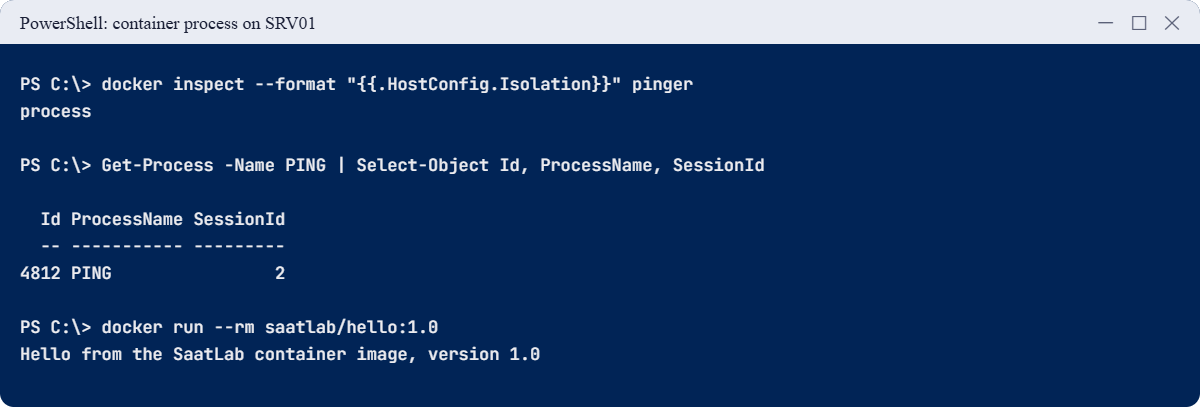
Windows Server containers lab: process isolation and the custom image output
Process isolation in action, and your own image printing its message.

5Keep data with a bind mount

On SRV01:

New-Item -ItemType Directory D:\Data\app -Force | Out-Null
docker run --rm -v D:\Data\app:C:\data mcr.microsoft.com/windows/nanoserver:ltsc2025 cmd /c "echo written by a container> C:\data\out.txt"
Get-Content D:\Data\app\out.txt

You should see this:

written by a container

The container is gone (because of --rm), but the file it wrote lives on in D:\Data\app on SRV01. Logs, uploads and databases always go in volumes or mounts like this.

✅ Checkpoint: D:\Data\app\out.txt exists on SRV01 after the container was removed.

Break It, Then Fix It

Two container surprises that catch every Windows admin once: an image built for an older Windows version, and data that vanishes.

1Break it: an image for an older Windows version

On SRV01, run a Server 2019 image:

docker run --rm mcr.microsoft.com/windows/nanoserver:1809 cmd /c ver

You’ll get an error like this (after the pull):

docker: Error response from daemon: container 3f1d... encountered an error during CreateContainer: failure in a Windows system call: The operating system of the container does not match the operating system of the host. (0xc0370101)

With process isolation, the container uses SRV01’s kernel, so the image must be a release the host supports. Server 2025 runs its own ltsc2025 images and, thanks to a stable kernel interface added in 2023, ltsc2022 images too, but not 2019 (1809) images.

Hyper-V isolation (--isolation=hyperv) would run the old image in a utility VM with its own kernel. SRV01 is itself a VirtualBox VM without nested Hyper-V, so that fails here too.

Fix it: use an image the host supports:

docker run --rm mcr.microsoft.com/windows/nanoserver:ltsc2025 cmd /c ver
docker rmi mcr.microsoft.com/windows/nanoserver:1809

When hosts move to a new Windows Server version, check every image against Microsoft’s compatibility table, and rebuild old ones on a newer base before the upgrade.

✅ Checkpoint: The 1809 image failed with “does not match the operating system of the host” and ltsc2025 works.

Windows Server containers lab: container operating system does not match the host
Server 2025 refuses a Server 2019 image in process isolation.

2Break it: data written inside a container

On SRV01, write a file inside a named container, then replace the container:

docker run --name app1 mcr.microsoft.com/windows/nanoserver:ltsc2025 cmd /c "echo important> C:\report.txt"
docker rm app1
docker run --name app1 mcr.microsoft.com/windows/nanoserver:ltsc2025 cmd /c "type C:\report.txt"

You’ll see something like this:

The system cannot find the file specified.

The new container started from the clean image; the old writable layer, with report.txt, was deleted with the old container. In production this is how logs and uploads disappear the first time a container is updated.

Fix it: write to a mount, so the file outlives any container:

docker rm app1
docker run --rm -v D:\Data\app:C:\data mcr.microsoft.com/windows/nanoserver:ltsc2025 cmd /c "echo important> C:\data\report.txt"
docker run --rm -v D:\Data\app:C:\data mcr.microsoft.com/windows/nanoserver:ltsc2025 cmd /c "type C:\data\report.txt"

You should see this:

important

✅ Checkpoint: report.txt was lost with the container, and survives when written to the D:\Data\app mount.

This happened at work

The host upgrade that stopped every container

A team ran 40 internal services as Windows containers built on Server Core ltsc2019. Their hosts were due for replacement, so new servers were installed with Windows Server 2022, and the containers were moved over on a Saturday.

Not one container started. Every attempt failed with “The operating system of the container does not match the operating system of the host.” The new hosts were VMs on a platform without nested virtualization, so Hyper-V isolation wasn’t an option either.

The team moved everything back to the old hosts and spent the next two weeks rebuilding all 40 images on the ltsc2022 base and testing them.

The fix: image builds now run in a pipeline that can target several base versions, and host upgrades start with a compatibility test of every image.

The lesson: Windows containers are tied to the Windows versions the host supports. Treat a host upgrade as an image upgrade too.

Common mistakes and troubleshooting

Mistake or symptomWhat happensWhat to do instead
“operating system of the container does not match the operating system of the host”Image built for a release the host can’t runUse a supported ltsc tag or Hyper-V isolation
Writing data inside the containerData lost when the container is replacedVolumes or bind mounts
Using Server Core when Nano Server would doHuge images, slow pullsSmallest base that runs the app
Running containers as a way to avoid patchingOld, vulnerable imagesRebuild images on the latest monthly base
Expecting Hyper-V isolation inside a VirtualBox VMIt failsProcess isolation, or a host with nested Hyper-V
Floating tags like latest in productionUnexpected changes on rebuildPin versions; update deliberately
Putting DCs or file servers in containersUnsupported and fragileKeep infrastructure roles in VMs
Forgetting the container runtime isn’t built in“docker” not recognisedInstall Docker CE, Mirantis or containerd
No registry or build processImages built by hand differDockerfiles in source control, built by a pipeline

Interview questions

Click a question to open it. Under each one you’ll find what the interviewer is really looking for, and one good way to answer.

Fresher level

1. What is a container?

What they’re really checking: Do you know the basics?

How you could answer: An isolated environment that packages an app with its dependencies and shares the host’s kernel, starting much faster and lighter than a VM.

2. Which base images does Microsoft provide for Windows containers?

What they’re really checking: Do you know the options?

How you could answer: Nano Server, Server Core and Server, published on mcr.microsoft.com with tags like ltsc2025.

3. How do you keep data from a container?

What they’re really checking: Do you understand ephemeral storage?

How you could answer: Use volumes or bind mounts; the container’s own writable layer is deleted when it’s removed.

2–5 years experience

4. Explain process isolation and Hyper-V isolation.

What they’re really checking: Do you know Windows-specific isolation?

How you could answer: Process isolation shares the host kernel and needs an image release the host supports; processes are visible on the host. Hyper-V isolation runs each container in a lightweight VM with its own kernel, allowing older images and stronger separation.

5. Why might a Windows container fail to start after a host upgrade?

What they’re really checking: Can you diagnose version issues?

How you could answer: The image’s OS version isn’t supported by the new host for process isolation. Rebuild on a newer base or use Hyper-V isolation.

6. How do you install a container runtime on Windows Server 2025?

What they’re really checking: Have you done it?

How you could answer: Microsoft’s install-docker-ce.ps1 script for Docker CE, Mirantis Container Runtime for commercial support, or containerd for Kubernetes nodes.

Senior level

7. When would you run Windows workloads in containers versus VMs?

What they’re really checking: Do you think about fit?

How you could answer: Containers for stateless, modern or modernised app tiers that benefit from fast deployment and orchestration; VMs for infrastructure roles, stateful legacy apps, and anything needing full OS features.

8. How would you run Windows containers at scale?

What they’re really checking: Do you know orchestration?

How you could answer: Kubernetes with Windows node pools (AKS or on-premises with containerd), images in a registry, CI pipelines building per OS version, and monitoring and patching of nodes.

9. How do you keep container images secure?

What they’re really checking: Do you think about supply chain?

How you could answer: Rebuild monthly on patched bases, scan images, pin versions, use minimal bases, run as non-admin users like ContainerUser, sign images and restrict registries.

Quick quiz

Q1. What do containers share with the host in process isolation?

  1. Nothing
  2. The kernel
  3. Their own kernel
Show answer

B — That’s why image versions matter.

Q2. Which image is the smallest Windows base?

  1. Server
  2. Server Core
  3. Nano Server
Show answer

C — Use the smallest that runs your app.

Q3. Why did the 1809 (Server 2019) image fail on SRV01?

  1. No internet
  2. Server 2025 can’t run 2019 images with process isolation
  3. Docker was stopped
Show answer

B — Use ltsc2025 or ltsc2022, or Hyper-V isolation.

Q4. Where should a container write data that must survive?

  1. C:\ inside the container
  2. A volume or bind mount
  3. The image
Show answer

B — The writable layer is deleted with the container.

Q5. In the work story, what had to be done?

  1. Reinstall Docker
  2. Rebuild 40 images on the new base
  3. Buy new hardware
Show answer

B — Host upgrades are image upgrades too.

Quick recap

  • Windows Server containers share the host kernel but have their own files and processes.
  • Install a runtime (Docker CE script, Mirantis or containerd); Windows doesn’t include one.
  • Server 2025 runs ltsc2025 and ltsc2022 images with process isolation; older ones need Hyper-V isolation.
  • Build images with Dockerfiles; base layers are shared and read-only.
  • Keep data in volumes or bind mounts.
  • Infrastructure roles stay in VMs.

Next lesson

Lesson 31: AD sites and replication → You’ll create a second AD site, move DC02 into it, configure site links and subnets, force and monitor replication with repadmin, and look at RODCs for branch offices.

Further reading: Windows Server containers

Want to go deeper into Windows Server containers? Microsoft’s container environment setup guide covers runtimes, and the version compatibility page explains which images run on which hosts. You can also see the full plan for this course on the Windows Server Administration course page.

Scroll to Top