Windows event logs: event IDs, Get-WinEvent and XPath
-
Phase 0: Before you start
-
Phase 1: The foundation
-
Phase 2: Core administration and security
-
Phase 3: Enterprise infrastructure
-
Phase 4: Troubleshooting step by step
-
Phase 5: Final project and career
In Lesson 42 you asked “what changed?” and the answer came from the event logs. Now you’ll learn Windows event logs properly: where they live, which event IDs matter, and how to search millions of events in seconds.
You’ll filter logs fast with Get-WinEvent, pull usernames and IP addresses out of failed logons with XPath, build a daily summary, and try the new built-in DTrace on Server 2025.
| Time | You need | By the end you can |
|---|---|---|
| About 75 minutes | DC01, SRV01 and CL01 | Find any event quickly, read the fields inside it, and use an event ID cheat sheet at work |
What it is, in one line
Windows event logs are the server’s diary: every service, driver and security check writes dated entries you can search later.
In Simple Words
In Simple Words
Imagine a school with a big register at the gate. Every time someone enters, leaves or forgets their ID card, the guard writes one line: time, name and what happened.
Most days nobody reads it. But when a bicycle goes missing, the register tells you who came in at 3 PM.
Event logs are that register. You don’t read them for fun; you search them when something goes wrong, so you need to know which page to open and what each line code means.
Engineer's View
Engineer’s View
Channels: the Windows logs are Application, Security, Setup, System and Forwarded Events. Under Applications and Services Logs, each component has its own channels (Admin, Operational, and hidden Analytic and Debug), such as Microsoft-Windows-DNSServer/Audit or Microsoft-Windows-GroupPolicy/Operational.
Files: logs are stored as .evtx files in C:\Windows\System32\winevt\Logs. Each log has a maximum size and a retention mode: overwrite as needed, archive when full, or don’t overwrite.
Event fields: provider (source), event ID, level (1 Critical, 2 Error, 3 Warning, 4 Information), task, keywords (Audit Success, Audit Failure), TimeCreated (stored in UTC, shown in local time), computer, user, and EventData with named fields like TargetUserName or IpAddress.
Querying: Get-WinEvent with -FilterHashtable or -FilterXPath filters inside the event log service, which is far faster than pulling everything and piping it to Where-Object. wevtutil does the same from cmd and also changes log settings.
Security log: only events enabled in the audit policy are written. Reading it needs administrator rights or membership in Event Log Readers.
DTrace: since Server 2025, dtrace is built in. Enable it with bcdedit /set dtrace on and a restart, then trace live system calls when the logs don’t say enough.
How it works, step by step
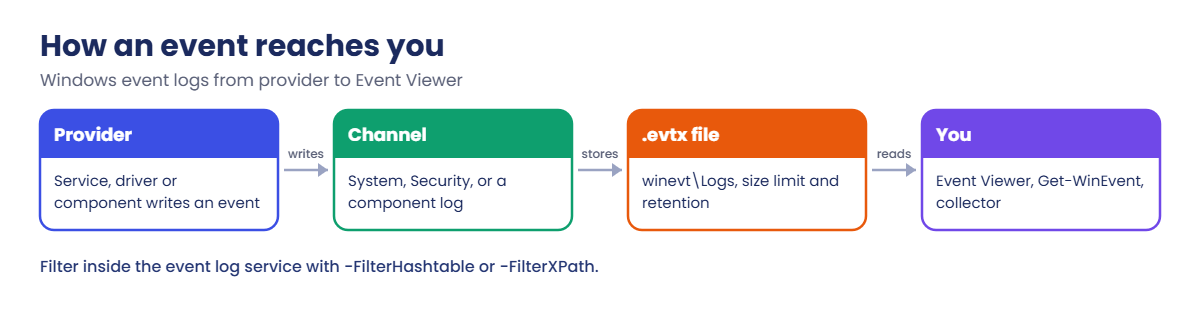
How an event gets from a component to you:
A provider (a service, driver or Windows component) writes events to a channel. The event log service stores them in an .evtx file, and you read them with Event Viewer, Get-WinEvent, or a collector that receives forwarded events.
Here is a cheat sheet of event IDs worth remembering:
| Log | Event ID | Meaning |
|---|---|---|
| System | 41 / 6008 | Unexpected shutdown (crash, hang or power loss) |
| System | 1074 | Planned restart or shutdown, with user and reason |
| System | 6005 / 6006 | Event log service started / stopped (boot and shutdown) |
| System | 7031 / 7034 | Service stopped unexpectedly |
| System | 7036 / 7040 / 7045 | Service state change / start type change / new service |
| System | 104 | Log cleared |
| System | 5719 | Netlogon couldn’t reach a domain controller |
| System | 1014 | DNS client name resolution timed out |
| Security | 4624 / 4625 | Logon succeeded / failed |
| Security | 4740 / 4767 | Account locked out / unlocked |
| Security | 4720 / 4726 | User account created / deleted |
| Security | 4728 / 4732 | Member added to a global / local security group |
| Security | 4768 / 4769 / 4771 | Kerberos TGT / service ticket / pre-auth failed |
| Security | 4776 | NTLM credential validation |
| Security | 1102 | Security log cleared |
| Application | 1000 | Application crash (faulting module) |
| Setup | 2 | Update package installed |
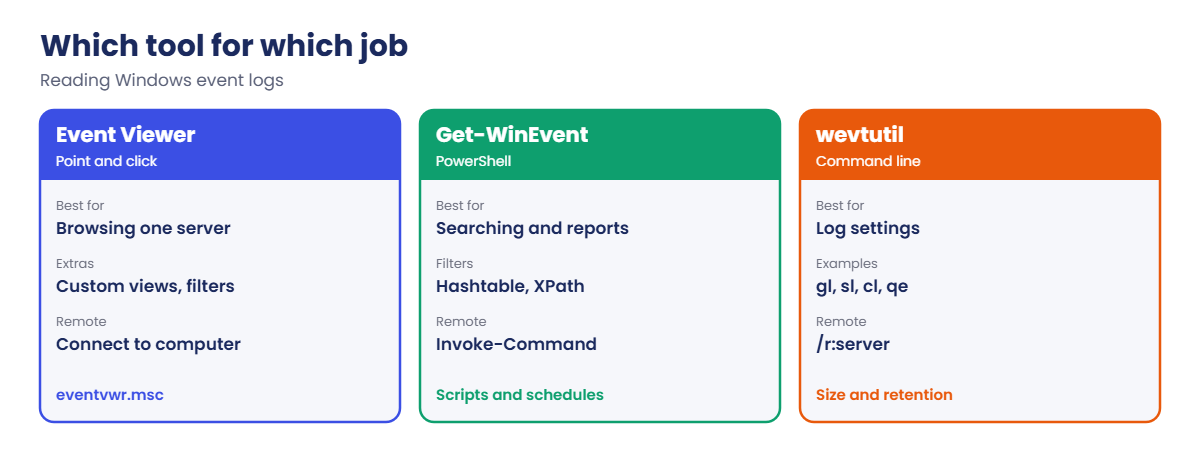
Which tool to use for which job:
In the lab you’ll:
- List the logs on SRV01 and see their sizes.
- Compare a slow and a fast way to filter events.
- Create failed logons and read the user, IP and failure code with XPath.
- Build a daily summary of important event IDs.
- Try DTrace on Server 2025 (optional).
Hands-on lab: find any event fast
Start DC01, SRV01 and CL01. Work as SAATLAB\adm.rahul in PowerShell as administrator unless a step says otherwise.
1List the logs and their sizes
On SRV01:
Get-WinEvent -ListLog * -ErrorAction SilentlyContinue |
Where-Object RecordCount -gt 0 |
Sort-Object RecordCount -Descending |
Select-Object -First 6 LogName, RecordCount,
@{ n = 'MaxMB'; e = { [math]::Round($_.MaximumSizeInBytes / 1MB) } }, LogModeYou’ll see something like this:
LogName RecordCount MaxMB LogMode
------- ----------- ----- -------
Security 31842 128 Circular
System 6120 20 Circular
Application 2875 20 Circular
Microsoft-Windows-PowerShell/Operational 2210 15 Circular
Windows PowerShell 1460 15 Circular
Microsoft-Windows-TaskScheduler/Operational 1102 10 CircularCircular means “overwrite as needed”: when the log is full, the oldest events go. The bigger and busier the log, the more history you keep, or lose.
✅ Checkpoint: You can see each log’s record count, size limit and retention mode.
2Filter the slow way and the fast way
On SRV01, find errors in the System log from the last 7 days, both ways:
$since = (Get-Date).AddDays(-7)
(Measure-Command {
Get-WinEvent -LogName System | Where-Object { $_.Level -eq 2 -and $_.TimeCreated -ge $since }
}).TotalSeconds
(Measure-Command {
Get-WinEvent -FilterHashtable @{ LogName = 'System'; Level = 2; StartTime = $since } -ErrorAction SilentlyContinue
}).TotalSecondsYou’ll see something like this:
3.9417318
0.1288421Where-Object reads every event into PowerShell first, then throws most away. FilterHashtable asks the event log service to filter, so only matching events come back. On a busy DC with millions of Security events, that’s the difference between seconds and many minutes.
✅ Checkpoint: FilterHashtable is many times faster than Where-Object for the same result.
3Read failed logons with XPath
On CL01, type a wrong password three times on purpose (normal PowerShell):
1..3 | ForEach-Object { net use \\DC01\IPC$ /user:SAATLAB\kiran.das WrongPass1 }You’ll see something like this (three times):
System error 1326 has occurred.
The user name or password is incorrect.On DC01, find those failures and pull out the useful fields:
$xpath = "*[System[EventID=4625] and EventData[Data[@Name='TargetUserName']='kiran.das']]"
Get-WinEvent -LogName Security -FilterXPath $xpath -MaxEvents 3 | ForEach-Object {
$d = @{}
([xml]$_.ToXml()).Event.EventData.Data | ForEach-Object { $d[$_.Name] = $_.'#text' }
[pscustomobject]@{
Time = $_.TimeCreated
User = $d.TargetUserName
IP = $d.IpAddress
LogonType = $d.LogonType
SubStatus = $d.SubStatus
}
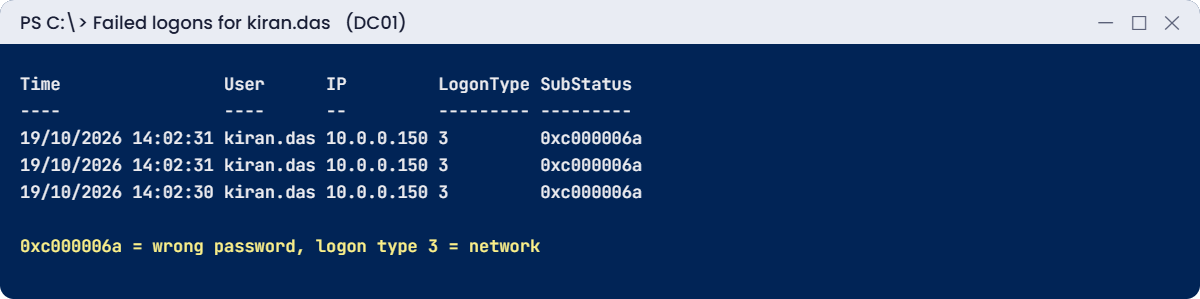
} | Format-TableYou’ll see something like this:
Time User IP LogonType SubStatus
---- ---- -- --------- ---------
19/10/2026 14:02:31 kiran.das 10.0.0.150 3 0xc000006a
19/10/2026 14:02:30 kiran.das 10.0.0.150 3 0xc000006aLogon type 3 is a network logon, the IP shows it came from CL01, and sub status 0xC000006A means a wrong password. Other codes you’ll meet: 0xC0000064 (user doesn’t exist), 0xC0000234 (locked out), 0xC0000072 (account disabled).
✅ Checkpoint: You found three 4625 events with user, source IP and sub status.
4Build a daily event summary
On SRV01, count the events from the cheat sheet over the last 24 hours:
$ids = 41, 104, 1074, 6008, 7031, 7034, 7040, 7045
$start = (Get-Date).AddDays(-1)
Get-WinEvent -FilterHashtable @{ LogName = 'System'; Id = $ids; StartTime = $start } -ErrorAction SilentlyContinue |
Group-Object Id |
Sort-Object Count -Descending |
Select-Object @{ n = 'EventId'; e = { $_.Name } }, Count,
@{ n = 'Last'; e = { ($_.Group | Sort-Object TimeCreated)[-1].TimeCreated } }You’ll see something like this:
EventId Count Last
------- ----- ----
7040 4 19/10/2026 13:10:51
1074 1 19/10/2026 12:31:08
6008 1 19/10/2026 13:22:09
41 1 19/10/2026 13:21:58
104 1 19/10/2026 13:10:44Run this every morning (or schedule it, as in Lesson 27) and you’ll spot crashes, restarts and service changes before users report them.
✅ Checkpoint: The summary shows counts and the last time for each important System event.
5Optional: trace live with DTrace
On SRV01 (Server 2025), enable DTrace and restart:
bcdedit /set dtrace on
Restart-ComputerAfter the restart, count system calls per process for a few seconds, then press Ctrl+C:
dtrace -n "syscall:::entry { @[execname] = count(); }"You’ll see something like this:
svchost.exe 1844
lsass.exe 2210
MsMpEng.exe 5932
System 9120[Add your screenshot here]
DTrace shows what is happening right now, below the level of events. Use it when a process is busy but the logs are quiet. Turn it off again with bcdedit /set dtrace off and a restart when you’re done.
✅ Checkpoint: dtrace lists processes with their system call counts.
Break It, Then Fix It
Two problems you’ll hit in real scripts: errors that aren’t really errors, and the wrong people (or the right people) not being able to read logs.
1Break it: a typo and an empty result
On SRV01, run two queries, one with a typo in the log name and one for an event that never happened:
Get-WinEvent -FilterHashtable @{ LogName = 'Sytem'; Id = 41 }
Get-WinEvent -FilterHashtable @{ LogName = 'System'; Id = 9999 }You’ll see something like this:
Get-WinEvent : There is not an event log on the localhost computer that matches "Sytem".
Get-WinEvent : No events were found that match the specified selection criteria.The first is a real mistake. The second is good news, but Get-WinEvent reports it as an error, which can stop a script or fill your error report with noise.
Fix it: check the log name, and handle “no events” on purpose:
Get-WinEvent -ListLog Sys* | Select-Object LogName
$e = Get-WinEvent -FilterHashtable @{ LogName = 'System'; Id = 9999 } -ErrorAction SilentlyContinue
if (-not $e) { 'No events with ID 9999: OK' }You should see something like this:
LogName
-------
System
No events with ID 9999: OK✅ Checkpoint: The typo gave a “no event log” error, and the empty query is now handled cleanly.
2Break it: a helpdesk user can’t read the Security log
On SRV01, sign in at the console as SAATLAB\sneha.reddy (not an admin) and run:
Get-WinEvent -LogName Security -MaxEvents 1You’ll see something like this:
Get-WinEvent : Attempted to perform an unauthorized operation.The Security log is protected. You don’t want to make helpdesk staff local administrators just to read it.
Fix it: as adm.rahul, add GG_IT to the built-in Event Log Readers group on SRV01:
Add-LocalGroupMember -Group 'Event Log Readers' -Member 'SAATLAB\GG_IT'
Get-LocalGroupMember -Group 'Event Log Readers'You’ll see something like this:
ObjectClass Name PrincipalSource
----------- ---- ---------------
Group SAATLAB\GG_IT ActiveDirectory

Sneha signs out and back in (to get a new token, as in Lesson 16) and runs the same command. It now returns the latest Security event.
✅ Checkpoint: sneha.reddy was denied, then could read the Security log after joining Event Log Readers through GG_IT.
This happened at work
The breach investigation with only six hours of history
A company’s security team noticed a service account logging on to servers it never used. They asked the Windows team for every logon by that account over the last month.
The Security log on the busiest DC still had its default size. With thousands of logons a minute, it only held about six hours of events. The other DCs were the same, and nothing was forwarded anywhere.
The investigators could see the attacker’s current activity but not how they got in. They had to rebuild the timeline from firewall and VPN logs, which took two extra weeks.
The fix: Security logs on DCs were raised to several gigabytes, key events were forwarded to a central collector, and a weekly check now reports how many days each log really holds.
The lesson: size logs by time, not by megabytes. Ask “how many days does this log keep?” before you need the answer.
Common mistakes and troubleshooting
| Mistake | What happens | What to do instead |
|---|---|---|
| Piping everything to Where-Object | Queries take minutes on busy servers | Use -FilterHashtable or -FilterXPath |
| Treating “No events were found” as a failure | Scripts stop or report false errors | Use -ErrorAction SilentlyContinue and check for empty results |
| Reading only the Message text | Fields are hard to parse | Read EventData from the event XML |
| Forgetting that times are UTC inside | Time filters in XPath miss events | Use StartTime in FilterHashtable or timediff() in XPath |
| Default log sizes on busy servers | History lost within hours | Size by days of history; forward events |
| Making helpdesk staff admins to read logs | Too much access | Use the Event Log Readers group |
| No audit policy | The Security events you need never appear | Set advanced audit policy by GPO (Lesson 23) |
| Leaving DTrace on | Extra overhead and a larger attack surface | Turn it off after troubleshooting |
Interview questions
Click a question to open it. Under each one you’ll find what the interviewer is really looking for, and one good way to answer.
Fresher level
1. Name the main Windows logs.
What they’re really checking: Do you know the basics?
How you could answer: Application, Security, Setup, System and Forwarded Events, plus the Applications and Services logs for each component.
2. What do event IDs 4624 and 4625 mean?
What they’re really checking: Do you know key IDs?
How you could answer: 4624 is a successful logon and 4625 a failed logon, both in the Security log.
3. How do you find who restarted a server?
What they’re really checking: Can you use logs?
How you could answer: System event 1074 shows the user, process and reason.
2–5 years experience
4. Why use -FilterHashtable instead of Where-Object?
What they’re really checking: Do you write efficient queries?
How you could answer: The event log service filters the events, so only matching events are returned. It’s much faster on big logs.
5. How do you get the source IP from a failed logon?
What they’re really checking: Can you read event data?
How you could answer: Convert the event to XML and read EventData fields like IpAddress, TargetUserName, LogonType and SubStatus, or filter with XPath.
6. How can a non-admin read event logs?
What they’re really checking: Do you think least privilege?
How you could answer: Add them to the Event Log Readers group, on each server or by GPO with restricted groups or Group Policy Preferences.
Senior level
7. How would you design event log retention for 200 servers?
What they’re really checking: Do you plan at scale?
How you could answer: Decide days of history per log by role, size logs to match, forward key events with WEF or an agent to a SIEM, and alert on 1102 and 104.
8. An account keeps locking out. How do you find the source?
What they’re really checking: Can you trace through logs?
How you could answer: Find 4740 on the PDC emulator for the caller computer, then 4625 or 4771 on that machine, and look for stale credentials in services, tasks, mapped drives or phones.
9. When would you use DTrace instead of event logs?
What they’re really checking: Do you know deeper tools?
How you could answer: When a process misbehaves but logs show nothing: tracing live system calls, file or registry activity, with low overhead on Server 2025.
Quick quiz
Q1. Where are .evtx files stored?
- C:\Windows\Logs
- C:\Windows\System32\winevt\Logs
- C:\ProgramData\Events
Show answer
B — One file per log.
Q2. Which is faster on a big log?
- Where-Object
- -FilterHashtable
- Sort-Object
Show answer
B — Filtering happens in the event log service.
Q3. What does sub status 0xC000006A mean in a 4625?
- Account disabled
- Wrong password
- User does not exist
Show answer
B — 0xC0000064 is an unknown user.
Q4. Which group lets a non-admin read the Security log?
- Remote Desktop Users
- Event Log Readers
- Backup Operators
Show answer
B — Least privilege.
Q5. In the work story, why was history missing?
- Logs were cleared
- The Security log was too small for a busy DC
- Auditing was off
Show answer
B — Size logs by days.
Quick recap
- Windows event logs live in .evtx files, one per channel, with a size limit and a retention mode.
- Know the key IDs: 41, 1074, 6008, 7036, 7040, 7045, 4624, 4625, 4740, 4771, 1102.
- Filter with
-FilterHashtableor-FilterXPath, not Where-Object. - Read EventData from the XML to get users, IPs and status codes.
- Use Event Log Readers instead of admin rights.
- DTrace is built into Server 2025 for live tracing.
Next lesson
Lesson 44: Network diagnostics → You’ll troubleshoot connections layer by layer with Test-NetConnection, Resolve-DnsName and pathping, and capture packets with the built-in pktmon tool.
Further reading: Windows event logs
Want to go deeper into Windows event logs? Microsoft’s Get-WinEvent reference covers every filter option, the 4625 event reference explains each field of a failed logon, and the dtrace command page shows how to enable DTrace. You can also see the full plan for this course on the Windows Server Administration course page.
