What a Windows Server administrator really does
-
Phase 0: Before you start
-
Phase 1: The foundation
-
Phase 2: Core administration and security
-
Phase 3: Enterprise infrastructure
-
Phase 4: Troubleshooting step by step
-
Phase 5: Final project and career
At 9 o’clock on a Monday, a few hundred people open their laptops and type a password. Within seconds they’re signed in, their shared drives appear and their printers work. None of that happens by magic.
A Windows Server administrator built the servers behind it and keeps them running.
This first lesson shows you what that job looks like from the inside: the services you’ll look after, the tasks that fill a normal week, and the tools you’ll use. Then you’ll run the same quick health check an admin runs on a server, on your own laptop, and find out if your laptop is ready for the lab in Lesson 2.
| Time | You need | By the end you can |
|---|---|---|
| About 45 minutes | A Windows 10 or Windows 11 laptop. PowerShell is already on it, so there is nothing to install yet. | Explain what a Windows Server administrator does, name the core services every company runs, run a 6-step health check, and confirm your laptop can run the course lab |
What it is, in one line
A Windows Server administrator is the engineer who installs, runs, secures and fixes the Windows servers that a company’s sign-in, network services and shared files depend on.
In Simple Words
The people who keep a school running
Think about a big school. Before the first bell, someone has already opened the gates, checked the register, given every class a room number and put a list on the wall that says which room is which.
The office keeps the register of every student and teacher. It decides who can enter the staff room and who can use the computer lab. There’s a shared cupboard where everyone keeps books, and a set of school rules that every classroom follows.
Nobody notices this work on a good day. On a bad day, when the register is lost or the rooms get mixed up, the whole school stops.
In a company, Windows servers do the office’s job, and the Windows Server administrator is the person who keeps that office running.
Engineer's View
What the job really involves
The services you look after. Most companies run the same core set on Windows Server:
- Active Directory Domain Services (AD DS): the list of every user, computer and group, and the sign-in check (Kerberos) behind every password.
- DNS: turns names like
fileserver01into IP addresses. Active Directory can’t work without it. - DHCP: hands out IP addresses to laptops, phones and printers.
- File and print services: shared folders, permissions, quotas and print queues.
- Group Policy: settings pushed to every computer, such as password rules, mapped drives and security options.
- Application hosts: IIS web servers, SQL Server, line-of-business apps and the Hyper-V hosts they run on.
A normal week. Mornings start with alerts and the ticket queue: account lockouts, “I can’t open the share”, a disk that is 90% full.
Microsoft releases security updates on the second Tuesday of each month (Patch Tuesday), so patching is planned, tested and rolled out every month. Backups are checked, changes go through a change request with a rollback plan, and everything you change gets written down.
The tools. Server Manager, Active Directory Users and Computers, the DNS and DHCP consoles, Event Viewer, Remote Desktop, Windows Admin Center and, more than anything else, PowerShell. Senior admins do most daily work in PowerShell because one command can check fifty servers.
Job titles. You’ll see this role as System Administrator, Windows Administrator (L1, L2 or L3), Server Engineer or Infrastructure Engineer. L1 handles tickets and checks, L2 fixes problems and makes changes, and L3 designs and owns the platform.
Versions. Windows Server 2025 is the current Long-Term Servicing Channel release, and 2022, 2019 and 2016 are still common in companies. This course teaches on 2025 and points out when older versions behave differently.
How it works, step by step
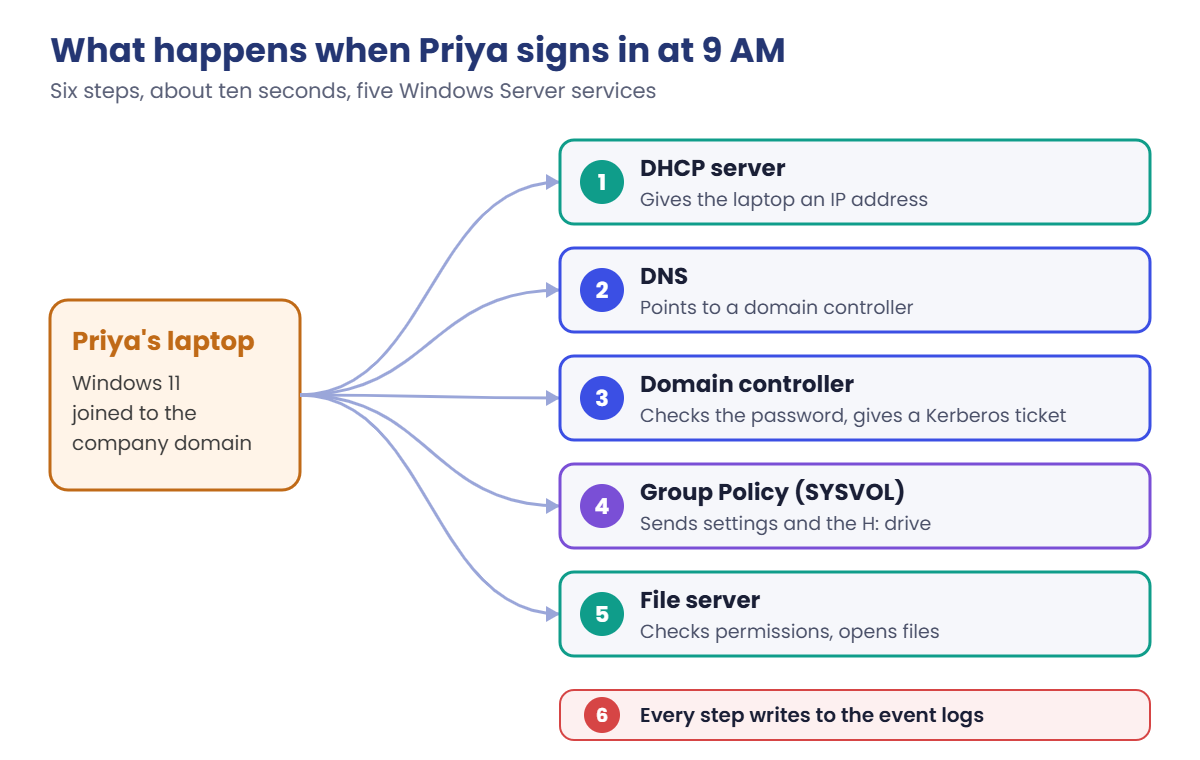
The best way to see the job is to follow one person through a normal morning. Priya sits down at her office laptop at 9 AM and signs in. Here’s what the servers do in the next ten seconds:
- Her laptop gets an address. It asks the network for an IP address, and the DHCP server gives it one, along with the address of the DNS server. (Lesson 15)
- It finds a domain controller. The laptop asks DNS “where is a domain controller for this company?” DNS answers with special SRV records that Active Directory registered. (Lessons 10 and 14)
- She proves who she is. The domain controller checks her password and gives her a Kerberos ticket, like a wristband at an event. Every server she uses after this checks the ticket, not her password. (Lesson 21)
- Her settings arrive. Group Policy applies password rules, security settings and a mapped H: drive from the domain controller’s SYSVOL share. (Lessons 19 and 20)
- She opens her files. The H: drive connects to a file server, which checks her permissions before showing anything. (Lessons 16 and 17)
- Everything leaves a trace. Each step writes entries to the event logs on the servers involved. When something breaks, those logs are where you start. (Lesson 43)
If any one of these steps fails, Priya calls the helpdesk with “I can’t log in” or “my drive is missing”. Your job is to know which step broke. That’s why this course teaches each service and then teaches you how to check it.
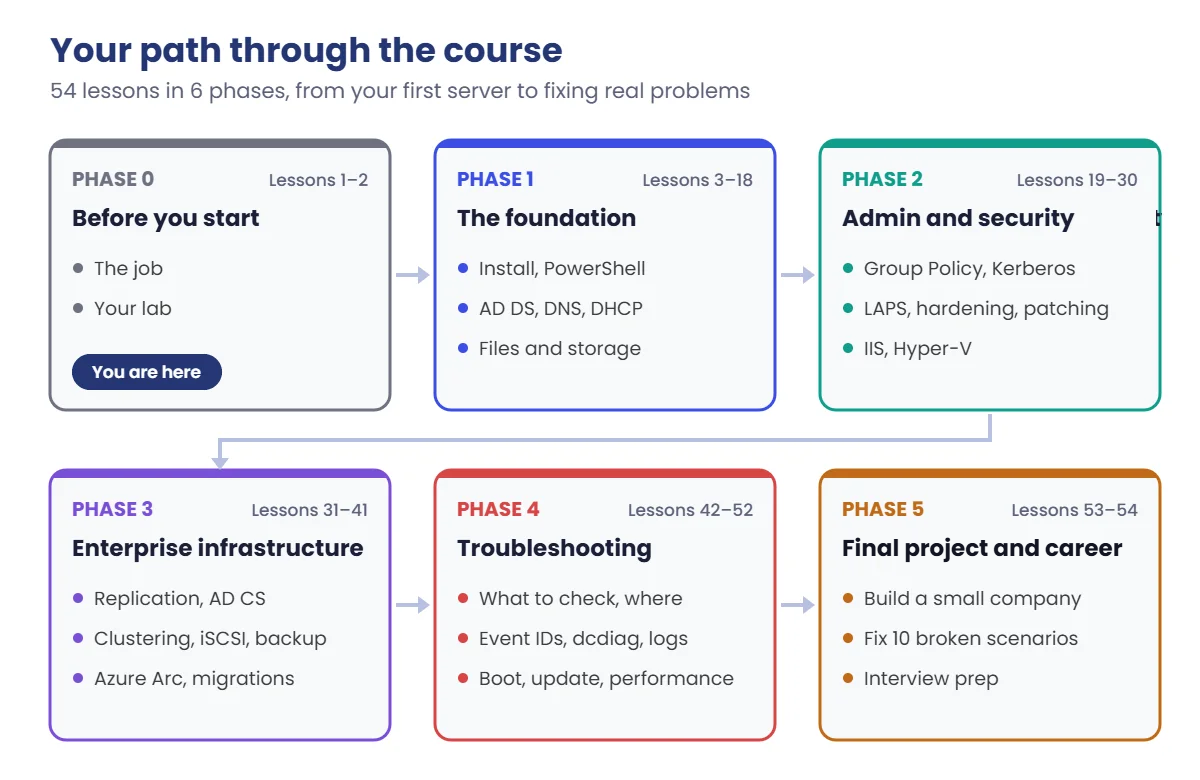
The course follows the same path. You build each piece in your own lab, then learn to secure it, scale it and, most of all, fix it:
Phase 4 is the one employers care about most. Anyone can follow an install guide; the admin who can find the broken step in ten minutes is the one who gets trusted with the important servers.
Hands-on Lab: a Windows Server administrator's health check
On a real server, the first five minutes of any ticket look the same: who am I, what is this machine, how much memory and disk does it have, is it on the network, and are its services healthy? You’ll run that exact check now, on your own laptop. Windows 11 and Windows Server 2025 share the same core, so every command here works the same way on a server.
None of these commands change anything. Your numbers and names will be different from the examples, and that’s expected.
1Open PowerShell and check who you are
Press the Windows key, type PowerShell and open Windows PowerShell. Don’t choose “Run as administrator” yet; you’ll see why in the Break It lab.
Run this:
whoami
hostnameYou should see something like this:
PS C:\Users\ravi> whoami
laptop-ravi\ravi
PS C:\Users\ravi> hostname
LAPTOP-RAVIwhoami shows the account you’re using, in the form computer\user. On a company laptop it would say domain\user instead, because the account lives in Active Directory. hostname is the computer’s name; on servers, admins check both before changing anything, so they don’t fix the wrong machine.
✅ Checkpoint: You can see your user name and your computer name.
2Check the operating system and when it last started
Run this:
Get-CimInstance Win32_OperatingSystem | Select-Object Caption, Version, LastBootUpTimeYou should see something like this:
Caption Version LastBootUpTime
------- ------- --------------
Microsoft Windows 11 Pro 10.0.26100 14-10-2026 09:12:44Get-CimInstance asks Windows for management information, and the | pipe passes the result to Select-Object, which keeps only the columns you want. Build 26100 is the same core that Windows Server 2025 uses.
LastBootUpTime tells you how long the machine has been running. When a server “suddenly” misbehaves, this is one of the first things to check: did it just reboot after updates, or has it been running for 200 days without a patch?
✅ Checkpoint: You can see your Windows version and the date and time your laptop last started.
3Check memory and virtualization support
Run these one at a time:
Get-CimInstance Win32_ComputerSystem | Select-Object @{n='RAM_GB';e={[math]::Round($_.TotalPhysicalMemory/1GB)}}, NumberOfLogicalProcessors
Get-CimInstance Win32_Processor | Select-Object Name, VirtualizationFirmwareEnabledYou should see something like this:
RAM_GB NumberOfLogicalProcessors
------ -------------------------
16 8
Name VirtualizationFirmwareEnabled
---- -----------------------------
11th Gen Intel(R) Core(TM) i5-1135G7 @ 2.40GHz TrueThe first command rounds the memory to whole gigabytes. The @{n=...;e={...}} part makes a new column with your own name and a small calculation; you’ll use this trick often. The second command shows if the processor’s virtualization feature (Intel VT-x or AMD-V) is turned on in the BIOS, which VirtualBox needs to run 64-bit servers.
✅ Checkpoint: RAM_GB is 8 or more, and VirtualizationFirmwareEnabled says True. If it says False, see the troubleshooting table below before you worry.
4Check disk space
Run this:
Get-Volume -DriveLetter C | Select-Object DriveLetter, @{n='SizeGB';e={[math]::Round($_.Size/1GB)}}, @{n='FreeGB';e={[math]::Round($_.SizeRemaining/1GB)}}You should see something like this:
DriveLetter SizeGB FreeGB
----------- ------ ------
C 476 182
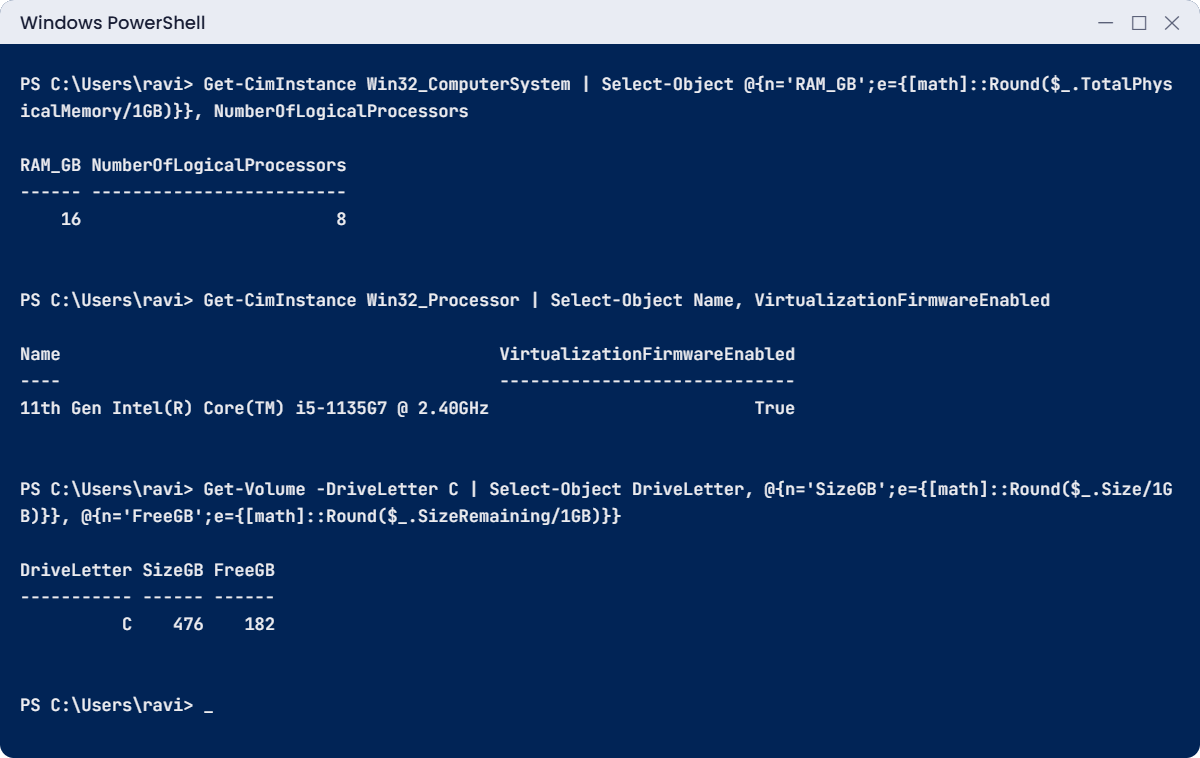
A full disk is one of the most common reasons a server stops working: logs can’t be written, updates fail and databases stop. On servers, admins usually set an alert at 85 or 90 percent full. For the course lab you need about 80 GB free on any drive.
✅ Checkpoint: FreeGB is 80 or more on C: or another drive. To check another drive, change the letter after -DriveLetter.
5Check the network
Run this:
Get-NetIPAddress -AddressFamily IPv4 | Select-Object InterfaceAlias, IPAddress, PrefixOriginYou should see something like this:
InterfaceAlias IPAddress PrefixOrigin
-------------- --------- ------------
Wi-Fi 192.168.1.34 Dhcp
Loopback Pseudo-Interface 1 127.0.0.1 WellKnownLook at PrefixOrigin. Dhcp means a DHCP server gave your laptop this address; at home, that’s your Wi-Fi router. Servers are different: they get fixed addresses typed in by hand, which shows as Manual.
In Lesson 6 you’ll give your lab servers fixed addresses, and in Lesson 15 you’ll build the DHCP server that hands out addresses to everything else.
✅ Checkpoint: You can see your Wi-Fi or Ethernet adapter with an IP address, and you know where that address came from.
6Check services and recent errors
Run these one at a time:
Get-Service -Name Dnscache, Spooler, W32Time
Get-WinEvent -FilterHashtable @{LogName='System'; Level=2} -MaxEvents 3 | Select-Object TimeCreated, Id, ProviderNameYou should see something like this:
Status Name DisplayName
------ ---- -----------
Running Dnscache DNS Client
Running Spooler Print Spooler
Stopped W32Time Windows Time
TimeCreated Id ProviderName
----------- -- ------------
18-10-2026 21:04:10 10016 Microsoft-Windows-DistributedCOM
17-10-2026 08:51:33 7000 Service Control Manager
16-10-2026 19:22:05 10016 Microsoft-Windows-DistributedCOMGet-Service shows if a service is running. The DNS Client and Print Spooler are running, and Windows Time is stopped, which is normal on a home laptop because it starts only when needed. On a domain controller, a stopped Windows Time service would be serious: Kerberos sign-in breaks when clocks drift more than five minutes apart.
Get-WinEvent reads the event log, and Level=2 means errors only. Event 10016 from DistributedCOM is a well-known harmless error that Microsoft says you can ignore. That’s the first rule of reading logs: not every red line is your problem, so check what an event means before you act on it.
✅ Checkpoint: You can see the state of three services and the three most recent errors in your System log. If you get “No events were found”, your laptop has no recent errors, which is good news.
Is your laptop ready for the lab? Compare your results with this table:
| Check | You need | Better |
|---|---|---|
| RAM (step 3) | 8 GB | 16 GB, for the clustering labs in Phase 3 |
| Virtualization (step 3) | True | True |
| Free disk (step 4) | 80 GB on any drive | 150 GB on an SSD |
| Windows version (step 2) | Windows 10 or 11, 64-bit | Windows 11 |
If you meet all four, you’re ready for Lesson 2. With only 8 GB of RAM you can still do almost every lab; you’ll use Server Core VMs, which need less memory.
Break It, Then Fix It
Admins see two kinds of errors more than any others: “I typed it wrong” and “I’m not allowed”. Both are safe to cause on your own laptop, and both teach you to read an error before you search for it.
1Break it: a name that does not exist
Run this in the same PowerShell window (the typo is on purpose):
Get-Service -Name SpolerYou’ll get an error like this (line breaks depend on your window width):
Get-Service : Cannot find any service with service name 'Spoler'.
At line:1 char:1
+ Get-Service -Name Spoler
+ ~~~~~~~~~~~~~~~~~~~~~~~~
+ CategoryInfo : ObjectNotFound: (Spoler:String) [Get-Service], ServiceCommandException
+ FullyQualifiedErrorId : NoServiceFoundForGivenName,Microsoft.PowerShell.Commands.GetServiceCommandRead it from the top. The first line tells you which command failed and why, in plain words.
CategoryInfo says the problem is ObjectNotFound, and it even shows the exact value you passed: Spoler. Nothing is broken on the machine; the name is wrong.
Fix it: find the real name with a wildcard, then use it:
Get-Service -Name *spool*
Get-Service -Name SpoolerYou should see this:
Status Name DisplayName
------ ---- -----------
Running Spooler Print Spooler
Status Name DisplayName
------ ---- -----------
Running Spooler Print Spooler✅ Checkpoint: The wildcard found the service, and the corrected name works.
2Break it: a change you’re not allowed to make
Restarting the print spooler is one of the most common fixes on a print server. Try it from your normal, non-administrator window:
Run this:
Restart-Service -Name SpoolerYou’ll get an error like this (line breaks depend on your window width):
Restart-Service : Service 'Print Spooler (Spooler)' cannot be stopped due to the following error: Cannot open Spooler
service on computer '.'.
At line:1 char:1
+ Restart-Service -Name Spooler
+ ~~~~~~~~~~~~~~~~~~~~~~~~~~~~~
+ CategoryInfo : CloseError: (System.ServiceProcess.ServiceController:ServiceController) [Restart-Service], ServiceCommandException
+ FullyQualifiedErrorId : CouldNotStopService,Microsoft.PowerShell.Commands.RestartServiceCommand
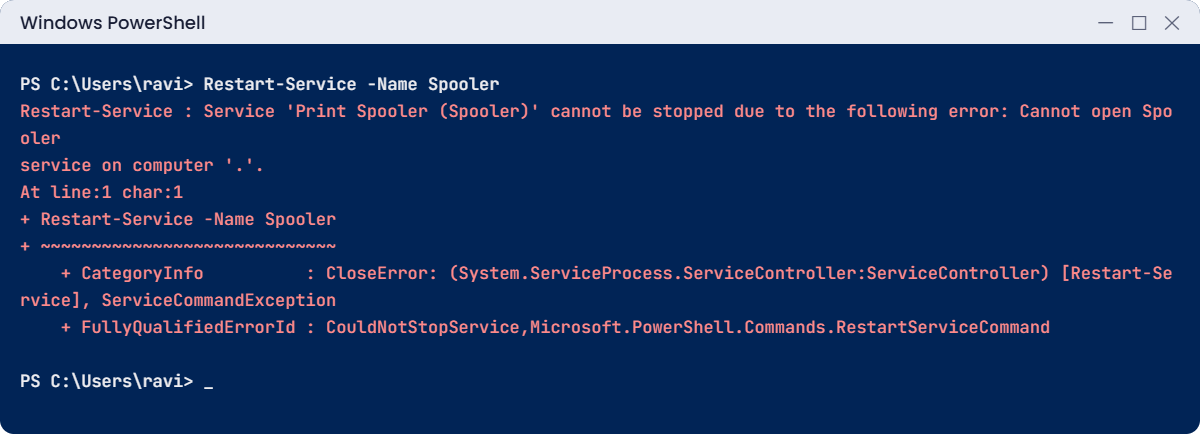
“Cannot open Spooler service” is Windows saying you don’t have the right to control it. The service is fine.
Reading services is allowed for everyone; stopping and starting them needs administrator rights. You’ll meet this same message on servers when your account is missing from the right group.
Fix it: close this window, then right-click Windows PowerShell and choose Run as administrator. Click Yes on the prompt, then run:
Restart-Service -Name Spooler
Get-Service -Name SpoolerYou should see this:
Status Name DisplayName
------ ---- -----------
Running Spooler Print SpoolerRestarting the spooler on your own laptop is harmless; at worst it clears a stuck print job. The window title now starts with Administrator:, which is how you can always tell which kind of window you’re in.
✅ Checkpoint: The restart worked without an error in the administrator window, and the spooler is Running.
Why this matters at work: good admins don’t work as administrator all day. They use a normal account for email and tickets, and a separate admin account only when they need to change something.
If a normal window can’t break things, a wrong paste or a bad link can’t either. Lesson 22 covers how companies enforce this.
This happened at work
The Friday password change
A new admin at a 400-person company was given a simple ticket on a Friday afternoon: the security audit said an old account called svc-backup had a password that hadn’t changed in three years. He reset it to a long new password, closed the ticket and went home.
On Monday morning the backup report showed every job had failed over the weekend. The nightly reports were missing too, because the SQL Server Agent service on another server ran under the same account. Both services still had the old password saved, so they couldn’t sign in.
The clue was sitting in the System event log on each server: event 7038 from Service Control Manager, saying the service could not log on with the configured password, followed by event 7000, “The service did not start due to a logon failure”.
The fix: the team updated the password on both services, then listed every service and scheduled task in the company that ran under a named account. Over the next quarter they moved them to Group Managed Service Accounts, whose passwords Windows changes by itself, with nothing for a person to forget.
The lesson: on a server, almost nothing stands alone. Before you change an account, a name or an address, find out what depends on it. Checking first is a big part of the job.
Common mistakes and troubleshooting
| Mistake or symptom | What happens | What to do instead |
|---|---|---|
| Working as administrator all day | One wrong paste, script or link can change or delete anything | Use a normal account day to day and a separate admin account only for changes |
| Changing a server without a plan | A small change breaks something nobody linked to it | Write down what you will change, what depends on it and how to undo it, before you start |
| Restarting before reading the logs | The problem goes away for an hour, and the evidence is gone | Check the event logs and note the errors first, then restart if you need to |
| Treating every red error as urgent | Hours lost on harmless events like DCOM 10016 | Look up what the event ID means and whether it matches the problem users report |
| Mixing up “server down” and “service down” | You reboot a whole server when one service stopped | Check the service first with Get-Service, then the server |
| Lab check: VirtualizationFirmwareEnabled shows False | You may think your laptop can’t run the lab | If Hyper-V, WSL 2 or Memory Integrity is on, Windows hides this value. Run systeminfo: “A hypervisor has been detected” means it’s on. If not, turn on Intel VT-x or AMD-V in the BIOS. Lesson 2 covers both cases |
| Lab check: “No events were found that match the specified selection criteria” | Looks like an error | It isn’t. Your System log has no errors at that level; try Level=3 to see warnings |
| Lab check: “Cannot open Spooler service on computer” | The restart fails | Open PowerShell with Run as administrator, as in the Break It lab |
Interview questions
Click a question to open it. Under each one you’ll find what the interviewer is really looking for, and one good way to answer.
Fresher level
1. What does a Windows Server administrator do?
What they’re really checking: Do you understand the job beyond “installs Windows”?
How you could answer: They build and run the servers that sign people in and provide network and file services: Active Directory, DNS, DHCP, file shares and Group Policy. Day to day, that means handling tickets, monitoring, patching every month, checking backups and making planned changes.
2. What is the difference between a server and a normal PC?
What they’re really checking: Do you know why servers are treated differently?
How you could answer: A server provides services to many users and is expected to run all the time. It usually has redundant parts, runs a server operating system, gets a fixed IP address and is changed only with a plan, because many people depend on it.
3. How do you check if a service is running?
What they’re really checking: Have you used the tools, not just read about them?
How you could answer: In PowerShell, Get-Service -Name Spooler. In the GUI, the Services console (services.msc). On a remote server, Get-Service -ComputerName SRV01 -Name Spooler or Windows Admin Center.
2–5 years experience
4. A user says “I can’t log in”. What do you check, in order?
What they’re really checking: Do you troubleshoot step by step or guess?
How you could answer: Scope first: one user or many?
For one user: is the account locked, disabled or expired? Then the laptop: does it have an IP address and can it reach a domain controller through DNS? Then time sync, because Kerberos fails with more than five minutes of clock difference.
The event logs on the domain controller tell you which step failed.
5. How do you plan monthly patching for servers?
What they’re really checking: Can you balance security and uptime?
How you could answer: Updates arrive on Patch Tuesday. Test them on a small group of non-critical servers first, then roll out in waves with a maintenance window, a backup or snapshot, and a rollback plan. Domain controllers and cluster nodes are done one at a time so the service stays up.
6. Someone reset a service account password and two apps broke. How do you find and fix it?
What they’re really checking: Do you know where Windows records this?
How you could answer: Look in the System log for event 7000 or 7038 logon failures, and in Task Scheduler for failed tasks running as that account. Update the password on each one. Long term, move them to Group Managed Service Accounts so the password changes itself.
Senior level
7. How would you reduce the risk of admins making changes on production servers?
What they’re really checking: Do you think in terms of process and least privilege?
How you could answer: Separate admin accounts with just the rights each role needs, tiered admin for domain controllers, change requests with a rollback plan, and as much as possible done through reviewed PowerShell scripts instead of clicking. Log and audit privileged actions.
8. Your company still runs Windows Server 2016 and 2019. How do you plan the move to 2025?
What they’re really checking: Do you understand lifecycle and migration risk?
How you could answer: Inventory every server and what runs on it, check app support, then order the moves by risk and end-of-support dates. Upgrade domain controllers by adding new 2025 DCs and retiring old ones. Test each app on 2025 first, and keep a rollback path for every step.
9. How do you know your servers are healthy without waiting for users to call?
What they’re really checking: Do you build monitoring, not just react?
How you could answer: Monitor the basics on every server: services, disk space, CPU and memory, event log errors, replication and backup results, with alerts sent to the team. Add simple scheduled PowerShell health checks, and review trends weekly so a disk filling up gets fixed before it is full.
Quick quiz
Q1. Which service turns a name like fileserver01 into an IP address?
- DHCP
- DNS
- Group Policy
Show answer
B — DNS answers name lookups. DHCP hands out IP addresses, and Group Policy pushes settings.
Q2. In the lab, PrefixOrigin showed Dhcp. What does that tell you?
- The address was typed in by hand
- A DHCP server gave the laptop its address
- The laptop has no network
Show answer
B — Dhcp means the address was handed out by a DHCP server. Servers usually show Manual, because they get fixed addresses.
Q3. Restart-Service failed with “Cannot open Spooler service”. What was wrong?
- The spooler service was broken
- The window was not running as administrator
- The service name was spelled wrong
Show answer
B — Reading services works for everyone, but stopping or starting one needs administrator rights.
Q4. Event 10016 from DistributedCOM appears in the System log. What should you do first?
- Restart the server
- Check what the event means and whether it matches a real problem
- Delete the event log
Show answer
B — 10016 is a well-known harmless event. Always check an event’s meaning before acting on it.
Q5. Why did the backups fail in the work story?
- The backup server ran out of disk
- The service account password changed but the services still had the old one
- Windows updates rebooted the server
Show answer
B — The services could not sign in with the old password, which showed up as event 7000 logon failures.
Quick recap
- A Windows Server administrator builds and runs the servers behind sign-in, network services and shared files.
- The core services are Active Directory, DNS, DHCP, file and print, and Group Policy, and one login touches all of them.
- A normal week means tickets, monitoring, monthly patching, backup checks and planned changes.
- The first check on any machine: who am I, what is it, memory, disk, network, services and recent errors.
- Read the error before you search: “not found” is usually a typo, “cannot open” is usually missing rights.
- Before you change anything, find out what depends on it.
Next lesson
Lesson 2: Build your lab → You’ll install VirtualBox, download the Windows Server 2025 and Windows 11 evaluation versions from Microsoft, and plan the four virtual machines you’ll use for the rest of the course.
Further reading: Windows Server administrator
Want to go deeper into the Windows Server administrator role? Read Microsoft’s What’s new in Windows Server 2025 on Microsoft Learn. You can also see the full plan for this course on the Windows Server Administration course page.
