
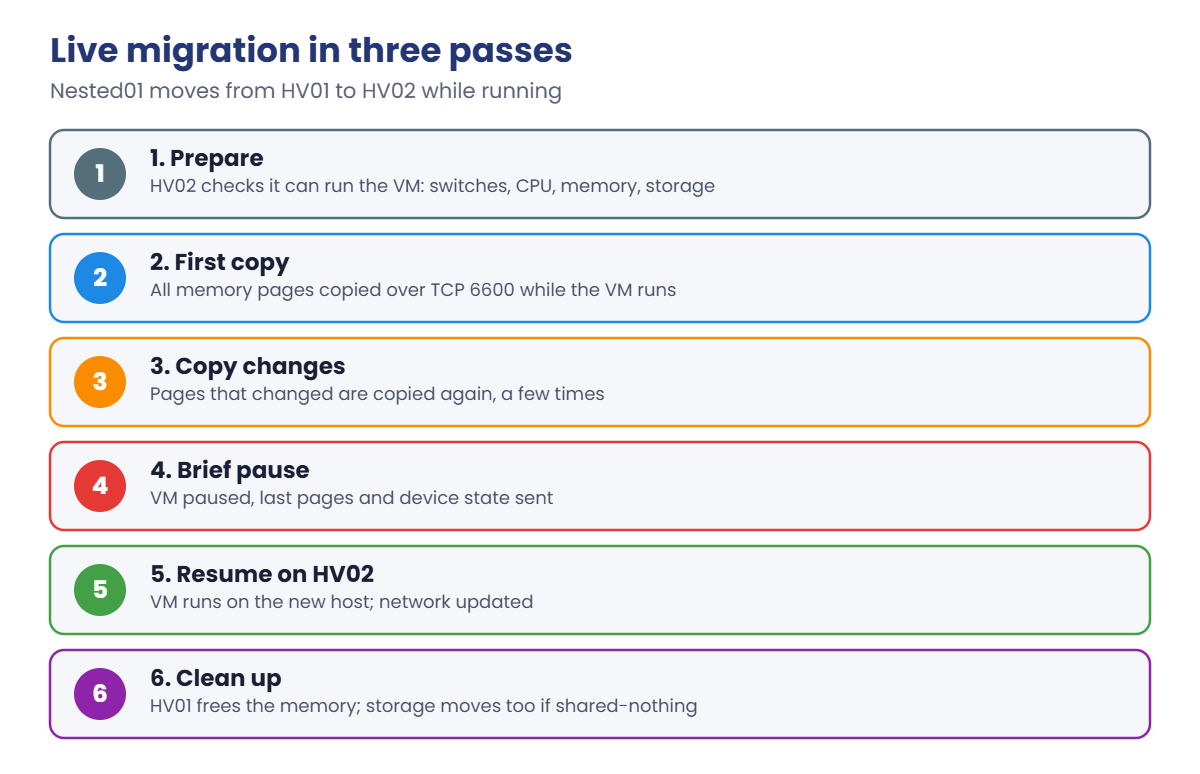
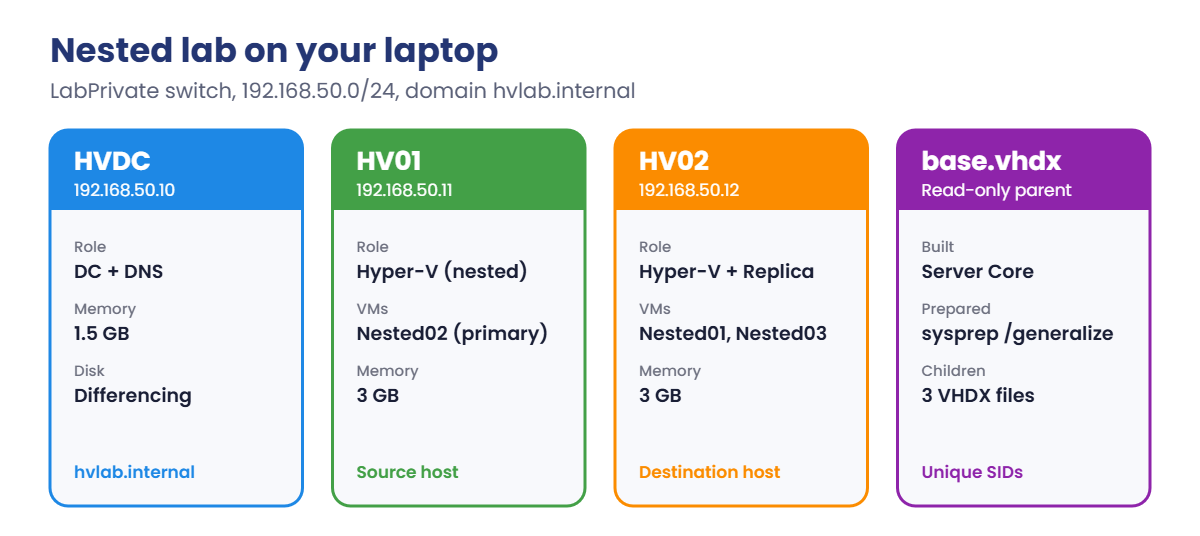
Work on your laptop in PowerShell as administrator, with the hypervisor on (Lesson 28, step 6). Shut down VirtualBox VMs to make room in memory.
1Build a sysprepped base disk
Create a VM, install Server Core in it, then generalize it:
New-VM -Name BASE -Generation 2 -MemoryStartupBytes 2GB -NewVHDPath C:\Lab\HyperV\base.vhdx -NewVHDSizeBytes 40GB -Path C:\Lab\HyperV | Out-Null
Add-VMDvdDrive -VMName BASE -Path C:\Lab\ISO\server2025.iso
Set-VMFirmware -VMName BASE -FirstBootDevice (Get-VMDvdDrive -VMName BASE)
Start-VM BASE; vmconnect localhost BASE
Install Windows Server 2025 Datacenter Evaluation (without Desktop Experience). After setting the password, choose 15 in sconfig to reach PowerShell and run C:\Windows\System32\Sysprep\sysprep.exe /generalize /oobe /shutdown. When BASE shuts down, delete the VM but keep the disk:
On your laptop:
Remove-VM BASE -Force
Set-ItemProperty C:\Lab\HyperV\base.vhdx -Name IsReadOnly -Value $true
Sysprep gives every copy a new machine SID, which avoids exactly the duplicate-SID failures from the work story in Lesson 13. The parent disk must never change again, hence read-only.
✅ Checkpoint: base.vhdx exists, is read-only, and the BASE VM is gone.
2Create three VMs on differencing disks
On your laptop:
foreach ($v in 'HVDC','HV01','HV02') {
    New-VHD -Path "C:\Lab\HyperV\$v.vhdx" -ParentPath C:\Lab\HyperV\base.vhdx -Differencing | Out-Null
    $mem = if ($v -eq 'HVDC') { 1536MB } else { 3GB }
    New-VM -Name $v -Generation 2 -MemoryStartupBytes $mem -VHDPath "C:\Lab\HyperV\$v.vhdx" -SwitchName LabPrivate -Path C:\Lab\HyperV | Out-Null
    Set-VMProcessor -VMName $v -Count 2
}
Set-VMProcessor -VMName HV01, HV02 -ExposeVirtualizationExtensions $true
Get-VMNetworkAdapter -VMName HV01, HV02 | Set-VMNetworkAdapter -MacAddressSpoofing On
Start-VM HVDC, HV01, HV02
Get-VM HVDC, HV01, HV02 | Select-Object Name, State, MemoryAssigned
You should see something like this:
Name State   MemoryAssigned
---- -----   --------------
HVDC Running     1610612736
HV01 Running     3221225472
HV02 Running     3221225472
Each differencing disk starts almost empty and stores only that VM’s changes. ExposeVirtualizationExtensions lets HV01 and HV02 run Hyper-V themselves, and MAC spoofing lets their own VMs reach the network. Open each with vmconnect, finish the short setup and set the same Administrator password on all three.
✅ Checkpoint: HVDC, HV01 and HV02 are Running and each has its own small .vhdx based on base.vhdx.
3Configure everything with PowerShell Direct
On your laptop, set addresses and build the DC (no network to the VMs needed):
$local = Get-Credential Administrator
$ip = @{ HVDC = '192.168.50.10'; HV01 = '192.168.50.11'; HV02 = '192.168.50.12' }
foreach ($v in $ip.Keys) {
    Invoke-Command -VMName $v -Credential $local -ArgumentList $ip[$v], $v -ScriptBlock {
        param($addr, $name)
        New-NetIPAddress -InterfaceAlias Ethernet -IPAddress $addr -PrefixLength 24 | Out-Null
        Set-DnsClientServerAddress -InterfaceAlias Ethernet -ServerAddresses 192.168.50.10
        Rename-Computer -NewName $name -Restart
    }
}
Start-Sleep -Seconds 90
$dsrm = $local.Password
Invoke-Command -VMName HVDC -Credential $local -ScriptBlock {
    Install-WindowsFeature AD-Domain-Services -IncludeManagementTools | Out-Null
    Install-ADDSForest -DomainName hvlab.internal -DomainNetbiosName HVLAB -InstallDns -SafeModeAdministratorPassword $using:dsrm -Force
}
-VMName instead of -ComputerName is PowerShell Direct: the command travels over the VMBus from the host into the VM. The DC restarts after promotion; give it five minutes.
Then join HV01 and HV02 and install Hyper-V on them:
$dom = Get-Credential HVLAB\Administrator
foreach ($v in 'HV01','HV02') {
    Invoke-Command -VMName $v -Credential $local -ScriptBlock {
        Add-Computer -DomainName hvlab.internal -Credential $using:dom
        Install-WindowsFeature Hyper-V -IncludeManagementTools -Restart
    }
}
After they restart (twice), check from your laptop:
Invoke-Command -VMName HV01, HV02 -Credential $dom -ScriptBlock { (Get-WindowsFeature Hyper-V).InstallState; (Get-CimInstance Win32_ComputerSystem).Domain }You should see something like this:
Installed
hvlab.internal
Installed
hvlab.internal
✅ Checkpoint: HV01 and HV02 are members of hvlab.internal with the Hyper-V role installed.
4Live migrate a running VM
Enable live migration on both hosts, create a test VM on HV01 and start it:
Invoke-Command -VMName HV01, HV02 -Credential $dom -ScriptBlock {
    Enable-VMMigration
    Set-VMHost -VirtualMachineMigrationAuthenticationType Kerberos -UseAnyNetworkForMigration $true
}
Invoke-Command -VMName HV01 -Credential $dom -ScriptBlock {
    New-VM -Name Nested01 -Generation 2 -MemoryStartupBytes 512MB -NoVHD | Out-Null
    Start-VM Nested01
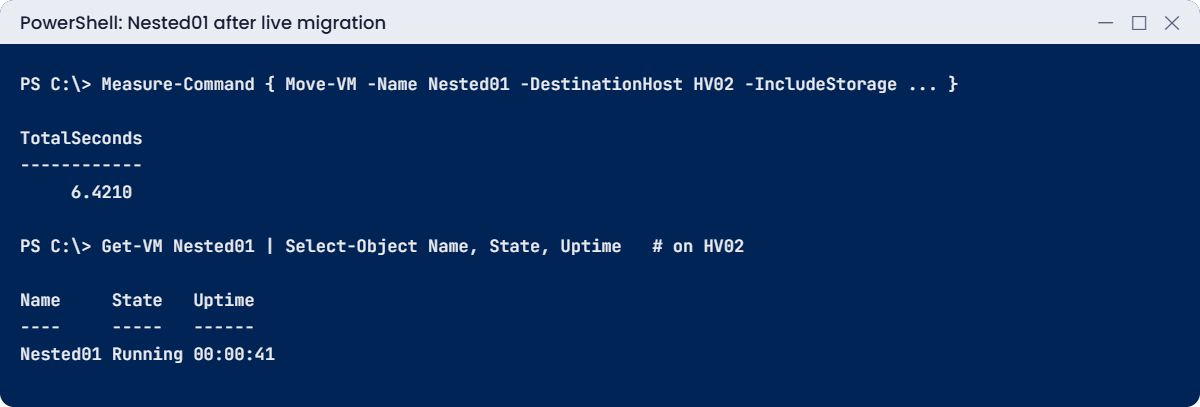
    Measure-Command { Move-VM -Name Nested01 -DestinationHost HV02 -IncludeStorage -DestinationStoragePath C:\VMs\Nested01 } | Select-Object TotalSeconds
}
Invoke-Command -VMName HV02 -Credential $dom -ScriptBlock { Get-VM Nested01 | Select-Object Name, State, Uptime }
You should see something like this:
TotalSeconds
------------
     6.4210

Name     State   Uptime
----     -----   ------
Nested01 Running 00:00:41
The VM is now on HV02 and still Running, and its Uptime didn’t reset: it never stopped.
This was a shared-nothing migration: the VM’s files moved too, because HV01 and HV02 share no storage. Running Move-VM on the source host means no Kerberos constrained delegation is needed.
To start migrations from a management machine, you’d configure delegation for the “cifs” and “Microsoft Virtual System Migration Service” services on each host’s computer account.
✅ Checkpoint: Nested01 is Running on HV02 with an uptime longer than the migration time.
5Set up Hyper-V Replica and run a test failover
Make HV02 a Replica server, then replicate a new VM from HV01:
Invoke-Command -VMName HV02 -Credential $dom -ScriptBlock {
    Set-VMReplicationServer -ReplicationEnabled $true -AllowedAuthenticationType Kerberos -ReplicationAllowedFromAnyServer $true -DefaultStorageLocation C:\Replica
    Enable-NetFirewallRule -DisplayName 'Hyper-V Replica HTTP Listener (TCP-In)'
}
Invoke-Command -VMName HV01 -Credential $dom -ScriptBlock {
    New-Item -ItemType Directory C:\VMs -Force | Out-Null
    New-VM -Name Nested02 -Generation 2 -MemoryStartupBytes 512MB -NewVHDPath C:\VMs\Nested02.vhdx -NewVHDSizeBytes 1GB | Out-Null
    Enable-VMReplication -VMName Nested02 -ReplicaServerName HV02.hvlab.internal -ReplicaServerPort 80 -AuthenticationType Kerberos -ReplicationFrequencySec 300
    Start-VMInitialReplication -VMName Nested02
    Start-Sleep -Seconds 30
    Measure-VMReplication -VMName Nested02 | Select-Object Name, State, Health, PrimaryServer, ReplicaServer
}
You should see something like this:
Name     State       Health PrimaryServer       ReplicaServer
----     -----       ------ -------------       -------------
Nested02 Replicating Normal HV01.hvlab.internal HV02.hvlab.internal
Run a test failover on HV02, check it, then stop it:
Invoke-Command -VMName HV02 -Credential $dom -ScriptBlock {
    Start-VMFailover -VMName Nested02 -AsTest -Confirm:$false
    Get-VM 'Nested02 - Test' | Select-Object Name, State
    Stop-VMFailover -VMName Nested02
}
You should see something like this:
Name            State
----            -----
Nested02 - Test Off
A test failover creates a separate copy (“Nested02 – Test”) from the latest recovery point, which you can start on an isolated network to prove recovery works, while replication from HV01 carries on. Real DR plans include a test like this every few months.
✅ Checkpoint: Nested02 replicates with Health Normal, and the test failover VM appeared and was removed.
Two failures that stop maintenance windows: a migration that can’t find what it needs on the other host, and replication that can’t reach its partner.
1Break it: a switch that only exists on one host
Create a switch on HV01 only, connect a new VM to it and try to migrate:
Invoke-Command -VMName HV01 -Credential $dom -ScriptBlock {
    New-VMSwitch -Name AppNet -SwitchType Private | Out-Null
    New-VM -Name Nested03 -Generation 2 -MemoryStartupBytes 512MB -NoVHD -SwitchName AppNet | Out-Null
    Start-VM Nested03
    Move-VM -Name Nested03 -DestinationHost HV02 -IncludeStorage -DestinationStoragePath C:\VMs\Nested03
}
You’ll get an error like this:
Move-VM : Virtual machine migration operation for 'Nested03' failed at migration destination 'HV02'. (Virtual
machine ID 6F2A...)
The virtual machine 'Nested03' is not compatible with physical computer 'HV02'. (Virtual machine ID 6F2A...)
Could not find Ethernet switch 'AppNet'.
    + CategoryInfo          : InvalidOperation: (:) [Move-VM], VirtualizationException
    + FullyQualifiedErrorId : OperationFailed,Microsoft.HyperV.PowerShell.Commands.MoveVM
The VM is still running happily on HV01; nothing broke except the move. Before any migration, Hyper-V checks the destination can run the VM: switch names, CPU features, memory, storage paths. You can run that check without moving anything with Compare-VM.
Fix it: create the same switch on HV02 (switch names must match on every host), then migrate:
Invoke-Command -VMName HV02 -Credential $dom -ScriptBlock { New-VMSwitch -Name AppNet -SwitchType Private | Out-Null }
Invoke-Command -VMName HV01 -Credential $dom -ScriptBlock { Move-VM -Name Nested03 -DestinationHost HV02 -IncludeStorage -DestinationStoragePath C:\VMs\Nested03 }
✅ Checkpoint: The move failed with “Could not find Ethernet switch” and succeeded after creating AppNet on HV02.

2Break it: Replica server behind a closed firewall
On HV02, close the Replica listener rule, then make HV01 replicate now:
Invoke-Command -VMName HV02 -Credential $dom -ScriptBlock { Disable-NetFirewallRule -DisplayName 'Hyper-V Replica HTTP Listener (TCP-In)' }
Invoke-Command -VMName HV01 -Credential $dom -ScriptBlock {
    Start-Sleep -Seconds 330
    Measure-VMReplication -VMName Nested02 | Select-Object Name, State, Health
    (Get-VMReplication -VMName Nested02 | Measure-VMReplication).LastReplicationTime
}
You’ll see something like this:
Name     State       Health
----     -----       ------
Nested02 Replicating Warning
19/10/2026 22:41:07
Health turns to Warning and then Critical as missed cycles pile up, and the Hyper-V-VMMS Admin log on HV01 reports that it can’t connect to the Replica server on port 80. Your recovery point is getting older every minute, and nobody notices unless they monitor replication health.
Fix it: open the rule and let replication catch up:
Invoke-Command -VMName HV02 -Credential $dom -ScriptBlock { Enable-NetFirewallRule -DisplayName 'Hyper-V Replica HTTP Listener (TCP-In)' }
Invoke-Command -VMName HV01 -Credential $dom -ScriptBlock { Resume-VMReplication -VMName Nested02 -Resynchronize -ErrorAction SilentlyContinue; Start-Sleep 60; Measure-VMReplication -VMName Nested02 | Select-Object Health }
✅ Checkpoint: Replica health went to Warning while port 80 was blocked and back to Normal after the fix.