Windows DHCP server: scopes, reservations and failover

Nobody types IP addresses into a thousand laptops. A Windows DHCP server hands every device its address, gateway and DNS servers the moment it connects, and keeps track of who has what.

In this lesson you’ll install DHCP on SRV01, authorise it in AD, build a scope with options, move CL01 from its fixed address to DHCP, give it a reservation, and add a failover partner so DHCP survives a server outage.

TimeYou needBy the end you can
About 75 minutesDC01, DC02, SRV01 and CL01 from Lesson 13, and the DNS work from Lesson 14Install and authorise DHCP, create scopes, options, exclusions and reservations, set up failover, and fix “no address” and “no internet” problems

What it is, in one line

A Windows DHCP server is the Windows Server role that automatically lends IP addresses and network settings to devices, for a set time called a lease.

In Simple Words

The hotel front desk

When you arrive at a hotel, the front desk gives you a room number, tells you where breakfast is and how to call reception. You don’t pick a room yourself, so two guests never end up in the same one.

Your room is yours until checkout. Stay longer and you extend at the desk. Regular guests can have “their” room reserved every visit.

DHCP is the front desk for your network. The room is the IP address, breakfast and reception are the gateway and DNS servers, checkout is the lease end, and the regular’s room is a reservation.

Engineer's View

DORA, scopes, options and failover

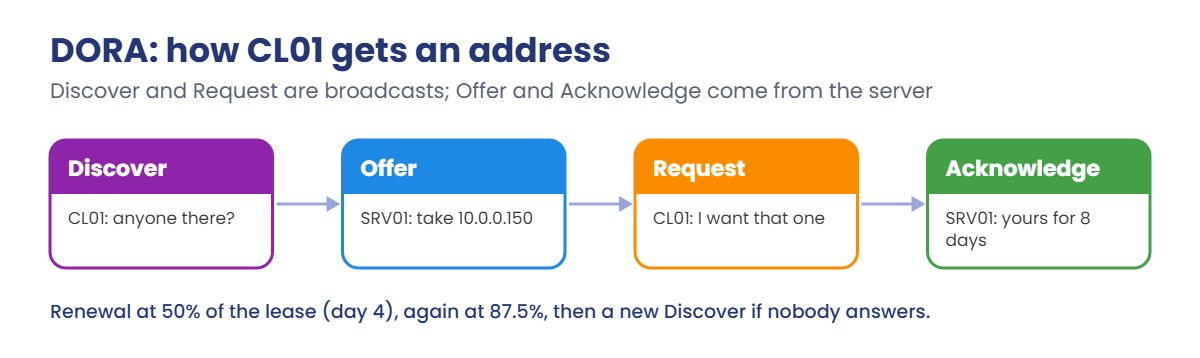
DORA: a client broadcasts Discover, servers reply with an Offer, the client broadcasts a Request for one offer, and the server confirms with an Acknowledge. It uses UDP 67 (server) and 68 (client). The client tries to renew at 50% of the lease, and again at 87.5%.

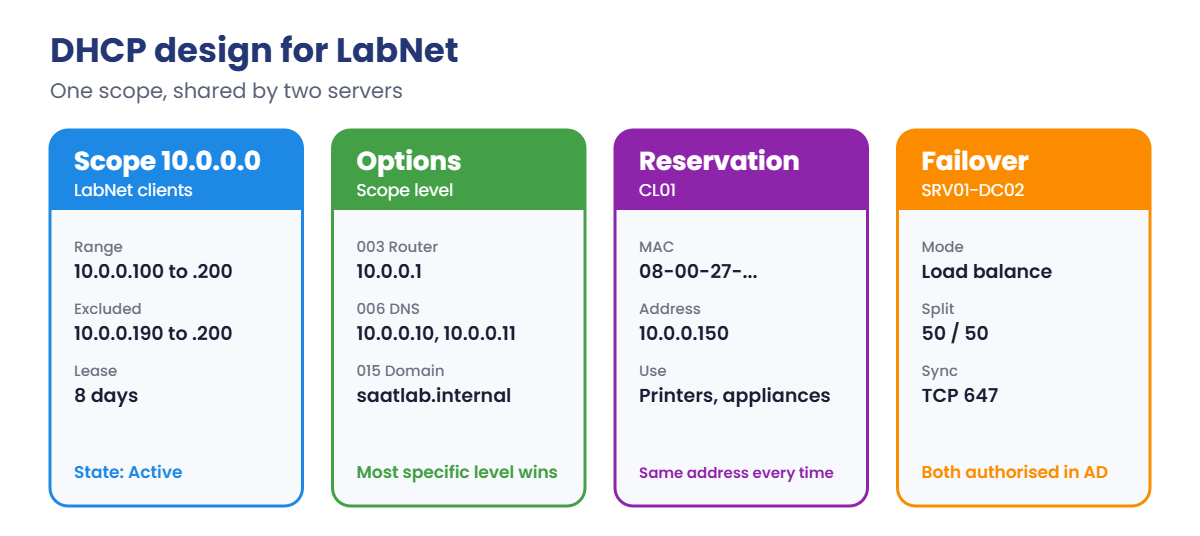
Scopes and options: a scope is a range for one subnet, with exclusions for addresses you don’t want handed out and reservations that tie an address to a MAC address. Options carry settings: 003 router, 006 DNS servers, 015 DNS domain name. Options can be set at server, scope or reservation level; the most specific wins.

Authorisation: in a domain, a Windows DHCP server only hands out addresses if it’s listed in AD. This stops a test server from accidentally taking over a network. Broadcasts don’t cross routers, so remote subnets need a DHCP relay (an “IP helper” on the router).

Failover: two servers share a scope’s lease data. Load balance mode splits the work (50/50 by default).

Hot standby keeps one server in reserve. Partners sync leases over TCP 647, authenticated with a shared secret.

How it works, step by step

This is the conversation CL01 has with SRV01 every time it needs an address:

Windows DHCP server: DORA process of Discover, Offer, Request and Acknowledge

Discover and Request are broadcasts, so every DHCP server on the subnet hears them. That’s why authorisation and failover matter: you want exactly the servers you planned to answer, and to keep answering if one goes down.

Here’s the DHCP design you’ll build for LabNet:

Windows DHCP server design: scope, options, reservation and failover for LabNet
  1. Install the role on SRV01 and create the DHCP security groups.
  2. Authorise SRV01 in AD.
  3. Create the scope 10.0.0.100 to 10.0.0.200 with router, DNS server and domain options.
  4. Move CL01 to DHCP and check its lease.
  5. Reserve an address for CL01.
  6. Add failover with DC02 in load-balance mode.

Hands-on Lab: Windows DHCP server on SRV01 with failover

Start DC01, SRV01 and CL01. Sign in to SRV01 as SAATLAB\Administrator and open PowerShell as administrator.

1Install the DHCP role on SRV01

On SRV01, run this:

Install-WindowsFeature DHCP -IncludeManagementTools
Add-DhcpServerSecurityGroup
Restart-Service DHCPServer

You should see something like this:

Success Restart Needed Exit Code Feature Result
------- -------------- --------- --------------
True    No             Success   {DHCP Server, Remote Server Administration Tools, ...}

Add-DhcpServerSecurityGroup creates the local groups DHCP Administrators and DHCP Users, which Server Manager’s post-install wizard would otherwise do for you.

✅ Checkpoint: The DHCP Server role installed with Success and the DHCPServer service restarted.

2Authorise SRV01 in Active Directory

On SRV01, run this:

Add-DhcpServerInDC -DnsName SRV01.saatlab.internal -IPAddress 10.0.0.20
Get-DhcpServerInDC
Set-ItemProperty -Path HKLM:\SOFTWARE\Microsoft\ServerManager\Roles\12 -Name ConfigurationState -Value 2

You should see something like this:

IPAddress DnsName
--------- -------
10.0.0.20 srv01.saatlab.internal

The last line tells Server Manager the setup is finished, so its yellow “complete DHCP configuration” flag disappears. Authorisation is stored in AD’s configuration partition, so it’s forest-wide.

✅ Checkpoint: Get-DhcpServerInDC lists SRV01 with 10.0.0.20.

3Create the LabNet scope and its options

On SRV01, run this:

Add-DhcpServerv4Scope -Name 'LabNet clients' -StartRange 10.0.0.100 -EndRange 10.0.0.200 -SubnetMask 255.255.255.0 -LeaseDuration 8.00:00:00 -State Active
Add-DhcpServerv4ExclusionRange -ScopeId 10.0.0.0 -StartRange 10.0.0.190 -EndRange 10.0.0.200
Set-DhcpServerv4OptionValue -ScopeId 10.0.0.0 -Router 10.0.0.1 -DnsServer 10.0.0.10, 10.0.0.11 -DnsDomain saatlab.internal
Get-DhcpServerv4Scope | Select-Object ScopeId, Name, StartRange, EndRange, LeaseDuration, State
Get-DhcpServerv4OptionValue -ScopeId 10.0.0.0 | Select-Object OptionId, Name, Value

You should see something like this:

ScopeId  Name           StartRange EndRange   LeaseDuration State
-------  ----           ---------- --------   ------------- -----
10.0.0.0 LabNet clients 10.0.0.100 10.0.0.200 8.00:00:00    Active

OptionId Name            Value
-------- ----            -----
      51 Lease           {691200}
      15 DNS Domain Name {saatlab.internal}
       6 DNS Servers     {10.0.0.10, 10.0.0.11}
       3 Router          {10.0.0.1}

Option 51 is the lease time in seconds (8 days). The exclusion keeps 10.0.0.190 to 10.0.0.200 unused by DHCP, for devices you’ll configure by hand later, such as a printer in Lesson 18.

✅ Checkpoint: The scope is Active, and options 3, 6 and 15 show the gateway, both DCs and saatlab.internal.

4Move CL01 from its fixed address to DHCP

On CL01, in PowerShell as administrator (sign in as SAATLAB\Administrator):

Remove-NetIPAddress -InterfaceAlias Ethernet -AddressFamily IPv4 -Confirm:$false
Remove-NetRoute -InterfaceAlias Ethernet -DestinationPrefix 0.0.0.0/0 -Confirm:$false
Set-NetIPInterface -InterfaceAlias Ethernet -Dhcp Enabled
Set-DnsClientServerAddress -InterfaceAlias Ethernet -ResetServerAddresses
ipconfig /renew
(Get-NetIPAddress -InterfaceAlias Ethernet -AddressFamily IPv4).IPAddress
(Get-NetRoute -InterfaceAlias Ethernet -DestinationPrefix 0.0.0.0/0).NextHop
(Get-DnsClientServerAddress -InterfaceAlias Ethernet -AddressFamily IPv4).ServerAddresses

You should see something like this:

10.0.0.100
10.0.0.1
10.0.0.10
10.0.0.11

On SRV01, look at the lease from the server side:

Get-DhcpServerv4Lease -ScopeId 10.0.0.0 | Select-Object IPAddress, ClientId, HostName, AddressState

You should see something like this:

IPAddress  ClientId          HostName              AddressState
---------  --------          --------              ------------
10.0.0.100 08-00-27-3a-5c-91 CL01.saatlab.internal Active

The ClientId is CL01’s MAC address; every VirtualBox adapter starts with 08-00-27. Write yours down for the next step.

✅ Checkpoint: CL01 has an address from 10.0.0.100 to 10.0.0.189, gateway 10.0.0.1 and both DCs as DNS servers.
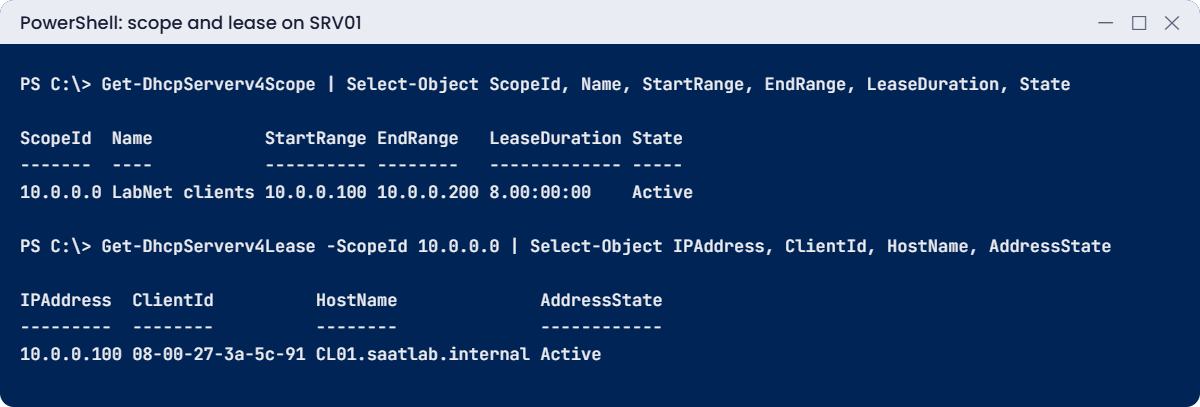
Windows DHCP server lab: scope and active lease for CL01 on SRV01
The LabNet scope is active and CL01 holds a lease with its VirtualBox MAC address.

5Give CL01 a reservation

On SRV01, run this with your own MAC address:

Add-DhcpServerv4Reservation -ScopeId 10.0.0.0 -IPAddress 10.0.0.150 -ClientId 08-00-27-3a-5c-91 -Name CL01 -Description 'Lab client'

On CL01, release and renew:

ipconfig /release
ipconfig /renew
(Get-NetIPAddress -InterfaceAlias Ethernet -AddressFamily IPv4).IPAddress

You should see this:

10.0.0.150

A reservation keeps DHCP’s central control while giving a device a predictable address. It’s the right choice for printers and some appliances; servers and DCs still get fixed addresses.

✅ Checkpoint: CL01 now has 10.0.0.150 from its reservation.

6Add DC02 as a failover partner

Shut down CL01 and start DC02. You’ll install DHCP on DC02 remotely, authorise it and share the scope.

In production you’d often use another member server. If DHCP runs on a DC, set DNS update credentials with Set-DhcpServerDnsCredential so its DNS updates don’t run as the DC itself.

On SRV01, run this. Choose your own shared secret:

Install-WindowsFeature DHCP -ComputerName DC02
Invoke-Command -ComputerName DC02 -ScriptBlock { Add-DhcpServerSecurityGroup; Restart-Service DHCPServer }
Add-DhcpServerInDC -DnsName DC02.saatlab.internal -IPAddress 10.0.0.11
Add-DhcpServerv4Failover -Name 'SRV01-DC02' -PartnerServer DC02.saatlab.internal -ScopeId 10.0.0.0 -LoadBalancePercent 50 -SharedSecret 'Lab-Failover-2026!'
Get-DhcpServerv4Failover | Select-Object Name, PartnerServer, Mode, LoadBalancePercent, State

You should see something like this:

Name       PartnerServer         Mode        LoadBalancePercent State
----       -------------         ----        ------------------ -----
SRV01-DC02 DC02.saatlab.internal LoadBalance                 50 Normal

The scope, its options and the reservation now exist on DC02 as well, and both servers know every lease. If SRV01 goes down, DC02 keeps renewing and handing out addresses.

✅ Checkpoint: Failover shows Mode LoadBalance and State Normal, and Get-DhcpServerv4Scope -ComputerName DC02 shows the LabNet scope.

Finish with snapshots. Shut down the VMs, then on your laptop:

'DC01','DC02','SRV01','CL01' | ForEach-Object { VBoxManage snapshot $_ take "DHCP ready" }

Break It, Then Fix It

Start from the “DHCP ready” snapshots. For this part you only need DC01, SRV01 and CL01; leave DC02 off so SRV01 is the only DHCP server answering.

1Break it: a DHCP server that isn’t authorised

On SRV01, remove the authorisation and restart the service so it checks again:

Remove-DhcpServerInDC -DnsName SRV01.saatlab.internal -IPAddress 10.0.0.20
Restart-Service DHCPServer

On CL01, release and try to get an address:

ipconfig /release
ipconfig /renew

You’ll get an error like this:

An error occurred while renewing interface Ethernet : unable to contact your DHCP server. Request has timed out.

Check what address CL01 gave itself:

(Get-NetIPAddress -InterfaceAlias Ethernet -AddressFamily IPv4).IPAddress

You should see something like this:

169.254.61.18

A 169.254.x.x address (APIPA) means “I asked for DHCP and nobody answered”. On SRV01, the System log has an event from DHCP-Server saying it isn’t authorised to serve clients, and it stays silent until it is.

Fix it: authorise again, restart, renew:

Add-DhcpServerInDC -DnsName SRV01.saatlab.internal -IPAddress 10.0.0.20    # on SRV01
Restart-Service DHCPServer                                                  # on SRV01
ipconfig /renew                                                             # on CL01

✅ Checkpoint: CL01 got 169.254.x.x while SRV01 was unauthorised, and 10.0.0.150 again after the fix.
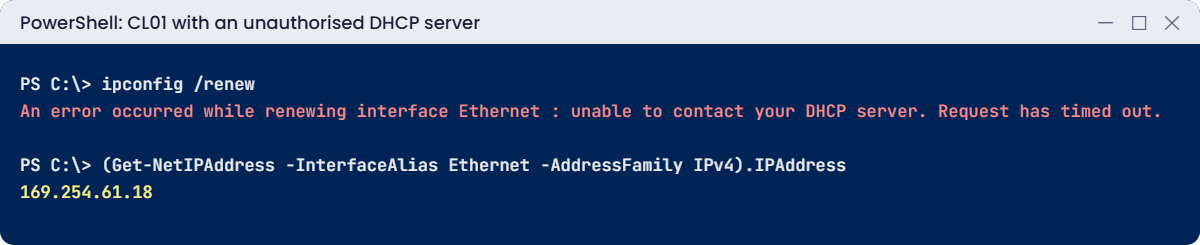
Windows DHCP server lab: renew fails and CL01 gets a 169.254 APIPA address
No answer from DHCP: the renew times out and Windows falls back to a 169.254 address.

2Break it: the wrong router option

On SRV01, set the gateway option to an address nothing uses:

Set-DhcpServerv4OptionValue -ScopeId 10.0.0.0 -Router 10.0.0.254

On CL01, renew and test the internet and an internal server:

ipconfig /renew
Test-NetConnection 1.1.1.1 -Port 443 | Select-Object RemoteAddress, TcpTestSucceeded
Test-NetConnection SRV01 -Port 445 | Select-Object RemoteAddress, TcpTestSucceeded

You’ll see something like this:

WARNING: TCP connect to (1.1.1.1 : 443) failed

RemoteAddress TcpTestSucceeded
------------- ----------------
1.1.1.1       False

RemoteAddress TcpTestSucceeded
------------- ----------------
10.0.0.20     True

CL01 has a valid address and can reach everything on its own subnet, but traffic for anywhere else goes to 10.0.0.254, which doesn’t exist. “Local works, internet doesn’t” points straight at the gateway.

Fix it: correct the option and renew:

Set-DhcpServerv4OptionValue -ScopeId 10.0.0.0 -Router 10.0.0.1    # on SRV01
ipconfig /renew                                                    # on CL01

Clients only pick up option changes when they renew. On a real network that happens over half the lease time, so a wrong option can take days to fix everywhere. Check options carefully before you change them.

✅ Checkpoint: With 10.0.0.254 as the router, 1.1.1.1 failed and SRV01 worked; with 10.0.0.1, both work.

This happened at work

The Monday after the conference

A company hosted a two-day partner conference in its own building. Visitors joined the guest Wi-Fi, a /24 scope with the default 8-day lease. By Monday morning, staff phones and laptops on the same guest network couldn’t connect at all.

The scope was full. Two hundred visitors had gone home, but their leases still had six days to run. Every address was “in use” by a device that would never come back.

The quick fix was deleting the visitors’ leases. The real fix was a 4-hour lease on the guest scope, a larger subnet, and an alert when Get-DhcpServerv4ScopeStatistics shows PercentageInUse above 80.

The lesson: match the lease time to how long devices stay. Long leases for office desktops, short ones for guests and busy Wi-Fi, and always watch how full your scopes are.

Common mistakes and troubleshooting

Mistake or symptomWhat happensWhat to do instead
Client has 169.254.x.xNo DHCP server answeredCheck the server is running, authorised, has unused addresses, and the relay on routed networks
Forgetting to authorise the serverIt installs fine but leases nothingAdd-DhcpServerInDC, then restart the service
Wrong option 003 (router)Local traffic works, internet and other subnets don’tCheck options with Get-DhcpServerv4OptionValue
Public DNS in option 006Clients can’t find DCs or sign inHand out only internal DNS servers
Long leases on guest or Wi-Fi scopesThe scope fills up with devices that leftShort leases there; monitor PercentageInUse
Scope overlaps fixed addressesAddress conflicts with servers or printersExclusions for fixed ranges, reservations for devices
One DHCP server, no failoverAn outage stops new devices joining the networkFailover in load balance or hot standby mode
Clients on another subnet get nothingBroadcasts don’t cross routersConfigure a DHCP relay (IP helper) on the router
Changing options and expecting instant effectClients update at renewal, up to half the lease laterPlan changes; ipconfig /renew for testing

Interview questions

Click a question to open it. Under each one you’ll find what the interviewer is really looking for, and one good way to answer.

Fresher level

1. What is DORA?

What they’re really checking: Do you know how DHCP works?

How you could answer: Discover, Offer, Request, Acknowledge: the four messages a client and server exchange to lease an address.

2. What does a 169.254.x.x address mean?

What they’re really checking: Can you read the symptom?

How you could answer: APIPA: the client asked for DHCP and got no answer, so it gave itself a link-local address. Check the DHCP server, network and relay.

3. What is the difference between an exclusion and a reservation?

What they’re really checking: Do you know scope features?

How you could answer: An exclusion is a range DHCP never hands out. A reservation always gives one specific address to one MAC address.

2–5 years experience

4. Why must a Windows DHCP server be authorised in AD?

What they’re really checking: Do you understand the safeguard?

How you could answer: So a server installed by mistake can’t start handing out addresses on the corporate network. Unauthorised domain-joined DHCP servers stay silent.

5. How do clients on a different subnet get addresses from your DHCP server?

What they’re really checking: Do you know relays?

How you could answer: The router forwards their broadcasts as unicast to the DHCP server (DHCP relay, IP helper), and the server picks the scope matching the relay’s address.

6. Compare load balance and hot standby failover.

What they’re really checking: Have you designed failover?

How you could answer: Load balance shares clients between both servers, 50/50 by default. Hot standby keeps one active and the other ready with a reserved share of addresses, useful for a central backup server serving several sites.

Senior level

7. A scope keeps filling up. How do you investigate and fix it?

What they’re really checking: Do you think beyond deleting leases?

How you could answer: Check scope statistics and lease history, find who holds the addresses (guests, rogue devices, a loop), shorten leases for transient devices, resize the subnet, and add monitoring and alerts.

8. How do DHCP and DNS work together, and what can go wrong?

What they’re really checking: Do you understand dynamic updates?

How you could answer: DHCP can register A and PTR records for clients. Problems include stale records when leases expire, ownership conflicts, and DHCP on a DC registering as the DC. Use DNS update credentials and secure updates.

9. How would you migrate DHCP from an old server to a new one without downtime?

What they’re really checking: Do you plan safely?

How you could answer: Export with Export-DhcpServer, import on the new server, set up failover or authorise the new one and deauthorise the old, update router relays, check leases flow, then retire the old server.

Quick quiz

Q1. What does the R in DORA stand for?

  1. Release
  2. Request
  3. Renew
Show answer

B — The client requests one of the offers it received.

Q2. Why did SRV01 stop leasing in Break It step 1?

  1. The scope was full
  2. It was no longer authorised in AD
  3. CL01 had a reservation
Show answer

B — Unauthorised domain DHCP servers stay silent.

Q3. Which option tells clients their default gateway?

  1. 003 Router
  2. 006 DNS Servers
  3. 015 DNS Domain Name
Show answer

A — Option 003 is the router.

Q4. How does a client on another subnet reach the DHCP server?

  1. Through a DHCP relay on the router
  2. It can’t
  3. By using APIPA
Show answer

A — Relays forward the broadcasts.

Q5. In the work story, why did the guest scope fill up?

  1. A rogue DHCP server
  2. 8-day leases for visitors who had left
  3. A wrong router option
Show answer

B — Short leases suit short visits.

Quick recap

  • A Windows DHCP server leases addresses using DORA; clients renew at 50% of the lease.
  • Install the role, create the security groups, then authorise the server with Add-DhcpServerInDC.
  • A scope has a range, exclusions, reservations and options (003 router, 006 DNS, 015 domain).
  • 169.254.x.x means no DHCP answer; “local works, internet doesn’t” points at option 003.
  • Failover shares a scope between two servers in load balance or hot standby mode.
  • Match lease times to devices and watch PercentageInUse.

Next lesson

Lesson 16: Disks, shares and NTFS permissions → You’ll add a data disk to SRV01, create shares for Finance and IT, set NTFS permissions with the AGDLP groups from Lesson 12, check effective access and turn on access-based enumeration.

Further reading: Windows DHCP server

Want to go deeper into Windows DHCP server? Microsoft’s DHCP in Windows Server pages cover scopes and options, and the DhcpServer PowerShell module lists every command used here. You can also see the full plan for this course on the Windows Server Administration course page.

Scroll to Top