Windows Server troubleshooting: the diagnostic workflow

Welcome to Phase 4. Until now you built things. From here you fix them, and good Windows Server troubleshooting starts with a method, not a guess.

In this lesson you’ll learn a six-step workflow that works for almost any problem. You’ll write a small “what changed?” script, then use the method on three broken lab scenarios and write a short incident report.

TimeYou needBy the end you can
About 90 minutesDC01, SRV01 (with the IIS intranet from Lesson 25) and CL01Follow a repeatable workflow, find recent changes from event logs, and write an incident report

What it is, in one line

Windows Server troubleshooting is a repeatable process: define the problem, narrow it down, find what changed, test one idea at a time, fix it, check it and write it down.

In Simple Words

In Simple Words

Think of a doctor. A patient says “I feel bad.” A good doctor doesn’t hand out pills straight away.

First she asks: where does it hurt, since when, did you eat anything new? She checks the temperature, then the blood pressure. Only then does she give the medicine, and she asks you to come back to see if it worked.

Fixing a server is the same. Ask clear questions, look at the evidence, change one thing, and check that the patient is really better.

Engineer's View

Engineer’s View

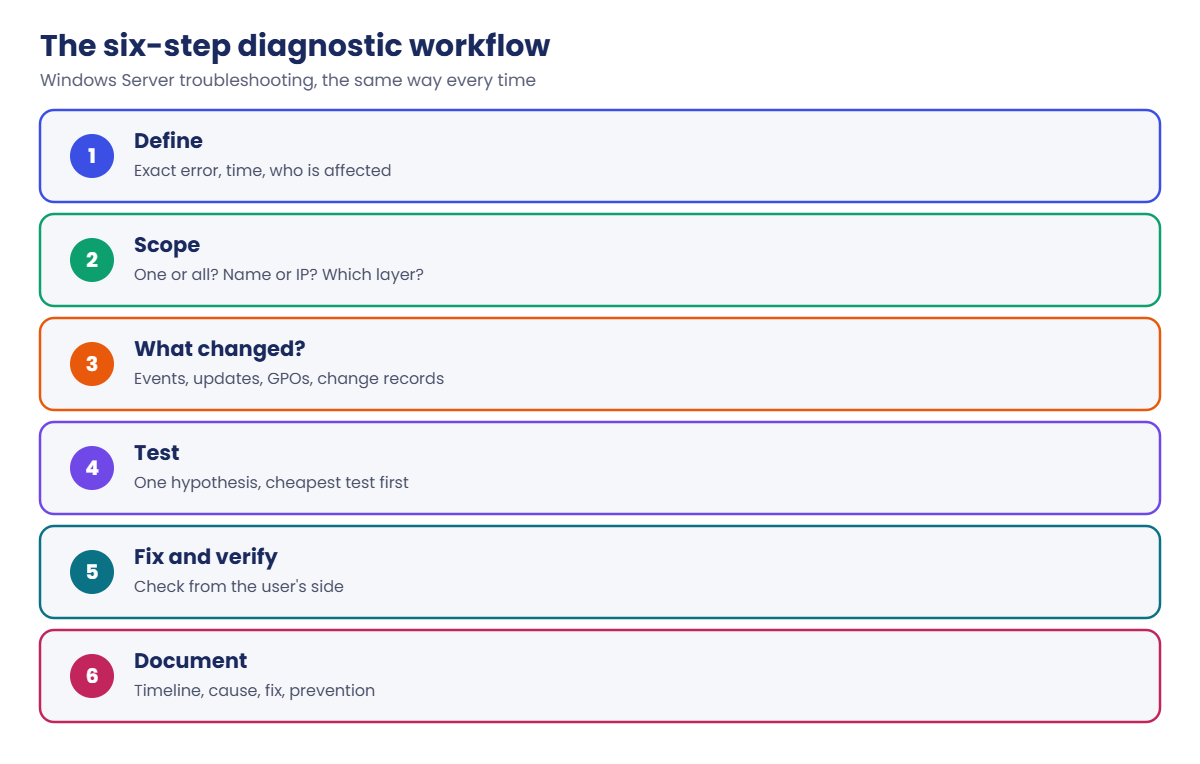
Define: capture the exact error text, the time it started, who is affected and what they were doing. “The intranet is down” is a symptom; “CL01 gets ‘remote name could not be resolved’ for intranet.saatlab.internal since 10:40” is a problem statement.

Scope: one user or all? One site, one server, one protocol? Does the IP work when the name fails?

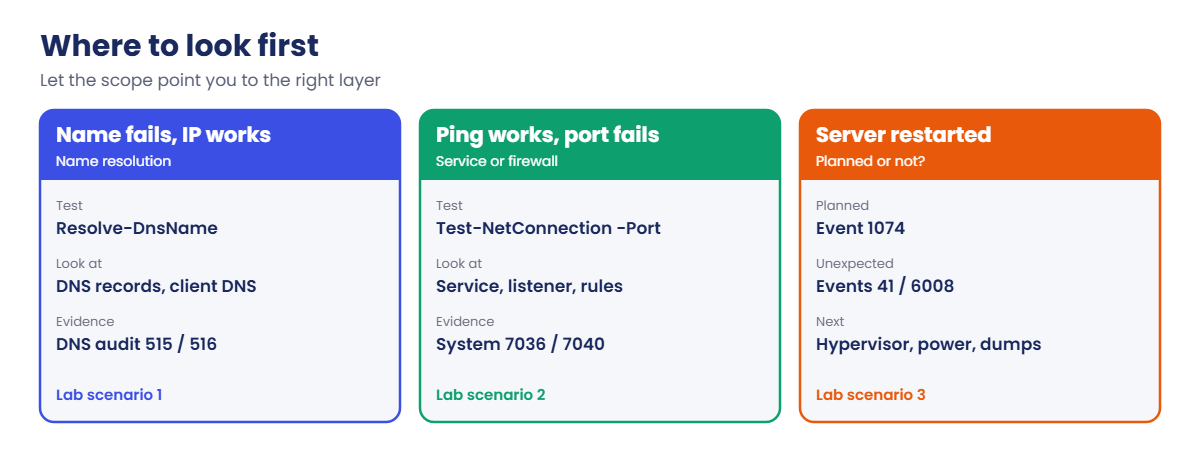
Scoping tells you which layer to look at: name resolution, network, service, permissions or the application itself.

What changed: most outages follow a change. Check the System log (service start type 7040, new service 7045, restarts 1074, unexpected shutdowns 41 and 6008), the Setup log (updates), MsiInstaller events, DNS audit events, Group Policy changes and the change calendar.

Test: make a hypothesis, then run the cheapest test that can prove it wrong. Change one thing at a time so you know what fixed it, and note every change so you can roll it back.

Fix and verify: check from the user’s side, not just the server’s. Then decide: is this the root cause, or a workaround that needs a follow-up?

Document: timeline, cause, fix and prevention. Good notes turn one incident into a check that stops the next one.

How it works, step by step

The six-step diagnostic workflow:

Windows Server troubleshooting workflow: define, scope, what changed, test, fix and verify, document

The steps look obvious, but under pressure people skip them. They restart the server first, then two other things, and nobody knows what fixed it or whether it will happen again.

Two habits make the biggest difference. Scope before you fix, and always ask “what changed recently?” A short script that lists recent changes saves a lot of guessing.

Remember that the same symptom can have very different causes. In the lab, “the intranet is down” will have two completely different causes, and the method finds each one quickly.

Where to look first, by what the scope tells you:

Windows Server troubleshooting: where to look first by name, port and restart symptoms

In the lab you’ll practise the full workflow:

  • Build a Get-RecentChange function that lists recent changes from the event logs.
  • Scenario 1: the intranet name doesn’t resolve.
  • Scenario 2: the intranet still fails, but for a different reason.
  • Scenario 3: SRV01 restarted during the day. Who did it, and why?
  • Write a short incident report.

Hands-on lab: three broken scenarios

Start DC01, SRV01 and CL01. Take a snapshot of SRV01 (“Before troubleshooting”). Work as SAATLAB\adm.rahul in PowerShell as administrator.

In each scenario you first cause the problem yourself, then pretend you just got the ticket.

1Build a “what changed?” function

On SRV01, save this as C:\Lab\Get-RecentChange.ps1 and load it:

function Get-RecentChange {
    param([int]$Hours = 24)
    $start = (Get-Date).AddHours(-$Hours)
    $filters = @(
        @{ LogName = 'System';      Id = 41, 104, 1074, 6005, 6006, 6008, 7040, 7045; StartTime = $start },
        @{ LogName = 'Setup';       Id = 2;                                          StartTime = $start },
        @{ LogName = 'Application'; ProviderName = 'MsiInstaller'; Id = 1033, 11707, 11724; StartTime = $start }
    )
    $events = foreach ($f in $filters) {
        Get-WinEvent -FilterHashtable $f -ErrorAction SilentlyContinue
    }
    $events | Sort-Object TimeCreated -Descending |
        Select-Object TimeCreated, Id,
            @{ n = 'Message'; e = { ($_.Message -split "\r?\n")[0] } }
}

. C:\Lab\Get-RecentChange.ps1
Get-RecentChange -Hours 24 | Format-Table -Wrap

You’ll see something like this:

TimeCreated          Id Message
-----------          -- -------
19/10/2026 09:02:11 6005 The Event log service was started.
19/10/2026 09:02:11 6006 The Event log service was stopped.

Each ID answers one question. 7040 means someone changed a service’s start type, 7045 a new service was installed, 1074 a planned restart (with who and why), 41 and 6008 a dirty shutdown, 104 a log was cleared. Setup event 2 is an update installed, and MsiInstaller events are software installs or removals.

✅ Checkpoint: Get-RecentChange runs and lists recent events (or nothing yet) without errors.

2Scenario 1: “The intranet is down”

Cause it: on DC01, delete the intranet A record:

Remove-DnsServerResourceRecord -ZoneName saatlab.internal -Name intranet -RRType A -Force

Define: on CL01, reproduce what the user sees:

Clear-DnsClientCache
Invoke-WebRequest https://intranet.saatlab.internal -UseDefaultCredentials -UseBasicParsing

You’ll see something like this:

Invoke-WebRequest : The remote name could not be resolved: 'intranet.saatlab.internal'

Scope: does the server answer by IP? Does the name exist?

Test-NetConnection 10.0.0.20 -Port 443 | Select-Object RemoteAddress, TcpTestSucceeded
Resolve-DnsName intranet.saatlab.internal

You’ll see something like this:

RemoteAddress TcpTestSucceeded
------------- ----------------
10.0.0.20     True

Resolve-DnsName : intranet.saatlab.internal : DNS name does not exist

The web server is fine by IP, so the problem is name resolution. Now ask what changed in DNS.

What changed: on DC01, check the DNS audit log:

Get-WinEvent -FilterHashtable @{ LogName = 'Microsoft-Windows-DNSServer/Audit'; Id = 516 } -MaxEvents 3 |
    Format-List TimeCreated, Message

You’ll see something like this:

TimeCreated : 19/10/2026 10:40:12
Message     : A resource record of type 1, name intranet and RDATA 10.0.0.20 was deleted from scope Default of zone
              saatlab.internal.

Fix and verify: put the record back, then test from CL01:

# On DC01
Add-DnsServerResourceRecordA -ZoneName saatlab.internal -Name intranet -IPv4Address 10.0.0.20

# On CL01
Clear-DnsClientCache
(Invoke-WebRequest https://intranet.saatlab.internal -UseDefaultCredentials -UseBasicParsing).StatusCode

You’ll see something like this:

200

✅ Checkpoint: You proved the cause (record deleted at 10:40) from the DNS audit log, not by guessing, and the user check returns 200.

3Scenario 2: “The intranet is down again”

Cause it: on SRV01, stop and disable the web service:

Stop-Service W3SVC
Set-Service W3SVC -StartupType Disabled

Define and scope: on CL01, same symptom check, then test by name and port:

Resolve-DnsName intranet.saatlab.internal | Select-Object Name, IPAddress
Test-NetConnection intranet.saatlab.internal -Port 443 | Select-Object PingSucceeded, TcpTestSucceeded

You’ll see something like this:

Name                      IPAddress
----                      ---------
intranet.saatlab.internal 10.0.0.20

PingSucceeded TcpTestSucceeded
------------- ----------------
True          False

This time DNS works and the server answers ping, but nothing listens on port 443. Same symptom, different layer: look at the service on SRV01.

What changed: on SRV01, run your function:

Get-RecentChange -Hours 2 | Format-Table -Wrap

You’ll see something like this:

TimeCreated          Id Message
-----------          -- -------
19/10/2026 11:05:37 7040 The start type of the World Wide Web Publishing Service service was changed from auto start
                         to disabled.

Fix and verify:

Set-Service W3SVC -StartupType Automatic
Start-Service W3SVC
Get-Service W3SVC | Select-Object Name, Status, StartType

You’ll see something like this:

Name  Status  StartType
----  ------  ---------
W3SVC Running Automatic

Then run the Invoke-WebRequest check on CL01 again and confirm StatusCode 200.

✅ Checkpoint: Get-RecentChange showed event 7040, and the intranet works again from CL01.
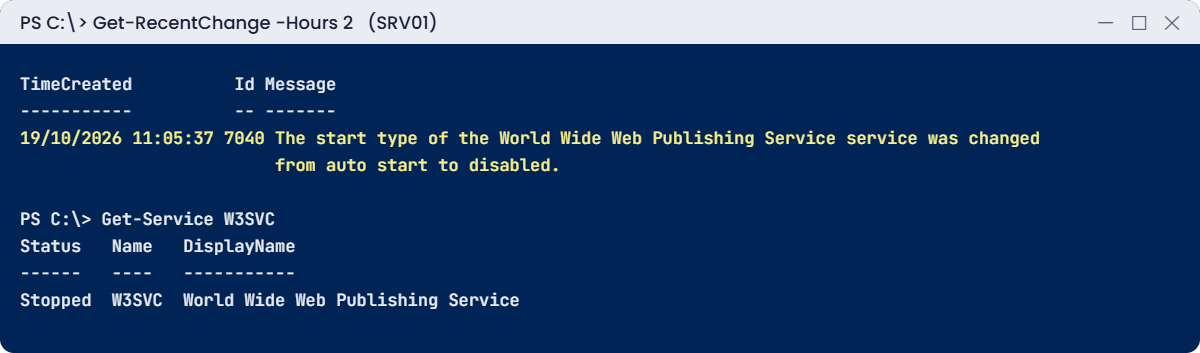
Windows Server troubleshooting lab: Get-RecentChange finds event 7040 for W3SVC
Windows Server troubleshooting: the “what changed?” check points straight at event 7040

4Scenario 3: “SRV01 restarted at lunchtime”

Cause it: on SRV01, restart with a reason and a comment:

shutdown /r /t 0 /d p:4:1 /c "Lab restart test"

What changed: after it comes back, run:

. C:\Lab\Get-RecentChange.ps1
Get-WinEvent -FilterHashtable @{ LogName = 'System'; Id = 1074 } -MaxEvents 1 | Format-List TimeCreated, Message

You’ll see something like this:

TimeCreated : 19/10/2026 12:31:08
Message     : The process C:\Windows\system32\shutdown.exe (SRV01) has initiated the restart of computer SRV01 on
              behalf of user SAATLAB\adm.rahul for the following reason: Application: Maintenance (Planned)
               Reason Code: 0x84040001
               Shutdown Type: restart
               Comment: Lab restart test

Event 1074 tells you the process, the account, the reason and the comment. If a restart has no 1074 but has 41 or 6008, nobody restarted it: it lost power or crashed. You’ll see that in the Break It lab.

✅ Checkpoint: Event 1074 shows who restarted SRV01 and why.

5Write the incident report

On SRV01, save a short report for Scenario 1:

$report = @"
Incident: INC-001 Intranet unavailable
Impact:   All users, intranet.saatlab.internal, 10:40 to 10:58
Symptom:  "The remote name could not be resolved"
Cause:    A record 'intranet' deleted from zone saatlab.internal (DNS audit event 516, 10:40)
Fix:      Record re-created (10.0.0.20), verified HTTP 200 from CL01
Prevent:  DNS changes through change requests; alert on DNS audit event 516
"@
$report | Set-Content C:\Lab\INC-001.txt
Get-Content C:\Lab\INC-001.txt | Select-Object -First 2

You should see this:

Incident: INC-001 Intranet unavailable
Impact:   All users, intranet.saatlab.internal, 10:40 to 10:58

Keep it short and factual. Times, evidence and the prevention step matter more than long explanations.

✅ Checkpoint: C:\Lab\INC-001.txt holds impact, symptom, cause, fix and prevention.

Break It, Then Fix It

The workflow depends on evidence. Here you destroy the evidence once, and fake a power cut once, to see what’s left.

1Break it: clear the System log

On SRV01, change a service, then clear the log:

Set-Service Spooler -StartupType Manual
wevtutil cl System
Get-RecentChange -Hours 2 | Format-Table -Wrap

You’ll see something like this:

TimeCreated          Id Message
-----------          -- -------
19/10/2026 13:10:44  104 The System log file was cleared.

The 7040 event is gone. All that’s left is event 104, and that is a clue in itself: someone cleared the log. On a real server that’s a red flag for an attacker hiding their tracks.

Fix it: put the service back, make the log bigger and check who cleared it:

Set-Service Spooler -StartupType Automatic
wevtutil sl System /ms:134217728
wevtutil gl System | Select-String maxSize
Get-WinEvent -FilterHashtable @{ LogName = 'System'; Id = 104 } -MaxEvents 1 |
    Select-Object TimeCreated, @{ n = 'User'; e = { $_.UserId.Translate([Security.Principal.NTAccount]) } }

You’ll see something like this:

maxSize: 134217728

TimeCreated         User
-----------         ----
19/10/2026 13:10:44 SAATLAB\adm.rahul

A bigger log (128 MB here) keeps more history. Forwarding events to a collector, as in Lesson 39, keeps a copy even if someone clears the local log.

✅ Checkpoint: Clearing the log removed the 7040 event and left event 104 with the account that cleared it.

2Break it: pull the power on SRV01

On your laptop, power off the VM without shutting down, then start it again:

VBoxManage controlvm SRV01 poweroff
VBoxManage startvm SRV01 --type headless

When SRV01 is back, look for a planned restart and for a dirty shutdown:

. C:\Lab\Get-RecentChange.ps1
Get-RecentChange -Hours 1 | Format-Table -Wrap

You’ll see something like this:

TimeCreated          Id Message
-----------          -- -------
19/10/2026 13:22:09 6005 The Event log service was started.
19/10/2026 13:22:09 6008 The previous system shutdown at 13:20:41 on 19/10/2026 was unexpected.
19/10/2026 13:21:58   41 The system has rebooted without cleanly shutting down first. This error could be caused if
                         the system stopped responding, crashed, or lost power unexpectedly.
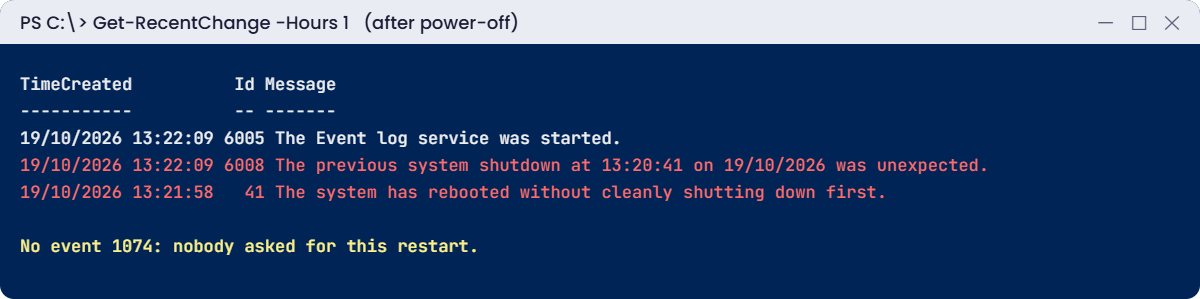
Windows Server troubleshooting break lab: events 41 and 6008 after a hard power-off
An unexpected shutdown leaves events 41 and 6008, but no 1074

No 1074 this time, so no person or process asked for a restart. Events 41 and 6008 point to power loss, a hang or a crash. Your next questions go to the hypervisor, the power supply or crash dumps (Lesson 48), not to the admins.

Fix it: check the disk after an unclean shutdown:

Repair-Volume -DriveLetter C -Scan
Repair-Volume -DriveLetter D -Scan

You’ll see something like this:

NoErrorsFound
NoErrorsFound

✅ Checkpoint: After the power-off you found 41 and 6008 but no 1074, and both volumes scan clean.

This happened at work

The 2 AM fix that nobody could repeat

An order system slowed to a crawl at 2 AM. The on-call engineer restarted the app service, cleared a temp folder, raised the SQL memory limit and rebooted the server, all within twenty minutes. It recovered, and he went back to bed.

Three nights later it happened again, to a different engineer. Nobody knew which of the four changes had helped, so she did all four again. The third time, the reboot alone didn’t help and the outage lasted two hours.

A senior admin finally followed the method. Get-WinEvent showed that the slowdown started each night two minutes after a new antivirus full scan, added a week earlier. Excluding the database folders fixed it for good.

The fix: on-call engineers now record every change with a time in the ticket, and the runbook starts with “what changed in the last 7 days?”

The lesson: four changes at once can make a problem go away without telling you anything. One change at a time, and write it down.

Common mistakes and troubleshooting

MistakeWhat happensWhat to do instead
Fixing before definingYou fix the wrong thingWrite down the exact error, time and who is affected
Restarting firstEvidence in memory and logs is lostCollect logs and state first, unless the impact is severe
Changing several things at onceYou don’t know what fixed itOne change at a time, with notes
Trusting “nothing changed”You miss the causeCheck event logs, updates, GPOs and the change calendar
Testing only from the serverThe user may still be brokenVerify from the user’s side
Ignoring time zonesEvents don’t line upNote times with time zone; check clocks are in sync
Small event logsHistory is overwritten in hoursBigger logs and event forwarding
No write-upThe same problem comes backShort incident report with a prevention step

Interview questions

Click a question to open it. Under each one you’ll find what the interviewer is really looking for, and one good way to answer.

Fresher level

1. A user says “the server is down”. What do you do first?

What they’re really checking: Do you have a method?

How you could answer: Ask what exactly fails, since when, for whom, and the exact error. Then reproduce it and check if others are affected.

2. How do you tell if a problem is DNS or the network?

What they’re really checking: Can you scope?

How you could answer: Test by IP and by name. If the IP works and the name fails, it’s name resolution. Use Resolve-DnsName and Test-NetConnection.

3. Which event shows who restarted a server?

What they’re really checking: Do you know basic event IDs?

How you could answer: System event 1074 shows the process, user, reason and comment. 41 and 6008 show an unexpected shutdown.

2–5 years experience

4. Describe your troubleshooting process.

What they’re really checking: Is it structured?

How you could answer: Define, scope, what changed, hypothesis and test, fix and verify, document. One change at a time.

5. How do you find what changed on a server?

What they’re really checking: Do you look for evidence?

How you could answer: Event logs (7040, 7045, 1074, Setup 2, MsiInstaller), update history, GPO changes, DNS audit, change tickets and monitoring baselines.

6. When do you restart instead of investigating?

What they’re really checking: Do you balance impact and root cause?

How you could answer: When impact is high and a restart is a known safe workaround. Capture logs, dumps and state first if you can, then follow up on the root cause.

Senior level

7. How do you run a major incident with several teams?

What they’re really checking: Can you lead?

How you could answer: One incident lead, a shared timeline, regular updates, clear owners for each hypothesis, a change freeze, and a blameless review afterwards.

8. How do you stop the same incident coming back?

What they’re really checking: Do you think beyond the fix?

How you could answer: Root cause analysis, prevention actions with owners, monitoring and alerts on the trigger, runbook updates and checks in change reviews.

9. How would you make “what changed” quick across 500 servers?

What they’re really checking: Do you think at scale?

How you could answer: Central event collection (WEF or a SIEM), configuration and inventory tracking, change management linked to CIs, and saved queries for change events.

Quick quiz

Q1. What is the first step of the workflow?

  1. Restart the service
  2. Define the problem exactly
  3. Check the firewall
Show answer

B — Exact error, time and who is affected.

Q2. The IP works but the name fails. Which layer is it?

  1. Name resolution
  2. Disk
  3. Kerberos
Show answer

A — Check DNS next.

Q3. Which event ID shows a service start type change?

  1. 7040
  2. 4624
  3. 1074
Show answer

A — 7045 is a new service.

Q4. A restart with events 41 and 6008 but no 1074 means what?

  1. An admin restarted it
  2. Unexpected shutdown: power loss, hang or crash
  3. Windows Update
Show answer

B — No person or process asked for it.

Q5. Why change one thing at a time?

  1. It is faster
  2. So you know what fixed it
  3. Microsoft requires it
Show answer

B — The work story showed why.

Quick recap

  • Windows Server troubleshooting follows a method: define, scope, what changed, test, fix and verify, document.
  • Scoping by name vs IP, port and service tells you which layer to check.
  • Get-RecentChange lists key change events: 7040, 7045, 1074, 41, 6008, 104, updates and installs.
  • The same symptom can have different causes, so let the evidence decide.
  • Protect the evidence: bigger logs and event forwarding.
  • Write a short incident report with a prevention step.

Next lesson

Lesson 43: Event logs → You’ll learn the event IDs every admin should know, filter logs fast with Get-WinEvent and XPath, and build a cheat sheet you can use at work.

Further reading: Windows Server troubleshooting

Want to go deeper into Windows Server troubleshooting? Microsoft’s Windows Server troubleshooting documentation has guides by area, and the Get-WinEvent reference explains every filter option. You can also see the full plan for this course on the Windows Server Administration course page.

Scroll to Top