Windows Server initial configuration

A freshly installed server is like a new phone that hasn’t been set up: it works, but it has a random name, no fixed address and old software. Windows Server initial configuration is the short list of jobs every admin does before a server is allowed to do anything useful.

In this lesson you’ll give DC01 and SRV01 their proper names and fixed addresses on LabNet, set DNS and the time zone, install updates and turn on Remote Desktop. You’ll do it three ways, with sconfig, Server Manager and PowerShell, so you can work on any server, with or without a desktop.

TimeYou needBy the end you can
About 60 minutes, including update downloadsDC01 and SRV01 from Lesson 5Rename a server, set a static IP, gateway and DNS, set the time zone, install updates, enable Remote Desktop, and check all of it from PowerShell

What it is, in one line

Windows Server initial configuration is the first set of changes after installing: the computer name, a fixed IP address, DNS, time, updates and remote access, done before the server takes on any role.

In Simple Words

A new employee’s first morning

On a new employee’s first day, someone gives them a name badge, a desk number, a phone extension and a laptop with the latest updates. Until then, nobody can find them and they can’t really work.

A new server needs the same things.

Its name badge is the computer name. Its desk number is the IP address, which must never change, so others always know where to find it. The phone directory is DNS, and the updates are, well, updates.

Do this badly and people keep going to the wrong desk. Do it well once, and the server is easy to find for its whole life.

Engineer's View

What each setting does and why servers are different

Computer name. Setup picks a random name like WIN-4JH2T8QK1VD.

Use a naming standard instead: what it is, where it is and a number, such as DC01 or HYD-FS-02. NetBIOS names can be up to 15 characters. Rename before installing roles, because some roles (like Active Directory and Certificate Services) can’t be renamed easily later.

Static IP address. Laptops get addresses from DHCP.

Servers get fixed ones, so DNS records, firewall rules and clients that connect by address never break. You set four things: the IP address, the prefix length (24 means 255.255.255.0), the default gateway (the way out of the subnet) and the DNS servers.

DNS servers. For now, DC01 and SRV01 use a public resolver (1.1.1.1) so they can reach the internet for updates and activation.

In Lesson 11, DC01 becomes the DNS server, and every machine in the domain will point to it instead. A domain member pointing at a public DNS server is one of the most common Active Directory faults you’ll ever see.

Time. Set the right time zone now. Later, domain members take their time from the domain controllers automatically, and Kerberos sign-in fails if clocks drift more than five minutes apart (Lesson 21).

Updates. The ISO’s build is months old, so the first updates are large. Patch before you expose the server to anything.

Remote Desktop. Admins rarely sit at a server’s console.

Enabling Remote Desktop also needs a firewall rule; both are one command away. In Lesson 13 you’ll manage a Server Core machine with no console use at all.

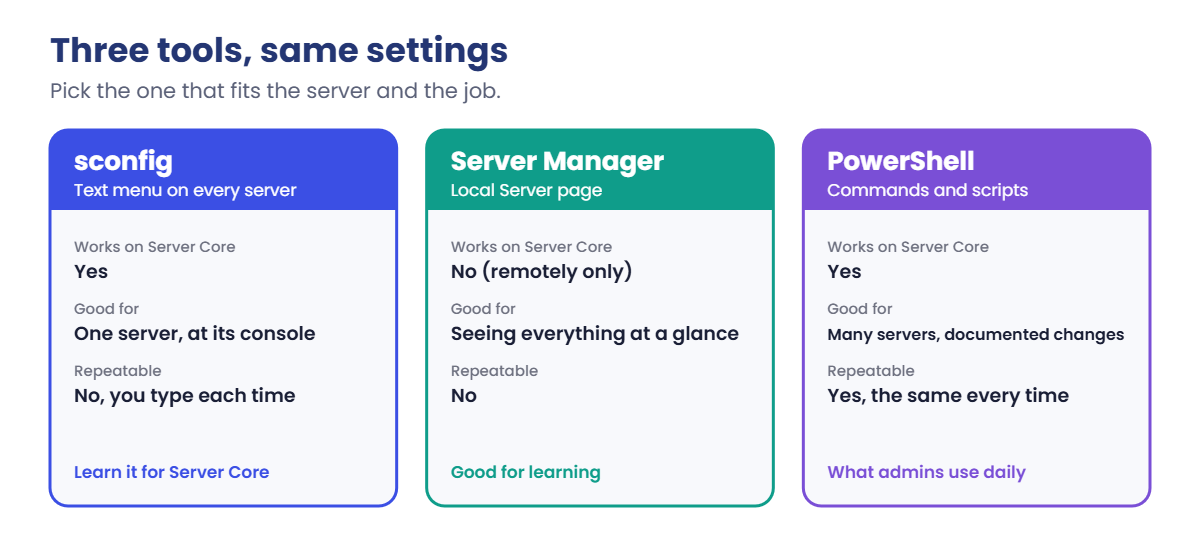
Three tools, same result. sconfig is a text menu on every Windows Server, including Server Core.

Server Manager’s Local Server page shows the same settings with clickable links. PowerShell does all of it and can be repeated on fifty servers.

How it works, step by step

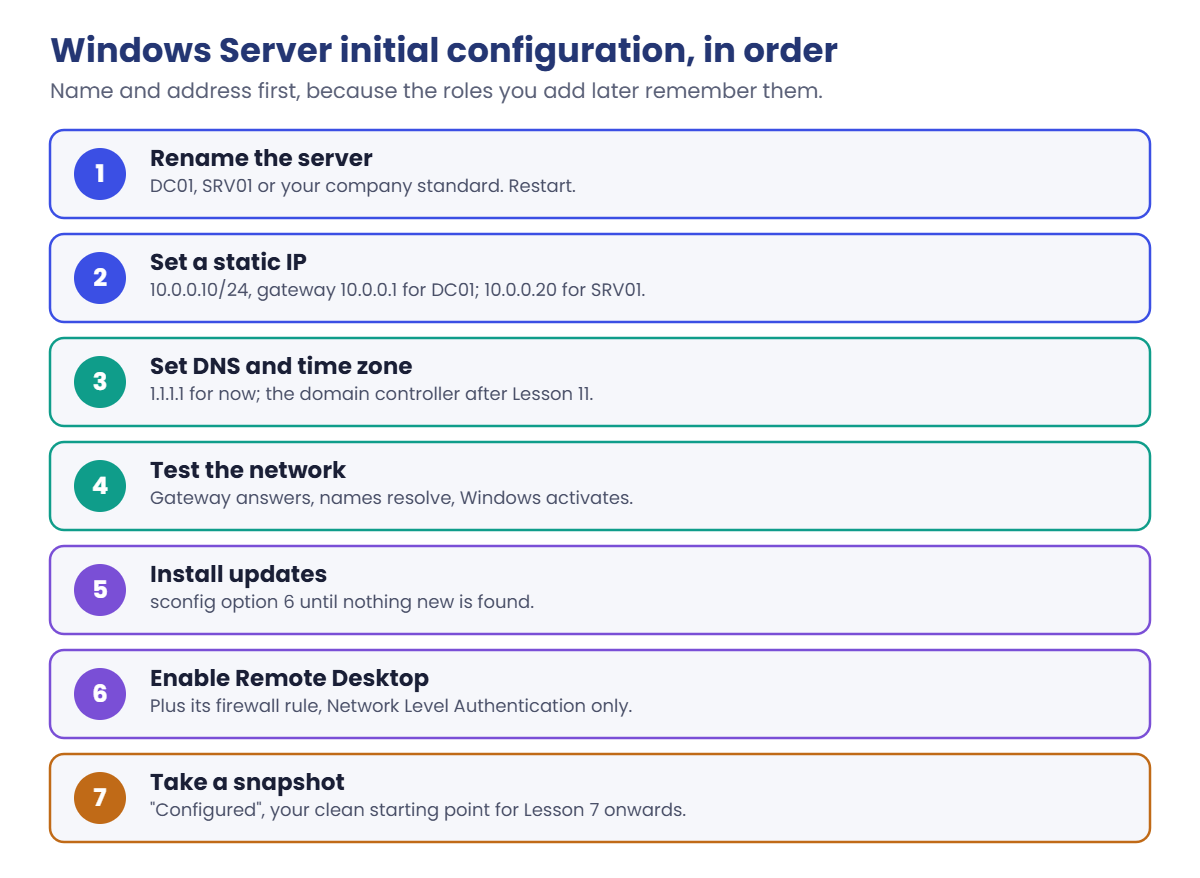
Here’s the order admins follow on every new server. The order matters: the name and address come first, because roles you add later remember them.

Windows Server initial configuration order: rename, static IP, DNS and time zone, test, updates, Remote Desktop, snapshot
  1. Rename the server and restart.
  2. Set the static IP, prefix length and default gateway.
  3. Set DNS (a public resolver for now, the domain controller later) and the time zone.
  4. Test that the server can reach the gateway and resolve names, then let Windows activate.
  5. Install updates and restart.
  6. Enable Remote Desktop and its firewall rule.
  7. Take a snapshot so you can return to a clean, configured server.

You can do every step with any of the three tools. Here’s when each one makes sense:

Windows Server initial configuration tools compared: sconfig, Server Manager and PowerShell

In the lab you’ll use sconfig on DC01 and PowerShell on SRV01, then check both with the same PowerShell commands. Learn sconfig well; on Server Core it’s often the only menu you have.

Hands-on Lab: Windows Server initial configuration for DC01 and SRV01

Start DC01 and SRV01 (VBoxManage startvm DC01 and the same for SRV01) and sign in to both. Steps 1 to 4 configure DC01 with sconfig, step 5 configures SRV01 with PowerShell, and steps 6 and 7 check and finish both. Use these addresses:

ServerIP addressPrefixGatewayDNS (for now)
DC0110.0.0.102410.0.0.11.1.1.1
SRV0110.0.0.202410.0.0.11.1.1.1

1Open sconfig on DC01 and rename the server

In DC01, open PowerShell as administrator and run:

sconfig

You’ll see a numbered menu with items such as Computer name, Remote management, Install updates, Remote desktop, Network settings and Date and time. Type 2 (Computer name) and press Enter, type DC01, and answer Y when it asks to restart.

✅ Checkpoint: After the restart, the sign-in screen and sconfig’s header show DC01 as the computer name.

2Give DC01 its static IP address

Open sconfig again and choose 8 (Network settings). Pick the adapter’s index number, then 1 to set the address. Choose S for static, then enter 10.0.0.10, type the subnet mask 255.255.255.0, and enter 10.0.0.1 as the gateway.

✅ Checkpoint: sconfig shows the adapter with IP 10.0.0.10 and gateway 10.0.0.1.

3Set DNS, time zone and Remote Desktop

Still in Network settings, choose 2 (Set DNS servers) and enter 1.1.1.1 as the preferred server, leaving the alternate blank. Back in the main menu, choose 9 (Date and time) and set your time zone in the window that opens. Then choose 7 (Remote desktop), E to enable, and the option that allows only clients with Network Level Authentication.

✅ Checkpoint: sconfig’s main menu shows Remote desktop: Enabled.

4Install updates on DC01

In sconfig choose 6 (Install updates), then 1 (All quality updates), and A to install everything it finds. sconfig searches Windows Update, downloads and installs what it finds; the first round can take 20 minutes or more. Restart when it asks, then run option 6 again until it finds nothing new.

✅ Checkpoint: Option 6 reports that no applicable updates were found.

5Configure SRV01 with PowerShell

In SRV01, open PowerShell as administrator and paste this whole block:

$nic = 'Ethernet'
New-NetIPAddress -InterfaceAlias $nic -IPAddress 10.0.0.20 -PrefixLength 24 -DefaultGateway 10.0.0.1 | Out-Null
Set-DnsClientServerAddress -InterfaceAlias $nic -ServerAddresses 1.1.1.1
Set-TimeZone -Id 'India Standard Time'
Set-ItemProperty 'HKLM:\System\CurrentControlSet\Control\Terminal Server' -Name fDenyTSConnections -Value 0
Enable-NetFirewallRule -DisplayGroup 'Remote Desktop'
Rename-Computer -NewName SRV01 -Restart

Use your own time zone; Get-TimeZone -ListAvailable lists the IDs.

If your adapter isn’t called Ethernet, Get-NetAdapter shows its real name. SRV01 restarts with its new name. Install updates on SRV01 the same way as step 4 (sconfig option 6).

✅ Checkpoint: SRV01 restarts and its sign-in screen shows the name SRV01.

6Check both servers the same way

On DC01 (and then on SRV01), run these one at a time:

Get-NetIPConfiguration
Test-NetConnection 10.0.0.1
Resolve-DnsName www.microsoft.com -Type A | Select-Object -First 1 Name, Type, IPAddress

On DC01 you should see something like this:

InterfaceAlias       : Ethernet
InterfaceIndex       : 6
InterfaceDescription : Intel(R) PRO/1000 MT Desktop Adapter
NetProfile.Name      : Network
IPv4Address          : 10.0.0.10
IPv4DefaultGateway   : 10.0.0.1
DNSServer            : 1.1.1.1

ComputerName           : 10.0.0.1
RemoteAddress          : 10.0.0.1
InterfaceAlias         : Ethernet
SourceAddress          : 10.0.0.10
PingSucceeded          : True
PingReplyDetails (RTT) : 0 ms

Name                     Type IPAddress
----                     ---- ---------
e13678.dscb.akamaiedge.net  A 23.45.67.89
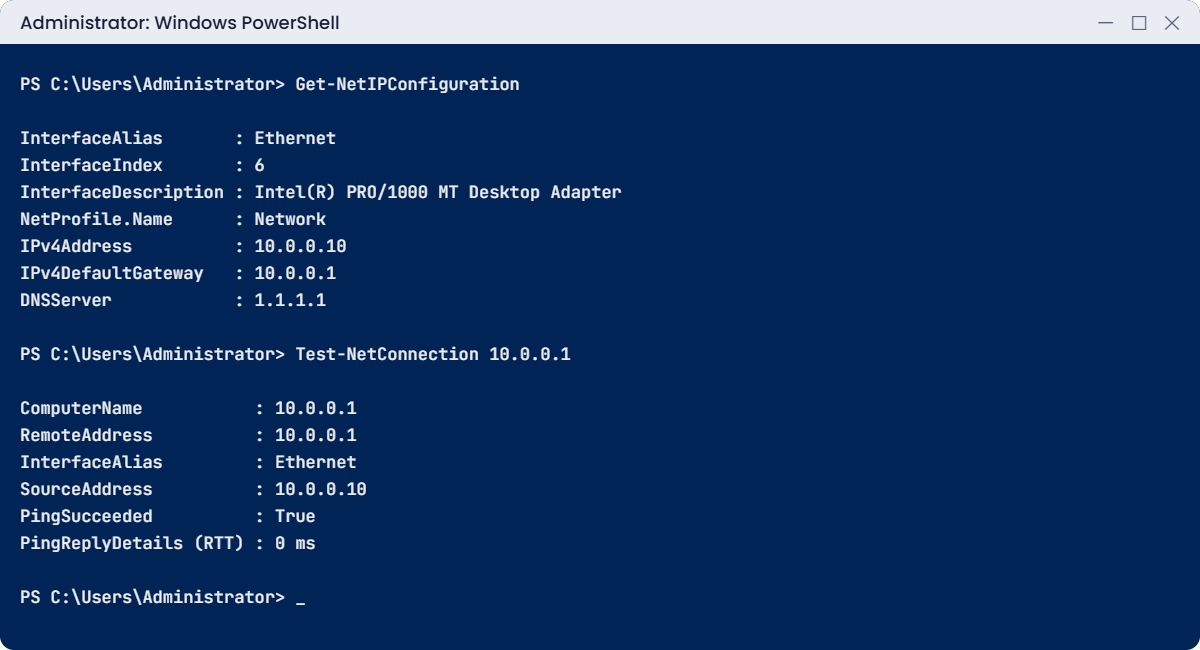
Windows Server initial configuration check: Get-NetIPConfiguration and Test-NetConnection on DC01
Example output. Your interface index and DNS answer will be different.

Three layers in three commands: the address settings are right, the gateway answers, and DNS turns a name into an address. When something is wrong on a real server, you check in exactly this order. The DNS answer will differ for you; what matters is that you get one.

✅ Checkpoint: Both servers show the right IP and gateway, PingSucceeded is True, and Resolve-DnsName returns an address.

7Confirm activation and take a snapshot

On each server, check the evaluation is now activated:

cscript //nologo C:\Windows\System32\slmgr.vbs /xpr

You should see something like this:

Windows(R), ServerDatacenterEval edition:
    Timebased activation will expire 17-04-2027 10:42:15

Then shut both servers down and, on your laptop, run:

VBoxManage snapshot DC01 take "Configured"
VBoxManage snapshot SRV01 take "Configured"

✅ Checkpoint: Both servers show an expiry date about 180 days away and have a “Configured” snapshot.

Break It, Then Fix It

Two of the most common network mistakes on new servers: running the IP command twice, and giving two servers the same address. Both are safe to cause on SRV01.

1Break it: set the IP address a second time

On SRV01, run the same command you used in step 5 again, as if you were fixing a typo:

New-NetIPAddress -InterfaceAlias Ethernet -IPAddress 10.0.0.21 -PrefixLength 24 -DefaultGateway 10.0.0.1

You’ll get an error like this:

New-NetIPAddress : Instance DefaultGateway already exists
At line:1 char:1
+ New-NetIPAddress -InterfaceAlias Ethernet -IPAddress 10.0.0.21 -Prefi ...
+ ~~~~~~~~~~~~~~~~~~~~~~~~~~~~~~~~~~~~~~~~~~~~~~~~~~~~~~~~~~~~~~~~~~~~
    + CategoryInfo          : InvalidArgument: (MSFT_NetIPAddress:ROOT/StandardCimv2/MSFT_NetIPAddress) [New-NetIPAddress], CimException
    + FullyQualifiedErrorId : Windows System Error 87,New-NetIPAddress

New-NetIPAddress adds an address; it doesn’t replace one. The adapter already has a default gateway, so the command refuses. Worse, it may have added 10.0.0.21 as a second address before failing on the gateway. Check:

Run this:

Get-NetIPAddress -InterfaceAlias Ethernet -AddressFamily IPv4 | Select-Object IPAddress, PrefixLength

You may see both addresses:

IPAddress PrefixLength
--------- ------------
10.0.0.21           24
10.0.0.20           24

Fix it: remove the extra address so only 10.0.0.20 is left:

Remove-NetIPAddress -InterfaceAlias Ethernet -IPAddress 10.0.0.21 -Confirm:$false
Get-NetIPAddress -InterfaceAlias Ethernet -AddressFamily IPv4 | Select-Object IPAddress, PrefixLength

You should see this:

IPAddress PrefixLength
--------- ------------
10.0.0.20           24

To really change an address, remove the old address and route first (Remove-NetIPAddress and Remove-NetRoute), then run New-NetIPAddress once, or use sconfig, which does this for you.

✅ Checkpoint: SRV01 has exactly one IPv4 address again: 10.0.0.20.

2Break it: two servers, one address

With DC01 running on 10.0.0.10, give SRV01 the same address too:

New-NetIPAddress -InterfaceAlias Ethernet -IPAddress 10.0.0.10 -PrefixLength 24 | Out-Null
Get-NetIPAddress -InterfaceAlias Ethernet -AddressFamily IPv4 | Select-Object IPAddress, AddressState

You should see something like this:

IPAddress AddressState
--------- ------------
10.0.0.10    Duplicate
10.0.0.20    Preferred
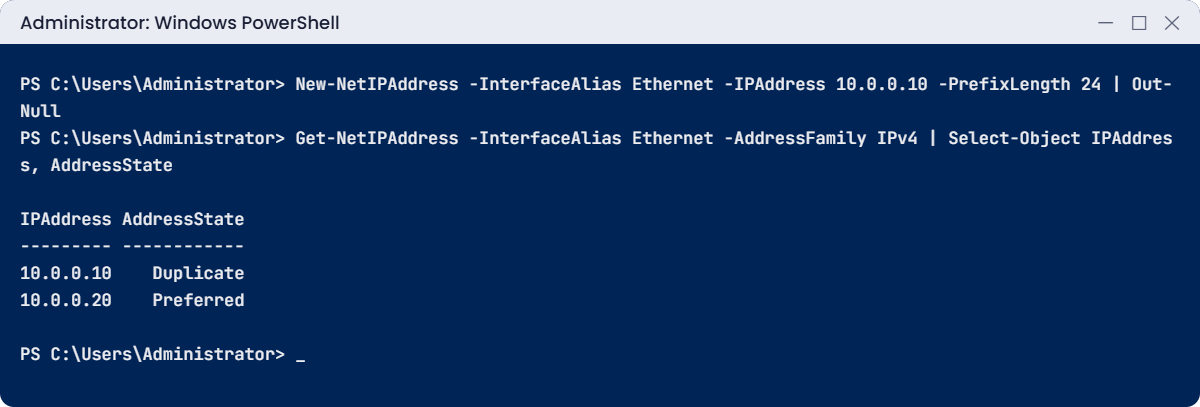
Windows Server initial configuration lab: a duplicate IP address shows AddressState Duplicate
Example output.

Before using an address, Windows asks the network “is anyone already using 10.0.0.10?” DC01 answered, so SRV01 marked it Duplicate and won’t use it. The System event log on SRV01 records the conflict too: look for event ID 4199 from Tcpip, which names the other machine’s MAC address. On a real network, that MAC address is how you find the device that stole the IP.

Fix it: remove the duplicate:

Remove-NetIPAddress -InterfaceAlias Ethernet -IPAddress 10.0.0.10 -Confirm:$false

✅ Checkpoint: SRV01 shows only 10.0.0.20 again, and you found event 4199 in its System log.

This happened at work

The server whose address kept moving

A team set up a new reporting server in a hurry and left it on DHCP, planning to fix it “after go-live”. Other servers connected to it by IP address, written into config files, because the DNS record hadn’t been created yet.

Weeks later the server was patched and restarted over a long weekend. Its DHCP lease had expired while it was down, so it came back with a different address. On Monday, every report failed, and nobody connected the outage to a routine patch.

It took most of the morning to find, because the server itself looked healthy. The clue was in ipconfig /all: DHCP Enabled: Yes on a server.

The fix: every server now gets a static address (or a DHCP reservation) from the IP plan before it’s built, plus a DNS record. Apps connect by name, never by raw IP. The build checklist includes “DHCP Enabled: No”.

The lesson: a server’s address is a promise to everything that talks to it. Fix it on day one, not after go-live.

Common mistakes and troubleshooting

Mistake or symptomWhat happensWhat to do instead
Leaving a server on DHCPIts address can change after a restart and break everything that uses itSet a static IP or a DHCP reservation, plus a DNS record
“Instance DefaultGateway already exists”New-NetIPAddress refuses, sometimes after adding a second addressRemove the old address and route first, or use sconfig
AddressState: DuplicateTwo machines share an IP; one stops using itFind the other MAC address (event 4199) and fix the IP plan
Wrong prefix length (e.g. /16 instead of /24)Some hosts on other subnets look “local” and can’t be reachedCheck PrefixLength in Get-NetIPAddress against the plan
Domain members pointing at public DNSJoining the domain and finding DCs fail (Lesson 13)After Lesson 11, point every member at the domain controllers only
Renaming a server after installing roles like AD or CARoles break or the rename is refusedRename first, then add roles
Remote Desktop enabled but connection refusedThe firewall rule is still offEnable-NetFirewallRule -DisplayGroup “Remote Desktop”
Updates “stuck” at 0%First update after install is large; or no internetCheck Test-NetConnection and DNS, then be patient
Wrong time zoneLog timestamps don’t match other serversSet-TimeZone; later the domain keeps the clocks in sync

Interview questions

Click a question to open it. Under each one you’ll find what the interviewer is really looking for, and one good way to answer.

Fresher level

1. What do you configure first on a new Windows Server?

What they’re really checking: Do you know the basic order?

How you could answer: The computer name, a static IP with the right prefix and gateway, DNS servers, the time zone, then updates and remote management. Name and IP come first because roles depend on them.

2. What is sconfig?

What they’re really checking: Do you know the tool that works on every server?

How you could answer: A text menu built into Windows Server for basic setup: name, domain join, network, updates, Remote Desktop, date and time. It’s the main local tool on Server Core.

3. How do you set a static IP with PowerShell?

What they’re really checking: Have you done it without the GUI?

How you could answer: New-NetIPAddress -InterfaceAlias Ethernet -IPAddress 10.0.0.20 -PrefixLength 24 -DefaultGateway 10.0.0.1, then Set-DnsClientServerAddress for DNS.

2–5 years experience

4. Why should servers not use DHCP?

What they’re really checking: Do you understand dependencies on addresses?

How you could answer: Firewall rules, DNS records, monitoring and apps often depend on the address. If it changes after a lease expires or a restart, those break. Use static addresses or reservations.

5. A new server can ping its gateway but can’t reach websites. What do you check?

What they’re really checking: Do you troubleshoot layer by layer?

How you could answer: DNS next: Resolve-DnsName for a public name. Check the DNS server setting, then whether DNS traffic (port 53) is allowed out. Then a proxy, if the network uses one.

6. Two servers report an IP conflict. How do you find the other device?

What they’re really checking: Do you know the evidence Windows gives you?

How you could answer: Event 4199 from Tcpip in the System log gives the other device’s MAC address. Look that MAC up in the switch’s address table or DHCP leases, then fix whichever device is wrong.

Senior level

7. How would you make initial configuration consistent across hundreds of servers?

What they’re really checking: Do you think in automation and standards?

How you could answer: A build script or DSC configuration in version control, run by the deployment tool, with names and IPs from an IPAM system. Every build is checked automatically against the standard, and drift is reported.

8. What naming standard would you choose for servers, and why?

What they’re really checking: Do you think about scale and clarity?

How you could answer: Short, consistent parts: location, role and number, like HYD-DC-01, within 15 characters. No personal or app-version names that go out of date. Document it, and enforce it in the build process.

9. When would you not enable Remote Desktop on a server?

What they’re really checking: Do you balance convenience against attack surface?

How you could answer: On Server Core and on highly sensitive servers like domain controllers in a tiered model, where admins manage remotely with PowerShell or Windows Admin Center from a secure admin workstation. Fewer interactive sign-ins means fewer cached credentials to steal.

Quick quiz

Q1. Why do servers get static IP addresses?

  1. They are faster
  2. So their address never changes for clients, DNS and firewall rules
  3. DHCP is not allowed on servers
Show answer

B — Static addresses keep everything that depends on the server working.

Q2. What does PrefixLength 24 mean?

  1. Subnet mask 255.255.255.0
  2. 24 servers on the network
  3. The gateway is .24
Show answer

A — A /24 prefix is the same as 255.255.255.0.

Q3. Which sconfig option renames the computer?

  1. 2
  2. 6
  3. 8
Show answer

A — 2 is Computer name. 6 installs updates and 8 is Network settings.

Q4. What does AddressState “Duplicate” tell you?

  1. The address is reserved
  2. Another device already uses that IP
  3. The cable is unplugged
Show answer

B — Windows detected an address conflict and won’t use the address.

Q5. In the work story, what was the clue?

  1. A failed disk
  2. DHCP Enabled: Yes on a server
  3. An expired licence
Show answer

B — The server got a new address from DHCP after a restart.

Quick recap

  • Windows Server initial configuration order: name, static IP, DNS, time zone, test, updates, Remote Desktop, snapshot.
  • Servers use static addresses (or reservations) with the right prefix and gateway.
  • sconfig, Server Manager and PowerShell can all do it; PowerShell repeats it on many servers.
  • Check in layers: Get-NetIPConfiguration, Test-NetConnection, Resolve-DnsName.
  • New-NetIPAddress adds an address; remove the old one before changing it.
  • Duplicate address state and event 4199 point to an IP conflict.

Next lesson

Lesson 7: PowerShell basics for admins → You’ll learn how PowerShell commands are named, how to find and read help, what objects and the pipeline really are, and how to filter, sort and export the information you need from a server.

Further reading: Windows Server initial configuration

Want to go deeper into Windows Server initial configuration? Read Microsoft’s guide to configuring a server with sconfig on Microsoft Learn. You can also see the full plan for this course on the Windows Server Administration course page.

Scroll to Top