Windows Admin Center and modern server management

Windows Admin Center and modern server management

Server Manager and a dozen MMC consoles still work, but managing many servers, Server Core machines and clusters is easier from one web page. Windows Admin Center is Microsoft’s browser-based tool for exactly that, included with your Windows Server licence, and it’s the doorway to hybrid features like Azure Arc and hotpatching.

In this lesson you’ll install Windows Admin Center on SRV01 with a certificate from your own CA, connect your servers and the cluster, control who can use it, and see where Azure Arc, hotpatching and pay-as-you-go licensing fit for Server 2025.

TimeYou needBy the end you can
About 75 minutesDC01, DC02 and SRV01 (with the CA from Lesson 34); NODE1, NODE2 and CLUSTER1 optionalInstall and secure a Windows Admin Center gateway, add servers and clusters, manage Server Core remotely, set gateway access, and explain Azure Arc, hotpatching and pay-as-you-go licensing

What it is, in one line

Windows Admin Center is a browser-based management tool, installed as a gateway on a Windows machine, that manages servers, clusters and PCs over PowerShell remoting and WMI, with no agent on the managed machines.

In Simple Words

One TV remote for every screen

Imagine a house with a different remote for the TV, the music system and the air conditioner, and you keep losing one. A universal remote does all three from one place.

Windows Admin Center is the universal remote for your servers. The gateway is the remote; the servers are the devices it talks to, using the same signals (WinRM and PowerShell) they already understand.

And like a real remote, it should only work in the right hands. That’s why you secure it with a proper certificate and decide who may use it.

Engineer's View

Gateway, connections, security and hybrid

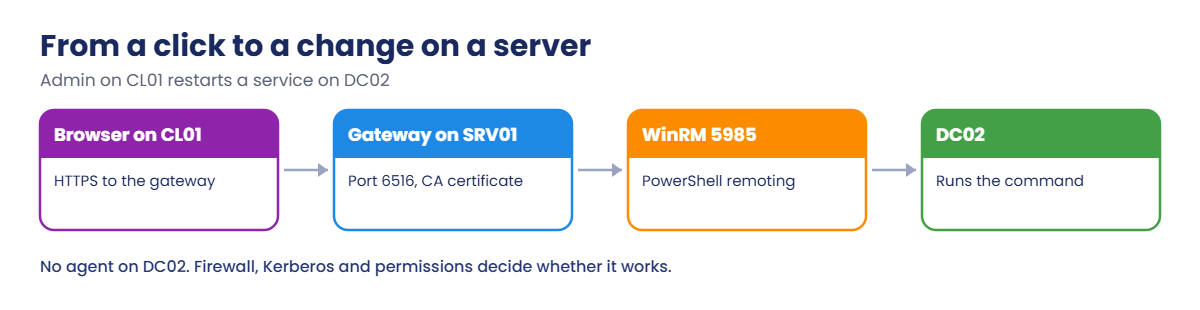
Architecture: Windows Admin Center runs as a gateway service with a web server. Your browser talks HTTPS to the gateway; the gateway talks to managed nodes with PowerShell remoting (WinRM 5985/5986) and WMI over WinRM. Nothing is installed on the managed servers.

Modes are a desktop install on Windows 11 or a gateway on Windows Server for many admins.

Security: use a certificate from a trusted CA (a self-signed one expires after 60 days), restrict who may use the gateway (gateway users and administrators groups), and for remote management prefer Kerberos with resource-based constrained delegation so the gateway can act for admins on nodes. Never publish the gateway directly to the internet without MFA.

What it manages: servers (events, services, files, certificates, updates, roles, PowerShell, Remote Desktop), failover clusters, Hyper-V, S2D, and extensions for more.

Hybrid on Server 2025: Azure Arc registers on-premises servers in Azure for policy, monitoring, update management and Defender. Hotpatching (most monthly security updates without restart) and pay-as-you-go licensing (billed per core through Azure) both need Arc and an Azure subscription.

How it works, step by step

How a click in your browser becomes a change on a server:

Windows Admin Center: browser, gateway, WinRM and the managed server

Because it uses remoting under the hood, everything you learned about WinRM, firewalls, Kerberos and the double hop (Lessons 21, 23 and 27) applies here too.

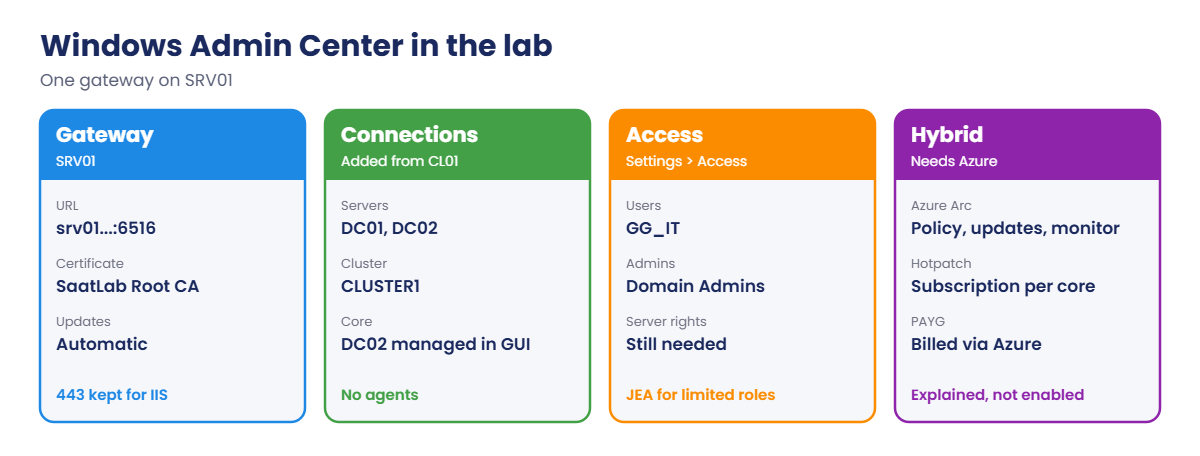
The management setup you’ll build:

Windows Admin Center lab: gateway on SRV01, connections, access and hybrid options
  1. Certificate: issue one for srv01.saatlab.internal from SaatLab Root CA.
  2. Install Windows Admin Center on SRV01 with custom setup, port 6516 (443 is used by the intranet site) and that certificate.
  3. Connect DC01, DC02 and, if running, CLUSTER1 from CL01’s browser.
  4. Restrict gateway access to GG_IT and Domain Admins.
  5. Look at Azure hybrid options in the Azure Arc tool, without connecting a subscription.

Hands-on Lab: Windows Admin Center gateway on SRV01

Start DC01, DC02, SRV01 and CL01. Work on SRV01 as SAATLAB\adm.rahul in PowerShell as administrator.

1Issue a certificate for the gateway

On SRV01:

$wac = (Get-Certificate -Template SaatLabWebServer -SubjectName 'CN=srv01.saatlab.internal' -DnsName srv01.saatlab.internal, srv01 -CertStoreLocation Cert:\LocalMachine\My).Certificate
$wac | Select-Object Subject, Thumbprint, NotAfter

You should see something like this:

Subject                    Thumbprint                               NotAfter
-------                    ----------                               --------
CN=srv01.saatlab.internal  3F9A1C...E27D                            20/10/2026 ...

Copy the thumbprint; the installer asks for it. Every domain member already trusts this certificate, so admins won’t learn to click through warnings.

✅ Checkpoint: A certificate for srv01.saatlab.internal from SaatLab Root CA is in LocalMachine\My.

2Install Windows Admin Center on SRV01

On SRV01, download Windows Admin Center from the Microsoft Evaluation Center (search “Windows Admin Center download”; it doesn’t need a licence key) and run the installer. Accept the terms, choose Custom setup, and set:

  • Port: 6516 (SRV01’s port 443 already serves the intranet from Lesson 25).
  • TLS certificate: use an installed certificate, and paste the thumbprint from step 1.
  • Endpoint FQDN: srv01.saatlab.internal.
  • Updates: keep automatic updates on.

When it finishes, check the service and port:

Get-Service | Where-Object DisplayName -like '*Admin Center*' | Select-Object Name, Status, StartType
Get-NetTCPConnection -State Listen -LocalPort 6516 | Select-Object LocalAddress, LocalPort, OwningProcess

You should see something like this:

Name                  Status  StartType
----                  ------  ---------
WindowsAdminCenter    Running Automatic

LocalAddress LocalPort OwningProcess
------------ --------- -------------
::               6516          3412

✅ Checkpoint: The Windows Admin Center service is Running and listening on port 6516.
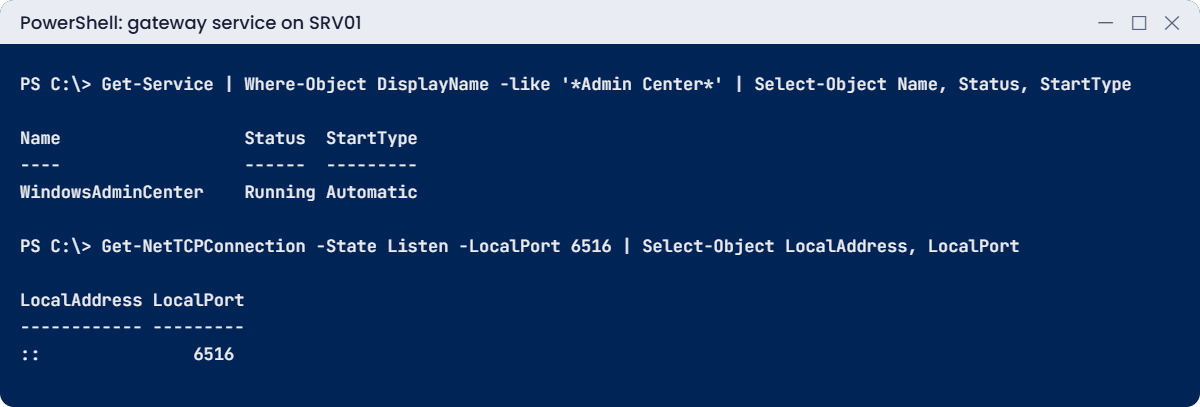
Windows Admin Center lab: gateway service running on port 6516
The gateway service runs on SRV01 and listens on port 6516.

3Connect your servers from CL01

On CL01, sign in as SAATLAB\adm.rahul (or use Edge’s “Run as different user”) and open https://srv01.saatlab.internal:6516. The padlock shows a valid certificate.

Click Add, choose Servers, and add dc01.saatlab.internal and dc02.saatlab.internal. Then add a Server cluster connection for CLUSTER1 if NODE1 and NODE2 are running.

Open DC02, the Server Core DC. Explore Overview (CPU, memory, uptime), Events, Services, Updates and PowerShell. Everything you did on DC02 with PowerShell remoting is now point-and-click, still with no desktop on DC02.

[Add your screenshot here: DC02 Overview page in Windows Admin Center]

✅ Checkpoint: Windows Admin Center on CL01 shows DC01, DC02 (and CLUSTER1) and opens DC02’s Overview.

4Decide who can use the gateway

In Windows Admin Center, open Settings (the gear), then Access. Set gateway users to SAATLAB\GG_IT and gateway administrators to SAATLAB\Domain Admins, and save.

Gateway access only decides who may open Windows Admin Center. What they can do on each server still depends on their rights there: Sneha in GG_IT can open the gateway, but she can’t manage DC01 unless she’s an admin on it (or you configure role-based access with JEA).

✅ Checkpoint: Gateway access lists GG_IT as users and Domain Admins as administrators.

5Look at the hybrid options for Server 2025

Open SRV01 in Windows Admin Center and select the Azure Arc tool (and Azure hybrid center if present). Read what each option needs, but don’t connect a subscription.

On SRV01, see what Windows reports about Arc and hotpatch readiness:

Get-Service himds -ErrorAction SilentlyContinue | Select-Object Name, Status
(Get-ComputerInfo -Property OsName, OsVersion | Format-List | Out-String).Trim()

You should see something like this:

OsName    : Microsoft Windows Server 2025 Datacenter Evaluation
OsVersion : 10.0.26100

No himds service means the Azure Connected Machine agent (Arc) isn’t installed, which is expected. Once a server is Arc-enabled, you can turn on hotpatching (a paid subscription per core) or switch the licence to pay-as-you-go billed through Azure. Both are business decisions, so they’re only explained here.

✅ Checkpoint: You know SRV01 isn’t Arc-enabled and what Arc would add.

Break It, Then Fix It

Two problems that make admins give up on Windows Admin Center: a server that won’t connect, and a colleague who can’t get in.

1Break it: WinRM blocked on a managed server

On DC02, block remote management (remember Lesson 23):

Invoke-Command -ComputerName DC02 -ScriptBlock { Disable-NetFirewallRule -DisplayGroup 'Windows Remote Management' }

In Windows Admin Center on CL01, open DC02 again (or refresh it).

You’ll see an error like this on the connection page:

Can't connect to dc02.saatlab.internal
WinRM cannot complete the operation. Verify that the specified computer name is valid, that the computer is
accessible over the network, and that a firewall exception for the WinRM service is enabled and allows access
from this computer.

Windows Admin Center is only as good as the remoting under it. The same check you’d run for PowerShell tells you where the problem is:

On SRV01 (the gateway):

Test-NetConnection dc02.saatlab.internal -Port 5985 | Select-Object ComputerName, TcpTestSucceeded

You should see something like this:

ComputerName          TcpTestSucceeded
------------          ----------------
dc02.saatlab.internal False

Fix it: allow WinRM again. You can’t do it through Windows Admin Center now, so use the console or another path:

Enable-NetFirewallRule -DisplayGroup 'Windows Remote Management'      # on DC02's console

✅ Checkpoint: DC02 failed to connect while WinRM was blocked, port 5985 tested False, and it connects again after the fix.
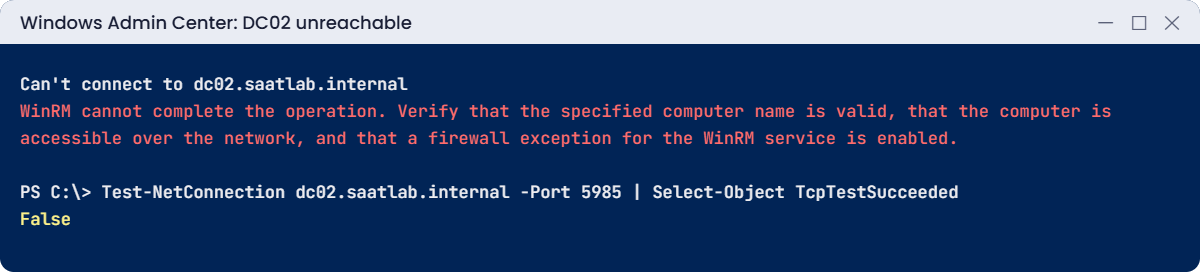
Windows Admin Center lab: cannot connect to DC02 when WinRM is blocked
Windows Admin Center fails exactly like PowerShell remoting when WinRM is blocked.

2Break it: a user who isn’t allowed on the gateway

On CL01, open Edge as SAATLAB\priya.sharma (Run as different user) and browse to https://srv01.saatlab.internal:6516.

You’ll see a page like this:

You are not authorized to view this page.
Contact your administrator to request access to this Windows Admin Center gateway.

Priya isn’t in GG_IT or Domain Admins, so the gateway turns her away before she reaches any server. That’s what you want for most users. If a helpdesk team needs access, add their group to gateway users, and give them limited rights on servers with JEA rather than local admin.

Fix it (only if Priya should have access): add her group in Settings, Access, then check from SRV01 who’s allowed:

Get-LocalGroupMember -Group 'Remote Management Users' -ErrorAction SilentlyContinue | Select-Object Name

✅ Checkpoint: Priya was refused by the gateway; adm.rahul still gets in.

This happened at work

Twenty gateways and one expired certificate

In one company, every admin had installed Windows Admin Center on their own favourite server, each with the installer’s self-signed certificate. There were about twenty gateways, all different.

The self-signed certificates expire after 60 days. When they did, admins saw browser warnings and simply clicked “continue”, because they always had. When a phishing test sent admins to a fake “Admin Center” page with a bad certificate, almost half of them signed in.

The security team shut down all twenty gateways. They built one gateway in high-availability mode with a certificate from the company CA, put it behind MFA through their reverse proxy, and limited access to a privileged admin group.

The fix: a single managed gateway, trusted certificates, gateway access by group, and Kerberos delegation instead of stored credentials.

The lesson: a management tool is a key to everything. Run one, secure it properly, and never train admins to ignore certificate warnings.

Common mistakes and troubleshooting

Mistake or symptomWhat happensWhat to do instead
Self-signed certificate on the gatewayExpires after 60 days; users click through warningsCertificate from your CA or a public CA
Port 443 already used on the serverConflict with IIS or another siteChoose another port (such as 6516) or a dedicated gateway server
“Can’t connect” to a serverWinRM blocked, DNS wrong or credentials refusedTest-NetConnection 5985 and fix remoting first
Everyone can use the gatewayBroad access to a powerful toolGateway users and administrators groups
Gateway published to the internet without MFAA target for attackersVPN or reverse proxy with MFA
Gateway installed on many serversInconsistent versions and certificatesOne managed gateway, high availability if needed
Admins stay local admins everywhereToo much standing privilegeJEA and role-based access
Expecting Arc features without a subscriptionHotpatch and PAYG unavailablePlan Arc onboarding and costs first
Forgetting the double hopSome tools fail on remote resourcesKerberos RBCD for the gateway

Interview questions

Click a question to open it. Under each one you’ll find what the interviewer is really looking for, and one good way to answer.

Fresher level

1. What is Windows Admin Center?

What they’re really checking: Do you know the tool?

How you could answer: A browser-based management tool installed as a gateway that manages servers, clusters, Hyper-V and PCs remotely over PowerShell remoting and WMI.

2. Does Windows Admin Center need an agent on managed servers?

What they’re really checking: Do you know how it connects?

How you could answer: No. It uses WinRM and WMI, which are already on Windows Server.

3. Why is it useful for Server Core?

What they’re really checking: Do you see the benefit?

How you could answer: It gives a graphical way to manage servers that have no desktop, without signing in to them.

2–5 years experience

4. How do you secure a Windows Admin Center gateway?

What they’re really checking: Do you think about access?

How you could answer: A trusted certificate, restricted gateway users and administrators, Kerberos constrained delegation instead of saved credentials, no direct internet exposure, MFA through a proxy, and regular updates.

5. A server shows “Can’t connect” in Windows Admin Center. What do you check?

What they’re really checking: Can you troubleshoot remoting?

How you could answer: DNS name, WinRM service and firewall rule on port 5985, Test-NetConnection from the gateway, credentials and Kerberos, and TrustedHosts for non-domain machines.

6. What is Azure Arc for servers?

What they’re really checking: Do you know hybrid basics?

How you could answer: An agent that registers on-premises servers in Azure so you can manage them with Azure Policy, Update Manager, Monitor and Defender, and enable features like hotpatching and pay-as-you-go licensing.

Senior level

7. How would you roll out Windows Admin Center in a large company?

What they’re really checking: Do you design for scale?

How you could answer: One highly available gateway (or a few per security tier), CA certificates, AD group access, Kerberos RBCD for nodes, RBAC with JEA, extension governance, logging of gateway actions, and integration with existing privileged access workflows.

8. When does hotpatching make sense, and what are the trade-offs?

What they’re really checking: Do you weigh cost and benefit?

How you could answer: For servers where restarts are costly, like DCs and critical apps. It needs Arc and a per-core subscription, still requires quarterly baseline restarts, and doesn’t cover every update.

9. What is pay-as-you-go licensing for Windows Server 2025?

What they’re really checking: Are you current with licensing?

How you could answer: Billing Windows Server per core per hour through Azure for Arc-enabled servers, instead of buying licences up front, useful for short-lived or fluctuating workloads.

Quick quiz

Q1. How does Windows Admin Center talk to managed servers?

  1. An installed agent
  2. PowerShell remoting and WMI over WinRM
  3. SSH only
Show answer

B — No agent needed.

Q2. Why did the lab use port 6516?

  1. It’s required
  2. Port 443 was already used by the intranet site
  3. It’s faster
Show answer

B — Avoid conflicts with IIS.

Q3. What made DC02 fail to connect in Break It step 1?

  1. A wrong certificate
  2. WinRM was blocked by the firewall
  3. DNS was down
Show answer

B — Test port 5985 first.

Q4. How long does the installer’s self-signed certificate last?

  1. 60 days
  2. 1 year
  3. 10 years
Show answer

A — Use a CA certificate.

Q5. In the work story, why did admins fall for the phishing test?

  1. Weak passwords
  2. They were used to clicking through certificate warnings
  3. A virus
Show answer

B — Never train people to ignore warnings.

Quick recap

  • Windows Admin Center is a browser-based gateway that manages servers, clusters and Hyper-V without agents.
  • It uses WinRM and WMI, so remoting rules (firewall, Kerberos, double hop) still apply.
  • Use a CA certificate, a non-conflicting port and group-based gateway access.
  • Manage Server Core machines graphically without signing in to them.
  • Azure Arc brings hybrid management; hotpatching and pay-as-you-go need Arc and a subscription.
  • Run one well-secured gateway, not many.

Next lesson

Lesson 41: Migrations and upgrades → You’ll plan an in-place upgrade path, move file shares with Storage Migration Service, migrate DFS Replication from FRS-era thinking, and check application compatibility before cutover.

Further reading: Windows Admin Center

Want to go deeper into Windows Admin Center? Microsoft’s Windows Admin Center installation guide covers setup options, and the Azure Arc-enabled servers overview explains hybrid management. You can also see the full plan for this course on the Windows Server Administration course page.

Scroll to Top