PowerShell basics for Windows Server admins

You’ve already used a dozen PowerShell commands by copying them. This lesson makes them yours. PowerShell for Windows Server is the one skill every later lesson depends on, and it’s what separates admins who click through fifty servers from admins who fix fifty servers in one go.

You’ll learn how commands are named so you can guess them, how to find help, and the big idea that makes PowerShell different: it passes objects, not text. Then you’ll filter, sort and export real information from DC01, and write your first small script.

TimeYou needBy the end you can
About 60 minutesDC01 from Lesson 6 (or your own laptop; almost everything works there too)Find commands with Get-Command, read help, inspect objects with Get-Member, filter, sort and select with the pipeline, export to CSV, and run a small script safely

What it is, in one line

PowerShell for Windows Server is Microsoft’s command shell and scripting language for managing servers, where commands pass structured objects to each other through a pipeline.

In Simple Words

Passing a tray, not a note

Imagine a kitchen where cooks pass dishes along a line. In an old kitchen, each cook writes a note describing the dish and passes the note: “plate with rice, curry on the left, about warm”. The next cook has to read the note and guess.

In a PowerShell kitchen, cooks pass the actual tray. The next cook can pick up the curry, check its temperature and weigh it, because the real thing is right there.

That’s the difference between old command lines and PowerShell. Old tools pass text that you have to cut up and guess at. PowerShell passes objects: a service arrives as a real service with a Name, a Status and a StartType you can use directly.

Engineer's View

Commands, help, objects and the pipeline

Verb-Noun names. Every cmdlet is named Verb-Noun: Get-Service, Restart-Service, Set-TimeZone, New-NetIPAddress.

The verbs come from an approved list (Get, Set, New, Remove, Start, Stop, Test and others), so once you know the noun, you can guess the rest. Get-Command searches by verb, noun or wildcard.

Help is built in. Get-Help Get-Service -Examples shows working examples. Run Update-Help once as administrator to download the full help files; servers ship with only a short version.

Objects. Every command returns objects with properties (data) and methods (actions).

Get-Member lists them. What you see on screen is only a default view of a few properties; the object has many more.

The pipeline. The | symbol passes objects from one command to the next. The four commands you’ll use constantly are Where-Object (filter rows), Sort-Object (order them), Select-Object (choose columns or the first few) and Measure-Object (count, sum, average).

Format last. Format-Table and Format-List turn objects into screen text. Use them only at the very end; anything after them gets display instructions instead of data.

Execution policy. Windows Server’s default is RemoteSigned: scripts you write locally run, but scripts downloaded from the internet must be signed or unblocked first. It’s a safety belt against accidentally running something you downloaded, not a security boundary.

Safety switches. Many commands that change things support -WhatIf (show what would happen, change nothing) and -Confirm. Use -WhatIf every time a pipeline might touch more objects than you expect.

How it works, step by step

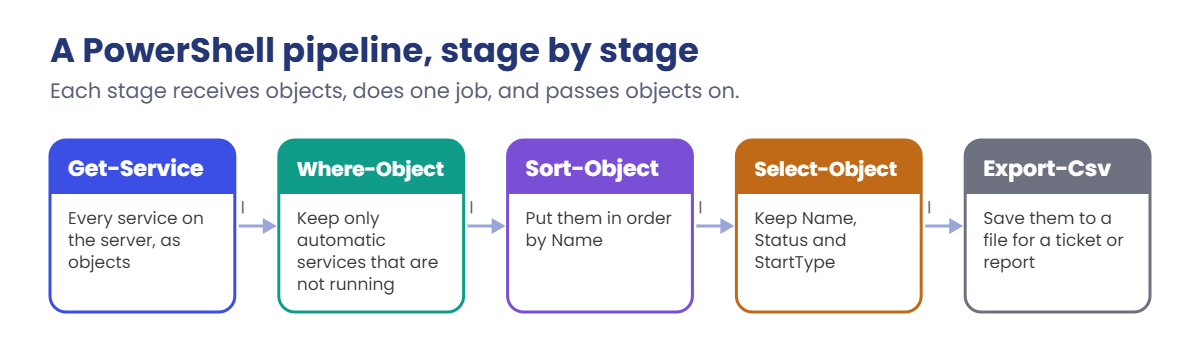
Here’s a pipeline you’ll build in the lab, one stage at a time. Each stage receives objects, does one job, and passes objects on:

PowerShell for Windows Server pipeline: Get-Service, Where-Object, Sort-Object, Select-Object, Export-Csv
  1. Get-Service produces one object for every service on the server, about 250 on a fresh Server 2025.
  2. Where-Object keeps only the ones you want, for example services that are set to start automatically but aren’t running.
  3. Sort-Object puts them in order, by name or by any property.
  4. Select-Object keeps the columns you care about and drops the rest.
  5. Export-Csv writes them to a file you can open in Excel or attach to a ticket.

Nothing in this chain cuts up text. Every stage works with real properties, which is why the same pipeline works on any server in any language.

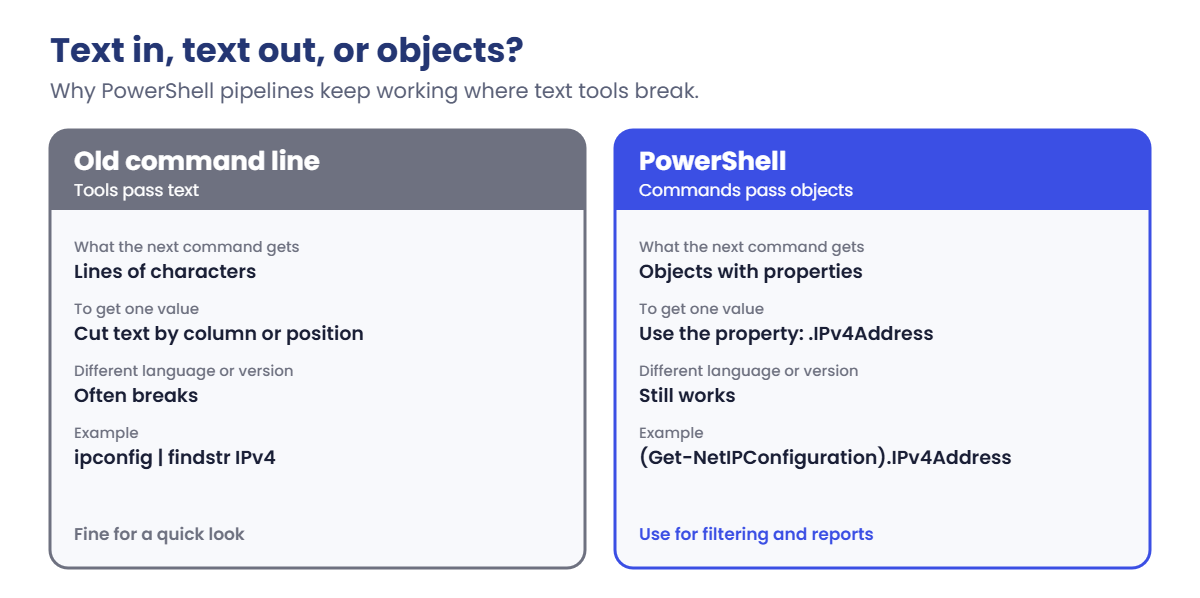
And here’s why that matters, compared with the old way:

PowerShell for Windows Server: objects compared with text from old command-line tools

You’ll still meet text tools like ipconfig and netstat; they work fine in PowerShell. But when you need to filter, compare or report, reach for the PowerShell equivalent (Get-NetIPConfiguration, Get-NetTCPConnection) so you get objects back.

Hands-on Lab: PowerShell for Windows Server, from commands to a script

Start DC01, sign in and open Windows PowerShell as administrator. Your exact lists will differ a little from the examples, but the shape will be the same.

1Find commands by guessing their names

Run this:

Get-Command -Verb Get -Noun *Service*

You should see something like this (the list may be longer):

CommandType     Name                                               Version    Source
-----------     ----                                               -------    ------
Function        Get-NetFirewallServiceFilter                       2.0.0.0    NetSecurity
Cmdlet          Get-Service                                        3.1.0.0    Microsoft.PowerShell.Management

You guessed the verb (Get) and part of the noun (Service), and PowerShell found the commands. Try Get-Command -Noun *DnsClient* or Get-Command *TimeZone* the same way.

✅ Checkpoint: Get-Service appears in your list.

2Get help with real examples

Run these (the first one downloads help and takes a minute):

Update-Help -ErrorAction SilentlyContinue
Get-Help Get-Service -Examples

You’ll see numbered examples with an explanation under each. Help works for every cmdlet, and Get-Help about_Pipelines explains concepts. -ErrorAction SilentlyContinue hides the warnings for the few modules whose help can’t be downloaded.

✅ Checkpoint: Get-Help shows several examples for Get-Service.

3Look inside an object

Run this:

Get-Service -Name Spooler | Get-Member -MemberType Property

You should see something like this:

   TypeName: System.ServiceProcess.ServiceController

Name                MemberType Definition
----                ---------- ----------
CanPauseAndContinue Property   bool CanPauseAndContinue {get;}
CanShutdown         Property   bool CanShutdown {get;}
CanStop             Property   bool CanStop {get;}
Container           Property   System.ComponentModel.IContainer Container {get;}
DependentServices   Property   System.ServiceProcess.ServiceController[] DependentServices {get;}
DisplayName         Property   string DisplayName {get;set;}
MachineName         Property   string MachineName {get;set;}
ServiceHandle       Property   System.Runtime.InteropServices.SafeHandle ServiceHandle {get;}
ServiceName         Property   string ServiceName {get;set;}
ServicesDependedOn  Property   System.ServiceProcess.ServiceController[] ServicesDependedOn {get;}
ServiceType         Property   System.ServiceProcess.ServiceType ServiceType {get;}
Site                Property   System.ComponentModel.ISite Site {get;set;}
StartType           Property   System.ServiceProcess.ServiceStartMode StartType {get;}
Status              Property   System.ServiceProcess.ServiceControllerStatus Status {get;}

Normally Get-Service shows only Status, Name and DisplayName. The object has much more, including StartType and DependentServices, the services that stop if this one stops. Whenever you wonder “what can I filter on?”, pipe it to Get-Member.

✅ Checkpoint: You can see StartType and Status in the property list.

4Filter, sort and select

Find services set to start automatically that are not running:

Get-Service |
    Where-Object { $_.StartType -eq 'Automatic' -and $_.Status -ne 'Running' } |
    Sort-Object Name |
    Select-Object Name, Status, StartType

You should see something like this:

Name        Status StartType
----        ------ ---------
edgeupdate Stopped Automatic
sppsvc     Stopped Automatic

$_ means “the object currently passing through”. This is a real admin check: automatic services that aren’t running are the first thing to look at when a server “isn’t working”. Some, like the update services above, are set to start automatically and then stop by design, so read the list rather than restarting everything.

✅ Checkpoint: You got a short list of automatic services that are stopped.

5Count and measure

Run these one at a time:

(Get-Service | Where-Object Status -eq 'Running').Count
Get-Process | Sort-Object WorkingSet -Descending | Select-Object -First 3 Name, @{n='MemMB';e={[math]::Round($_.WorkingSet/1MB)}}

You should see something like this:

112

Name          MemMB
----          -----
MsMpEng         212
ServerManager   189
svchost         104

The first line counts running services. The second shows the three processes using the most memory, with a calculated column in MB. You’ll use both patterns in Lesson 47 when a server is slow.

✅ Checkpoint: You can see the number of running services and the top three memory users.

6Export to CSV and read it back

Run this:

New-Item -ItemType Directory -Path C:\Lab -Force | Out-Null
Get-Service | Select-Object Name, Status, StartType | Export-Csv C:\Lab\services.csv -NoTypeInformation
Import-Csv C:\Lab\services.csv | Select-Object -First 3

You should see something like this:

Name                Status  StartType
----                ------  ---------
AppIDSvc            Stopped Manual
Appinfo             Running Manual
AppMgmt             Stopped Manual

The CSV opens in Excel, and Import-Csv turns it back into objects. This is how you hand a list to a manager, or compare a server today with the same list from last month.

✅ Checkpoint: C:\Lab\services.csv exists and Import-Csv shows the first three services.

7Write and run a small script

Create the script:

notepad C:\Lab\check.ps1

Paste this into Notepad, save and close:

# check.ps1: a quick health summary for this server
$os = Get-CimInstance Win32_OperatingSystem
$stopped = Get-Service | Where-Object { $_.StartType -eq 'Automatic' -and $_.Status -ne 'Running' }
"Server:          $env:COMPUTERNAME"
"Uptime (hours):  {0:N1}" -f ((Get-Date) - $os.LastBootUpTime).TotalHours
"Free C: (GB):    {0:N1}" -f ((Get-Volume -DriveLetter C).SizeRemaining / 1GB)
"Auto but stopped: $($stopped.Count)"

Run it:

C:\Lab\check.ps1

You should see something like this:

Server:          DC01
Uptime (hours):  1.4
Free C: (GB):    44.8
Auto but stopped: 2
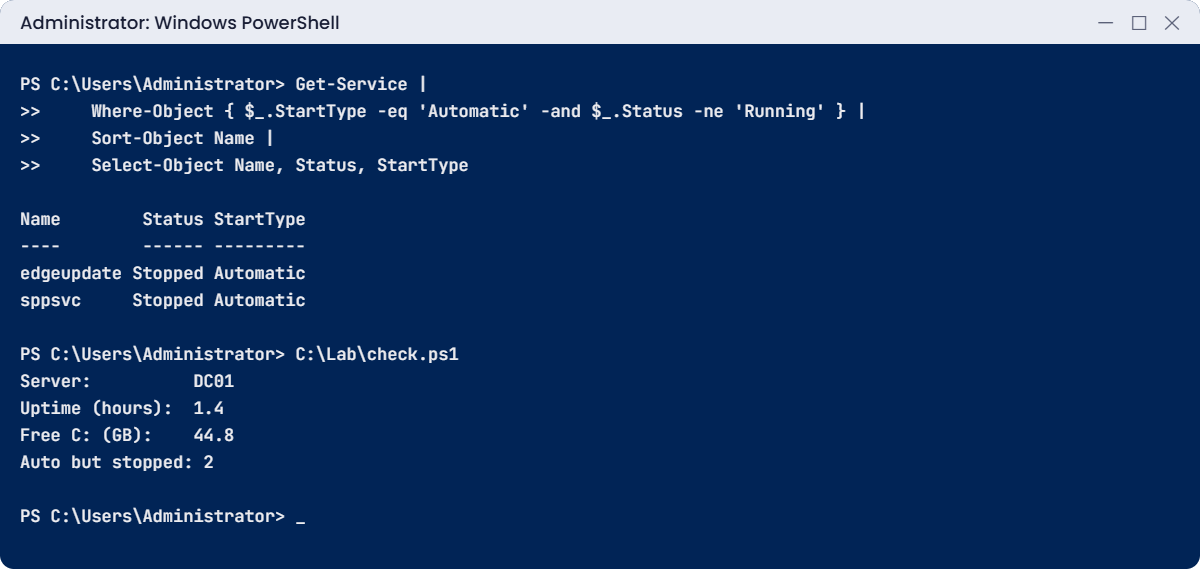
PowerShell for Windows Server lab: filtering stopped automatic services and running check.ps1
Example output. Your numbers will be different.

Four lines that sum up a server, in a file you can run anywhere. -f is the format operator: {0:N1} means “first value, one decimal place”. In Lesson 27 you’ll run scripts like this on many servers at once.

✅ Checkpoint: Your script prints the server name, uptime, free space and the count of stopped automatic services.

Break It, Then Fix It

Two classic PowerShell mistakes that every admin makes once: formatting before exporting, and running a downloaded script.

1Break it: export after Format-Table

Run this on DC01:

Get-Service | Format-Table Name, Status | Export-Csv C:\Lab\broken.csv -NoTypeInformation
Import-Csv C:\Lab\broken.csv | Select-Object -First 2 | Format-List

You’ll get something like this instead of service names:

ClassId2e4f51ef21dd47e99d3c952918aff9cd : 033ecb2bc07a4d43b5ef94ed5a35d280
pageHeaderEntry                         :
pageFooterEntry                         :
autosizeInfo                            :
shapeInfo                               : Microsoft.PowerShell.Commands.Internal.Format.TableHeaderInfo
groupingEntry                           :

ClassId2e4f51ef21dd47e99d3c952918aff9cd : 9e210fe47d09416682b841769c78b8a3
pageHeaderEntry                         :
pageFooterEntry                         :
autosizeInfo                            :
shapeInfo                               :
groupingEntry                           :

No error, just garbage. Format-Table turned the services into drawing instructions for the screen, and Export-Csv faithfully saved those instructions. That odd ClassId2e4f51ef21dd47e99d3c952918aff9cd column is the tell-tale sign.

Fix it: use Select-Object to choose columns, and keep Format-* only for the screen:

Get-Service | Select-Object Name, Status | Export-Csv C:\Lab\fixed.csv -NoTypeInformation
Import-Csv C:\Lab\fixed.csv | Select-Object -First 2

You should see something like this:

Name     Status
----     ------
AppIDSvc Stopped
Appinfo  Running

✅ Checkpoint: broken.csv is full of ClassId lines; fixed.csv has real service names. Rule: Format last, or not at all.

2Break it: run a “downloaded” script

Make a copy of your script and mark it as downloaded from the internet, the way a browser does:

Copy-Item C:\Lab\check.ps1 C:\Lab\downloaded.ps1
Set-Content -Path C:\Lab\downloaded.ps1 -Stream Zone.Identifier -Value "[ZoneTransfer]",'ZoneId=3'
C:\Lab\downloaded.ps1

You’ll get an error like this:

C:\Lab\downloaded.ps1 : File C:\Lab\downloaded.ps1 cannot be loaded. The file C:\Lab\downloaded.ps1 is not digitally
signed. You cannot run this script on the current system. For more information about running scripts and setting
execution policy, see about_Execution_Policies at https:/go.microsoft.com/fwlink/?LinkID=135170.
At line:1 char:1
+ C:\Lab\downloaded.ps1
+ ~~~~~~~~~~~~~~~~~~~~~
    + CategoryInfo          : SecurityError: (:) [], PSSecurityException
    + FullyQualifiedErrorId : UnauthorizedAccess
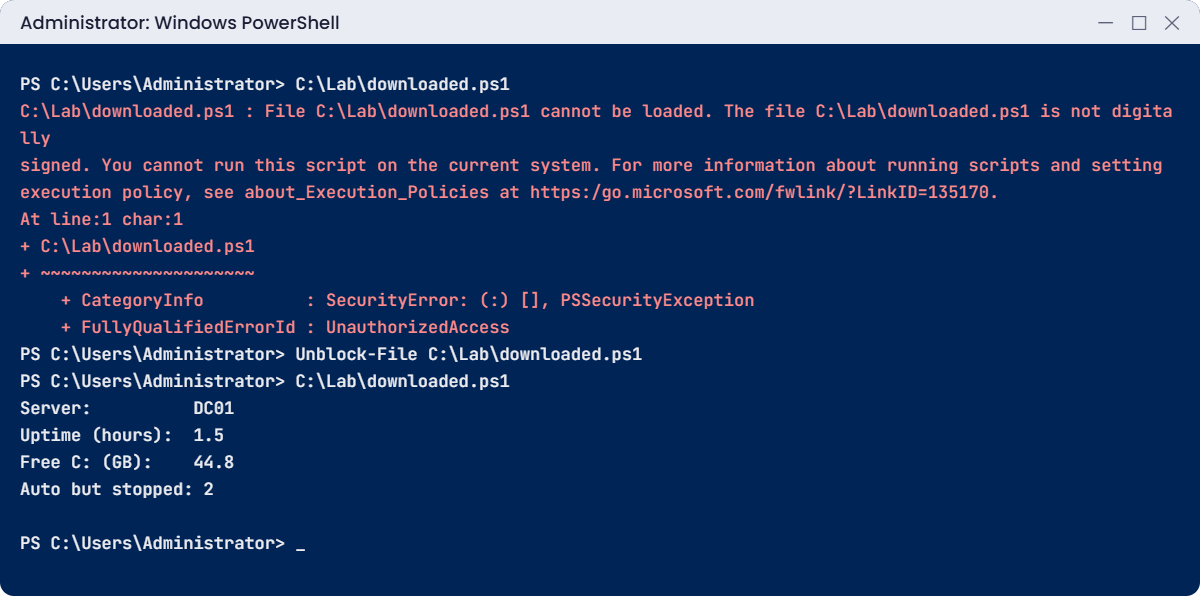
PowerShell for Windows Server lab: a downloaded script is blocked until Unblock-File
Example output.

Browsers add a hidden “Zone.Identifier” note to every downloaded file, with ZoneId 3 meaning “from the internet”. Under the RemoteSigned policy, PowerShell refuses unsigned scripts with that note. The same file without the note runs fine, which is why your own check.ps1 worked.

Fix it: read the script first, then unblock it, and only if you trust it:

Get-Content C:\Lab\downloaded.ps1
Unblock-File C:\Lab\downloaded.ps1
C:\Lab\downloaded.ps1

Don’t “fix” this by setting the execution policy to Unrestricted or Bypass for the whole server. Unblock-File on a script you’ve read is the right tool.

✅ Checkpoint: The script was refused while marked as downloaded and ran after Unblock-File.

This happened at work

The cleanup script that disabled everyone

An admin was asked to disable user accounts that hadn’t signed in for 90 days. He wrote a one-line pipeline: get all users, keep those whose LastLogonDate was older than 90 days, disable them. He tested the filter on screen with a few names, it looked right, and he ran it with the disable command on the end.

Within minutes the helpdesk lit up: about 1,800 accounts were disabled, including his own manager’s. Get-ADUser only returns a few properties unless you ask for more, and LastLogonDate isn’t one of them. For every user it was empty, and PowerShell treats “empty is less than a date” as true, so every account matched.

Enabling them again took an hour, using the same pipeline with Enable-ADAccount and the event log as the list.

The fix: scripts that change many objects must request the properties they filter on (-Properties LastLogonDate), show a count before acting, run once with -WhatIf, and be reviewed by a second person. Anything touching more than 50 accounts needs a change ticket.

The lesson: PowerShell does exactly what you wrote, at the speed of a computer. Always look at how many objects a pipeline will touch before you let it change them.

Common mistakes and troubleshooting

Mistake or symptomWhat happensWhat to do instead
Format-Table before Export-Csv or other commandsOutput full of ClassId2e4f51ef21dd47e99d3c952918aff9cdUse Select-Object for columns; Format only at the end, for the screen
“cannot be loaded because running scripts is disabled”Scripts won’t run (common on Windows client, policy Restricted)Set-ExecutionPolicy RemoteSigned -Scope CurrentUser on your own machine
“is not digitally signed” for a downloaded scriptThe script is blockedRead it, then Unblock-File
Filtering on a property that isn’t thereEvery object matches (or none do)Check with Get-Member and request properties with -Properties
Running a change pipeline without checkingTouches far more objects than expectedCount first, then -WhatIf, then run
Parsing text from ipconfig or netstatBreaks with another language or formatUse Get-NetIPConfiguration, Get-NetTCPConnection and other cmdlets
“The term … is not recognized”Typo, or the module isn’t installedGet-Command *partofname*; install the RSAT or role module
Short help with no examplesHelp files weren’t downloadedUpdate-Help as administrator
Using aliases in scripts (gsv, ?, %)Scripts are hard to read and reviewUse full names in scripts; aliases only at the prompt

Interview questions

Click a question to open it. Under each one you’ll find what the interviewer is really looking for, and one good way to answer.

Fresher level

1. What is a cmdlet and how are cmdlets named?

What they’re really checking: Do you know the basics?

How you could answer: A cmdlet is a PowerShell command, named Verb-Noun such as Get-Service or Restart-Computer, using approved verbs. That makes them easy to guess and find with Get-Command.

2. How do you find out what properties an object has?

What they’re really checking: Do you know how to explore, not memorise?

How you could answer: Pipe it to Get-Member, for example Get-Service | Get-Member, which lists properties and methods. Select-Object * shows all property values for one object.

3. What does the pipeline do in PowerShell?

What they’re really checking: Do you understand objects vs text?

How you could answer: It passes objects from one command to the next, so each command can use real properties instead of parsing text.

2–5 years experience

4. Why should Format-Table be the last command in a pipeline?

What they’re really checking: Have you hit the ClassId problem?

How you could answer: Format cmdlets turn objects into display instructions. Anything after them, like Export-Csv, receives those instructions instead of the data. Use Select-Object to choose properties instead.

5. Explain the RemoteSigned execution policy.

What they’re really checking: Do you know what it protects against and what it doesn’t?

How you could answer: Local scripts run, but scripts marked as downloaded must be signed by a trusted publisher. It prevents running downloaded scripts by accident; it’s not a security boundary, since anyone can paste the code.

6. How do you make a risky bulk change safer?

What they’re really checking: Do you have a safe habit?

How you could answer: Request the needed properties, show the count and a sample first, run with -WhatIf, then run for real, ideally on a small group first. Log what changed so it can be reversed.

Senior level

7. How would you standardise PowerShell scripting in an admin team?

What they’re really checking: Do you think about maintainability?

How you could answer: Scripts in version control with peer review, consistent style (full cmdlet names, comment-based help, parameters instead of hard-coded values), error handling, logging, -WhatIf support, and signing for scripts that run with high privilege.

8. When would you sign scripts, and how?

What they’re really checking: Do you know code signing in practice?

How you could answer: When policy requires AllSigned or for scripts run by privileged automation. Use a code-signing certificate from the internal CA (Lesson 34) and Set-AuthenticodeSignature, and protect the signing key.

9. PowerShell 5.1 or PowerShell 7 on servers?

What they’re really checking: Do you know both exist and why?

How you could answer: Windows PowerShell 5.1 ships with Windows and runs every Windows module. PowerShell 7 is cross-platform, faster and gets new features, installed separately. Many admins use 7 for daily work and 5.1 where a module needs it.

Quick quiz

Q1. Which command lists the properties of an object?

  1. Get-Help
  2. Get-Member
  3. Get-Command
Show answer

B — Get-Member shows properties and methods.

Q2. What does $_ mean inside Where-Object { }?

  1. The previous command
  2. The current object in the pipeline
  3. A variable for errors
Show answer

B — $_ is the object currently passing through.

Q3. Why did broken.csv contain ClassId columns?

  1. Export-Csv is broken
  2. Format-Table came before Export-Csv
  3. The services were stopped
Show answer

B — Format cmdlets output display instructions, not data.

Q4. What blocked downloaded.ps1?

  1. A missing file
  2. The Zone.Identifier mark plus the RemoteSigned policy
  3. A syntax error
Show answer

B — RemoteSigned blocks unsigned scripts marked as downloaded.

Q5. In the work story, why were all accounts disabled?

  1. A virus
  2. LastLogonDate wasn’t requested, so it was empty for everyone and the filter matched all
  3. The domain controller failed
Show answer

B — Always request the properties you filter on and check the count first.

Quick recap

  • PowerShell for Windows Server uses Verb-Noun cmdlets; find them with Get-Command and examples with Get-Help -Examples.
  • Commands pass objects; Get-Member shows what’s inside.
  • The core pipeline: Where-Object, Sort-Object, Select-Object, Measure-Object, Export-Csv.
  • Format last: Format-Table only for the screen.
  • RemoteSigned blocks downloaded scripts; read them, then Unblock-File.
  • Before a bulk change: request properties, count, -WhatIf, then run.

Next lesson

Lesson 8: Windows internals for admins → You’ll look under the hood: processes, services and their accounts, the registry, how Windows boots, and where the logs live, so the troubleshooting lessons make sense.

Further reading: PowerShell for Windows Server

Want to go deeper into PowerShell for Windows Server? Start with Microsoft’s PowerShell documentation, especially the pages on the pipeline and execution policies. You can also see the full plan for this course on the Windows Server Administration course page.

Scroll to Top