Remote Desktop Services: RDP, RemoteApps and remote access

Admins use Remote Desktop all day to reach servers, and many companies give staff apps the same way, from anywhere. Remote Desktop Services (RDS) turns a server into a shared desktop or app host, with a web portal, load balancing and licensing.

In this lesson you’ll check how RDP is secured on SRV01, build a small RDS deployment on SRV01 with a session collection and a RemoteApp, open it from CL01 through RD Web Access, and look at RD Gateway, VPN and NPS for working from outside.

TimeYou needBy the end you can
About 75 minutesDC01, SRV01 and CL01 from Lesson 25Secure RDP with NLA and groups, deploy RDS roles with PowerShell, publish RemoteApps, explain RD Gateway, VPN and NPS, and fix common connection errors

What it is, in one line

Remote Desktop Services is the Windows Server role set that lets many users run desktops or individual apps on a server over the RDP protocol, from their own devices.

In Simple Words

A shared office kitchen

Instead of buying every employee a coffee machine, a company puts a few good ones in a shared kitchen. Everyone uses them, and one person keeps them clean and stocked.

An RDS server is the shared kitchen for apps. The apps are installed once, on the server, and people use them from any laptop, even an old one. Updates happen in one place.

The front desk that decides who can go in (RD Web Access and the Connection Broker) and the badge reader at the building door (RD Gateway) keep it organised and safe.

Engineer's View

RDP, RDS roles, licensing, remote access

RDP runs on TCP and UDP 3389. Network Level Authentication (NLA) makes users authenticate before a session is created, which saves resources and blocks many attacks. Access is controlled by the Remote Desktop Users group (or the collection’s user groups in RDS) and the “Allow log on through Remote Desktop Services” right.

RDS roles: RD Session Host runs the sessions; RD Connection Broker balances users across hosts and reconnects them to existing sessions; RD Web Access publishes apps on a web page (/RDWeb); RD Gateway wraps RDP in HTTPS (443) for outside users; RD Licensing issues client access licences (CALs), after a 120-day grace period.

Collections and RemoteApps: a session collection is a group of session hosts with the same settings and users. A RemoteApp shows a single app in its own window instead of a full desktop.

Other remote access: RRAS provides VPN (SSTP, IKEv2) and routing; NPS is Microsoft’s RADIUS server, used by VPNs, Wi-Fi and RD Gateway to check who may connect. Exposing 3389 directly to the internet is never acceptable.

How it works, step by step

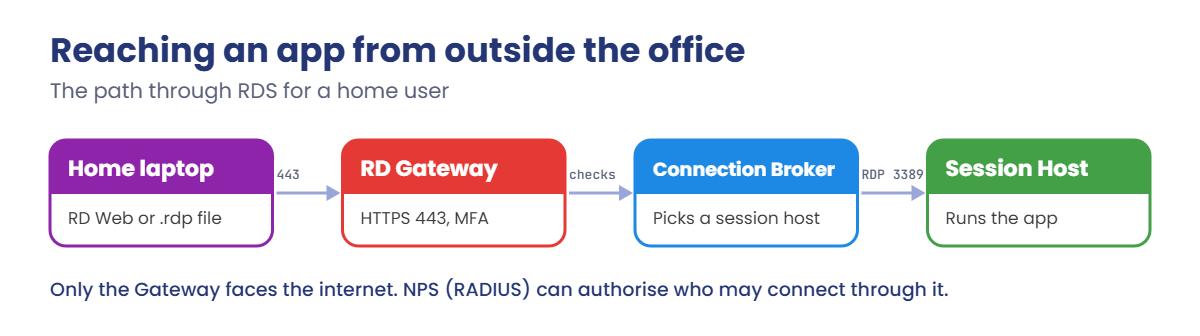
How a user outside the office reaches an app on the session host:

Remote Desktop Services path: RD Gateway, Connection Broker and Session Host

Only RD Gateway faces the internet, on HTTPS. Inside, the Connection Broker picks a session host and RDP goes from the Gateway to that host. In the lab, everything lives on SRV01 and CL01 connects from the inside, so you’ll skip the Gateway.

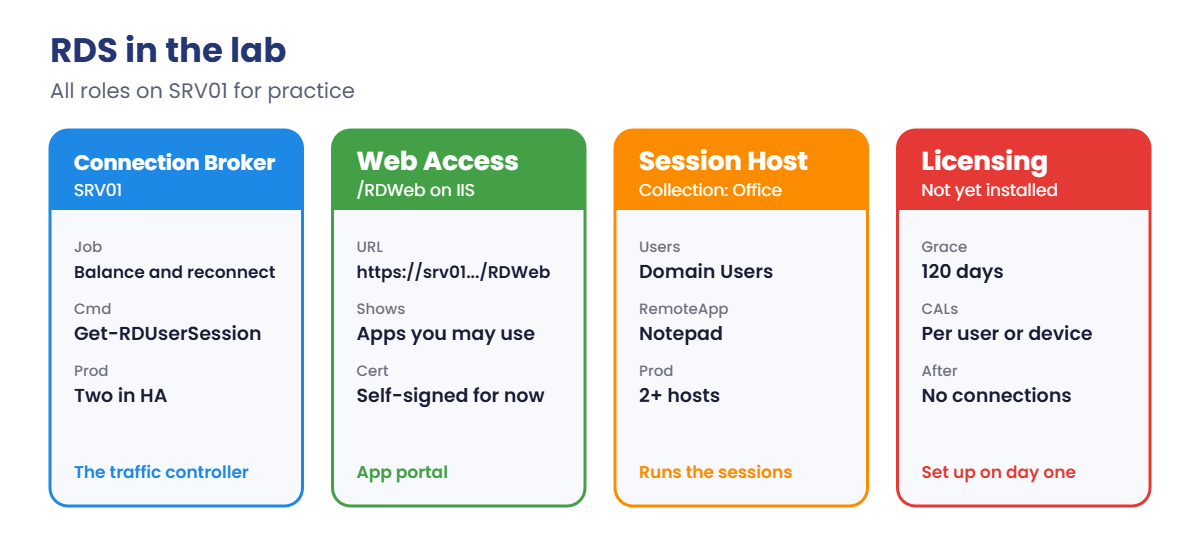
The RDS deployment you’ll build:

Remote Desktop Services lab roles: Connection Broker, Web Access, Session Host and licensing
  1. Check RDP on SRV01: enabled, NLA on, firewall rules, who may connect.
  2. Deploy RD Connection Broker, RD Web Access and RD Session Host on SRV01 in one command.
  3. Create the Office collection for Domain Users.
  4. Publish Notepad as a RemoteApp.
  5. Open it from CL01 through RD Web Access and see the session from the server.

In production these roles go on separate servers, with at least two session hosts and licensing configured before the 120-day grace period ends.

Hands-on Lab: Remote Desktop Services on SRV01

Start DC01, SRV01 and CL01. Take a “Before RDS” snapshot of SRV01 first. Work on SRV01 as SAATLAB\Administrator in PowerShell as administrator.

1Check how RDP is set up on SRV01

On SRV01, run this:

(Get-ItemProperty 'HKLM:\System\CurrentControlSet\Control\Terminal Server').fDenyTSConnections
(Get-CimInstance -Namespace root\cimv2\TerminalServices -ClassName Win32_TSGeneralSetting -Filter "TerminalName='RDP-Tcp'").UserAuthenticationRequired
Get-NetFirewallRule -DisplayGroup 'Remote Desktop' | Select-Object DisplayName, Enabled
Get-LocalGroupMember 'Remote Desktop Users'

You should see something like this:

0
1

DisplayName                             Enabled
-----------                             -------
Remote Desktop - User Mode (TCP-In)        True
Remote Desktop - User Mode (UDP-In)        True
Remote Desktop - Shadow (TCP-In)           True

fDenyTSConnections 0 means RDP is on (you enabled it in Lesson 6), and UserAuthenticationRequired 1 means NLA is required. Remote Desktop Users is empty, so only administrators can connect today. That’s a good starting point for a server.

✅ Checkpoint: RDP is on, NLA is required and only admins can connect to SRV01.

2Deploy the RDS roles

On SRV01, run this. SRV01 restarts during the deployment:

Import-Module RemoteDesktop
New-RDSessionDeployment -ConnectionBroker SRV01.saatlab.internal -WebAccessServer SRV01.saatlab.internal -SessionHost SRV01.saatlab.internal

The command installs the three roles, restarts SRV01 and finishes the setup after the restart. It can take 10 minutes. Sign in again as SAATLAB\Administrator when it’s back.

Then check the deployment:

Get-RDServer -ConnectionBroker SRV01.saatlab.internal | Select-Object Server, Roles

You should see something like this:

Server                 Roles
------                 -----
SRV01.saatlab.internal {RDS-CONNECTION-BROKER, RDS-WEB-ACCESS, RDS-RD-SERVER}

✅ Checkpoint: Get-RDServer lists SRV01 with the Connection Broker, Web Access and Session Host roles.

3Create a session collection

On SRV01, run this:

New-RDSessionCollection -CollectionName Office -SessionHost SRV01.saatlab.internal -ConnectionBroker SRV01.saatlab.internal -CollectionDescription 'Lab apps for staff'
Set-RDSessionCollectionConfiguration -CollectionName Office -UserGroup 'SAATLAB\Domain Users' -ConnectionBroker SRV01.saatlab.internal
Get-RDSessionCollectionConfiguration -CollectionName Office -UserGroup -ConnectionBroker SRV01.saatlab.internal

You should see something like this:

CollectionName UserGroup
-------------- ---------
Office         {SAATLAB\Domain Users}

The collection’s user group decides who may connect to its session hosts. For a real farm you’d use a dedicated group, such as GG_RDS_Office, instead of all Domain Users.

✅ Checkpoint: The Office collection exists with SAATLAB\Domain Users as its user group.

4Publish Notepad as a RemoteApp

On SRV01, run this:

New-RDRemoteApp -CollectionName Office -DisplayName 'Notepad' -FilePath 'C:\Windows\System32\notepad.exe' -ConnectionBroker SRV01.saatlab.internal | Out-Null
Get-RDRemoteApp -CollectionName Office -ConnectionBroker SRV01.saatlab.internal | Select-Object DisplayName, FilePath, ShowInWebAccess

You should see something like this:

DisplayName FilePath                        ShowInWebAccess
----------- --------                        ---------------
Notepad     C:\Windows\System32\notepad.exe True

Any program installed on the session host can be published this way. In real life it’s usually the line-of-business app that’s hard to install on every laptop.

✅ Checkpoint: Notepad is published in the Office collection and shown in Web Access.

5Open the RemoteApp from CL01

On CL01, sign in as SAATLAB\priya.sharma. In Edge, open https://srv01.saatlab.internal/RDWeb. The deployment uses a self-signed certificate, so accept the warning for the lab (Lesson 34 fixes this).

Sign in as saatlab\priya.sharma, click Notepad, open the downloaded .rdp file and click Connect. Notepad opens in its own window, but it’s running on SRV01: open File, Save As and you’ll see SRV01’s drives.

On SRV01, look at the session:

Get-RDUserSession -ConnectionBroker SRV01.saatlab.internal | Select-Object UserName, HostServer, SessionState, CollectionName

You should see something like this:

UserName     HostServer             SessionState CollectionName
--------     ----------             ------------ --------------
priya.sharma SRV01.saatlab.internal STATE_ACTIVE Office

From here you could send a message to the user, shadow the session with their permission, or log them off. Session host admins do this daily.

✅ Checkpoint: Priya runs Notepad as a RemoteApp, and Get-RDUserSession shows her active session on SRV01.
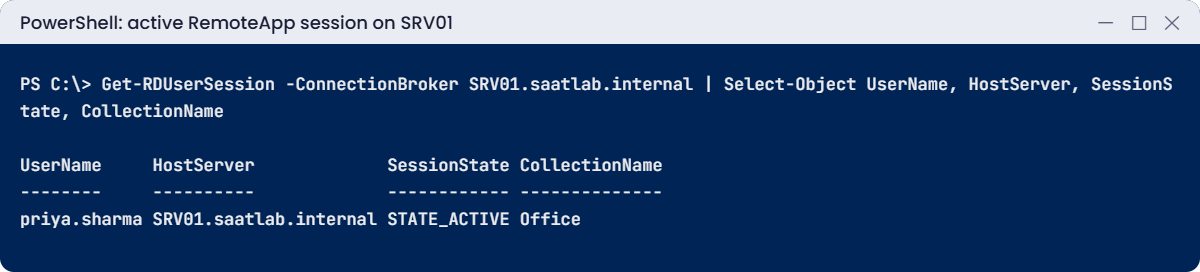
Remote Desktop Services lab: Priya's active RemoteApp session on SRV01
The Connection Broker shows Priya’s RemoteApp session on SRV01 in the Office collection.

Close Notepad, then take a snapshot of SRV01 called “RDS”.

VBoxManage snapshot SRV01 take "RDS"

Break It, Then Fix It

Most RDS tickets are one of two things: “I’m not allowed in” and “I can’t reach it at all”. You’ll cause both.

1Break it: user not in the collection’s group

On SRV01, limit the Office collection to Finance:

Set-RDSessionCollectionConfiguration -CollectionName Office -UserGroup 'SAATLAB\GG_Finance' -ConnectionBroker SRV01.saatlab.internal

On CL01, sign in as SAATLAB\sneha.reddy (IT) and open https://srv01.saatlab.internal/RDWeb. After signing in, the page shows no apps at all. Then try a full desktop with mstsc /v:srv01.saatlab.internal.

You’ll get an error like this:

The connection was denied because the user account is not authorized for remote login.

Sneha’s password is fine and the server is up; she just isn’t in the group the collection allows. RD Web Access only shows apps from collections you may use, which is why her page is empty.

Fix it: allow the right groups again:

Set-RDSessionCollectionConfiguration -CollectionName Office -UserGroup 'SAATLAB\GG_Finance','SAATLAB\GG_IT' -ConnectionBroker SRV01.saatlab.internal

✅ Checkpoint: Sneha saw no apps and was denied while only GG_Finance was allowed, and sees Notepad after GG_IT was added.

2Break it: RDP blocked by the firewall

On SRV01, disable the Remote Desktop firewall rules:

Disable-NetFirewallRule -DisplayGroup 'Remote Desktop'

On CL01, test the port:

Test-NetConnection srv01.saatlab.internal -Port 3389 | Select-Object ComputerName, RemotePort, TcpTestSucceeded

You’ll see something like this:

WARNING: TCP connect to (10.0.0.20 : 3389) failed

ComputerName           RemotePort TcpTestSucceeded
------------           ---------- ----------------
srv01.saatlab.internal       3389            False

The RemoteApp now fails with “Remote Desktop can’t connect to the remote computer” and a list of possible reasons. The message is the same whether RDP is off, the server is down, or a firewall blocks it, so test the port first: it tells you which.

Fix it: enable the rules and test again:

Enable-NetFirewallRule -DisplayGroup 'Remote Desktop'      # on SRV01
Test-NetConnection srv01.saatlab.internal -Port 3389 | Select-Object TcpTestSucceeded   # on CL01

✅ Checkpoint: Port 3389 failed while the rules were disabled and succeeds after enabling them.
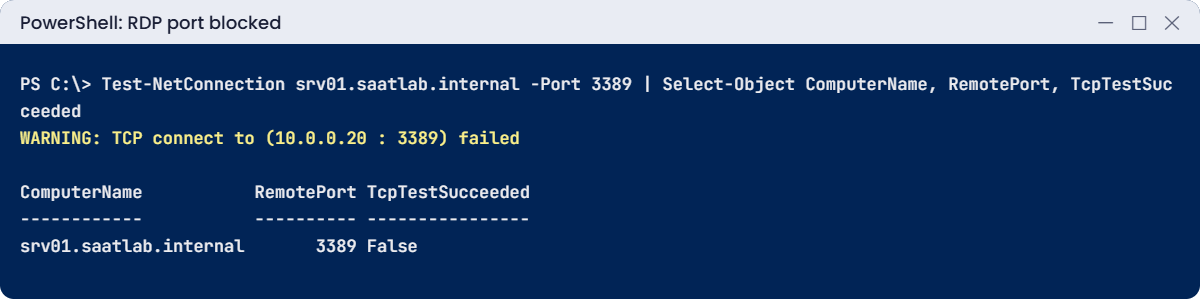
Remote Desktop Services lab: Test-NetConnection shows port 3389 blocked
Test the port first: a failed TCP test on 3389 points at the firewall, not the user.

This happened at work

Day 121

A small accounting firm set up two RDS session hosts so staff could work from home during tax season. Everything worked perfectly, and the project was closed.

Exactly 120 days after the deployment, every user was disconnected with “The remote session was disconnected because there are no Remote Desktop License Servers available to provide a license.” It was the busiest week of their year.

Nobody had installed the RD Licensing role or bought CALs. The grace period had simply ended. Getting licences approved, buying them and activating the licence server took most of a day, while 40 accountants waited.

The fix: RD Licensing installed and activated, per-user CALs bought, and the licensing mode set on the deployment. The project checklist now includes “licensing configured and tested” before sign-off.

The lesson: RDS works out of the box for 120 days, which hides the missing licensing. Set it up on day one, not day 121.

Common mistakes and troubleshooting

Mistake or symptomWhat happensWhat to do instead
RDP port 3389 open to the internetConstant brute-force and exploit attemptsRD Gateway or VPN with MFA; never expose 3389
NLA turned offSessions created before authentication; more attack surfaceKeep NLA required
“not authorized for remote login”User isn’t in Remote Desktop Users or the collection groupAdd the right group; check user rights GPOs
No RD Licensing after 120 daysAll users disconnectedInstall and activate licensing, set mode, buy CALs
Single session hostOne restart takes everyone offlineTwo or more hosts behind the Connection Broker
Self-signed RDS certificatesWarnings and trust promptsCertificates from your CA for all RDS roles
Admins installing apps in user sessionsApps install for one user onlyUse install mode (change user /install) or deploy properly
“Remote Desktop can’t connect” without testingGuessing between down, off and blockedTest-NetConnection to 3389 first
Profiles growing without limitsSlow sign-ins and full disksFSLogix or Folder Redirection with quotas

Interview questions

Click a question to open it. Under each one you’ll find what the interviewer is really looking for, and one good way to answer.

Fresher level

1. What is NLA?

What they’re really checking: Do you know RDP security basics?

How you could answer: Network Level Authentication: users must authenticate before an RDP session is created, which reduces attack surface and server load.

2. Which port does RDP use?

What they’re really checking: Do you know the basics?

How you could answer: TCP and UDP 3389. RD Gateway uses HTTPS on 443.

3. How do you let a normal user RDP to a server?

What they’re really checking: Have you done it?

How you could answer: Add them (better, a group) to Remote Desktop Users on that server, or to the collection user group in RDS, and make sure no policy denies the logon right.

2–5 years experience

4. Name the RDS roles and what each does.

What they’re really checking: Do you know the architecture?

How you could answer: Session Host runs sessions, Connection Broker balances and reconnects, Web Access publishes apps, Gateway tunnels RDP over HTTPS, Licensing issues CALs.

5. What happens after the RDS grace period?

What they’re really checking: Do you know licensing?

How you could answer: After 120 days without a licence server providing CALs, users can’t connect to session hosts. Install RD Licensing, activate it, add CALs and set the licensing mode.

6. What is NPS used for?

What they’re really checking: Do you know remote access components?

How you could answer: Network Policy Server is Microsoft’s RADIUS server, used to authenticate and authorise VPN, Wi-Fi, switch port and RD Gateway connections with network policies.

Senior level

7. Design remote access for 500 staff working from home.

What they’re really checking: Do you think end to end?

How you could answer: RD Gateway with MFA in a DMZ or Azure, two or more Connection Brokers in HA, a session host farm sized by user load, FSLogix profiles, licensing, monitoring, or Azure Virtual Desktop as an alternative, and VPN only where full network access is needed.

8. Users complain RDS sessions are slow. What do you check?

What they’re really checking: Is your troubleshooting structured?

How you could answer: Host CPU, memory and disk per session, profile load times, network latency and UDP use, graphics settings, antivirus exclusions, and apps hogging resources, using performance counters and RDS logs.

9. When would you choose VPN over RD Gateway?

What they’re really checking: Do you understand trade-offs?

How you could answer: VPN when users need many protocols and resources from their own device; RD Gateway when they only need apps or desktops, keeping data on servers and reducing what the device can reach.

Quick quiz

Q1. What does NLA do?

  1. Speeds up RDP
  2. Requires authentication before a session is created
  3. Encrypts the disk
Show answer

B — It reduces attack surface.

Q2. Which RDS role publishes apps on a web page?

  1. RD Session Host
  2. RD Web Access
  3. RD Licensing
Show answer

B — The /RDWeb portal.

Q3. Why did Sneha see no apps in Break It step 1?

  1. Wrong password
  2. She wasn’t in the collection’s user group
  3. RDWeb was down
Show answer

B — The collection allowed only GG_Finance.

Q4. What should you test first when RDP “can’t connect”?

  1. Reinstall RDS
  2. TCP 3389 with Test-NetConnection
  3. Reset the password
Show answer

B — It shows whether the port is reachable.

Q5. In the work story, why were users disconnected?

  1. A virus
  2. The 120-day licensing grace period ended
  3. The gateway certificate expired
Show answer

B — Configure licensing on day one.

Quick recap

  • Remote Desktop Services hosts shared desktops and apps on session hosts.
  • Keep NLA on and control access with groups; never expose 3389 to the internet.
  • Deploy roles with New-RDSessionDeployment, then create collections and RemoteApps.
  • RD Gateway (443) and VPN with NPS bring outside users in safely.
  • Install RD Licensing before the 120-day grace period ends.
  • Test port 3389 before guessing at RDP errors.

Next lesson

Lesson 27: PowerShell automation → You’ll run commands on many servers with Invoke-Command, write a reusable script with parameters and error handling, schedule it as a task, and turn earlier checks into a daily server report.

Further reading: Remote Desktop Services

Want to go deeper into Remote Desktop Services? Microsoft’s Remote Desktop Services overview covers every role, and the RDS licensing guide explains CALs. You can also see the full plan for this course on the Windows Server Administration course page.

Scroll to Top