Windows Server performance: find the bottleneck and the process

“The server is slow” is the vaguest ticket there is. Windows Server performance troubleshooting turns it into a number: which resource is busy (CPU, memory, disk or network), by how much, and because of which process.

In this lesson you’ll build a quick performance snapshot, then load CPU, memory and disk on purpose and watch the right counters move. You’ll also record a trace with Windows Performance Recorder for deeper analysis.

TimeYou needBy the end you can
About 90 minutesSRV01 with the D: data disk, and internet access for one downloadFind the bottleneck resource and the process behind it, using the counters that matter

What it is, in one line

Windows Server performance troubleshooting is measuring the four resources (CPU, memory, disk, network) against known healthy values to find which one is the bottleneck, and which process causes it.

In Simple Words

In Simple Words

Think of a school canteen at lunch. If the queue is long, it could be because there’s only one cook, the fridge is too small, the plates come slowly from the washing area, or the door is too narrow.

Adding more cooks won’t help if the problem is the plates. You first watch where the students are waiting.

A slow server is the same. Measure where the work is waiting before you add more CPU or memory.

Engineer's View

Engineer’s View

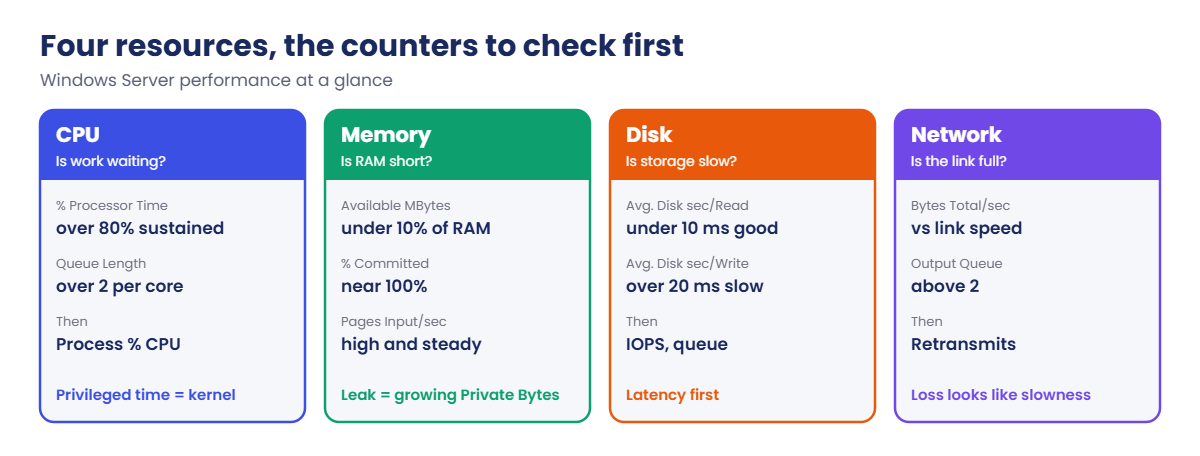
CPU: % Processor Time above about 80% for long periods, with Processor Queue Length above 2 per core, means work is waiting for CPU. Check Process(*)\% Processor Time for the culprit, and % Privileged Time for driver or kernel work.

Memory: Available MBytes under about 10% of RAM, high Pages Input/sec (hard faults read from disk) and % Committed Bytes In Use near 100% mean memory pressure. A process whose Private Bytes only grows is probably leaking.

Disk: latency is the key: Avg. Disk sec/Read and /Write under 10 ms is good, 10 to 20 ms is OK, over 20 ms sustained is slow. Queue length and IOPS only make sense next to latency.

Network: compare Bytes Total/sec with the link speed and watch Output Queue Length. Retransmits point to loss rather than bandwidth.

Tools: Task Manager and Resource Monitor for a live look, Get-Counter and PerfMon for numbers over time, and Windows Performance Recorder (wpr) with Windows Performance Analyzer for a deep trace of what each thread was doing.

How it works, step by step

The four resources and the counters to check first:

Windows Server performance counters for CPU, memory, disk and network

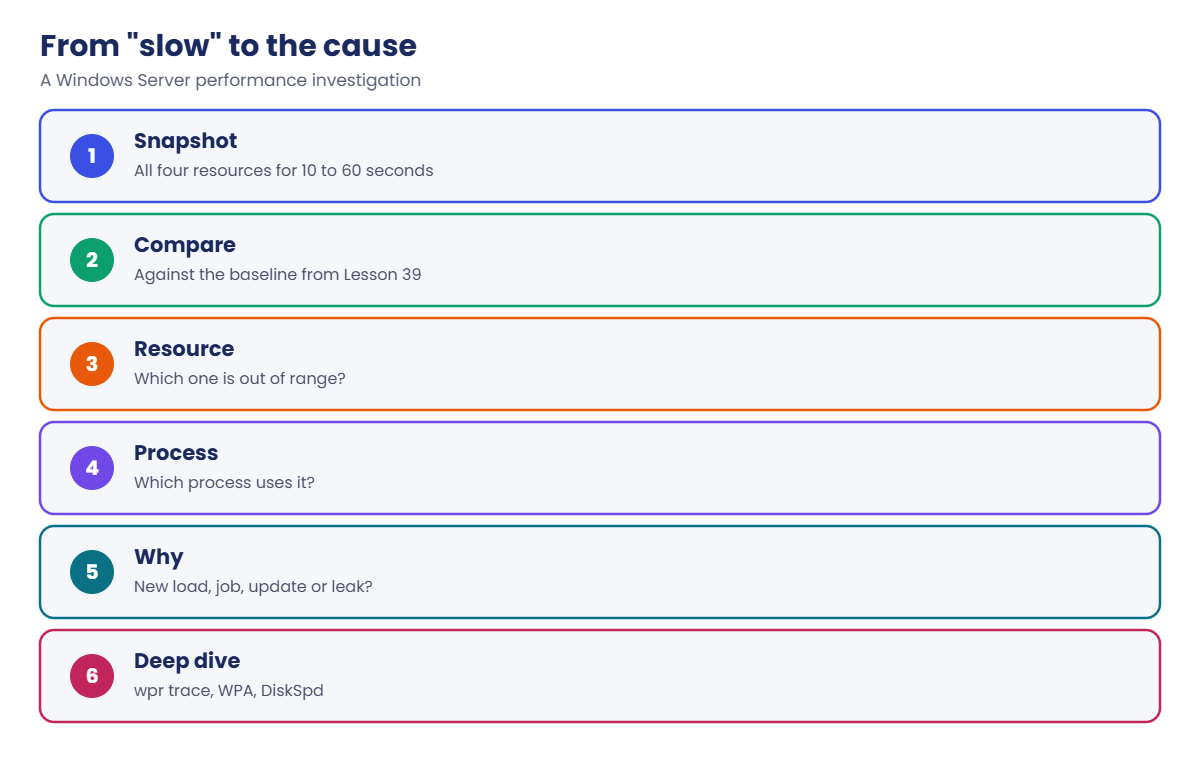
Always start with a short snapshot of all four resources. A server with 100% CPU might really be short of memory, paging hard, and burning CPU on the paging itself.

Compare against a baseline (Lesson 39). 60% CPU is fine if it’s always 60%; it’s a warning if it’s usually 10%.

Once you know the resource, find the process. Then ask why: more users, a new job, a bad update, or a leak.

Symptom, likely bottleneck and the tool to confirm it:

Windows Server performance method: snapshot, compare, resource, process, cause and trace

In the lab you’ll work on SRV01:

  • Build a Get-PerfSnapshot function.
  • Load the CPU and find the busy process.
  • Use up memory and watch Available MBytes.
  • Load the disk with DiskSpd and read the latency.
  • Record a short trace with Windows Performance Recorder.

Hands-on lab: load each resource and measure it

Start DC01 and SRV01. Give SRV01 at least 2 vCPUs and 4 GB RAM for this lab. Work as SAATLAB\adm.rahul in PowerShell as administrator on SRV01.

1Build a performance snapshot

Save as C:\Lab\Get-PerfSnapshot.ps1 and load it:

function Get-PerfSnapshot {
    param([int]$Seconds = 10)
    $counters = '\Processor(_Total)\% Processor Time',
                '\System\Processor Queue Length',
                '\Memory\Available MBytes',
                '\Memory\% Committed Bytes In Use',
                '\Memory\Pages Input/sec',
                '\PhysicalDisk(_Total)\Avg. Disk sec/Read',
                '\PhysicalDisk(_Total)\Avg. Disk sec/Write',
                '\Network Interface(*)\Bytes Total/sec'
    $data = Get-Counter -Counter $counters -SampleInterval 1 -MaxSamples $Seconds
    $data.CounterSamples | Group-Object Path | ForEach-Object {
        $avg = ($_.Group | Measure-Object CookedValue -Average).Average
        if ($_.Name -like '*disk sec*') { $avg = $avg * 1000 }
        [pscustomobject]@{
            Counter = ($_.Name -split '\\')[-2..-1] -join '\'
            Average = [math]::Round($avg, 1)
        }
    }
}

. C:\Lab\Get-PerfSnapshot.ps1
Get-PerfSnapshot

You’ll see something like this:

Counter                                                                 Average
-------                                                                 -------
processor(_total)\% processor time                                          3.2
system\processor queue length                                                 0
memory\available mbytes                                                    2214
memory\% committed bytes in use                                            38.6
memory\pages input/sec                                                      0.4
physicaldisk(_total)\avg. disk sec/read                                     0.6
physicaldisk(_total)\avg. disk sec/write                                    1.1
network interface(intel[r] pro_1000 mt desktop adapter)\bytes total/sec  1288.4

This is SRV01 at rest: low CPU, no queue, plenty of memory, disk latency around 1 ms (shown in milliseconds). Save the output: it’s your quick baseline for the next steps.

✅ Checkpoint: Get-PerfSnapshot prints averages for CPU, memory, disk latency (ms) and network.

2Load the CPU and find the busy process

Start two busy loops (one per vCPU), measure, then find the top process:

$jobs = 1..2 | ForEach-Object { Start-Job { while ($true) { } } }
Get-PerfSnapshot -Seconds 5 | Where-Object Counter -like '*processor*'
(Get-Counter '\Process(*)\% Processor Time').CounterSamples |
    Where-Object { $_.InstanceName -notin '_total', 'idle' } |
    Sort-Object CookedValue -Descending | Select-Object -First 3 InstanceName,
        @{ n = 'CPU'; e = { [math]::Round($_.CookedValue) } }

You’ll see something like this:

Counter                            Average
-------                            -------
processor(_total)\% processor time    99.6
system\processor queue length          4.2

InstanceName CPU
------------ ---
powershell   100
powershell#1  99
wmiprvse       2

CPU is pegged and work is queueing. The per-process counter is out of 100% per core, so two processes at about 100 each fill two vCPUs. In real life you’d now map the process to a service or user.

Stop the load:

$jobs | Stop-Job -PassThru | Remove-Job

✅ Checkpoint: CPU was near 100% with a queue, and two powershell processes were the top consumers.
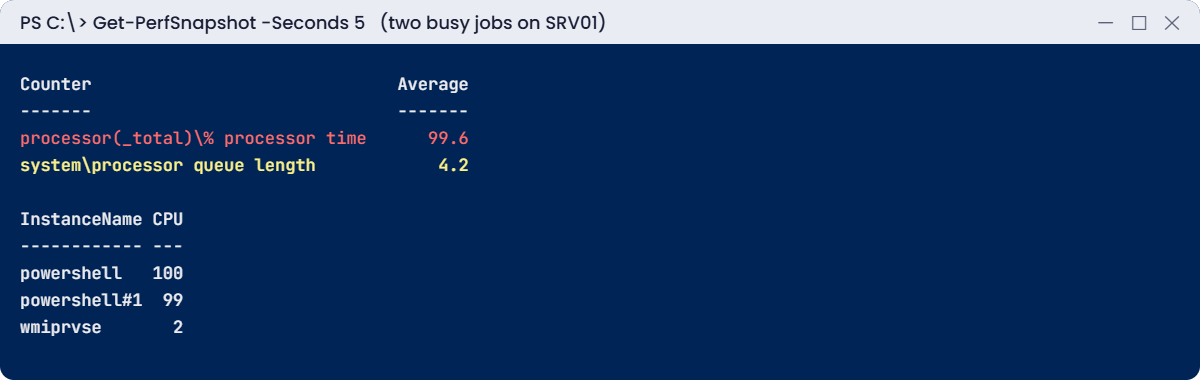
Windows Server performance lab: CPU at 100% with a processor queue
Windows Server performance: CPU pegged, threads queueing, and the processes responsible

3Use up memory and watch it

Allocate and touch about 1.5 GB, then take a snapshot:

$a = New-Object byte[] 1.5GB
for ($i = 0; $i -lt $a.Length; $i += 4096) { $a[$i] = 1 }
Get-PerfSnapshot -Seconds 5 | Where-Object Counter -like 'memory*'
Get-Process -Id $PID | Select-Object Name, @{ n = 'PrivateMB'; e = { [math]::Round($_.PrivateMemorySize64 / 1MB) } }

You’ll see something like this:

Counter                         Average
-------                         -------
memory\available mbytes             672
memory\% committed bytes in use    76.9
memory\pages input/sec             18.3

Name       PrivateMB
----       ---------
powershell      1611

Available memory dropped by about 1.5 GB, commit rose and Windows started reading pages back from disk. Touching each 4 KB page matters: Windows only gives a process real RAM when it uses the memory.

Release it:

Remove-Variable a; [GC]::Collect()

✅ Checkpoint: Available MBytes fell and PowerShell’s private memory rose by about 1.5 GB, then recovered.

4Load the disk with DiskSpd and read latency

Download DiskSpd from Microsoft’s GitHub and run a 30-second random test on D:

New-Item C:\DISKSPD -ItemType Directory -Force | Out-Null
Invoke-RestMethod -Uri https://github.com/microsoft/diskspd/releases/latest/download/DiskSpd.zip -OutFile C:\DISKSPD\DiskSpd.zip
Expand-Archive C:\DISKSPD\DiskSpd.zip -DestinationPath C:\DISKSPD -Force
C:\DISKSPD\amd64\diskspd.exe -c1G -d30 -t2 -o16 -b8K -r -w30 -Sh -L D:\diskspd-test.dat |
    Select-String 'total:' | Select-Object -First 1

While it runs, in a second window, take a snapshot. You’ll see something like this:

Counter                                  Average
-------                                  -------
physicaldisk(_total)\avg. disk sec/read     14.8
physicaldisk(_total)\avg. disk sec/write    22.5

total:   1312022528 |    160159 |      41.71 |    5338.63 |    5.993 |    11.422 | D:\diskspd-test.dat (1024MiB)

The DiskSpd total line shows bytes, I/Os, MiB/s, IOPS, average latency in ms and its standard deviation. On a laptop the numbers vary a lot; what matters is that latency jumped from about 1 ms to 15 to 20 ms under load, which users would feel.

Clean up:

Remove-Item D:\diskspd-test.dat

✅ Checkpoint: Disk latency rose clearly during the DiskSpd run, and the test file is deleted.

5Record a trace with Windows Performance Recorder

Record 20 seconds of general activity while the CPU is busy:

$job = Start-Job { while ($true) { } }
wpr -start GeneralProfile -filemode
Start-Sleep -Seconds 20
wpr -stop C:\Lab\perf.etl
Stop-Job $job; Remove-Job $job
Get-Item C:\Lab\perf.etl | Select-Object Name, @{ n = 'MB'; e = { [math]::Round($_.Length / 1MB) } }

You’ll see something like this:

Name      MB
----      --
perf.etl 212

Copy perf.etl to your laptop and open it in Windows Performance Analyzer (part of the Windows ADK, also in the Microsoft Store). The CPU Usage (Sampled) graph shows which process, module and even function used the CPU. [Add your screenshot here]

✅ Checkpoint: wpr created C:\Lab\perf.etl and you can open it in WPA.

Break It, Then Fix It

Two problems you’ll meet for real: a process that slowly eats memory, and a server that simply doesn’t have enough CPUs for its work.

1Break it: start a memory leak

On SRV01, start a job that keeps 10 MB more memory every half second and never lets go:

$leak = Start-Job {
    $list = New-Object System.Collections.ArrayList
    while ($true) { [void]$list.Add((New-Object byte[] 10MB)); Start-Sleep -Milliseconds 500 }
}
1..3 | ForEach-Object {
    Start-Sleep -Seconds 10
    Get-Process powershell | Sort-Object PrivateMemorySize64 -Descending | Select-Object -First 1 Id,
        @{ n = 'PrivateMB'; e = { [math]::Round($_.PrivateMemorySize64 / 1MB) } }
}

You’ll see something like this:

  Id PrivateMB
  -- ---------
5120       262
5120       463
5120       664
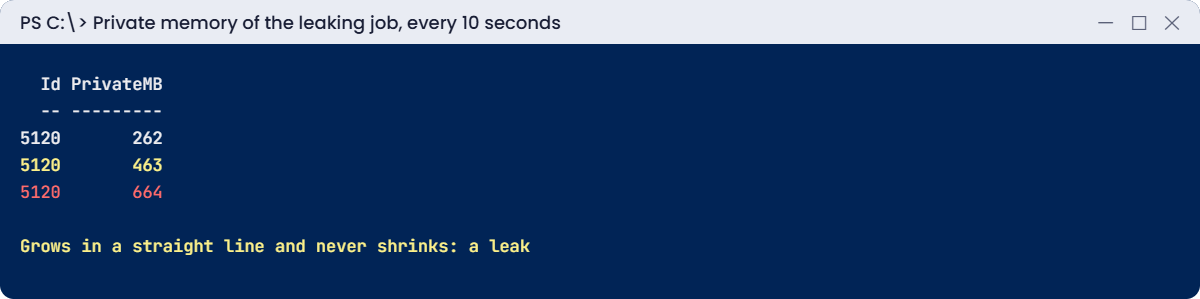
Windows Server performance break lab: private memory growing steadily in a leak
A leak: private memory climbs in a straight line and never comes down

The same process grows by about 200 MB every 10 seconds and never shrinks. That’s the signature of a leak: Private Bytes climbing in a straight line, whatever the load. Left alone, commit reaches 100% and Windows logs “low on virtual memory” warnings (Resource-Exhaustion-Detector event 2004) and starts failing other apps.

Fix it: stop the leaking process, and add an early warning for next time:

$leak | Stop-Job -PassThru | Remove-Job
Get-PerfSnapshot -Seconds 3 | Where-Object Counter -like '*committed*'

You’ll see something like this:

Counter                         Average
-------                         -------
memory\% committed bytes in use    39.1

In real life the “fix” is a vendor patch or a scheduled restart of the service until it’s patched. The early warning is a Data Collector Set alert (Lesson 39) on Process Private Bytes or % Committed Bytes In Use.

✅ Checkpoint: Private memory grew steadily while the job ran and commit dropped back after stopping it.

2Break it: run the CPU test with one vCPU

Shut down SRV01, then on your laptop give it one vCPU and start it again:

VBoxManage modifyvm SRV01 --cpus 1
VBoxManage startvm SRV01 --type headless

On SRV01, run the same two-job CPU test from lab step 2:

. C:\Lab\Get-PerfSnapshot.ps1
$jobs = 1..2 | ForEach-Object { Start-Job { while ($true) { } } }
Get-PerfSnapshot -Seconds 5 | Where-Object Counter -like '*processor*'
Measure-Command { Get-ChildItem C:\Windows\System32 | Out-Null } | Select-Object TotalSeconds
$jobs | Stop-Job -PassThru | Remove-Job

You’ll see something like this:

Counter                            Average
-------                            -------
processor(_total)\% processor time     100
system\processor queue length          9.6

TotalSeconds
------------
        3.84

With one vCPU the queue is much longer and a simple directory listing takes seconds. Every other service on the server (DHCP, IIS, RDS) waits too. When CPU is busy because the work is real and expected, the fix is capacity, not tuning.

Fix it: shut down SRV01, give it two vCPUs back and start it:

VBoxManage modifyvm SRV01 --cpus 2
VBoxManage startvm SRV01 --type headless

✅ Checkpoint: With one vCPU the queue length and response time were much worse than with two.

This happened at work

Out of memory with 40% of RAM unused

A file server started refusing new SMB connections every few weeks. Users got “not enough server storage is available”, but Task Manager showed 40% of RAM unused and CPU was low. A restart fixed it for another few weeks.

The System log held the real clue: event 2019, “The server was unable to allocate from the system nonpaged pool because the pool was empty.” Nonpaged pool is kernel memory that can never be paged out, and it had grown to several gigabytes.

Using poolmon from the Windows Driver Kit, the team found one pool tag growing all the time. It belonged to an old file-filter driver from a backup agent nobody used any more.

The fix: the agent was removed, and a counter alert on Memory\Pool Nonpaged Bytes now warns long before the pool runs out.

The lesson: “available RAM” isn’t the whole picture. Check kernel pools and commit, not just Available MBytes.

Common mistakes and troubleshooting

MistakeWhat happensWhat to do instead
Looking at CPU onlyMemory or disk problems are missedSnapshot all four resources first
Judging disks by queue length aloneWrong conclusions on modern storageUse latency (Avg. Disk sec/Read and /Write)
Panicking at low available RAMWindows uses spare RAM as cacheCheck Available MBytes, commit and hard faults together
Adding RAM to fix a leakThe leak just takes longerFind the process with ever-growing Private Bytes
Measuring onceA spike looks like a trendSample over time and compare with a baseline
Testing disks on production dataRisk and wrong numbersUse a test file with DiskSpd, then delete it
Ignoring the hypervisorHost contention looks like a guest problemCheck host CPU ready, memory and storage too
Leaving traces runningHuge files, extra loadStop wpr and delete old traces

Interview questions

Click a question to open it. Under each one you’ll find what the interviewer is really looking for, and one good way to answer.

Fresher level

1. A server is slow. What do you check first?

What they’re really checking: Do you have a method?

How you could answer: CPU, memory, disk and network at the same time, with Task Manager, Resource Monitor or Get-Counter, then the top process.

2. What does Processor Queue Length tell you?

What they’re really checking: Do you know key counters?

How you could answer: How many threads are waiting for CPU. Above about 2 per core for a long time means CPU is a bottleneck.

3. What is a good disk latency?

What they’re really checking: Do you know storage basics?

How you could answer: Under 10 ms is good, 10 to 20 ms is OK, over 20 ms sustained is slow for most workloads.

2–5 years experience

4. How do you spot a memory leak?

What they’re really checking: Can you read trends?

How you could answer: Private Bytes of one process growing steadily over hours or days, regardless of load, often with commit rising too.

5. Available RAM looks low. Is that a problem?

What they’re really checking: Do you understand Windows memory?

How you could answer: Not by itself; Windows uses RAM as cache. Look at Available MBytes, commit, hard faults (Pages Input/sec) and paging activity.

6. How do you test storage performance safely?

What they’re really checking: Do you know DiskSpd?

How you could answer: DiskSpd with a test file, defined block size, read/write mix, threads and queue depth, run off-hours, compared with the vendor’s numbers.

Senior level

7. CPU is high but no process is busy. What next?

What they’re really checking: Can you go deeper?

How you could answer: Check % Privileged Time and DPC/interrupt time, then record a WPR trace and look at CPU by module in WPA; often a driver.

8. How do you size a server for a new app?

What they’re really checking: Do you think about capacity?

How you could answer: Baseline a test run, measure peaks per resource, add growth and headroom (for example 30%), and check the hypervisor host too.

9. What is nonpaged pool and why does it matter?

What they’re really checking: Do you know kernel memory?

How you could answer: Kernel memory that can’t be paged out. A driver leak there causes event 2019 and failures even with plenty of RAM. Use poolmon to find the tag.

Quick quiz

Q1. Which counter best shows a slow disk?

  1. % Idle Time
  2. Avg. Disk sec/Read and /Write
  3. Disk Bytes/sec
Show answer

B — Latency is what users feel.

Q2. What does a Processor Queue Length of 9 on one CPU mean?

  1. Normal
  2. Many threads are waiting for CPU
  3. The disk is slow
Show answer

B — Above 2 per core sustained is a bottleneck.

Q3. Why did the lab touch every 4 KB page?

  1. To make it slower
  2. Windows only gives real RAM when memory is used
  3. To test the disk
Show answer

B — Commit alone doesn’t use RAM.

Q4. What is the signature of a memory leak?

  1. CPU at 100%
  2. Private Bytes growing steadily
  3. Low network traffic
Show answer

B — It never shrinks.

Q5. What did event 2019 point to in the work story?

  1. A full disk
  2. An empty nonpaged pool
  3. DNS failure
Show answer

B — A driver leaked kernel memory.

Quick recap

  • Windows Server performance work starts with all four resources: CPU, memory, disk and network.
  • Key counters: % Processor Time, Processor Queue Length, Available MBytes, % Committed Bytes In Use, Avg. Disk sec/Read and /Write.
  • Find the process behind the load, then ask why it changed.
  • DiskSpd measures storage; wpr and WPA show what threads were doing.
  • Leaks show as Private Bytes or pool memory that only grows.

Next lesson

Lesson 48: Boot failures and crashes → You’ll fix a server that won’t start using WinRE and bcdedit, configure crash dumps, and read a blue screen dump with WinDbg.

Further reading: Windows Server performance

Want to go deeper into Windows Server performance? Microsoft’s performance tuning guidelines for Windows Server cover each role, and the DiskSpd guide explains every storage test option. You can also see the full plan for this course on the Windows Server Administration course page.

Scroll to Top