IIS web server: sites, app pools, HTTPS and Kerberos

Plenty of company apps are internal websites: HR portals, dashboards, ticket systems. Most of them on Windows run on the IIS web server, and when they break, the server admin is the first person called.

In this lesson you’ll install IIS on SRV01, publish the intranet site at intranet.saatlab.internal, run it as the gmsa_intranet account from Lesson 22, add HTTPS, switch on Windows authentication with Kerberos, and fix an HTTP 500 and an HTTP 401.

TimeYou needBy the end you can
About 75 minutesDC01, SRV01 and CL01; the intranet DNS record (Lesson 14), SPN (Lesson 21) and gMSA (Lesson 22)Install IIS, create sites, app pools and bindings, use a gMSA identity, configure HTTPS and Windows authentication, and read IIS status codes and logs

What it is, in one line

The IIS web server (Internet Information Services) is the web server role built into Windows Server; it hosts websites and web apps and handles HTTP and HTTPS requests.

In Simple Words

A restaurant with a host and kitchens

In a big restaurant, the host at the door looks at your booking and sends you to the right dining room. Each dining room has its own kitchen team, so a fire in one kitchen doesn’t stop the others.

IIS works the same way. The binding (name, IP and port) is the booking the host checks. Each site is a dining room, and each application pool is a separate kitchen running in its own process.

The certificate is the restaurant’s licence on the wall: it proves to guests they’re in the real place.

Engineer's View

HTTP.sys, sites, app pools, auth

Architecture: the kernel driver HTTP.sys receives requests and queues them for the right application pool. Each pool runs one or more w3wp.exe worker processes under an identity (ApplicationPoolIdentity by default, or a domain account or gMSA). A pool that crashes repeatedly is stopped by rapid-fail protection, giving HTTP 503.

Sites and bindings: a site has a physical path and bindings of protocol, IP, port and host name. Several sites can share port 443 using host names and SNI. Configuration lives in applicationHost.config and per-folder web.config files.

Authentication: Windows authentication uses Negotiate (Kerberos, falling back to NTLM). Kerberos needs an HTTP SPN on the account that decrypts tickets. By default IIS decrypts with the computer account (kernel-mode auth); with a custom app pool identity that holds the SPN, set useAppPoolCredentials to true.

Status codes and logs: 401 is authentication, 403 authorisation, 404 not found, 500 server error (500.19 is bad configuration), 503 pool stopped. IIS logs live in C:\inetpub\logs\LogFiles, with substatus and Win32 status codes that tell you the real cause.

How it works, step by step

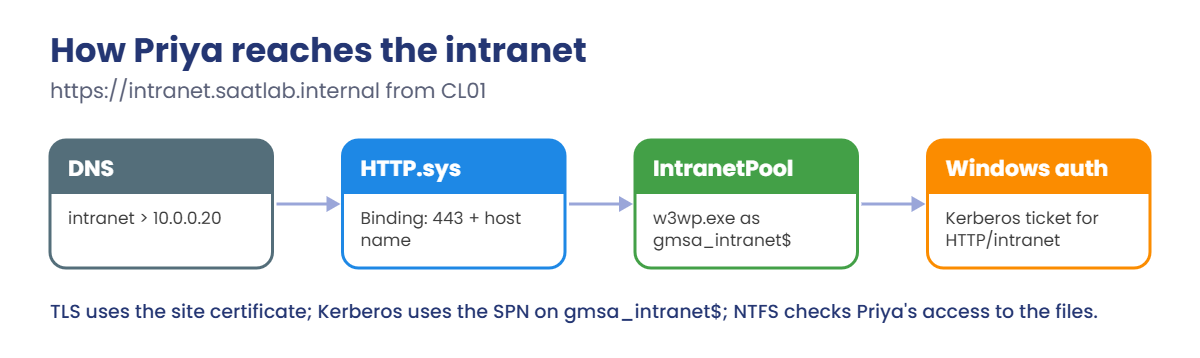
What happens when Priya opens https://intranet.saatlab.internal on CL01:

IIS web server request flow: DNS, HTTP.sys binding, app pool and Windows authentication

Notice Kerberos again: the browser asks DC01 for a ticket for HTTP/intranet.saatlab.internal, and IIS decrypts it with gmsa_intranet’s key. If the SPN, the app pool identity and useAppPoolCredentials don’t line up, you get a 401.

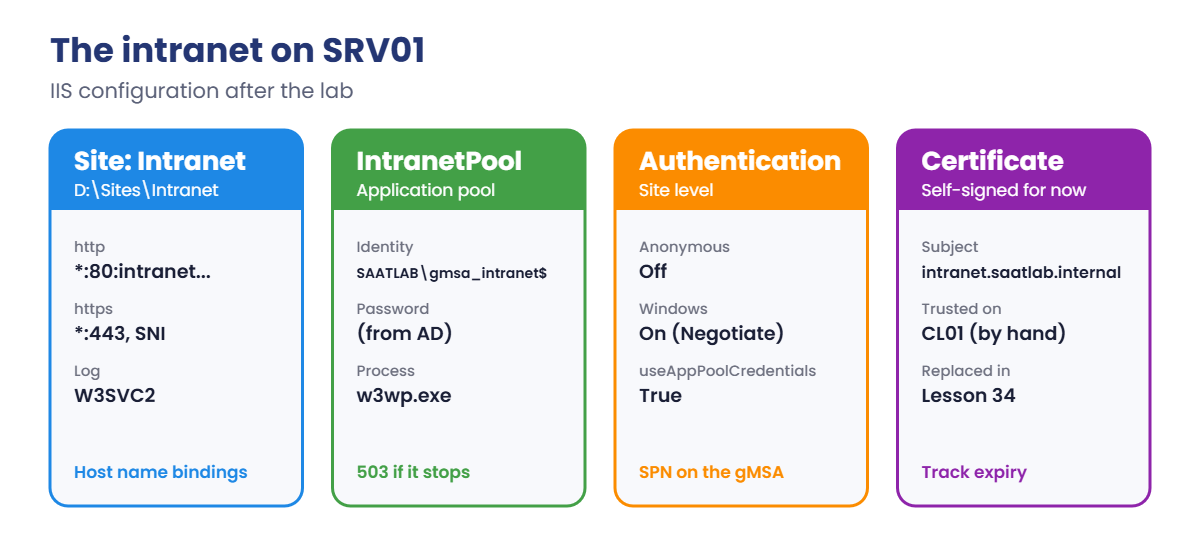
The intranet setup on SRV01:

IIS web server intranet setup: site, gMSA app pool, authentication and certificate
  1. Install IIS with Windows authentication.
  2. Create the content folder, the IntranetPool app pool running as gmsa_intranet$, and the Intranet site.
  3. Add HTTPS with a self-signed certificate for now (Lesson 34 replaces it with one from your own CA).
  4. Switch to Windows authentication only, using the app pool’s credentials for Kerberos.
  5. Test from CL01 and confirm the Kerberos ticket.

Hands-on Lab: IIS web server for the SaatLab intranet

Start DC01, SRV01 and CL01. Work on SRV01 as SAATLAB\Administrator in PowerShell as administrator.

1Install IIS

On SRV01, run this:

Install-WindowsFeature Web-Server, Web-Windows-Auth -IncludeManagementTools
Import-Module WebAdministration
Get-Website | Select-Object Name, State, PhysicalPath

You should see something like this:

Success Restart Needed Exit Code Feature Result
------- -------------- --------- --------------
True    No             Success   {Common HTTP Features, Default Document, Directory Browsing, ...}

Name             State   PhysicalPath
----             -----   ------------
Default Web Site Started %SystemDrive%\inetpub\wwwroot

✅ Checkpoint: IIS is installed and the Default Web Site is Started.

2Create the content, app pool and site

On SRV01, run this:

New-Item -ItemType Directory D:\Sites\Intranet -Force | Out-Null
'<html><body><h1>SaatLab Intranet</h1><p>Welcome to the lab intranet.</p></body></html>' | Set-Content D:\Sites\Intranet\index.html
icacls D:\Sites\Intranet /grant "SAATLAB\gmsa_intranet$:(OI)(CI)RX" "SAATLAB\Domain Users:(OI)(CI)RX" | Out-Null

New-WebAppPool -Name IntranetPool | Out-Null
Set-ItemProperty IIS:\AppPools\IntranetPool -Name processModel -Value @{userName='SAATLAB\gmsa_intranet$'; password=''; identityType=3}
New-Website -Name Intranet -PhysicalPath D:\Sites\Intranet -ApplicationPool IntranetPool -HostHeader intranet.saatlab.internal -Port 80 | Out-Null
Get-Website -Name Intranet | Select-Object Name, State, Bindings
(Get-ItemProperty IIS:\AppPools\IntranetPool -Name processModel).userName

You should see something like this:

Name     State   Bindings
----     -----   --------
Intranet Started Microsoft.IIs.PowerShell.Framework.ConfigurationElement

SAATLAB\gmsa_intranet$

identityType 3 means “specific user”, and the empty password is how you tell IIS it’s a gMSA: Windows fetches the password from AD. The gMSA must be installed on SRV01 (you did that in Lesson 22), or the pool fails to start and the site returns 503.

✅ Checkpoint: The Intranet site is Started, and IntranetPool runs as SAATLAB\gmsa_intranet$.

3Add HTTPS with a certificate

On SRV01, create a certificate and bind it:

$cert = New-SelfSignedCertificate -DnsName intranet.saatlab.internal -CertStoreLocation Cert:\LocalMachine\My -NotAfter (Get-Date).AddYears(1)
New-WebBinding -Name Intranet -Protocol https -Port 443 -HostHeader intranet.saatlab.internal -SslFlags 1
(Get-WebBinding -Name Intranet -Protocol https).AddSslCertificate($cert.Thumbprint, 'My')
Export-Certificate -Cert $cert -FilePath D:\Sites\intranet.cer | Out-Null
Get-WebBinding -Name Intranet | Select-Object protocol, bindingInformation, sslFlags

You should see something like this:

protocol bindingInformation              sslFlags
-------- ------------------              --------
http     *:80:intranet.saatlab.internal         0
https    *:443:intranet.saatlab.internal        1

SslFlags 1 turns on SNI, so other sites can share port 443 with their own certificates. A self-signed certificate isn’t trusted by other computers, so for the lab you’ll trust it on CL01 by hand. In Lesson 34 you’ll replace it with one issued by your own CA, trusted everywhere automatically.

✅ Checkpoint: The site has an http and an https binding for intranet.saatlab.internal.

4Turn on Windows authentication with Kerberos

On SRV01, change the authentication settings for the Intranet site:

$auth = 'system.webServer/security/authentication'
Set-WebConfigurationProperty -PSPath 'MACHINE/WEBROOT/APPHOST' -Location 'Intranet' -Filter "$auth/anonymousAuthentication" -Name enabled -Value $false
Set-WebConfigurationProperty -PSPath 'MACHINE/WEBROOT/APPHOST' -Location 'Intranet' -Filter "$auth/windowsAuthentication" -Name enabled -Value $true
Set-WebConfigurationProperty -PSPath 'MACHINE/WEBROOT/APPHOST' -Location 'Intranet' -Filter "$auth/windowsAuthentication" -Name useAppPoolCredentials -Value $true
Get-WebConfigurationProperty -PSPath 'MACHINE/WEBROOT/APPHOST' -Location 'Intranet' -Filter "$auth/windowsAuthentication" -Name useAppPoolCredentials | Select-Object Value

You should see this:

Value
-----
 True

Anonymous access is off, so every visitor must prove who they are. useAppPoolCredentials makes IIS decrypt Kerberos tickets with gmsa_intranet’s key, which matches the HTTP SPN you moved to that account in Lesson 22.

✅ Checkpoint: Anonymous is disabled, Windows authentication is enabled, and useAppPoolCredentials is True.

5Test from CL01 and confirm Kerberos

On CL01, as an administrator, trust the lab certificate:

Import-Certificate -FilePath \\SRV01\D$\Sites\intranet.cer -CertStoreLocation Cert:\LocalMachine\Root | Out-Null

Then sign in as Priya and, in a normal PowerShell window:

klist purge | Out-Null
$r = Invoke-WebRequest -Uri https://intranet.saatlab.internal -UseDefaultCredentials -UseBasicParsing
$r.StatusCode
klist | Select-String 'Server:'

You should see something like this:

200
        Server: krbtgt/SAATLAB.INTERNAL @ SAATLAB.INTERNAL
        Server: HTTP/intranet.saatlab.internal @ SAATLAB.INTERNAL

StatusCode 200 means the page loaded, and the HTTP/intranet.saatlab.internal ticket proves Kerberos did the authentication. Open the site in Edge on CL01 too: it loads without a password prompt and with a padlock.

On SRV01, look at the log entry for that request:

Get-ChildItem C:\inetpub\logs\LogFiles\W3SVC2 | Sort-Object LastWriteTime | Select-Object -Last 1 | Get-Content -Tail 2

You should see something like this:

2026-10-19 15:12:40 10.0.0.20 GET / - 443 - 10.0.0.150 Mozilla/5.0+(Windows+NT;...) - 401 2 5 3
2026-10-19 15:12:40 10.0.0.20 GET / - 443 SAATLAB\priya.sharma 10.0.0.150 Mozilla/5.0+(Windows+NT;...) - 200 0 0 15

The first request gets 401.2 (no credentials yet), the browser answers with a Kerberos ticket, and the second gets 200 with Priya’s name. Seeing a 401 followed by a 200 is normal; seeing only 401s is a problem.

✅ Checkpoint: CL01 gets 200, holds an HTTP/intranet ticket, and the IIS log shows priya.sharma with status 200.
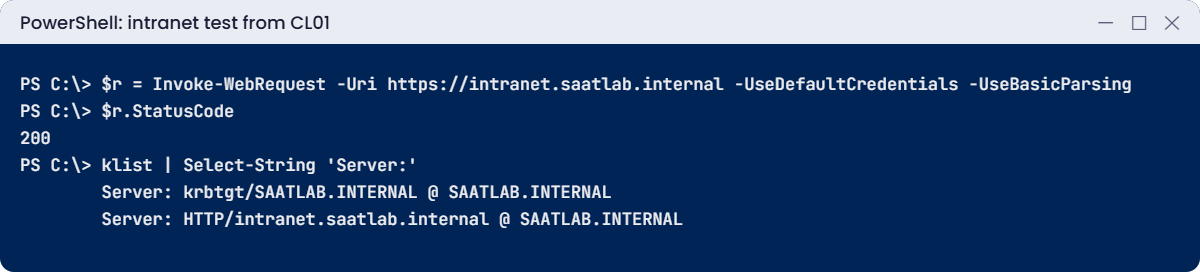
IIS web server lab: status 200 and an HTTP/intranet Kerberos ticket on CL01
The page loads with status 200, and the HTTP/intranet ticket proves Kerberos was used.

Break It, Then Fix It

Two errors every web admin knows by heart: a 500 from broken configuration, and a 401 that won’t go away.

1Break it: a broken web.config

On SRV01, add a web.config with a typo (a closing tag is missing):

'<configuration><system.webServer><defaultDocument enabled="true"></system.webServer></configuration>' | Set-Content D:\Sites\Intranet\web.config

On CL01 as Priya:

Invoke-WebRequest -Uri https://intranet.saatlab.internal -UseDefaultCredentials -UseBasicParsing

You’ll get an error like this:

Invoke-WebRequest : The remote server returned an error: (500) Internal Server Error.
At line:1 char:1
+ Invoke-WebRequest -Uri https://intranet.saatlab.internal -UseDefaultCredentials -UseBasicParsing
+ ~~~~~~~~~~~~~~~~~~~~~~~~~~~~~~~~~~~~~~~~~~~~~~~~~~~~~~~~~~~~~~~~~~~~~~~~~~~~~~~~~~~~~~~~~~~~
    + CategoryInfo          : InvalidOperation: (System.Net.HttpWebRequest:HttpWebRequest) [Invoke-WebRequest], WebException
    + FullyQualifiedErrorId : WebCmdletWebResponseException,Microsoft.PowerShell.Commands.InvokeWebRequestCommand

The client only says 500. On SRV01, the log gives the substatus:

Get-ChildItem C:\inetpub\logs\LogFiles\W3SVC2 | Sort-Object LastWriteTime | Select-Object -Last 1 | Get-Content -Tail 1

You should see something like this:

2026-10-19 15:20:03 10.0.0.20 GET / - 443 - 10.0.0.150 Mozilla/5.0+(Windows+NT;...) - 500 19 13 0

500.19 means “configuration data is invalid”, and Win32 status 13 is “the data is invalid”. Open the site in a browser on SRV01 itself and IIS shows a detailed error page with the exact line of web.config. Remote users only see a generic error, on purpose.

Fix it: correct the file (or remove it, since the site doesn’t need it):

'<configuration><system.webServer><defaultDocument enabled="true" /></system.webServer></configuration>' | Set-Content D:\Sites\Intranet\web.config

✅ Checkpoint: The site returned 500.19 with the broken web.config and 200 after the fix.

2Break it: Kerberos that can’t be decrypted

On SRV01, switch off useAppPoolCredentials:

Set-WebConfigurationProperty -PSPath 'MACHINE/WEBROOT/APPHOST' -Location 'Intranet' -Filter 'system.webServer/security/authentication/windowsAuthentication' -Name useAppPoolCredentials -Value $false

On CL01 as Priya:

klist purge | Out-Null
Invoke-WebRequest -Uri https://intranet.saatlab.internal -UseDefaultCredentials -UseBasicParsing

You’ll get an error like this:

Invoke-WebRequest : The remote server returned an error: (401) Unauthorized.

Look at CL01’s System log:

Get-WinEvent -FilterHashtable @{LogName='System'; ProviderName='Microsoft-Windows-Security-Kerberos'} -MaxEvents 1 | Select-Object Id, Message | Format-List

You should see something like this:

Id      : 4
Message : The Kerberos client received a KRB_AP_ERR_MODIFIED error from the server srv01$. The target name used was
          HTTP/intranet.saatlab.internal. This indicates that the target server failed to decrypt the ticket provided
          by the client. ...

The DC encrypted Priya’s ticket with gmsa_intranet’s key, because that account holds the SPN. IIS tried to decrypt it with SRV01’s computer key and failed. Edge would show a password box that never works; that’s the classic symptom.

Fix it: make the decrypting account match the SPN again:

Set-WebConfigurationProperty -PSPath 'MACHINE/WEBROOT/APPHOST' -Location 'Intranet' -Filter 'system.webServer/security/authentication/windowsAuthentication' -Name useAppPoolCredentials -Value $true

The other valid fix is moving the SPN to the SRV01 computer account and leaving useAppPoolCredentials off. What matters is that the SPN and the decrypting account are the same.

✅ Checkpoint: CL01 got 401 with Kerberos event 4 (KRB_AP_ERR_MODIFIED) and 200 again after the fix.
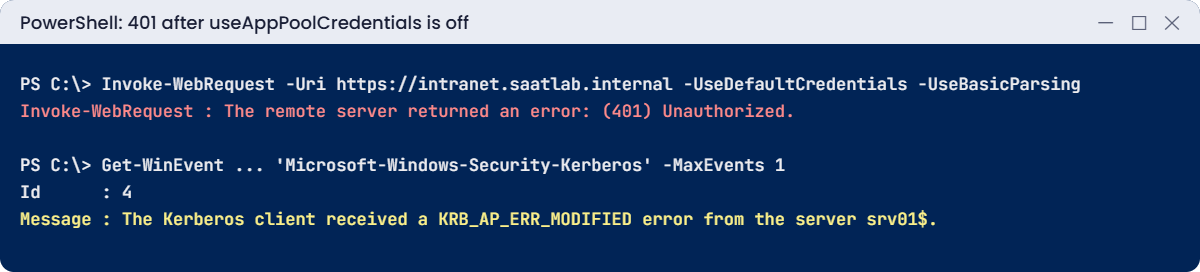
IIS web server lab: 401 Unauthorized and KRB_AP_ERR_MODIFIED event
When IIS decrypts with the wrong account, CL01 gets 401 and logs KRB_AP_ERR_MODIFIED.

This happened at work

The certificate that expired on a Monday

A company’s HR portal ran on IIS with a certificate bought two years earlier by a contractor who’d since left. Nobody had its expiry date in a calendar.

On a Monday morning, 2,000 staff saw a full-page browser warning instead of the portal. Worse, the payroll system called the portal’s API overnight, refused the expired certificate, and silently skipped the import. Nobody noticed until payslips were wrong.

A new certificate was issued and bound within an hour. Fixing the payroll import took the rest of the week.

The fix: all internal sites moved to certificates from the company’s own CA with auto-enrolment, and a weekly script lists every IIS binding’s certificate and its days to expiry, alerting at 30 days.

The lesson: certificates always expire, on a date you know in advance. Track them, or let automation renew them.

Common mistakes and troubleshooting

Mistake or symptomWhat happensWhat to do instead
HTTP 503 Service UnavailableThe app pool is stopped, often by a bad identityCheck the pool state and the System log; fix the identity or gMSA
HTTP 500.19web.config or applicationHost.config is invalidRead the detailed error on the server; fix the XML
Endless password prompts (401)Kerberos can’t be decrypted: SPN and identity don’t matchAlign the SPN with the decrypting account; useAppPoolCredentials
HTTP 403The user is authenticated but not allowedCheck NTFS permissions and IIS authorisation rules
Same app pool for every siteOne crash takes all sites downA pool per site or app
Self-signed certificates in productionWarnings and failed API callsCertificates from your CA or a public CA
No certificate expiry trackingOutages on known datesReport and alert on expiry; auto-renew
Detailed errors shown to remote usersInformation leaksKeep detailed errors local only (the default)
Ignoring IIS logsGuessing at causesUse status, substatus and Win32 codes in the logs

Interview questions

Click a question to open it. Under each one you’ll find what the interviewer is really looking for, and one good way to answer.

Fresher level

1. What is an application pool in IIS?

What they’re really checking: Do you know the basics?

How you could answer: A group of worker processes (w3wp.exe) that runs one or more web apps under a set identity, isolated from other pools.

2. What is a binding?

What they’re really checking: Do you know sites?

How you could answer: The protocol, IP address, port and host name a site listens on, such as https on 443 for intranet.saatlab.internal.

3. What do HTTP 401, 403, 404 and 500 mean?

What they’re really checking: Do you know status codes?

How you could answer: 401 not authenticated, 403 authenticated but not allowed, 404 not found, 500 server error.

2–5 years experience

4. A site returns 503. How do you troubleshoot?

What they’re really checking: Is your approach structured?

How you could answer: Check the app pool state, the System and Application logs for WAS errors, the pool identity and its password or gMSA, rapid-fail protection, and recent config changes.

5. How do you make Windows authentication use Kerberos for a site on a custom app pool identity?

What they’re really checking: Do you know SPNs in IIS?

How you could answer: Register HTTP/hostname on the app pool account and set useAppPoolCredentials to true, or put the SPN on the computer account and use kernel-mode auth with the default.

6. How do you host several HTTPS sites on one IP?

What they’re really checking: Do you know SNI?

How you could answer: Use host name bindings on port 443 with Server Name Indication (SslFlags 1), each with its own certificate, or a wildcard or SAN certificate.

Senior level

7. How would you make an internal IIS app highly available?

What they’re really checking: Do you think about architecture?

How you could answer: Two or more IIS servers behind a load balancer, shared or replicated content and config (shared configuration or deployment pipelines), session state out of process, health probes, and certificates on each node or offloaded at the balancer.

8. How do you secure IIS on Windows Server?

What they’re really checking: Do you know hardening for web?

How you could answer: Only needed modules installed, TLS 1.2+, HSTS, request filtering, least-privilege pool identities, no detailed errors remotely, logging forwarded, patches, and WAF or reverse proxy at the edge.

9. An app is slow under load. What do you look at?

What they’re really checking: Can you go beyond IIS settings?

How you could answer: Request queues and time-taken in logs, worker process CPU and memory, Failed Request Tracing, app pool recycling, backend database latency, and performance counters for ASP.NET and Web Service.

Quick quiz

Q1. What is the IIS worker process called?

  1. iis.exe
  2. w3wp.exe
  3. httpd.exe
Show answer

B — Each app pool runs w3wp.exe processes.

Q2. Why use an empty password for the gmsa_intranet$ pool identity?

  1. It’s a mistake
  2. Windows fetches gMSA passwords from AD
  3. Anonymous access
Show answer

B — That’s how IIS uses a gMSA.

Q3. What does HTTP 500.19 mean?

  1. Login failed
  2. Invalid configuration data
  3. Pool stopped
Show answer

B — Check web.config.

Q4. Why did CL01 get 401 with KRB_AP_ERR_MODIFIED?

  1. Wrong password
  2. IIS decrypted with a different account than the SPN holder
  3. Expired certificate
Show answer

B — Align the SPN and the decrypting account.

Q5. In the work story, what caused the payroll problem?

  1. A virus
  2. An expired certificate on the portal
  3. A full disk
Show answer

B — Track and auto-renew certificates.

Quick recap

  • The IIS web server hosts sites with bindings, each app in its own application pool.
  • A gMSA pool identity uses an empty password; Windows fetches it from AD.
  • HTTPS needs a certificate and a 443 binding; SNI lets sites share an IP.
  • Windows authentication with Kerberos needs the SPN on the decrypting account (useAppPoolCredentials).
  • Read status, substatus and Win32 codes in IIS logs: 500.19 config, 401 auth, 503 pool.
  • Track certificate expiry.

Next lesson

Lesson 26: Remote access → You’ll secure RDP with NLA and groups, install Remote Desktop Session Host and RD Web Access, publish a RemoteApp, and look at RD Gateway, VPN with RRAS and NPS for RADIUS.

Further reading: IIS web server

Want to go deeper into IIS web server? Microsoft’s guide to Kerberos failures in IIS covers SPNs and useAppPoolCredentials, and the HTTP status code reference for IIS lists every substatus. You can also see the full plan for this course on the Windows Server Administration course page.

Scroll to Top