Windows Server patching: updates, rings and safe restarts

Most successful attacks use holes that already had a fix available. Windows Server patching is the routine that closes them every month without taking the business down, and it’s one of the jobs you’ll be judged on most.

In this lesson you’ll read a server’s build and update history, search for and install updates, configure Windows Update with a GPO, patch your two DCs one at a time, and look at WSUS, Azure Update Manager and hotpatching. Then you’ll fix an update service that won’t start and a “patched” server that isn’t.

TimeYou needBy the end you can
About 75 minutes, plus update downloadsDC01, DC02 and SRV01 with internet access through LabNetRead builds and update history, install updates with sconfig and PowerShell, configure update policy by GPO, patch DCs safely and fix common update problems

What it is, in one line

Windows Server patching is installing Microsoft’s monthly security and quality updates on your servers, in a planned order, with a restart and a check afterwards.

In Simple Words

Servicing the company vans

A delivery company services its vans every month. It never sends every van to the garage on the same day, or nobody could deliver anything. Two vans go first; if they come back fine, the rest follow.

And a van isn’t “serviced” until it’s actually been through the garage and driven out again. A booking in the diary doesn’t count.

Patching servers is the same. Patch in groups, never both DCs together, and an update isn’t done until the server has restarted and you’ve checked it works.

Engineer's View

Cumulative updates, channels and tools

Monthly cycle: Microsoft releases security updates on Patch Tuesday, the second Tuesday of each month. Each cumulative update (LCU) contains every earlier fix for that version, so a server one update behind needs only the latest.

The servicing stack update is bundled in. Out-of-band updates fix urgent problems between cycles.

Build numbers: Server 2025 is build 26100; the number after the dot (the UBR) goes up with each cumulative update, so 26100.xxxx tells you exactly how patched a server is.

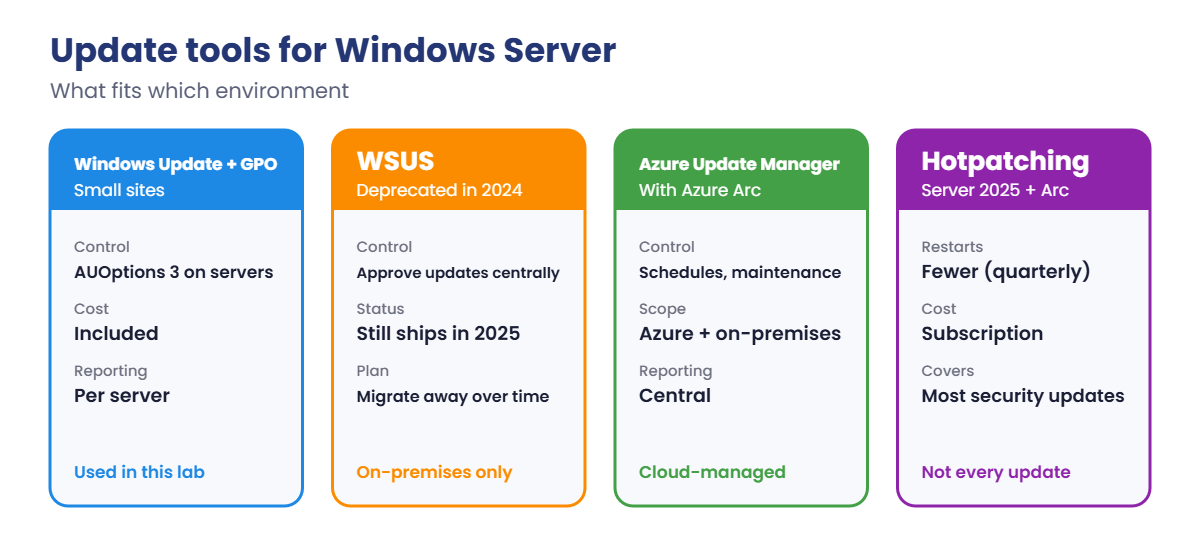
Tools: Windows Update with Group Policy settings is enough for small sites. WSUS lets you approve updates centrally; Microsoft deprecated it in 2024, but it still ships and works in Server 2025.

Azure Update Manager (with Azure Arc for on-premises servers) schedules and reports updates from Azure. Hotpatching on Server 2025 with Arc installs most monthly security updates without a restart, as a paid subscription; quarterly baseline updates still need restarts.

Order: test servers first, then one DC, check replication, then the other DC, then member servers by role. Always know how to roll back: snapshots or backups, and wusa /uninstall for a single KB.

How it works, step by step

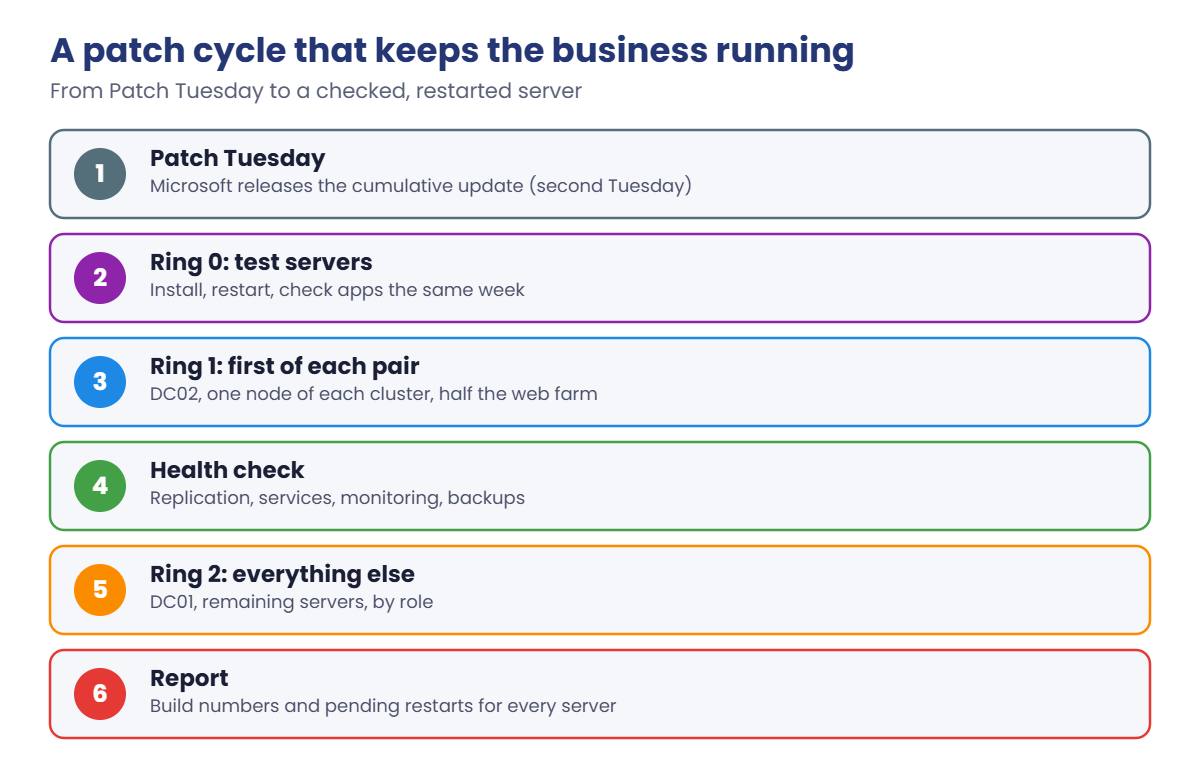
A patch cycle that doesn’t take the business down looks like this:

Windows Server patching cycle: Patch Tuesday, test ring, first of each pair, health check, the rest

The rings mean any bad update hits a few test servers first, not the domain controllers. A week between rings is common; urgent security fixes may get a shorter cycle.

How the lab servers will be updated:

Windows Server patching tools: Windows Update with GPO, WSUS, Azure Update Manager and hotpatching
  1. Read the build and update history on SRV01.
  2. Search for missing updates with the Windows Update API, and install them with sconfig.
  3. C-Server-Updates: a GPO that downloads updates and waits for you to install them.
  4. DCs one at a time: DC02 first, check replication, then DC01.
  5. Check for pending restarts with a small function you’ll reuse.

Hands-on Lab: Windows Server patching for SRV01 and the DCs

Start DC01, DC02 and SRV01. Take snapshots called “Before patching” first. Work in PowerShell as administrator.

1Read the build and recent updates

On SRV01, run this:

$cv = Get-ItemProperty 'HKLM:\SOFTWARE\Microsoft\Windows NT\CurrentVersion'
"Build: $($cv.CurrentBuild).$($cv.UBR)"
Get-HotFix | Sort-Object InstalledOn -Descending | Select-Object -First 3 HotFixID, Description, InstalledOn

You should see something like this:

Build: 26100.NNNN

HotFixID  Description     InstalledOn
--------  -----------     -----------
KB50xxxxx Security Update 14/10/2026 00:00:00
KB50yyyyy Update          14/10/2026 00:00:00

NNNN and the KB numbers depend on the month. Compare the UBR with Microsoft’s Windows Server release information page to see which month’s update the server has. Get-HotFix only shows some update types, so the build number is the more reliable answer to “how patched is this server?”

✅ Checkpoint: You know SRV01’s full build (26100.something) and its most recent updates.

2Search for missing updates

On SRV01, ask the Windows Update Agent directly (built in, no modules needed):

$searcher = (New-Object -ComObject Microsoft.Update.Session).CreateUpdateSearcher()
$result = $searcher.Search("IsInstalled=0 and IsHidden=0")
$result.Updates | Select-Object Title, @{n='SizeMB';e={[math]::Round($_.MaxDownloadSize/1MB)}}, IsDownloaded

You should see something like this:

Title                                                                              SizeMB IsDownloaded
-----                                                                              ------ ------------
2026-10 Cumulative Update for Microsoft server operating system version 24H2 for x64-based Systems (KB...)  ...        False
Security Intelligence Update for Microsoft Defender Antivirus - KB2267602 (Version ...)                    ...         True

This is the same search that Settings, sconfig and most tools run. If it fails with an error code, you’ve found a Windows Update problem to fix before anything else (Break It covers one).

✅ Checkpoint: The search returns a list (possibly including a cumulative update) without errors.

3Install updates with sconfig

On SRV01, run sconfig, choose 6 (Install updates), then 1 for all quality updates. Choose A to install all, and when it asks to restart, choose No for now: you’ll check what “installed but not restarted” looks like in Break It.

Then, from the PowerShell window, read the update events:

Get-WinEvent -FilterHashtable @{LogName='System'; ProviderName='Microsoft-Windows-WindowsUpdateClient'; Id=19,20} -MaxEvents 5 |
    Select-Object TimeCreated, Id, Message | Format-List

You should see something like this:

TimeCreated : 19/10/2026 20:21:44
Id          : 19
Message     : Installation Successful: Windows successfully installed the following update: 2026-10 Cumulative Update for
              Microsoft server operating system version 24H2 for x64-based Systems (KB...)

Event 19 is a successful install, event 20 a failure with an error code. These events are your record when someone asks “was this server patched last month?”

✅ Checkpoint: Event 19 shows the cumulative update installed (restart still pending).

4Set update behaviour for servers with a GPO

On DC01, create the GPO and link it to Servers:

New-GPO -Name 'C-Server-Updates' | New-GPLink -Target 'OU=Servers,OU=SAATLAB,DC=saatlab,DC=internal' | Out-Null
$k = 'HKLM\Software\Policies\Microsoft\Windows\WindowsUpdate\AU'
Set-GPRegistryValue -Name 'C-Server-Updates' -Key $k -ValueName NoAutoUpdate -Type DWord -Value 0 | Out-Null
Set-GPRegistryValue -Name 'C-Server-Updates' -Key $k -ValueName AUOptions -Type DWord -Value 3 | Out-Null
Set-GPRegistryValue -Name 'C-Server-Updates' -Key $k -ValueName NoAutoRebootWithLoggedOnUsers -Type DWord -Value 1 | Out-Null

These are the settings behind Computer Configuration, Administrative Templates, Windows Components, Windows Update, Configure Automatic Updates. AUOptions 3 means “download and notify for install”: servers fetch updates in the background, and you choose when to install and restart. Workstations usually get option 4 (install on a schedule) instead.

On SRV01, apply and check:

gpupdate /force
Get-ItemProperty 'HKLM:\Software\Policies\Microsoft\Windows\WindowsUpdate\AU' | Select-Object NoAutoUpdate, AUOptions

You should see this:

NoAutoUpdate AUOptions
------------ ---------
           0         3

✅ Checkpoint: SRV01 has AUOptions 3 from C-Server-Updates.

5Write a pending-restart check

On SRV01, define the function and run it:

function Test-PendingReboot {
    $keys = 'HKLM:\SOFTWARE\Microsoft\Windows\CurrentVersion\Component Based Servicing\RebootPending',
            'HKLM:\SOFTWARE\Microsoft\Windows\CurrentVersion\WindowsUpdate\Auto Update\RebootRequired'
    $file = (Get-ItemProperty 'HKLM:\SYSTEM\CurrentControlSet\Control\Session Manager' -Name PendingFileRenameOperations -ErrorAction SilentlyContinue) -ne $null
    [pscustomobject]@{ Computer = $env:COMPUTERNAME; CBS = (Test-Path $keys[0]); WU = (Test-Path $keys[1]); FileRename = $file }
}
Test-PendingReboot

You should see something like this:

Computer CBS  WU   FileRename
-------- ---  --   ----------
SRV01    True True True

Any True means SRV01 needs a restart to finish installing. Restart it now with Restart-Computer, sign in, and run the build check from step 1 again: the UBR is higher, and Test-PendingReboot shows False everywhere.

✅ Checkpoint: After the restart, the UBR has increased and Test-PendingReboot returns False for all three checks.
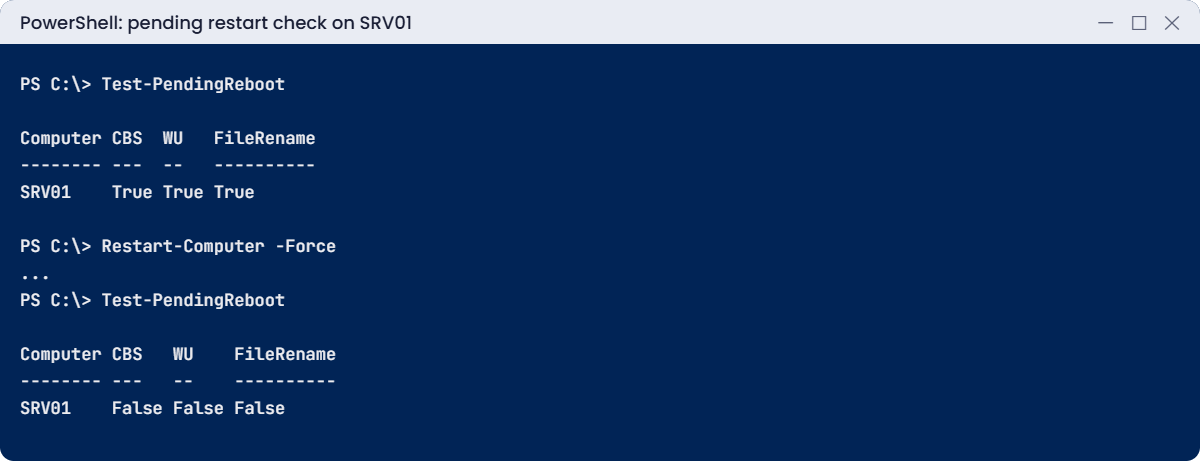
Windows Server patching lab: pending restart before and after Restart-Computer
Before the restart every check is True; after it, SRV01 is really patched.

6Patch the DCs one at a time

From SRV01 or DC01, install updates on DC02 first (sconfig option 6 on DC02, or the same steps remotely), then restart it and wait:

Restart-Computer -ComputerName DC02 -Wait -For PowerShell -Timeout 900 -Force
repadmin /replsummary
Get-ADDomainController -Filter * | Select-Object Name, OperatingSystemVersion

You should see something like this:

Source DSA          largest delta    fails/total %%   error
 DC01                      03m:10s    0 /   5    0
 DC02                      02m:41s    0 /   5    0
...

Name OperatingSystemVersion
---- ----------------------
DC01 10.0 (26100)
DC02 10.0 (26100)

Only when DC02 is back, replicating with no failures, do you patch DC01 the same way. While one DC restarts, the other handles every sign-in and DNS query. That’s the second DC from Lesson 13 earning its keep.

✅ Checkpoint: DC02 restarted and replsummary shows 0 failures before you patch DC01.

Break It, Then Fix It

Two update problems you’ll meet often: a search that fails straight away, and a server that’s “patched” but isn’t.

1Break it: the Windows Update service is disabled

On SRV01, disable the service (some “optimisation” scripts do exactly this):

Stop-Service wuauserv -Force
Set-Service wuauserv -StartupType Disabled
$searcher = (New-Object -ComObject Microsoft.Update.Session).CreateUpdateSearcher()
$searcher.Search("IsInstalled=0 and IsHidden=0")

You’ll get an error like this:

Exception calling "Search" with "1" argument(s): "Exception from HRESULT: 0x80070422"
At line:1 char:1
+ $searcher.Search("IsInstalled=0 and IsHidden=0")
+ ~~~~~~~~~~~~~~~~~~~~~~~~~~~~~~~~~~~~~~~~~~~~~~~~~
    + CategoryInfo          : NotSpecified: (:) [], MethodInvocationException
    + FullyQualifiedErrorId : ComMethodTargetInvocation

0x80070422 means “the service cannot be started, either because it is disabled or because it has no enabled devices associated with it”. Settings and sconfig show the same code. Learn to recognise it: it’s one of the most common update error codes.

Fix it: set the service back to Manual (its default) and search again:

Set-Service wuauserv -StartupType Manual
Start-Service wuauserv
$searcher.Search("IsInstalled=0 and IsHidden=0").ResultCode

You should see this:

2

ResultCode 2 means the search succeeded. If a server keeps failing with other codes, the next steps are clearing the download cache and repairing the component store, which you’ll do in Lesson 49.

✅ Checkpoint: The search failed with 0x80070422 while the service was disabled and returned ResultCode 2 after the fix.
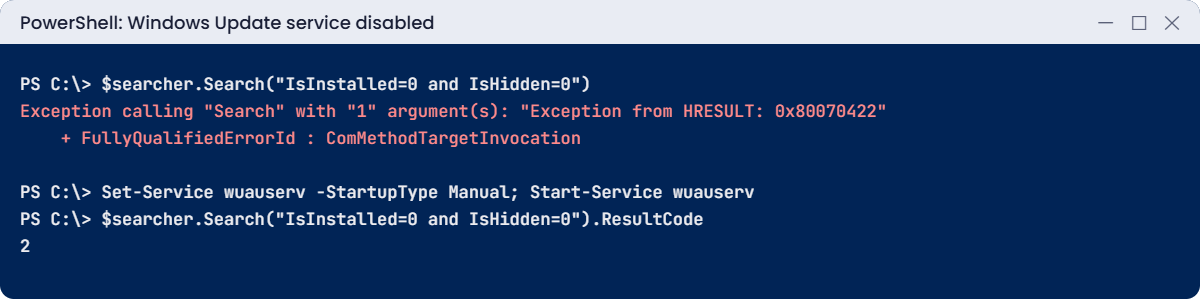
Windows Server patching lab: error 0x80070422 when the Windows Update service is disabled
A disabled Windows Update service gives 0x80070422; setting it back to Manual fixes the search.

2Break it: installed but not patched

Restore SRV01 to the “Before patching” snapshot, or use DC01 if it hasn’t been patched yet. Install the cumulative update with sconfig option 6 again and answer No to the restart.

Then compare what the server reports:

(Get-WinEvent -FilterHashtable @{LogName='System'; ProviderName='Microsoft-Windows-WindowsUpdateClient'; Id=19} -MaxEvents 1).Message
$cv = Get-ItemProperty 'HKLM:\SOFTWARE\Microsoft\Windows NT\CurrentVersion'; "Build: $($cv.CurrentBuild).$($cv.UBR)"
Test-PendingReboot

You’ll see something like this:

Installation Successful: Windows successfully installed the following update: 2026-10 Cumulative Update for ...
Build: 26100.NNNN

Computer CBS  WU   FileRename
-------- ---  --   ----------
SRV01    True True True

The event says “successfully installed”, but the build number hasn’t changed, and the new files aren’t in use yet. Until the restart, the server is still vulnerable. Vulnerability scanners will flag it, and they’re right.

Fix it: restart in your maintenance window, then confirm:

Restart-Computer -Force
# after signing in again:
$cv = Get-ItemProperty 'HKLM:\SOFTWARE\Microsoft\Windows NT\CurrentVersion'; "Build: $($cv.CurrentBuild).$($cv.UBR)"
Test-PendingReboot

Make Test-PendingReboot part of every patch report. “Installed” without “restarted and checked” isn’t patched.

✅ Checkpoint: Before the restart the build was unchanged and pending reboot was True; after it, the build increased and all checks are False.

This happened at work

The night both DCs restarted together

A factory ran three shifts and had two domain controllers. Both were set to install updates automatically at 3:00 AM on Patch Tuesday night, because “that’s when nobody’s working”. Somebody was: the night shift.

One month, both DCs installed the update and restarted at the same time. DC01 came back in ten minutes. DC02 hit an update failure, rolled back, and took over an hour.

During those first minutes, the shop-floor terminals couldn’t authenticate, and production stopped.

Then DC01 started showing replication errors because DC02 kept appearing and disappearing. The on-call admin spent the morning cleaning up and explaining the lost production hours.

The fix: DCs moved to “download and notify”, DC02 patched on Wednesday and DC01 on Thursday, with a replication check between. Update windows were agreed with production managers, and a test server gets each update a week earlier.

The lesson: redundancy only helps if the redundant servers aren’t taken down together. Patch one of each pair at a time.

Common mistakes and troubleshooting

Mistake or symptomWhat happensWhat to do instead
Both DCs (or both cluster nodes) patched at onceOutage while both restartOne at a time, check health between
“Installed” without restartingThe server is still vulnerableRestart in the window; check build and pending reboot
Error 0x80070422The Windows Update service is disabledSet wuauserv to Manual and start it
Automatic install and restart on serversRestarts at the wrong timeDownload and notify; patch in planned windows
No test ringA bad update hits production firstTest servers get updates a week earlier
Trusting Get-HotFix aloneSome updates don’t showCheck the build number (UBR)
Skipping monthsLarger risk and bigger changes at oncePatch every month; cumulative updates make catching up possible
No rollback planA bad update leaves you stuckSnapshot or backup first; know wusa /uninstall
Forgetting firmware, drivers and appsHoles outside Windows stay openPatch the whole stack, not only the OS

Interview questions

Click a question to open it. Under each one you’ll find what the interviewer is really looking for, and one good way to answer.

Fresher level

1. What is Patch Tuesday?

What they’re really checking: Do you know the cycle?

How you could answer: The second Tuesday of each month, when Microsoft releases security updates.

2. What is a cumulative update?

What they’re really checking: Do you know update types?

How you could answer: A monthly update that contains all earlier fixes for that Windows version, so you only need the latest one.

3. How do you check if a server needs a restart after updates?

What they’re really checking: Have you done it?

How you could answer: Check the CBS RebootPending and WindowsUpdate RebootRequired registry keys and PendingFileRenameOperations, or the Settings page and sconfig.

2–5 years experience

4. How would you patch two domain controllers?

What they’re really checking: Do you understand availability?

How you could answer: One at a time: patch and restart DC02, confirm it’s back and replicating with repadmin, then do DC01. Never both in the same window.

5. What tools can manage Windows Server updates centrally?

What they’re really checking: Do you know the options?

How you could answer: Group Policy with Windows Update, WSUS (deprecated but still available), Azure Update Manager with Azure Arc, Configuration Manager, and third-party tools.

6. A server fails updates with the same error every month. What do you do?

What they’re really checking: Is your troubleshooting structured?

How you could answer: Read the error code from event 20 or the Windows Update log, check services and disk space, reset the download cache, run DISM /RestoreHealth and sfc /scannow, and look at CBS.log.

Senior level

7. Design a patching process for 300 servers.

What they’re really checking: Do you think in rings and reporting?

How you could answer: Rings by risk (test, pilot, production waves), maintenance windows per application, pairs split across waves, automation with pre and post checks, reporting of build numbers and pending restarts, exceptions tracked with owners.

8. What is hotpatching on Windows Server 2025, and what are its limits?

What they’re really checking: Are you current?

How you could answer: With Azure Arc and a subscription, monthly security updates install in memory without a restart. Quarterly baseline updates and some fixes still need restarts, and it doesn’t cover every scenario.

9. WSUS is deprecated. What would you recommend to a company still using it?

What they’re really checking: Can you plan a migration?

How you could answer: Keep it running while it works, but plan a move to Azure Update Manager with Arc, Intune for clients, or Configuration Manager, based on their cloud use and licensing.

Quick quiz

Q1. When is Patch Tuesday?

  1. The first Monday
  2. The second Tuesday of the month
  3. Every Friday
Show answer

B — Monthly security updates release then.

Q2. What does the UBR in 26100.NNNN tell you?

  1. The edition
  2. Which cumulative update is installed
  3. The licence type
Show answer

B — It rises with each update.

Q3. What does error 0x80070422 usually mean?

  1. No internet
  2. The Windows Update service is disabled
  3. A corrupt update
Show answer

B — Set wuauserv to Manual and start it.

Q4. Why wasn’t SRV01 patched after “Installation Successful”?

  1. The KB was wrong
  2. It hadn’t restarted yet
  3. The GPO blocked it
Show answer

B — Pending reboot was True.

Q5. In the work story, what caused the outage?

  1. A virus
  2. Both DCs restarted for updates at the same time
  3. A broken switch
Show answer

B — Patch one of each pair at a time.

Quick recap

  • Windows Server patching means monthly cumulative updates, in rings, with a restart and a check.
  • The build number (26100.UBR) is the best measure of how patched a server is.
  • Search and install with sconfig or the Windows Update API; read events 19 and 20.
  • Use a GPO (like C-Server-Updates) for download-and-notify on servers.
  • Patch DCs one at a time and check replication between.
  • Installed without a restart isn’t patched: check Test-PendingReboot.

Next lesson

Lesson 25: IIS web server → You’ll install IIS on SRV01, publish the intranet site at intranet.saatlab.internal, run its app pool as gmsa_intranet, add an HTTPS binding, turn on Windows authentication with Kerberos, and fix HTTP 500 and 401 errors.

Further reading: Windows Server patching

Want to go deeper into Windows Server patching? Microsoft’s Windows Server release information lists every build number, and the Azure Update Manager overview covers central patching. You can also see the full plan for this course on the Windows Server Administration course page.

Scroll to Top