Hyper-V basics: switches, VMs and checkpoints

Most Windows servers today are virtual machines, and in many companies they run on Hyper-V, the hypervisor built into Windows Server and Windows 11 Pro. Knowing how to build switches, VMs and checkpoints on it is everyday work for a Windows admin.

In this lesson you’ll check your laptop for virtualization support, turn on Hyper-V, create internal and private switches, build a Generation 2 VM from the Server 2025 ISO, use checkpoints, and fix a VM that won’t boot or won’t start.

TimeYou needBy the end you can
About 75 minutesA laptop with Windows 10/11 Pro, Enterprise or Education (Home doesn’t include Hyper-V), the Server 2025 ISO from Lesson 2, 8 GB RAM or moreCheck hardware support, enable Hyper-V, create switches and VMs with PowerShell, use dynamic memory and checkpoints, and troubleshoot boot and start failures

What it is, in one line

Hyper-V is Microsoft’s type-1 hypervisor: it runs directly on the hardware and shares it between many virtual machines, each with its own virtual CPU, memory, disks and network.

In Simple Words

One big house, many flats

A builder can turn one big house into several flats. Each flat has its own front door, kitchen and electricity meter, but they all share the same foundation, walls and water supply.

Hyper-V does that to a server. The physical machine is the house; each VM is a flat that thinks it’s a whole house. The hypervisor is the building manager who makes sure no flat takes all the water.

A checkpoint is a photo of a flat before you repaint it. You can go back to the photo, but if you keep stacking photos for years, they fill the cellar.

Engineer's View

Hypervisor, partitions, switches, disks

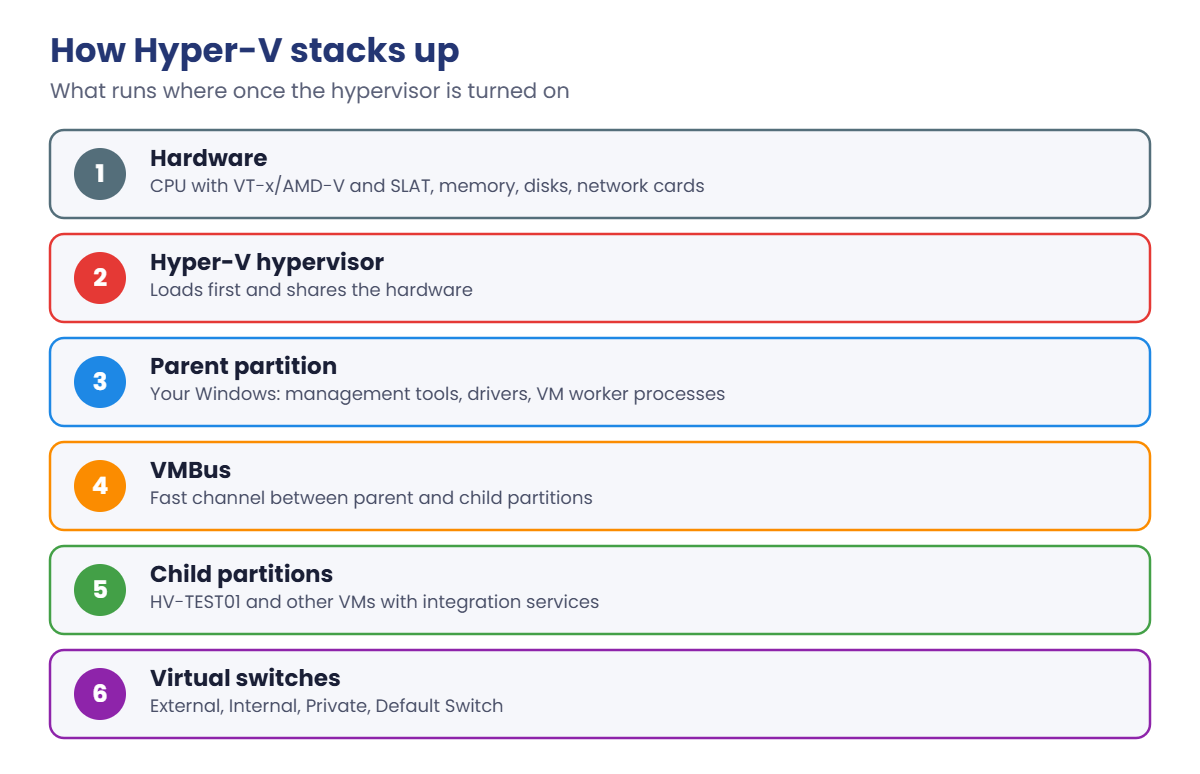
Architecture: once Hyper-V is on, the hypervisor loads first and Windows itself becomes the parent partition, managing the hardware. VMs run in child partitions and talk to the hardware through the VMBus and integration services. It needs a 64-bit CPU with hardware virtualization (Intel VT-x or AMD-V) and SLAT (EPT or RVI).

Generations: Generation 2 VMs use UEFI, Secure Boot and SCSI boot disks, and are the default choice for modern Windows. Generation 1 emulates older BIOS hardware for old operating systems.

Virtual switches: External connects VMs to a physical network adapter; Internal connects VMs and the host only; Private connects VMs to each other only. Windows 11 also has a NAT “Default Switch”.

Disks: VHDX (up to 64 TB), dynamically expanding or fixed size. Dynamic memory moves RAM between VMs within limits you set.

Checkpoints: production checkpoints use VSS inside the guest for an application-consistent copy; standard ones save memory state too. Each checkpoint creates an AVHDX differencing disk that grows until you delete the checkpoint. They’re not backups.

Nested virtualization lets a VM run Hyper-V itself, which is how Azure and test labs stack hypervisors; VirtualBox doesn’t support Hyper-V as a nested guest reliably, which is why this lab uses your laptop’s own Hyper-V.

How it works, step by step

Here’s how the layers stack once Hyper-V is turned on:

Hyper-V layers: hardware, hypervisor, parent partition, VMBus and child partitions

Your laptop’s Windows doesn’t disappear; it becomes the parent partition, a special VM with direct hardware access. That’s why turning Hyper-V on needs a restart, and why VirtualBox runs a little slower afterwards (it then works through the Windows Hypervisor Platform).

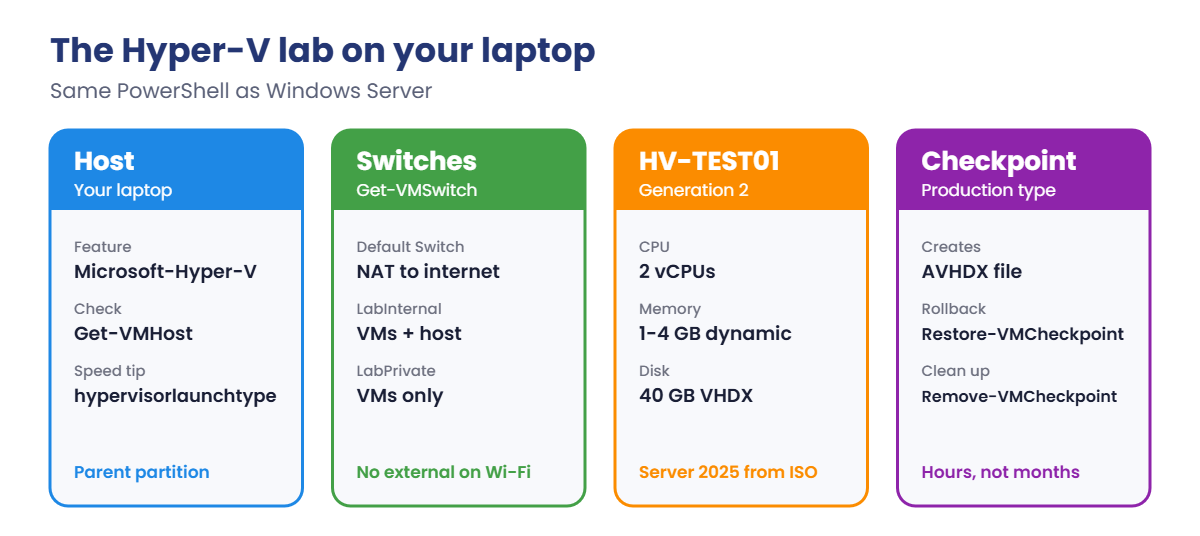
The Hyper-V lab you’ll build on your laptop:

Hyper-V lab on a laptop: host, switches, HV-TEST01 and checkpoints
  1. Check that the CPU supports virtualization and SLAT.
  2. Enable Hyper-V and restart.
  3. Create an internal switch (VMs and host) and a private switch (VMs only).
  4. Build HV-TEST01, a Generation 2 VM with dynamic memory, from the Server 2025 ISO.
  5. Use a production checkpoint, then delete it properly.
  6. Optionally switch Hyper-V off again so VirtualBox runs at full speed.

If your laptop runs Windows Home, read along and keep the commands for work: the PowerShell is the same on Windows Server.

Hands-on Lab: Hyper-V on your own laptop

Shut down your VirtualBox VMs first. Open PowerShell as administrator on your laptop (not inside a VM).

1Check virtualization support

On your laptop, run this:

Get-ComputerInfo -Property HyperV* | Format-List

You should see something like this:

HyperVisorPresent                                 : False
HyperVRequirementDataExecutionPreventionAvailable : True
HyperVRequirementSecondLevelAddressTranslation    : True
HyperVRequirementVirtualizationFirmwareEnabled    : True
HyperVRequirementVMMonitorModeExtensions          : True

All four requirements must be True. If VirtualizationFirmwareEnabled is False, turn on Intel VT-x or AMD-V (SVM) in your laptop’s BIOS or UEFI settings. If HyperVisorPresent is already True, a hypervisor is running (for example because of Windows security features), and the requirement lines may be empty; that’s fine.

✅ Checkpoint: All four Hyper-V requirements are True (or a hypervisor is already present).

2Enable Hyper-V

On your laptop:

Enable-WindowsOptionalFeature -Online -FeatureName Microsoft-Hyper-V -All
Restart-Computer

After the restart, in PowerShell as administrator:

Get-VMHost | Select-Object Name, LogicalProcessorCount, @{n='MemoryGB';e={[math]::Round($_.MemoryCapacity/1GB)}}, VirtualMachinePath

You should see something like this:

Name        LogicalProcessorCount MemoryGB VirtualMachinePath
----        --------------------- -------- ------------------
LAPTOP-7Q2K                     8       16 C:\ProgramData\Microsoft\Windows\Hyper-V

On Windows Server the same thing is Install-WindowsFeature Hyper-V -IncludeManagementTools -Restart. The rest of the lab is identical on both.

✅ Checkpoint: Get-VMHost returns your laptop with its CPU and memory.

3Create virtual switches

On your laptop:

New-VMSwitch -Name LabInternal -SwitchType Internal | Out-Null
New-VMSwitch -Name LabPrivate -SwitchType Private | Out-Null
Get-VMSwitch | Select-Object Name, SwitchType

You should see something like this:

Name           SwitchType
----           ----------
Default Switch Internal
LabInternal    Internal
LabPrivate     Private

Creating the internal switch also creates a network adapter on your laptop, “vEthernet (LabInternal)”, so the host can talk to VMs on it. The private switch has no host adapter. An external switch would bind to your physical network card; on a laptop with Wi-Fi that’s often unreliable, so the lab uses the built-in Default Switch for internet access instead.

✅ Checkpoint: Get-VMSwitch shows Default Switch, LabInternal and LabPrivate.

4Build a Generation 2 VM

On your laptop:

New-Item -ItemType Directory C:\Lab\HyperV -Force | Out-Null
New-VM -Name HV-TEST01 -Generation 2 -MemoryStartupBytes 2GB -NewVHDPath C:\Lab\HyperV\HV-TEST01.vhdx -NewVHDSizeBytes 40GB -SwitchName 'Default Switch' -Path C:\Lab\HyperV | Out-Null
Set-VMProcessor -VMName HV-TEST01 -Count 2
Set-VMMemory -VMName HV-TEST01 -DynamicMemoryEnabled $true -MinimumBytes 1GB -MaximumBytes 4GB
Add-VMDvdDrive -VMName HV-TEST01 -Path C:\Lab\ISO\server2025.iso
Set-VMFirmware -VMName HV-TEST01 -FirstBootDevice (Get-VMDvdDrive -VMName HV-TEST01)
Get-VM HV-TEST01 | Select-Object Name, Generation, State, ProcessorCount, DynamicMemoryEnabled

You should see something like this:

Name      Generation State ProcessorCount DynamicMemoryEnabled
----      ---------- ----- -------------- --------------------
HV-TEST01          2 Off                2 True

Start it and open its console:

Start-VM HV-TEST01
vmconnect localhost HV-TEST01

When the console says Press any key to boot from CD or DVD, press a key straight away. Install Windows Server 2025 Datacenter Evaluation (Server Core is quicker) just as you did in Lesson 5. The disk shows as 40 GB.

✅ Checkpoint: HV-TEST01 boots from the ISO and Windows Setup starts.

5Use a checkpoint, then delete it properly

After the install, on your laptop:

Get-VM HV-TEST01 | Select-Object Name, CheckpointType
Checkpoint-VM -Name HV-TEST01 -SnapshotName 'Fresh install'
Get-VMCheckpoint -VMName HV-TEST01 | Select-Object Name, CheckpointType, CreationTime
Get-ChildItem C:\Lab\HyperV\*.avhdx | Select-Object Name, @{n='MB';e={[math]::Round($_.Length/1MB)}}

You should see something like this:

Name      CheckpointType
----      --------------
HV-TEST01 Production

Name          CheckpointType CreationTime
----          -------------- ------------
Fresh install Production     19/10/2026 21:40:12

Name                                                 MB
----                                                 --
HV-TEST01_8C1E2B7A-5D3F-4A90-B6E1-2F7C9D0A3B44.avhdx  4

The VM now writes to the AVHDX file, not the original VHDX. Make a change inside the VM (create a folder), then roll back with Restore-VMCheckpoint -VMName HV-TEST01 -Name 'Fresh install' -Confirm:$false. The folder is gone.

Then delete the checkpoint so its changes merge back into the VHDX:

Remove-VMCheckpoint -VMName HV-TEST01 -Name 'Fresh install'
Start-Sleep -Seconds 30
Get-ChildItem C:\Lab\HyperV\*.avhdx

No AVHDX files remain: Hyper-V merged them. Never delete AVHDX files by hand; that breaks the VM’s disk chain.

✅ Checkpoint: You restored a checkpoint, then removed it, and no AVHDX files are left.
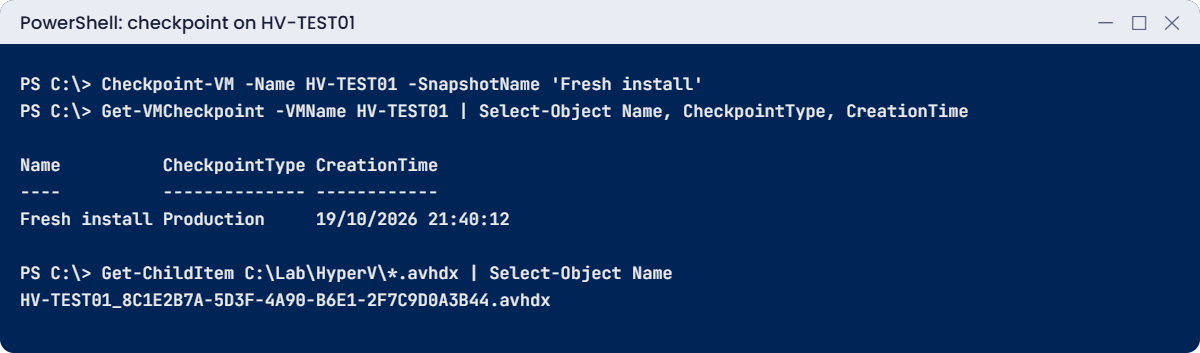
Hyper-V lab: production checkpoint and its AVHDX file
Taking a checkpoint creates an AVHDX file; removing the checkpoint merges it back.

6Optional: switch Hyper-V off for VirtualBox speed

If VirtualBox feels slow with Hyper-V on, turn the hypervisor off at boot (Hyper-V stays installed):

bcdedit /set hypervisorlaunchtype off
Restart-Computer

Turn it back on with bcdedit /set hypervisorlaunchtype auto and a restart when you need Hyper-V again. Some Windows security features also use the hypervisor, so on a work laptop ask before changing this.

✅ Checkpoint: You know how to switch the hypervisor on and off for the next lessons.

Break It, Then Fix It

Two classic Hyper-V tickets: “the VM won’t boot” and “the VM won’t even start”.

1Break it: a Generation 2 VM that doesn’t boot

Create a second VM, start it, but don’t press a key at the boot prompt:

New-VM -Name HV-TEST02 -Generation 2 -MemoryStartupBytes 1GB -NewVHDPath C:\Lab\HyperV\HV-TEST02.vhdx -NewVHDSizeBytes 20GB -SwitchName 'Default Switch' -Path C:\Lab\HyperV | Out-Null
Add-VMDvdDrive -VMName HV-TEST02 -Path C:\Lab\ISO\server2025.iso
Start-VM HV-TEST02
vmconnect localhost HV-TEST02

After a few seconds the console shows something like this:

Virtual Machine Boot Summary

1. SCSI Disk     (0,0)   The boot loader did not load an operating system.
2. Network Adapter (00155D01A2B3)   A boot image was not found.

No operating system was loaded. Your virtual machine may be configured incorrectly. Exit and re-configure your VM
or click restart to retry the current boot sequence again.

Two things went wrong. The boot order still starts with the empty disk (you didn’t run Set-VMFirmware this time), and Generation 2 VMs only boot from DVD if you press a key within a few seconds. Network boot found no server either.

Fix it: put the DVD first, restart, and press a key at the prompt:

Stop-VM HV-TEST02 -TurnOff
Set-VMFirmware -VMName HV-TEST02 -FirstBootDevice (Get-VMDvdDrive -VMName HV-TEST02)
Start-VM HV-TEST02

✅ Checkpoint: HV-TEST02 failed with “No operating system was loaded” and boots Setup after the fix.

2Break it: not enough memory to start

Give HV-TEST02 far more startup memory than your laptop has:

Stop-VM HV-TEST02 -TurnOff
Set-VMMemory -VMName HV-TEST02 -DynamicMemoryEnabled $false -StartupBytes 64GB
Start-VM HV-TEST02

You’ll get an error like this:

Start-VM : 'HV-TEST02' failed to start.
Not enough memory in the system to start the virtual machine HV-TEST02.
'HV-TEST02' failed to start. (Virtual machine ID 3B9E2C41-...)
Not enough memory in the system to start the virtual machine 'HV-TEST02' with ram size 65536 megabytes. (Virtual
machine ID 3B9E2C41-...)
    + CategoryInfo          : NotSpecified: (:) [Start-VM], VirtualizationException
    + FullyQualifiedErrorId : OutOfMemory,Microsoft.HyperV.PowerShell.Commands.StartVM

Hyper-V reserves a VM’s startup memory before it starts. On real hosts this appears after someone adds VMs or a host fails over and the survivors can’t fit everything, so always keep spare memory.

Fix it: use a realistic size with dynamic memory, then clean up the test VM:

Set-VMMemory -VMName HV-TEST02 -DynamicMemoryEnabled $true -StartupBytes 1GB -MinimumBytes 512MB -MaximumBytes 2GB
Start-VM HV-TEST02
Stop-VM HV-TEST02 -TurnOff; Remove-VM HV-TEST02 -Force; Remove-Item C:\Lab\HyperV\HV-TEST02.vhdx

✅ Checkpoint: Start-VM failed at 64 GB and succeeded with 1 GB dynamic memory.

Hyper-V lab: Start-VM fails with not enough memory
Hyper-V must reserve a VM’s startup memory; 64 GB on a laptop can’t start.

This happened at work

The checkpoint nobody deleted

Before a database upgrade, an admin took a checkpoint of the company’s main SQL Server VM, “just in case”. The upgrade went fine, everyone celebrated, and the checkpoint was forgotten.

For seven months, every write to the database went into the AVHDX file instead of the main disk. It grew past 900 GB.

One night it filled the host’s storage volume, and Hyper-V paused every VM on that volume with the status “Paused-Critical”. Twelve VMs stopped at once.

Freeing space and merging a checkpoint that size took most of the next day, during which the database ran slowly. Backups during the merge kept failing.

The fix: a weekly report of every VM with a checkpoint older than three days, a rule that checkpoints are deleted the same day the change is accepted, and real backups for rollback plans.

The lesson: checkpoints are for minutes or hours, not months. Delete them as soon as the change is confirmed.

Common mistakes and troubleshooting

Mistake or symptomWhat happensWhat to do instead
Old checkpoints left on VMsAVHDX files grow until storage fills; VMs pauseDelete checkpoints once the change is confirmed; report on old ones
Deleting AVHDX files by handThe VM’s disk chain breaksAlways use Remove-VMCheckpoint
“No operating system was loaded” on Gen 2Wrong boot order, or no key pressed for DVDSet-VMFirmware first boot device; press a key quickly
“Not enough memory” on Start-VMThe host can’t reserve startup memoryRight-size VMs, use dynamic memory, keep spare host RAM
Using checkpoints as backupsLost data when the host or disk failsReal backups (Lesson 38)
External switch on Wi-FiUnstable or no network for the hostUse the Default Switch or an internal switch with NAT
VirtualizationFirmwareEnabled FalseHyper-V won’t installEnable VT-x or AMD-V in the BIOS/UEFI
Gen 1 VMs for modern WindowsNo Secure Boot, older devicesGeneration 2 unless the OS needs Gen 1
Overcommitting CPU and memory heavilySlow VMs for everyoneMonitor host counters; plan capacity

Interview questions

Click a question to open it. Under each one you’ll find what the interviewer is really looking for, and one good way to answer.

Fresher level

1. What is a hypervisor?

What they’re really checking: Do you know the basics?

How you could answer: Software that runs virtual machines by sharing physical hardware. Hyper-V is a type-1 hypervisor that runs directly on the hardware.

2. What are the three Hyper-V virtual switch types?

What they’re really checking: Do you know networking?

How you could answer: External (VMs to the physical network), Internal (VMs and the host), Private (VMs to each other only).

3. What is the difference between Generation 1 and Generation 2 VMs?

What they’re really checking: Do you know VM types?

How you could answer: Gen 1 emulates BIOS and IDE for old systems; Gen 2 uses UEFI, Secure Boot and SCSI boot, and is the default for modern Windows.

2–5 years experience

4. What is the difference between production and standard checkpoints?

What they’re really checking: Do you know checkpoint types?

How you could answer: Production checkpoints use VSS in the guest for an application-consistent disk state without memory; standard checkpoints also save memory and device state.

5. What happens on disk when you take a checkpoint?

What they’re really checking: Do you understand AVHDX?

How you could answer: The VM starts writing to a new differencing disk (AVHDX). Deleting the checkpoint merges it back into the parent disk.

6. How does dynamic memory work?

What they’re really checking: Have you configured it?

How you could answer: The VM starts with startup memory and can grow up to a maximum or shrink to a minimum as demand changes, with Hyper-V balancing memory between VMs on the host.

Senior level

7. How would you size and design a Hyper-V host for 30 VMs?

What they’re really checking: Do you think about capacity?

How you could answer: Add up VM CPU, memory and storage needs with growth, keep headroom for failover (N+1 in a cluster), separate networks for management, VMs, storage and live migration, use SET teaming, and plan for backup and monitoring.

8. A host shows VMs in “Paused-Critical”. What happened and what do you do?

What they’re really checking: Do you know storage risks?

How you could answer: The storage volume holding the VMs ran out of space, often due to growing checkpoints or dynamic disks. Make room, find and merge old checkpoints, then resume VMs and add monitoring.

9. When would you use nested virtualization?

What they’re really checking: Do you know its use cases?

How you could answer: For labs and training, containers with Hyper-V isolation inside VMs, and cloud scenarios where a VM needs to host its own VMs. It costs performance and isn’t for heavy production loads.

Quick quiz

Q1. What does Hyper-V need from the CPU?

  1. Only 64-bit
  2. Hardware virtualization and SLAT
  3. A GPU
Show answer

B — VT-x or AMD-V plus EPT or RVI.

Q2. Which switch type lets VMs talk only to each other?

  1. External
  2. Internal
  3. Private
Show answer

C — No host or physical network access.

Q3. Why did HV-TEST02 show “No operating system was loaded”?

  1. The ISO was corrupt
  2. Boot order and no key pressed for DVD
  3. Not enough memory
Show answer

B — Set the DVD first and press a key.

Q4. What file grows while a checkpoint exists?

  1. VHDX
  2. AVHDX
  3. ISO
Show answer

B — Delete the checkpoint to merge it.

Q5. In the work story, why did 12 VMs pause?

  1. A power cut
  2. A forgotten checkpoint filled the storage volume
  3. A virus
Show answer

B — Delete checkpoints promptly.

Quick recap

  • Hyper-V is a type-1 hypervisor; Windows becomes the parent partition.
  • Check VT-x/AMD-V, SLAT and firmware support before enabling it.
  • Switches: External, Internal, Private (and Default Switch on Windows 11).
  • Use Generation 2 VMs, dynamic memory and VHDX disks.
  • Checkpoints create AVHDX files; delete them promptly and never by hand.
  • “Not enough memory” means the host can’t reserve startup RAM.

Next lesson

Lesson 29: Hyper-V advanced → You’ll build two nested Hyper-V hosts inside your laptop’s Hyper-V, live migrate a VM between them, set up Hyper-V Replica, and learn about AVMA and GPU partitioning.

Further reading: Hyper-V

Want to go deeper into Hyper-V? Microsoft’s Hyper-V overview covers the architecture, and the nested virtualization guide explains running Hyper-V inside a VM. You can also see the full plan for this course on the Windows Server Administration course page.

Scroll to Top