Group Policy troubleshooting: gpresult, logs, RSoP and filtering
-
Phase 0: Before you start
-
Phase 1: The foundation
-
Phase 2: Core administration and security
-
Phase 3: Enterprise infrastructure
-
Phase 4: Troubleshooting step by step
-
Phase 5: Final project and career
“I set the policy, but it isn’t working” is a ticket every admin gets. Group Policy troubleshooting answers two questions: did the computer even try to apply this GPO, and if it did, why didn’t the setting win?
In this lesson you’ll read gpresult like a pro, follow one policy refresh in the Group Policy operational log, check link order and GPO versions on both DCs, and fix filtering problems that confuse even experienced admins.
| Time | You need | By the end you can |
|---|---|---|
| About 75 minutes | DC01, DC02 and CL01, with the GPOs from Lessons 19 and 20 | Find why any GPO or setting does or doesn’t apply, with evidence |
What it is, in one line
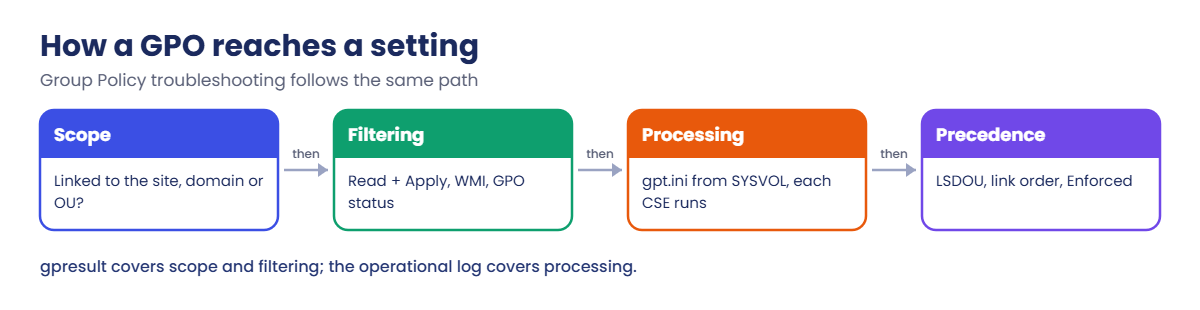
Group Policy troubleshooting is checking, in order, whether a GPO reaches the computer (link, scope, filtering), whether it is processed (logs), and whether its setting wins (precedence).
In Simple Words
In Simple Words
Imagine the school principal sends rules to every class through notice boards. If a class didn’t follow a rule, there are only a few reasons.
Maybe the notice was never pinned on their board. Maybe it was pinned but said “only for Class 5B”. Maybe another notice pinned later said the opposite.
Group Policy works the same way. Check whether the notice reached the board, whether it was meant for this class, and which notice won.
Engineer's View
Engineer’s View
Scope: a GPO applies to users and computers in the site, domain or OU it’s linked to (and child OUs, unless inheritance is blocked). Computer settings follow the computer object; user settings follow the user object, unless loopback is on.
Filtering: the computer or user needs Read and Apply Group Policy on the GPO (security filtering), the WMI filter must return true, and the GPO’s user or computer half must not be disabled. Since MS16-072, computers also need Read on every GPO, even user-only ones.
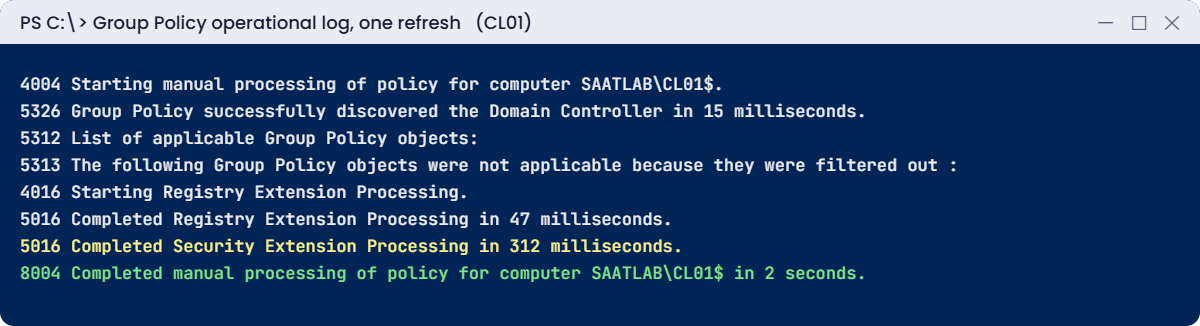
Processing: the Group Policy Client service (gpsvc) finds a DC, reads gpt.ini from SYSVOL, and runs each client-side extension (CSE). Events land in Microsoft-Windows-GroupPolicy/Operational: 4000 to 4007 for start, 5312 for the list of applicable GPOs, 5313 for filtered ones, 4016 and 5016 for each extension, and 8000 to 8007 when processing completes.
Precedence: LSDOU (local, site, domain, OU), with the last applied winning. Link order 1 wins inside one OU, and Enforced links beat everything below them.
Versions: each GPO has a version in AD (the GPC) and in SYSVOL (the GPT). If they differ on a DC, replication of AD or SYSVOL is behind.
How it works, step by step
How a GPO gets from a DC to a setting on CL01:
Every check you run maps to one of those stages. gpresult shows scope and filtering. The operational log shows processing and timing. The HTML report shows the “winning GPO” for each setting.
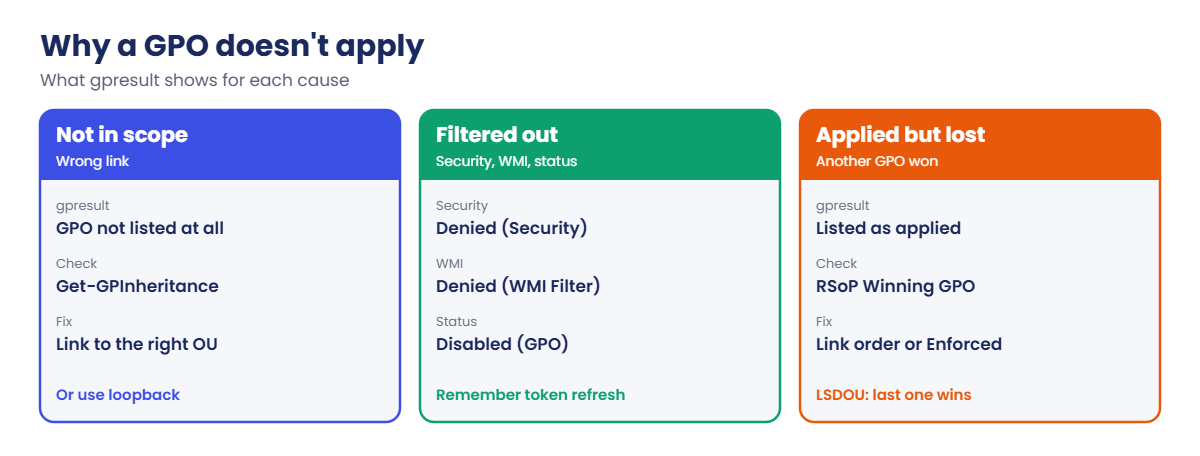
Work through them in order. Most “broken” GPOs are filtered out or linked to the wrong OU, and gpresult tells you that in one line.
Remember group membership is read from the Kerberos ticket. A computer added to a group doesn’t see the change until it gets a new ticket, which you’ll prove in the Break It lab.
Why a GPO or setting doesn’t apply, and where you see it:
In the lab you’ll:
- Read applied and filtered GPOs with gpresult.
- Follow one refresh in the operational log.
- Create an RSoP report for a user and computer.
- Check link order and precedence.
- Compare GPO versions on DC01 and DC02.
Hands-on lab: find why a GPO applies or not
Start DC01, DC02 and CL01. On CL01, sign in as SAATLAB\priya.sharma for user checks, and use PowerShell as administrator (adm.rahul) for computer checks.
1Read gpresult like a pro
On CL01, as priya.sharma (normal PowerShell):
gpresult /r /scope:userYou’ll see something like this (cut down):
USER SETTINGS
--------------
CN=Priya Sharma,OU=Finance,OU=Staff,OU=SAATLAB,DC=saatlab,DC=internal
Last time Group Policy was applied: 19/10/2026 at 15:40:12
Group Policy was applied from: DC01.saatlab.internal
Group Policy slow link threshold: 500 kbps
Domain Name: SAATLAB
Applied Group Policy Objects
-----------------------------
U-Finance-Printer
U-Staff-Desktop
The following GPOs were not applied because they were filtered out
-------------------------------------------------------------------
Local Group Policy
Filtering: Not Applied (Empty)Read it top down: which DC served the policy, when, which GPOs applied, and which were filtered and why. “Not Applied (Empty)” means the GPO has no settings for this side. “Denied (Security)” and “Denied (WMI Filter)” are the two you’ll chase most.
✅ Checkpoint: gpresult shows the DC used, the applied GPOs and a reason for each filtered GPO.
2Follow one refresh in the operational log
On CL01, as administrator, refresh computer policy and read the newest events:
gpupdate /target:computer /force
Get-WinEvent -LogName Microsoft-Windows-GroupPolicy/Operational -MaxEvents 12 |
Sort-Object TimeCreated |
Select-Object Id, @{ n = 'Message'; e = { ($_.Message -split "\r?\n")[0] } } | Format-Table -WrapYou’ll see something like this:
Id Message
-- -------
4004 Starting manual processing of policy for computer SAATLAB\CL01$.
5017 The system call to get account information completed.
5326 Group Policy successfully discovered the Domain Controller in 15 milliseconds.
5312 List of applicable Group Policy objects:
5313 The following Group Policy objects were not applicable because they were filtered out :
4016 Starting Registry Extension Processing.
5016 Completed Registry Extension Processing in 47 milliseconds.
4016 Starting Security Extension Processing.
5016 Completed Security Extension Processing in 312 milliseconds.
8004 Completed manual processing of policy for computer SAATLAB\CL01$ in 2 seconds.This is the full story of one refresh: DC found, GPO list built, each extension run with its time, then done. A slow extension shows a large time in its 5016 event; a failed one logs an error (7016 or similar) with a code.
✅ Checkpoint: You see the start, the applicable list, each extension and the completion events for one refresh.
3Create an RSoP report
On CL01, as administrator, report what priya.sharma gets on CL01:
Get-GPResultantSetOfPolicy -Computer CL01 -User SAATLAB\priya.sharma -ReportType Html -Path C:\Lab\rsop-priya.html
Start-Process C:\Lab\rsop-priya.htmlYou’ll see something like this:
RsopMode : Logging
Namespace : \\CL01\Root\Rsop\NS2A7C1F07_63D4_4F1B_8A6B_6E04B2B9C3D1
LoggingComputer : CL01
LoggingUser : SAATLAB\priya.sharma
LoggingMode : UserAndComputerIn the report, open Settings. Every setting has a Winning GPO column, which answers “which GPO set this?” without guessing. [Add your screenshot here]
✅ Checkpoint: rsop-priya.html opens and shows the winning GPO for each setting.
4Check link order and precedence
On DC01:
(Get-GPInheritance -Target 'OU=Workstations,OU=SAATLAB,DC=saatlab,DC=internal').InheritedGpoLinks |
Select-Object Order, DisplayName, Enforced, TargetYou’ll see something like this:
Order DisplayName Enforced Target
----- ----------- -------- ------
1 C-Workstation-Security False OU=Workstations,OU=SAATLAB,DC=saatlab,DC=internal
2 C-LAPS False OU=Workstations,OU=SAATLAB,DC=saatlab,DC=internal
3 C-Cert-Autoenroll False OU=Workstations,OU=SAATLAB,DC=saatlab,DC=internal
4 Default Domain Policy False dc=saatlab,dc=internalThe list is in precedence order: Order 1 wins if two GPOs set the same thing. GPOs linked closer to the object (the OU) beat GPOs linked higher up (the domain), unless a higher link is Enforced.
✅ Checkpoint: You can say which GPO wins on CL01 for a conflicting setting.
5Compare GPO versions on both DCs
On DC01:
foreach ($dc in 'DC01', 'DC02') {
$g = Get-GPO -Name U-Staff-Desktop -Server $dc
[pscustomobject]@{
DC = $dc
UserAD = $g.User.DSVersion
UserSysvol = $g.User.SysvolVersion
Modified = $g.ModificationTime
}
}You’ll see something like this:
DC UserAD UserSysvol Modified
-- ------ ---------- --------
DC01 6 6 19/10/2026 11:02:14
DC02 6 6 19/10/2026 11:02:14All four numbers match, so AD and SYSVOL agree on both DCs. If DC02 showed an older SYSVOL version, clients in the Branch site would get the old settings. Check DFS Replication for SYSVOL (Lesson 41) and AD replication (Lesson 45).
✅ Checkpoint: U-Staff-Desktop has the same AD and SYSVOL version on DC01 and DC02.
Break It, Then Fix It
Two problems that gpresult explains in one line, if you know how to read it.
1Break it: the user half of a GPO is switched off
On DC01, disable the user settings of U-Staff-Desktop:
(Get-GPO -Name U-Staff-Desktop).GpoStatus = 'UserSettingsDisabled'On CL01, as priya.sharma:
gpupdate /target:user /force
gpresult /r /scope:user | Select-String -Context 0,1 'U-Staff-Desktop'You’ll see something like this:
> U-Staff-Desktop
Filtering: Disabled (GPO)The GPO is linked and Priya can read it, but someone switched off its user half, often while “testing” or by mistake when they meant to disable the unused computer half. Her screen saver and S: drive settings stop applying.
Fix it: turn all settings back on, then refresh:
(Get-GPO -Name U-Staff-Desktop).GpoStatus = 'AllSettingsEnabled'Run gpupdate /target:user /force on CL01 again, and U-Staff-Desktop is back under Applied Group Policy Objects.
✅ Checkpoint: gpresult showed “Disabled (GPO)” and the GPO applies again after setting AllSettingsEnabled.
2Break it: a computer joins a group but the GPO still skips it
On DC01, create a pilot GPO that only applies to computers in GG_PilotPCs:
New-GPO -Name C-Pilot-Test | New-GPLink -Target 'OU=Workstations,OU=SAATLAB,DC=saatlab,DC=internal'
Set-GPRegistryValue -Name C-Pilot-Test -Key 'HKLM\Software\SaatLab' -ValueName Pilot -Type String -Value Yes
New-ADGroup GG_PilotPCs -GroupScope Global -Path 'OU=Groups,OU=SAATLAB,DC=saatlab,DC=internal'
Set-GPPermission -Name C-Pilot-Test -TargetName 'Authenticated Users' -TargetType Group -PermissionLevel GpoRead -Replace
Set-GPPermission -Name C-Pilot-Test -TargetName GG_PilotPCs -TargetType Group -PermissionLevel GpoApply
Add-ADGroupMember GG_PilotPCs -Members 'CL01$'On CL01, as administrator:
gpupdate /target:computer /force
gpresult /r /scope:computer | Select-String -Context 0,1 'C-Pilot-Test'You’ll see something like this:
> C-Pilot-Test
Filtering: Denied (Security)
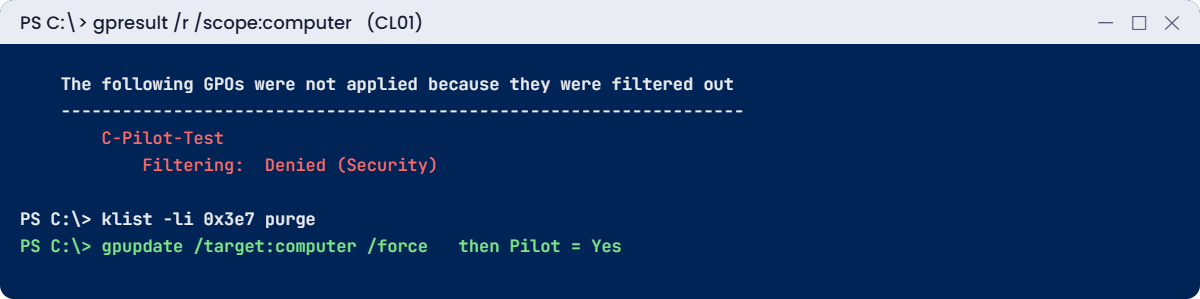
CL01 is in the group in AD, but its Kerberos ticket was issued before you added it, and group membership comes from the ticket. Until CL01 gets a new ticket, it still looks like a non-member.
Fix it: purge the computer’s tickets (no restart needed), refresh and check:
klist -li 0x3e7 purge
gpupdate /target:computer /force
Get-ItemProperty HKLM:\Software\SaatLab | Select-Object PilotYou’ll see something like this:
Pilot
-----
Yes-li 0x3e7 is the logon session of the computer account (SYSTEM). A restart does the same thing more slowly. When you’re done, remove the test with Remove-GPO C-Pilot-Test and Remove-ADGroup GG_PilotPCs.
✅ Checkpoint: C-Pilot-Test was “Denied (Security)” until the computer’s tickets were purged, then the Pilot value appeared.
This happened at work
The logon that took 20 minutes
After a “small” change, users at one company waited up to 20 minutes on “Applying computer settings” every morning. Nothing else had changed, so the team suspected the network and spent two days on switches.
An engineer finally opened the Group Policy operational log on one PC. One step stood out: evaluating a WMI filter took over 15 minutes. A new filter targeted PCs with a certain app installed, using a query on Win32_Product.
Win32_Product is slow because it checks every installed MSI package, and it can even trigger repairs. On older PCs with hundreds of packages, the query ran for many minutes on every boot.
The fix: the filter was replaced with a check on a registry key the app creates, through Group Policy Preferences item-level targeting. Startup dropped back to under a minute.
The lesson: the operational log records how long each step takes. When Group Policy is slow, read the times before you blame the network.
Common mistakes and troubleshooting
| Mistake | What happens | What to do instead |
|---|---|---|
| Linking a user GPO to a computers OU | Settings never apply | Link where the user objects live, or use loopback |
| Removing Authenticated Users completely | Computers can’t read the GPO; it fails silently | Keep Read for Authenticated Users or Domain Computers |
| Testing before the token updates | Group filtering seems broken | Log off and on, or klist -li 0x3e7 purge for computers |
| Guessing which GPO wins | Hours of trial and error | Check the Winning GPO column in an RSoP report |
| Ignoring the operational log | Slow or failing extensions stay hidden | Read 4016, 5016 and error events |
| Editing GPOs on different DCs at once | Conflicting versions | Edit on the PDC emulator (the GPMC default) |
| Slow WMI filters | Long startups and logons | Use simple queries or GPP item-level targeting |
| Forgetting SYSVOL replication | Some sites get old settings | Compare AD and SYSVOL versions per DC |
Interview questions
Click a question to open it. Under each one you’ll find what the interviewer is really looking for, and one good way to answer.
Fresher level
1. How do you check which GPOs applied to a user?
What they’re really checking: Do you know gpresult?
How you could answer: gpresult /r for a summary, or gpresult /h report.html for details including filtered GPOs.
2. What does gpupdate /force do?
What they’re really checking: Do you know refresh?
How you could answer: It reapplies all policy settings now, not just changed ones. Some settings still need a logon or restart.
3. What is LSDOU?
What they’re really checking: Do you know precedence?
How you could answer: Local, site, domain, OU: the order GPOs apply. The last one applied wins, so OU-linked GPOs usually win.
2–5 years experience
4. A GPO shows “Denied (Security)”. What do you check?
What they’re really checking: Can you read filtering?
How you could answer: The GPO’s security filtering and delegation: does the user or computer have Read and Apply, directly or through a group, and is their token current?
5. How do you find which GPO set a setting?
What they’re really checking: Do you use RSoP?
How you could answer: An RSoP or gpresult /h report shows the Winning GPO per setting. Group Policy Modeling helps for what-if cases.
6. Group Policy is slow at startup. How do you investigate?
What they’re really checking: Can you use logs?
How you could answer: Read the Group Policy operational log for each extension’s time, check WMI filters, scripts, software installs and DC discovery time.
Senior level
7. Some sites get old GPO settings. Why?
What they’re really checking: Do you link GP and replication?
How you could answer: AD or SYSVOL replication is behind. Compare GPC and GPT versions per DC, check DFSR health for SYSVOL and AD replication.
8. What changed with MS16-072 and why does it matter?
What they’re really checking: Do you know history?
How you could answer: User policy is retrieved with the computer’s security context, so computers need Read on every GPO. Removing Authenticated Users without adding Domain Computers breaks user GPOs.
9. How would you manage GPO changes safely in a large company?
What they’re really checking: Do you think about process?
How you could answer: Backups, change control, a pilot OU and pilot group, staged links, documented ownership, reports before and after, and AGPM or a similar review process.
Quick quiz
Q1. Which command shows applied and filtered GPOs?
- gpupdate
- gpresult /r
- dcdiag
Show answer
B — Add /h for an HTML report.
Q2. What does “Filtering: Disabled (GPO)” mean?
- The link is missing
- The user or computer half of the GPO is switched off
- The WMI filter failed
Show answer
B — Check GpoStatus.
Q3. Which link order wins inside one OU?
- The highest number
- Order 1
- The oldest GPO
Show answer
B — Unless another link is Enforced.
Q4. How do you refresh a computer’s group membership without a restart?
- gpupdate
- klist -li 0x3e7 purge
- ipconfig /flushdns
Show answer
B — It clears the computer’s tickets.
Q5. What caused slow logons in the work story?
- DNS
- A WMI filter using Win32_Product
- A full SYSVOL
Show answer
B — The operational log showed the time.
Quick recap
- Group Policy troubleshooting checks scope, filtering, processing and precedence in that order.
gpresult /rshows applied GPOs and why others were filtered.- The GroupPolicy operational log shows each refresh, with times per extension.
- RSoP reports show the winning GPO for each setting.
- Group changes need a new ticket: log off, restart or
klist -li 0x3e7 purge. - Compare AD and SYSVOL versions when sites disagree.
Next lesson
Lesson 47: Performance → You’ll find CPU, memory, disk and network bottlenecks with Performance Monitor counters, Resource Monitor and PowerShell, and learn what “normal” looks like.
Further reading: Group Policy troubleshooting
Want to go deeper into Group Policy troubleshooting? Microsoft’s guide to troubleshooting Group Policy walks through each stage, and the Get-GPResultantSetOfPolicy reference explains RSoP reports. You can also see the full plan for this course on the Windows Server Administration course page.
