Windows service troubleshooting: accounts, dependencies and activation
-
Phase 0: Before you start
-
Phase 1: The foundation
-
Phase 2: Core administration and security
-
Phase 3: Enterprise infrastructure
-
Phase 4: Troubleshooting step by step
-
Phase 5: Final project and career
“The service won’t start” is a ticket you’ll fix many times. Windows service troubleshooting is quick once you know the usual causes: the wrong account or password, a missing dependency, a timeout, or a disabled start type. Activation errors fit here too, because they come from a service that can’t reach what it needs.
In this lesson you’ll find services that should be running, read a service’s account and dependencies, map services to processes, and check activation health. Then you’ll break a service with a timeout and with a disabled dependency, and fix both.
| Time | You need | By the end you can |
|---|---|---|
| About 75 minutes | SRV01 with IIS (Lesson 25) | Find why any service won’t start and fix it, and diagnose activation errors such as 0xC004F074 |
What it is, in one line
Windows service troubleshooting is reading a service’s configuration, account, dependencies and events to find why it won’t start or keeps stopping.
In Simple Words
In Simple Words
Think of a shop that opens every morning. The shopkeeper needs the right key to open the door, the electricity must already be on, and he must arrive before the opening time.
If the shop stays closed, you check: wrong key? Power off? Did he arrive too late?
A Windows service is the same: the right account and password (the key), the services it depends on (the electricity), and starting within the time Windows waits.
Engineer's View
Engineer’s View
Configuration: each service has a start type (Automatic, Automatic (Delayed Start), Manual, Disabled, plus trigger start), a binary path, a logon account (LocalSystem, LocalService, NetworkService, a domain account or a gMSA) and dependencies. Read it with sc.exe qc or Get-CimInstance Win32_Service.
Key events (System log, Service Control Manager): 7000 failed to start, 7001 dependency failed, 7009 timeout while waiting, 7011 timeout during a control request, 7023 and 7024 stopped with an error, 7031 and 7034 crashed, 7038 couldn’t log on with the configured password, 7040 start type changed.
Common errors: 1053 (didn’t respond in time), 1069 (logon failure: wrong password, or the account lacks “Log on as a service”), 1058 (disabled), 1068 (dependency failed to start), 5 (access denied).
Activation: the Software Protection service (sppsvc) activates Windows. 0xC004F074 means no KMS host could be contacted: check the KMS host, TCP 1688, the _vlmcs._tcp SRV record in DNS and time (more than 4 hours apart breaks it). 0x8007232B means the SRV record wasn’t found, and 0xC004F038 means the KMS count is too low (5 for servers).
How it works, step by step
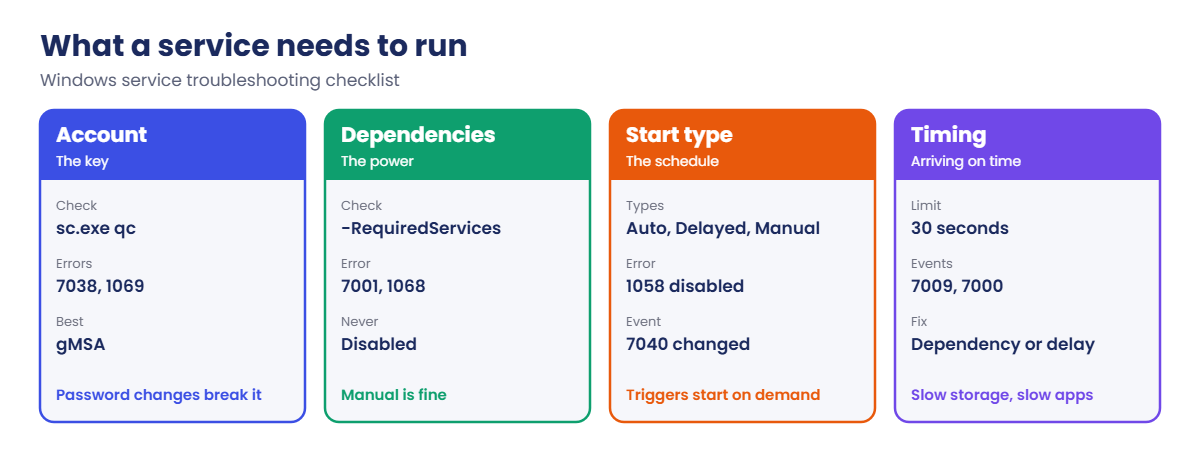
What a service needs before it can run:
Start with the System log. The Service Control Manager writes a clear event for almost every failure, with an error number you can look up.
Then check the four usual suspects: account and password, dependencies, start type and timing. Most failures are one of these.
If the service starts and then dies, it’s usually the application itself. Look at its own logs and the Application log for crash events (1000) next.
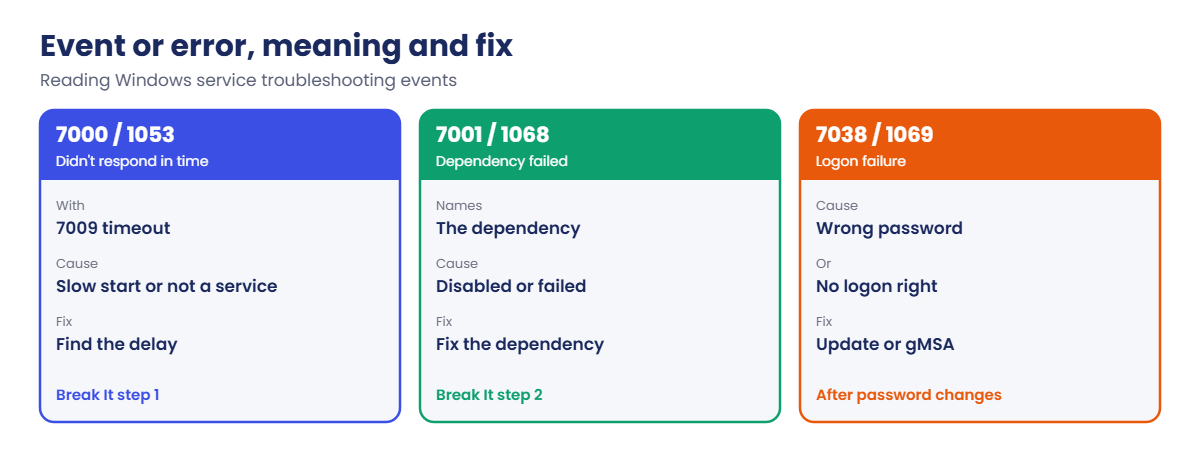
Event or error, meaning and fix:
In the lab you’ll work on SRV01:
- Find Automatic services that aren’t running.
- Read a service’s account, triggers and dependencies.
- Map services to their processes.
- Read recent service errors from the System log.
- Check activation and the KMS DNS record.
Hands-on lab: inspect services and activation
Start DC01 and SRV01. Work as SAATLAB\adm.rahul in PowerShell as administrator on SRV01.
1Find Automatic services that are not running
On SRV01:
Get-CimInstance Win32_Service -Filter "StartMode='Auto' AND State<>'Running'" |
Select-Object Name, State, ExitCode, DelayedAutoStart | Format-TableYou’ll see something like this:
Name State ExitCode DelayedAutoStart
---- ----- -------- ----------------
gpsvc Stopped 0 False
MapsBroker Stopped 0 True
sppsvc Stopped 0 True
WbioSrvc Stopped 1077 FalseNot every stopped Automatic service is a problem. Some start, do their job and stop (sppsvc), some are trigger-started, and some have nothing to do on a server. Exit code 0 is normal.
A non-zero exit code on a service you need is what you chase.
✅ Checkpoint: You have a list of Automatic services that aren’t running, with their exit codes.
2Read account, triggers and dependencies
On SRV01, look at the web service:
sc.exe qc W3SVC
Get-Service W3SVC -RequiredServices | Select-Object Name, Status, StartTypeYou’ll see something like this:
[SC] QueryServiceConfig SUCCESS
SERVICE_NAME: W3SVC
TYPE : 20 WIN32_SHARE_PROCESS
START_TYPE : 2 AUTO_START
ERROR_CONTROL : 1 NORMAL
BINARY_PATH_NAME : C:\Windows\system32\svchost.exe -k iissvcs
LOAD_ORDER_GROUP :
TAG : 0
DISPLAY_NAME : World Wide Web Publishing Service
DEPENDENCIES : WAS
: HTTP
SERVICE_START_NAME : LocalSystem
Name Status StartType
---- ------ ---------
HTTP Running Manual
WAS Running ManualW3SVC runs as LocalSystem inside a shared svchost, and it can’t start unless WAS and HTTP start first. Dependencies set to Manual are fine: the Service Control Manager starts them when W3SVC needs them. Disabled is not fine, as you’ll see in the Break It lab.
✅ Checkpoint: You can read a service’s start type, binary path, account and dependencies.
3Map services to processes
On SRV01:
$s = Get-CimInstance Win32_Service -Filter "Name='W3SVC'"
$s.ProcessId
tasklist /svc /fi "PID eq $($s.ProcessId)"You’ll see something like this:
3184
Image Name PID Services
========================= ======== ============================================
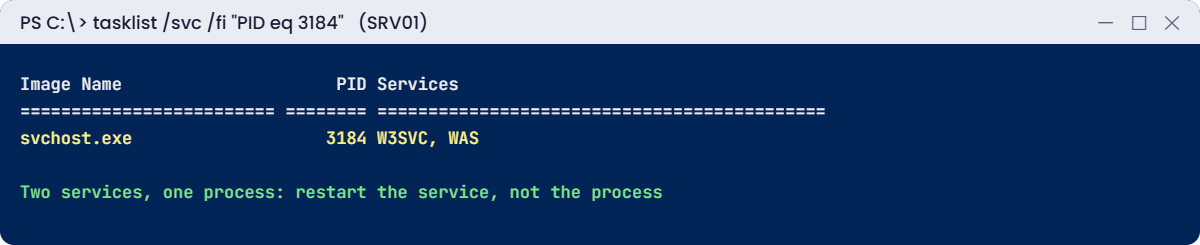
svchost.exe 3184 W3SVC, WASW3SVC and WAS share one process. If you kill that process to “restart IIS”, you stop both, and anything else in it. Restart services with Restart-Service instead, and use this mapping when one svchost uses a lot of CPU or memory.
✅ Checkpoint: You know which process hosts W3SVC and which other services share it.
4Read recent service errors
On SRV01, list Service Control Manager errors from the last 7 days:
Get-WinEvent -FilterHashtable @{ LogName = 'System'; ProviderName = 'Service Control Manager'; Level = 2; StartTime = (Get-Date).AddDays(-7) } -ErrorAction SilentlyContinue |
Group-Object Id | Select-Object Name, Count,
@{ n = 'Latest'; e = { (($_.Group | Sort-Object TimeCreated)[-1].Message -split "\r?\n")[0] } } | Format-Table -WrapYou’ll see something like this:
Name Count Latest
---- ----- ------
7031 1 The Print Spooler service terminated unexpectedly. It has done this 1 time(s). The following
corrective action will be taken in 60000 milliseconds: Restart the service.
7034 1 The World Wide Web Publishing Service service terminated unexpectedly. It has done this 1 time(s).Grouping by event ID shows patterns fast: one crash is noise, the same crash every night is a ticket. Your results depend on what you broke in earlier lessons.
✅ Checkpoint: You can list and group service errors by event ID.
5Check activation and the KMS record
On SRV01:
cscript //nologo C:\Windows\System32\slmgr.vbs /dlv | Select-String 'Name:|License Status|activation expiration'
Resolve-DnsName _vlmcs._tcp.saatlab.internal -Type SRVYou’ll see something like this:
Name: Windows(R), ServerDatacenterEval edition
License Status: Licensed
Timebased activation expiration: 205920 minute(s) (143 day(s))
Resolve-DnsName : _vlmcs._tcp.saatlab.internal : DNS name does not existThe lab uses evaluation copies, so there’s no KMS host and no _vlmcs record. In a company with KMS, that missing record is exactly what causes 0x8007232B, and an old record pointing to a dead host causes 0xC004F074. Next you’d test Test-NetConnection kms-host -Port 1688 and check time with w32tm /query /status.
✅ Checkpoint: slmgr shows the license status, and you know which DNS record KMS clients look for.
Break It, Then Fix It
Two failures you’ll meet often: a program installed as a service that never reports in, and a service whose dependency is disabled.
1Break it: a service that times out
On SRV01, register Notepad as a service. It’s not a real service program, so it never tells Windows it has started:
New-Service -Name SaatDemo -BinaryPathName 'C:\Windows\System32\notepad.exe' -StartupType Manual
Start-Service SaatDemoAfter about 30 seconds you’ll see something like this:
Start-Service : Service 'SaatDemo (SaatDemo)' cannot be started due to the following error: Cannot start service
SaatDemo on computer '.'.Read the events that explain it:
Get-WinEvent -FilterHashtable @{ LogName = 'System'; ProviderName = 'Service Control Manager'; Id = 7000, 7009 } -MaxEvents 2 |
Select-Object Id, @{ n = 'Message'; e = { ($_.Message -split "\r?\n")[0] } } | Format-Table -WrapYou’ll see something like this:
Id Message
-- -------
7000 The SaatDemo service failed to start due to the following error: The service did not respond to the start or
control request in a timely fashion.
7009 A timeout was reached (30000 milliseconds) while waiting for the SaatDemo service to connect.The Service Control Manager waits 30 seconds for a new service to report “running”. A normal program can’t do that, so it’s killed. Real services hit the same timeout when they start slowly, for example while waiting for a database or a network drive.
Fix it: remove the fake service:
sc.exe delete SaatDemoYou should see this:
[SC] DeleteService SUCCESSFor a real program that must run in the background, use a scheduled task (Lesson 27) or a proper service wrapper. Only raise the ServicesPipeTimeout registry value when a vendor tells you their service needs longer to start.
✅ Checkpoint: Start-Service failed with events 7009 and 7000, and the fake service is deleted.
2Break it: disable a dependency
On SRV01, stop IIS, disable WAS, then try to start the web service:
Stop-Service W3SVC, WAS -Force
Set-Service WAS -StartupType Disabled
Start-Service W3SVCYou’ll see something like this:
Start-Service : Service 'World Wide Web Publishing Service (W3SVC)' cannot be started due to the following error:
Cannot start service W3SVC on computer '.'.Check the event:
Get-WinEvent -FilterHashtable @{ LogName = 'System'; ProviderName = 'Service Control Manager'; Id = 7001 } -MaxEvents 1 |
Select-Object -ExpandProperty MessageYou’ll see something like this:
The World Wide Web Publishing Service service depends on the Windows Process Activation Service service which
failed to start because of the following error:
The service cannot be started, either because it is disabled or because it has no enabled devices associated with it.
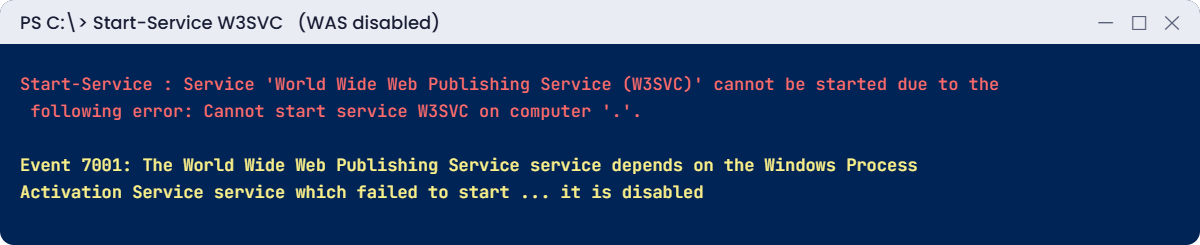
The error on W3SVC is vague; event 7001 names the real culprit. Someone “hardening” a server often disables a service without checking what depends on it.
Fix it: set WAS back to Manual and start W3SVC:
Set-Service WAS -StartupType Manual
Start-Service W3SVC
Get-Service W3SVC, WAS | Select-Object Name, Status, StartTypeYou’ll see something like this:
Name Status StartType
---- ------ ---------
W3SVC Running Automatic
WAS Running ManualBefore you disable any service, check what depends on it with Get-Service NAME -DependentServices.
✅ Checkpoint: W3SVC failed with event 7001 while WAS was disabled, and runs again after WAS is set to Manual.
This happened at work
The database that started before its disk
A reporting server kept its database files on an iSCSI disk. After every monthly patch restart, the database service failed and someone had to start it by hand. During the day, a manual start always worked.
The System log told the story in order: the database service failed with “path not found” at 06:01:12, and the iSCSI disk came online at 06:01:40. The service was simply faster than the storage.
The fix was two small changes. The team added the iSCSI Initiator service (MSiSCSI) as a dependency with sc.exe config, and marked the volume as a bound volume in the iSCSI Initiator, so Windows waits for it before starting dependent services.
The fix: services with data on network storage now get explicit dependencies, and a restart test is part of every new build.
The lesson: “works when I start it by hand” usually means a timing or dependency problem. Read the event times in order.
Common mistakes and troubleshooting
| Mistake | What happens | What to do instead |
|---|---|---|
| Changing a service account password in AD only | Event 7038 and 1069 at next restart | Update the service too, or use a gMSA |
| Using a domain admin as a service account | Huge risk if it leaks | Least-privilege account or gMSA |
| Disabling services without checking dependents | Other services fail (7001) | Check -DependentServices first |
| Killing a shared svchost | Several services stop at once | Restart-Service the one you need |
| Raising ServicesPipeTimeout for every slow service | Hides real problems | Find why it’s slow; raise only on vendor advice |
| Treating every stopped Automatic service as broken | Wasted time | Check trigger start, delayed start and exit code |
| Ignoring recovery options | Crashed services stay down | Set restart actions with sc.exe failure |
| Assuming activation errors are licensing | Missed DNS, firewall or time issues | Check SRV record, port 1688 and time first |
Interview questions
Click a question to open it. Under each one you’ll find what the interviewer is really looking for, and one good way to answer.
Fresher level
1. A service won’t start. Where do you look first?
What they’re really checking: Do you know where evidence is?
How you could answer: The System log for Service Control Manager events (7000, 7001, 7009, 7038) and the error code in the message.
2. What do the start types mean?
What they’re really checking: Do you know the basics?
How you could answer: Automatic starts at boot, Delayed Start a bit later, Manual when needed or triggered, Disabled never.
3. What does error 1069 mean?
What they’re really checking: Do you know common codes?
How you could answer: The service failed to log on: wrong password, or the account lacks the “Log on as a service” right.
2–5 years experience
4. A service fails after a password change. How do you fix it for good?
What they’re really checking: Do you think long term?
How you could answer: Update the password on the service, then move it to a gMSA so Windows rotates the password automatically.
5. How do you find which services share a svchost process?
What they’re really checking: Can you map services?
How you could answer: tasklist /svc, or Win32_Service ProcessId, then filter by that PID.
6. How do you troubleshoot 0xC004F074?
What they’re really checking: Do you know KMS?
How you could answer: Check the KMS host and sppsvc, port 1688 with Test-NetConnection, the _vlmcs._tcp SRV record and time, then retry slmgr /ato.
Senior level
7. A service only fails after a restart. What do you suspect?
What they’re really checking: Can you think about timing?
How you could answer: A dependency or resource that isn’t ready yet: network storage, network, another service. Read event times in order and add dependencies or delayed start.
8. How would you standardise service accounts across a company?
What they’re really checking: Do you think at scale?
How you could answer: gMSAs where possible, a naming standard, least privilege, inventory of accounts and SPNs, and monitoring for 7038 and 4625 from service accounts.
9. How do you make a critical service recover by itself?
What they’re really checking: Do you plan for failure?
How you could answer: Recovery actions (restart, then restart again, then run a script or restart the server), alerts on 7031/7034, and fixing the root cause.
Quick quiz
Q1. Which event shows a dependency failed to start?
- 7001
- 7040
- 4624
Show answer
A — It names the dependency.
Q2. What does event 7009 mean?
- Wrong password
- A timeout waiting for the service
- Service deleted
Show answer
B — The default wait is 30 seconds.
Q3. Which command shows a service’s account and dependencies?
- sc.exe qc
- ipconfig
- gpresult
Show answer
A — Or Win32_Service.
Q4. What does 0xC004F074 mean?
- Key blocked
- No KMS host could be contacted
- Count too low
Show answer
B — Check DNS, port 1688 and time.
Q5. In the work story, why did the database fail after restarts?
- Wrong password
- It started before its iSCSI disk was online
- Disk full
Show answer
B — A dependency fixed it.
Quick recap
- Windows service troubleshooting checks account, dependencies, start type and timing.
- Service Control Manager events 7000, 7001, 7009, 7038 and 7031 tell you what went wrong.
sc.exe qc,Get-Service -RequiredServicesandtasklist /svcshow config and processes.- Check dependents before disabling a service.
- For 0xC004F074, check the KMS host, port 1688, the _vlmcs SRV record and time.
Next lesson
Lesson 51: Cluster and Hyper-V troubleshooting → You’ll read cluster logs, fix failed resources and quorum problems, and troubleshoot VMs that won’t start or move.
Further reading: Windows service troubleshooting
Want to go deeper into Windows service troubleshooting? Microsoft’s 0xC004F074 guide walks through KMS checks, and the activation error codes list explains the other common codes. You can also see the full plan for this course on the Windows Server Administration course page.
