
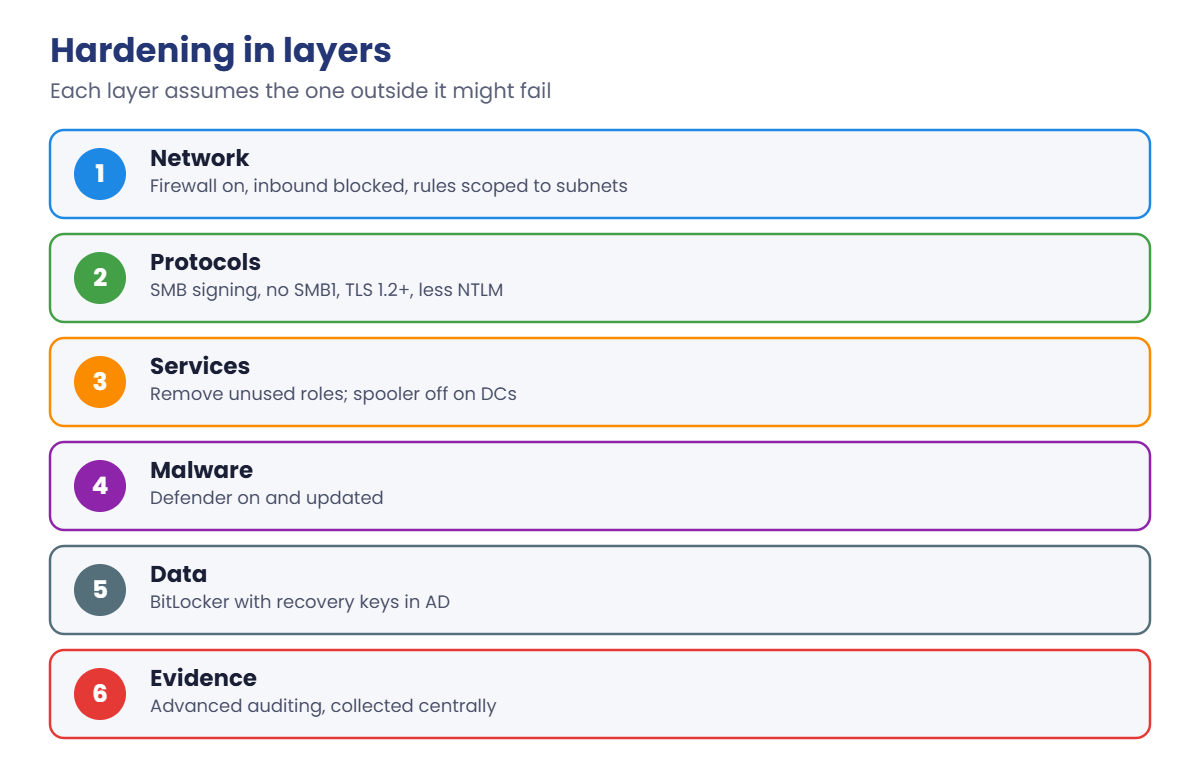
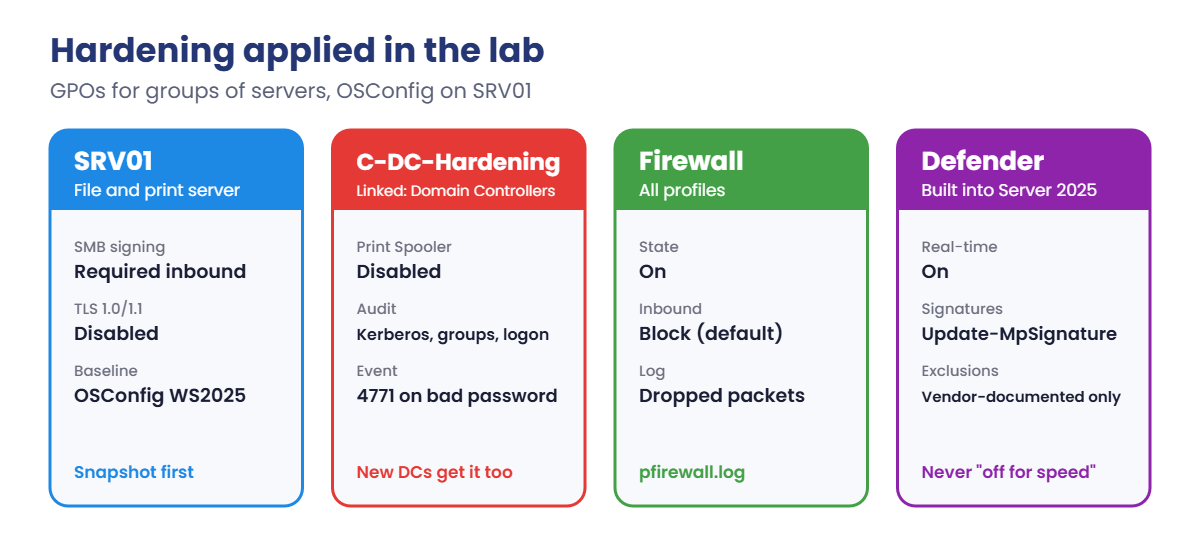
Start DC01, SRV01 and CL01. Take a snapshot of each first: 'DC01','SRV01','CL01' | ForEach-Object { VBoxManage snapshot $_ take 'Before hardening' } on your laptop. Work in PowerShell as administrator.
1Check Defender and the firewall
On SRV01, run this:
Get-MpComputerStatus | Select-Object AMServiceEnabled, RealTimeProtectionEnabled, AntivirusSignatureLastUpdated
Update-MpSignature
Get-NetFirewallProfile | Select-Object Name, Enabled, DefaultInboundAction, LogBlocked
You should see something like this:
AMServiceEnabled RealTimeProtectionEnabled AntivirusSignatureLastUpdated
---------------- ------------------------- -----------------------------
True             True                      19/10/2026 06:12:40

Name    Enabled DefaultInboundAction LogBlocked
----    ------- -------------------- ----------
Domain  True    NotConfigured        NotConfigured
Private True    NotConfigured        NotConfigured
Public  True    NotConfigured        NotConfigured
“NotConfigured” for inbound means the built-in default, which is Block. Turn on logging of dropped packets so you can see what the firewall stops:
On SRV01:
Set-NetFirewallProfile -All -LogBlocked True -LogMaxSizeKilobytes 16384
Get-NetFirewallProfile -Name Domain | Select-Object LogBlocked, LogFileName
You should see something like this:
LogBlocked LogFileName
---------- -----------
True       %systemroot%\system32\LogFiles\Firewall\pfirewall.log
✅ Checkpoint: Defender is on with fresh signatures, all firewall profiles are on, and blocked packets are logged.
2Check and require SMB signing on SRV01
On SRV01:
Get-SmbClientConfiguration | Select-Object RequireSecuritySignature
Get-SmbServerConfiguration | Select-Object RequireSecuritySignature, EnableSMB1Protocol
Set-SmbServerConfiguration -RequireSecuritySignature $true -Force
Get-SmbServerConfiguration | Select-Object RequireSecuritySignature
You should see something like this:
RequireSecuritySignature
------------------------
                    True

RequireSecuritySignature EnableSMB1Protocol
------------------------ ------------------
                   False              False

RequireSecuritySignature
------------------------
                    True
Server 2025 already requires signing when SRV01 connects out, and SMB1 is off. Inbound, the file server didn’t require it until now. In production, set this with the GPO setting “Microsoft network server: Digitally sign communications (always)” so every file server gets it.
✅ Checkpoint: SRV01 now requires SMB signing inbound, and SMB1 is disabled. Priya can still open S: from CL01.
3Turn off TLS 1.0 and 1.1 on SRV01
On SRV01, set the SCHANNEL keys for both old versions, server and client side:
foreach ($v in 'TLS 1.0','TLS 1.1') {
  foreach ($side in 'Server','Client') {
    $k = "HKLM:\SYSTEM\CurrentControlSet\Control\SecurityProviders\SCHANNEL\Protocols\$v\$side"
    New-Item $k -Force | Out-Null
    New-ItemProperty $k -Name Enabled -Value 0 -PropertyType DWord -Force | Out-Null
    New-ItemProperty $k -Name DisabledByDefault -Value 1 -PropertyType DWord -Force | Out-Null
  }
}
Get-ChildItem 'HKLM:\SYSTEM\CurrentControlSet\Control\SecurityProviders\SCHANNEL\Protocols' -Recurse |
  Get-ItemProperty | Select-Object @{n='Key';e={$_.PSPath -replace '.*Protocols\\'}}, Enabled, DisabledByDefault
You should see something like this:
Key            Enabled DisabledByDefault
---            ------- -----------------
TLS 1.0\Client       0                 1
TLS 1.0\Server       0                 1
TLS 1.1\Client       0                 1
TLS 1.1\Server       0                 1
Restart SRV01 for SCHANNEL changes to take effect. Recent Windows versions already avoid these old versions, but setting them explicitly makes the intent clear and survives any app that tries to turn them back on. IIS on SRV01 (Lesson 25) will then only speak TLS 1.2 and 1.3.
✅ Checkpoint: All four keys show Enabled 0 and DisabledByDefault 1, and SRV01 has restarted.
4Harden the DCs with a GPO: spooler and auditing
On DC01, create a GPO called C-DC-Hardening and link it to the Domain Controllers OU. Edit it: Computer Configuration, Policies, Windows Settings, Security Settings, System Services, Print Spooler, tick Define this policy setting and choose Disabled.
Then go to Security Settings, Advanced Audit Policy Configuration, Audit Policies and set Success and Failure for: Account Logon, Audit Kerberos Authentication Service; Account Management, Audit User Account Management and Audit Security Group Management; Logon/Logoff, Audit Logon; DS Access, Audit Directory Service Changes (Success).
On DC01, apply and check:
gpupdate /force
auditpol /get /subcategory:"Kerberos Authentication Service","Security Group Management","Logon"
Get-Service Spooler | Select-Object Status, StartType
You should see something like this:
System audit policy
Category/Subcategory                      Setting
Account Logon
  Kerberos Authentication Service         Success and Failure
Account Management
  Security Group Management               Success and Failure
Logon/Logoff
  Logon                                   Success and Failure

 Status StartType
 ------ ---------
Stopped  Disabled
The spooler setting you applied by hand in Lesson 18 is now enforced by policy, so a new DC gets it automatically. The audit settings make DCs record failed Kerberos sign-ins (4771), group changes (4728, 4732) and more.
✅ Checkpoint: auditpol shows Success and Failure for the three subcategories, and the spooler is Stopped and Disabled.
5Test auditing with a failed sign-in
On CL01, sign out and try to sign in as SAATLAB\priya.sharma with a wrong password, once. Then sign in correctly.
On DC01, look for the failure:
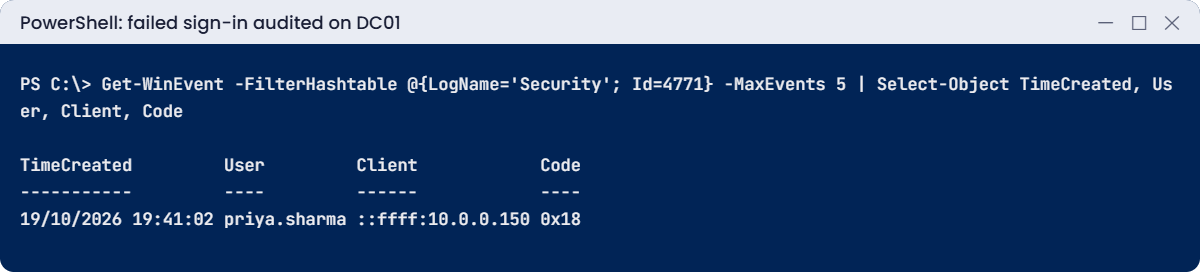
Get-WinEvent -FilterHashtable @{LogName='Security'; Id=4771} -MaxEvents 5 |
    Select-Object TimeCreated, @{n='User';e={$_.Properties[0].Value}}, @{n='Client';e={$_.Properties[6].Value}}, @{n='Code';e={'0x{0:X}' -f $_.Properties[4].Value}}
You should see something like this:
TimeCreated         User         Client            Code
-----------         ----         ------            ----
19/10/2026 19:41:02 priya.sharma ::ffff:10.0.0.150 0x18
Event 4771 is a failed Kerberos pre-authentication; code 0x18 means a bad password. It tells you which account, from which address. Many of these in a short time from one address is a password-guessing attack; the lockout policy from Lesson 19 limits it.
✅ Checkpoint: DC01 logged event 4771 for priya.sharma from 10.0.0.150 with code 0x18.
6Apply the Server 2025 security baseline with OSConfig
On SRV01 (it has internet access through LabNet), install OSConfig and apply the member server baseline:
Install-Module -Name Microsoft.OSConfig -Scope AllUsers -Repository PSGallery -Force
Set-OSConfigDesiredConfiguration -Scenario 'SecurityBaseline/WS2025/MemberServer' -Default
Get-OSConfigDesiredConfiguration -Scenario 'SecurityBaseline/WS2025/MemberServer' |
    Select-Object Name, @{n='Status';e={$_.Compliance.Status}} | Select-Object -First 8
You should see something like this:
Name                             Status
----                             ------
AuditAccountLockout              Compliant
AuditApplicationGroupManagement  Compliant
AuditAuthenticationPolicyChange  Compliant
AuditAuthorizationPolicyChange   Compliant
AuditComputerAccountManagement   Compliant
AuditCredentialValidation        Compliant
AuditDetailedFileShare           Compliant
AuditDistributionGroupManagement Compliant
OSConfig applied a few hundred settings and will put them back if anything changes them. Restart SRV01, then check that S:, the printer and the intranet SPN still work from CL01. That check is the real point of the snapshot: baselines are tested, never applied blind.
✅ Checkpoint: OSConfig reports Compliant settings on SRV01, and file and print access still work after a restart.
Hardening done badly causes outages. Here are two ways to lock yourself out, and how to get back in.
1Break it: block remote management
On SRV01, disable the WinRM firewall rules:
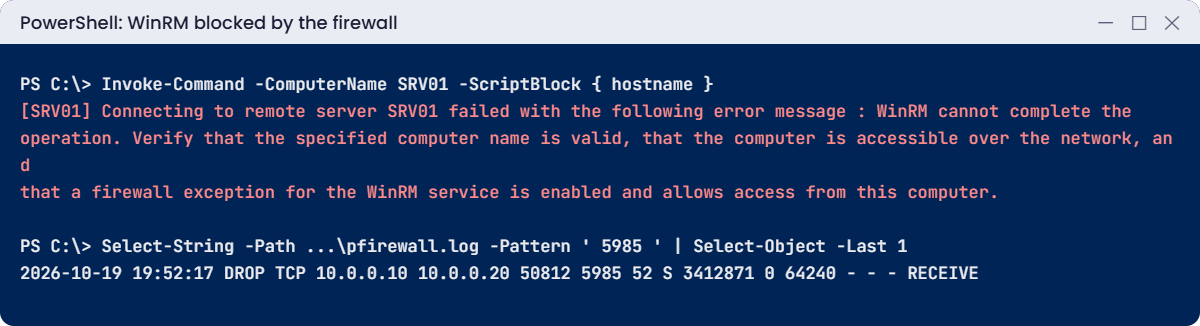
Disable-NetFirewallRule -DisplayGroup 'Windows Remote Management'On DC01, try to run a command on SRV01:
Invoke-Command -ComputerName SRV01 -ScriptBlock { hostname }You’ll get an error like this:
[SRV01] Connecting to remote server SRV01 failed with the following error message : WinRM cannot complete the
operation. Verify that the specified computer name is valid, that the computer is accessible over the network, and
that a firewall exception for the WinRM service is enabled and allows access from this computer. By default, the
WinRM firewall exception for public profiles limits access to remote computers within the same local subnet. For
more information, see the about_Remote_Troubleshooting Help topic.
    + CategoryInfo          : OpenError: (SRV01:String) [], PSRemotingTransportException
    + FullyQualifiedErrorId : WinRMOperationTimeout,PSSessionStateBroken
Every remote tool that uses WinRM now fails: Server Manager, Windows Admin Center, your scripts. If SRV01 were Server Core in a data centre, you’d need console access to fix it. Check what’s blocked with the firewall log you enabled in step 1:
On SRV01:
Select-String -Path C:\Windows\System32\LogFiles\Firewall\pfirewall.log -Pattern ' 5985 ' | Select-Object -Last 2You should see something like this:
2026-10-19 19:52:14 DROP TCP 10.0.0.10 10.0.0.20 50812 5985 52 S 3412871 0 64240 - - - RECEIVE
2026-10-19 19:52:17 DROP TCP 10.0.0.10 10.0.0.20 50812 5985 52 S 3412871 0 64240 - - - RECEIVE
Fix it: enable the rules again:
Enable-NetFirewallRule -DisplayGroup 'Windows Remote Management'✅ Checkpoint: Invoke-Command failed while the WinRM rules were off, the log showed drops on 5985, and it works again after enabling them.
2Break it: block NTLM without auditing first
On SRV01, deny all incoming NTLM:
Set-ItemProperty 'HKLM:\SYSTEM\CurrentControlSet\Control\Lsa\MSV1_0' -Name RestrictReceivingNTLMTraffic -Value 2 -Type DWordOn CL01 as Priya, open the share by name and by IP:
Get-ChildItem \\SRV01.saatlab.internal\Departments | Select-Object -ExpandProperty Name
Get-ChildItem \\10.0.0.20\Departments
You’ll see something like this:
Finance
Get-ChildItem : Access is denied
Kerberos still works by name. Anything that relied on NTLM, like IP paths, old scanners and some backup agents, is now refused, and nobody had a list of them. On SRV01, the Microsoft-Windows-NTLM/Operational log records each blocked request.
Fix it: switch to audit mode, collect for a few weeks, fix the sources, then block:
Set-ItemProperty 'HKLM:\SYSTEM\CurrentControlSet\Control\Lsa\MSV1_0' -Name RestrictReceivingNTLMTraffic -Value 0 -Type DWord
Set-ItemProperty 'HKLM:\SYSTEM\CurrentControlSet\Control\Lsa\MSV1_0' -Name AuditReceivingNTLMTraffic -Value 2 -Type DWord
Get-WinEvent -LogName 'Microsoft-Windows-NTLM/Operational' -MaxEvents 3 | Select-Object TimeCreated, Id
In audit mode, the log lists who still uses NTLM without blocking them. That list becomes your work plan. Block only when it’s empty.
✅ Checkpoint: IP access was denied while NTLM was blocked, and works again in audit mode with NTLM events being logged.