Windows Server monitoring: baselines, events and alerts
-
Phase 0: Before you start
-
Phase 1: The foundation
-
Phase 2: Core administration and security
-
Phase 3: Enterprise infrastructure
-
Phase 4: Troubleshooting step by step
-
Phase 5: Final project and career
“Is the server slow, or is it always like this?” You can only answer that if you measured it before. Windows Server monitoring means collecting the right counters and events, knowing what normal looks like, and hearing about problems before users do.
In this lesson you’ll read live performance counters, build a baseline with a data collector set, forward error events from every server to one collector with Windows Event Forwarding, and trigger a simple alert from an event.
| Time | You need | By the end you can |
|---|---|---|
| About 90 minutes | DC01, DC02 and SRV01 | Read key performance counters, create and analyse a baseline, set up Windows Event Forwarding, build event-triggered alerts and avoid alert fatigue |
What it is, in one line
Windows Server monitoring is watching servers’ performance counters, event logs and services over time, comparing them with a known baseline, and alerting when something drifts or fails.
In Simple Words
A doctor’s check-up chart
A good doctor writes down your normal temperature, pulse and blood pressure when you’re healthy. Later, when you feel ill, she compares today’s numbers with that chart and can see what changed.
A baseline is that chart for a server: normal CPU, memory, disk and network use. Event logs are the patient’s diary of what happened. Alerts are the alarm on the hospital monitor.
And if the monitor beeps every minute for nothing, the nurses start ignoring it. That’s alert fatigue, and it’s as dangerous as no monitoring.
Engineer's View
Counters, baselines, WEF and alerts
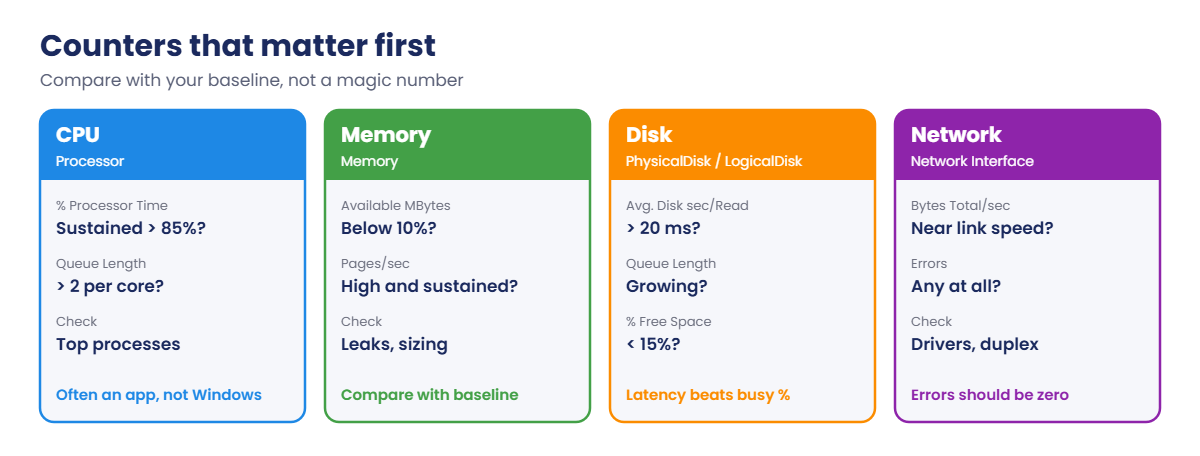
Key counters: CPU (Processor(_Total)\% Processor Time, Processor Queue Length), memory (Memory\Available MBytes, Pages/sec), disk (Avg. Disk sec/Read and /Write, where over 20 ms is slow for most workloads, Current Disk Queue Length, % Free Space) and network (Bytes Total/sec, errors). Read them with Get-Counter, Performance Monitor, or Windows Admin Center.
Baselines: a data collector set (Performance Monitor or logman) records counters to a .blg file at a fixed interval. Collect over normal business cycles, keep the files, and compare during incidents with relog or PowerShell.
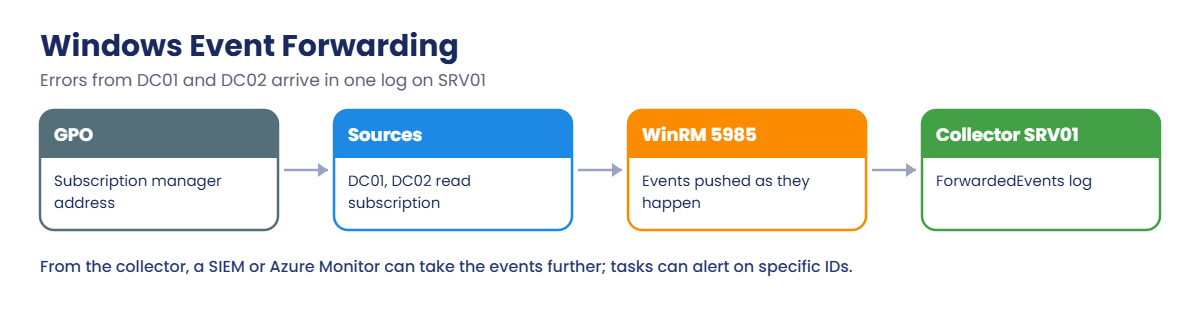
Events: Windows Event Forwarding (WEF) sends chosen events from many servers to a collector’s ForwardedEvents log over WinRM, using subscriptions configured by Group Policy (source-initiated). From there, a SIEM or Azure Monitor can collect them.
Alerts: event-triggered scheduled tasks, Performance Monitor alerts, or proper monitoring tools (Azure Monitor with Arc, System Center Operations Manager, Zabbix, PRTG). Alert on symptoms users feel and on things that will break soon, not on every warning.
How it works, step by step
How events from many servers end up in one place:
Each source server reads the subscription from Group Policy, connects to the collector over WinRM (port 5985) and pushes matching events as they happen. You read one log instead of signing in to every server.
What you’ll set up in the lab:
- Live counters on SRV01 with Get-Counter.
- Baseline: a data collector set, SRV01-Baseline, sampling every 15 seconds into a circular file.
- WEF: SRV01 as collector, DC01 and DC02 as sources, forwarding errors and critical events from System and Application.
- Alert: a scheduled task that writes an alert line when a specific event appears.
Hands-on Lab: Windows Server monitoring for the lab servers
Start DC01, DC02 and SRV01. Work on SRV01 as SAATLAB\adm.rahul in PowerShell as administrator unless a step says otherwise.
1Read live performance counters
On SRV01:
$counters = '\Processor(_Total)\% Processor Time', '\Memory\Available MBytes', '\LogicalDisk(C:)\% Free Space', '\PhysicalDisk(_Total)\Avg. Disk sec/Read'
Get-Counter -Counter $counters -SampleInterval 2 -MaxSamples 1 | Select-Object -ExpandProperty CounterSamples | Select-Object Path, @{n='Value';e={[math]::Round($_.CookedValue,3)}}You should see something like this:
Path Value
---- -----
\\srv01\processor(_total)\% processor time 4.127
\\srv01\memory\available mbytes 812
\\srv01\logicaldisk(c:)\% free space 61.834
\\srv01\physicaldisk(_total)\avg. disk sec/read 0.002Avg. Disk sec/Read is in seconds, so 0.002 is 2 ms: fast. On its own, one sample tells you little.
Is 812 MB of available memory normal for SRV01? Only a baseline can say.
✅ Checkpoint: Get-Counter returns four values for SRV01.
2Record a baseline with a data collector set
On SRV01:
logman create counter SRV01-Baseline -c "\Processor(_Total)\% Processor Time" "\System\Processor Queue Length" "\Memory\Available MBytes" "\Memory\Pages/sec" "\PhysicalDisk(_Total)\Avg. Disk sec/Transfer" "\PhysicalDisk(_Total)\Current Disk Queue Length" "\Network Interface(*)\Bytes Total/sec" -si 00:00:15 -o C:\PerfLogs\SRV01-Baseline -f bincirc -max 200
logman start SRV01-Baseline
logman query SRV01-Baseline | Select-String 'Status|Output Location|Sample Interval'You should see something like this:
The command completed successfully.
Status: Running
Output Location: C:\PerfLogs\SRV01-Baseline_000001.blg
Sample Interval: 15 second(s)-f bincirc -max 200 writes a circular binary file of at most 200 MB, so the baseline can run for weeks without filling the disk. Let it run while you do the rest of the lesson, then analyse it:
Later, on SRV01:
logman stop SRV01-Baseline
relog C:\PerfLogs\SRV01-Baseline_000001.blg -f csv -o C:\PerfLogs\baseline.csv -y | Out-Null
$rows = Import-Csv C:\PerfLogs\baseline.csv
$cpu = ($rows | Select-Object -ExpandProperty ($rows[0].PSObject.Properties.Name | Where-Object { $_ -like '*Processor Time' })) | Where-Object { $_.Trim() } | ForEach-Object { [double]$_ }
'CPU average {0:N1}%, max {1:N1}% over {2} samples' -f ($cpu | Measure-Object -Average).Average, ($cpu | Measure-Object -Maximum).Maximum, $cpu.Count
logman start SRV01-BaselineYou should see something like this:
CPU average 3.8%, max 41.2% over 240 samples✅ Checkpoint: SRV01-Baseline is collecting every 15 seconds and you calculated SRV01’s average and peak CPU from it.
3Make SRV01 an event collector
On SRV01, configure the collector service and create a subscription for errors:
wecutil qc /q
@'
<Subscription xmlns="http://schemas.microsoft.com/2006/03/windows/events/subscription">
<SubscriptionId>Server-Errors</SubscriptionId>
<SubscriptionType>SourceInitiated</SubscriptionType>
<Description>Critical and error events from servers and DCs</Description>
<Enabled>true</Enabled>
<Uri>http://schemas.microsoft.com/wbem/wsman/1/windows/EventLog</Uri>
<ConfigurationMode>Normal</ConfigurationMode>
<Query><![CDATA[<QueryList><Query Id="0"><Select Path="System">*[System[(Level=1 or Level=2)]]</Select><Select Path="Application">*[System[(Level=1 or Level=2)]]</Select></Query></QueryList>]]></Query>
<ReadExistingEvents>false</ReadExistingEvents>
<TransportName>HTTP</TransportName>
<ContentFormat>RenderedText</ContentFormat>
<LogFile>ForwardedEvents</LogFile>
<AllowedSourceDomainComputers>O:NSG:BAD:P(A;;GA;;;DC)(A;;GA;;;DD)S:</AllowedSourceDomainComputers>
</Subscription>
'@ | Set-Content C:\Scripts\Server-Errors.xml
wecutil cs C:\Scripts\Server-Errors.xml
wecutil gs Server-Errors | Select-String 'SubscriptionType|Enabled|AllowedSourceDomainComputers'You should see something like this:
SubscriptionType: SourceInitiated
Enabled: true
AllowedSourceDomainComputers: O:NSG:BAD:P(A;;GA;;;DC)(A;;GA;;;DD)S:The SDDL allows Domain Computers (DC) and Domain Controllers (DD) to send events. Level 1 is Critical and 2 is Error. Source-initiated means each server finds the collector by Group Policy, so new servers join automatically.
✅ Checkpoint: The Server-Errors subscription exists on SRV01 and is enabled.
4Point the DCs at the collector with Group Policy
On DC01:
New-GPO -Name 'C-Event-Forwarding' | New-GPLink -Target 'OU=Domain Controllers,DC=saatlab,DC=internal' | Out-Null
Set-GPRegistryValue -Name 'C-Event-Forwarding' -Key 'HKLM\Software\Policies\Microsoft\Windows\EventLog\EventForwarding\SubscriptionManager' -ValueName 1 -Type String -Value 'Server=http://SRV01.saatlab.internal:5985/wsman/SubscriptionManager/WEC,Refresh=60' | Out-Null
Invoke-Command -ComputerName DC01, DC02 -ScriptBlock { gpupdate /force | Out-Null }That’s the setting Computer Configuration, Administrative Templates, Windows Components, Event Forwarding, Configure target Subscription Manager. Link the same GPO to the Servers OU to include member servers.
Create a test error on DC02, then check the collector:
Invoke-Command -ComputerName DC02 -ScriptBlock { eventcreate /T ERROR /ID 999 /L APPLICATION /SO SaatLabTest /D "Test error for event forwarding" }
Start-Sleep -Seconds 90
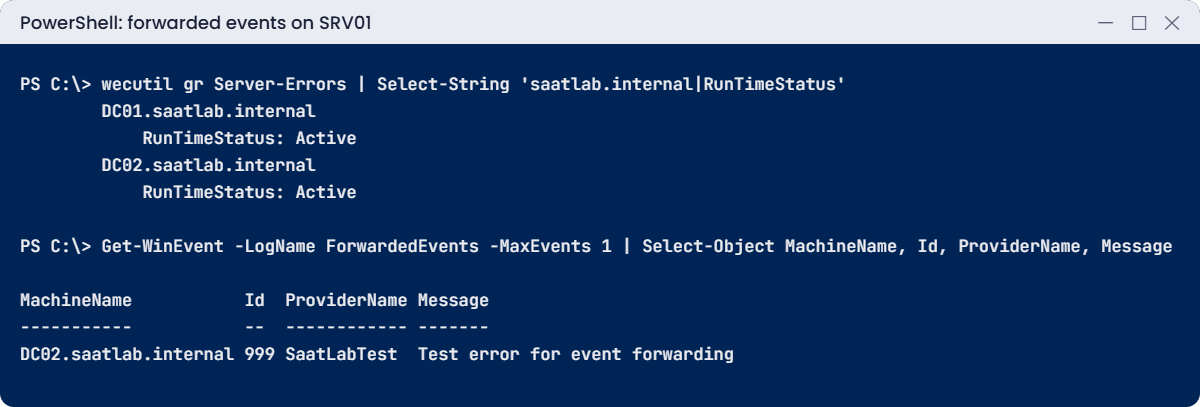
wecutil gr Server-Errors | Select-String 'saatlab.internal|RunTimeStatus'
Get-WinEvent -LogName ForwardedEvents -MaxEvents 1 | Select-Object MachineName, Id, ProviderName, MessageYou should see something like this:
DC01.saatlab.internal
RunTimeStatus: Active
DC02.saatlab.internal
RunTimeStatus: Active
MachineName Id ProviderName Message
----------- -- ------------ -------
DC02.saatlab.internal 999 SaatLabTest Test error for event forwarding✅ Checkpoint: Both DCs show Active in the subscription, and DC02’s test error is in SRV01’s ForwardedEvents log.
5Turn an event into an alert
On SRV01, create a task that fires whenever a forwarded event 999 arrives:
$q = "<QueryList><Query Id='0' Path='ForwardedEvents'><Select Path='ForwardedEvents'>*[System[EventID=999]]</Select></Query></QueryList>"
$action = New-ScheduledTaskAction -Execute 'powershell.exe' -Argument "-NoProfile -Command Add-Content C:\Scripts\alerts.log ('{0} ALERT event 999 received' -f (Get-Date))"
$trigger = New-CimInstance -CimClass (Get-CimClass -Namespace ROOT\Microsoft\Windows\TaskScheduler -ClassName MSFT_TaskEventTrigger) -ClientOnly -Property @{ Enabled = $true; Subscription = $q }
Register-ScheduledTask -TaskName 'Alert on event 999' -Action $action -Trigger $trigger -User SYSTEM | Out-Null
Invoke-Command -ComputerName DC02 -ScriptBlock { eventcreate /T ERROR /ID 999 /L APPLICATION /SO SaatLabTest /D "Second test" }
Start-Sleep -Seconds 90; Get-Content C:\Scripts\alerts.logYou should see something like this:
20/10/2026 02:14:37 ALERT event 999 receivedIn real life the action sends an email, posts to Teams or opens a ticket. Pick a few events that really matter (a failed backup, a cluster node leaving, a disk filling up) rather than every error.
✅ Checkpoint: The second test event reached SRV01 and the task wrote an alert line to C:\Scripts\alerts.log.
Break It, Then Fix It
Monitoring fails quietly. Here are two ways it stops without telling you.
1Break it: a typo in the subscription manager address
On DC01, set the GPO value with a typo in the collector name and refresh DC02:
Set-GPRegistryValue -Name 'C-Event-Forwarding' -Key 'HKLM\Software\Policies\Microsoft\Windows\EventLog\EventForwarding\SubscriptionManager' -ValueName 1 -Type String -Value 'Server=http://SRV10.saatlab.internal:5985/wsman/SubscriptionManager/WEC,Refresh=60' | Out-Null
Invoke-Command -ComputerName DC02 -ScriptBlock { gpupdate /force | Out-Null; Restart-Service WinRM }After a few minutes, check the source’s forwarding log on DC02:
Invoke-Command -ComputerName DC02 -ScriptBlock {
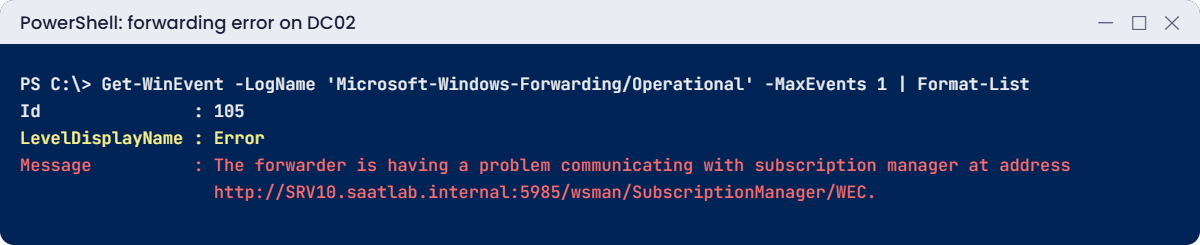
Get-WinEvent -LogName 'Microsoft-Windows-Forwarding/Operational' -MaxEvents 1 | Select-Object Id, LevelDisplayName, Message
} | Format-ListYou’ll see something like this:
Id : 105
LevelDisplayName : Error
Message : The forwarder is having a problem communicating with subscription manager at address
http://SRV10.saatlab.internal:5985/wsman/SubscriptionManager/WEC. Error code is 2150859193 and Error
Message is The WinRM client cannot process the request because the server name cannot be resolved.The collector shows nothing wrong; it simply stops receiving events from DC02. Only the source’s Forwarding log explains why. A single wrong character in a GPO can blind your monitoring for every server it applies to.
Fix it: correct the address and refresh:
Set-GPRegistryValue -Name 'C-Event-Forwarding' -Key 'HKLM\Software\Policies\Microsoft\Windows\EventLog\EventForwarding\SubscriptionManager' -ValueName 1 -Type String -Value 'Server=http://SRV01.saatlab.internal:5985/wsman/SubscriptionManager/WEC,Refresh=60' | Out-Null
Invoke-Command -ComputerName DC02 -ScriptBlock { gpupdate /force | Out-Null }✅ Checkpoint: DC02 logged event 105 with the typo and shows Active in wecutil gr Server-Errors after the fix.
2Break it: a baseline that stops after a restart
Restart SRV01, sign in, and check the data collector set:
logman query SRV01-Baseline | Select-String 'Status'You’ll see this:
Status: StoppedData collector sets started by hand don’t start again after a reboot. After the next patch night, your baseline silently ends, and when you need data from last week, there’s none.
Fix it: start it automatically at boot with a scheduled task:
$a = New-ScheduledTaskAction -Execute 'logman.exe' -Argument 'start SRV01-Baseline'
$t = New-ScheduledTaskTrigger -AtStartup
Register-ScheduledTask -TaskName 'Start SRV01 baseline' -Action $a -Trigger $t -User SYSTEM -RunLevel Highest | Out-Null
Restart-ComputerAfter the restart:
logman query SRV01-Baseline | Select-String 'Status'You should see this:
Status: Running✅ Checkpoint: The collector was Stopped after a restart, and Running after adding the startup task.
This happened at work
3,000 emails and one that mattered
A hosting company’s monitoring sent an email for every warning on every server: service restarts, slow disks for a second, certificate notices, backup retries. The shared inbox received about 3,000 alerts a day, and the team had set up a rule to file them away.
One of those emails said a RAID array on a database server was degraded. It sat unread for nine days. Then a second disk in the same array failed, and the database was lost.
The restore from backup took fourteen hours.
The review found the warning had been sent correctly and on time. The problem was the other 2,999 emails around it.
The fix: alerts were split into “act now” (paging, a few per week) and “review daily” (a dashboard), duplicates were removed, and every alert got an owner and a runbook. Hardware health alerts went straight to “act now”.
The lesson: monitoring that alerts on everything alerts on nothing. Fewer, meaningful alerts get acted on.
Common mistakes and troubleshooting
| Mistake or symptom | What happens | What to do instead |
|---|---|---|
| No baseline | You can’t tell slow from normal | Collect counters over normal weeks and keep them |
| Data collector set not restarted after reboot | The baseline silently stops | Start it at boot with a task or schedule |
| Collector files without size limits | Logs fill the disk | Circular files with a maximum size |
| WEF subscription manager typo | Sources stop forwarding quietly | Check Forwarding/Operational on sources; wecutil gr on the collector |
| Alerting on every warning | Alert fatigue; real problems ignored | Few actionable alerts with owners and runbooks |
| Only CPU and memory watched | Disk latency and free space problems missed | Watch disk latency, queue and free space too |
| Monitoring the monitor isn’t done | The monitoring server fails unnoticed | Heartbeat checks from a second system |
| Reading events server by server | Slow incident response | Forward to a collector or SIEM |
| One-off Get-Counter checks during incidents | No comparison point | Compare with the stored baseline |
Interview questions
Click a question to open it. Under each one you’ll find what the interviewer is really looking for, and one good way to answer.
Fresher level
1. Which performance counters would you check first on a slow server?
What they’re really checking: Do you know the basics?
How you could answer: Processor % Processor Time and queue length, Memory Available MBytes and Pages/sec, disk Avg. Disk sec/Read and Write and queue length, and network Bytes Total/sec.
2. What is a performance baseline?
What they’re really checking: Do you understand the idea?
How you could answer: A record of normal performance over time, used to compare against when something seems wrong.
3. Where do you look for errors on a Windows server?
What they’re really checking: Do you know the logs?
How you could answer: Event Viewer: System, Application and Security logs, plus Applications and Services logs for specific roles, or Get-WinEvent.
2–5 years experience
4. How does Windows Event Forwarding work?
What they’re really checking: Have you configured WEF?
How you could answer: A collector runs the Windows Event Collector service with subscriptions; sources get the subscription manager address via Group Policy and push matching events over WinRM to the ForwardedEvents log.
5. What disk latency is a problem?
What they’re really checking: Do you know thresholds?
How you could answer: Generally consistent averages above 20 ms for reads or writes on general workloads, lower for databases; compare with the baseline and the storage system’s own metrics.
6. How do you keep a data collector set running long term?
What they’re really checking: Do you avoid silent failures?
How you could answer: Use circular logs with size limits, start it at boot through a task or the set’s schedule, and check its status in your daily report.
Senior level
7. Design monitoring for 200 Windows servers.
What they’re really checking: Do you think in layers?
How you could answer: Central tool (Azure Monitor with Arc, SCOM or similar) for metrics and availability, WEF or agents for events into a SIEM, baselines per role, a small set of actionable alerts with runbooks, dashboards for trends, and monitoring of the monitoring itself.
8. How do you reduce alert fatigue?
What they’re really checking: Do you manage alert quality?
How you could answer: Alert on user-impacting symptoms and imminent failures, set thresholds from baselines, deduplicate and correlate, route by owner and urgency, review noisy alerts weekly, and require a runbook for each alert.
9. What security events would you forward from DCs?
What they’re really checking: Do you link monitoring and security?
How you could answer: Account logon failures and lockouts (4625, 4771, 4740), privileged group changes (4728, 4732, 4756), new accounts (4720), service tickets for Kerberoasting (4769 with RC4), audit policy changes (4719) and log clearing (1102).
Quick quiz
Q1. Avg. Disk sec/Read shows 0.025. What does that mean?
- 2.5 ms
- 25 ms, which is slow for many workloads
- 25 seconds
Show answer
B — The counter is in seconds.
Q2. What does -f bincirc -max 200 do for a data collector set?
- Compresses data
- Keeps a circular file of at most 200 MB
- Samples every 200 seconds
Show answer
B — It can run for weeks safely.
Q3. Where did the WEF typo show up?
- On the collector
- In the source’s Forwarding/Operational log
- Nowhere
Show answer
B — Check sources when events stop.
Q4. Why was the baseline Stopped after a restart?
- It crashed
- Manually started sets don’t restart at boot
- The disk was full
Show answer
B — Start it with a startup task.
Q5. In the work story, why was the RAID warning missed?
- Monitoring was off
- It was buried among 3,000 daily alerts
- The email bounced
Show answer
B — Fewer, meaningful alerts get acted on.
Quick recap
- Windows Server monitoring combines counters, events and alerts, compared with a baseline.
- Watch CPU, memory, disk latency, free space and network;
Get-Counterreads them live. - Record baselines with
logmandata collector sets in circular files, and start them at boot. - Windows Event Forwarding collects events from many servers into ForwardedEvents.
- Turn important events into alerts with event-triggered tasks or a monitoring tool.
- Avoid alert fatigue: few, actionable alerts with owners.
Next lesson
Lesson 40: Modern management → You’ll install Windows Admin Center, manage SRV01 and the cluster from a browser, and look at Azure Arc, hotpatching and pay-as-you-go licensing for Server 2025.
Further reading: Windows Server monitoring
Want to go deeper into Windows Server monitoring? Microsoft’s Windows Event Forwarding guide explains subscriptions in depth, and the logman command reference covers data collector sets. You can also see the full plan for this course on the Windows Server Administration course page.
