Windows Server identity security: LAPS, gMSA and Protected Users

Attackers rarely break in through firewalls these days. They steal one password and walk from computer to computer until they reach a Domain Admin. Windows Server identity security is how you make each of those steps hard: unique local passwords, service accounts nobody knows the password of, and admin accounts that can’t be reused anywhere.

In this lesson you’ll deploy Windows LAPS, replace svc_intranet with a group Managed Service Account, create a separate admin account in Protected Users, give admins a stricter fine-grained password policy, and see how admin tiering fits together.

TimeYou needBy the end you can
About 90 minutesDC01, SRV01 and CL01 from Lesson 21, including svc_intranetDeploy Windows LAPS, create and install a gMSA, use Protected Users and fine-grained password policies, and explain tiering, JEA and Credential Guard

What it is, in one line

Windows Server identity security means protecting the accounts and credentials in your domain, so that one stolen password can’t be turned into control of everything.

In Simple Words

Keys in a big office

Imagine every office door in a company opened with the same key, and every manager carried a master key everywhere, even to the café. Lose one key and the whole building is open.

A careful company gives every door its own key and keeps them in a locked cabinet (LAPS). The boiler room key changes itself every month and no person ever holds it (a gMSA). Master keys never leave the secure floor (Protected Users and tiering).

It’s more work to set up, but losing one key is now a small problem instead of a disaster.

Engineer's View

LAPS, gMSA, Protected Users, FGPP, tiering

Windows LAPS (built into Windows 11 and Server 2019 and later) sets a random password for a local admin account on each computer, rotates it, and stores it in AD (encrypted with domain functional level 2016+) or Entra ID. Only allowed groups can read it.

gMSA: a group Managed Service Account has a 240-character password generated by the DCs from a KDS root key and rotated every 30 days. Only the computers you list can retrieve it, so services run without anyone knowing a password. Windows Server 2025 adds delegated MSAs (dMSA) to migrate old service accounts.

Protected Users is a group whose members can’t use NTLM, DES or RC4, can’t be delegated, don’t cache credentials, and get 4-hour TGTs. Put admin accounts in it after testing. Fine-grained password policies (PSOs) give some users or groups stricter rules than the domain policy.

Tiering: Tier 0 is AD itself (DCs, PKI, admins of those), Tier 1 is servers, Tier 2 is workstations. Admins use separate accounts per tier and never sign in to a lower tier with a higher-tier account. JEA limits what admins can run remotely, and Credential Guard isolates secrets in LSASS with virtualization.

How it works, step by step

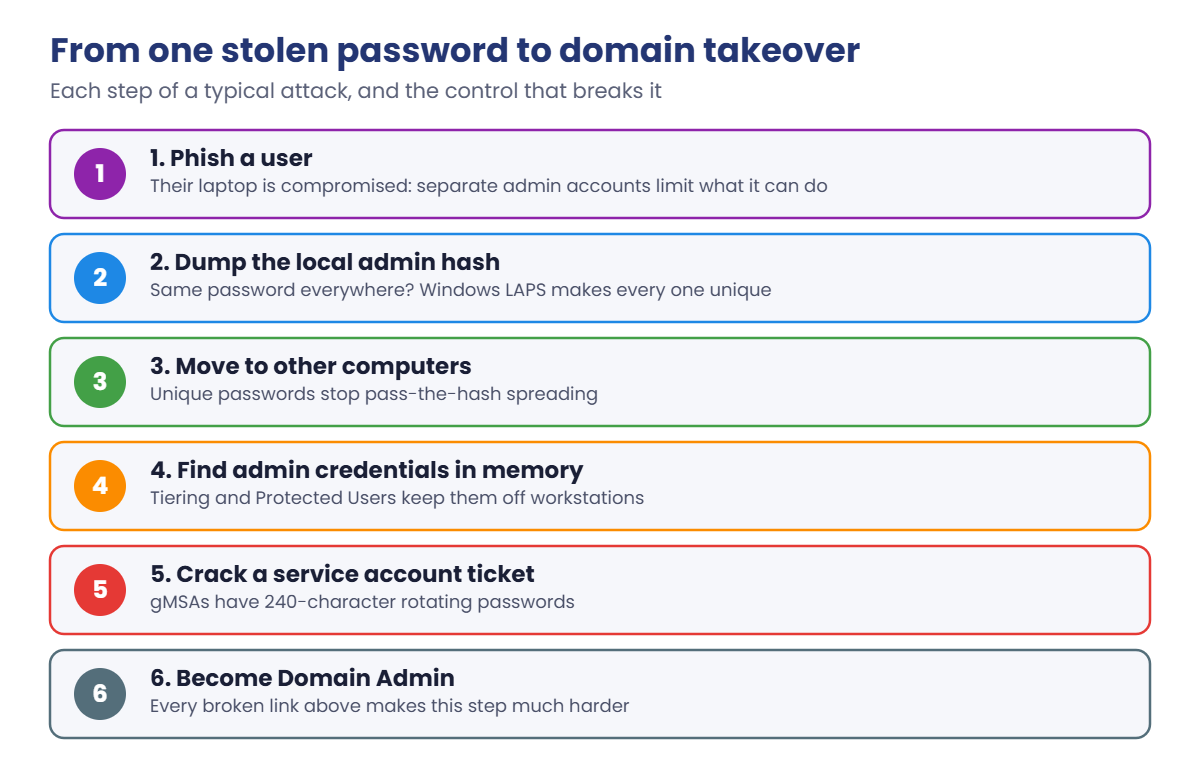
Here’s how one weak point turns into a domain takeover, and which control breaks each step:

Windows Server identity security: attack chain from phishing to Domain Admin and the control for each step

No single control stops every attack. Together they break the chain at several links, so a compromised laptop stays a laptop problem.

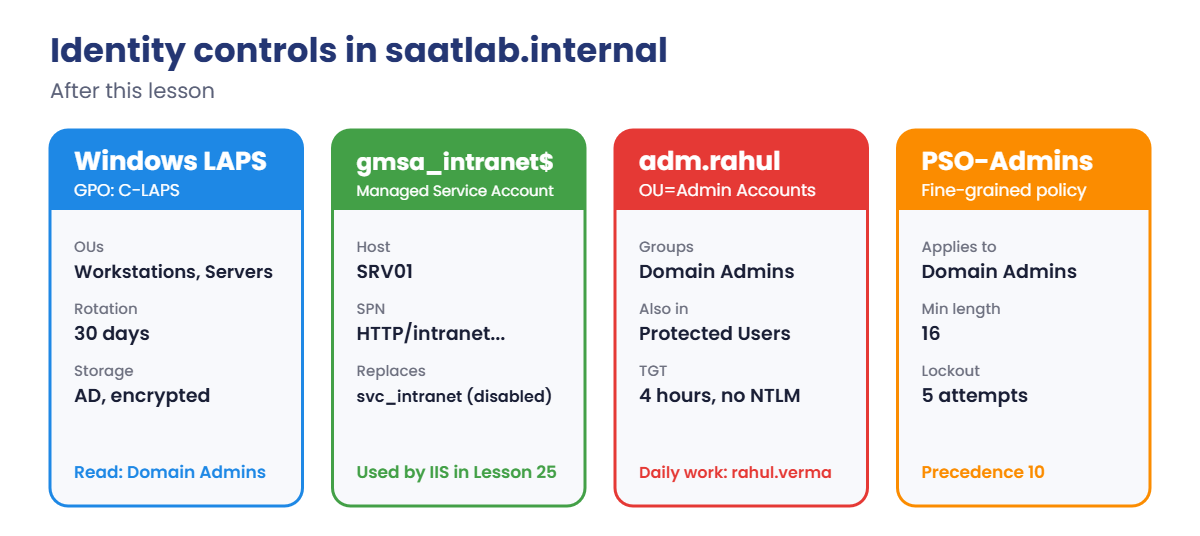
The identity layout you’ll have after the lab:

Windows Server identity security controls in the lab: LAPS, gMSA, Protected Users admin and PSO
  1. LAPS: extend the schema, let Workstations computers write their passwords, set the policy, read CL01’s password.
  2. gMSA: create the KDS root key and gmsa_intranet, install it on SRV01, move the SPN, disable svc_intranet.
  3. Admin account: adm.rahul in Admin Accounts, in Domain Admins and Protected Users.
  4. PSO: 16-character minimum and stricter lockout for Domain Admins.

Hands-on Lab: Windows Server identity security controls

Start DC01, SRV01 and CL01. Work on DC01 as SAATLAB\Administrator in PowerShell as administrator unless a step says otherwise.

1Prepare AD for Windows LAPS

On DC01, run this:

Update-LapsADSchema -Confirm:$false
Set-LapsADComputerSelfPermission -Identity 'OU=Workstations,OU=SAATLAB,DC=saatlab,DC=internal'

You should see something like this:

Name         DistinguishedName
----         -----------------
Workstations OU=Workstations,OU=SAATLAB,DC=saatlab,DC=internal

The schema update adds the msLAPS attributes to computer objects. The permission lets each computer in Workstations (and the OUs below it) write its own password, and nothing else.

✅ Checkpoint: Update-LapsADSchema finished without errors and the permission is set on Workstations.

2Turn on LAPS with Group Policy

Create a GPO called C-LAPS linked to Workstations and edit it. Go to Computer Configuration, Policies, Administrative Templates, System, LAPS.

Enable Configure password backup directory and choose Active Directory. Enable Password Settings (keep the defaults: large letters, small letters, numbers, specials; 14 characters; 30 days). Enable Enable password encryption.

On CL01 (as labadmin or an admin), apply it now instead of waiting:

gpupdate /force
Invoke-LapsPolicyProcessing

Back on DC01, read the password:

Get-LapsADPassword -Identity CL01 -AsPlainText

You should see something like this:

ComputerName        : CL01
DistinguishedName   : CN=CL01,OU=Workstations,OU=SAATLAB,DC=saatlab,DC=internal
Account             : Administrator
Password            : 7k#Qe2v!Lm9xRt
PasswordUpdateTime  : 19/10/2026 18:55:31
ExpirationTimestamp : 18/11/2026 18:55:31
Source              : EncryptedPassword
DecryptionStatus    : Success
AuthorizedDecryptor : SAATLAB\Domain Admins

CL01’s built-in Administrator now has a unique random password that changes every 30 days and is stored encrypted. Only Domain Admins can decrypt it by default. After someone uses it, run Reset-LapsPassword on the computer so it’s never reused.

✅ Checkpoint: Get-LapsADPassword shows a password for CL01 with Source EncryptedPassword.
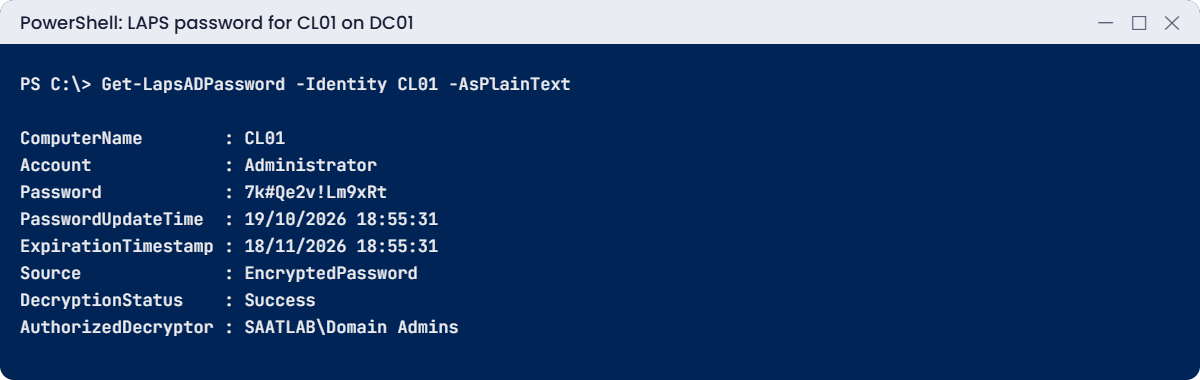
Windows Server identity security lab: Get-LapsADPassword shows CL01 local admin password
CL01’s local Administrator password, unique and encrypted in AD, readable only by Domain Admins.

3Create a gMSA for the intranet site

On DC01, run this:

Add-KdsRootKey -EffectiveTime ((Get-Date).AddHours(-10))
New-ADServiceAccount -Name gmsa_intranet -DNSHostName gmsa_intranet.saatlab.internal -PrincipalsAllowedToRetrieveManagedPassword 'SRV01$'
setspn -D HTTP/intranet.saatlab.internal SAATLAB\svc_intranet
setspn -S HTTP/intranet.saatlab.internal SAATLAB\gmsa_intranet$
Disable-ADAccount svc_intranet

You should see something like this (after the KDS key GUID):

Unregistering ServicePrincipalNames for CN=svc_intranet,OU=Service Accounts,OU=SAATLAB,DC=saatlab,DC=internal
        HTTP/intranet.saatlab.internal
Updated object
Checking domain DC=saatlab,DC=internal

Registering ServicePrincipalNames for CN=gmsa_intranet,CN=Managed Service Accounts,DC=saatlab,DC=internal
        HTTP/intranet.saatlab.internal
Updated object

The KDS root key normally takes 10 hours before DCs use it, so every DC has it replicated. Backdating it with -EffectiveTime is fine in a one-site lab, never in production. gMSAs live in the Managed Service Accounts container and their names end in $, like computer accounts.

On SRV01, install and test it:

Install-ADServiceAccount gmsa_intranet
Test-ADServiceAccount gmsa_intranet

You should see this:

True

✅ Checkpoint: Test-ADServiceAccount returns True on SRV01, and the SPN now belongs to gmsa_intranet$.

4Create a separate admin account in Protected Users

On DC01, run this:

New-ADUser -Name 'adm.rahul' -GivenName Rahul -Surname Verma -SamAccountName adm.rahul -UserPrincipalName adm.rahul@saatlab.internal -Path 'OU=Admin Accounts,OU=SAATLAB,DC=saatlab,DC=internal' -AccountPassword (Read-Host -AsSecureString 'Password (16+ characters)') -Enabled $true
Add-ADGroupMember 'Domain Admins' -Members adm.rahul
Add-ADGroupMember 'Protected Users' -Members adm.rahul
Get-ADPrincipalGroupMembership adm.rahul | Select-Object -ExpandProperty Name

You should see something like this:

Domain Users
Domain Admins
Protected Users

Rahul keeps rahul.verma for email and daily work, and uses adm.rahul only for admin tasks on servers and DCs. Sign out of DC01, sign in as SAATLAB\adm.rahul, and run klist tgt: the EndTime is 4 hours after StartTime, not 10, because Protected Users get short TGTs.

✅ Checkpoint: adm.rahul is in Domain Admins and Protected Users, and its TGT lasts 4 hours.

5Give admins a stricter password policy

On DC01, create a fine-grained password policy for Domain Admins:

New-ADFineGrainedPasswordPolicy -Name 'PSO-Admins' -Precedence 10 -MinPasswordLength 16 -ComplexityEnabled $true -PasswordHistoryCount 24 -MaxPasswordAge 365.00:00:00 -MinPasswordAge 1.00:00:00 -LockoutThreshold 5 -LockoutDuration 00:30:00 -LockoutObservationWindow 00:30:00 -ReversibleEncryptionEnabled $false
Add-ADFineGrainedPasswordPolicySubject 'PSO-Admins' -Subjects 'Domain Admins'
Get-ADUserResultantPasswordPolicy adm.rahul | Select-Object Name, MinPasswordLength, LockoutThreshold

You should see something like this:

Name       MinPasswordLength LockoutThreshold
----       ----------------- ----------------
PSO-Admins                16                5

Rahul’s normal account still follows the domain policy (12 characters); his admin account follows PSO-Admins. If several PSOs apply, the lowest precedence number wins. A user with no PSO shows nothing from Get-ADUserResultantPasswordPolicy.

✅ Checkpoint: adm.rahul’s resultant policy is PSO-Admins with a 16-character minimum.

Take snapshots called “Identity security” of DC01, SRV01 and CL01.

'DC01','SRV01','CL01' | ForEach-Object { VBoxManage snapshot $_ take "Identity security" }

Break It, Then Fix It

Security controls fail in two ways: they don’t apply where you think, or they block something you forgot about. Here’s one of each.

1Break it: LAPS on an OU without the permission

On DC01, link C-LAPS to the Servers OU too:

New-GPLink -Name 'C-LAPS' -Target 'OU=Servers,OU=SAATLAB,DC=saatlab,DC=internal' | Out-Null

On SRV01 (as administrator), apply it and check:

gpupdate /force
Invoke-LapsPolicyProcessing
Get-WinEvent -LogName 'Microsoft-Windows-LAPS/Operational' -MaxEvents 5 | Select-Object TimeCreated, LevelDisplayName, Message | Format-List

You’ll see something like this:

TimeCreated      : 19/10/2026 19:04:12
LevelDisplayName : Error
Message          : Windows LAPS failed to update the password in Active Directory.
                   Error code: 0x80070005 (Access is denied.)
                   ...

And on DC01:

Get-LapsADPassword -Identity SRV01

No password is stored, so you get nothing back, or something like this:

ComputerName      : SRV01
DistinguishedName : CN=SRV01,OU=Servers,OU=SAATLAB,DC=saatlab,DC=internal
Account           :
Password          :
...

The policy reached SRV01, but SRV01 isn’t allowed to write to its own LAPS attributes, because you only granted that on Workstations. Worse, a team might think servers are protected because “the GPO is linked”.

Fix it: grant the self permission on Servers, then process again on SRV01:

Set-LapsADComputerSelfPermission -Identity 'OU=Servers,OU=SAATLAB,DC=saatlab,DC=internal'   # on DC01
Invoke-LapsPolicyProcessing                                                               # on SRV01
Get-LapsADPassword -Identity SRV01 | Select-Object ComputerName, Source, PasswordUpdateTime  # on DC01

✅ Checkpoint: SRV01 failed with Access is denied, then stored its LAPS password after the permission was granted.

2Break it: Protected Users and NTLM

Sign in to SRV01 as adm.rahul. Open the Departments share by name, then by IP address:

Get-ChildItem \\SRV01.saatlab.internal\Departments | Select-Object -First 1 Name
Get-ChildItem \\10.0.0.20\Departments

You’ll see something like this:

Name
----
Finance
Get-ChildItem : Access is denied
At line:1 char:1
+ Get-ChildItem \\10.0.0.20\Departments
+ ~~~~~~~~~~~~~~~~~~~~~~~~~~~~~~~~~~~~~
    + CategoryInfo          : PermissionDenied: (\\10.0.0.20\Departments:String) [Get-ChildItem], UnauthorizedAccessException

A Domain Admin denied access to a share?

By name, Kerberos is used and works. By IP, Windows needs NTLM, and members of Protected Users can’t use NTLM at all. This is exactly what you want for admin accounts, but it surprises people and old scripts that use IP addresses.

Fix it: use names, and find the scripts that don’t:

Get-ChildItem \\SRV01.saatlab.internal\Departments | Select-Object -ExpandProperty Name

Don’t fix it by taking the admin out of Protected Users. Find the IP-based paths and change them to DNS names. Before adding many admins to Protected Users, test each admin task with one account, like you just did.

✅ Checkpoint: adm.rahul reaches the share by name and is denied by IP, because NTLM is blocked for Protected Users.
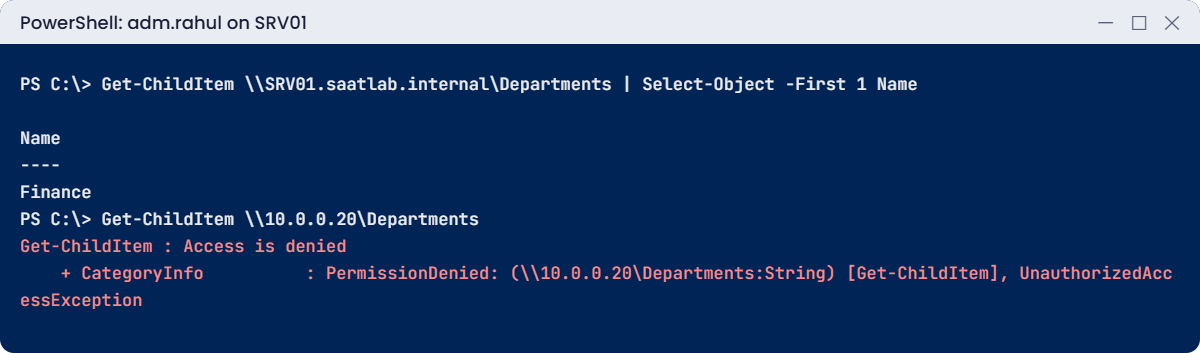
Windows Server identity security lab: Protected Users admin denied by IP because NTLM is blocked
By name, Kerberos works; by IP, NTLM is needed and Protected Users can’t use it.

This happened at work

One password for 900 laptops

A logistics company built every laptop from the same image, which set the local Administrator password to the same value everywhere. It made support easy, and everyone in IT knew the password.

An attacker phished one warehouse supervisor and got onto her laptop. From there they dumped the local Administrator password hash and used it to sign in to every other laptop over the network, without cracking anything. On one of them, a Domain Admin had signed in the week before to fix a printer, and his credentials were still in memory.

Within two days, ransomware ran on every laptop and most servers. Recovery took three weeks.

The fix: LAPS on all computers, separate admin accounts with Protected Users, a rule that Domain Admins never sign in to workstations, and helpdesk accounts that are local admin on workstations only.

The lesson: a shared local password turns one infected laptop into all of them. Unique passwords per computer are one of the cheapest controls you can deploy.

Common mistakes and troubleshooting

Mistake or symptomWhat happensWhat to do instead
Same local admin password everywhereOne stolen hash opens every computerWindows LAPS on every member
LAPS GPO linked, no self permission on the OULAPS log shows Access is denied, no password storedSet-LapsADComputerSelfPermission on each OU
Service accounts with old, known passwordsKerberoasting and reusegMSAs, or long random passwords
Backdating the KDS root key in productiongMSA failures on DCs that don’t have the key yetLet the 10 hours pass in production
Domain Admins used for daily workEmail and web browsing with the keys to everythingSeparate adm. accounts used only for admin
Adding admins to Protected Users without testingNTLM-only tools and IP paths stop workingTest each admin task first
Domain Admins signing in to workstationsCredentials left in memory on Tier 2 machinesTiering: no higher-tier sign-ins on lower tiers
One password policy for everyoneAdmins get the same rules as everyone elseFine-grained password policies for privileged groups
Nobody reads the LAPS event logSilent failuresMonitor Microsoft-Windows-LAPS/Operational

Interview questions

Click a question to open it. Under each one you’ll find what the interviewer is really looking for, and one good way to answer.

Fresher level

1. What is LAPS?

What they’re really checking: Do you know the basic control?

How you could answer: Local Administrator Password Solution: it gives each computer’s local admin account a unique random password, rotates it and stores it in AD or Entra ID for authorised admins.

2. What is a gMSA?

What they’re really checking: Do you know managed service accounts?

How you could answer: A group Managed Service Account: a service account whose long password is managed and rotated by the DCs, usable only by the computers you allow.

3. Why should admins have separate admin accounts?

What they’re really checking: Do you understand least privilege?

How you could answer: So everyday activity like email and browsing never runs with admin rights, which limits the damage from phishing or malware.

2–5 years experience

4. What does the Protected Users group do?

What they’re really checking: Do you know its effects?

How you could answer: Members can’t use NTLM, DES or RC4, can’t be delegated, don’t cache credentials on devices, and get 4-hour TGTs.

5. How do fine-grained password policies work?

What they’re really checking: Have you configured PSOs?

How you could answer: Password Settings Objects with a precedence, applied to users or global groups, overriding the domain policy for those subjects. The lowest precedence number wins.

6. How do you deploy a gMSA?

What they’re really checking: Have you done it?

How you could answer: Create a KDS root key, create the account with New-ADServiceAccount and PrincipalsAllowedToRetrieveManagedPassword, run Install-ADServiceAccount on the host, configure the service with the account name ending in $, and move any SPNs.

Senior level

7. Explain the AD tiering model.

What they’re really checking: Do you think about credential exposure?

How you could answer: Tier 0 controls identity (DCs, PKI, their admins), Tier 1 servers, Tier 2 workstations. Separate admin accounts per tier, no sign-in to lower tiers with higher-tier accounts, privileged access workstations for Tier 0, enforced with sign-in restrictions.

8. How would you reduce the number of Domain Admins?

What they’re really checking: Do you apply least privilege?

How you could answer: Inventory what each one does, delegate those tasks on OUs or with JEA, use just-in-time membership or PIM-style processes, and keep a tiny group of break-glass accounts monitored closely.

9. What does Credential Guard protect against, and what doesn’t it?

What they’re really checking: Do you know its limits?

How you could answer: It isolates NTLM hashes and Kerberos TGTs in a virtualization-based container, stopping pass-the-hash from memory dumps. It doesn’t stop keyloggers, phishing, or attacks using a user’s session directly.

Quick quiz

Q1. What does Windows LAPS store in AD?

  1. The domain admin password
  2. A unique local admin password per computer
  3. User passwords
Show answer

B — Each computer’s own local admin password.

Q2. Who knows a gMSA’s password?

  1. The service owner
  2. Nobody; the DCs manage it
  3. The helpdesk
Show answer

B — Only allowed computers can retrieve it.

Q3. Why was SRV01’s LAPS update denied?

  1. Wrong GPO
  2. No self permission on the Servers OU
  3. Old schema
Show answer

B — Set-LapsADComputerSelfPermission per OU.

Q4. Why did adm.rahul get Access is denied by IP?

  1. Wrong share permissions
  2. Protected Users can’t use NTLM
  3. The share was offline
Show answer

B — IP access needs NTLM.

Q5. In the work story, what let the attacker move between laptops?

  1. A missing patch
  2. The same local admin password everywhere
  3. A weak Wi-Fi key
Show answer

B — LAPS would have stopped it.

Quick recap

  • Windows Server identity security breaks the chain from one stolen password to domain takeover.
  • Windows LAPS: schema update, self permission per OU, GPO, Get-LapsADPassword.
  • gMSAs replace service account passwords; install with Install-ADServiceAccount and move SPNs.
  • Separate admin accounts in Protected Users: no NTLM, 4-hour TGTs.
  • Fine-grained password policies give admins stricter rules.
  • Tiering keeps Tier 0 credentials off servers and workstations.

Next lesson

Lesson 23: Server hardening → You’ll apply a security baseline, check Defender and the firewall, require SMB signing, turn off old TLS versions, enable BitLocker and set up audit policy, then break something with a too-strict setting.

Further reading: Windows Server identity security

Want to go deeper into Windows Server identity security? Microsoft’s Windows LAPS overview and gMSA overview cover both features in detail. You can also see the full plan for this course on the Windows Server Administration course page.

Scroll to Top