Start DC01, SRV01 and CL01. Work on DC01 as SAATLAB\Administrator. The Group Policy Management console (gpmc.msc) and the GroupPolicy PowerShell module come with the AD DS role.
1See the default GPOs and redirect new computers
On DC01, in PowerShell as administrator:
Get-GPO -All | Select-Object DisplayName, GpoStatus, CreationTime
redircmp "OU=Workstations,OU=SAATLAB,DC=saatlab,DC=internal"
You should see something like this:
DisplayName                       GpoStatus          CreationTime
-----------                       ---------          ------------
Default Domain Policy             AllSettingsEnabled 19/10/2026 15:02:11
Default Domain Controllers Policy AllSettingsEnabled 19/10/2026 15:02:11

Redirection was successful.
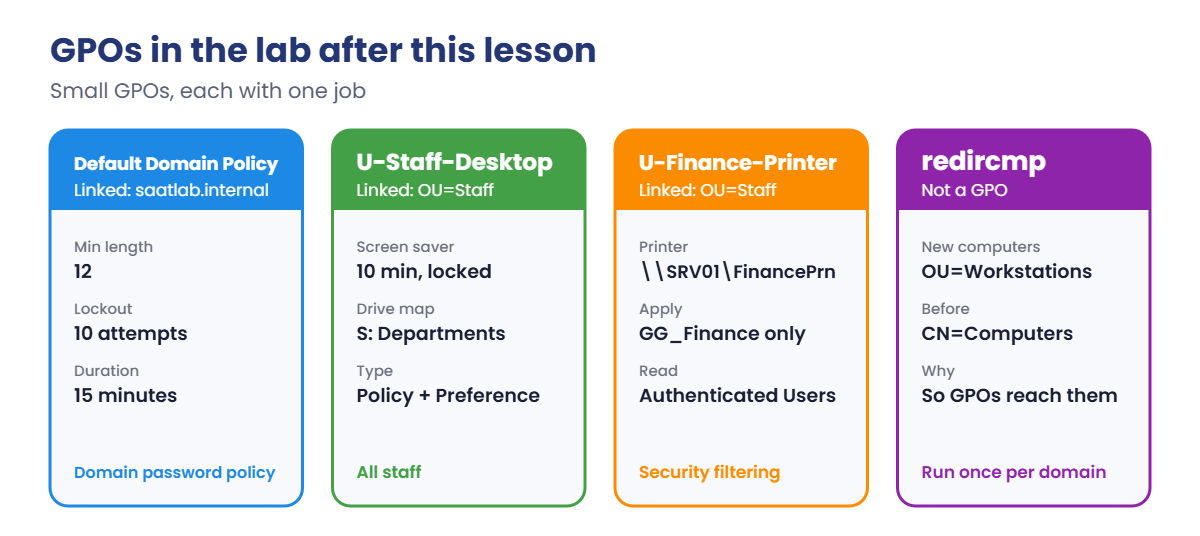
Every domain starts with these two GPOs. From now on, computers joined without an OU path land in Workstations, where policies can reach them, instead of the Computers container, where they can’t.
✅ Checkpoint: Two default GPOs are listed and redircmp reports “Redirection was successful.”
2Set the domain password and lockout policy
Open Group Policy Management, expand Forest, Domains, saatlab.internal, right-click Default Domain Policy and choose Edit. Go to Computer Configuration, Policies, Windows Settings, Security Settings, Account Policies.
Under Password Policy, set Minimum password length to 12. Under Account Lockout Policy, set Account lockout threshold to 10 invalid attempts and accept the suggested 15-minute duration and reset values.
Close the editor, then on DC01 apply and check:
gpupdate /force
Get-ADDefaultDomainPasswordPolicy | Select-Object MinPasswordLength, LockoutThreshold, LockoutDuration, ComplexityEnabled
You should see something like this:
MinPasswordLength LockoutThreshold LockoutDuration ComplexityEnabled
----------------- ---------------- --------------- -----------------
               12               10 00:15:00        True
Domain password rules must be set in a GPO linked to the domain. The same settings in a GPO linked to an OU only affect local accounts on the computers in it. For different rules for some users, such as admins, use fine-grained password policies (Lesson 22).
✅ Checkpoint: MinPasswordLength is 12 and LockoutThreshold is 10.
3Create U-Staff-Desktop with a locked screen saver
On DC01, create the GPO, add three policy settings and link it to Staff:
New-GPO -Name 'U-Staff-Desktop' -Comment 'Desktop settings for all staff' | Out-Null
$k = 'HKCU\Software\Policies\Microsoft\Windows\Control Panel\Desktop'
Set-GPRegistryValue -Name 'U-Staff-Desktop' -Key $k -ValueName ScreenSaveActive -Type String -Value '1' | Out-Null
Set-GPRegistryValue -Name 'U-Staff-Desktop' -Key $k -ValueName ScreenSaverIsSecure -Type String -Value '1' | Out-Null
Set-GPRegistryValue -Name 'U-Staff-Desktop' -Key $k -ValueName ScreenSaveTimeOut -Type String -Value '600' | Out-Null
New-GPLink -Name 'U-Staff-Desktop' -Target 'OU=Staff,OU=SAATLAB,DC=saatlab,DC=internal' | Select-Object DisplayName, Enabled, Order
You should see something like this:
DisplayName     Enabled Order
-----------     ------- -----
U-Staff-Desktop True        1
These are the same settings as User Configuration, Administrative Templates, Control Panel, Personalization in the editor: screen saver on, password-protected, after 10 minutes. Open the GPO in the editor to see them listed there.
✅ Checkpoint: U-Staff-Desktop exists and is linked to the Staff OU.
4Map the S: drive with Group Policy Preferences
In Group Policy Management, right-click U-Staff-Desktop and choose Edit. Go to User Configuration, Preferences, Windows Settings, Drive Maps, right-click and choose New, Mapped Drive.
Set Action to Update, Location to \\saatlab.internal\Files\Departments, tick Reconnect, Label as Departments, and Drive Letter Use: S. Click OK.
“Update” creates the drive if it’s missing and fixes it if it’s wrong, without touching other drives. Because the share uses ABE, everyone gets the same S: drive but only sees their own department’s folder.
✅ Checkpoint: The Drive Maps node shows S: pointing to the DFS path with action Update.
5Deploy the Finance printer to Finance only
On DC01, create and link the GPO, then filter it to GG_Finance:
New-GPO -Name 'U-Finance-Printer' | New-GPLink -Target 'OU=Staff,OU=SAATLAB,DC=saatlab,DC=internal' | Out-Null
Set-GPPermission -Name 'U-Finance-Printer' -TargetName 'GG_Finance' -TargetType Group -PermissionLevel GpoApply | Out-Null
Set-GPPermission -Name 'U-Finance-Printer' -TargetName 'Authenticated Users' -TargetType Group -PermissionLevel GpoRead -Replace | Out-Null
Get-GPPermission -Name 'U-Finance-Printer' -All | Select-Object @{n='Trustee';e={$_.Trustee.Name}}, Permission
You should see something like this:
Trustee                       Permission
-------                       ----------
GG_Finance                    GpoApply
Authenticated Users           GpoRead
Domain Admins                 GpoEditDeleteModifySecurity
Enterprise Admins             GpoEditDeleteModifySecurity
SYSTEM                        GpoEditDeleteModifySecurity
ENTERPRISE DOMAIN CONTROLLERS GpoRead
Only GG_Finance can apply the GPO, while Authenticated Users can still read it, which computers need since MS16-072. Now edit U-Finance-Printer: User Configuration, Preferences, Control Panel Settings, Printers, then New, Shared Printer. Action Update, share path \\SRV01\FinancePrn, and click OK.
✅ Checkpoint: U-Finance-Printer applies to GG_Finance only, Authenticated Users keeps GpoRead, and it contains the shared printer item.
6Check the result on CL01
On CL01, sign in as SAATLAB\priya.sharma (or sign out and back in) and open PowerShell.
Run this:
gpupdate /force
gpresult /r /scope user
You should see something like this (shortened):
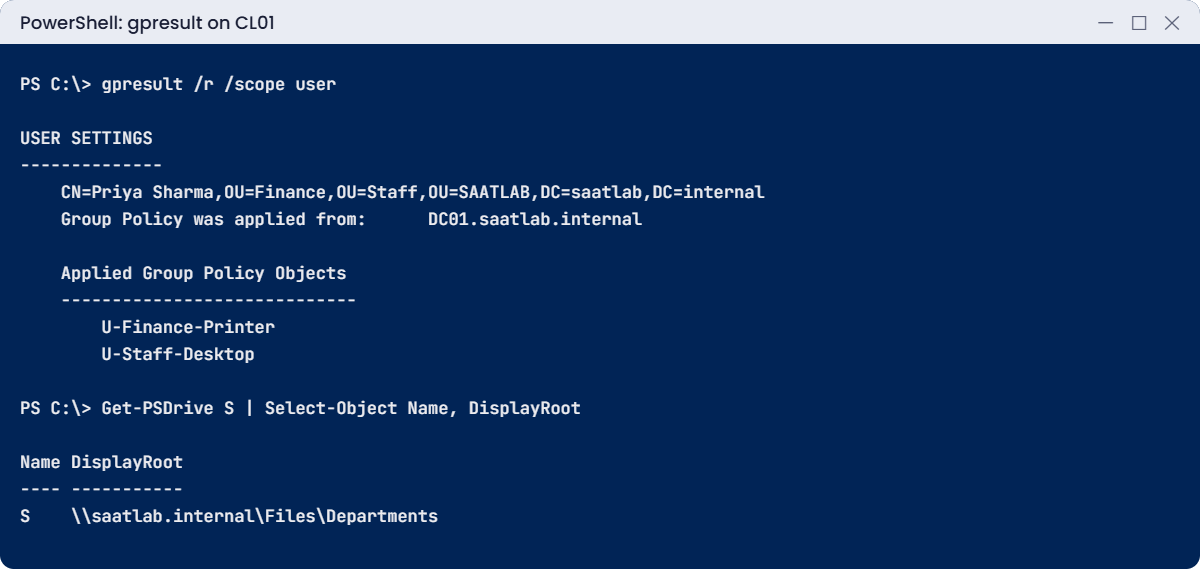
USER SETTINGS
--------------
    CN=Priya Sharma,OU=Finance,OU=Staff,OU=SAATLAB,DC=saatlab,DC=internal
    Last time Group Policy was applied: 19/10/2026 at 17:52:04
    Group Policy was applied from:      DC01.saatlab.internal
    Group Policy slow link threshold:   500 kbps
    Domain Name:                        SAATLAB
    Domain Type:                        Windows 2008 or later

    Applied Group Policy Objects
    -----------------------------
        U-Finance-Printer
        U-Staff-Desktop

    The user is a part of the following security groups
    ---------------------------------------------------
        Domain Users
        GG_Finance
        DL_FinanceShare_Modify
        ...
Then check the drive and printer:
Get-PSDrive S | Select-Object Name, DisplayRoot
Get-Printer | Where-Object Type -eq 'Connection' | Select-Object Name
You should see something like this:
Name DisplayRoot
---- -----------
S    \\saatlab.internal\Files\Departments

Name
----
\\SRV01\FinancePrn
Default Domain Policy isn’t in the user list because it has no user settings. To see computer GPOs, run gpresult /r /scope computer as an administrator. For a full HTML report, use gpresult /h C:\Temp\gp.html.
✅ Checkpoint: gpresult lists both U- GPOs, S: is mapped to the DFS path, and the Finance printer is connected.
7See the processing order for an OU
On DC01, run this:
Get-GPInheritance -Target 'OU=Finance,OU=Staff,OU=SAATLAB,DC=saatlab,DC=internal' |
    Select-Object -ExpandProperty InheritedGpoLinks | Select-Object Order, DisplayName, Target
You should see something like this:
Order DisplayName           Target
----- -----------           ------
    1 U-Staff-Desktop       ou=staff,ou=saatlab,dc=saatlab,dc=internal
    2 U-Finance-Printer     ou=staff,ou=saatlab,dc=saatlab,dc=internal
    3 Default Domain Policy dc=saatlab,dc=internal
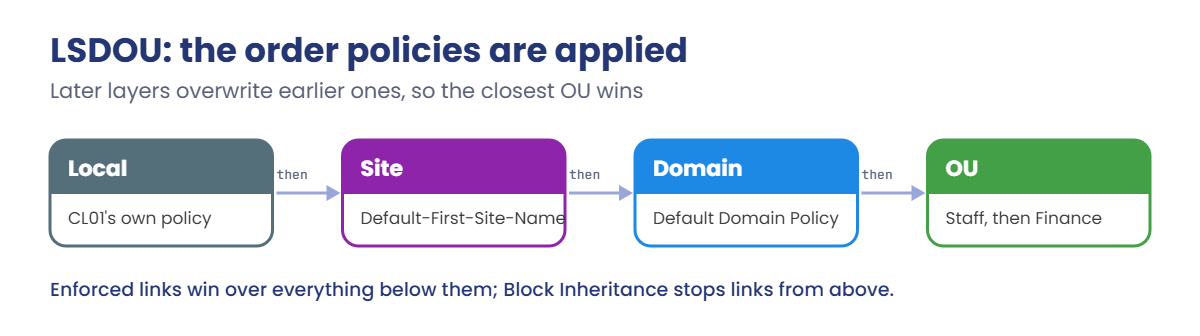
This is the list Windows works through for objects in Finance, highest precedence first. If two GPOs set the same thing differently, the one with order 1 wins. GPMC shows the same list on the OU’s Group Policy Inheritance tab.
✅ Checkpoint: Finance inherits both Staff GPOs and the Default Domain Policy.
Two mistakes that make people say “Group Policy doesn’t work”. It does; it’s just doing exactly what it was told.
1Break it: user settings linked to a computer OU
On DC01, move the U-Staff-Desktop link from Staff to Workstations:
Remove-GPLink -Name 'U-Staff-Desktop' -Target 'OU=Staff,OU=SAATLAB,DC=saatlab,DC=internal' | Out-Null
New-GPLink -Name 'U-Staff-Desktop' -Target 'OU=Workstations,OU=SAATLAB,DC=saatlab,DC=internal' | Out-Null
On CL01 as Priya, refresh and check:
gpupdate /force
gpresult /r /scope user | Select-String -Pattern 'U-'
Get-PSDrive S -ErrorAction SilentlyContinue
You’ll see something like this:
U-Finance-PrinterU-Staff-Desktop is gone from Priya’s list, the screen saver lock no longer applies, and new sign-ins don’t get S:. CL01 is in Workstations, but user settings follow the user’s OU, and Priya is in Finance. The GPO is linked; it just has no users below it.
Fix it: link it back where the users are:
Remove-GPLink -Name 'U-Staff-Desktop' -Target 'OU=Workstations,OU=SAATLAB,DC=saatlab,DC=internal' | Out-Null
New-GPLink -Name 'U-Staff-Desktop' -Target 'OU=Staff,OU=SAATLAB,DC=saatlab,DC=internal' -Order 1 | Out-Null
When you really need user settings based on the computer, such as on kiosks or Remote Desktop servers, that’s called loopback processing, and it’s in Lesson 20.
✅ Checkpoint: U-Staff-Desktop disappeared from gpresult when linked to Workstations and is back after relinking to Staff.
2Break it: security filtering without Read for computers
On DC01, remove Authenticated Users from U-Finance-Printer completely:
Set-GPPermission -Name 'U-Finance-Printer' -TargetName 'Authenticated Users' -TargetType Group -PermissionLevel None -Replace | Out-NullOn CL01 as Priya:
gpupdate /force
gpresult /r /scope user
You’ll see something like this:
    Applied Group Policy Objects
    -----------------------------
        U-Staff-Desktop

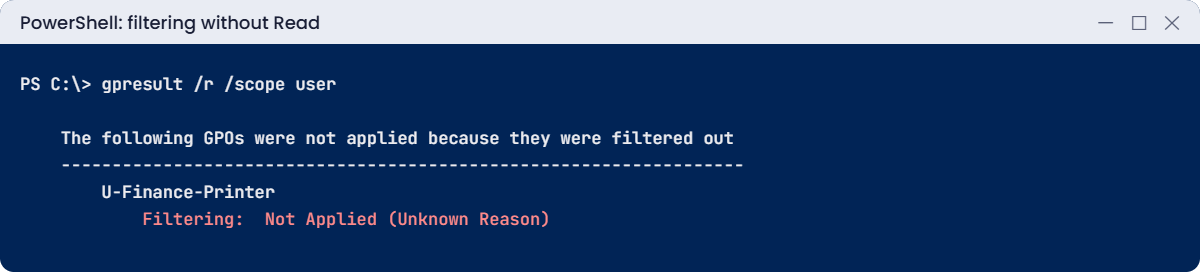
    The following GPOs were not applied because they were filtered out
    -------------------------------------------------------------------
        U-Finance-Printer
            Filtering:  Not Applied (Unknown Reason)
Priya is in GG_Finance and GG_Finance has Apply, so this looks impossible. But CL01 reads user GPOs using its own computer account, and the computer can no longer read this one. “Unknown Reason” is gpresult’s way of saying the GPO couldn’t be read.
Fix it: give computers Read again:
Set-GPPermission -Name 'U-Finance-Printer' -TargetName 'Authenticated Users' -TargetType Group -PermissionLevel GpoRead -Replace | Out-NullGPMC even warns you about this when you remove Authenticated Users from Security Filtering. Read the warning, and use the Delegation tab to keep Read.
✅ Checkpoint: U-Finance-Printer showed “Not Applied (Unknown Reason)” without Authenticated Users Read and applies again after the fix.