Windows DNS server in depth: zones, records and forwarders
-
Phase 0: Before you start
-
Phase 1: The foundation
-
Phase 2: Core administration and security
-
Phase 3: Enterprise infrastructure
-
Phase 4: Troubleshooting step by step
-
Phase 5: Final project and career
Almost every “AD is broken” ticket turns out to be DNS. A good Windows DNS server setup is what lets computers find DCs, people find file servers by name, and the internet keep working from inside the network.
In this lesson you’ll look inside the zones DC01 created, add a reverse zone, create A, CNAME and PTR records, check forwarders on both DCs, turn on scavenging, and walk through name resolution problems step by step.
| Time | You need | By the end you can |
|---|---|---|
| About 75 minutes | DC01, DC02, SRV01 and CL01 from Lesson 13 (start from the “Domain joined” snapshots if you like) | Read and manage DNS zones and records with PowerShell, explain forwarders and conditional forwarders, and fix stale or failing lookups |
What it is, in one line
A Windows DNS server is the Windows Server role that answers “what’s the address of this name?” for your network, stores your domain’s records, and asks the internet for everything else.
In Simple Words
The office phone directory
An office has a phone directory at reception. Ask for “Priya in Finance” and reception reads you her extension. Ask for a number outside the company and reception calls the city directory for you, then remembers the answer for a while.
DNS is that receptionist. Your zones are the office directory, forwarders are the city directory, and the cache is reception’s memory. A reverse zone is the same book sorted by number, so you can ask “whose extension is 220?”
If reception’s memory is out of date, you get the old number until it forgets. That’s the most common DNS surprise, and you’ll cause it on purpose today.
Engineer's View
Zones, records, forwarding and caching
Zones: an AD-integrated zone is stored in AD (the DomainDnsZones or ForestDnsZones partition) and replicates with AD, so every DC running DNS can accept updates. Standard primary and secondary zones store records in files and use zone transfers. A stub zone holds only the NS and SOA records of another zone.
Records: A and AAAA (name to IPv4 and IPv6), CNAME (alias), PTR (address to name, in a reverse zone such as 0.0.10.in-addr.arpa), MX (mail), SRV (services such as _ldap._tcp) and NS/SOA. Every record has a TTL that tells resolvers how long to cache it.
Dynamic updates: members register their own A records, and PTR records when a reverse zone exists. “Secure only” means only the computer that created a record can change it.
Aging and scavenging delete dynamic records that haven’t been refreshed. Static records you create by hand have no timestamp and are never scavenged.
Recursion: for names it isn’t authoritative for, the server uses forwarders (other resolvers, such as 1.1.1.1), or root hints if there are none. A conditional forwarder sends one domain, such as a partner’s, to specific servers. Forwarders are stored per server, not in AD, so check every DC.
How it works, step by step
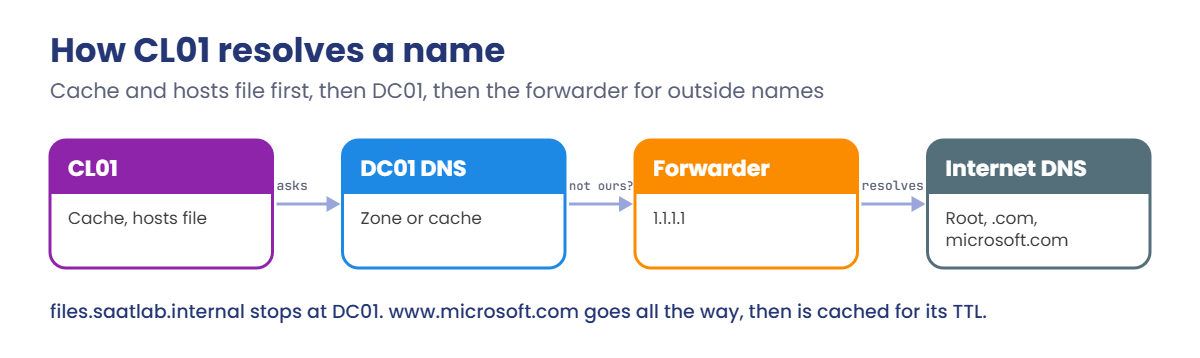
Here’s what happens when CL01 asks for www.microsoft.com, and when it asks for files.saatlab.internal:
CL01 checks its own cache and hosts file first. Then it asks its DNS server, DC01. DC01 answers from its zone if it owns the name, from its cache if it asked recently, or else forwards the question and caches the reply for the record’s TTL.
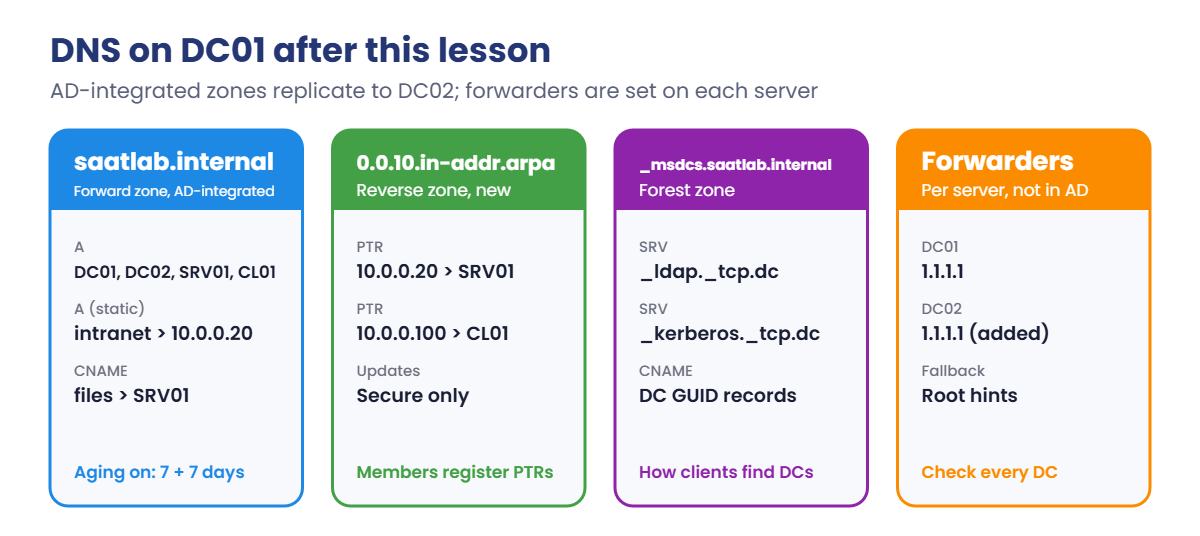
These are the zones and records you’ll work with on DC01:
- Look at the zones and records DC01 created during promotion.
- Add a reverse zone so addresses resolve back to names.
- Create records by hand: an A record and a CNAME alias.
- Check that DC02 has the same records, and the same forwarders.
- Maintain: turn on aging and scavenging so dead records disappear.
- Troubleshoot with Resolve-DnsName, nslookup and both caches.
Hands-on Lab: Windows DNS server zones and records on DC01
Start DC01, DC02 and CL01 (with 8 GB of memory, start DC01 and CL01, and DC02 only for step 5). Sign in to DC01 as SAATLAB\Administrator and open PowerShell as administrator. The DnsServer module is already installed on DCs.
1See the zones promotion created
On DC01, run this:
Get-DnsServerZone | Select-Object ZoneName, ZoneType, IsDsIntegrated, IsReverseLookupZoneYou should see something like this:
ZoneName ZoneType IsDsIntegrated IsReverseLookupZone
-------- -------- -------------- -------------------
_msdcs.saatlab.internal Primary True False
0.in-addr.arpa Primary False True
127.in-addr.arpa Primary False True
255.in-addr.arpa Primary False True
saatlab.internal Primary True False
TrustAnchors Primary True Falsesaatlab.internal holds your domain’s records and _msdcs.saatlab.internal holds the forest-wide DC records. Both are AD-integrated. The three small reverse zones are built in and stop pointless queries for addresses like 127.0.0.1 leaving your network.
✅ Checkpoint: Both saatlab zones show IsDsIntegrated True. There is no reverse zone for 10.0.0.x yet.
2List the A records
On DC01, run this:
Get-DnsServerResourceRecord -ZoneName saatlab.internal -RRType A |
Select-Object HostName, @{n='IP';e={$_.RecordData.IPv4Address}}, TimestampYou should see something like this:
HostName IP Timestamp
-------- -- ---------
@ 10.0.0.10 19/10/2026 15:00:00
@ 10.0.0.11 19/10/2026 16:00:00
CL01 10.0.0.100 19/10/2026 16:00:00
DC01 10.0.0.10
DC02 10.0.0.11
DomainDnsZones 10.0.0.10 19/10/2026 15:00:00
DomainDnsZones 10.0.0.11 19/10/2026 16:00:00
ForestDnsZones 10.0.0.10 19/10/2026 15:00:00
ForestDnsZones 10.0.0.11 19/10/2026 16:00:00
SRV01 10.0.0.20 19/10/2026 16:00:00Records with a timestamp were registered dynamically and can age. Records with an empty timestamp are static. @ means the zone name itself, so saatlab.internal resolves to both DCs.
✅ Checkpoint: You can see SRV01, CL01, DC01 and DC02 with the addresses from your lab plan.
3Add a reverse lookup zone
On DC01, run this:
Add-DnsServerPrimaryZone -NetworkId '10.0.0.0/24' -ReplicationScope Domain -DynamicUpdate Secure
Get-DnsServerZone 0.0.10.in-addr.arpa | Select-Object ZoneName, IsDsIntegrated, DynamicUpdateYou should see something like this:
ZoneName IsDsIntegrated DynamicUpdate
-------- -------------- -------------
0.0.10.in-addr.arpa True SecureReverse zone names are the network part written backwards. Computers add their own PTR records the next time they register, so speed it up on SRV01 and CL01 with ipconfig /registerdns, and on DC01 too.
Wait a minute, then on DC01 run this:
Resolve-DnsName 10.0.0.20 | Select-Object Name, NameHostYou should see something like this:
Name NameHost
---- --------
20.0.0.10.in-addr.arpa SRV01.saatlab.internal✅ Checkpoint: 10.0.0.20 resolves back to SRV01.saatlab.internal.
4Create an A record and a CNAME
The intranet site you’ll build in Lesson 25 runs on SRV01, and people should reach shares with a name that doesn’t change when servers do. Create both:
On DC01, run this:
Add-DnsServerResourceRecordA -ZoneName saatlab.internal -Name intranet -IPv4Address 10.0.0.20
Add-DnsServerResourceRecordCName -ZoneName saatlab.internal -Name files -HostNameAlias SRV01.saatlab.internal
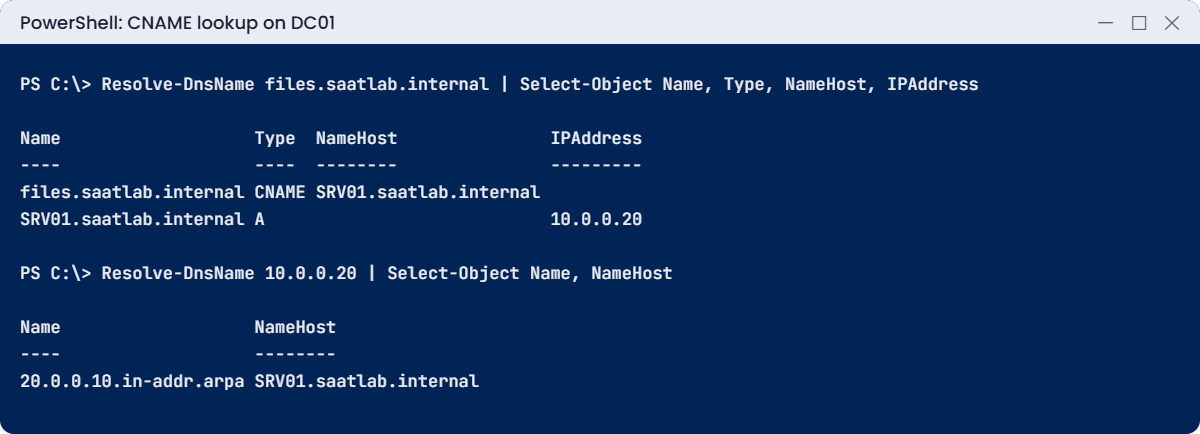
Resolve-DnsName files.saatlab.internal | Select-Object Name, Type, NameHost, IPAddressYou should see something like this:
Name Type NameHost IPAddress
---- ---- -------- ---------
files.saatlab.internal CNAME SRV01.saatlab.internal
SRV01.saatlab.internal A 10.0.0.20The CNAME answer comes with the A record of its target in one reply. When SRV01 is replaced, you change one CNAME and every shortcut and mapped drive using files keeps working.
✅ Checkpoint: files.saatlab.internal resolves through a CNAME to 10.0.0.20.
5Check DC02: records replicate, forwarders don’t
Start DC02 if it isn’t running. On DC01, run this:
Get-DnsServerResourceRecord -ZoneName saatlab.internal -Name intranet -ComputerName DC02 | Select-Object HostName, RecordType
Get-DnsServerForwarder -ComputerName DC01 | Select-Object IPAddress
Get-DnsServerForwarder -ComputerName DC02 | Select-Object IPAddressYou should see something like this:
HostName RecordType
-------- ----------
intranet A
IPAddress
---------
{1.1.1.1}
IPAddress
---------
{}The record you made on DC01 is on DC02 because the zone lives in AD. Forwarders live in each server’s own settings, so DC02’s list may be empty or different. If DC02 shows no forwarder, add it so both DCs answer internet names the same way:
On DC01, run this:
Add-DnsServerForwarder -IPAddress 1.1.1.1 -ComputerName DC02
Resolve-DnsName www.microsoft.com -Server 10.0.0.11 -Type A | Select-Object -First 1 Name, Type✅ Checkpoint: DC02 has the intranet record and 1.1.1.1 as its forwarder, and it resolves www.microsoft.com.
6Turn on aging and scavenging
Laptops come and go, and their old records stay behind unless something cleans them up. Turn on aging for the zone, and scavenging on one DC only (DC01), so you know where cleanup happens:
On DC01, run this:
Set-DnsServerZoneAging -Name saatlab.internal -Aging $true -NoRefreshInterval 7.00:00:00 -RefreshInterval 7.00:00:00
Set-DnsServerScavenging -ScavengingState $true -ScavengingInterval 7.00:00:00
Get-DnsServerZoneAging -Name saatlab.internal | Select-Object ZoneName, AgingEnabled, NoRefreshInterval, RefreshIntervalYou should see something like this:
ZoneName AgingEnabled NoRefreshInterval RefreshInterval
-------- ------------ ----------------- ---------------
saatlab.internal True 7.00:00:00 7.00:00:00A dynamic record that hasn’t been refreshed for 14 days (no-refresh plus refresh) can now be removed. Active computers refresh their records every day, so only dead ones go. Static records like intranet are never touched.
✅ Checkpoint: Aging is True on saatlab.internal and scavenging is on for DC01.
7Troubleshoot a lookup the methodical way
When a name doesn’t resolve, work from the client outwards. On CL01, in PowerShell:
Run these one at a time:
Get-DnsClientServerAddress -InterfaceAlias Ethernet -AddressFamily IPv4 | Select-Object ServerAddresses
Get-Content C:\Windows\System32\drivers\etc\hosts | Select-String -NotMatch '^\s*#'
Resolve-DnsName intranet.saatlab.internal
Resolve-DnsName intranet.saatlab.internal -Server 10.0.0.11 -DnsOnly
nslookup intranet.saatlab.internalIn order: which DNS servers is the client using, is there a hosts file entry overriding DNS, what does normal resolution return, what does a specific DC return directly, and what does nslookup say. nslookup always asks the DNS server and ignores the hosts file and the client cache, which is why it sometimes disagrees with what applications see.
✅ Checkpoint: All three lookups return 10.0.0.20, and the hosts file has no active entries.
Break It, Then Fix It
Two classic DNS tickets: “I changed the record but people still go to the old server”, and “the internet stopped working but internal names are fine”.
1Break it: a change that doesn’t show up
On DC01, create a record with a long TTL pointing at the wrong server:
Add-DnsServerResourceRecordA -ZoneName saatlab.internal -Name app -IPv4Address 10.0.0.10 -TimeToLive 01:00:00On CL01, look it up once, so it gets cached:
Resolve-DnsName app.saatlab.internal | Select-Object Name, IPAddress, TTLNow on DC01, “fix” the record to point at SRV01:
Remove-DnsServerResourceRecord -ZoneName saatlab.internal -Name app -RRType A -Force
Add-DnsServerResourceRecordA -ZoneName saatlab.internal -Name app -IPv4Address 10.0.0.20 -TimeToLive 01:00:00Back on CL01, look it up again:
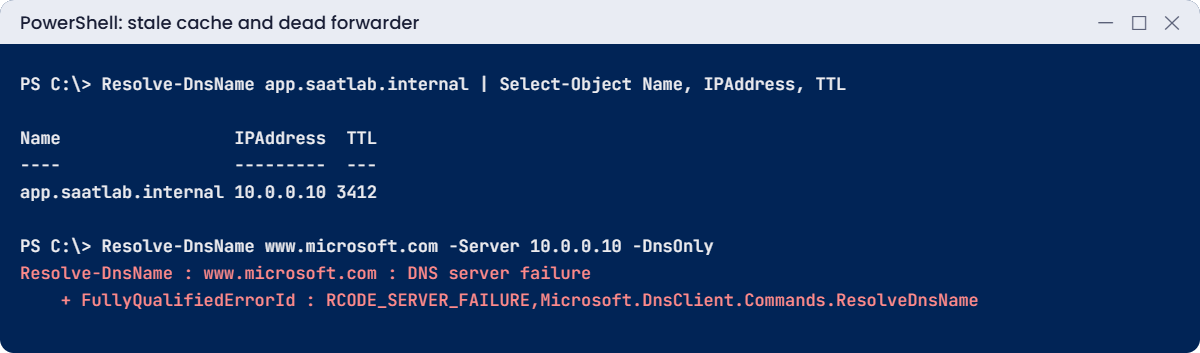
Resolve-DnsName app.saatlab.internal | Select-Object Name, IPAddress, TTLYou’ll see the old answer, something like this:
Name IPAddress TTL
---- --------- ---
app.saatlab.internal 10.0.0.10 3412The server is right; the client is remembering. CL01 cached the first answer for its TTL of one hour, and the TTL counts down until it expires. This is why big DNS changes are planned: lower the TTL a day before, then make the change.
Fix it: clear the client cache (and the server cache if the server had cached it too):
Clear-DnsClientCache # on CL01
Resolve-DnsName app.saatlab.internal | Select-Object Name, IPAddress, TTLYou should see something like this:
Name IPAddress TTL
---- --------- ---
app.saatlab.internal 10.0.0.20 3600On real networks you can’t clear every laptop’s cache, so you wait out the TTL. Clear-DnsServerCache on a DNS server helps when the stale answer came from another server’s zone.
✅ Checkpoint: CL01 showed 10.0.0.10 after the change, and 10.0.0.20 after clearing its cache.
2Break it: forwarders that don’t answer
On DC01, replace the forwarder with an address where nothing listens, and stop the fallback to root hints:
Set-DnsServerForwarder -IPAddress 10.0.0.99 -UseRootHint $false
Clear-DnsServerCache -Force
Resolve-DnsName www.microsoft.com -Server 10.0.0.10 -DnsOnlyYou’ll get an error like this:
Resolve-DnsName : www.microsoft.com : DNS server failure
At line:1 char:1
+ Resolve-DnsName www.microsoft.com -Server 10.0.0.10 -DnsOnly
+ ~~~~~~~~~~~~~~~~~~~~~~~~~~~~~~~~~~~~~~~~~~~~~~~~~~~~~~~~~~~~
+ CategoryInfo : ResourceUnavailable: (www.microsoft.com:String) [Resolve-DnsName], Win32Exception
+ FullyQualifiedErrorId : RCODE_SERVER_FAILURE,Microsoft.DnsClient.Commands.ResolveDnsNameInternal names still work, because DC01 owns those zones. Anything outside fails, because DC01 has nobody to ask. Depending on timing you might see a timeout message instead; the cause is the same.
Fix it: put the real forwarder back, with root hints as the fallback:
Set-DnsServerForwarder -IPAddress 1.1.1.1 -UseRootHint $true
Resolve-DnsName www.microsoft.com -Server 10.0.0.10 -DnsOnly | Select-Object -First 1 Name, TypeClean up the test record with Remove-DnsServerResourceRecord -ZoneName saatlab.internal -Name app -RRType A -Force.
✅ Checkpoint: External names failed with a dead forwarder and work again with 1.1.1.1.
This happened at work
The hosts file nobody remembered
A payroll application moved to a new database server over a weekend. The DNS record was changed, the old server was switched off, and Monday went fine for everyone except the payroll team, whose report server kept saying the database was unreachable.
DNS looked perfect. nslookup on the report server returned the new address. Yet the application still tried the old one, again and again.
Two years earlier, during another migration, someone had added the database name to the report server’s hosts file “temporarily”. The hosts file beats DNS for applications, but nslookup ignores it, which is why every test looked fine.
The fix: the entry was removed and Resolve-DnsName (which follows the same rules as applications) became the standard test. A monthly script now reports any active hosts file entries on servers.
The lesson: when DNS looks right but the app disagrees, check the client: hosts file, cache and which DNS servers it uses.
Common mistakes and troubleshooting
| Mistake or symptom | What happens | What to do instead |
|---|---|---|
| Members or DCs pointing at public DNS | Internal names and DC lookups fail | Clients use only internal DNS servers; DCs forward outwards |
| Changing a record and expecting instant results | Clients keep the old answer until the TTL runs out | Lower the TTL in advance; Clear-DnsClientCache for testing |
| Testing only with nslookup | It ignores the hosts file and client cache | Use Resolve-DnsName, which behaves like applications |
| Forwarders set on one DC only | Internet lookups behave differently depending on the DC | Check Get-DnsServerForwarder on every DNS server |
| No reverse zone | Tools show addresses instead of names; some apps complain | Create the reverse zone; let members register PTRs |
| Turning on scavenging with tiny intervals | Records of machines that were briefly off are deleted | Use 7 + 7 days or longer; scavenge on one server |
| “DNS server failure” for internet names only | The forwarder is down or blocked | Test the forwarder; keep root hints as a fallback |
| Hand-made records for computers that register themselves | Duplicates and conflicts when the address changes | Let dynamic updates handle members; static records for services |
| Deleting the _msdcs zone or SRV records | DCs can’t be found; joins and sign-ins fail | Restore them, or run nltest /dsregdns on the DC |
Interview questions
Click a question to open it. Under each one you’ll find what the interviewer is really looking for, and one good way to answer.
Fresher level
1. What is the difference between an A record and a CNAME?
What they’re really checking: Do you know basic records?
How you could answer: An A record maps a name to an IPv4 address. A CNAME maps a name to another name, which then resolves through its own A record.
2. What is a reverse lookup zone?
What they’re really checking: Do you know PTR records?
How you could answer: A zone that maps addresses back to names using PTR records, named like 0.0.10.in-addr.arpa for 10.0.0.x.
3. Why must domain members use the DCs for DNS?
What they’re really checking: Do you link DNS to AD?
How you could answer: Clients find DCs through SRV records in the AD zones. Public resolvers don’t have them, so sign-in and Group Policy break.
2–5 years experience
4. Users still reach the old server after a DNS change. What’s happening and what do you do?
What they’re really checking: Do you understand TTL and caching?
How you could answer: Their resolvers cached the old record for its TTL. Check the TTL with Resolve-DnsName, clear caches where you can, and next time lower the TTL before the change.
5. What are forwarders, conditional forwarders and root hints?
What they’re really checking: Do you know recursion options?
How you could answer: Forwarders send all unknown names to chosen resolvers. Conditional forwarders send one domain to specific servers. Root hints let the server resolve from the root servers itself when no forwarder is used.
6. How do aging and scavenging work?
What they’re really checking: Have you configured it safely?
How you could answer: Dynamic records get timestamps. After the no-refresh plus refresh intervals without an update, scavenging deletes them. Enable aging on the zone and scavenging on one server, with generous intervals.
Senior level
7. How would you design DNS for a company with a partner network and a cloud tenant?
What they’re really checking: Do you think about name resolution end to end?
How you could answer: AD-integrated zones on DCs, clients pointed at DCs, forwarders to a secure resolver, conditional forwarders or stub zones for partner and cloud private zones, and split-brain zones where internal and external answers differ.
8. Name resolution is slow for some users only. How do you investigate?
What they’re really checking: Is your troubleshooting structured?
How you could answer: Find what they share: DNS server, site, VPN. Test with Resolve-DnsName against each DNS server, check forwarder response time, the DNS server event log and analytic log, and packet captures if needed.
9. How do you protect DNS servers from abuse and tampering?
What they’re really checking: Do you know DNS security options?
How you could answer: Secure-only dynamic updates, no open recursion to the internet, response rate limiting, DNSSEC where needed, DNS policies, restricted zone transfers, and monitoring the DNS audit and analytic logs.
Quick quiz
Q1. Where is an AD-integrated zone stored?
- In a text file on one server
- In Active Directory, replicated with it
- In the client cache
Show answer
B — That’s why DC02 had the record you made on DC01.
Q2. Why did CL01 keep getting 10.0.0.10 after you changed the record?
- Replication failed
- CL01 cached the answer for its TTL
- The zone was read-only
Show answer
B — Clear-DnsClientCache or wait for the TTL.
Q3. Which tool ignores the hosts file?
- Resolve-DnsName
- nslookup
- ping
Show answer
B — nslookup always asks the DNS server directly.
Q4. Which of these is NOT stored in AD with the zone?
- A records
- Forwarders
- CNAME records
Show answer
B — Forwarders are per-server settings.
Q5. In the work story, why did every DNS test look fine?
- DNS was cached
- nslookup ignored the hosts file entry
- The server was offline
Show answer
B — The app used the hosts file; nslookup didn’t.
Quick recap
- A Windows DNS server on your DCs holds AD-integrated zones that replicate with AD.
- Know your records: A, CNAME, PTR, SRV, MX, and the TTL on each.
- A reverse zone (
0.0.10.in-addr.arpa) lets addresses resolve to names. - Forwarders are per server; check them on every DC.
- Aging and scavenging remove dead dynamic records; static records stay.
- Troubleshoot from the client out: DNS servers, hosts file, cache, then the server, with
Resolve-DnsName.
Next lesson
Lesson 15: DHCP → You’ll install DHCP on SRV01, authorise it in AD, create a scope with options and reservations, move CL01 from its fixed address to DHCP, and set up DHCP failover.
Further reading: Windows DNS server
Want to go deeper into Windows DNS server? Microsoft’s Implement Windows Server DNS module covers zones and records, and the DNS server troubleshooting guide walks through common faults. You can also see the full plan for this course on the Windows Server Administration course page.
