Active Directory backup and recovery

The AD Recycle Bin saves you from small mistakes. For big ones (a corrupted database, a whole OU deleted before anyone noticed, a DC that dies holding every FSMO role) you need Active Directory backup and the skills to restore from it under pressure.

In this lesson you’ll add a backup disk to DC01, take a system state backup, restore a deleted OU authoritatively in Directory Services Restore Mode, then simulate a dead DC: seize its FSMO roles and clean up its metadata.

TimeYou needBy the end you can
About 2 hoursDC01 and DC02 from Lesson 31, your DSRM password from Lesson 11, and about 20 GB of laptop disk spaceBack up system state with wbadmin, boot into DSRM, run non-authoritative and authoritative restores, seize FSMO roles and clean up a dead DC

What it is, in one line

Active Directory backup is a copy of a DC’s system state (the AD database, SYSVOL, registry and boot files) that lets you rebuild a DC or bring back deleted objects.

In Simple Words

Photocopies of the school register

Every evening, the school secretary photocopies the register and locks the copy in a safe. If someone tears out a page, she can’t just paste the old page back: the other office has a newer register, and they’d “correct” her straight back.

So she stamps the restored page “THIS ONE WINS”. Now both offices accept it. That stamp is an authoritative restore.

And if one secretary leaves for good, the other takes over her duties officially and crosses her name off the staff list. That’s seizing FSMO roles and metadata cleanup.

Engineer's View

System state, DSRM, restore types, FSMO

System state on a DC includes the AD database (ntds.dit), SYSVOL, the registry, boot files and COM+ data. Windows Server Backup (wbadmin) backs it up to a separate volume or share. A backup older than the tombstone lifetime (180 days) can’t be restored, so back up DCs daily.

DSRM (Directory Services Restore Mode) boots a DC with AD offline, signing in with the local DSRM administrator password set at promotion. Restores happen here.

Restore types: a non-authoritative restore brings the DC back to the backup point, then normal replication updates it with newer changes from partners, including deletions. An authoritative restore (ntdsutil “authoritative restore”) raises version numbers on chosen objects so they win and replicate out. Back-links like group memberships are restored with the LDF files ntdsutil creates.

The Recycle Bin is faster when it’s enabled and the objects are still within the deleted object lifetime.

FSMO: transfer roles from a working DC; seize them only when the holder is permanently dead, and never bring it back. Then clean up its metadata (deleting the DC object in ADUC or ADSS does this) and its DNS records.

How it works, step by step

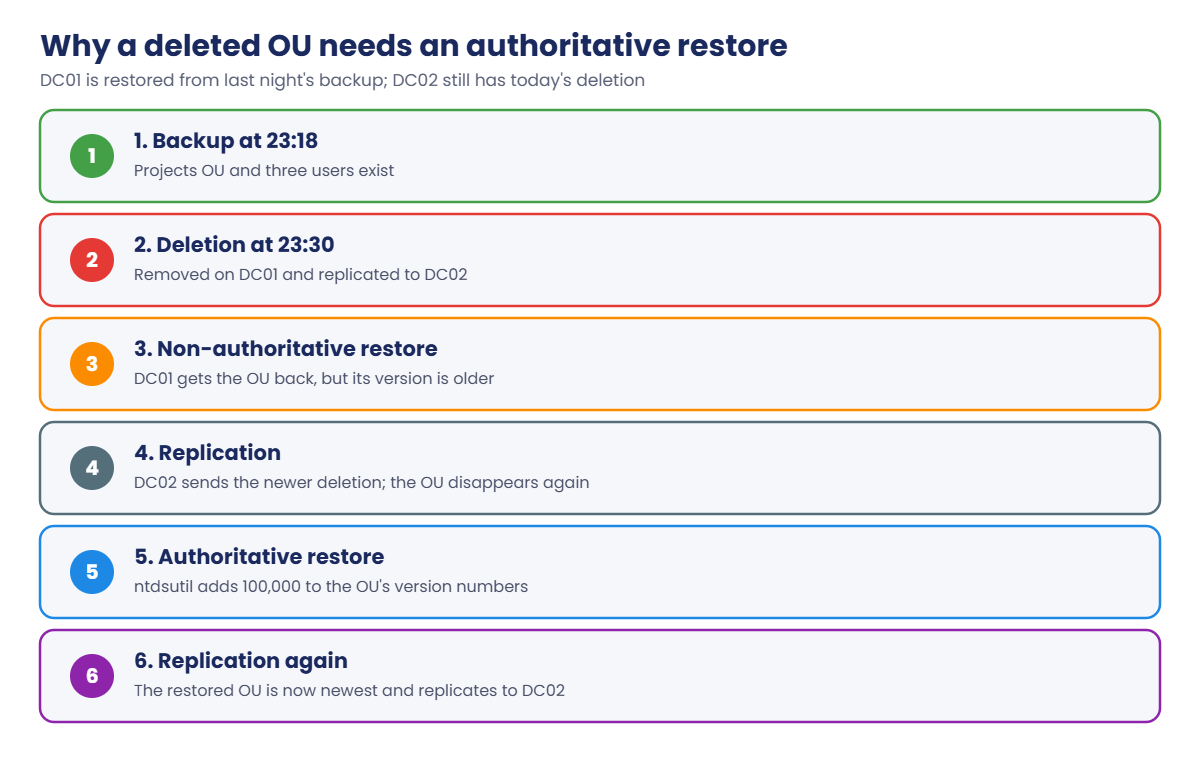
Why a normal restore isn’t enough to bring back a deleted OU:

Active Directory backup: why a deleted OU needs an authoritative restore

DC02 still holds the deletion, which is newer than the restored copy. Without the authoritative mark, replication deletes the OU again within minutes.

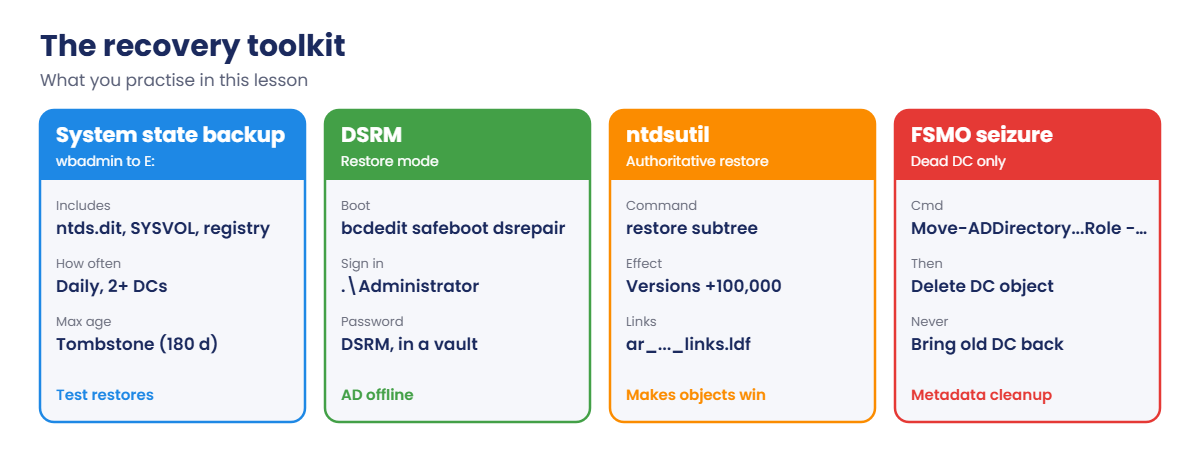
The recovery toolkit you’ll practise:

Active Directory backup recovery toolkit: wbadmin, DSRM, ntdsutil and FSMO seizure
  1. Backup disk E: on DC01 and a system state backup.
  2. Delete a test OU with users, as if by mistake.
  3. DSRM boot, restore system state, mark the OU authoritative.
  4. Snapshot both DCs, then “lose” DC01: seize FSMO on DC02 and clean up.
  5. Roll back both DCs to the snapshot so the course continues normally.

Hands-on Lab: Active Directory backup and authoritative restore

You’ll work on DC01 and DC02 as SAATLAB\adm.rahul in PowerShell as administrator, and on your laptop for VirtualBox commands.

1Add a backup disk to DC01

Shut down DC01. On your laptop:

VBoxManage storagectl DC01 --name SATA --portcount 4
VBoxManage createmedium disk --filename C:\Lab\VMs\DC01\DC01-backup.vdi --size 20480
VBoxManage storageattach DC01 --storagectl SATA --port 2 --device 0 --type hdd --medium C:\Lab\VMs\DC01\DC01-backup.vdi
VBoxManage startvm DC01

On DC01, bring it online as E: and install Windows Server Backup:

Get-Disk | Where-Object PartitionStyle -eq 'RAW' | Initialize-Disk -PartitionStyle GPT -PassThru |
    New-Partition -DriveLetter E -UseMaximumSize | Format-Volume -FileSystem NTFS -NewFileSystemLabel Backup -Confirm:$false | Out-Null
Install-WindowsFeature Windows-Server-Backup | Select-Object Success, ExitCode

You should see something like this:

Success ExitCode
------- --------
True    Success

✅ Checkpoint: DC01 has an E: drive labelled Backup and Windows Server Backup installed.

2Create test data and back up the system state

On DC01, create an OU with users, then back up:

New-ADOrganizationalUnit -Name Projects -Path 'OU=SAATLAB,DC=saatlab,DC=internal' -ProtectedFromAccidentalDeletion $false
1..3 | ForEach-Object { New-ADUser -Name "Project User $_" -SamAccountName "proj.user$_" -Path 'OU=Projects,OU=SAATLAB,DC=saatlab,DC=internal' }
repadmin /syncall DC01 /AdeP | Select-Object -Last 1
wbadmin start systemstatebackup -backupTarget:E: -quiet

You should see something like this (it takes 10 to 20 minutes):

SyncAll terminated with no errors.
wbadmin 1.0 - Backup command-line tool
(C) Copyright Microsoft Corporation. All rights reserved.

Starting System State Backup [19/10/2026 23:05]
Retrieving volume information...
This will back up the system state from volume(s) Local Disk(C:) to E:.
Starting System State Backup [19/10/2026 23:05]
...
The backup operation successfully completed.

List the backup and note its version identifier:

wbadmin get versions

You should see something like this:

Backup time: 19/10/2026 23:18
Backup target: Fixed Disk labeled Backup(E:)
Version identifier: 10/19/2026-17:48
Can recover: Volume(s), File(s), Application(s), System State
Snapshot ID: {6b0d...}

The version identifier uses UTC time in month/day/year format. Copy it exactly; you’ll need it in step 4.

✅ Checkpoint: wbadmin get versions lists a system state backup on E: with its version identifier.

3Delete the OU, as if by mistake

On DC01:

Remove-ADOrganizationalUnit 'OU=Projects,OU=SAATLAB,DC=saatlab,DC=internal' -Recursive -Confirm:$false
repadmin /syncall DC01 /AdeP | Select-Object -Last 1
Get-ADOrganizationalUnit -Filter "Name -eq 'Projects'" -Server DC02

The last command returns nothing: the deletion has reached DC02. In this lab the Recycle Bin from Lesson 12 could bring it back, and in real life you’d try that first. Here you’ll practise the authoritative restore you’d need if the Recycle Bin were off or the objects too old.

✅ Checkpoint: The Projects OU is gone from both DCs.

4Restore authoritatively in DSRM

On DC01, set the next boot to DSRM and restart:

bcdedit /set safeboot dsrepair
Restart-Computer

At the sign-in screen choose Other user and sign in as .\Administrator with the DSRM password, not your domain password. AD isn’t running, so domain accounts can’t sign in.

In DSRM, restore the system state (use your version identifier):

wbadmin start systemstaterecovery -version:10/19/2026-17:48 -quiet

When it finishes, don’t restart yet. Mark the OU as authoritative first:

Still in DSRM:

ntdsutil "activate instance ntds" "authoritative restore" "restore subtree \"OU=Projects,OU=SAATLAB,DC=saatlab,DC=internal\"" q q

Answer Yes to the confirmation box. You should see something like this:

Opening DIT database... Done.
The current time is 10-19-26 23:41.21.
Most recent database update occurred at 10-19-26 23:18.04.
Increasing attribute version numbers by 100000.
Counting records that need updating...
Records found: 0000000004
Done.
Found 4 records to update.
Updating records...
Records remaining: 0000000000
Done.
Successfully updated 4 records.
The following text file with a list of authoritatively restored objects has been created in the current working directory:
        ar_20261019-234121_objects.txt
One or more specified objects have back-links in this domain. The following LDIF files with link restore operations have been created in the current working directory:
        ar_20261019-234121_links_saatlab.internal.ldf
Authoritative Restore completed successfully.

Leave DSRM and restart normally:

bcdedit /deletevalue safeboot
Restart-Computer

Back in normal mode, on DC01:

repadmin /syncall DC01 /AdeP | Select-Object -Last 1
Get-ADUser -Filter * -SearchBase 'OU=Projects,OU=SAATLAB,DC=saatlab,DC=internal' -Server DC02 | Select-Object -ExpandProperty Name

You should see something like this:

SyncAll terminated with no errors.
Project User 1
Project User 2
Project User 3

Four records: the OU and three users. Because their version numbers jumped by 100,000, DC02 accepted them as newer than its deletion. If the users had been in groups, you’d import the LDF file with ldifde -i -f ar_..._links_saatlab.internal.ldf to restore the memberships.

✅ Checkpoint: The Projects OU and its three users are back on DC01 and DC02.
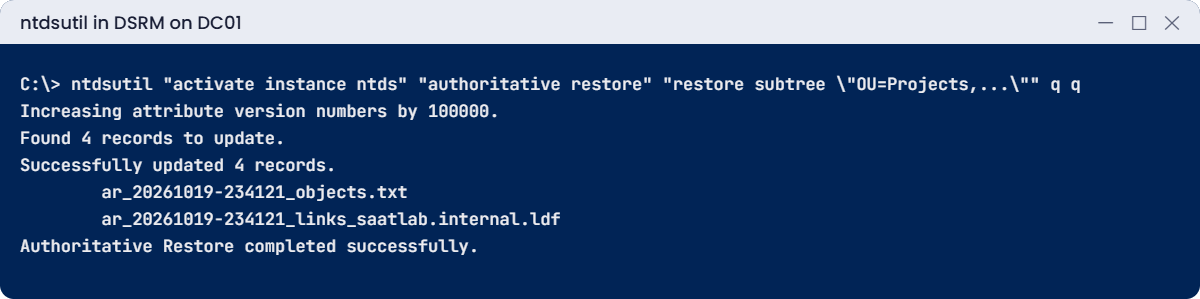
Active Directory backup lab: ntdsutil authoritative restore of the Projects OU
ntdsutil marks the OU and its users as newer than any other copy.

5Simulate a dead DC: seize FSMO roles and clean up

Shut down both DCs and take a safety snapshot on your laptop:

'DC01','DC02' | ForEach-Object { VBoxManage snapshot $_ take "Before seize" }
VBoxManage startvm DC02

Leave DC01 off (it has “died”). On DC02, as SAATLAB\adm.rahul:

netdom query fsmo
Move-ADDirectoryServerOperationMasterRole -Identity DC02 -OperationMasterRole SchemaMaster, DomainNamingMaster, PDCEmulator, RIDMaster, InfrastructureMaster -Force
netdom query fsmo

You should see something like this (the first query may take a while, because DC01 is unreachable):

Schema master               DC02.saatlab.internal
Domain naming master        DC02.saatlab.internal
PDC                         DC02.saatlab.internal
RID pool manager            DC02.saatlab.internal
Infrastructure master       DC02.saatlab.internal
The command completed successfully.

With DC01 unreachable, PowerShell tried a transfer, failed, and seized each role because of -Force. Now remove DC01 from AD: in Active Directory Users and Computers on DC02, open Domain Controllers, delete DC01, tick This Domain Controller is permanently offline, and confirm. That runs metadata cleanup for you.

Finally, delete DC01’s leftover records in DNS Manager.

Then roll both DCs back so the rest of the course has two healthy DCs:

VBoxManage controlvm DC02 poweroff
'DC01','DC02' | ForEach-Object { VBoxManage snapshot $_ restore "Before seize" }

Restoring both DCs to the same snapshot is safe. Restoring only one DC from an old snapshot causes USN rollback, a serious replication problem, so never do that with a real DC.

✅ Checkpoint: DC02 held all five roles after the seize, DC01 was removed as a DC, and both VMs are back at “Before seize”.

Break It, Then Fix It

Two recovery mistakes that waste hours during a real outage: restoring without the authoritative step, and not knowing the DSRM password.

1Break it: a restore that undoes itself

Delete the Projects OU again (step 3), then restore in DSRM but skip ntdsutil:

bcdedit /set safeboot dsrepair; Restart-Computer
# in DSRM:
wbadmin start systemstaterecovery -version:10/19/2026-17:48 -quiet
bcdedit /deletevalue safeboot; Restart-Computer

Back in normal mode, check straight away, then again after replication:

Get-ADOrganizationalUnit -Filter "Name -eq 'Projects'" | Select-Object Name
repadmin /syncall DC02 /AdeP | Select-Object -Last 1
Get-ADOrganizationalUnit -Filter "Name -eq 'Projects'" | Select-Object Name

You’ll see something like this:

Name
----
Projects
SyncAll terminated with no errors.

The OU was back for a moment, then gone. The second query returned nothing. DC01 came back with its old copy, DC02 replicated its newer deletion to DC01, and the deletion won.

This is exactly what a non-authoritative restore is meant to do: bring a DC back, then catch up.

Fix it: repeat the DSRM restore and run the authoritative restore before restarting (step 4).

✅ Checkpoint: After a non-authoritative restore the OU disappeared again, and after the authoritative one it stayed.
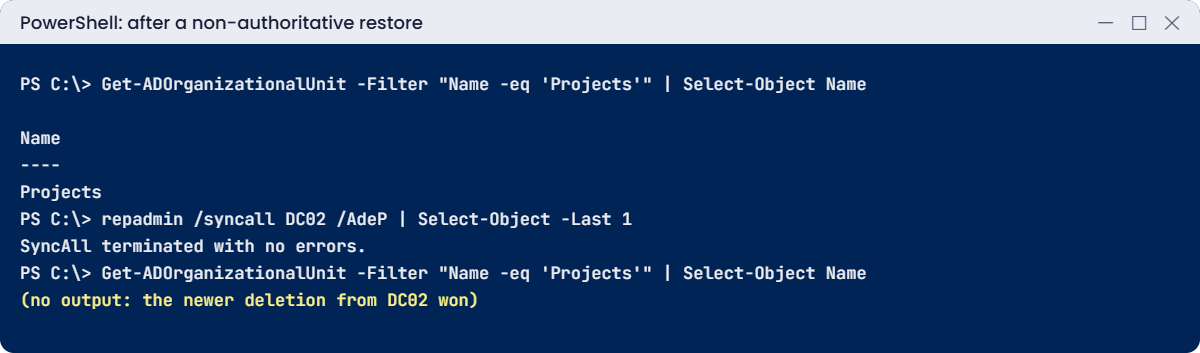
Active Directory backup lab: OU disappears again after a non-authoritative restore
Without the authoritative step, replication from DC02 deletes the restored OU again.

2Break it: the forgotten DSRM password

Restart DC01 into DSRM (bcdedit /set safeboot dsrepair) and sign in as .\Administrator with a wrong password.

You’ll get an error like this:

The user name or password is incorrect. Try again.

Many teams discover during an outage that nobody recorded the DSRM password set years ago. Without it, you can’t restore that DC. You can’t fix it from DSRM either, because you can’t sign in.

In the lab, restart DC01 from the VirtualBox window and let it boot normally after you remove the DSRM flag, or restore the “Before seize” snapshot of both DCs.

Fix it: from normal mode, reset the DSRM password on each DC and store it in your vault:

bcdedit /deletevalue safeboot      # run in normal mode if the boot flag is still set
ntdsutil "set dsrm password" "reset password on server null" q q

You should see something like this:

Reset DSRM Administrator Password: set dsrm password
Reset DSRM Administrator Password: reset password on server null
Please type password for DS Restore Mode Administrator Account: ********
Please confirm new password: ********
Password has been set successfully.

✅ Checkpoint: You were refused with a wrong DSRM password, reset it with ntdsutil, and recorded the new one.

This happened at work

The backup that was too old to use

A company’s only DC with a backup agent was rebuilt after a disk failure, and the AD database on the rebuilt server turned out to be corrupt. The plan was simple: restore last night’s system state.

There was no last night. The backup job had been failing for eight months because the target disk was full, and the alerts went to a former employee. The newest good system state backup was 240 days old.

That was older than the 180-day tombstone lifetime, so it couldn’t be used: restoring it would reintroduce deleted objects and break replication. The team rebuilt the DC by promoting a fresh server from the remaining healthy DC and cleaning up the old one’s metadata, which worked only because a second DC existed.

The fix: daily system state backups of two DCs, a weekly report of backup age, an alert if any backup is older than two days, and a restore test in an isolated lab every quarter.

The lesson: an AD backup older than the tombstone lifetime is worthless. Test that backups run and that they restore.

Common mistakes and troubleshooting

Mistake or symptomWhat happensWhat to do instead
Restored OU disappears againNon-authoritative restore; newer deletion replicates backAuthoritative restore of the subtree in DSRM
Group memberships missing after authoritative restoreBack-links weren’t restoredImport the ar_…_links LDF file with ldifde
DSRM password unknownCan’t restore that DCReset with ntdsutil “set dsrm password”; store in a vault
Backups older than 180 daysCan’t be restored safelyDaily DC backups and alerts on backup age
Restoring a single DC from a VM snapshotUSN rollback; replication breaks quietlyUse system state backups; never revert one DC alone
Seizing roles while the old holder may returnTwo DCs think they own a roleSeize only when the old DC is gone for good
Forgetting metadata cleanupReplication errors and clients trying a dead DCDelete the DC object (permanently offline) and its DNS records
Ignoring the Recycle Bin optionSlow DSRM restores for simple deletionsUse Restore-ADObject first when it’s enabled
Never testing a restoreSurprises during a real outageQuarterly restore tests in an isolated lab

Interview questions

Click a question to open it. Under each one you’ll find what the interviewer is really looking for, and one good way to answer.

Fresher level

1. What does system state include on a DC?

What they’re really checking: Do you know the basics?

How you could answer: The AD database, SYSVOL, registry, boot files and COM+ registration, enough to restore AD on that DC.

2. What is DSRM?

What they’re really checking: Do you know recovery mode?

How you could answer: Directory Services Restore Mode: a boot mode where AD is offline and you sign in with the local DSRM password to restore or repair the database.

3. How do you restore a user deleted ten minutes ago if the Recycle Bin is on?

What they’re really checking: Do you use the easy path first?

How you could answer: Find it with Get-ADObject -IncludeDeletedObjects and restore it with Restore-ADObject. No DSRM needed.

2–5 years experience

4. What is the difference between authoritative and non-authoritative restore?

What they’re really checking: Do you understand restore types?

How you could answer: Non-authoritative returns the DC to the backup point and lets replication bring it up to date. Authoritative raises version numbers on chosen objects so they replicate out and overwrite newer deletions or changes.

5. When do you transfer and when do you seize FSMO roles?

What they’re really checking: Do you know the rules?

How you could answer: Transfer when the current holder is online. Seize only when it’s permanently lost, then never bring it back, and clean up its metadata.

6. What is USN rollback?

What they’re really checking: Do you know a dangerous failure?

How you could answer: When a DC is reverted to an old state (often a VM snapshot) and reuses update sequence numbers, so partners ignore its changes. Prevent by not reverting DCs; VM-GenerationID helps on supported hypervisors.

Senior level

7. Design an AD backup and recovery plan for a forest with 12 DCs.

What they’re really checking: Do you think about the whole forest?

How you could answer: Daily system state backups of at least two DCs per domain, including the forest root and FSMO holders, retention under the tombstone lifetime, offline or immutable copies, Recycle Bin on, documented DSRM passwords, and tested forest recovery steps.

8. How would you recover from a ransomware attack that encrypted all DCs?

What they’re really checking: Do you know forest recovery?

How you could answer: Isolate the network, restore one DC per domain from a known-good backup into an isolated environment, seize roles, clean up, reset krbtgt twice and privileged passwords, rebuild other DCs, then reconnect carefully. Follow Microsoft’s forest recovery guide.

9. How do you restore group memberships after an authoritative restore?

What they’re really checking: Do you know the back-link detail?

How you could answer: ntdsutil creates LDF files listing links for restored objects; import them with ldifde on a DC so memberships held in other objects are rebuilt.

Quick quiz

Q1. Where must you sign in to restore AD from backup?

  1. Normal mode as Domain Admin
  2. DSRM with the DSRM password
  3. Safe mode with networking
Show answer

B — AD is offline in DSRM.

Q2. Why did the OU vanish after the first restore in Break It?

  1. The backup was corrupt
  2. It was non-authoritative, so DC02’s newer deletion won
  3. DSRM failed
Show answer

B — Mark it authoritative.

Q3. What did ntdsutil add to the restored objects’ version numbers?

  1. 10
  2. 100,000
  3. 1
Show answer

B — So they win over newer changes.

Q4. When is seizing an FSMO role correct?

  1. Whenever it’s faster
  2. When the role holder is permanently gone
  3. During every patch window
Show answer

B — Transfer otherwise.

Q5. In the work story, why was the backup useless?

  1. Wrong format
  2. It was older than the tombstone lifetime
  3. It was encrypted
Show answer

B — Backups must be recent and tested.

Quick recap

  • Active Directory backup means daily system state backups of DCs, kept within the 180-day tombstone lifetime.
  • Restores happen in DSRM with the DSRM password.
  • Non-authoritative restores catch up from partners; authoritative restores (ntdsutil) make chosen objects win.
  • Restore back-links with the LDF files ntdsutil creates.
  • Transfer FSMO roles normally; seize only from a dead DC, then clean up its metadata.
  • Never revert a single DC from a snapshot; test restores regularly.

Next lesson

Lesson 33: Trusts → You’ll build a second forest, set up conditional DNS forwarding, create a forest trust with selective authentication, grant access across it, and fix trust failures.

Further reading: Active Directory backup

Want to go deeper into Active Directory backup? Microsoft’s forest recovery guide covers worst-case recovery, and the article on restoring deleted accounts and groups explains authoritative restore and back-links. You can also see the full plan for this course on the Windows Server Administration course page.

Scroll to Top