Sysinternals tools: Handle, Process Monitor, Autoruns and TCPView
-
Phase 0: Before you start
-
Phase 1: The foundation
-
Phase 2: Core administration and security
-
Phase 3: Enterprise infrastructure
-
Phase 4: Troubleshooting step by step
-
Phase 5: Final project and career
Built-in tools tell you a lot, but sometimes you need to see exactly which file a program opens, what starts at boot, or who holds a lock. The Sysinternals tools from Microsoft do that, and senior admins keep them on every jump box.
In this lesson you’ll download the Sysinternals Suite, find who has a file open, trace file and registry activity with Process Monitor, list everything that starts automatically with Autoruns, and see network connections per process. Then you’ll use them to solve a locked file and a script that fails silently.
| Time | You need | By the end you can |
|---|---|---|
| About 75 minutes | SRV01 with internet access for one download | Use Handle, Process Monitor, Autoruns and TCPView to answer questions the built-in tools can’t |
What it is, in one line
Sysinternals is Microsoft’s set of small diagnostic tools that show what Windows is really doing: processes, handles, file and registry activity, autostart entries and network connections.
In Simple Words
In Simple Words
Task Manager is like looking at a house from the street. You see which lights are on.
Sysinternals tools are like walking inside with a torch. You see which taps are running, which doors are locked and who holds the keys, and you can watch every door open and close for a few minutes.
You don’t need the torch every day. But when something strange happens and the outside view doesn’t explain it, it saves hours.
Engineer's View
Engineer’s View
Process Explorer: a deeper Task Manager. It shows the process tree, DLLs, handles, threads with stacks, and can check files against VirusTotal. Find > Find Handle or DLL answers “who has this file open?”
Process Monitor (Procmon): records file system, registry, network and process events live, with the result of each (SUCCESS, ACCESS DENIED, NAME NOT FOUND). Filters keep the capture readable, and a backing file stops it filling memory.
Autoruns: lists every place something can start automatically: services, drivers, scheduled tasks, Run keys, Winlogon, WMI. autorunsc -m hides Microsoft-signed entries so the unusual ones stand out.
TCPView and tcpvcon: network connections by process.
Handle: open handles from the command line. Sigcheck: file versions and signatures.
RAMMap: where physical memory goes. PsTools: remote process and system information.
Getting them: the Sysinternals Suite from download.sysinternals.com, or run them directly from live.sysinternals.com. Most command-line tools accept -accepteula and -nobanner for scripts.
How it works, step by step
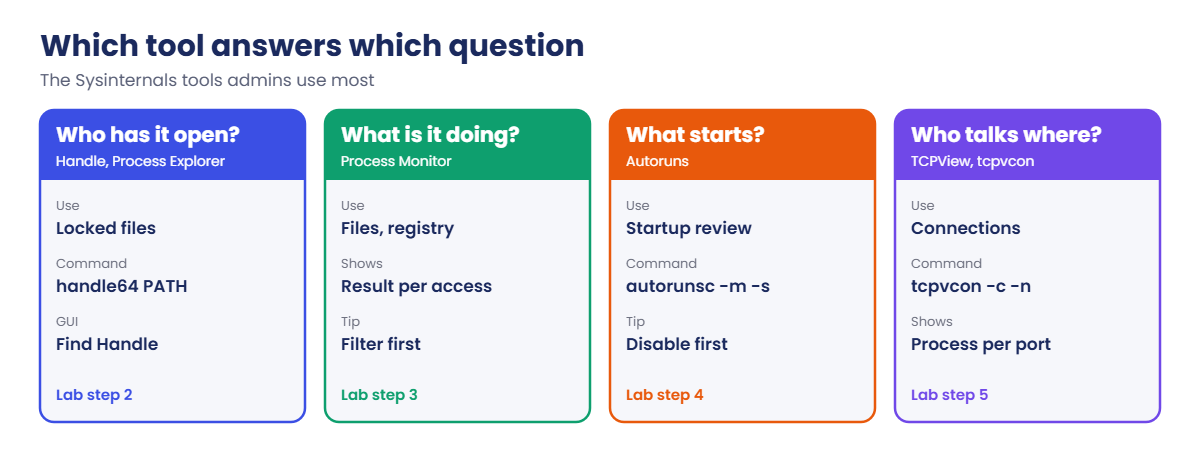
Which tool answers which question:
Start with the question, not the tool. “Who locks this file?” is Handle or Process Explorer. “What is this program trying to read?” is Process Monitor.
“Why does this start at boot?” is Autoruns.
Process Monitor is the most powerful and the noisiest. Set a filter on the process name before you start, reproduce the problem once, then stop the capture.
Run the tools as administrator. Most of what they show (other users’ processes, kernel handles) needs it.
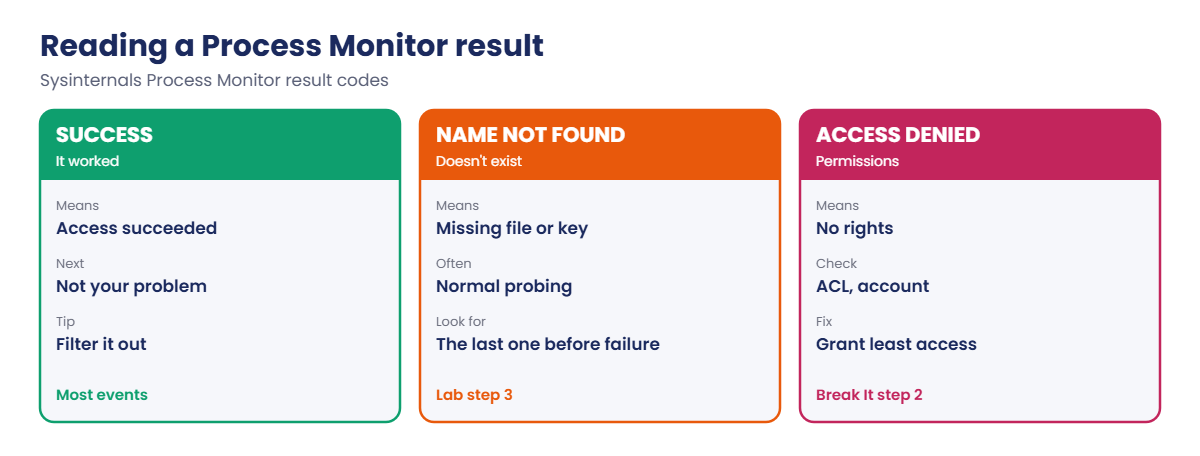
How to read a Process Monitor result:
In the lab you’ll work on SRV01:
- Download and unpack the Sysinternals Suite.
- Find which process has a file open with Handle.
- Trace a command with Process Monitor and export the result.
- List non-Microsoft autostart entries with Autoruns.
- See network connections per process with tcpvcon.
Hands-on lab: see what Windows is doing
Start DC01 and SRV01. Work as SAATLAB\adm.rahul in PowerShell as administrator on SRV01.
1Download the Sysinternals Suite
On SRV01:
New-Item C:\Tools -ItemType Directory -Force | Out-Null
Invoke-WebRequest https://download.sysinternals.com/files/SysinternalsSuite.zip -OutFile C:\Tools\SysinternalsSuite.zip
Expand-Archive C:\Tools\SysinternalsSuite.zip -DestinationPath C:\Tools\Sysinternals -Force
$env:Path += ';C:\Tools\Sysinternals'
Get-ChildItem C:\Tools\Sysinternals\*64.exe | Measure-Object | Select-Object CountYou’ll see something like this:
Count
-----
74The suite has 32-bit and 64-bit versions of most tools; on a 64-bit server use the ones ending in 64. Adding the folder to the path lets you run them by name in this session.
✅ Checkpoint: C:\Tools\Sysinternals holds the tools and you can run them by name.
2Find who has a file open
Open a file in Notepad, then search for it with Handle:
'test' | Set-Content C:\Lab\report.txt
Start-Process notepad.exe C:\Lab\report.txt
handle64.exe -accepteula -nobanner C:\LabYou’ll see something like this:
powershell.exe pid: 4120 type: File 44: C:\Lab
notepad.exe pid: 5236 type: File 1C4: C:\LabHandle lists every process with a handle to anything under that path: here your PowerShell session (its current folder) and Notepad. On a file server, the same search tells you which process or service holds a file that users can’t replace. Close Notepad when you’re done.
✅ Checkpoint: Handle shows the process name and PID holding handles under C:\Lab.

3Trace a command with Process Monitor
Start a capture to a file, run a command, stop it, then export to CSV:
Procmon64.exe /AcceptEula /Quiet /Minimized /BackingFile C:\Lab\trace.pml
Start-Sleep -Seconds 5
cmd /c "type C:\Lab\missing-file.txt"
Procmon64.exe /Terminate
Procmon64.exe /OpenLog C:\Lab\trace.pml /SaveAs C:\Lab\trace.csv
Import-Csv C:\Lab\trace.csv |
Where-Object { $_.'Process Name' -eq 'cmd.exe' -and $_.Path -like '*missing-file*' } |
Select-Object 'Process Name', Operation, Path, Result -First 2 | Format-Table -WrapYou’ll see something like this:
Process Name Operation Path Result
------------ --------- ---- ------
cmd.exe CreateFile C:\Lab\missing-file.txt NAME NOT FOUNDEvery file and registry access is recorded with its result. NAME NOT FOUND means the file or key doesn’t exist, ACCESS DENIED means permissions, and SUCCESS means it worked. In the Procmon window you can do the same with Filter, then Process Name is cmd.exe. [Add your screenshot here]
✅ Checkpoint: C:\Lab\trace.csv shows cmd.exe getting NAME NOT FOUND for missing-file.txt.
4List non-Microsoft autostart entries
On SRV01:
autorunsc64.exe -accepteula -nobanner -a * -c -m -s > C:\Lab\autoruns.csv
Import-Csv C:\Lab\autoruns.csv | Where-Object Entry |
Select-Object Category, Entry, Signer -First 5 | Format-TableYou’ll see something like this:
Category Entry Signer
-------- ----- ------
Services VBoxService (Verified) Oracle America, Inc.
Drivers VBoxGuest (Verified) Oracle America, Inc.
Drivers VBoxSF (Verified) Oracle America, Inc.
Drivers VBoxWddm (Verified) Oracle America, Inc.With Microsoft entries hidden, only third-party software is left: here the VirtualBox Guest Additions and anything else you installed. On a real server, an unsigned entry or one from an unknown company is worth a closer look. Your list depends on what you installed.
✅ Checkpoint: C:\Lab\autoruns.csv lists non-Microsoft autostart entries with their signers.
5See network connections per process
On SRV01:
tcpvcon64.exe -accepteula -nobanner -c -n | ConvertFrom-Csv -Header Proto, Process, PID, State, Local, Remote |
Where-Object State -eq 'ESTABLISHED' | Select-Object -First 4 | Format-TableYou’ll see something like this:
Proto Process PID State Local Remote
----- ------- --- ----- ----- ------
TCP lsass.exe 792 ESTABLISHED 10.0.0.20:49702 10.0.0.10:389
TCP svchost.exe 1436 ESTABLISHED 10.0.0.20:49688 10.0.0.10:135
TCP System 4 ESTABLISHED 10.0.0.20:445 10.0.0.150:50214
TCP dfsrs.exe 2980 ESTABLISHED 10.0.0.20:49711 10.0.0.11:49673Each connection shows the process behind it: lsass talking LDAP to DC01, SMB from CL01, DFS Replication to DC02. When a firewall team asks “what is this server talking to on port X?”, this answers it in one command.
✅ Checkpoint: tcpvcon lists established connections with the owning process.
Break It, Then Fix It
Two everyday mysteries: a file you can’t delete, and a script that does nothing and says nothing.
1Break it: a locked file
In a second PowerShell window on SRV01, open a file and keep it open:
$fs = [System.IO.File]::Open('C:\Lab\report.txt', 'Open', 'ReadWrite', 'None')In your first window, try to delete it:
Remove-Item C:\Lab\report.txtYou’ll see something like this:
Remove-Item : Cannot remove item C:\Lab\report.txt: The process cannot access the file 'C:\Lab\report.txt'
because it is being used by another process.The error says “another process” but not which one. On a busy server that could be a backup agent, antivirus, a user’s session or a service.
Fix it: find the holder, then close it properly:
handle64.exe -accepteula -nobanner C:\Lab\report.txtYou’ll see something like this:
powershell.exe pid: 6012 type: File 2A8: C:\Lab\report.txtPID 6012 is your second window. Close the file there with $fs.Close(), then run Remove-Item C:\Lab\report.txt again and it works. Handle can force a handle closed with -c, but that can crash the program, so stop the owning service or application instead whenever you can.
✅ Checkpoint: Remove-Item failed while the file was open, Handle named the process, and the delete worked after closing it.
2Break it: a script that fails silently
On SRV01, create a folder only administrators can write to, and a script that logs into it but hides errors:
New-Item C:\Lab\Secure -ItemType Directory -Force | Out-Null
icacls C:\Lab\Secure /inheritance:r /grant 'Administrators:(OI)(CI)F' 'SYSTEM:(OI)(CI)F'
Set-Content C:\Lab\nightly.cmd '@echo %date% %time% >> C:\Lab\Secure\run.log 2>nul'Now sign in at the SRV01 console as SAATLAB\sneha.reddy and run C:\Lab\nightly.cmd. Nothing appears on screen, and as adm.rahul you’ll find that C:\Lab\Secure\run.log was never created.
Trace it: as adm.rahul, start Procmon, ask Sneha to run the script again, then check the result:
Procmon64.exe /AcceptEula /Quiet /Minimized /BackingFile C:\Lab\silent.pml
# Sneha runs C:\Lab\nightly.cmd now
Procmon64.exe /Terminate
Procmon64.exe /OpenLog C:\Lab\silent.pml /SaveAs C:\Lab\silent.csv
Import-Csv C:\Lab\silent.csv | Where-Object { $_.Path -like '*Secure*' -and $_.Result -ne 'SUCCESS' } |
Select-Object 'Process Name', Operation, Path, Result -First 1 | Format-Table -WrapYou’ll see something like this:
Process Name Operation Path Result
------------ --------- ---- ------
cmd.exe CreateFile C:\Lab\Secure\run.log ACCESS DENIED
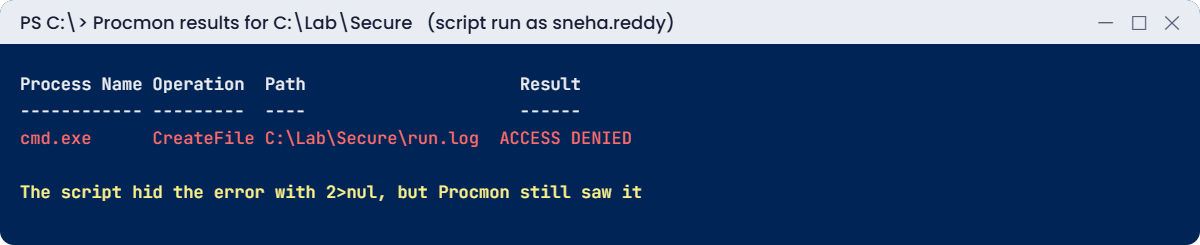
The 2>nul hid the error, but Process Monitor still saw the attempt and its result. This is how you find permission problems in vendor apps that never show a useful message.
Fix it: give GG_IT modify rights on the folder:
icacls C:\Lab\Secure /grant 'SAATLAB\GG_IT:(OI)(CI)M'Sneha signs out and in again, runs the script, and run.log now has a line with the date and time.
✅ Checkpoint: Procmon showed ACCESS DENIED on run.log, and the script works after granting GG_IT modify.
This happened at work
The disk that filled every weekend
A file server’s C: drive filled up every few days. Cleanup freed 20 GB, and three days later it was full again. Explorer showed nothing big, and nobody had installed anything new.
An admin ran Process Monitor for two minutes with a filter on WriteFile operations. One process stood out: a backup agent writing to a debug log under C:\ProgramData several times a second.
A vendor engineer had turned on verbose logging during a support case six months earlier and never turned it off. The log was 90 GB, in a hidden folder that Explorer didn’t show by default.
The fix: debug logging was turned off, the log deleted, and a monthly check now lists the largest files on C: on every server.
The lesson: when something keeps changing and you can’t see why, watch the activity, not the result. Process Monitor shows who writes what.
Common mistakes and troubleshooting
| Mistake | What happens | What to do instead |
|---|---|---|
| Running Procmon without filters for a long time | Huge capture, slow server | Filter first, use a backing file, capture briefly |
| Forcing handles closed with handle -c | The program can crash or corrupt data | Stop the owning service or app |
| Deleting Autoruns entries you don’t recognise | Something important stops working | Research first; untick (disable) before deleting |
| Running tools without admin rights | Half the information is missing | Run as administrator |
| Downloading tools from random sites | Risk of tampered binaries | Use download.sysinternals.com or live.sysinternals.com |
| Leaving Procmon running | Memory and disk use grow | Stop with /Terminate when done |
| Ignoring signer information | Unsigned or unknown entries missed | Use -s and review unsigned entries |
| Forgetting to accept the EULA in scripts | Scripts hang on a dialog | Add -accepteula (or /AcceptEula) |
Interview questions
Click a question to open it. Under each one you’ll find what the interviewer is really looking for, and one good way to answer.
Fresher level
1. What are the Sysinternals tools?
What they’re really checking: Do you know them?
How you could answer: A set of Microsoft diagnostic tools such as Process Explorer, Process Monitor, Autoruns, TCPView and Handle.
2. How do you find which process has a file open?
What they’re really checking: Can you solve a common problem?
How you could answer: Process Explorer’s Find Handle, or handle64 with the file path, then stop the owning app or service.
3. What does Autoruns show?
What they’re really checking: Do you know startup locations?
How you could answer: Everything set to start automatically: services, drivers, scheduled tasks, Run keys, Winlogon and more.
2–5 years experience
4. An app fails with no useful error. How do you troubleshoot?
What they’re really checking: Do you know Procmon?
How you could answer: Capture with Process Monitor filtered on the app, reproduce once, and look for ACCESS DENIED or NAME NOT FOUND on files and registry keys.
5. How do you keep a Procmon capture manageable?
What they’re really checking: Do you use it well?
How you could answer: Filter by process before capturing, use a backing file, capture only while reproducing, and drop filtered events.
6. How would you spot suspicious autostart entries?
What they’re really checking: Do you think about security?
How you could answer: autorunsc with -m to hide Microsoft entries, -s to verify signatures and -h for hashes, then check unsigned or unknown entries.
Senior level
7. How would you use these tools across many servers?
What they’re really checking: Do you think at scale?
How you could answer: Run command-line versions remotely with Invoke-Command, collect CSV output centrally, and compare against a known-good baseline.
8. When would you use Procmon boot logging?
What they’re really checking: Do you know advanced features?
How you could answer: For problems during startup or logon, such as slow boots or services failing before you can log in.
9. What are the risks of these tools in production?
What they’re really checking: Do you balance value and risk?
How you could answer: Overhead from captures, crashes from closing handles, and sensitive data in traces. Use filters, short captures and secure the output.
Quick quiz
Q1. Which tool records file and registry activity live?
- Autoruns
- Process Monitor
- TCPView
Show answer
B — It shows each result.
Q2. What does NAME NOT FOUND mean in Procmon?
- Permission problem
- The file or key doesn’t exist
- Success
Show answer
B — ACCESS DENIED is permissions.
Q3. Which switch hides Microsoft entries in autorunsc?
- -m
- -c
- -h
Show answer
A — -s verifies signatures.
Q4. Why is handle -c risky?
- It’s slow
- Closing a handle can crash the program
- It needs internet
Show answer
B — Stop the owner instead.
Q5. In the work story, what filled the disk?
- Windows updates
- A debug log left on by a vendor
- Shadow copies
Show answer
B — Procmon showed the writes.
Quick recap
- Sysinternals tools show what Windows is really doing.
- Handle and Process Explorer find who has a file open.
- Process Monitor records file and registry activity with results like ACCESS DENIED.
- Autoruns lists every autostart location; hide Microsoft entries to spot the unusual.
- tcpvcon maps network connections to processes.
Next lesson
Lesson 53: Final project → You’ll build a small company network from scratch, then fix ten broken scenarios using everything from this course.
Further reading: Sysinternals
Want to go deeper into Sysinternals? Microsoft’s Sysinternals home page lists every tool, and the Process Monitor page describes its features. You can also see the full plan for this course on the Windows Server Administration course page.
