Build your Windows Server lab
-
Phase 0: Before you start
-
Phase 1: The foundation
-
Phase 2: Core administration and security
-
Phase 3: Enterprise infrastructure
-
Phase 4: Troubleshooting step by step
-
Phase 5: Final project and career
Nobody learns Windows Server by reading. You learn it by building servers, breaking them and fixing them, and you need a place where breaking things is allowed.
In this lesson you’ll build that place on your own laptop: a Windows Server lab with four virtual machines on their own private network. Every lab in the rest of the course runs here, so it’s worth setting up carefully once.
| Time | You need | By the end you can |
|---|---|---|
| About 90 minutes, most of it waiting for downloads | The laptop you checked in Lesson 1, an internet connection, and about 12 GB of downloads | Install VirtualBox, download the Windows Server 2025 and Windows 11 evaluation ISOs, build a private lab network, and create four virtual machines ready for installation in Lesson 5 |
What it is, in one line
A Windows Server lab is a set of virtual machines on a private network inside your own computer, where you can install, change and break servers without touching anything real.
In Simple Words
A practice kitchen
A restaurant doesn’t let a new cook try a recipe for the first time during the Saturday dinner rush. New cooks practise in a training kitchen first. If the sauce burns there, nobody’s dinner is ruined.
The training kitchen has the same stoves and pans as the real one. It’s just separate, so mistakes stay inside it.
Your lab is a training kitchen for servers. VirtualBox lets your laptop pretend to be several computers at once, each with its own screen, disk and network card. They’re connected to each other, but walled off from your home or office network.
Engineer's View
What you are really building
A type 2 hypervisor. VirtualBox runs as an app on top of Windows, so it’s called a type 2 hypervisor. Hyper-V and VMware ESXi run directly on the hardware (type 1) and are what companies use in production.
The servers you build behave the same either way, which is why VirtualBox is fine for learning.
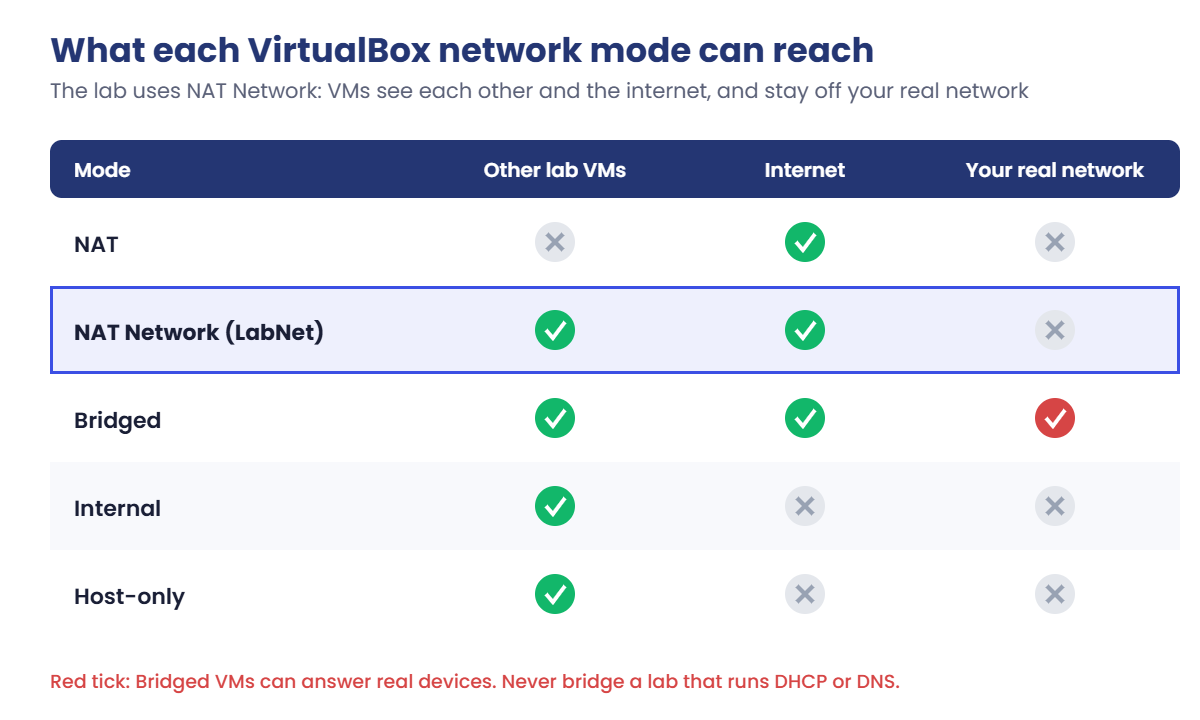
The network mode matters most. VirtualBox offers several ways to connect a VM:
- NAT: each VM gets internet, but VMs can’t see each other. No good for a domain.
- NAT Network: VMs share a private network, can see each other and still reach the internet through your laptop. This is what the lab uses.
- Bridged: the VM joins your real home or office network like another laptop. Dangerous once you run a DHCP or DNS server.
- Internal / Host-only: private networks with no internet, or only your laptop. Useful later for special tests.
DHCP is switched off on the lab network. VirtualBox can hand out addresses on a NAT Network, but in Lesson 15 your own Windows DHCP server will do that job. Two DHCP servers on one network fight, so you turn VirtualBox’s off from the start.
Evaluation licences. Microsoft’s Evaluation Center gives you Windows Server 2025 for 180 days and Windows 11 Enterprise for 90 days. They’re the full products with a time limit.
Lesson 4 shows how to check and extend the time left; when a VM expires you can also rebuild it, which is good practice anyway.
Dynamically allocated disks. Each VM gets a 60 or 80 GB virtual disk, but the file on your laptop grows only as the VM writes data. A fresh Server 2025 install uses roughly 10 to 15 GB.
Sharing the laptop with Hyper-V. If Windows already runs a hypervisor (Hyper-V, WSL 2, or Memory Integrity), VirtualBox still works but runs on top of it, which is slower. You’ll check this in step 1.
How it works, step by step
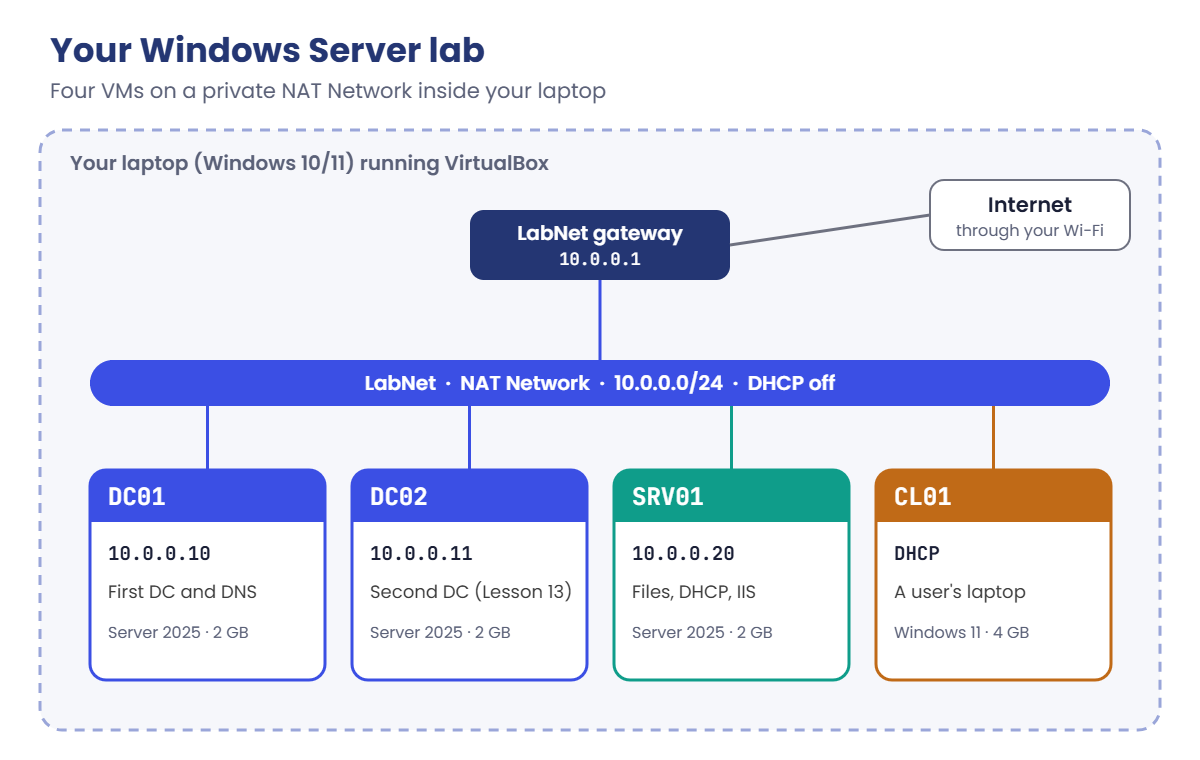
Here’s the lab you’ll have at the end of this lesson. Four virtual machines sit on one private network called LabNet. Your laptop’s real network card carries their internet traffic, but nothing on your home or office network can see them.
- VirtualBox runs on your laptop and creates the four VMs. Each one is a folder in
C:\Lab\VMswith a settings file and a virtual disk. - LabNet connects them. It’s a NAT Network with the range 10.0.0.0/24. VirtualBox sits at 10.0.0.1 as the gateway and passes internet traffic out through your laptop.
- Each VM gets a fixed job and address. You’ll type these addresses in by hand in Lesson 6, the way real servers are set up:
| VM | Job in the course | Address | Operating system |
|---|---|---|---|
| DC01 | First domain controller, DNS | 10.0.0.10 | Windows Server 2025 |
| DC02 | Second domain controller (from Lesson 13) | 10.0.0.11 | Windows Server 2025 |
| SRV01 | File server, DHCP, IIS and more | 10.0.0.20 | Windows Server 2025 |
| CL01 | A user’s laptop | From DHCP (10.0.0.100 to 10.0.0.200) | Windows 11 Enterprise |
You never run all four at once on a small laptop. Most labs need two or three VMs. Here’s how to plan memory:
| Your laptop | Run together | Memory each |
|---|---|---|
| 8 GB RAM | DC01 + one other VM | DC01 and SRV01 2 GB each; CL01 needs 4 GB, so run it with DC01 only |
| 16 GB RAM | All four | DC01, DC02, SRV01 2 GB each; CL01 4 GB |
| 32 GB RAM | All four plus the cluster labs | Give SRV01 4 GB for the heavier labs |
Why a NAT Network and not the other modes? This picture shows what each mode can reach:
Bridged mode is the one to avoid. The moment your lab runs a DHCP server, a bridged VM could start handing out addresses to real laptops on your network. You’ll read about exactly that in the work story below.
Hands-on Lab: build your Windows Server lab
You’ll do almost everything from PowerShell, so you can repeat it later or fix a single step without clicking through wizards. Open Windows PowerShell as a normal user (not as administrator) unless a step says otherwise.
1Check if Windows is already running a hypervisor
Run this:
(Get-CimInstance Win32_ComputerSystem).HypervisorPresentYou should see one of these:
FalseFalse is the best case: VirtualBox gets the processor’s virtualization feature to itself. True means Hyper-V, WSL 2, Windows Sandbox or Memory Integrity is running a hypervisor already. VirtualBox still works on top of it, but VMs run slower and you’ll see a small green turtle icon in the VM’s status bar.
If it says True and you don’t need those features, you can turn it off: open Windows Security, go to Device security, then Core isolation details, and switch off Memory integrity. Then, in an administrator PowerShell, run bcdedit /set hypervisorlaunchtype off and restart. On a company laptop, ask your IT team first; these are security settings.
✅ Checkpoint: You know whether your laptop shows True or False, and you have decided whether to keep the hypervisor on.
2Install VirtualBox
Run this:
winget install --id Oracle.VirtualBox -eClick Yes when Windows asks for permission. If winget isn’t available, download the Windows installer from virtualbox.org and run it with the default options. If the installer asks for the Microsoft Visual C++ Redistributable, install that from Microsoft’s site first and run the VirtualBox installer again.
When it finishes, run this:
& "$env:ProgramFiles\Oracle\VirtualBox\VBoxManage.exe" --versionYou should see something like this:
7.2.20r172096VBoxManage is VirtualBox’s command-line tool. Anything you can click in the VirtualBox window, you can also do with it. The & at the start tells PowerShell to run the program at that path.
✅ Checkpoint: VBoxManage prints a version number starting with 7.
3Make VBoxManage easy to call
Typing the full path every time gets old quickly. Add the VirtualBox folder to your user PATH, the list of folders Windows searches for programs:
Paste this whole block:
$vbox = "$env:ProgramFiles\Oracle\VirtualBox"
$userPath = [Environment]::GetEnvironmentVariable('Path', 'User')
[Environment]::SetEnvironmentVariable('Path', "$userPath;$vbox", 'User')This prints nothing. Now close this PowerShell window and open a new one; a window only reads PATH when it starts.
In the new window, run this:
VBoxManage --versionYou should see something like this:
7.2.20r172096✅ Checkpoint: VBoxManage works by name in a new PowerShell window.
4Make the lab folders and download the ISOs
Run this:
New-Item -ItemType Directory -Path C:\Lab\ISO, C:\Lab\VMsYou should see something like this:
Directory: C:\Lab
Mode LastWriteTime Length Name
---- ------------- ------ ----
d----- 19-10-2026 19:40 ISO
d----- 19-10-2026 19:40 VMsNow download the two ISOs from Microsoft’s Evaluation Center. Each page asks you to fill in a short form first:
- Windows Server 2025: open Windows Server 2025 on the Evaluation Center, choose ISO download, 64-bit, English.
- Windows 11 Enterprise: open Windows 11 Enterprise on the Evaluation Center and choose the 64-bit ISO for the latest version (not the LTSC one).
Move both files into C:\Lab\ISO and rename them to server2025.iso and win11.iso. Then check them:
Run this:
Get-ChildItem C:\Lab\ISO | Select-Object Name, @{n='SizeGB';e={[math]::Round($_.Length/1GB,1)}}You should see something like this:
Name SizeGB
---- ------
server2025.iso 5.6
win11.iso 6.4✅ Checkpoint: Both ISOs are in C:\Lab\ISO with exactly these names, and each is several GB. A file of a few MB means the download stopped early.
5Build the private lab network
Run this:
VBoxManage natnetwork add --netname LabNet --network "10.0.0.0/24" --enable --dhcp off
VBoxManage natnetwork listYou should see something like this:
NAT Networks:
Name: LabNet
Enabled: Yes
Network: 10.0.0.0/24
Gateway: 10.0.0.1
DHCP Server: No
IPv6: No
IPv6 Prefix: fd17:625c:f037:a00::/64
IPv6 Default: No
1 network foundThe first command prints nothing when it works. The list confirms the range, the gateway at 10.0.0.1 and, most important, DHCP Server: No.
✅ Checkpoint: LabNet exists with network 10.0.0.0/24 and DHCP Server: No.
6Create the four virtual machines
This block creates each VM with VirtualBox’s recommended settings for its operating system (--default), then sets the memory, connects it to LabNet, creates its disk and puts the right ISO in its virtual DVD drive.
Paste this whole block:
$vms = @(
@{ Name = 'DC01'; Type = 'Windows2025_64'; RAM = 2048; Disk = 61440; ISO = 'C:\Lab\ISO\server2025.iso' },
@{ Name = 'DC02'; Type = 'Windows2025_64'; RAM = 2048; Disk = 61440; ISO = 'C:\Lab\ISO\server2025.iso' },
@{ Name = 'SRV01'; Type = 'Windows2025_64'; RAM = 2048; Disk = 61440; ISO = 'C:\Lab\ISO\server2025.iso' },
@{ Name = 'CL01'; Type = 'Windows11_64'; RAM = 4096; Disk = 81920; ISO = 'C:\Lab\ISO\win11.iso' }
)
foreach ($v in $vms) {
$vdi = "C:\Lab\VMs\$($v.Name)\$($v.Name).vdi"
VBoxManage createvm --name $v.Name --ostype $v.Type --basefolder C:\Lab\VMs --register --default
VBoxManage modifyvm $v.Name --memory $v.RAM --cpus 2 --nic1 natnetwork --nat-network1 LabNet
VBoxManage createmedium disk --filename $vdi --size $v.Disk
VBoxManage storageattach $v.Name --storagectl SATA --port 0 --device 0 --type hdd --medium $vdi
VBoxManage storageattach $v.Name --storagectl SATA --port 1 --device 0 --type dvddrive --medium $v.ISO
}You should see this four times, once per VM (the UUIDs will be different):
Virtual machine 'DC01' is created and registered.
UUID: 3f0c6e2a-8b1d-4c57-9a2e-6d41b7f0c9a1
Settings file: 'C:\Lab\VMs\DC01\DC01.vbox'
0%...10%...20%...30%...40%...50%...60%...70%...80%...90%...100%
Medium created. UUID: 9d2b7c41-0e6a-4f3b-b8c5-2a7e91d4f063--size is in MB, so 61440 is 60 GB and 81920 is 80 GB. The disks start small and grow as the VMs use them. Windows11_64 turns on everything Windows 11 needs: UEFI, Secure Boot and a virtual TPM 2.0.
✅ Checkpoint: Four “is created and registered” messages and four “Medium created” lines, with no red errors.
7Check what you built
Run these:
VBoxManage list vms
VBoxManage showvminfo DC01 --machinereadable | Select-String '^(ostype|memory|cpus|nic1|nat-network1)='You should see something like this:
"DC01" {3f0c6e2a-8b1d-4c57-9a2e-6d41b7f0c9a1}
"DC02" {b6a1d9e0-2f4c-47a8-9e13-58c0d2f7a4b2}
"SRV01" {e2c94f17-6a3b-4d0e-8f25-71b8a3c6d9e4}
"CL01" {0a7f3e5c-91d2-4b6a-a4e8-3c5d7f1b2e90}
ostype="Windows Server 2025 (64-bit)"
memory=2048
cpus=2
nat-network1="LabNet"
nic1="natnetwork"
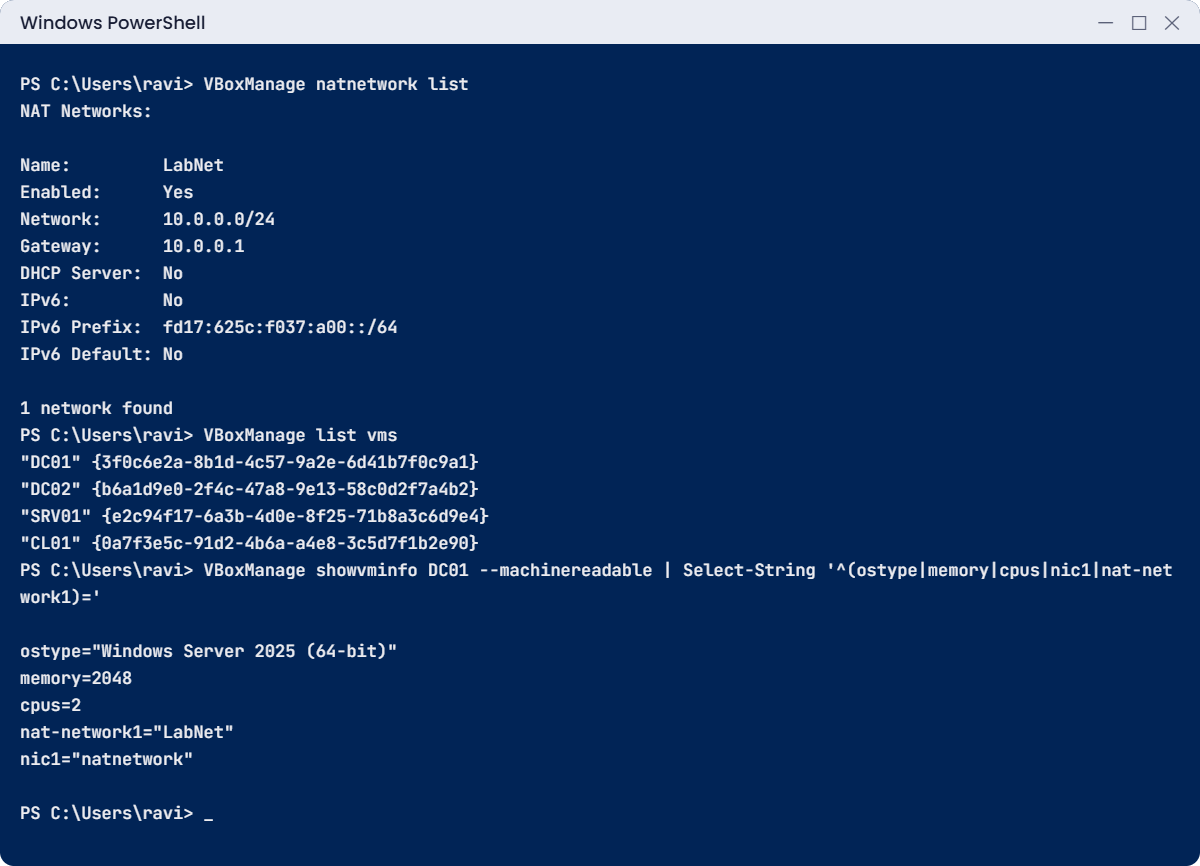
--machinereadable prints every setting as name=value, and Select-String keeps only the lines you asked for. You’ll use the same pattern on servers: dump everything, then filter for what matters.
✅ Checkpoint: All four VMs are listed, and DC01 is on LabNet with 2048 MB and 2 CPUs.
8Start DC01 once to prove it works
Run this:
VBoxManage startvm DC01You should see something like this:
Waiting for VM "DC01" to power on...
VM "DC01" has been successfully started.A window opens, and after a few seconds Windows Setup asks for your language. That means the VM booted from the Server 2025 ISO, so virtualization, the disk and the DVD drive all work. Don’t install yet; that’s Lesson 5.
Turn it off:
VBoxManage controlvm DC01 poweroffYou should see this:
0%...10%...20%...30%...40%...50%...60%...70%...80%...90%...100%✅ Checkpoint: DC01 reached the Windows Setup language screen and then powered off.
Break It, Then Fix It
Two problems stop more first-time labs than anything else: a tool that “isn’t installed” even though you just installed it, and a file that “doesn’t exist” even though you can see it. You’ll cause both on purpose.
1Break it: the command that disappeared
Your current window already has VirtualBox on its PATH. To see what a window started before the change sees, remove the folder from this window’s copy of PATH:
Run this:
$env:Path = ($env:Path -split ';' | Where-Object { $_ -notlike '*VirtualBox*' }) -join ';'
VBoxManage list vmsYou’ll get an error like this:
VBoxManage : The term 'VBoxManage' is not recognized as the name of a cmdlet, function, script file, or operable
program. Check the spelling of the name, or if a path was included, verify that the path is correct and try again.
At line:1 char:1
+ VBoxManage list vms
+ ~~~~~~~~~~
+ CategoryInfo : ObjectNotFound: (VBoxManage:String) [], CommandNotFoundException
+ FullyQualifiedErrorId : CommandNotFoundExceptionVirtualBox is still installed. PowerShell just doesn’t know which folder to look in, because each window keeps its own copy of PATH from the moment it opened. This is the classic “I installed it but it says not recognized” problem, and it happens with every tool you’ll install on servers too.
Fix it: check where the program is, then open a new window, which reads PATH fresh:
Test-Path "$env:ProgramFiles\Oracle\VirtualBox\VBoxManage.exe"You should see this:
TrueThe file is there, so the problem is PATH, not the install. Close the window, open a new PowerShell window and run VBoxManage list vms again. Your four VMs are back.
✅ Checkpoint: In a new window, VBoxManage list vms shows DC01, DC02, SRV01 and CL01.
2Break it: the ISO that is not there
File Explorer hides file extensions by default. If you rename a downloaded file to “win11.iso” in Explorer while extensions are hidden, Windows quietly keeps the old “.iso”, and the real name becomes win11.iso.iso. Recreate that mistake. The first two lines take the ISO out of CL01’s drive and make VirtualBox forget it, so you start from the same point as a first-time setup:
Run this:
VBoxManage storageattach CL01 --storagectl SATA --port 1 --device 0 --type dvddrive --medium emptydrive
VBoxManage closemedium dvd C:\Lab\ISO\win11.iso
Rename-Item C:\Lab\ISO\win11.iso win11.iso.iso
VBoxManage storageattach CL01 --storagectl SATA --port 1 --device 0 --type dvddrive --medium C:\Lab\ISO\win11.isoYou’ll get an error like this:
VBoxManage.exe: error: Could not find file for the medium 'C:\Lab\ISO\win11.iso' (VERR_FILE_NOT_FOUND)
VBoxManage.exe: error: Details: code VBOX_E_FILE_ERROR (0x80bb0004), component MediumWrap, interface IMedium, callee IUnknown
VBoxManage.exe: error: Context: "OpenMedium(Bstr(pszFilenameOrUuid).raw(), enmDevType, enmAccessMode, fForceNewUuidOnOpen, pMedium.asOutParam())" at line 203 of file VBoxManageDisk.cpp
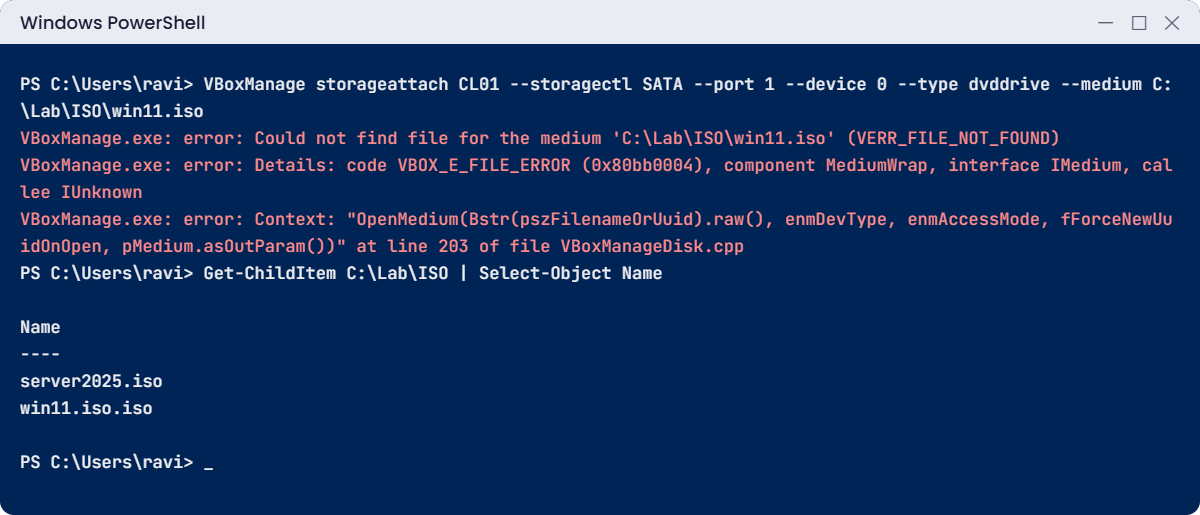
The first line is the one that matters: VERR_FILE_NOT_FOUND for the exact path VirtualBox tried. The “Details” and “Context” lines are for VirtualBox developers; you can skip them.
Fix it: don’t trust Explorer, ask PowerShell for the real names:
Get-ChildItem C:\Lab\ISO | Select-Object NameYou should see this:
Name
----
server2025.iso
win11.iso.isoRename it back and attach it again:
Rename-Item C:\Lab\ISO\win11.iso.iso win11.iso
VBoxManage storageattach CL01 --storagectl SATA --port 1 --device 0 --type dvddrive --medium C:\Lab\ISO\win11.isoThe attach prints nothing, which means it worked. To stop this trap for good, turn on file extensions in File Explorer: View, Show, File name extensions. Every admin does this on day one.
✅ Checkpoint: Get-ChildItem shows win11.iso again, and the attach command runs without an error.
This happened at work
The test server that handed out the wrong addresses
An engineer at a 250-person office was preparing a DHCP migration. He built a test Windows Server VM on his workstation to practise, and because he wanted it to reach the internet for updates, he set its network to Bridged. Then he installed the DHCP role and created a scope for the test.
Within an hour the helpdesk had a queue of tickets: laptops connected to Wi-Fi but couldn’t open anything. They’d been given addresses, a gateway and a DNS server from his test scope, none of which led anywhere. Every laptop that renewed its lease picked the fastest DHCP server to answer, and sometimes that was his VM.
The network team found it by running ipconfig /all on an affected laptop and reading the DHCP Server line: it showed an address nobody recognised. They traced it to his workstation’s switch port and shut the port.
The fix: test VMs moved to isolated networks with no path to the office LAN. The network team turned on DHCP snooping on the switches, so only the real DHCP servers’ ports can answer. On the Windows side, only DHCP servers authorized in Active Directory are allowed to start handing out addresses in a domain (Lesson 15).
The lesson: a lab is only safe if it’s walled off. Pick the network mode on purpose, not because it was the quickest way to get internet.
Common mistakes and troubleshooting
| Mistake or symptom | What happens | What to do instead |
|---|---|---|
| Putting lab VMs on Bridged networking | Your lab DHCP or DNS server answers real devices on your home or office network | Use the NAT Network (LabNet) for every lab VM |
| Leaving DHCP on in the NAT Network | Later, two DHCP servers hand out different settings and clients pick at random | Create LabNet with --dhcp off, or switch it off with VBoxManage natnetwork modify --netname LabNet --dhcp off |
| Giving every VM lots of RAM | The laptop starts paging, everything freezes, and VMs crash | Follow the memory plan; run only the VMs a lab needs |
| Saving VMs and ISOs on a nearly full C: drive | Disks grow until the host runs out of space and VMs pause | Keep 80 GB free, or use another drive and change C:\Lab in the commands |
| VM shows a green turtle icon and is very slow | VirtualBox is running on top of Hyper-V | See step 1: turn off the hypervisor if you don’t need it |
| “VT-x is not available (VERR_VMX_NO_VMX)” or “AMD-V is disabled” when starting a VM | The VM won’t start at all | Turn on Intel VT-x or AMD-V (sometimes called SVM) in the laptop’s BIOS or UEFI settings |
| “The term ‘VBoxManage’ is not recognized” | Commands fail right after installing | Open a new PowerShell window so it reads the updated PATH (Break It 1) |
| “Could not find file for the medium” | The ISO or disk path is wrong, often a hidden double extension | Check real names with Get-ChildItem (Break It 2) |
| Windows 11 Setup says “This PC can’t run Windows 11” | The VM was created without TPM or Secure Boot | Create CL01 with --ostype Windows11_64 --default as in step 6, which turns both on |
Interview questions
Click a question to open it. Under each one you’ll find what the interviewer is really looking for, and one good way to answer.
Fresher level
1. What is a virtual machine?
What they’re really checking: Do you understand virtualization at a basic level?
How you could answer: A computer made in software. A hypervisor shares the real machine’s CPU, memory, disk and network between several VMs, and each VM runs its own operating system as if it had its own hardware.
2. What is the difference between a type 1 and a type 2 hypervisor?
What they’re really checking: Can you place the tools you know in the right category?
How you could answer: A type 1 hypervisor runs directly on the hardware, like Hyper-V or VMware ESXi, and is used in data centres. A type 2 runs as an app on a normal operating system, like VirtualBox or VMware Workstation, and is used for labs and testing.
3. How would you build a practice lab for Windows Server at home?
What they’re really checking: Have you actually done it?
How you could answer: VirtualBox or Hyper-V on a laptop with enough RAM, the Windows Server evaluation ISO from Microsoft, and a private network for the VMs so they can talk to each other but not to the home network. I’d plan names and IP addresses first.
2–5 years experience
4. Compare NAT, NAT Network, Bridged and Internal networking in VirtualBox.
What they’re really checking: Do you understand isolation and reachability?
How you could answer: NAT gives each VM internet but isolates VMs from each other.
NAT Network puts VMs on a shared private network with internet through the host. Bridged puts the VM on the physical LAN. Internal is a private network with no internet.
For a domain lab, NAT Network or Internal, never Bridged.
5. A user reports their laptop got an address from a server nobody recognises. What do you do?
What they’re really checking: Do you recognise a rogue DHCP server?
How you could answer: Run ipconfig /all and note the DHCP Server address. Find the device behind it through the switch MAC address table, shut the port or remove the device, and get clients to renew. Then prevent it: DHCP snooping on switches and only authorized DHCP servers in AD.
6. Why would you script lab or server builds instead of clicking through wizards?
What they’re really checking: Do you value repeatable work?
How you could answer: Scripts give the same result every time, document exactly what was done, and can be reviewed before running. If a VM breaks, you can rebuild it in minutes instead of remembering 30 clicks.
Senior level
7. How do you design a test environment that matches production closely enough to trust?
What they’re really checking: Do you think about test fidelity and isolation?
How you could answer: Same OS versions, patch levels, roles and Group Policy as production, with the same network design scaled down. Keep it isolated from production identity and networks, refresh it from production configuration regularly, and record what is different so test results are read correctly.
8. Your developers run Hyper-V and WSL 2, and your team standard is VirtualBox. What do you tell them?
What they’re really checking: Do you understand hypervisor coexistence?
How you could answer: Both can run together: VirtualBox uses the Windows Hypervisor Platform when Hyper-V is on, at the cost of speed. If performance matters, standardise on one. On company laptops, don’t turn off Memory Integrity just for a lab; security settings come first.
9. How do you control licensing in lab and test environments?
What they’re really checking: Do you know evaluation and test licensing exists and has limits?
How you could answer: Use evaluation editions or the organisation’s test and development licensing for non-production. Track expiry dates, and rebuild or convert before they expire. Never let a lab system slip into production use on an evaluation licence.
Quick quiz
Q1. Which VirtualBox network mode lets lab VMs see each other and reach the internet, while staying hidden from your home network?
- Bridged
- NAT Network
- NAT
Show answer
B — NAT Network puts the VMs on a shared private network and routes their internet traffic through your laptop.
Q2. Why is DHCP switched off on LabNet?
- VirtualBox DHCP is too slow
- Your own Windows DHCP server will hand out addresses in Lesson 15, and two DHCP servers would clash
- VMs don’t need IP addresses
Show answer
B — Two DHCP servers on one network hand out conflicting settings.
Q3. You installed VirtualBox, but VBoxManage is “not recognized” in your open PowerShell window. What is the most likely cause?
- VirtualBox failed to install
- The window was opened before PATH changed
- VBoxManage needs administrator rights
Show answer
B — Each window reads PATH when it starts. A new window fixes it.
Q4. What does VERR_FILE_NOT_FOUND tell you when attaching an ISO?
- The ISO is corrupt
- VirtualBox couldn’t find a file at that exact path
- The VM is running
Show answer
B — Check the real file name, for example a hidden double extension like win11.iso.iso.
Q5. In the work story, how did the network team find the test server?
- They rebooted every switch
- They read the DHCP Server line in ipconfig /all on an affected laptop
- They reinstalled the real DHCP server
Show answer
B — The DHCP Server line showed an unknown address, which they traced to a switch port.
Quick recap
- Your Windows Server lab runs in VirtualBox, a type 2 hypervisor on your laptop.
- All lab VMs sit on LabNet, a NAT Network (10.0.0.0/24, gateway 10.0.0.1) with DHCP off.
- Four VMs: DC01, DC02, SRV01 on Windows Server 2025 and CL01 on Windows 11 Enterprise, created with
VBoxManage createvm --default. - Run only the VMs a lab needs, and follow the memory plan for your laptop.
- “Not recognized” usually means PATH; “file not found” usually means the real file name is different from what you think.
- Never bridge a lab that runs DHCP or DNS.
Next lesson
Lesson 3: Windows Server versions and lifecycle → You’ll see how Windows Server grew from 2012 R2 to 2025, what LTSC means, which versions are still supported today, and when to choose Desktop Experience or Server Core.
Further reading: Windows Server lab
Want to go deeper into building a Windows Server lab? Read Microsoft’s Windows Server hardware requirements on Microsoft Learn. You can also see the full plan for this course on the Windows Server Administration course page.
