Windows print server: printers, drivers and queues
-
Phase 0: Before you start
-
Phase 1: The foundation
-
Phase 2: Core administration and security
-
Phase 3: Enterprise infrastructure
-
Phase 4: Troubleshooting step by step
-
Phase 5: Final project and career
Printing sounds old-fashioned until the CEO can’t print board papers ten minutes before a meeting. A Windows print server puts every printer, driver and queue in one place, so you can fix, update and secure them centrally.
In this lesson you’ll install the Print Server role on SRV01, add a Finance printer with an inbox driver, share it and publish it in AD, connect Priya to it, clear a stuck queue, and switch off the Print Spooler on your DCs.
| Time | You need | By the end you can |
|---|---|---|
| About 60 minutes | DC01, DC02, SRV01 and CL01 from Lesson 17 | Install and manage a print server with PowerShell, share and publish printers, control who can print, clear stuck queues and harden the spooler |
What it is, in one line
A Windows print server is a Windows Server that hosts shared printers: it holds their drivers and queues, and every client prints through it instead of straight to the printer.
In Simple Words
The office post room
Instead of every employee walking to the post office, they drop letters in the office post room. The post room keeps a queue, knows which courier to use, and tells you if something’s stuck.
A print server is that post room. Laptops send jobs to SRV01. SRV01 queues them, uses the right “language” (the driver) for each printer, and sends them on.
If the post room clerk goes home, nothing gets sent. On Windows, that clerk is the Print Spooler service.
Engineer's View
Spooler, drivers, ports and security
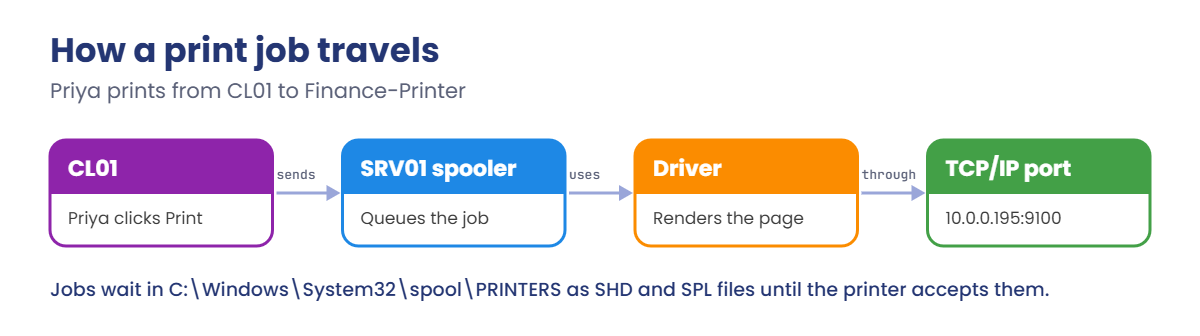
The Print Spooler (spoolsv.exe) accepts jobs, stores them as files in C:\Windows\System32\spool\PRINTERS, renders them with the printer’s driver and sends them through a port. A Standard TCP/IP port points at the printer’s IP address, usually RAW on TCP 9100 or LPR.
Drivers: modern Windows prefers inbox class drivers such as the Microsoft IPP and PS class drivers, plus Universal Print and vendor universal drivers. Since the 2021 PrintNightmare fixes, standard users can’t install printer drivers from a print server by default (Point and Print restrictions), so drivers should already be on clients or be class drivers.
Publishing adds a printQueue object to AD, so users can search for printers by name or location. Printer permissions are like NTFS: Print, Manage documents and Manage this printer.
Security: the spooler has a long history of vulnerabilities. Microsoft recommends disabling it on domain controllers and any server that doesn’t print. Microsoft Defender for Identity even flags DCs with the spooler running.
How it works, step by step
This is the journey of a page Priya prints from CL01:
Because jobs pass through SRV01, you see every queue in one place, change a printer’s IP address once, and swap drivers without touching laptops. The price is that SRV01’s spooler becomes something to watch.
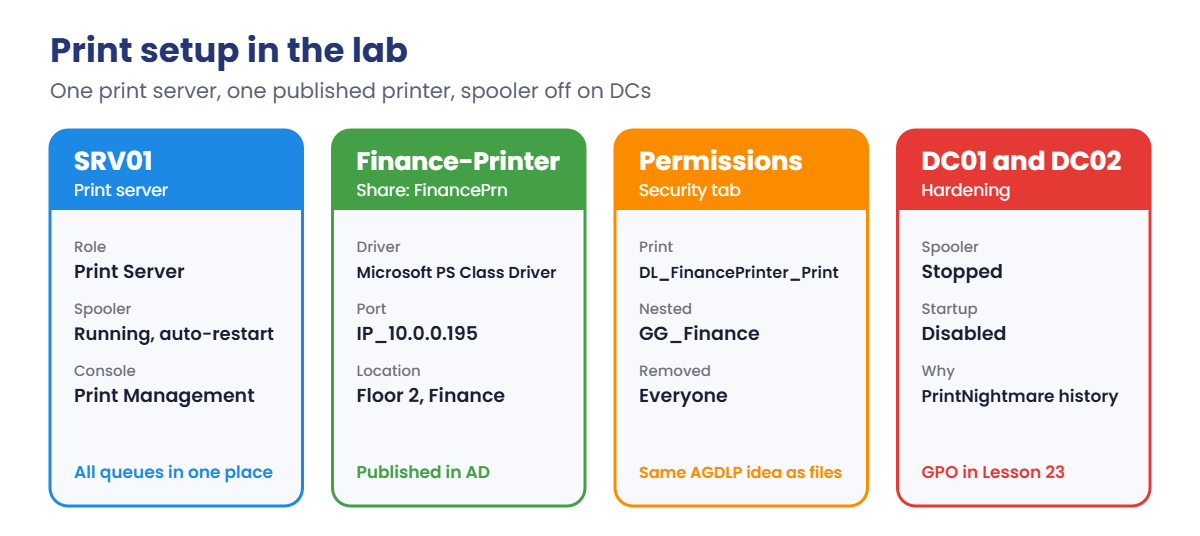
Here’s the print setup you’ll build:
- Install the Print Server role and management tools on SRV01.
- Add a TCP/IP port, an inbox class driver and the Finance printer.
- Share and publish it, and limit printing to Finance with a group.
- Connect Priya’s session on CL01 and send a test job.
- Harden: stop and disable the spooler on DC01 and DC02.
There’s no real printer in the lab, so the address 10.0.0.195 (inside the DHCP exclusion from Lesson 15) stands in for one. Jobs will wait in the queue, which is perfect for the troubleshooting part.
Hands-on Lab: Windows print server on SRV01
Start DC01, SRV01 and CL01. Work on SRV01 as SAATLAB\Administrator in PowerShell as administrator.
1Install the Print Server role
On SRV01, run this:
Install-WindowsFeature Print-Server -IncludeManagementToolsYou should see something like this:
Success Restart Needed Exit Code Feature Result
------- -------------- --------- --------------
True No Success {Print and Document Services, Print Server, Print Management...✅ Checkpoint: The Print Server role installed, and Print Management appears under Tools in Server Manager.
2Add the port, driver and printer
On SRV01, see which class drivers are available, then add the Finance printer:
Get-PrinterDriver -Name *Class* | Select-Object Name
Add-PrinterPort -Name IP_10.0.0.195 -PrinterHostAddress 10.0.0.195
Add-PrinterDriver -Name 'Microsoft PS Class Driver'
Add-Printer -Name 'Finance-Printer' -DriverName 'Microsoft PS Class Driver' -PortName IP_10.0.0.195 -Location 'Floor 2, Finance' -Comment 'Lab printer for Finance'
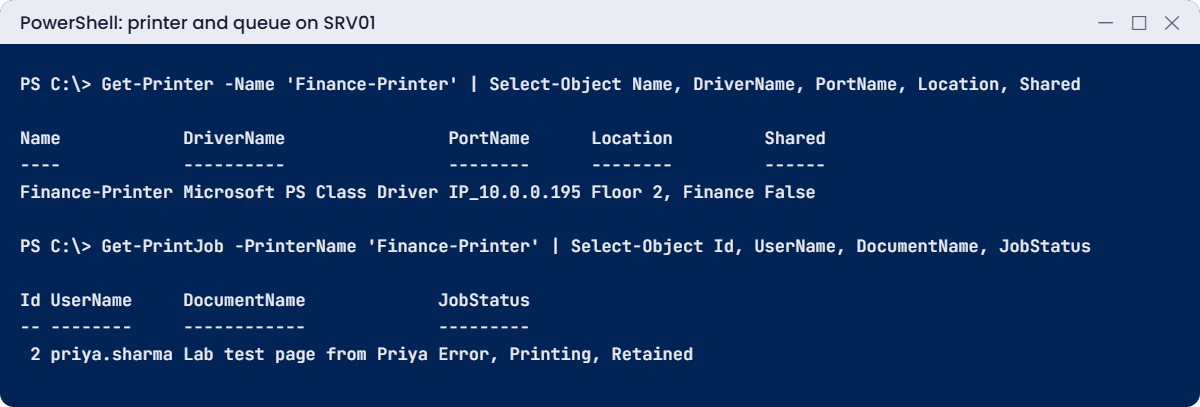
Get-Printer -Name 'Finance-Printer' | Select-Object Name, DriverName, PortName, Location, SharedYou should see something like this:
Name DriverName PortName Location Shared
---- ---------- -------- -------- ------
Finance-Printer Microsoft PS Class Driver IP_10.0.0.195 Floor 2, Finance FalseIf Get-PrinterDriver shows no PS class driver, use another class driver from its list, such as the IPP class driver, and keep the same name in the next commands. Class drivers ship with Windows, so clients won’t need to download anything.
✅ Checkpoint: Finance-Printer exists on SRV01 with the class driver and the IP_10.0.0.195 port, not shared yet.
3Share, publish and limit it to Finance
On SRV01, run this:
Set-Printer -Name 'Finance-Printer' -Shared $true -ShareName FinancePrn -Published $true
New-ADGroup -Name DL_FinancePrinter_Print -GroupScope DomainLocal -GroupCategory Security -Path 'OU=Groups,OU=SAATLAB,DC=saatlab,DC=internal'
Add-ADGroupMember DL_FinancePrinter_Print -Members GG_Finance
Get-ADObject -Filter "objectClass -eq 'printQueue'" -Properties printerName, location | Select-Object printerName, locationYou should see something like this:
printerName location
----------- --------
Finance-Printer Floor 2, FinanceThe printer is now an object in AD under SRV01’s computer object. To limit printing, open Print Management on SRV01, right-click Finance-Printer, choose Properties, Security. Remove Everyone, add DL_FinancePrinter_Print with Print allowed, and click OK.
✅ Checkpoint: Get-ADObject finds the published printer, and its Security tab lists DL_FinancePrinter_Print instead of Everyone.
4Connect Priya and print a test page
On CL01, sign in as SAATLAB\priya.sharma. You can also find the printer with Settings, Bluetooth & devices, Printers & scanners, Add device, then “The printer that I want isn’t listed” and “Find a printer in the directory”.
In PowerShell on CL01 (as Priya), connect and print:
Add-Printer -ConnectionName \\SRV01\FinancePrn
Get-Printer | Where-Object Type -eq 'Connection' | Select-Object Name, Type, ComputerName
'Lab test page from Priya' | Out-Printer -Name '\\SRV01\FinancePrn'You should see something like this:
Name Type ComputerName
---- ---- ------------
\\SRV01\FinancePrn Connection SRV01On SRV01, look at the queue:
Get-PrintJob -PrinterName 'Finance-Printer' | Select-Object Id, UserName, DocumentName, JobStatusYou should see something like this:
Id UserName DocumentName JobStatus
-- -------- ------------ ---------
2 priya.sharma Lab test page from Priya Error, Printing, RetainedThe job reached SRV01 under Priya’s name. Its status shows an error because nothing answers at 10.0.0.195; on a real network that’s the moment to check the printer is on and its IP address is right.
✅ Checkpoint: Priya has a connection to \\SRV01\FinancePrn and her job is in the queue on SRV01.
5Turn off the spooler on your domain controllers
On SRV01, check and disable the spooler on both DCs:
Invoke-Command -ComputerName DC01, DC02 -ScriptBlock {
Stop-Service Spooler -Force
Set-Service Spooler -StartupType Disabled
Get-Service Spooler | Select-Object MachineName, Status, StartType
} | Select-Object PSComputerName, Status, StartTypeYou should see something like this:
PSComputerName Status StartType
-------------- ------ ---------
DC01 Stopped Disabled
DC02 Stopped DisabledDCs don’t host printers, so the spooler there is only attack surface. In Lesson 23 you’ll enforce this with Group Policy for every DC, and keep it running only on servers like SRV01 that really print.
✅ Checkpoint: Spooler is Stopped and Disabled on DC01 and DC02, and still running on SRV01.
Break It, Then Fix It
Two print problems you’ll meet in your first month on any helpdesk: a queue that won’t clear, and a spooler that isn’t running.
1Break it: a stuck queue
On CL01 as Priya, send a few more jobs:
1..3 | ForEach-Object { "Report page $_" | Out-Printer -Name '\\SRV01\FinancePrn' }On SRV01, try to delete them:
Get-PrintJob -PrinterName 'Finance-Printer' | Remove-PrintJob
Get-PrintJob -PrinterName 'Finance-Printer' | Select-Object Id, DocumentName, JobStatusYou’ll see something like this:
Id DocumentName JobStatus
-- ------------ ---------
2 Lab test page from Priya Deleting, Error, Printing, Retained
3 Report page 1 Deleting
4 Report page 2 Deleting
5 Report page 3 DeletingThe jobs are marked “Deleting” but stay. The spooler is still trying to talk to the printer and holds the job files open. Users see the same thing: the queue is stuck, and nothing behind the first job prints.
Fix it: stop the spooler, remove the spool files, start it again:
Stop-Service Spooler -Force
Get-ChildItem C:\Windows\System32\spool\PRINTERS
Remove-Item C:\Windows\System32\spool\PRINTERS\* -Force
Start-Service Spooler
Get-PrintJob -PrinterName 'Finance-Printer'You should see something like this (before deleting, then an empty queue):
Directory: C:\Windows\System32\spool\PRINTERS
Mode LastWriteTime Length Name
---- ------------- ------ ----
-a---- 19/10/2026 17:20 1268 00002.SHD
-a---- 19/10/2026 17:20 13044 00002.SPL
-a---- 19/10/2026 17:24 1252 00003.SHD
-a---- 19/10/2026 17:24 12980 00003.SPLEach job is a pair of files: SHD holds the job settings and SPL the print data. Clearing them removes every job on every printer on that server, so on a busy print server tell users first, or fix the one bad printer if you can.
✅ Checkpoint: After restarting the spooler, Get-PrintJob returns nothing for Finance-Printer.
2Break it: the spooler isn’t running
On SRV01, stop the spooler:
Stop-Service Spooler -ForceOn CL01 as Priya, list the printers on SRV01:
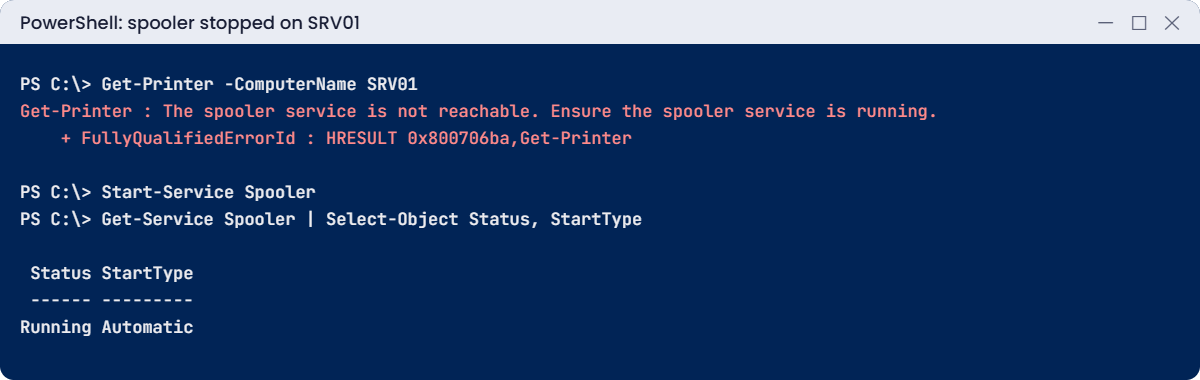
Get-Printer -ComputerName SRV01You’ll get an error like this:
Get-Printer : The spooler service is not reachable. Ensure the spooler service is running.
At line:1 char:1
+ Get-Printer -ComputerName SRV01
+ ~~~~~~~~~~~~~~~~~~~~~~~~~~~~~~~
+ CategoryInfo : NotSpecified: (MSFT_Printer:ROOT/StandardCimv2/MSFT_Printer) [Get-Printer], CimException
+ FullyQualifiedErrorId : HRESULT 0x800706ba,Get-PrinterPrinting to SRV01 fails for everyone, and connections show as offline. On real servers the spooler usually stops because a bad driver crashed it, so check the Application log for spoolsv.exe errors as well as restarting it.
Fix it: start the spooler and make it restart itself after a crash:
Start-Service Spooler
sc.exe failure Spooler reset= 86400 actions= restart/60000/restart/60000/restart/60000
Get-Service Spooler | Select-Object Status, StartTypeYou should see something like this:
[SC] ChangeServiceConfig2 SUCCESS
Status StartType
------ ---------
Running AutomaticThe recovery setting tells Windows to restart the spooler a minute after it fails, up to three times a day. It buys time; the driver that crashes it still needs replacing.
✅ Checkpoint: Get-Printer fails while the spooler is stopped and works after it starts, with recovery actions set.
This happened at work
The emergency fix that stopped all printing
In July 2021, Microsoft warned about PrintNightmare, a spooler flaw that let attackers run code with system rights. One company’s security team reacted fast: a Group Policy linked at the domain level that disabled the Print Spooler on every Windows server.
It worked too well. The policy also reached the two print servers. Within an hour, 1,200 staff couldn’t print, and the helpdesk queue filled with “printer offline” tickets.
The admins had to find the cause first, because the spooler kept stopping again after each manual start. The policy was relinked to an OU of servers that don’t print, a security filter excluded the print servers, and the print servers got the July patches that same day.
The lesson: disable the spooler where it isn’t needed, but target the policy carefully and patch the servers that must keep printing. A security fix that stops the business gets reversed, and then you have neither.
Common mistakes and troubleshooting
| Mistake or symptom | What happens | What to do instead |
|---|---|---|
| Spooler running on DCs | Unneeded attack surface with a history of critical flaws | Disable it on DCs and non-printing servers |
| Queue stuck with jobs in “Deleting” | Nothing behind them prints | Stop spooler, clear spool\PRINTERS, start spooler |
| “The spooler service is not reachable” | Clients can’t print or list printers | Start the spooler, set recovery actions, look for a crashing driver |
| Vendor-specific drivers on every printer | Driver prompts and spooler crashes | Prefer class or universal drivers |
| Users can’t add a printer: admin prompt for drivers | Point and Print restrictions since 2021 | Pre-install drivers or use class drivers; don’t weaken the restriction |
| Printers left with Everyone: Print | Anyone can use expensive or sensitive printers | Domain local print groups, like files |
| Printer IP set by DHCP without a reservation | The address changes and the queue breaks | Fixed IP or a DHCP reservation for every printer |
| Not publishing printers in AD | Users can’t search by location | Publish and fill in Location |
| Clearing all spool files on a busy server without warning | Everyone loses their jobs | Fix the one printer first; warn users if you must clear all |
Interview questions
Click a question to open it. Under each one you’ll find what the interviewer is really looking for, and one good way to answer.
Fresher level
1. What does a print server do?
What they’re really checking: Do you know the basics?
How you could answer: It hosts shared printers: drivers, queues and permissions. Clients print to it and it sends jobs to the printers.
2. What is the Print Spooler service?
What they’re really checking: Do you know the component?
How you could answer: The Windows service that manages print queues. If it stops, printing stops; it can be restarted from Services or with Restart-Service Spooler.
3. A user’s print job is stuck. What do you do?
What they’re really checking: Can you fix the common case?
How you could answer: Check the printer is on and reachable, try cancelling the job, and if it won’t clear, stop the spooler, delete the files in spool\PRINTERS and start it again.
2–5 years experience
4. Why should the spooler be disabled on domain controllers?
What they’re really checking: Do you follow hardening guidance?
How you could answer: DCs don’t print, and the spooler has had serious flaws like PrintNightmare and has been abused to force DC authentication. Disable it there and on other non-printing servers.
5. How would you deploy printers to users?
What they’re really checking: Do you know the options?
How you could answer: Group Policy Preferences printer items targeted by group or OU, Print Management’s “Deploy with Group Policy”, Intune for cloud-managed devices, or Universal Print.
6. What changed for Point and Print after 2021?
What they’re really checking: Are you current?
How you could answer: By default only administrators can install drivers from a print server. Use class drivers, package-aware drivers or pre-installed drivers instead of loosening the restriction.
Senior level
7. How would you design printing for 20 offices?
What they’re really checking: Do you think about scale and resilience?
How you could answer: One or two central print servers or Universal Print, class drivers, printers on reserved IPs, deployment by GPP or Intune targeted by location, printer groups for permissions, and monitoring of queues and spooler health.
8. The spooler on a print server keeps crashing. How do you investigate?
What they’re really checking: Is your troubleshooting structured?
How you could answer: Application log for spoolsv.exe faults and the faulting module, PrintService Admin and Operational logs, recent driver changes, isolate drivers (driver isolation mode), and test removing suspect drivers.
9. When would you move from on-premises print servers to Universal Print?
What they’re really checking: Do you know modern options?
How you could answer: When devices are cloud-joined and users work from anywhere, to remove print servers and VPN dependency. It needs Microsoft 365 licensing and supported printers or a connector.
Quick quiz
Q1. Where does the spooler store waiting jobs?
- C:\Temp
- C:\Windows\System32\spool\PRINTERS
- In AD
Show answer
B — Each job is an SHD and SPL file pair.
Q2. What does publishing a printer do?
- Makes it print faster
- Adds a printQueue object to AD so users can search for it
- Installs drivers on clients
Show answer
B — Users can find it by name or location.
Q3. What fixed the stuck queue?
- Rebooting CL01
- Stopping the spooler, clearing spool files, starting it
- Removing the driver
Show answer
B — The spooler held the job files open.
Q4. Where should the Print Spooler be disabled?
- On print servers
- On domain controllers and non-printing servers
- On every computer
Show answer
B — Keep it only where printing is needed.
Q5. In the work story, what went wrong?
- The patch failed
- The spooler policy also hit the print servers
- The printers were unplugged
Show answer
B — Target hardening policies carefully.
Quick recap
- A Windows print server holds shared printers, drivers and queues in one place.
- Add a port, a class driver and a printer, then share and publish it with
Set-Printer. - Control printing with domain local groups on the printer’s Security tab.
- Stuck queue: stop the spooler, clear
spool\PRINTERS, start it. - Set recovery actions on the spooler, and find drivers that crash it.
- Disable the spooler on DCs and servers that don’t print.
Next lesson
Lesson 19: Group Policy basics → You’ll create and link your first GPOs, set a password policy, map drives and deploy Finance-Printer to Finance users with Group Policy Preferences, and learn how processing order works.
Further reading: Windows print server
Want to go deeper into Windows print server? Microsoft’s Add-Printer reference covers the PrintManagement module, and the Print spooler assessment explains why DCs shouldn’t run the spooler. You can also see the full plan for this course on the Windows Server Administration course page.
