Advanced Group Policy: loopback, WMI filters and backups

Basic GPOs get you far, but real networks have kiosks, Remote Desktop servers, mixed Windows versions and the occasional deleted GPO. Advanced Group Policy is the toolkit for those cases: central store, loopback, WMI filters, targeting, backups and modelling.

In this lesson you’ll set up the central store, back up every GPO, target a computer GPO with a WMI filter, use loopback on a kiosk OU, add item-level targeting, model results before linking, and redirect Documents to SRV01.

TimeYou needBy the end you can
About 90 minutesDC01, SRV01 and CL01 with the GPOs from Lesson 19Manage ADMX files, back up and restore GPOs, use WMI filters, loopback and item-level targeting, run RSoP reports and set up Folder Redirection

What it is, in one line

Advanced Group Policy means the features that control where, when and how safely policies apply: filters, loopback, targeting, the central store, backups and modelling.

In Simple Words

Rules for rooms, not just people

Normally a school’s rules depend on who you are: a Year 5 student follows Year 5 rules wherever they go. But the science lab has its own rules for everyone who walks in, teachers included: goggles on, no food.

Loopback is the science lab rule: settings based on the computer someone signs in to, not on who they are. WMI filters are like “this rule only applies in rooms with a projector”. Item-level targeting is “give this locker only to the chess club”.

And backups are the photocopy of the rule book in the office safe, for the day someone tears a page out.

Engineer's View

ADMX, loopback, WMI, ILT and RSoP

Central store: Administrative Templates are ADMX/ADML files. By default each admin’s editor uses its own C:\Windows\PolicyDefinitions. A PolicyDefinitions folder in SYSVOL’s Policies folder becomes the central store, so every admin sees the same, current templates.

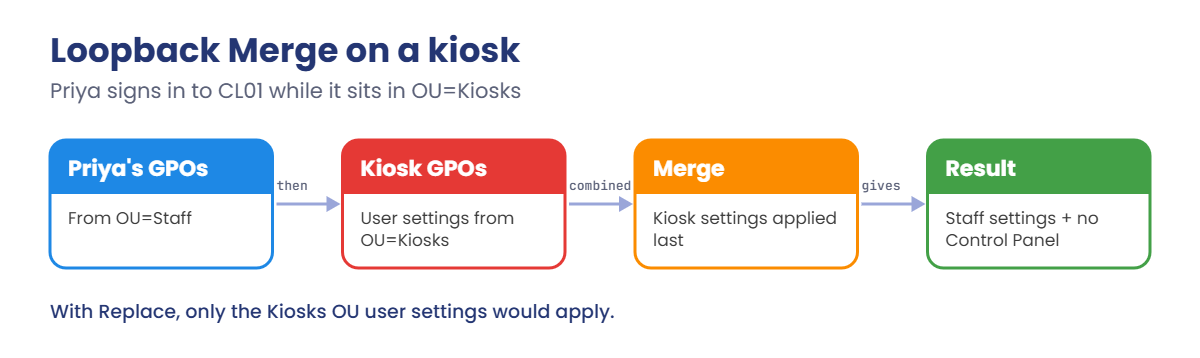
Loopback (Computer Configuration setting “Configure user Group Policy loopback processing mode”) applies the user settings from GPOs linked to the computer’s OU. Merge adds them after the user’s normal GPOs (computer side wins); Replace uses only the computer’s OU GPOs. Typical uses are kiosks, labs and Remote Desktop servers.

WMI filters run a WQL query on the computer; the GPO applies only if it returns something. They cost time at every refresh, so keep queries simple. Item-level targeting filters individual Preference items by group, OS, IP range, and more, without extra GPOs.

Backups and modelling: Backup-GPO saves settings, permissions and WMI filter links, but not the GPO’s links to OUs. Group Policy Modeling (RSoP planning) predicts results for a user and computer anywhere in AD; Group Policy Results reads what really applied.

How it works, step by step

How loopback changes where user settings come from when Priya signs in to a kiosk:

advanced Group Policy: loopback Merge applies kiosk user settings after the user's own

With Merge, Priya still gets her normal Staff GPOs, then the kiosk’s user settings on top. With Replace, she’d get only the kiosk’s user settings. Replace is common on Remote Desktop servers, where you want everyone’s session to look the same.

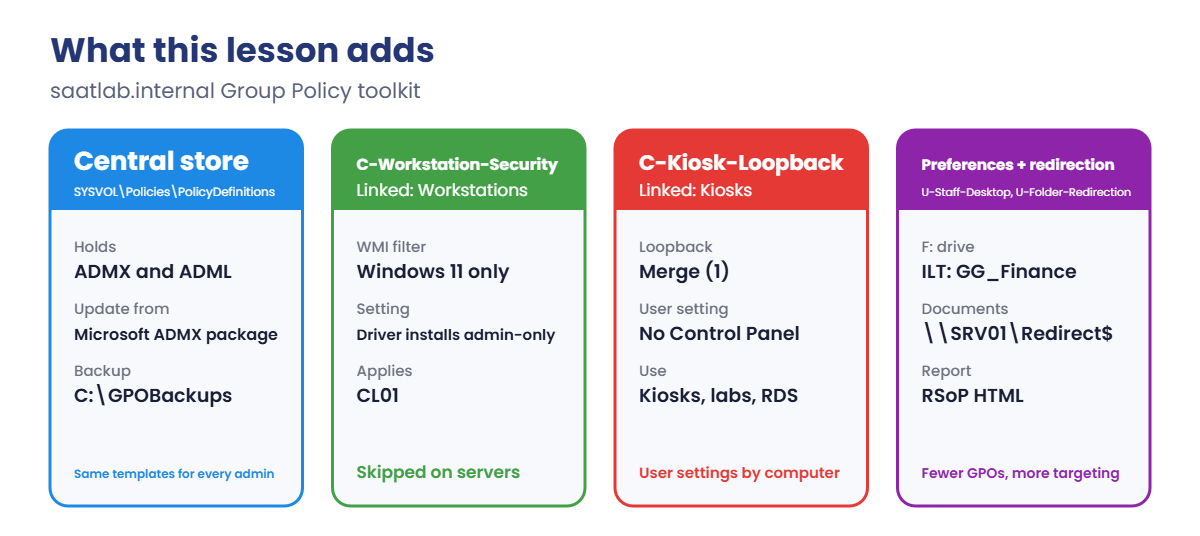
This is what you’ll add to the lab:

advanced Group Policy lab: central store, WMI filter, loopback and Folder Redirection
  1. Central store in SYSVOL, and a backup of every GPO.
  2. C-Workstation-Security, a computer GPO with a WMI filter for Windows 11.
  3. C-Kiosk-Loopback, on a Kiosks OU, which blocks Control Panel for anyone signing in there.
  4. Item-level targeting: an F: drive only for GG_Finance.
  5. RSoP report for Priya on CL01.
  6. Folder Redirection of Documents to SRV01.

Hands-on Lab: advanced Group Policy in saatlab.internal

Start DC01, SRV01 and CL01. Work on DC01 as SAATLAB\Administrator in PowerShell as administrator, and keep Group Policy Management open.

1Create the central store

On DC01, copy the local templates into SYSVOL:

$store = '\\saatlab.internal\SYSVOL\saatlab.internal\Policies\PolicyDefinitions'
Copy-Item C:\Windows\PolicyDefinitions $store -Recurse
Test-Path "$store\en-US"

You should see this:

True

Edit any GPO and click Administrative Templates. The heading now says the policy definitions were retrieved from the central store. When new Windows versions add settings, download Microsoft’s latest ADMX package and update this one folder.

✅ Checkpoint: Administrative Templates shows “retrieved from the central store” in the editor.

2Back up every GPO

On DC01, run this:

New-Item -ItemType Directory C:\GPOBackups -Force | Out-Null
Backup-GPO -All -Path C:\GPOBackups | Select-Object DisplayName, Id | Format-Table -AutoSize

You should see something like this:

DisplayName                       Id
-----------                       --
U-Finance-Printer                 7c2e4b1a-0d3f-4e59-9a61-2b8c5d7e9f10
Default Domain Controllers Policy d41b9e6c-8a2f-4c37-b5e0-1f6a3c9d2e84
Default Domain Policy             3f8a1c5e-6b2d-4f90-8e7a-9c0d1b2e3f45
U-Staff-Desktop                   a9d3e7f1-2c4b-4d68-91e0-5b7c3a8f6d22

Each Id is a backup folder under C:\GPOBackups. In production, keep these off the DC and run the backup on a schedule (Lesson 27 turns it into a scheduled task).

✅ Checkpoint: Four backups exist in C:\GPOBackups.

3Target a computer GPO with a WMI filter

First test the query on CL01 (PowerShell as administrator):

Get-CimInstance -Query "SELECT * FROM Win32_OperatingSystem WHERE ProductType = 1 AND Version LIKE '10.0.2%'" | Select-Object Caption, Version

You should see something like this:

Caption                                    Version
-------                                    -------
Microsoft Windows 11 Enterprise Evaluation 10.0.26200

ProductType 1 means a workstation, and Windows 11 versions start with 10.0.2 (build 22000 and later). On a server the query returns nothing, so the GPO won’t apply there.

In Group Policy Management, right-click WMI Filters, choose New, name it Windows 11 only, click Add, and paste the query (namespace root\CIMv2). Save it.

On DC01, create the GPO, give it one setting and link it:

New-GPO -Name 'C-Workstation-Security' | New-GPLink -Target 'OU=Workstations,OU=SAATLAB,DC=saatlab,DC=internal' | Out-Null
Set-GPRegistryValue -Name 'C-Workstation-Security' -Key 'HKLM\Software\Policies\Microsoft\Windows NT\Printers\PointAndPrint' -ValueName RestrictDriverInstallationToAdministrators -Type DWord -Value 1 | Out-Null

Select C-Workstation-Security in GPMC and, at the bottom of the Scope tab, choose Windows 11 only under WMI Filtering. The setting keeps printer driver installs admin-only, as you learned in Lesson 18.

On CL01, refresh and check:

gpupdate /force
gpresult /r /scope computer | Select-String 'C-Workstation'
Get-ItemProperty 'HKLM:\Software\Policies\Microsoft\Windows NT\Printers\PointAndPrint' | Select-Object RestrictDriverInstallationToAdministrators

You should see something like this:

        C-Workstation-Security

RestrictDriverInstallationToAdministrators
------------------------------------------
                                         1

✅ Checkpoint: C-Workstation-Security applies to CL01 and the registry value is 1.

4Loopback on a Kiosks OU

On DC01, create the OU and a loopback GPO in Merge mode with one user setting:

New-ADOrganizationalUnit -Name Kiosks -Path 'OU=Workstations,OU=SAATLAB,DC=saatlab,DC=internal'
New-GPO -Name 'C-Kiosk-Loopback' | New-GPLink -Target 'OU=Kiosks,OU=Workstations,OU=SAATLAB,DC=saatlab,DC=internal' | Out-Null
Set-GPRegistryValue -Name 'C-Kiosk-Loopback' -Key 'HKLM\Software\Policies\Microsoft\Windows\System' -ValueName UserPolicyMode -Type DWord -Value 1 | Out-Null
Set-GPRegistryValue -Name 'C-Kiosk-Loopback' -Key 'HKCU\Software\Microsoft\Windows\CurrentVersion\Policies\Explorer' -ValueName NoControlPanel -Type DWord -Value 1 | Out-Null
Get-ADComputer CL01 | Move-ADObject -TargetPath 'OU=Kiosks,OU=Workstations,OU=SAATLAB,DC=saatlab,DC=internal'

UserPolicyMode 1 is Merge (2 is Replace). That’s the loopback setting under Computer Configuration, System, Group Policy. NoControlPanel is a user setting, but it sits in a GPO linked to a computer OU, which only works because of loopback.

Restart CL01 (computer settings and the OU move need it), then sign in as Priya and try to open Control Panel. You’ll get a message that the operation has been cancelled due to restrictions in effect on this computer.

Then move CL01 back so later lessons behave as expected:

Get-ADComputer CL01 | Move-ADObject -TargetPath 'OU=Workstations,OU=SAATLAB,DC=saatlab,DC=internal'

✅ Checkpoint: Control Panel was blocked for Priya on CL01 while it was in Kiosks, and CL01 is back in Workstations.

5Item-level targeting: an F: drive for Finance only

Edit U-Staff-Desktop, go to User Configuration, Preferences, Windows Settings, Drive Maps and add a mapped drive: Update, \\saatlab.internal\Files\Departments\Finance, letter F, label Finance.

On its Common tab, tick Item-level targeting, click Targeting, then New Item, Security Group, choose SAATLAB\GG_Finance, and click OK twice. Priya gets F: at her next sign-in; Sneha in IT doesn’t, from the same GPO.

✅ Checkpoint: After signing in again, Priya has both S: and F:.

6Report what applies, and model before you link

On DC01, produce an RSoP report for Priya on CL01:

New-Item -ItemType Directory C:\Temp -Force | Out-Null
Get-GPResultantSetOfPolicy -User 'SAATLAB\priya.sharma' -Computer CL01 -ReportType Html -Path C:\Temp\priya-cl01.html
Start-Process C:\Temp\priya-cl01.html

The report lists every applied and denied GPO for both halves, the winning GPO for each setting, and any errors. For “what would happen if…”, use Group Policy Modeling in GPMC: pick a user, a computer and their OUs, and it predicts the result before you link anything.

✅ Checkpoint: The HTML report opens and lists U-Staff-Desktop, U-Finance-Printer and C-Workstation-Security.

7Redirect Documents to SRV01

On SRV01, create the share with the permissions Microsoft recommends for Folder Redirection:

New-Item -ItemType Directory D:\Redirect | Out-Null
icacls D:\Redirect /inheritance:r /grant:r "SYSTEM:(OI)(CI)F" "BUILTIN\Administrators:(OI)(CI)F" "CREATOR OWNER:(OI)(CI)(IO)F" "Authenticated Users:(RD,AD,RA,X)"
New-SmbShare -Name 'Redirect$' -Path D:\Redirect -FullAccess 'NT AUTHORITY\Authenticated Users' -FolderEnumerationMode AccessBased | Out-Null

Users can create their own folder in the root but not see others; CREATOR OWNER gives each user full control of what they create. On DC01, create a GPO U-Folder-Redirection linked to Staff, and edit it: User Configuration, Policies, Windows Settings, Folder Redirection, Documents, Properties.

Choose Basic, Create a folder for each user under the root path, and root path \\SRV01\Redirect$. Click OK and accept the warning.

On CL01, sign Priya out and in (sometimes twice), then check:

[Environment]::GetFolderPath('MyDocuments')

You should see this:

\\SRV01\Redirect$\priya.sharma\Documents

✅ Checkpoint: Priya’s Documents folder now lives on SRV01. Take snapshots called “GP advanced” of DC01, SRV01 and CL01.
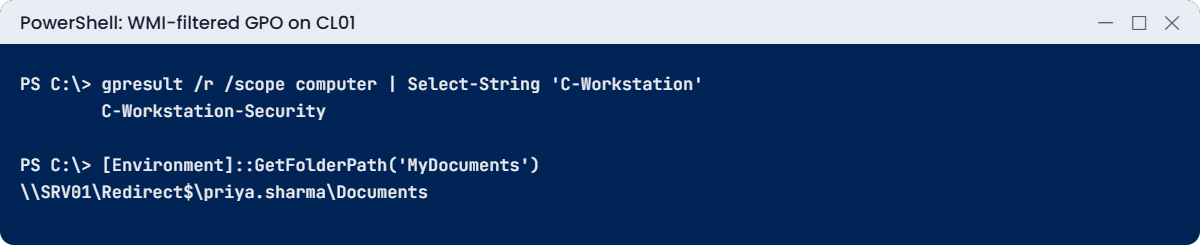
advanced Group Policy lab: WMI-filtered GPO applied and Documents redirected to SRV01
The WMI-filtered GPO applies to CL01, and Priya’s Documents folder now lives on SRV01.

Break It, Then Fix It

Two advanced failures: a WMI filter that quietly excludes everyone, and a deleted GPO that comes back without its links.

1Break it: a WMI filter with a typo

In Group Policy Management, open WMI Filters, Windows 11 only, click Edit Filter, change '10.0.2%' to '10.0.3%' and save.

On CL01 (as administrator), refresh and look at the computer results:

gpupdate /force
gpresult /r /scope computer

You’ll see something like this:

    The following GPOs were not applied because they were filtered out
    -------------------------------------------------------------------
        C-Workstation-Security
            Filtering:  Denied (WMI Filter)

No error, no event in red: the filter simply returned nothing on CL01, so the GPO was skipped. Because filters are shared, one typo can switch off every GPO that uses it.

Fix it: correct the query, then test it on a client before saving it again:

Get-CimInstance -Query "SELECT * FROM Win32_OperatingSystem WHERE ProductType = 1 AND Version LIKE '10.0.2%'" | Select-Object Caption

Put '10.0.2%' back in the filter, run gpupdate /force on CL01, and C-Workstation-Security appears under applied GPOs again.

✅ Checkpoint: gpresult showed “Denied (WMI Filter)” with the typo and the GPO applied after the fix.
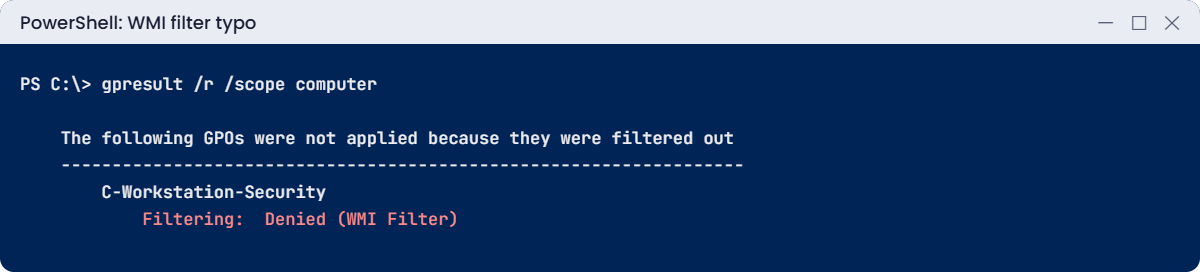
advanced Group Policy lab: GPO filtered out as Denied (WMI Filter)
One typo in a shared WMI filter, and the GPO is silently skipped.

2Break it: delete a GPO, then restore it

On DC01, delete U-Staff-Desktop:

Remove-GPO -Name 'U-Staff-Desktop'
Get-GPInheritance -Target 'OU=Staff,OU=SAATLAB,DC=saatlab,DC=internal' | Select-Object -ExpandProperty GpoLinks | Select-Object DisplayName

You’ll see something like this:

DisplayName
-----------
U-Finance-Printer
U-Folder-Redirection

The GPO and its link are both gone. At their next sign-in, staff lose S: and F: and the screen saver lock. Now restore it from step 2’s backup:

Fix it: import from the backup, then re-create the link:

Import-GPO -BackupGpoName 'U-Staff-Desktop' -TargetName 'U-Staff-Desktop' -Path C:\GPOBackups -CreateIfNeeded | Out-Null
New-GPLink -Name 'U-Staff-Desktop' -Target 'OU=Staff,OU=SAATLAB,DC=saatlab,DC=internal' -Order 1 | Select-Object DisplayName, Enabled, Order

You should see something like this:

DisplayName     Enabled Order
-----------     ------- -----
U-Staff-Desktop True        1

The settings came back, but only from the moment of the backup: the F: drive you added in step 5 came after it, so it’s missing until you add it again. And the link had to be made by hand, because backups don’t contain links. Keep a list of links (Get-GPInheritance output) with every backup.

✅ Checkpoint: U-Staff-Desktop is restored and linked to Staff with order 1, and you re-added the F: drive.

This happened at work

The day half the settings disappeared

An admin wanted the new Windows 11 settings in the editor, so he copied ADMX files into the central store from a laptop he had nearby. The laptop was an old Windows 10 build. The copy overwrote the newer files already in SYSVOL.

Next morning, colleagues editing GPOs saw many settings under “Extra Registry Settings” instead of their normal places, including the Windows Update and Defender settings. One of them assumed the GPOs were corrupt and started rebuilding them.

The GPOs were fine. The settings were still applied to computers; the editor just had no template to show them. Restoring the central store from a SYSVOL backup and then updating it from Microsoft’s current ADMX package fixed the view.

The fix: the central store is now updated only from the official ADMX download, after copying the current folder to a dated backup. Changes go through the change board.

The lesson: the central store is shared by every admin. Treat it like production, because it is.

Common mistakes and troubleshooting

Mistake or symptomWhat happensWhat to do instead
Settings show as “Extra Registry Settings”The editor has no ADMX for themUpdate the central store from the current ADMX package
Loopback Replace by accidentUsers lose all their normal user settings on those computersUse Merge unless you really want Replace
Complex or slow WMI filtersSlower startups and refreshesShort, simple queries; test them with Get-CimInstance
“Denied (WMI Filter)” everywhereA shared filter has a mistakeTest the query on a client before saving
Expecting Backup-GPO to keep linksA restored GPO applies nowhereRecord links with each backup and re-create them
Using many GPOs where one Preference with ILT would doGPO sprawl and slower processingItem-level targeting for Preference items
Folder Redirection with wrong share permissionsRedirection fails or users see each other’s foldersUse the documented CREATOR OWNER and this-folder-only rights
Linking before modellingSurprises in productionGroup Policy Modeling or a pilot OU first
No scheduled GPO backupsA deleted GPO has to be rebuilt from memoryBack up all GPOs daily, off the DC

Interview questions

Click a question to open it. Under each one you’ll find what the interviewer is really looking for, and one good way to answer.

Fresher level

1. What is the Group Policy central store?

What they’re really checking: Do you know ADMX management?

How you could answer: A PolicyDefinitions folder in SYSVOL holding ADMX/ADML files, so every admin’s editor uses the same templates.

2. What is loopback processing used for?

What they’re really checking: Do you know the concept?

How you could answer: Applying user settings based on the computer someone signs in to, for kiosks, labs and Remote Desktop servers.

3. How do you back up and restore GPOs?

What they’re really checking: Have you done it?

How you could answer: Backup-GPO and Restore-GPO or Import-GPO, or the Back Up and Manage Backups options in GPMC. Links have to be re-created.

2–5 years experience

4. Explain loopback Merge and Replace.

What they’re really checking: Do you know the difference?

How you could answer: Merge applies the user’s normal GPOs, then the user settings from the computer’s OU, which win conflicts. Replace ignores the user’s normal GPOs and uses only the computer’s OU GPOs.

5. When would you use a WMI filter, and what are the downsides?

What they’re really checking: Do you think about cost?

How you could answer: To target by OS version, hardware or other properties when OUs don’t separate them. They run at every refresh, slow processing if complex, and fail silently when wrong.

6. What is the difference between Group Policy Modeling and Group Policy Results?

What they’re really checking: Do you know RSoP?

How you could answer: Modeling simulates what would apply for a chosen user and computer and their locations. Results reads what actually applied on a real computer for a real user.

Senior level

7. How would you manage Group Policy changes safely in a large company?

What they’re really checking: Do you use change control?

How you could answer: Pilot OUs, staged rollout, Group Policy Modeling, version control of backups, AGPM-style review where available, naming standards, documentation of links, and scheduled backups with tested restores.

8. Design user settings for a Remote Desktop Session Host farm.

What they’re really checking: Do you apply loopback well?

How you could answer: Put the RDSH servers in their own OU, link GPOs with loopback Replace for a consistent session, use security filtering or ILT for exceptions, Folder Redirection or FSLogix for profiles, and keep server settings separate.

9. A GPO is applied according to gpresult, but the setting isn’t in effect. What do you check?

What they’re really checking: Can you go deeper than gpresult?

How you could answer: Whether another GPO wins that setting, whether it needs a restart or sign-in, the client-side extension’s event log, local overrides like tattooed registry values, and whether the setting supports that OS version.

Quick quiz

Q1. Where does the central store live?

  1. C:\Windows\PolicyDefinitions on each admin PC
  2. PolicyDefinitions in SYSVOL\Policies
  3. In the registry
Show answer

B — Every admin then sees the same templates.

Q2. What does loopback Merge do?

  1. Ignores the user’s GPOs
  2. Adds the computer OU’s user settings after the user’s own
  3. Disables user policy
Show answer

B — The computer side wins conflicts.

Q3. What did gpresult show with the WMI typo?

  1. Applied
  2. Denied (WMI Filter)
  3. Access denied
Show answer

B — The filter returned nothing on CL01.

Q4. What does Backup-GPO NOT include?

  1. Settings
  2. Permissions
  3. Links to OUs
Show answer

C — Re-create links after an import.

Q5. In the work story, why did settings appear as Extra Registry Settings?

  1. The GPOs were corrupt
  2. Old ADMX files overwrote the central store
  3. A WMI filter failed
Show answer

B — The editor had no templates for them.

Quick recap

  • Advanced Group Policy controls where, when and how safely settings apply.
  • Use a central store in SYSVOL and update it from Microsoft’s ADMX package.
  • Loopback (Merge or Replace) applies user settings by computer OU.
  • WMI filters and item-level targeting narrow who gets what; test queries first.
  • Backup-GPO doesn’t save links; record them.
  • Model with GPMC, verify with RSoP reports, and redirect folders with the right share permissions.

Next lesson

Lesson 21: Kerberos and NTLM → You’ll watch Kerberos tickets being issued with klist, register and find SPNs, break authentication with a clock skew and a duplicate SPN, and see when Windows falls back to NTLM.

Further reading: advanced Group Policy

Want to go deeper into advanced Group Policy? Microsoft’s central store guide explains ADMX management, and the Folder Redirection deployment guide lists the share permissions used here. You can also see the full plan for this course on the Windows Server Administration course page.

Scroll to Top