Cluster troubleshooting: failover clusters and Hyper-V VMs
-
Phase 0: Before you start
-
Phase 1: The foundation
-
Phase 2: Core administration and security
-
Phase 3: Enterprise infrastructure
-
Phase 4: Troubleshooting step by step
-
Phase 5: Final project and career
Clusters and hypervisors are built to survive failures, so when they do break, the cause is often hidden behind an automatic failover. Cluster troubleshooting means reading what the cluster saw, in order, across every node.
In this lesson you’ll check CLUSTER1’s health, generate and read the cluster log, run safe validation tests, read failover events, and check a Hyper-V VM’s health on your laptop. Then you’ll break a cluster IP resource and a VM’s memory setting, and fix both.
| Time | You need | By the end you can |
|---|---|---|
| About 90 minutes | DC01, SRV01 (iSCSI target), NODE1 and NODE2 (CLUSTER1 from Lesson 37), and the Hyper-V host with HV-TEST01 from Lesson 28 | Find why a clustered role or a VM won’t come online, using cluster logs, events and Hyper-V logs |
What it is, in one line
Cluster troubleshooting is finding which node, resource or dependency failed, and why, by reading cluster state, the cluster log and failover events in time order.
In Simple Words
In Simple Words
Think of two bus drivers sharing one route. If one feels sick, the other takes the bus and the passengers hardly notice. That’s failover.
But if the bus keeps changing drivers every hour, something is wrong: maybe a flat tyre, maybe a wrong ticket machine. The passengers only see delays; the depot’s logbook shows every handover and why.
The cluster log is that logbook. You read it to find what made the drivers swap.
Engineer's View
Engineer’s View
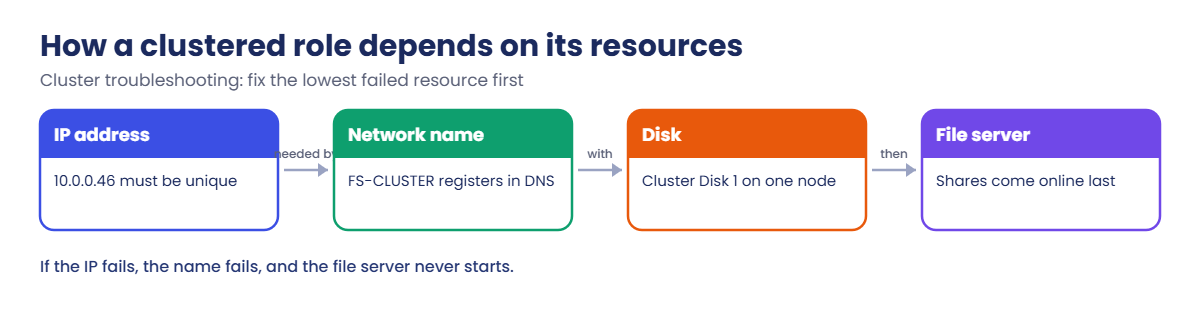
Structure: a cluster has nodes, networks, storage, a quorum witness and roles (groups). Each role holds resources (IP address, network name, disk, file server or VM) with dependencies: the network name needs its IP, the file server needs the name and the disk.
State: Get-ClusterNode, Get-ClusterGroup, Get-ClusterResource and Get-ClusterQuorum show what’s online, failed or partially online.
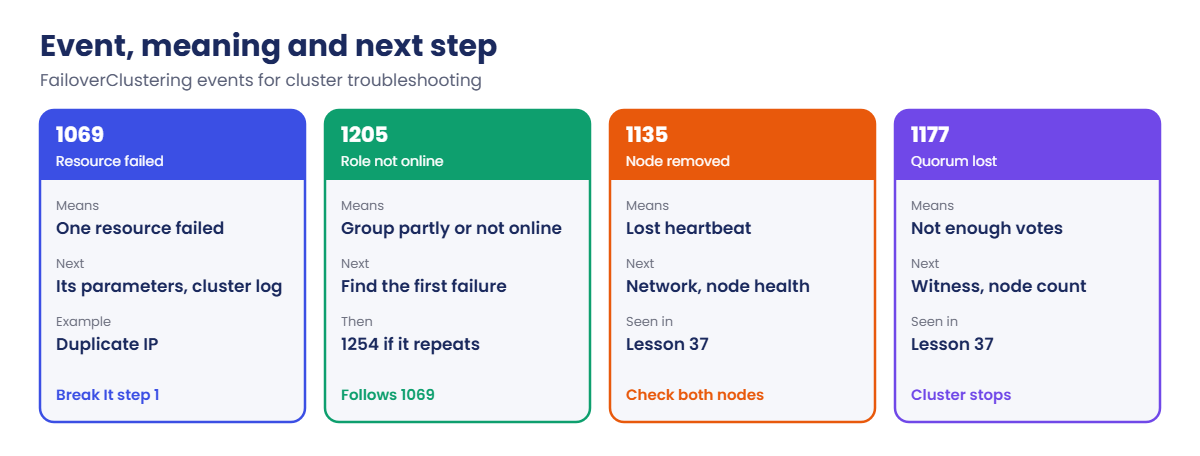
Evidence: Get-ClusterLog writes a detailed text log per node (times in UTC by default; add -UseLocalTime). The System log has FailoverClustering events: 1069 (resource failed), 1205 (role couldn’t come online), 1254 (failover threshold exceeded), 1135 (node removed), 1177 (quorum lost). Validation (Test-Cluster) checks configuration, but storage tests take disks offline, so never run them casually on production.
Hyper-V: VM state and status from Get-VM, integration services, the Hyper-V-VMMS and Hyper-V-Worker logs, checkpoint chains (avhdx files) and host resources. Common failures: not enough memory, missing or locked VHDs, broken checkpoints, and live migration blocked by CPU or configuration differences.
How it works, step by step
How a clustered role depends on its resources:
Resources come online from the bottom up. If the IP fails, the name can’t start, and the file server above it stays offline, so the first failed resource is the one that matters.
When a resource fails, the cluster restarts it on the same node, then moves the role to another node. If it keeps failing, the role stops trying after the failover threshold, and you see event 1254.
Always collect the cluster log from all nodes for the same time window. The node that reports the problem isn’t always the node that caused it.
Event, meaning and where to look next:
In the lab you’ll:
- Check nodes, roles, resources and quorum on CLUSTER1.
- Generate and search the cluster log.
- Run safe validation tests.
- Read FailoverClustering events.
- Check a Hyper-V VM’s health and logs on your laptop.
Hands-on lab: read the cluster and VM evidence
Start DC01, SRV01, NODE1 and NODE2, and make sure CLUSTER1 is online. Work as SAATLAB\adm.rahul in PowerShell as administrator on NODE1 unless a step says otherwise.
1Check nodes, roles, resources and quorum
On NODE1:
Get-ClusterNode -Cluster CLUSTER1 | Select-Object Name, State
Get-ClusterGroup -Cluster CLUSTER1 | Select-Object Name, OwnerNode, State
Get-ClusterResource -Cluster CLUSTER1 | Where-Object State -ne 'Online' | Select-Object Name, State, OwnerGroup
Get-ClusterQuorum -Cluster CLUSTER1 | Select-Object QuorumResourceYou’ll see something like this:
Name State
---- -----
NODE1 Up
NODE2 Up
Name OwnerNode State
---- --------- -----
Available Storage NODE2 Online
Cluster Group NODE1 Online
FS-CLUSTER NODE1 Online
QuorumResource
--------------
Cluster Disk 2Both nodes are up, every role is online, no resource is failed (the third command printed nothing) and the disk witness is in place. This is your healthy picture to compare against later.
✅ Checkpoint: Both nodes are Up, all groups are Online, and no resource is failed.
2Generate and search the cluster log
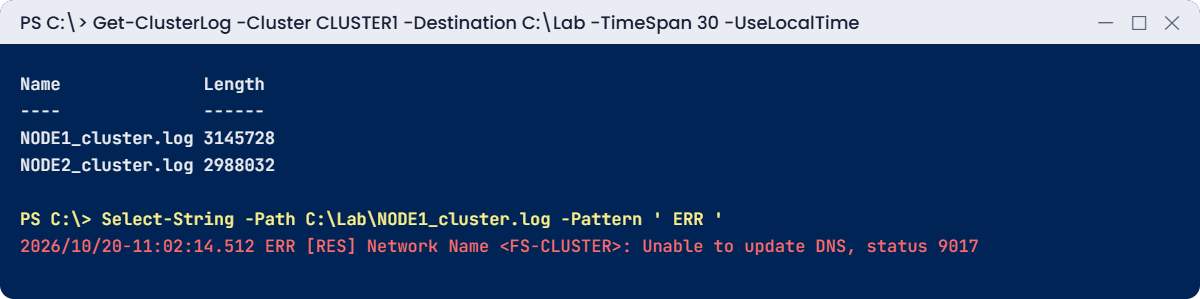
Collect the last 30 minutes from both nodes, in local time:
New-Item C:\Lab -ItemType Directory -Force | Out-Null
Get-ClusterLog -Cluster CLUSTER1 -Destination C:\Lab -TimeSpan 30 -UseLocalTime
Get-ChildItem C:\Lab\*cluster.log | Select-Object Name, Length
Select-String -Path C:\Lab\NODE1_cluster.log -Pattern ' ERR ' | Select-Object -Last 2 LineYou’ll see something like this:
Name Length
---- ------
NODE1_cluster.log 3145728
NODE2_cluster.log 2988032
Line
----
00000f2c.00001a10::2026/10/20-11:02:14.512 ERR [RES] Network Name <FS-CLUSTER>: Unable to update DNS, status 9017
00000f2c.00001a10::2026/10/20-11:02:44.530 ERR [RES] Network Name <FS-CLUSTER>: Unable to update DNS, status 9017The cluster log is noisy, so search for ERR and WARN lines, then read the lines around the time of the problem. Your file may have no errors at all, which is good news.
✅ Checkpoint: C:\Lab holds a cluster log for each node, and you can search them for ERR lines.
3Run safe validation tests
Run the tests that don’t touch storage:
Test-Cluster -Cluster CLUSTER1 -Include 'Inventory', 'Network', 'System Configuration' -ReportName C:\Lab\Validate-NoStorageYou’ll see something like this:
WARNING: Network - Validate Network Communication: The test reported some warnings..
WARNING:
Test Result:
ClusterConditionallyApproved
Testing has completed successfully. The configuration appears to be suitable for clustering. However, you should
review the report because it may contain warnings which you should address to attain the highest availability.
Mode LastWriteTime Length Name
---- ------------- ------ ----
-a---- 20/10/2026 11:10 412544 Validate-NoStorage.htmOpen the .htm report and read every warning. In the lab, a warning about a single network path between nodes is normal. Storage tests take the shared disks offline, so on a real cluster run them only in a maintenance window.
✅ Checkpoint: Test-Cluster produced C:\Lab\Validate-NoStorage.htm without running storage tests.
4Read FailoverClustering events
On NODE1, list the latest cluster events from the System log:
Get-WinEvent -FilterHashtable @{ LogName = 'System'; ProviderName = 'Microsoft-Windows-FailoverClustering' } -MaxEvents 5 |
Select-Object TimeCreated, Id, @{ n = 'Message'; e = { ($_.Message -split "\r?\n")[0] } } | Format-Table -WrapYou’ll see something like this:
TimeCreated Id Message
----------- -- -------
20/10/2026 10:41:07 1135 Cluster node 'NODE1' was removed from the active failover cluster membership.
20/10/2026 10:40:58 1177 The Cluster service is shutting down because quorum was lost.These are probably your own tests from Lesson 37. On a real cluster, 1135 points to network or node health, 1177 to quorum design, and 1069 or 1205 to a specific resource.
✅ Checkpoint: You can list recent FailoverClustering events and say what each ID means.
5Check a Hyper-V VM’s health
On your laptop (the Hyper-V host from Lesson 28), in PowerShell as administrator:
Get-VM HV-TEST01 | Select-Object Name, State, Status, Uptime, MemoryAssigned
Get-VMIntegrationService HV-TEST01 | Select-Object Name, Enabled, PrimaryStatusDescription
Get-WinEvent -LogName Microsoft-Windows-Hyper-V-VMMS-Admin -MaxEvents 3 |
Select-Object TimeCreated, Id, @{ n = 'Message'; e = { ($_.Message -split "\r?\n")[0] } } | Format-Table -WrapYou’ll see something like this:
Name State Status Uptime MemoryAssigned
---- ----- ------ ------ --------------
HV-TEST01 Running Operating normally 00:12:41 2147483648
Name Enabled PrimaryStatusDescription
---- ------- ------------------------
Guest Service Interface False OK
Heartbeat True OK
Key-Value Pair Exchange True OK
Shutdown True OK
Time Synchronization True OK
VSS True OK“Operating normally” and Heartbeat OK mean the guest is alive and talking to the host. A VM that’s Running with a heartbeat of “Lost Communication” is usually hung inside. The VMMS log records why a VM failed to start, move or take a checkpoint.
✅ Checkpoint: HV-TEST01 shows Operating normally and its integration services report OK.
Break It, Then Fix It
Two failures that stop a role or a VM from coming online.
1Break it: give the file server role a duplicate IP
On NODE1, change FS-CLUSTER’s IP address to SRV01’s address, then restart the role:
$ip = Get-ClusterResource -Cluster CLUSTER1 | Where-Object { $_.OwnerGroup -eq 'FS-CLUSTER' -and $_.ResourceType -eq 'IP Address' }
$ip | Set-ClusterParameter -Name Address -Value 10.0.0.20
Stop-ClusterGroup -Cluster CLUSTER1 FS-CLUSTER | Out-Null
Start-ClusterGroup -Cluster CLUSTER1 FS-CLUSTERYou’ll see something like this:
Name OwnerNode State
---- --------- -----
FS-CLUSTER NODE1 FailedFind the first failed resource and the event:
Get-ClusterResource -Cluster CLUSTER1 | Where-Object OwnerGroup -eq 'FS-CLUSTER' | Select-Object Name, ResourceType, State
Get-WinEvent -FilterHashtable @{ LogName = 'System'; ProviderName = 'Microsoft-Windows-FailoverClustering'; Id = 1069, 1205 } -MaxEvents 2 |
Select-Object Id, @{ n = 'Message'; e = { ($_.Message -split "\r?\n")[0] } } | Format-Table -WrapYou’ll see something like this:
Name ResourceType State
---- ------------ -----
FS-CLUSTER Network Name Failed
FS-CLUSTER-Server File Server Offline
IP Address 10.0.0.46 IP Address Failed
Cluster Disk 1 Physical Disk Online
Id Message
-- -------
1205 The Cluster service failed to bring clustered role 'FS-CLUSTER' completely online or offline.
1069 Cluster resource 'IP Address 10.0.0.46' of type 'IP Address' in clustered role 'FS-CLUSTER' failed.
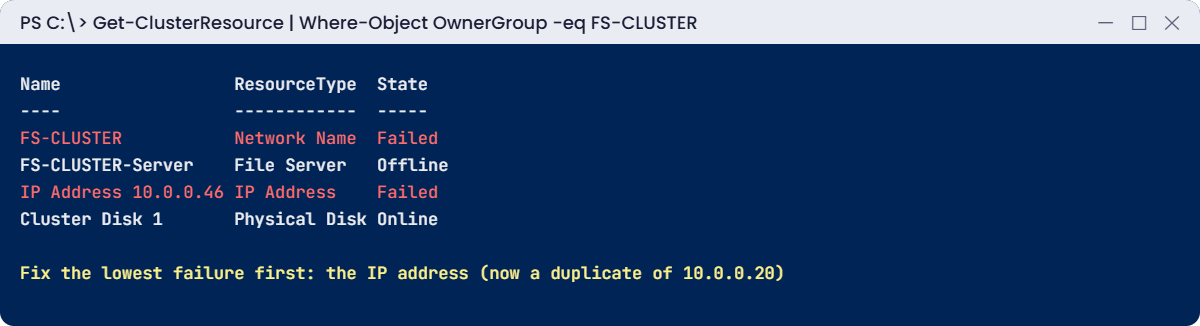
The resource name still shows the old address, but its Address parameter is now 10.0.0.20, which SRV01 already uses. The IP fails, so the name above it fails, and the file server never starts. Always fix the lowest failed resource first. [Add your screenshot here]
Fix it: put the right address back and start the role:
$ip | Set-ClusterParameter -Name Address -Value 10.0.0.46
Start-ClusterGroup -Cluster CLUSTER1 FS-CLUSTERYou’ll see something like this:
Name OwnerNode State
---- --------- -----
FS-CLUSTER NODE1 Online✅ Checkpoint: FS-CLUSTER failed with events 1069 and 1205 on the duplicate IP, and is online again with 10.0.0.46.
2Break it: a VM that asks for too much memory
On your laptop, stop HV-TEST01 and give it far more startup memory than the host has:
Stop-VM HV-TEST01
Set-VMMemory HV-TEST01 -DynamicMemoryEnabled $false -StartupBytes 64GB
Start-VM HV-TEST01You’ll see something like this:
Start-VM : 'HV-TEST01' failed to start.
Not enough memory in the system to start the virtual machine HV-TEST01 with ram size 65536 megabytes.Hyper-V reserves the full startup memory before the VM boots. If the host can’t give it, the VM won’t start, even if the guest would only use a fraction of it. The same thing happens after a failover when the surviving node doesn’t have enough free memory for every VM.
Fix it: set a sensible size and start the VM:
Set-VMMemory HV-TEST01 -StartupBytes 2GB
Start-VM HV-TEST01
Get-VM HV-TEST01 | Select-Object Name, State, MemoryAssignedYou’ll see something like this:
Name State MemoryAssigned
---- ----- --------------
HV-TEST01 Running 2147483648✅ Checkpoint: HV-TEST01 failed to start with 64 GB and runs again with 2 GB.
This happened at work
The live migration that was refused
A team added two new Hyper-V hosts with newer processors to an existing cluster. Everything validated, but live migrating VMs from the new hosts back to the old ones failed. During a patch weekend, VMs on a new host couldn’t be moved, so its restart was delayed for hours.
The error said the hardware on the destination wasn’t compatible with the hardware requirements of the virtual machine. VMs that started on the newer CPUs were using instructions the older CPUs didn’t have.
The fix was processor compatibility mode. With each VM shut down once, Set-VMProcessor -CompatibilityForMigrationEnabled $true limits the CPU features the VM sees, so it can move between both generations.
The fix: compatibility mode on VMs in mixed clusters, and a rule to keep hosts in one cluster on the same CPU generation where possible.
The lesson: a cluster that validates can still have VMs that can’t move. Test live migration in every direction before you rely on it.
Common mistakes and troubleshooting
| Mistake | What happens | What to do instead |
|---|---|---|
| Fixing the top resource first | It fails again | Find the lowest failed resource in the dependency chain |
| Collecting the cluster log from one node only | You miss the cause on the other node | Get-ClusterLog for all nodes, same time window |
| Reading cluster log times as local time | Events don’t line up | Use -UseLocalTime, or remember it’s UTC |
| Running storage validation on production | Shared disks go offline | Only in a maintenance window, or skip storage tests |
| Deleting the cluster’s computer objects in AD | Roles can’t come online | Protect CNO and VCO objects (Lesson 37) |
| Filling a node with VMs | Failover fails for lack of memory | Keep enough headroom for a node failure |
| Deleting avhdx files by hand | VM disk chain breaks | Remove checkpoints through Hyper-V so they merge |
| Mixing CPU generations without a plan | Live migration refused | Processor compatibility mode or matching hosts |
Interview questions
Click a question to open it. Under each one you’ll find what the interviewer is really looking for, and one good way to answer.
Fresher level
1. What is a clustered role?
What they’re really checking: Do you know the basics?
How you could answer: A group of resources (IP, name, disk, service or VM) that fails over together between nodes.
2. How do you check if a cluster is healthy?
What they’re really checking: Do you know the commands?
How you could answer: Get-ClusterNode, Get-ClusterGroup, Get-ClusterResource and Get-ClusterQuorum, or Failover Cluster Manager.
3. What does a “Lost Communication” heartbeat on a VM mean?
What they’re really checking: Do you know Hyper-V basics?
How you could answer: The VM is running but the guest isn’t responding to the host, often because it’s hung or integration services failed.
2–5 years experience
4. A clustered role won’t come online. How do you troubleshoot?
What they’re really checking: Do you have a method?
How you could answer: List its resources, find the lowest failed one, read events 1069 and 1205, then the cluster log around that time, and fix that resource.
5. How do you get and read the cluster log?
What they’re really checking: Do you know the tool?
How you could answer: Get-ClusterLog -Destination with a -TimeSpan, ideally -UseLocalTime, then search for ERR and WARN around the failure time on all nodes.
6. Why might a VM fail to start after a failover?
What they’re really checking: Do you think about capacity?
How you could answer: Not enough memory on the surviving node, storage paths missing on that node, or a virtual switch with a different name.
Senior level
7. A cluster keeps losing a node every few days. What do you check?
What they’re really checking: Can you go deep?
How you could answer: Event 1135 times, cluster network health, NIC drivers and firmware, heartbeat thresholds, antivirus exclusions, and the cluster log on both nodes at those times.
8. Live migration fails between some hosts. Why?
What they’re really checking: Do you know migration requirements?
How you could answer: CPU differences (use compatibility mode), different virtual switch names, missing storage access, authentication settings or configuration version.
9. How do you design a cluster to be easy to troubleshoot?
What they’re really checking: Do you think ahead?
How you could answer: Consistent hardware and names, documented dependencies, a witness, monitoring of key events, regular validation reports and tested failover.
Quick quiz
Q1. Which resource should you fix first?
- The file server
- The lowest failed resource in the chain
- The witness
Show answer
B — Higher resources depend on it.
Q2. What does event 1069 mean?
- A node joined
- A cluster resource failed
- Quorum lost
Show answer
B — 1205 follows for the role.
Q3. Why use -UseLocalTime with Get-ClusterLog?
- It’s faster
- The log is in UTC by default
- It adds errors
Show answer
B — So times match other logs.
Q4. Why did HV-TEST01 fail to start in Break It step 2?
- Broken disk
- Not enough host memory for its startup RAM
- Wrong switch
Show answer
B — Hyper-V reserves startup memory.
Q5. What fixed live migration in the work story?
- A new cluster
- Processor compatibility mode
- More memory
Show answer
B — It hides newer CPU features.
Quick recap
- Cluster troubleshooting starts with state: nodes, roles, resources and quorum.
- Fix the lowest failed resource in the dependency chain first.
Get-ClusterLog -UseLocalTimefrom all nodes, plus events 1069, 1205, 1135 and 1177, tell the story.- Run validation without storage tests on live clusters.
- For VMs, check state, heartbeat, the VMMS log, host memory and CPU compatibility.
Next lesson
Lesson 52: Sysinternals toolkit → You’ll use Process Explorer, Process Monitor, Autoruns, TCPView and other Sysinternals tools to see what Windows is really doing.
Further reading: cluster troubleshooting
Want to go deeper into cluster troubleshooting? Microsoft’s Get-ClusterLog reference explains every option, and the high availability troubleshooting docs cover common cluster failures. You can also see the full plan for this course on the Windows Server Administration course page.
