File services: DFS namespace, replication, FSRM and shadow copies
-
Phase 0: Before you start
-
Phase 1: The foundation
-
Phase 2: Core administration and security
-
Phase 3: Enterprise infrastructure
-
Phase 4: Troubleshooting step by step
-
Phase 5: Final project and career
Users shouldn’t care which server holds a share. A DFS namespace gives them one path, like \\saatlab.internal\Files, that keeps working when you add, move or replace servers behind it.
In this lesson you’ll build that namespace, replicate a Policies folder between two servers with DFS Replication, set a quota and block executable files with FSRM, and bring back a deleted file with shadow copies.
| Time | You need | By the end you can |
|---|---|---|
| About 90 minutes | DC01, DC02, SRV01 and CL01, with the shares from Lesson 16 | Create a domain-based DFS namespace, set up DFS Replication, use FSRM quotas and file screens, and restore files from shadow copies |
What it is, in one line
A DFS namespace is a virtual folder tree, published under your domain name, whose folders point to real shares on one or more servers.
In Simple Words
The company switchboard number
Customers call one company number. Behind it, the switchboard routes the call to whichever desk handles that department today. When a team moves floors, the public number doesn’t change.
A DFS namespace is that switchboard number for files. People always open \\saatlab.internal\Files\Policies, and DFS quietly sends them to a server that has the folder.
DFS Replication is like giving two desks identical copies of the same handbook, kept in sync, so either desk can answer.
Engineer's View
Namespaces, replication, FSRM and VSS
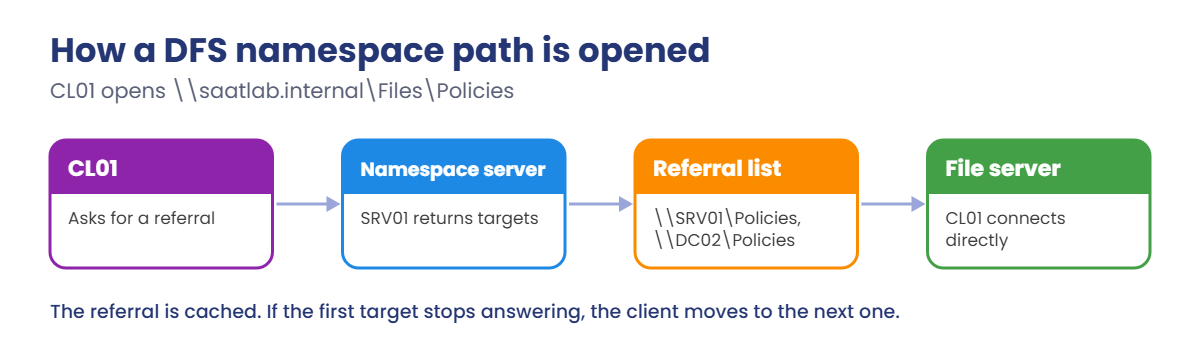
DFS Namespaces (DFSN): a domain-based namespace (DomainV2) is stored in AD, so its path uses the domain name and can be hosted on several namespace servers. Each folder has one or more targets. Clients ask for a referral, get a list of targets ordered by site, cache it, and fail over to the next target if one stops answering.
DFS Replication (DFSR): multi-master replication of folder contents between members of a replication group. It sends only changed blocks (remote differential compression) and keeps a staging area. When the same file changes in two places before they sync, the last writer wins, and the losing copy goes to DfsrPrivate\ConflictAndDeleted.
FSRM: File Server Resource Manager adds quotas (hard or soft) per folder, file screens that block file types, storage reports and file classification. Shadow copies (VSS) take point-in-time snapshots of a volume, which users can open as Previous Versions. Data Deduplication stores repeated chunks once and suits file shares and backup volumes.
None of these is a backup. Replication copies deletions too, and shadow copies live on the same server. Lesson 38 covers real backup.
How it works, step by step
Here’s what happens when CL01 opens \\saatlab.internal\Files\Policies:
The client only talks to the namespace server for the referral. After that it connects straight to a file server, and it remembers the referral for a while, so the namespace server isn’t a bottleneck.
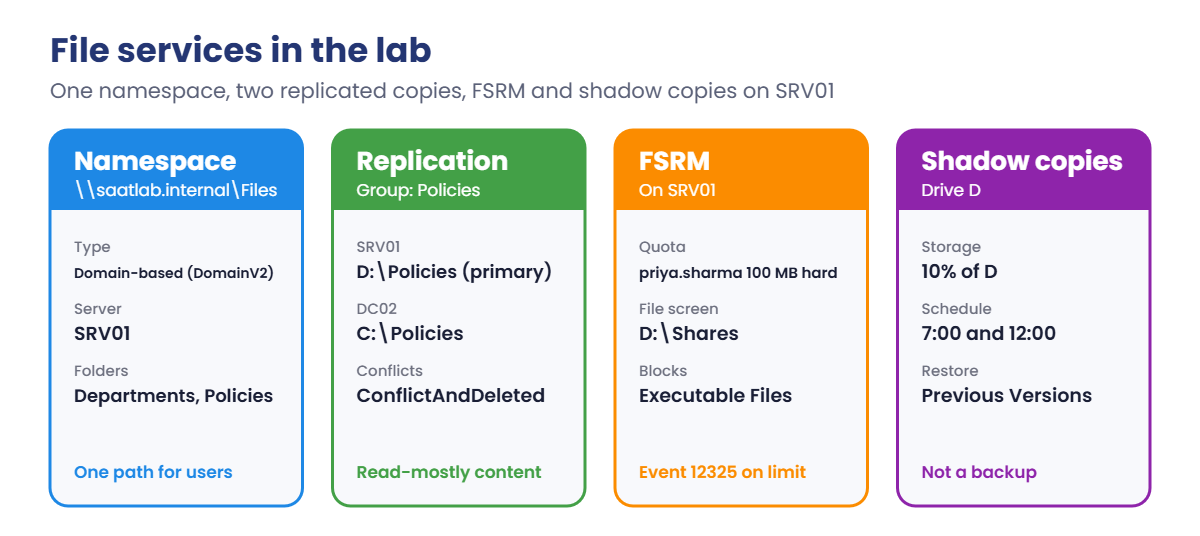
This is the file service layout you’ll build:
- Install DFS Namespaces, DFS Replication and FSRM on SRV01, and DFS Replication on DC02.
- Create the namespace
\\saatlab.internal\Fileswith a Departments folder. - Replicate a Policies folder between SRV01 and DC02, and publish it with two targets.
- Limit Priya’s home folder with a quota, and block executables in Departments.
- Protect drive D with shadow copies and restore a deleted file.
DC02 is used as the second replication member only because the lab is short of memory. In production, DFS Replication runs between file servers, not DCs.
Hands-on Lab: DFS namespace and file services on SRV01
Start DC01, SRV01 and DC02. Work on SRV01 as SAATLAB\Administrator in PowerShell as administrator. You’ll start CL01 in step 5, after shutting down DC02.
1Install the file services
On SRV01, run this:
Install-WindowsFeature FS-DFS-Namespace, FS-DFS-Replication, FS-Resource-Manager -IncludeManagementTools
Install-WindowsFeature FS-DFS-Replication -ComputerName DC02You should see something like this:
Success Restart Needed Exit Code Feature Result
------- -------------- --------- --------------
True No Success {DFS Namespaces, DFS Replication, File Server Resource Manager, ...}
Success Restart Needed Exit Code Feature Result
------- -------------- --------- --------------
True No Success {DFS Replication}✅ Checkpoint: Both installs report Success.
2Create the namespace
On SRV01, create the root folder and share, then the namespace and its first folder:
New-Item -ItemType Directory D:\DFSRoots\Files | Out-Null
New-SmbShare -Name Files -Path D:\DFSRoots\Files -ReadAccess 'NT AUTHORITY\Authenticated Users' | Out-Null
New-DfsnRoot -Path \\saatlab.internal\Files -TargetPath \\SRV01\Files -Type DomainV2
New-DfsnFolder -Path \\saatlab.internal\Files\Departments -TargetPath \\SRV01\Departments
Get-DfsnFolderTarget -Path \\saatlab.internal\Files\Departments | Select-Object Path, TargetPath, StateYou should see something like this:
Path TargetPath State
---- ---------- -----
\\saatlab.internal\Files\Departments \\SRV01\Departments OnlineThe root share only needs Read: users never store files in the root, they go through it to the folder targets, where the permissions from Lesson 16 still apply.
✅ Checkpoint: The Departments folder in the namespace points to \\SRV01\Departments and is Online.
3Replicate a Policies folder between SRV01 and DC02
On SRV01, create the folders and a first file, then the replication group:
New-Item -ItemType Directory D:\Policies | Out-Null
'Staff handbook v1' | Set-Content D:\Policies\handbook.txt
Invoke-Command -ComputerName DC02 -ScriptBlock { New-Item -ItemType Directory C:\Policies | Out-Null }
New-DfsReplicationGroup -GroupName Policies | Out-Null
New-DfsReplicatedFolder -GroupName Policies -FolderName Policies | Out-Null
Add-DfsrMember -GroupName Policies -ComputerName SRV01, DC02 | Out-Null
Add-DfsrConnection -GroupName Policies -SourceComputerName SRV01 -DestinationComputerName DC02 | Out-Null
Set-DfsrMembership -GroupName Policies -FolderName Policies -ComputerName SRV01 -ContentPath D:\Policies -PrimaryMember $true -Force | Out-Null
Set-DfsrMembership -GroupName Policies -FolderName Policies -ComputerName DC02 -ContentPath C:\Policies -Force | Out-Null
Update-DfsrConfigurationFromAD -ComputerName SRV01, DC02The primary member’s copy wins during the first sync, which is why SRV01, the server with the real data, is primary. Update-DfsrConfigurationFromAD makes both servers read the new settings now instead of at their next AD poll.
Wait two or three minutes, then check DC02 got the file:
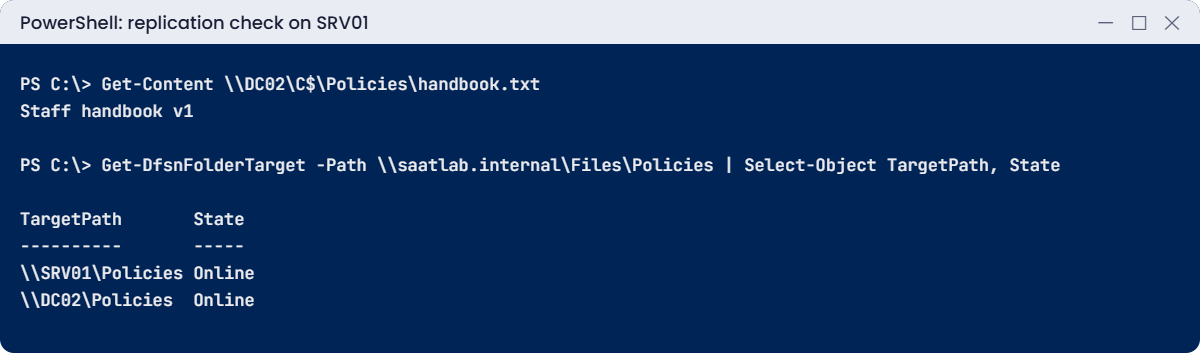
Get-Content \\DC02\C$\Policies\handbook.txt
Get-WinEvent -ComputerName DC02 -LogName 'DFS Replication' -MaxEvents 5 | Select-Object Id, MessageYou should see something like this:
Staff handbook v1
Id Message
-- -------
4104 The DFS Replication service successfully finished initial replication on the replicated folder at local path C:\Policies...
4102 The DFS Replication service initialized the replicated folder at local path C:\Policies and is waiting to perform initial...Share both copies and publish them in the namespace as two targets of one folder:
New-SmbShare -Name Policies -Path D:\Policies -ReadAccess 'NT AUTHORITY\Authenticated Users' -FullAccess 'SAATLAB\Domain Admins' | Out-Null
Invoke-Command -ComputerName DC02 -ScriptBlock { New-SmbShare -Name Policies -Path C:\Policies -ReadAccess 'NT AUTHORITY\Authenticated Users' -FullAccess 'SAATLAB\Domain Admins' | Out-Null }
New-DfsnFolder -Path \\saatlab.internal\Files\Policies -TargetPath \\SRV01\Policies | Out-Null
New-DfsnFolderTarget -Path \\saatlab.internal\Files\Policies -TargetPath \\DC02\Policies | Out-Null
Get-DfsnFolderTarget -Path \\saatlab.internal\Files\Policies | Select-Object TargetPath, StateYou should see something like this:
TargetPath State
---------- -----
\\SRV01\Policies Online
\\DC02\Policies Online✅ Checkpoint: handbook.txt exists on DC02, event 4104 appeared, and the Policies folder has two Online targets.
4Set a quota and block executable files with FSRM
On SRV01, run this:
New-FsrmQuota -Path D:\Home\priya.sharma -Size 100MB -Description 'Lab home folder limit' | Out-Null
New-FsrmFileScreen -Path D:\Shares -IncludeGroup 'Executable Files' -Active -Description 'No programs in department shares' | Out-Null
Get-FsrmQuota | Select-Object Path, @{n='LimitMB';e={$_.Size/1MB}}, @{n='UsedMB';e={[math]::Round($_.Usage/1MB,2)}}, SoftLimit
Get-FsrmFileScreen | Select-Object Path, Active, IncludeGroupYou should see something like this:
Path LimitMB UsedMB SoftLimit
---- ------- ------ ---------
D:\Home\priya.sharma 100 0 False
Path Active IncludeGroup
---- ------ ------------
D:\Shares True {Executable Files}SoftLimit False means a hard quota: writes beyond 100 MB are refused. A soft quota only warns and reports. The file screen is active, so FSRM refuses to save files matching the “Executable Files” group (.exe, .bat, .ps1 and more) anywhere under D:\Shares.
✅ Checkpoint: Priya’s folder has a 100 MB hard quota, and D:\Shares has an active file screen.
5Turn on shadow copies and restore a deleted file
On SRV01, give drive D shadow copy storage and take a first copy:
vssadmin add shadowstorage /for=D: /on=D: /maxsize=10%
vssadmin create shadow /for=D:You should see something like this:
vssadmin 1.1 - Volume Shadow Copy Service administrative command-line tool
(C) Copyright 2001-2013 Microsoft Corp.
Successfully added the shadow copy storage association
vssadmin 1.1 - Volume Shadow Copy Service administrative command-line tool
(C) Copyright 2001-2013 Microsoft Corp.
Successfully created shadow copy for 'D:\'
Shadow Copy ID: {5d3c2a1e-8b7f-4c6d-9e0a-1f2b3c4d5e6f}
Shadow Copy Volume Name: \\?\GLOBALROOT\Device\HarddiskVolumeShadowCopy1In File Explorer on SRV01, right-click drive D, choose Configure Shadow Copies, select D and click Settings, Schedule to see the default twice-a-day schedule (7:00 and 12:00 on weekdays). Click Enable to switch it on.
Now shut down DC02 and start CL01. Sign in as SAATLAB\priya.sharma, open \\saatlab.internal\Files\Departments\Finance in File Explorer and delete budget.txt.
Right-click an empty space in the Finance folder, choose Properties, then the Previous Versions tab. Select the version from a few minutes ago, click Open, and copy budget.txt back into Finance.
✅ Checkpoint: Priya restored budget.txt herself from Previous Versions, through the DFS path.
Take snapshots of all four VMs called “File services” when you’re done.
'DC01','DC02','SRV01','CL01' | ForEach-Object { VBoxManage snapshot $_ take "File services" } Break It, Then Fix It
Two surprises from file services: a full quota that looks like a full disk, and two people editing the same replicated file.
1Break it: hit the quota
On SRV01, try to create a 150 MB file in Priya’s home folder:
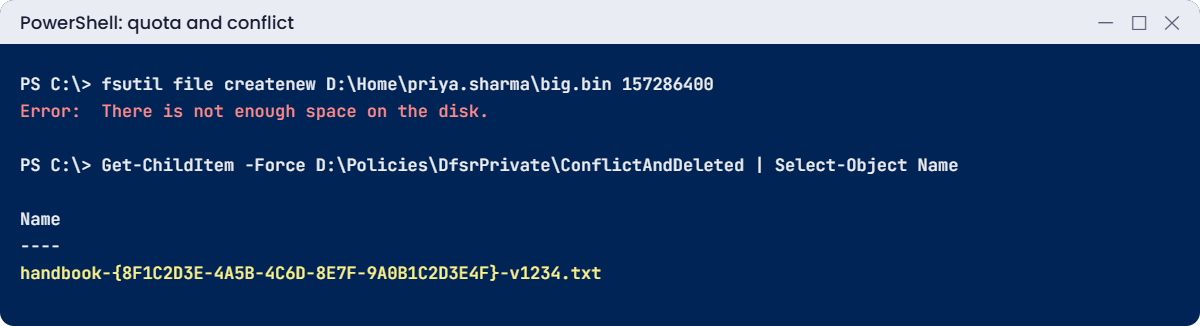
fsutil file createnew D:\Home\priya.sharma\big.bin 157286400You’ll get an error like this:
Error: There is not enough space on the disk.Drive D still has nearly 20 GB unused, yet Windows says the disk is full. A hard quota reports itself to applications exactly like a full disk, which confuses users and admins alike. FSRM also logs event 12325 in the Application log when a hard limit is hit.
Check the quota, then fix it by raising the limit (or cleaning up):
Get-FsrmQuota -Path D:\Home\priya.sharma | Select-Object Path, @{n='LimitMB';e={$_.Size/1MB}}
Set-FsrmQuota -Path D:\Home\priya.sharma -Size 200MB
fsutil file createnew D:\Home\priya.sharma\big.bin 157286400
Remove-Item D:\Home\priya.sharma\big.binYou should see something like this:
Path LimitMB
---- -------
D:\Home\priya.sharma 100
File D:\Home\priya.sharma\big.bin is created✅ Checkpoint: The file failed with a 100 MB quota and was created after raising it to 200 MB.
2Break it: the same file changed on both servers
Start DC02 again (you can shut down CL01). Pause replication in both directions so the two copies can drift apart:
On SRV01, run this:
Add-DfsrConnection -GroupName Policies -SourceComputerName DC02 -DestinationComputerName SRV01 -ErrorAction SilentlyContinue | Out-Null
Suspend-DfsReplicationGroup -GroupName Policies -SourceComputerName SRV01 -DestinationComputerName DC02 -DurationInMinutes 10
Suspend-DfsReplicationGroup -GroupName Policies -SourceComputerName DC02 -DestinationComputerName SRV01 -DurationInMinutes 10
'Handbook v2: edited on SRV01' | Set-Content D:\Policies\handbook.txt
Start-Sleep -Seconds 5
Invoke-Command -ComputerName DC02 -ScriptBlock { 'Handbook v2: edited on DC02' | Set-Content C:\Policies\handbook.txt }
Sync-DfsReplicationGroup -GroupName Policies -SourceComputerName SRV01 -DestinationComputerName DC02 -DurationInMinutes 5
Sync-DfsReplicationGroup -GroupName Policies -SourceComputerName DC02 -DestinationComputerName SRV01 -DurationInMinutes 5Wait a minute, then compare both copies:
Get-Content D:\Policies\handbook.txt
Get-Content \\DC02\C$\Policies\handbook.txt
Get-ChildItem -Force D:\Policies\DfsrPrivate\ConflictAndDeleted | Select-Object NameYou’ll see something like this:
Handbook v2: edited on DC02
Name
----
handbook-{8F1C2D3E-4A5B-4C6D-8E7F-9A0B1C2D3E4F}-v1234.txtDC02’s edit was saved last, so it won on both servers. SRV01’s edit didn’t vanish completely: DFSR moved it to the ConflictAndDeleted folder and logged event 4412. But nobody is told, and the folder is trimmed when it reaches its size limit.
Fix it: recover the losing version, then decide which content is right:
Get-DfsrPreservedFiles -Path D:\Policies\DfsrPrivate\ConflictAndDeletedManifest.xml | Select-Object PreservedName, OriginalPath
Restore-DfsrPreservedFiles -Path D:\Policies\DfsrPrivate\ConflictAndDeletedManifest.xml -RestoreToPath C:\Restored -CopyFilesThe real fix is design. DFS Replication suits content that’s edited in one place and read in many, like policies and software. For files people edit at two sites at once, use one active target in the namespace, or a collaboration tool with locking.
✅ Checkpoint: One edit won on both servers, and you found and restored the other from ConflictAndDeleted.
This happened at work
“It’s fine, it’s replicated”
A company had two offices with DFS Replication keeping their project folders identical. The IT manager often said they didn’t need much backup, because “everything exists in two places”.
One Friday evening, a project lead tidied her folders and deleted the top-level folder of a finished project by mistake, three years of drawings. Within a minute, DFS Replication deleted it in the second office too. The ConflictAndDeleted folder had a 4 GB limit, far smaller than the project, so most of it was gone from there as well.
Shadow copies existed on only one server and were five days old. The rest came from a monthly tape, and the team redrew two weeks of work.
The fix: proper daily backups of one replication member with 30-day retention, shadow copies on both servers, and a bigger ConflictAndDeleted quota. “Replication” and “backup” were written on the whiteboard as two different words.
The lesson: replication protects you from a server failing, not from a person deleting. Only a backup with history protects you from mistakes.
Common mistakes and troubleshooting
| Mistake or symptom | What happens | What to do instead |
|---|---|---|
| Treating DFS Replication as backup | Deletions and ransomware replicate too | Back up at least one member, with history |
| Same files edited at two sites | Last writer wins; the other edit goes to ConflictAndDeleted | One active target for collaborative data |
| “There is not enough space on the disk” while the volume has room | An FSRM hard quota was hit | Check Get-FsrmQuota and event 12325 |
| Namespace on one server only | The path breaks if that server is down | Add a second namespace server |
| Initial replication with the wrong primary member | Empty or old data overwrites the good copy | Mark the server with the real data as primary |
| Staging quota too small | Replication slows down and logs staging warnings | Size staging for the largest files |
| Shadow copies on the same volume as busy data | Old copies are deleted when space runs out | Give them enough space or a separate volume |
| File screens blocking legitimate scripts | IT can’t store tools in shares | Use exceptions on specific folders |
| Users given the server path instead of the DFS path | Moves and replacements break their shortcuts | Always publish the namespace path |
Interview questions
Click a question to open it. Under each one you’ll find what the interviewer is really looking for, and one good way to answer.
Fresher level
1. What is a DFS namespace?
What they’re really checking: Do you know the concept?
How you could answer: A virtual folder tree under one path, such as \\domain\Files, whose folders point to real shares on one or more servers. Users keep the same path when servers change.
2. What is the difference between DFS Namespaces and DFS Replication?
What they’re really checking: Can you separate the two?
How you could answer: Namespaces give one path and send users to a target. Replication keeps folder contents in sync between servers. You can use either one alone.
3. How does a user restore a file they deleted from a share?
What they’re really checking: Do you know shadow copies?
How you could answer: If shadow copies are on, they open the folder’s Properties, Previous Versions, and copy the file back from an earlier version.
2–5 years experience
4. How does a client choose which folder target to use?
What they’re really checking: Do you know referrals?
How you could answer: It gets a referral from a namespace server listing targets, ordered by AD site cost, and uses the first one, failing over to others if it stops answering. Referrals are cached.
5. What happens when the same file changes on two DFSR members?
What they’re really checking: Do you understand conflicts?
How you could answer: The most recent change wins, the other copy is moved to ConflictAndDeleted and event 4412 is logged. You can restore it with Restore-DfsrPreservedFiles.
6. What can FSRM do?
What they’re really checking: Have you used it?
How you could answer: Hard and soft quotas, file screens to block file types, storage reports, and file classification with actions such as moving expired files.
Senior level
7. Design file services for three offices with a central data centre.
What they’re really checking: Do you think about sites and safety?
How you could answer: A domain namespace with namespace servers in each site, folder targets per office, DFSR hub-and-spoke for read-mostly data with backups at the hub, single active targets for collaborative data, and FSRM and shadow copies on each file server.
8. DFS Replication has a growing backlog. How do you troubleshoot?
What they’re really checking: Do you know the tools?
How you could answer: Get-DfsrBacklog or dfsrdiag backlog, DFSR event log (staging, journal wrap, dirty shutdown), bandwidth schedules, staging quota, AD replication of the config, antivirus exclusions, and disk performance.
9. How would you protect file shares against ransomware?
What they’re really checking: Do you think in layers?
How you could answer: Least-privilege NTFS, FSRM file screens for known extensions, frequent shadow copies plus immutable or offline backups, monitoring for mass changes, Defender with controlled folder access where suitable, and tested restores.
Quick quiz
Q1. What does a DFS namespace give users?
- Faster disks
- One path that doesn’t change when servers do
- Automatic backups
Show answer
B — Folders point to real shares behind the scenes.
Q2. Which server’s data wins during initial DFS Replication?
- The newest server
- The primary member
- The one with the most files
Show answer
B — Mark the server with the real data as primary.
Q3. What did fsutil say when the quota was hit?
- Access is denied
- There is not enough space on the disk
- Quota exceeded
Show answer
B — Hard quotas look like a full disk to applications.
Q4. Where does DFSR put the losing copy of a conflict?
- The Recycle Bin
- DfsrPrivate\ConflictAndDeleted
- Nowhere
Show answer
B — Restore it with Restore-DfsrPreservedFiles.
Q5. In the work story, why was the project lost from both offices?
- A disk failed
- Replication copied the deletion
- The namespace was down
Show answer
B — Replication is not backup.
Quick recap
- A DFS namespace such as
\\saatlab.internal\Filesgives users one path to shares on any server. - Folders can have several targets; clients get referrals and fail over.
- DFS Replication keeps folders in sync; the last writer wins and losers go to ConflictAndDeleted.
- FSRM adds quotas and file screens; a hard quota looks like a full disk.
- Shadow copies let users restore files from Previous Versions.
- None of this is a backup.
Next lesson
Lesson 18: Print server → You’ll install the Print Server role on SRV01, add a printer with the right driver, share and publish it in AD, deploy it to users, and fix a stuck print queue.
Further reading: DFS namespace
Want to go deeper into DFS namespace? Microsoft’s DFS Namespaces overview and DFS Replication overview explain both features in depth. You can also see the full plan for this course on the Windows Server Administration course page.
