Failover clustering: build a two-node cluster

Some services can’t wait while you replace a motherboard or install updates. Failover clustering runs them on a group of servers so that if one fails or needs a restart, another takes over in seconds, using the same shared storage and the same name.

In this lesson you’ll add NODE2, validate both nodes, build a two-node cluster on the iSCSI storage from Lesson 36, add a disk witness, make a file server highly available, move it between nodes, then pull the plug on a node and on quorum.

TimeYou needBy the end you can
About 2 hoursDC01, SRV01 (iSCSI target) and NODE1 from Lesson 36, plus a new NODE2 like NODE1Validate and create a failover cluster, configure storage and quorum, deploy a clustered file server, test failover and read cluster events

What it is, in one line

Failover clustering is the Windows Server feature that joins servers (nodes) into a cluster, so roles like file servers, SQL Server or Hyper-V VMs automatically move to a healthy node when one fails.

In Simple Words

Two pilots in one cockpit

A passenger plane has two pilots. Only one flies at a time, but both can see the same instruments and reach the same controls. If the captain falls ill, the first officer takes over and the passengers never notice.

A cluster is the cockpit. The nodes are the pilots, the shared disk is the instrument panel both can reach, and the clustered role is the job of flying the plane.

And when the pilots can’t agree who’s in charge, someone needs a deciding vote. That’s the witness, and the rule that decides who may fly is called quorum.

Engineer's View

Nodes, quorum, storage and roles

Basics: nodes run the Cluster service and exchange heartbeats over every cluster network. A role (clustered group) contains resources: a network name, an IP address, a disk, and the service itself. If the owning node fails, the cluster restarts the role on another node.

Quorum decides whether the cluster may run: more than half of the votes must be present. Each node has a vote and a witness (disk, file share or cloud) adds one, so a two-node cluster with a witness survives losing one node. Dynamic quorum adjusts votes as nodes leave.

Storage: cluster disks are shared (iSCSI, Fibre Channel, SAS) and owned by one node at a time; Cluster Shared Volumes (CSV) let all nodes access a disk at once, used for Hyper-V and Scale-Out File Server. S2D builds the shared storage from local disks.

AD and tools: the cluster gets a computer object (the CNO) and each role a VCO; deleting them takes roles offline. Always run validation (Test-Cluster) first. Cluster-Aware Updating patches nodes one at a time by draining roles, and Server 2025 supports workgroup clusters with live migration.

How it works, step by step

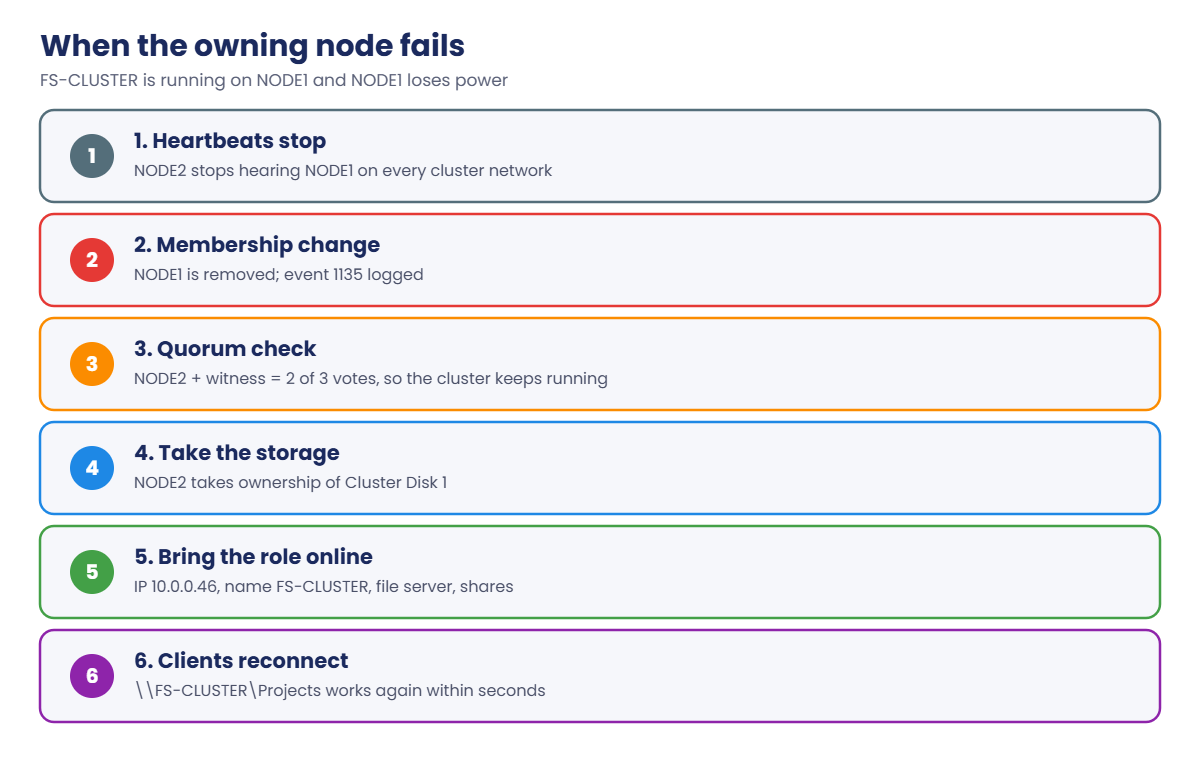
What happens when the node running the file server fails:

Failover clustering: what happens when the owning node fails

Users see a pause of a few seconds while NODE2 takes the disk, brings the IP address and name online, and starts the file server. With continuously available shares, most applications don’t even notice.

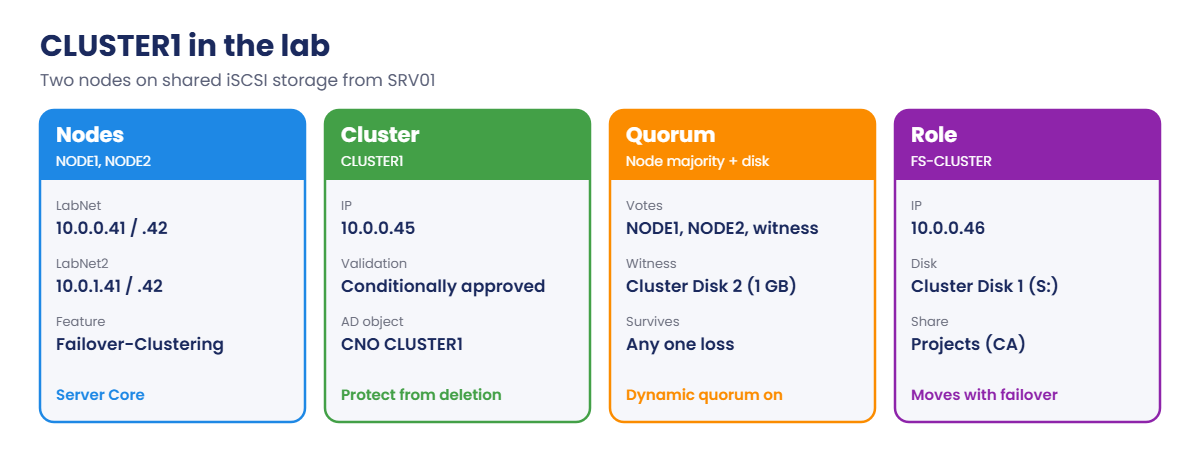
The cluster you’ll build:

Failover clustering lab: CLUSTER1 nodes, quorum and FS-CLUSTER role
  1. NODE2: a second node like NODE1, connected to the same iSCSI target.
  2. Witness LUN: a small 1 GB disk on SRV01 for quorum.
  3. Validate with Test-Cluster, then create CLUSTER1 (10.0.0.45).
  4. Quorum: disk witness.
  5. Role: FS-CLUSTER (10.0.0.46) with a continuously available Projects share.
  6. Move the role between nodes.

Memory: DC01, SRV01, NODE1 and NODE2 at 2 GB each need 8 GB plus your laptop’s own needs. Lower NODE1 and NODE2 to 1.5 GB if necessary.

Hands-on Lab: failover clustering with NODE1 and NODE2

Start DC01, SRV01 and NODE1. Work from DC01 as SAATLAB\adm.rahul in PowerShell as administrator unless a step says otherwise.

1Build NODE2 and add a witness LUN

Create NODE2 exactly like NODE1 in Lesson 36 (two NICs on LabNet and LabNet2), with addresses 10.0.0.42 and 10.0.1.42, join it to the domain in the Servers OU, install Multipath-IO and run Enable-MSDSMAutomaticClaim -BusType iSCSI.

On SRV01, allow NODE2 and add a 1 GB witness disk to the same target:

Set-IscsiServerTarget -TargetName NodeTarget -InitiatorIds 'IQN:iqn.1991-05.com.microsoft:node1.saatlab.internal', 'IQN:iqn.1991-05.com.microsoft:node2.saatlab.internal'
New-IscsiVirtualDisk -Path D:\iSCSI\Witness.vhdx -SizeBytes 1GB | Out-Null
Add-IscsiVirtualDiskTargetMapping -TargetName NodeTarget -Path D:\iSCSI\Witness.vhdx

On NODE2, connect both paths (and on NODE1, refresh so it sees the new LUN):

Set-Service MSiSCSI -StartupType Automatic; Start-Service MSiSCSI
New-IscsiTargetPortal -TargetPortalAddress 10.0.0.20 -InitiatorPortalAddress 10.0.0.42 | Out-Null
New-IscsiTargetPortal -TargetPortalAddress 10.0.1.20 -InitiatorPortalAddress 10.0.1.42 | Out-Null
$iqn = (Get-IscsiTarget).NodeAddress
Connect-IscsiTarget -NodeAddress $iqn -TargetPortalAddress 10.0.0.20 -InitiatorPortalAddress 10.0.0.42 -IsPersistent $true -IsMultipathEnabled $true | Out-Null
Connect-IscsiTarget -NodeAddress $iqn -TargetPortalAddress 10.0.1.20 -InitiatorPortalAddress 10.0.1.42 -IsPersistent $true -IsMultipathEnabled $true | Out-Null
Get-Disk | Where-Object BusType -eq 'iSCSI' | Select-Object Number, Size, OperationalStatus

You should see something like this on NODE2:

Number        Size OperationalStatus
------        ---- -----------------
     1 10737418240 Offline
     2  1073741824 Offline

The disks are offline on NODE2 because Windows doesn’t bring shared disks online automatically: two servers writing to the same NTFS volume outside a cluster would corrupt it. On NODE1, initialize the 1 GB disk as GPT with one NTFS partition, then take both iSCSI disks offline so the cluster can claim them.

✅ Checkpoint: Both nodes see the 10 GB and 1 GB iSCSI disks over two paths.

2Install the feature and validate

On DC01:

Install-WindowsFeature RSAT-Clustering-PowerShell, RSAT-Clustering-Mgmt | Out-Null
Invoke-Command -ComputerName NODE1, NODE2 -ScriptBlock { Install-WindowsFeature Failover-Clustering -IncludeManagementTools | Select-Object Success }
Test-Cluster -Node NODE1, NODE2 -ReportName C:\Temp\Cluster-Validation

You should see something like this:

WARNING: Network - Validate Network Communication: The test reported some warnings..
WARNING:
Test Result:
HadUnselectedTests, ClusterConditionallyApproved
Testing has completed for the tests you selected. You should review the warnings in the Report.  A cluster solution is
supported by Microsoft only if you run all cluster validation tests, and all tests succeed (with or without warnings).

Mode                 LastWriteTime         Length Name
----                 -------------         ------ ----
-a----        20/10/2026     00:41         702114 Cluster-Validation.htm

Open the HTML report. Warnings are common in labs (for example, the storage network has no gateway, or both NICs are on similar networks). Failures in the Storage or Network categories must be fixed before you create the cluster.

Microsoft supports a cluster only if validation passes, with or without warnings.

✅ Checkpoint: Validation finished with “ClusterConditionallyApproved” (warnings only) and a report in C:\Temp.

3Create the cluster and set quorum

On DC01:

New-Cluster -Name CLUSTER1 -Node NODE1, NODE2 -StaticAddress 10.0.0.45 -NoStorage | Out-Null
Get-ClusterAvailableDisk -Cluster CLUSTER1 | Add-ClusterDisk -Cluster CLUSTER1 | Select-Object Name, State, OwnerNode
Set-ClusterQuorum -Cluster CLUSTER1 -DiskWitness 'Cluster Disk 2' | Select-Object Cluster, QuorumResource
Get-ClusterNode -Cluster CLUSTER1 | Select-Object Name, State, NodeWeight

You should see something like this:

Name           State  OwnerNode
----           -----  ---------
Cluster Disk 1 Online NODE1
Cluster Disk 2 Online NODE1

Cluster  QuorumResource
-------  --------------
CLUSTER1 Cluster Disk 2

Name  State NodeWeight
----  ----- ----------
NODE1 Up             1
NODE2 Up             1

Check the 1 GB disk really is Cluster Disk 2 (look at its size in Failover Cluster Manager) before making it the witness. Two node votes plus the witness make three, so the cluster keeps running with any two of them. The cluster also created a computer object, CLUSTER1, next to the nodes in AD.

✅ Checkpoint: CLUSTER1 has two Up nodes, two cluster disks, and Cluster Disk 2 as its disk witness.

4Make a file server highly available

On DC01:

Add-ClusterFileServerRole -Cluster CLUSTER1 -Name FS-CLUSTER -Storage 'Cluster Disk 1' -StaticAddress 10.0.0.46 | Out-Null
$owner = (Get-ClusterGroup -Cluster CLUSTER1 -Name FS-CLUSTER).OwnerNode.Name
Invoke-Command -ComputerName $owner -ScriptBlock {
    New-Item -ItemType Directory S:\Projects -Force | Out-Null
    New-SmbShare -Name Projects -Path S:\Projects -ScopeName FS-CLUSTER -ContinuouslyAvailable $true -FullAccess 'SAATLAB\Domain Admins' -ChangeAccess 'SAATLAB\Domain Users' | Out-Null
}
Get-ClusterGroup -Cluster CLUSTER1 | Select-Object Name, OwnerNode, State

You should see something like this:

Name              OwnerNode State
----              --------- -----
Available Storage NODE1     Online
Cluster Group     NODE1     Online
FS-CLUSTER        NODE1     Online

The 10 GB disk kept the drive letter S: from Lesson 36 on whichever node owns it. Users and scripts connect to \\FS-CLUSTER\Projects, never to a node’s own name. The share belongs to the role, so it follows the role from node to node.

✅ Checkpoint: FS-CLUSTER is Online and the Projects share is reachable as \\FS-CLUSTER\Projects from CL01.

5Move the role between nodes

On DC01:

Measure-Command { Move-ClusterGroup -Cluster CLUSTER1 -Name FS-CLUSTER -Node NODE2 | Out-Null } | Select-Object TotalSeconds
Get-ClusterGroup -Cluster CLUSTER1 -Name FS-CLUSTER | Select-Object Name, OwnerNode, State

You should see something like this:

TotalSeconds
------------
      4.8732

Name       OwnerNode State
----       --------- -----
FS-CLUSTER NODE2     Online

This planned move is what Cluster-Aware Updating does for every role before it patches a node. Copy a large file to the share from CL01 while you move the role back to NODE1: with a continuously available share, the copy pauses briefly and carries on.

✅ Checkpoint: FS-CLUSTER moved to NODE2 in a few seconds and stayed Online.
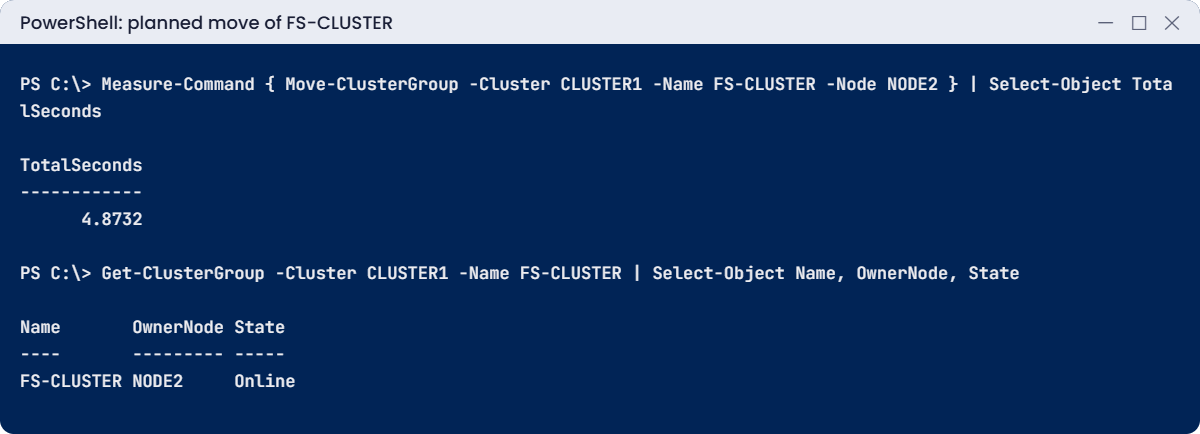
Failover clustering lab: FS-CLUSTER moved to NODE2 in seconds
A planned move takes a few seconds, and the role stays Online on NODE2.

Break It, Then Fix It

A cluster earns its keep when things fail. You’ll fail a node, then fail enough votes to lose quorum.

1Break it: a node dies

Make sure FS-CLUSTER runs on NODE1, then power NODE1 off hard from your laptop:

VBoxManage controlvm NODE1 poweroff

On DC01, wait about 30 seconds, then:

Get-ClusterNode -Cluster CLUSTER1 | Select-Object Name, State
Get-ClusterGroup -Cluster CLUSTER1 -Name FS-CLUSTER | Select-Object OwnerNode, State
Get-WinEvent -ComputerName NODE2 -FilterHashtable @{LogName='System'; ProviderName='Microsoft-Windows-FailoverClustering'; Id=1135} -MaxEvents 1 | Select-Object Id, Message | Format-List

You’ll see something like this:

Name  State
----  -----
NODE1 Down
NODE2 Up

OwnerNode State
--------- -----
NODE2     Online

Id      : 1135
Message : Cluster node 'NODE1' was removed from the active failover cluster membership. The Cluster service on this
          node may have stopped. This could also be due to the node having lost communication with other active nodes
          in the failover cluster. ...

Nobody pressed anything: NODE2 noticed missing heartbeats, took the disk and brought FS-CLUSTER online. Event 1135 is the first thing to look for after an unexpected failover. The cause (power, network, a crash) is on the node that left.

Fix it: start NODE1 and check it rejoins:

VBoxManage startvm NODE1          # on your laptop
Get-ClusterNode -Cluster CLUSTER1 | Select-Object Name, State   # on DC01, after a few minutes

✅ Checkpoint: FS-CLUSTER failed over to NODE2 automatically, event 1135 was logged, and NODE1 shows Up again after starting.

2Break it: lose quorum

With FS-CLUSTER on NODE2, power off NODE1 again, then cut off the witness disk on SRV01:

VBoxManage controlvm NODE1 poweroff                                                       # on your laptop
Remove-IscsiVirtualDiskTargetMapping -TargetName NodeTarget -Path D:\iSCSI\Witness.vhdx      # on SRV01

On DC01, after a minute:

Get-ClusterNode -Cluster CLUSTER1 -ErrorAction SilentlyContinue | Select-Object Name, State
Get-WinEvent -ComputerName NODE2 -FilterHashtable @{LogName='System'; ProviderName='Microsoft-Windows-FailoverClustering'; Id=1177} -MaxEvents 1 | Select-Object Id, Message | Format-List

You’ll see something like this:

Id      : 1177
Message : The Cluster service is shutting down because quorum was lost. This could be due to the loss of network
          connectivity between some or all nodes in the cluster, or a failover of the witness disk. ...

Often, dynamic quorum keeps a two-node cluster running when a node leaves cleanly. Here NODE1 vanished and the witness disappeared too, so NODE2 alone couldn’t be sure it was the “real” cluster and stopped, taking FS-CLUSTER offline. Stopping is deliberate: it prevents two halves from writing to the same disks (split-brain).

Fix it: bring the votes back. Restore the witness, start NODE1, and check:

Add-IscsiVirtualDiskTargetMapping -TargetName NodeTarget -Path D:\iSCSI\Witness.vhdx   # on SRV01
VBoxManage startvm NODE1                                                                 # on your laptop
Get-ClusterGroup -Cluster CLUSTER1 | Select-Object Name, OwnerNode, State                # on DC01

If you ever must run with too few votes, Start-ClusterNode -FixQuorum (force quorum) starts a node anyway. Use it only when you’re sure the other side is really down, because it can cause split-brain.

✅ Checkpoint: NODE2 logged event 1177 and stopped; after restoring the witness and NODE1, all roles are Online.

Failover clustering lab: event 1177 when quorum is lost
With one node and the witness gone, NODE2 stops the cluster rather than risk split-brain.

This happened at work

The cleanup that deleted a cluster

A junior admin was asked to tidy Active Directory. He found computer objects called SQLCLU01, SQL-AG-LST and FS-CL02 that didn’t match any server in the inventory, and nobody had signed in to them for months. They looked abandoned, so he deleted them.

They were the cluster name object and two virtual computer objects of production clusters. Within hours, the SQL listener and file server roles failed to come online after a routine failover, with events about the network name resource failing to find its computer object.

The team restored the three objects from the AD Recycle Bin and brought the roles online again, after a morning of degraded service.

The fix: cluster computer objects got a description (“Failover cluster CNO, do not delete”) and were protected from accidental deletion. Cleanup scripts now skip objects whose servicePrincipalName shows MSClusterVirtualServer.

The lesson: cluster names live as computer objects in AD. They never sign in like servers, so they look stale, but deleting them breaks the cluster.

Common mistakes and troubleshooting

Mistake or symptomWhat happensWhat to do instead
Skipping validationUnsupported cluster; hidden storage or network problemsRun Test-Cluster and fix failures before creating
No witness on a two-node clusterLosing one node can stop the clusterDisk, file share or cloud witness
Event 1135 after a failoverA node left membershipCheck that node’s power, network and crash logs
Event 1177 quorum lostCluster stops to avoid split-brainRestore votes (nodes, witness); force quorum only if sure
Deleting cluster CNO or VCO objectsRoles fail to come onlineProtect and describe them; restore from the Recycle Bin
Bringing shared disks online on two nodes outside the clusterNTFS corruptionLet the cluster own shared disks
Users connecting to node namesNo failover for themAlways use the role’s network name
Patching nodes by hand at the same timeBoth nodes downCluster-Aware Updating or one node at a time
Single network for everythingHeartbeats lost under loadSeparate networks for clients, storage and cluster traffic

Interview questions

Click a question to open it. Under each one you’ll find what the interviewer is really looking for, and one good way to answer.

Fresher level

1. What is a failover cluster?

What they’re really checking: Do you know the basics?

How you could answer: A group of servers working together so clustered roles move automatically to another server if one fails.

2. What is quorum?

What they’re really checking: Do you know the voting idea?

How you could answer: The rule that more than half of the votes (nodes plus a witness) must be available for the cluster to run, preventing split-brain.

3. Why should users connect to the role name and not the node name?

What they’re really checking: Do you understand client access?

How you could answer: The role’s network name and IP move with the role to whichever node owns it; a node name stays on that node.

2–5 years experience

4. What types of witness can you use?

What they’re really checking: Do you know quorum options?

How you could answer: Disk witness, file share witness, or cloud witness in Azure storage. Choose based on sites and available storage.

5. What do events 1135 and 1177 tell you?

What they’re really checking: Have you read cluster logs?

How you could answer: 1135: a node was removed from cluster membership. 1177: the Cluster service stopped because quorum was lost.

6. What is a Cluster Shared Volume?

What they’re really checking: Do you know CSV?

How you could answer: A cluster disk all nodes can read and write at the same time through a coordinating owner, used for Hyper-V VMs and Scale-Out File Server.

Senior level

7. Design a highly available file service for 2,000 users.

What they’re really checking: Do you think end to end?

How you could answer: A two- or three-node failover cluster with a file server role and continuously available shares, redundant storage paths, a witness in a third location, DFS namespaces in front, backups, and CAU for patching.

8. A cluster keeps failing over every few days. How do you investigate?

What they’re really checking: Is your troubleshooting structured?

How you could answer: Get-ClusterLog from all nodes around the time, events 1135 and network warnings, heartbeat thresholds, NIC drivers and firmware, storage latency, antivirus, and resource-specific logs.

9. What changed for clusters in recent Windows Server releases?

What they’re really checking: Are you current?

How you could answer: Workgroup clusters that support live migration in Server 2025, cluster sets, improved S2D, CAU with Azure Arc, and Kubernetes integration for hybrid scenarios.

Quick quiz

Q1. How many votes does a two-node cluster with a witness have?

  1. Two
  2. Three
  3. Four
Show answer

B — Two nodes plus the witness.

Q2. What happened when NODE1 was powered off in Break It step 1?

  1. Users lost the share for hours
  2. FS-CLUSTER moved to NODE2 automatically
  3. The cluster was deleted
Show answer

B — That’s failover.

Q3. Which event means quorum was lost?

  1. 1135
  2. 1177
  3. 4624
Show answer

B — The Cluster service stops to avoid split-brain.

Q4. Why are shared disks offline on NODE2 before clustering?

  1. They’re broken
  2. To prevent two servers writing to the same volume
  3. To save power
Show answer

B — The cluster takes ownership.

Q5. In the work story, what broke the clusters?

  1. A failed disk
  2. Deleted cluster computer objects in AD
  3. A bad patch
Show answer

B — Protect CNO and VCO objects.

Quick recap

  • Failover clustering moves roles to a healthy node when one fails.
  • Validate with Test-Cluster before New-Cluster.
  • Quorum needs more than half the votes; add a witness to two-node clusters.
  • Roles have their own name and IP; clients use those, not node names.
  • Event 1135 means a node left; 1177 means quorum was lost.
  • Protect cluster computer objects in AD and patch nodes one at a time.

Next lesson

Lesson 38: Backup and DR → You’ll back up SRV01 with Windows Server Backup, restore single files and a whole volume, practise bare-metal recovery and plan a 3-2-1 backup strategy.

Further reading: failover clustering

Want to go deeper into failover clustering? Microsoft’s failover clustering overview covers the feature, and the cluster quorum guide explains votes and witnesses. You can also see the full plan for this course on the Windows Server Administration course page.

Scroll to Top