Promote the first domain controller
-
Phase 0: Before you start
-
Phase 1: The foundation
-
Phase 2: Core administration and security
-
Phase 3: Enterprise infrastructure
-
Phase 4: Troubleshooting step by step
-
Phase 5: Final project and career
This is the lesson where your lab becomes a real Windows network. You’ll promote domain controller number one: DC01 becomes the first DC of a brand-new forest, saatlab.internal, with its own DNS server.
Promotion takes one command and a restart. The important part is what you check afterwards: the FSMO roles, the DNS zones and SRV records, the SYSVOL and NETLOGON shares, and a clean dcdiag. Those same checks are what you’ll run on any DC at work.
| Time | You need | By the end you can |
|---|---|---|
| About 45 minutes | DC01 with the AD DS role installed (Lesson 10) and your DSRM password | Promote the first domain controller of a new forest with PowerShell, then verify FSMO roles, DNS zones, SRV records, SYSVOL and NETLOGON, the DNS forwarder and dcdiag |
What it is, in one line
To promote a domain controller means turning a member or standalone server into a DC: it gets a copy of the Active Directory database, the SYSVOL share and usually DNS, and starts answering sign-ins.
In Simple Words
Opening the town’s first records office
A new town needs a records office before anyone can register a birth, a house or a business. On opening day, the office gets an empty register, a stamp, a directory listing on every signpost, and a filing cabinet for the town’s rules.
Promoting DC01 is opening that office. Windows creates the empty register (the AD database), the stamp (the domain’s security keys), the signposts (DNS records pointing to DC01), and the filing cabinet (SYSVOL, where Group Policy and logon scripts live).
After opening day, you check every piece is really there. A records office with no signposts is one nobody can find.
Engineer's View
What Install-ADDSForest actually does
Creates the forest and domain. It builds the database at C:\Windows\NTDS\ntds.dit with the schema, configuration and domain partitions, and the built-in accounts and groups (Administrator, Domain Admins, Enterprise Admins and others). The server’s local accounts disappear: a DC has no local user database, only the domain.
Creates SYSVOL at C:\Windows\SYSVOL and shares it as SYSVOL and NETLOGON. Group Policy files live here, and they’re replicated between DCs by DFS Replication.
Installs and configures DNS (with -InstallDns).
It creates two AD-integrated zones: saatlab.internal and _msdcs.saatlab.internal, stored inside AD and replicated with it. The DNS servers the machine used before become forwarders, so internet names still resolve. DC01’s own DNS client is changed to point at itself.
Registers SRV records. The Netlogon service writes records such as _ldap._tcp.dc._msdcs.saatlab.internal so clients can find DCs. If these are missing, nothing can join or sign in.
Holds every FSMO role and the global catalog. The first DC in a forest always does. You’ll move some roles when DC02 arrives.
Sets the DSRM password for Directory Services Restore Mode, a special local administrator used only when AD is offline for repair.
Restarts. After the restart you sign in as SAATLAB\Administrator, using the password the local Administrator had before promotion.
How it works, step by step
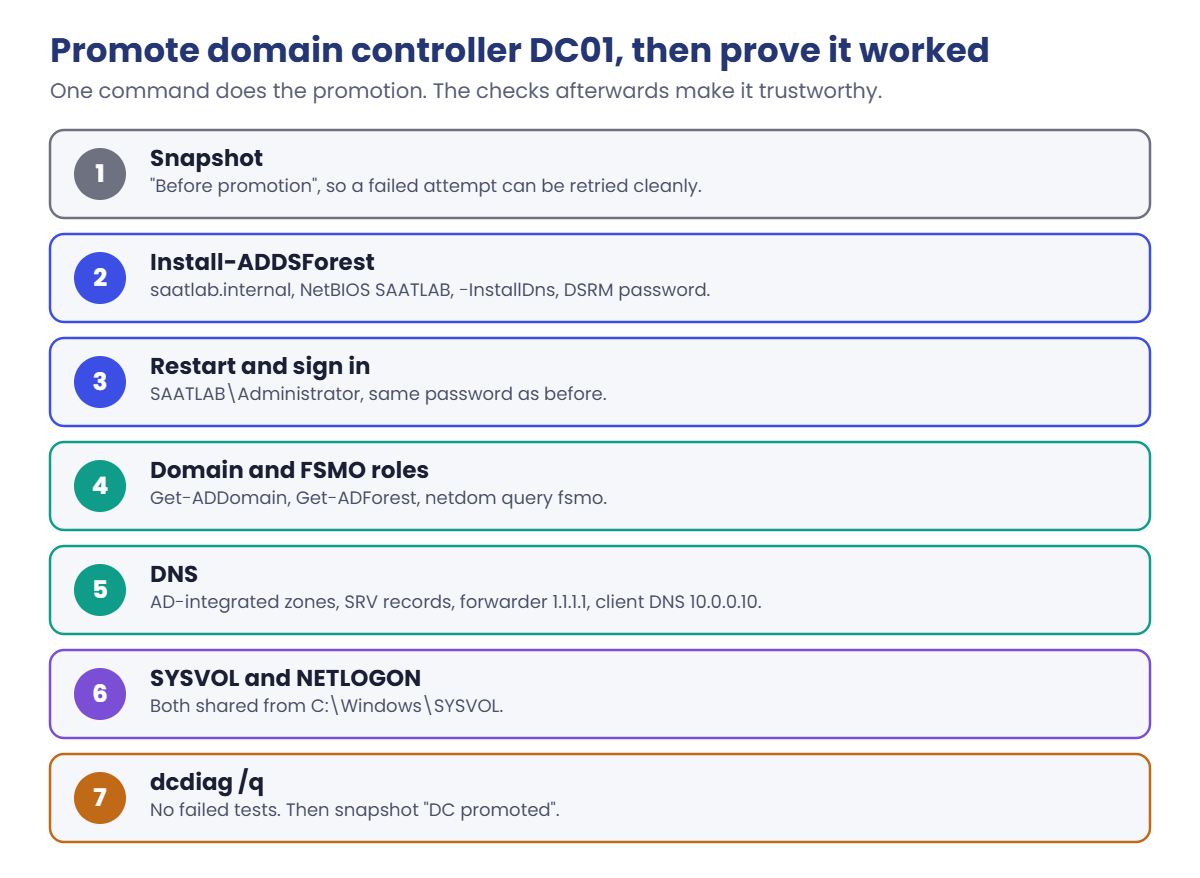
Here’s the sequence, from command to a healthy DC. The checks after the restart matter as much as the promotion itself:
- Snapshot DC01 so you can retry a failed promotion cleanly.
- Run Install-ADDSForest with the domain name, NetBIOS name and -InstallDns, and give the DSRM password.
- Restart (automatic) and sign in as SAATLAB\Administrator.
- Check the domain and roles: Get-ADDomain, Get-ADForest, netdom query fsmo.
- Check DNS: the zones exist, the SRV records resolve, the forwarder points to the internet.
- Check SYSVOL and NETLOGON are shared.
- Run dcdiag and read every failure line.
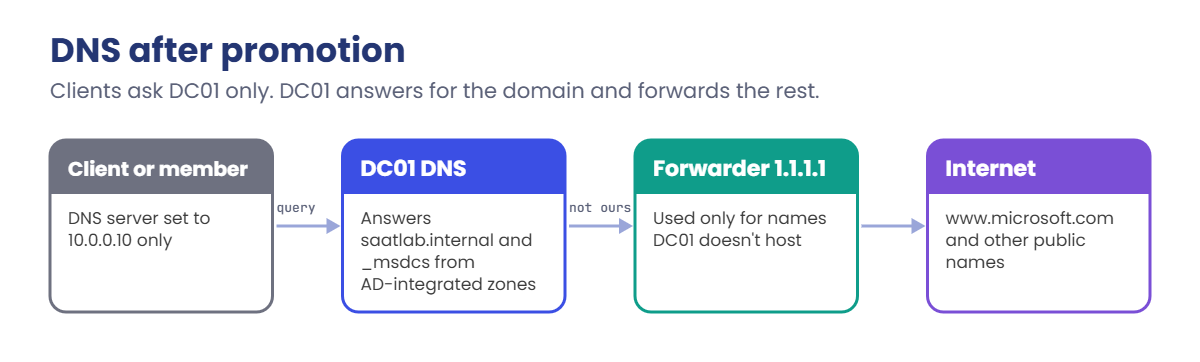
And this is how DNS looks on DC01 after promotion. Clients will ask DC01, DC01 answers for saatlab.internal itself and forwards everything else:
From now on, every machine in the domain must use DC01 (and later DC02) as its only DNS servers. A public DNS server as “backup” is the most common cause of random AD failures, as you’ll see in the Break It lab and the work story.
Hands-on Lab: promote domain controller DC01 and check it
DC01 is powered off after Lesson 10. Steps 1 and 2 happen on your laptop and DC01; after the restart everything is on DC01 in PowerShell as administrator.
1Take a snapshot before promotion
On your laptop:
VBoxManage snapshot DC01 take "Before promotion"
VBoxManage startvm DC01✅ Checkpoint: DC01 has a “Before promotion” snapshot and is starting.
2Promote DC01
On DC01, run this. Enter the DSRM password twice, then answer Y:
Install-ADDSForest -DomainName saatlab.internal -DomainNetbiosName SAATLAB -InstallDnsYou should see something like this before DC01 restarts by itself:
SafeModeAdministratorPassword: ****************
Confirm SafeModeAdministratorPassword: ****************
The target server will be configured as a domain controller and restarted when this operation is complete.
Do you want to continue with this operation?
[Y] Yes [A] Yes to All [N] No [L] No to All [S] Suspend [?] Help (default is "Y"): Y
WARNING: This computer has at least one physical network adapter that does not have static IP address(es) ...
WARNING: A delegation for this DNS server cannot be created because the authoritative parent zone cannot be found ...You’ll see a progress bar for a few minutes, then DC01 signs you out and restarts. The first start after promotion takes longer than usual (“Applying computer settings”).
✅ Checkpoint: DC01 restarted on its own after the promotion finished.
3Sign in and check the domain and forest
Press Right Ctrl + Delete. The sign-in screen now says SAATLAB\Administrator; use the same password as before. Open PowerShell as administrator.
Run these one at a time:
Get-ADDomain | Select-Object DNSRoot, NetBIOSName, DomainMode
Get-ADForest | Select-Object Name, ForestMode, GlobalCatalogs
netdom query fsmoYou should see something like this:
DNSRoot NetBIOSName DomainMode
------- ----------- ----------
saatlab.internal SAATLAB Windows2025Domain
Name ForestMode GlobalCatalogs
---- ---------- --------------
saatlab.internal Windows2025Forest {DC01.saatlab.internal}
Schema master DC01.saatlab.internal
Domain naming master DC01.saatlab.internal
PDC DC01.saatlab.internal
RID pool manager DC01.saatlab.internal
Infrastructure master DC01.saatlab.internal
The command completed successfully.
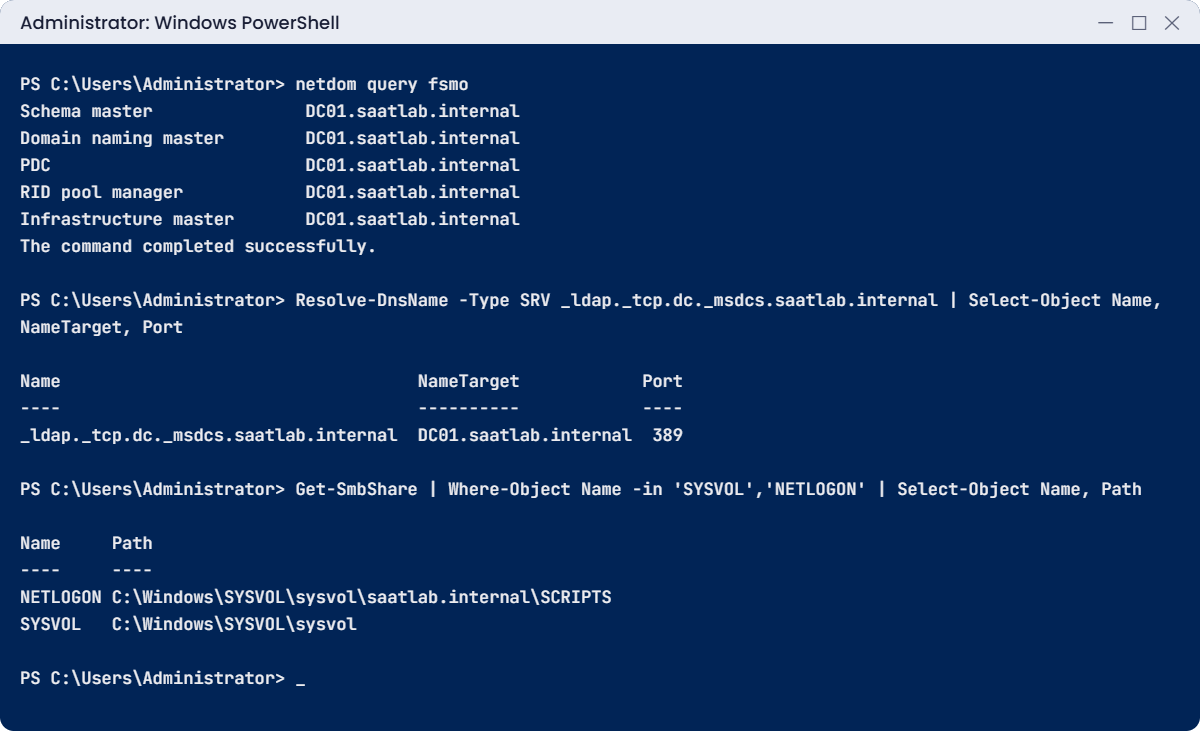
The forest and domain run at the 2025 functional level, DC01 is the only global catalog, and it holds all five FSMO roles. netdom query fsmo is the fastest way to answer “where are the roles?” on any domain.
✅ Checkpoint: Get-ADDomain shows saatlab.internal and SAATLAB, and netdom lists DC01 for all five roles.
4Check DNS: zones, SRV records and the forwarder
Run these one at a time:
Get-DnsServerZone | Select-Object ZoneName, ZoneType, IsDsIntegrated
Resolve-DnsName -Type SRV _ldap._tcp.dc._msdcs.saatlab.internal | Select-Object Name, NameTarget, Port
Get-DnsServerForwarder | Select-Object IPAddress
Get-DnsClientServerAddress -InterfaceAlias Ethernet -AddressFamily IPv4 | Select-Object ServerAddressesYou should see something like this:
ZoneName ZoneType IsDsIntegrated
-------- -------- --------------
_msdcs.saatlab.internal Primary True
0.in-addr.arpa Primary False
127.in-addr.arpa Primary False
255.in-addr.arpa Primary False
saatlab.internal Primary True
TrustAnchors Primary True
Name NameTarget Port
---- ---------- ----
_ldap._tcp.dc._msdcs.saatlab.internal DC01.saatlab.internal 389
IPAddress
---------
{1.1.1.1}
ServerAddresses
---------------
{::1, 127.0.0.1}Both AD zones are AD-integrated, the SRV record points at DC01 on port 389 (LDAP), and 1.1.1.1 became a forwarder so internet names still resolve. Promotion pointed DC01’s own DNS at itself (127.0.0.1 and ::1).
Best practice is to use the DC’s real address instead of loopback, so set it now:
Run this:
Set-DnsClientServerAddress -InterfaceAlias Ethernet -ServerAddresses 10.0.0.10✅ Checkpoint: Both zones show IsDsIntegrated True, the SRV record points to DC01, and the forwarder is 1.1.1.1.
5Check SYSVOL and NETLOGON
Run this:
Get-SmbShare | Where-Object Name -in 'SYSVOL','NETLOGON' | Select-Object Name, PathYou should see this:
Name Path
---- ----
NETLOGON C:\Windows\SYSVOL\sysvol\saatlab.internal\SCRIPTS
SYSVOL C:\Windows\SYSVOL\sysvolThese two shares appear only when the DC has finished initialising. If they’re missing after promotion, Group Policy won’t work and the DC isn’t really ready, even if everything else looks fine.
✅ Checkpoint: Both SYSVOL and NETLOGON are shared.
6Run dcdiag
Run this:
dcdiag /q/q prints only errors.
On a healthy new DC you’ll see nothing at all, or a couple of lines about the System event log containing warnings from the first start. Read any failure and check it against the troubleshooting table below. Lesson 45 covers dcdiag in depth.
✅ Checkpoint: dcdiag /q shows no failed tests (or only event log warnings from the first boot).
7Confirm the network profile and take a snapshot
Run this:
Get-NetConnectionProfile | Select-Object Name, NetworkCategoryYou should see this:
Name NetworkCategory
---- ---------------
saatlab.internal DomainAuthenticatedThe connection moved from Public to DomainAuthenticated, so the Domain firewall profile now applies. Shut down DC01 and take a snapshot called “DC promoted” from your laptop.
✅ Checkpoint: NetworkCategory is DomainAuthenticated and DC01 has a “DC promoted” snapshot.
Break It, Then Fix It
Two DNS faults cause most “AD is broken” calls. Start DC01 from the “DC promoted” snapshot and break both.
1Break it: point the DC at public DNS
On DC01, run these:
Set-DnsClientServerAddress -InterfaceAlias Ethernet -ServerAddresses 1.1.1.1
Clear-DnsClientCache
Resolve-DnsName -Type SRV _ldap._tcp.dc._msdcs.saatlab.internalYou’ll get an error like this:
Resolve-DnsName : _ldap._tcp.dc._msdcs.saatlab.internal : DNS name does not exist
At line:1 char:1
+ Resolve-DnsName -Type SRV _ldap._tcp.dc._msdcs.saatlab.internal
+ ~~~~~~~~~~~~~~~~~~~~~~~~~~~~~~~~~~~~~~~~~~~~~~~~~~~~~~~~~~~~~~
+ CategoryInfo : ResourceUnavailable: (_ldap._tcp.dc._msdcs.saatlab.internal:String) [Resolve-DnsName], Win32Exception
+ FullyQualifiedErrorId : DNS_ERROR_RCODE_NAME_ERROR,Microsoft.DnsClient.Commands.ResolveDnsName
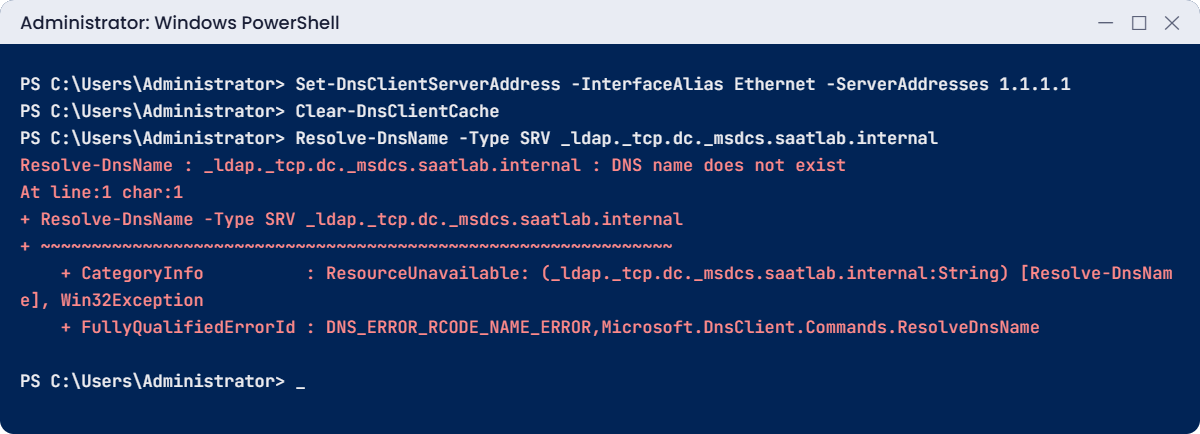
The record still exists on DC01’s DNS server, but DC01’s own DNS client now asks the internet, which has never heard of saatlab.internal. Any member pointed at a public resolver has exactly this problem, and so would DC01’s own services.
Fix it: point the DNS client back at the DC and test again:
Set-DnsClientServerAddress -InterfaceAlias Ethernet -ServerAddresses 10.0.0.10
Clear-DnsClientCache
Resolve-DnsName -Type SRV _ldap._tcp.dc._msdcs.saatlab.internal | Select-Object Name, NameTarget, PortYou should see this:
Name NameTarget Port
---- ---------- ----
_ldap._tcp.dc._msdcs.saatlab.internal DC01.saatlab.internal 389✅ Checkpoint: The SRV lookup fails with 1.1.1.1 and works with 10.0.0.10.
2Break it: lose the DC’s SRV records
Delete DC01’s main SRV record from the _msdcs zone, as if someone had cleaned up “old” records:
Get-DnsServerResourceRecord -ZoneName _msdcs.saatlab.internal -Name _ldap._tcp.dc -RRType Srv |
Remove-DnsServerResourceRecord -ZoneName _msdcs.saatlab.internal -Force
Clear-DnsClientCache
Resolve-DnsName -Type SRV _ldap._tcp.dc._msdcs.saatlab.internalYou get “DNS name does not exist” again, and this time it’s true. New computers can’t find a DC to join (you’ll see that error in Lesson 13) and existing ones start failing over to other DCs, or fail outright if there are none.
Fix it: make Netlogon register its records again:
nltest /dsregdns
Resolve-DnsName -Type SRV _ldap._tcp.dc._msdcs.saatlab.internal | Select-Object Name, NameTarget, PortYou should see something like this:
The command completed successfully
Name NameTarget Port
---- ---------- ----
_ldap._tcp.dc._msdcs.saatlab.internal DC01.saatlab.internal 389nltest /dsregdns tells Netlogon to re-register every DC record right now. Restarting the Netlogon service does the same, and Netlogon re-registers them by itself periodically anyway. The full list of records it registers is in C:\Windows\System32\config\netlogon.dns.
✅ Checkpoint: The SRV record is back after nltest /dsregdns.
This happened at work
The domain controller with Google as a backup
A company built a new domain controller for its branch office. To be “safe”, the engineer set its DNS servers to itself first and 8.8.8.8 second, “in case our DNS goes down”. Branch laptops got the same two servers from DHCP.
For months, people complained about random problems: a slow sign-in one morning, a mapped drive missing, a Group Policy that applied on Tuesday but not Wednesday. Each ticket was closed with “restarted, works now”.
The pattern only showed up when someone ran nslookup against the second DNS server: whenever Windows briefly switched to 8.8.8.8 (after a slow answer from the first server, for example), it got “name does not exist” for every AD record, and cached that answer for a while.
The fix: every domain member and DC uses only internal DNS servers, with two DCs for redundancy. Internet names are resolved through forwarders on the DNS servers, never through public resolvers on clients. A Group Policy and DHCP option now set this, and monitoring alerts on any client with a public DNS server.
The lesson: in Active Directory, a public DNS server isn’t a backup. It’s a second source of wrong answers.
Common mistakes and troubleshooting
| Mistake or symptom | What happens | What to do instead |
|---|---|---|
| Members or DCs using public DNS as primary or secondary | Random failures to find DCs, slow sign-ins, missed Group Policy | Only internal DNS servers on members; forwarders for the internet |
| Promoting without a snapshot or backup | A failed promotion is hard to clean up | Snapshot first in a lab; system state backup in production |
| Signing in as “.\Administrator” after promotion | Confusion: a DC has no local accounts | Sign in as SAATLAB\Administrator |
| SYSVOL and NETLOGON shares missing | Group Policy and logon scripts don’t work | Check DFS Replication and event logs; the DC isn’t fully ready |
| SRV records missing from _msdcs | Computers can’t join or find a DC | nltest /dsregdns or restart Netlogon; check DNS client settings on the DC |
| DC01’s DNS client left on 127.0.0.1 only | Works, but hides DNS problems and complicates multi-DC setups | Use the DC’s own IP and a partner DC |
| Forgetting the DSRM password | Can’t enter Directory Services Restore Mode for repairs | Reset it with ntdsutil “set dsrm password” and store it safely |
| dcdiag failures ignored right after promotion | Small problems grow into replication failures | Fix or understand every failure before adding more DCs |
| Install-ADDSForest run on the wrong server | A server you didn’t plan becomes the forest root | Double-check the server name before running it |
Interview questions
Click a question to open it. Under each one you’ll find what the interviewer is really looking for, and one good way to answer.
Fresher level
1. How do you promote a server to a domain controller?
What they’re really checking: Have you done it?
How you could answer: Install the AD DS role, then use Server Manager’s promotion wizard or PowerShell: Install-ADDSForest for a new forest, Install-ADDSDomainController to add a DC to an existing domain. Provide the DSRM password and restart.
2. What is the SYSVOL share?
What they’re really checking: Do you know what lives there?
How you could answer: A shared folder on every DC containing Group Policy templates and logon scripts. NETLOGON is a share inside it. It’s replicated between DCs by DFS Replication.
3. What is the DSRM password used for?
What they’re really checking: Do you know recovery basics?
How you could answer: Signing in to Directory Services Restore Mode, where AD is stopped, to repair or restore the AD database.
2–5 years experience
4. After promotion, what do you check?
What they’re really checking: Do you verify instead of assuming?
How you could answer: Get-ADDomain and netdom query fsmo for roles, DNS zones and SRV records, the forwarders, SYSVOL and NETLOGON shares, event logs, and dcdiag /q. The network profile should be DomainAuthenticated.
5. Clients can’t find a domain controller. How do you troubleshoot?
What they’re really checking: Do you start with DNS?
How you could answer: Check the client’s DNS servers point only at DCs, then Resolve-DnsName -Type SRV _ldap._tcp.dc._msdcs.<domain>. If the record is missing, run nltest /dsregdns on the DC and check its DNS client settings.
6. What are DNS forwarders and why use them?
What they’re really checking: Do you know how DCs resolve internet names?
How you could answer: DNS servers send queries they can’t answer to another server, such as the ISP’s or a public resolver. Clients only talk to internal DNS, and the DCs reach the internet through forwarders.
Senior level
7. What would you do differently promoting the first DC in production?
What they’re really checking: Do you think about hardening and resilience?
How you could answer: Plan the name and IP, harden the build, place it in a secure network segment, take a system state backup right after promotion, add a second DC immediately, configure time sync on the PDC Emulator from a reliable source, and document the DSRM password in a vault.
8. Why should a DC not use only 127.0.0.1 for DNS?
What they’re really checking: Do you know the multi-DC best practice?
How you could answer: With several DCs, each should point first to another DC and then itself (or itself by real IP), so it can find replication partners even if its own DNS has problems. Loopback-only can hide DNS faults.
9. How do you check a new forest is healthy before adding more servers?
What they’re really checking: Do you have a checklist?
How you could answer: dcdiag clean, repadmin /replsummary (once there are two DCs), SRV records resolving, SYSVOL shared, time correct on the PDC Emulator, event logs reviewed, and a successful system state backup.
Quick quiz
Q1. Which command promotes the first DC of a new forest?
- Install-ADDSDomainController
- Install-ADDSForest
- Add-Computer
Show answer
B — Install-ADDSForest creates a new forest and its first domain.
Q2. How do you sign in to DC01 after promotion?
- DC01\Administrator
- SAATLAB\Administrator
- .\Guest
Show answer
B — A DC has no local accounts; use the domain account.
Q3. What happened to 1.1.1.1 during promotion?
- It was deleted
- It became a DNS forwarder
- It became the domain name
Show answer
B — The old DNS servers become forwarders for internet names.
Q4. Which command re-registers a DC’s SRV records?
- ipconfig /flushdns
- nltest /dsregdns
- gpupdate /force
Show answer
B — nltest /dsregdns makes Netlogon register the records again.
Q5. In the work story, why were the failures random?
- Faulty network cards
- Clients sometimes used 8.8.8.8, which knows nothing about AD
- Expired licences
Show answer
B — Public DNS as a “backup” gives wrong answers for AD names.
Quick recap
- To promote a domain controller for a new forest:
Install-ADDSForest -DomainName ... -InstallDns. - The first DC holds every FSMO role and the global catalog; check with
netdom query fsmo. - DNS gets two AD-integrated zones; old DNS servers become forwarders.
- Clients find DCs through SRV records like
_ldap._tcp.dc._msdcs.saatlab.internal;nltest /dsregdnsre-registers them. - Check SYSVOL and NETLOGON shares and run
dcdiag /q. - Domain members use only internal DNS, never public resolvers.
Next lesson
Lesson 12: Users, groups and OUs → You’ll design an OU structure for the lab, create users and groups by hand and from a CSV file, learn group scopes and the AGDLP model, and turn on the AD Recycle Bin.
Further reading: promote domain controller
Want to go deeper into how to promote a domain controller? Microsoft’s guide to installing Active Directory Domain Services covers the wizard and the PowerShell commands used here. You can also see the full plan for this course on the Windows Server Administration course page.
