Active Directory Certificate Services: build your own CA

Since Lesson 25, the intranet and RD Web have shown certificate warnings because they used self-signed certificates. Active Directory Certificate Services (AD CS) gives you your own certificate authority that every domain computer trusts automatically, and it can hand out and renew certificates without anyone clicking anything.

In this lesson you’ll install an enterprise CA on SRV01, create a web server template, replace the intranet’s self-signed certificate, turn on autoenrollment for workstations, and break things with an unpublished template and a revoked certificate.

TimeYou needBy the end you can
About 90 minutesDC01, SRV01 and CL01, with the IIS intranet from Lesson 25Install an enterprise CA, manage templates, request and bind certificates, configure autoenrollment by GPO, revoke certificates and read revocation errors

What it is, in one line

Active Directory Certificate Services is the Windows Server role that runs your own public key infrastructure: a certificate authority that issues, renews and revokes certificates for computers, users and services in your domain.

In Simple Words

The school’s ID card office

A school has an office that makes student ID cards. Every teacher knows the office’s stamp, so any card with that stamp is trusted at the library, the canteen and the bus.

The office has card designs for different purposes: a library card, a staff card, a visitor card. It keeps a list of lost or cancelled cards, which the library checks before accepting one.

The CA is the ID office, its root certificate is the stamp, templates are the card designs, and the revocation list is the “cancelled cards” list.

Engineer's View

CA hierarchy, templates, enrolment, revocation

CA types: an enterprise CA is integrated with AD: it uses certificate templates, publishes its certificate to AD so domain members trust it automatically, and supports autoenrollment. A standalone CA works without AD, typically as an offline root. Best practice is a two-tier hierarchy: an offline root CA that only signs issuing CAs, and online enterprise issuing CAs.

Templates define what a certificate is for (Enhanced Key Usage such as Server Authentication), its validity, key size, who can Enroll and Autoenroll, and how the subject is built. A CA only issues templates that are published on it.

Enrolment: by request (Get-Certificate, certlm.msc, certreq), by web enrolment, or automatically with the Group Policy autoenrollment setting, which also renews before expiry.

Revocation: clients check whether a certificate was revoked using the CRL Distribution Point (CDP) and Authority Information Access (AIA) locations in the certificate, by downloading the CRL or using OCSP. If the CRL can’t be fetched or has expired, many services refuse the certificate, which makes CRL availability critical.

How it works, step by step

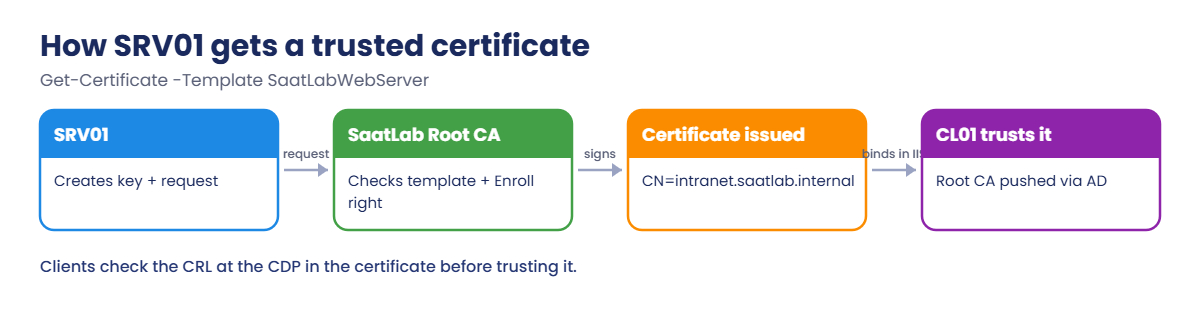
How SRV01 gets a trusted certificate for the intranet:

Active Directory Certificate Services enrolment: request, template check, issued certificate and client trust

CL01 trusts the result because the SaatLab Root CA certificate was published into AD and pushed to every domain member’s Trusted Root store. No manual import, unlike the self-signed certificate in Lesson 25.

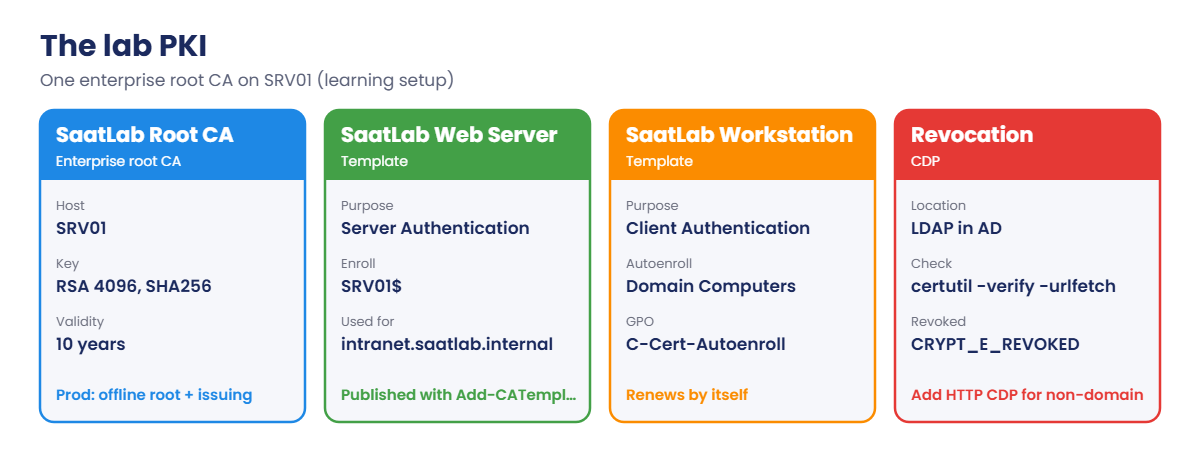
The PKI you’ll build:

Active Directory Certificate Services lab PKI: SaatLab Root CA, templates and revocation
  1. Install an enterprise root CA, SaatLab Root CA, on SRV01.
  2. Create a SaatLab Web Server template and publish it.
  3. Request a certificate for intranet.saatlab.internal and bind it in IIS.
  4. Autoenroll workstation certificates with a GPO.
  5. Check revocation information with certutil.

A single CA on a busy member server is fine for learning. In production, use an offline root and a dedicated issuing CA, and never install a CA on a DC.

Hands-on Lab: Active Directory Certificate Services on SRV01

Start DC01, SRV01 and CL01. Take a snapshot of SRV01 first (“Before PKI”). Work on SRV01 as SAATLAB\adm.rahul (an Enterprise Admin is needed to install an enterprise CA; in the lab use SAATLAB\Administrator if adm.rahul isn’t one).

1Install the enterprise root CA

On SRV01, in PowerShell as administrator:

Install-WindowsFeature ADCS-Cert-Authority -IncludeManagementTools | Out-Null
Install-AdcsCertificationAuthority -CAType EnterpriseRootCA -CACommonName 'SaatLab Root CA' -KeyLength 4096 -HashAlgorithmName SHA256 -ValidityPeriod Years -ValidityPeriodUnits 10 -Force
certutil -ping

You should see something like this:

ErrorId ErrorString
------- -----------
      0

Connecting to SRV01.saatlab.internal\SaatLab Root CA ...
Server "SaatLab Root CA" ICertRequest2 interface is alive (16ms)
CertUtil: -ping command completed successfully.

On CL01 (as administrator), refresh policy and look for the new root:

gpupdate /force | Out-Null
Get-ChildItem Cert:\LocalMachine\Root | Where-Object Subject -like '*SaatLab*' | Select-Object Subject, NotAfter

You should see something like this:

Subject                                     NotAfter
-------                                     --------
CN=SaatLab Root CA, DC=saatlab, DC=internal 19/10/2036 23:58:12

✅ Checkpoint: certutil -ping succeeds on SRV01 and CL01 trusts SaatLab Root CA without any manual import.

2Create and publish a web server template

On SRV01, run certtmpl.msc. Right-click Web Server and choose Duplicate Template. On General, set the display name to SaatLab Web Server (the template name becomes SaatLabWebServer) and validity to 1 year.

On Request Handling, tick Allow private key to be exported (useful for web farms). On Security, add SRV01$ (object type Computers) with Read and Enroll. Click OK.

Then publish it on the CA:

Add-CATemplate -Name SaatLabWebServer -Force
Get-CATemplate | Select-Object Name, Oid | Format-Table -AutoSize

You should see something like this (shortened):

Name                Oid
----                ---
SaatLabWebServer    1.3.6.1.4.1.311.21.8.4782311.10930412.1239881.2273614.8811102.42.1188392.9113401
DirectoryEmailReplication ...
DomainController    ...
WebServer           ...

✅ Checkpoint: SaatLabWebServer is in the CA’s list of published templates.

3Replace the intranet certificate

On SRV01, request a certificate and swap it into the IIS binding:

$req = Get-Certificate -Template SaatLabWebServer -SubjectName 'CN=intranet.saatlab.internal' -DnsName intranet.saatlab.internal -CertStoreLocation Cert:\LocalMachine\My
$req | Select-Object Status
$new = $req.Certificate
$b = Get-WebBinding -Name Intranet -Protocol https
$b.RemoveSslCertificate()
$b.AddSslCertificate($new.Thumbprint, 'My')
$new | Select-Object Subject, Issuer, NotAfter

You should see something like this:

Status
------
Issued

Subject                       Issuer                                         NotAfter
-------                       ------                                         --------
CN=intranet.saatlab.internal  CN=SaatLab Root CA, DC=saatlab, DC=internal    19/10/2027 23:12:40

On CL01, remove the self-signed certificate you trusted by hand in Lesson 25, then test:

Get-ChildItem Cert:\LocalMachine\Root | Where-Object Subject -eq 'CN=intranet.saatlab.internal' | Remove-Item
Invoke-WebRequest -Uri https://intranet.saatlab.internal -UseDefaultCredentials -UseBasicParsing | Select-Object StatusCode

You should see this:

StatusCode
----------
       200

The page still loads with no warning, and this time the trust comes from your CA, not a hand-imported file. Do the same for the RD Web Access and RD Gateway certificates from Lesson 26 with Set-RDCertificate.

✅ Checkpoint: The intranet binding uses a certificate issued by SaatLab Root CA, and CL01 gets status 200 without the old manual trust.
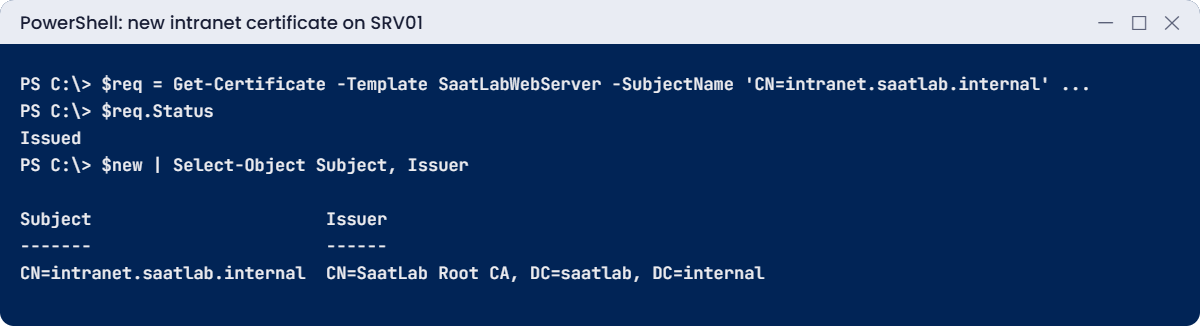
Active Directory Certificate Services lab: intranet certificate issued by SaatLab Root CA
The intranet now uses a certificate issued by your own CA.

4Turn on autoenrollment for workstations

In certtmpl.msc, duplicate Workstation Authentication as SaatLab Workstation. On Security, give Domain Computers Read, Enroll and Autoenroll. Then publish it with Add-CATemplate -Name SaatLabWorkstation -Force.

On DC01, create a GPO that turns on autoenrollment and link it to Workstations:

New-GPO -Name 'C-Cert-Autoenroll' | New-GPLink -Target 'OU=Workstations,OU=SAATLAB,DC=saatlab,DC=internal' | Out-Null
Set-GPRegistryValue -Name 'C-Cert-Autoenroll' -Key 'HKLM\Software\Policies\Microsoft\Cryptography\AutoEnrollment' -ValueName AEPolicy -Type DWord -Value 7 | Out-Null

AEPolicy 7 equals the GPO setting Certificate Services Client – Auto-Enrollment: Enabled, with “Renew expired certificates” and “Update certificates that use certificate templates” ticked.

On CL01 (as administrator):

gpupdate /force | Out-Null
certutil -pulse
Get-ChildItem Cert:\LocalMachine\My | Where-Object Issuer -like '*SaatLab*' | Select-Object Subject, NotAfter, @{n='Template';e={($_.Extensions | Where-Object {$_.Oid.FriendlyName -eq 'Certificate Template Information'}).Format(0).Split('(')[0]}}

You should see something like this:

CertUtil: -pulse command completed successfully.

Subject                      NotAfter            Template
-------                      --------            --------
CN=CL01.saatlab.internal     19/10/2027 23:20:05 Template=SaatLab Workstation

CL01 enrolled itself and will renew automatically before the year is up. The same method gives every workstation a certificate for Wi-Fi (802.1X), VPN or IPsec without a single manual request.

✅ Checkpoint: CL01 has a certificate from SaatLab Root CA based on the SaatLab Workstation template.

5Look at the revocation information

On CL01 (as an administrator), copy the intranet certificate from SRV01 and check its chain and revocation:

New-Item -ItemType Directory C:\Temp -Force | Out-Null
Invoke-Command -ComputerName SRV01 -ScriptBlock { Get-ChildItem Cert:\LocalMachine\My | Where-Object Subject -eq 'CN=intranet.saatlab.internal' | Sort-Object NotBefore | Select-Object -Last 1 | Export-Certificate -FilePath C:\Scripts\intranet.cer | Out-Null }
Copy-Item \\SRV01\C$\Scripts\intranet.cer C:\Temp\intranet.cer
certutil -verify -urlfetch C:\Temp\intranet.cer | Select-String 'CDP|Verified|Leaf certificate revocation|CertUtil'

You should see something like this:

  ----------------  Certificate CDP  ----------------
    Verified "Base CRL (02)" Time: 0 4c8d...
      [0.0] ldap:///CN=SaatLab%20Root%20CA,CN=SRV01,CN=CDP,CN=Public%20Key%20Services,CN=Services,CN=Configuration,DC=saatlab,DC=internal?certificateRevocationList?base?objectClass=cRLDistributionPoint
Leaf certificate revocation check passed
CertUtil: -verify command completed successfully.

The CDP tells clients where to get the revocation list: here, an LDAP path in AD, which domain members can read. Devices outside the domain need an HTTP CDP, which you’d add on the CA before issuing certificates widely.

✅ Checkpoint: certutil -verify shows a reachable CDP and “Leaf certificate revocation check passed”.

Break It, Then Fix It

Two PKI errors you’ll see again and again: a template the CA won’t issue, and a certificate that’s been revoked.

1Break it: a template that isn’t published

On SRV01, unpublish the web server template, then request a certificate:

Remove-CATemplate -Name SaatLabWebServer -Force
Get-Certificate -Template SaatLabWebServer -SubjectName 'CN=test.saatlab.internal' -DnsName test.saatlab.internal -CertStoreLocation Cert:\LocalMachine\My

You’ll get an error like this:

Get-Certificate : CertEnroll::CX509Enrollment::Enroll: Denied by Policy Module  0x80094800, The requested certificate
template is not supported by this CA. 0x80094800 (-2146875392 CERTSRV_E_UNSUPPORTED_CERT_TYPE)
    + CategoryInfo          : NotSpecified: (:) [Get-Certificate], Exception
    + FullyQualifiedErrorId : System.Exception,Microsoft.CertificateServices.Commands.GetCertificateCommand

The template still exists in AD, but this CA isn’t offering it. CERTSRV_E_UNSUPPORTED_CERT_TYPE (0x80094800) almost always means “not published on this CA”. If the template is published but you lack Enroll permission, you’d see a different error about permissions instead.

Fix it: publish the template again and retry:

Add-CATemplate -Name SaatLabWebServer -Force
(Get-Certificate -Template SaatLabWebServer -SubjectName 'CN=test.saatlab.internal' -DnsName test.saatlab.internal -CertStoreLocation Cert:\LocalMachine\My).Status

You should see this:

Issued

✅ Checkpoint: The request failed with 0x80094800 while unpublished and was Issued after Add-CATemplate.

Active Directory Certificate Services lab: CERTSRV_E_UNSUPPORTED_CERT_TYPE when the template is not published
A template that isn’t published on the CA can’t be requested.

2Break it: revoke the intranet certificate

On SRV01, revoke the current intranet certificate and publish a new CRL:

$serial = (Get-ChildItem Cert:\LocalMachine\My | Where-Object Subject -eq 'CN=intranet.saatlab.internal' | Sort-Object NotBefore | Select-Object -Last 1).SerialNumber
certutil -revoke $serial 4
certutil -crl

Reason code 4 is “superseded”. Revoking writes the serial number into the CA database; publishing a CRL tells clients.

On CL01 (as administrator), clear the cached CRL and check the certificate again:

certutil -urlcache crl delete | Out-Null
certutil -verify -urlfetch C:\Temp\intranet.cer | Select-String 'revoked|CertUtil'

You’ll see something like this:

ERROR: Verifying leaf certificate revocation status returned The certificate is revoked. 0x80092010 (-2146885616 CRYPT_E_REVOKED)
CertUtil: The certificate is revoked.

Edge on CL01 now refuses the intranet with a “certificate revoked” error. Without clearing the cache, clients would keep using the old CRL until it expired, which is why revocation isn’t instant everywhere.

Fix it: issue a new certificate and bind it, as in step 3:

$new = (Get-Certificate -Template SaatLabWebServer -SubjectName 'CN=intranet.saatlab.internal' -DnsName intranet.saatlab.internal -CertStoreLocation Cert:\LocalMachine\My).Certificate
$b = Get-WebBinding -Name Intranet -Protocol https; $b.RemoveSslCertificate(); $b.AddSslCertificate($new.Thumbprint, 'My')

✅ Checkpoint: certutil reported CRYPT_E_REVOKED for the old certificate, and the intranet works again with a new one.

This happened at work

The CRL that expired over a holiday

A company’s issuing CA published a CRL valid for one week. Over a two-week holiday, the CA server sat on a host that had been powered down for storage maintenance, and nobody noticed it wasn’t coming back.

On the first working day, the CRL had expired. VPN connections, Wi-Fi authentication with certificates and several internal sites all failed with “The revocation function was unable to check revocation because the revocation server was offline” (0x80092013). Hundreds of people couldn’t connect.

Starting the CA and publishing a new CRL fixed it within an hour, but the morning was lost, and some devices cached the failure for longer.

The fix: CRLs are now published to two HTTP locations as well as LDAP, with an overlap period, and monitoring alerts when any CRL is within three days of expiry.

The lesson: the CRL is as important as the CA. If clients can’t get a current one, everything that depends on certificates can stop.

Common mistakes and troubleshooting

Mistake or symptomWhat happensWhat to do instead
0x80094800 CERTSRV_E_UNSUPPORTED_CERT_TYPEThe template isn’t published on that CAAdd-CATemplate on the CA
0x80092013 revocation server offlineClients can’t fetch a current CRL; services refuse certificatesHighly available CDPs, overlap, monitoring of CRL expiry
CA installed on a domain controllerHarder to secure and recover bothDedicated CA servers; offline root
Single-tier online root CAA compromised server means a compromised rootOffline root plus issuing CAs
Only LDAP CDPsNon-domain devices can’t check revocationAdd HTTP CDP and AIA locations before issuing
Templates with Autoenroll for Authenticated UsersEvery account gets certificates it shouldn’tGrant to specific groups; review template permissions
Revoking and expecting instant effectClients use cached CRLs until expiryShort CRL periods where needed, or OCSP
Exportable private keys everywhereKeys can be copied off serversOnly allow export where truly needed
No CA backupLost CA key means reissuing everythingBack up the CA key and database securely

Interview questions

Click a question to open it. Under each one you’ll find what the interviewer is really looking for, and one good way to answer.

Fresher level

1. What is a certificate authority?

What they’re really checking: Do you know the basics?

How you could answer: A trusted service that issues digital certificates, binding a public key to a name, signed so others can verify it.

2. Why do domain computers trust an enterprise CA automatically?

What they’re really checking: Do you know AD integration?

How you could answer: The enterprise CA publishes its certificate to AD, and Group Policy places it in every domain member’s Trusted Root store.

3. What is a certificate template?

What they’re really checking: Do you know AD CS features?

How you could answer: A definition in AD of a certificate type: purpose, validity, key settings, subject and who may enroll or autoenroll.

2–5 years experience

4. What does CERTSRV_E_UNSUPPORTED_CERT_TYPE mean?

What they’re really checking: Have you troubleshot enrolment?

How you could answer: The requested template isn’t published on that CA. Publish it with Add-CATemplate or in the CA console.

5. How does autoenrollment work?

What they’re really checking: Do you know automation?

How you could answer: A template grants Autoenroll to a group, and a GPO enables Certificate Services Client Auto-Enrollment; clients enroll and renew on Group Policy refresh or certutil -pulse.

6. What are CDP and AIA?

What they’re really checking: Do you understand revocation and chains?

How you could answer: CDP (CRL Distribution Point) tells clients where to get the CRL; AIA tells them where to get the issuing CA’s certificate. Both are written into each certificate and must be reachable.

Senior level

7. Design a PKI for a 5,000-user company.

What they’re really checking: Do you think in tiers?

How you could answer: Offline standalone root, two enterprise issuing CAs, HSMs or protected keys, HTTP and LDAP CDP/AIA with HA, OCSP for high-volume checks, templates per use case with least-privilege enrolment, monitoring and documented key ceremonies.

8. How do you renew a root CA certificate safely?

What they’re really checking: Do you know lifecycle?

How you could answer: Renew well before expiry, choosing whether to keep the key pair, publish the new root to AD and clients, keep the old one until all issued certificates chain to the new one, and update issuing CAs.

9. What AD CS attacks should you defend against?

What they’re really checking: Are you aware of ESC-style risks?

How you could answer: Misconfigured templates that let users specify subjects (ESC1), overly broad enrolment rights, vulnerable web enrolment endpoints and NTLM relay to AD CS. Audit templates, require approval for sensitive ones, enforce EPA and HTTPS.

Quick quiz

Q1. What kind of CA integrates with AD and supports templates?

  1. Standalone CA
  2. Enterprise CA
  3. Public CA
Show answer

B — It also publishes itself to AD.

Q2. What did 0x80094800 mean in Break It step 1?

  1. Wrong password
  2. The template wasn’t published on the CA
  3. The CA was offline
Show answer

B — Publish it with Add-CATemplate.

Q3. What does AEPolicy 7 in the GPO do?

  1. Disables enrolment
  2. Turns on autoenrollment with renewal and updates
  3. Deletes certificates
Show answer

B — Same as the Auto-Enrollment policy setting.

Q4. What error did certutil show after revocation?

  1. CRYPT_E_REVOKED
  2. Access denied
  3. Template not found
Show answer

A — Clients refuse revoked certificates.

Q5. In the work story, what stopped VPN and Wi-Fi?

  1. A virus
  2. An expired CRL while the CA was offline
  3. A new template
Show answer

B — Keep CRLs available and monitored.

Quick recap

  • Active Directory Certificate Services runs your own CA that domain members trust automatically.
  • Use an enterprise CA with templates; in production, an offline root plus issuing CAs.
  • A CA only issues published templates (Add-CATemplate).
  • Request with Get-Certificate, or autoenroll with a GPO and certutil -pulse.
  • Revocation depends on reachable, current CRLs; check with certutil -verify -urlfetch.
  • 0x80094800 means template not published; 0x80092013 means the CRL can’t be checked.

Next lesson

Lesson 35: AD on Server 2025 and DC migration → You’ll look at what’s new for domain controllers in Server 2025, raise functional levels, plan a DC migration, move FSMO roles to a new DC and retire an old one cleanly.

Further reading: Active Directory Certificate Services

Want to go deeper into Active Directory Certificate Services? Microsoft’s AD CS overview explains the role, and the Install-AdcsCertificationAuthority reference lists every option used here. You can also see the full plan for this course on the Windows Server Administration course page.

Scroll to Top