Start DC01. Shut down SRV01 for now. Work on your laptop first, then on SRV01 and NODE1 in PowerShell as administrator.
1Add a second network and disks
On your laptop, create LabNet2, give SRV01 a second NIC and three small disks:
VBoxManage natnetwork add --netname LabNet2 --network "10.0.1.0/24" --enable --dhcp off
VBoxManage modifyvm SRV01 --nic2 natnetwork --nat-network2 LabNet2
VBoxManage storagectl SRV01 --name SATA --portcount 8
3..5 | ForEach-Object {
    VBoxManage createmedium disk --filename "C:\Lab\VMs\SRV01\SRV01-pool$_.vdi" --size 4096
    VBoxManage storageattach SRV01 --storagectl SATA --port $_ --device 0 --type hdd --medium "C:\Lab\VMs\SRV01\SRV01-pool$_.vdi"
}
VBoxManage startvm SRV01
Create NODE1 with two NICs, then install Server Core on it as in Lesson 33:
VBoxManage createvm --name NODE1 --ostype Windows2025_64 --basefolder C:\Lab\VMs --register --default
VBoxManage modifyvm NODE1 --memory 2048 --cpus 2 --nic1 natnetwork --nat-network1 LabNet --nic2 natnetwork --nat-network2 LabNet2
VBoxManage createmedium disk --filename C:\Lab\VMs\NODE1\NODE1.vdi --size 40960
VBoxManage storageattach NODE1 --storagectl SATA --port 0 --device 0 --type hdd --medium C:\Lab\VMs\NODE1\NODE1.vdi
VBoxManage storageattach NODE1 --storagectl SATA --port 1 --device 0 --type dvddrive --medium C:\Lab\ISO\server2025.iso
VBoxManage startvm NODE1
On SRV01, give the new NIC an address:
Get-NetAdapter | Select-Object Name, InterfaceDescription, Status
New-NetIPAddress -InterfaceAlias 'Ethernet 2' -IPAddress 10.0.1.20 -PrefixLength 24 | Out-Null
On NODE1 (after installing Server Core and choosing 15 in sconfig):
New-NetIPAddress -InterfaceAlias Ethernet -IPAddress 10.0.0.41 -PrefixLength 24 -DefaultGateway 10.0.0.1 | Out-Null
New-NetIPAddress -InterfaceAlias 'Ethernet 2' -IPAddress 10.0.1.41 -PrefixLength 24 | Out-Null
Set-DnsClientServerAddress -InterfaceAlias Ethernet -ServerAddresses 10.0.0.10, 10.0.0.11
Add-Computer -DomainName saatlab.internal -NewName NODE1 -OUPath 'OU=Servers,OU=SAATLAB,DC=saatlab,DC=internal' -Credential SAATLAB\adm.rahul -Restart
The storage network has no gateway or DNS server on purpose: it carries only iSCSI traffic between the two servers.
✅ Checkpoint: SRV01 has 10.0.1.20 on Ethernet 2, and NODE1 is joined with 10.0.0.41 and 10.0.1.41.
2Build the iSCSI target on SRV01
On SRV01:
Install-WindowsFeature FS-iSCSITarget-Server -IncludeManagementTools | Out-Null
New-Item -ItemType Directory D:\iSCSI -Force | Out-Null
New-IscsiVirtualDisk -Path D:\iSCSI\Node1-Data.vhdx -SizeBytes 10GB | Out-Null
New-IscsiServerTarget -TargetName NodeTarget -InitiatorIds 'IQN:iqn.1991-05.com.microsoft:node1.saatlab.internal' | Out-Null
Add-IscsiVirtualDiskTargetMapping -TargetName NodeTarget -Path D:\iSCSI\Node1-Data.vhdx
Get-IscsiServerTarget | Select-Object TargetName, TargetIqn, @{n='Initiators';e={$_.InitiatorIds -join ', '}}
You should see something like this:
TargetName TargetIqn                                         Initiators
---------- ---------                                         ----------
NodeTarget iqn.1991-05.com.microsoft:srv01-nodetarget-target IQN:iqn.1991-05.com.microsoft:node1.saatlab.internal
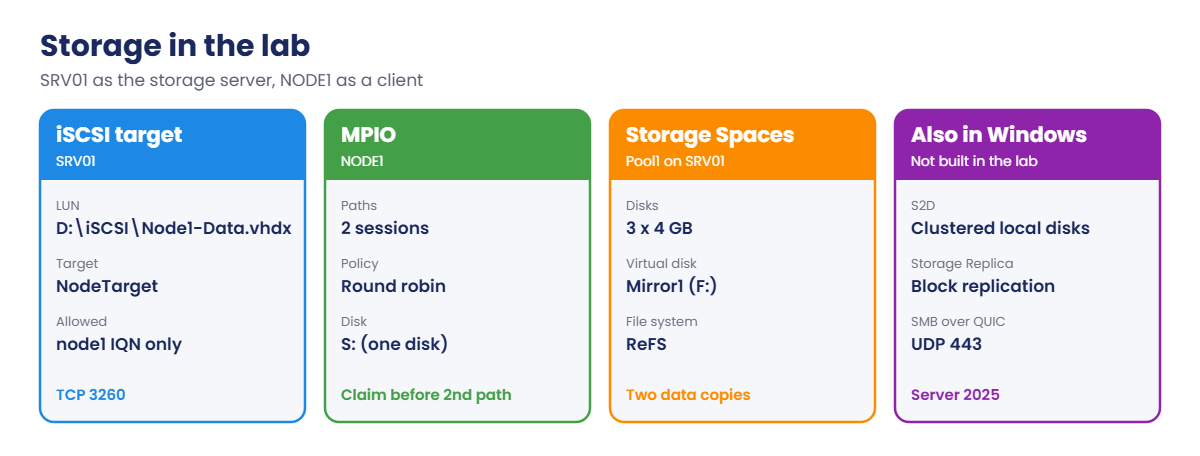
The LUN is just a VHDX file on D:. Only NODE1’s IQN is allowed; Windows initiators use iqn.1991-05.com.microsoft: plus the computer’s FQDN by default.
✅ Checkpoint: NodeTarget exists, maps Node1-Data.vhdx, and allows only NODE1’s IQN.
3Connect NODE1 over two paths with MPIO
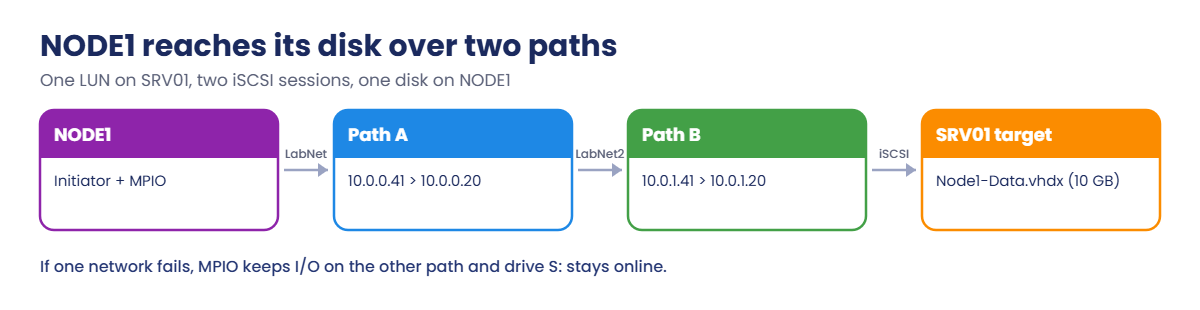
On NODE1, start the initiator, install MPIO and let it claim iSCSI disks:
Set-Service MSiSCSI -StartupType Automatic; Start-Service MSiSCSI
(Get-InitiatorPort).NodeAddress
Install-WindowsFeature Multipath-IO | Out-Null
Enable-MSDSMAutomaticClaim -BusType iSCSI
Restart-Computer
After the restart, connect through both networks:
New-IscsiTargetPortal -TargetPortalAddress 10.0.0.20 -InitiatorPortalAddress 10.0.0.41 | Out-Null
New-IscsiTargetPortal -TargetPortalAddress 10.0.1.20 -InitiatorPortalAddress 10.0.1.41 | Out-Null
$iqn = (Get-IscsiTarget).NodeAddress
Connect-IscsiTarget -NodeAddress $iqn -TargetPortalAddress 10.0.0.20 -InitiatorPortalAddress 10.0.0.41 -IsPersistent $true -IsMultipathEnabled $true | Out-Null
Connect-IscsiTarget -NodeAddress $iqn -TargetPortalAddress 10.0.1.20 -InitiatorPortalAddress 10.0.1.41 -IsPersistent $true -IsMultipathEnabled $true | Out-Null
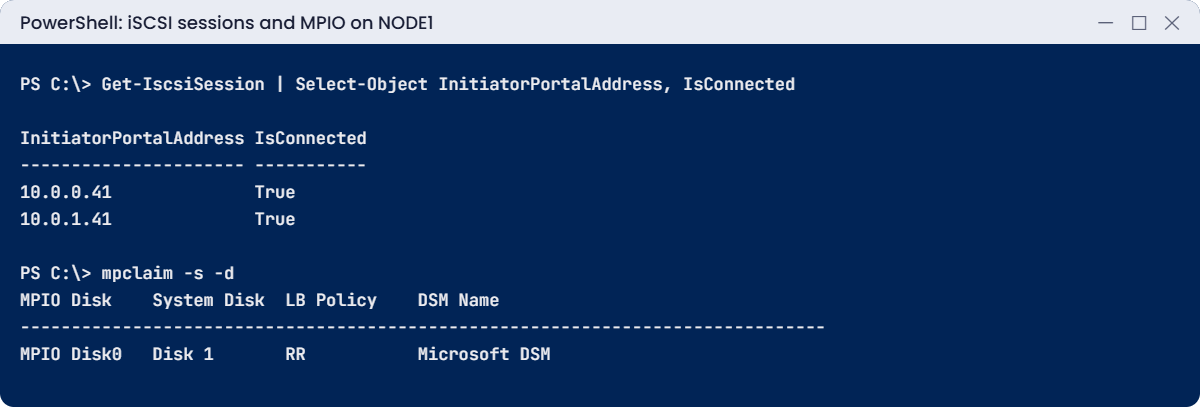
Get-IscsiSession | Select-Object InitiatorPortalAddress, TargetNodeAddress, IsConnected
mpclaim -s -d
You should see something like this:
InitiatorPortalAddress TargetNodeAddress                                    IsConnected
---------------------- -----------------                                    -----------
10.0.0.41              iqn.1991-05.com.microsoft:srv01-nodetarget-target           True
10.0.1.41              iqn.1991-05.com.microsoft:srv01-nodetarget-target           True

For more information about a particular disk, use 'mpclaim -s -d #' where # is the MPIO disk number.

MPIO Disk    System Disk  LB Policy    DSM Name
-------------------------------------------------------------------------------
MPIO Disk0   Disk 1       RR           Microsoft DSM
Bring the disk online and format it:
Get-Disk | Where-Object BusType -eq 'iSCSI' | Select-Object Number, Size, PartitionStyle
Get-Disk -Number 1 | Initialize-Disk -PartitionStyle GPT -PassThru | New-Partition -DriveLetter S -UseMaximumSize | Format-Volume -FileSystem NTFS -NewFileSystemLabel Shared -Confirm:$false | Out-Null
Two sessions, one disk: MPIO merged the paths, with round-robin (RR) load balancing. Without MPIO, Disk 1 and Disk 2 would appear as two separate disks pointing at the same LUN, a recipe for corruption.
✅ Checkpoint: NODE1 has two connected sessions, mpclaim shows one MPIO disk, and drive S: is formatted.
4Create a mirrored Storage Spaces disk on SRV01
On SRV01:
Get-PhysicalDisk -CanPool $true | Select-Object FriendlyName, Size, MediaType
New-StoragePool -FriendlyName Pool1 -StorageSubSystemFriendlyName 'Windows Storage*' -PhysicalDisks (Get-PhysicalDisk -CanPool $true) | Out-Null
New-VirtualDisk -StoragePoolFriendlyName Pool1 -FriendlyName Mirror1 -ResiliencySettingName Mirror -NumberOfDataCopies 2 -Size 4GB -ProvisioningType Fixed |
    Initialize-Disk -PartitionStyle GPT -PassThru | New-Partition -DriveLetter F -UseMaximumSize | Format-Volume -FileSystem ReFS -NewFileSystemLabel Mirror1 -Confirm:$false | Out-Null
Get-VirtualDisk | Select-Object FriendlyName, ResiliencySettingName, NumberOfDataCopies, HealthStatus, OperationalStatus
You should see something like this:
FriendlyName            Size MediaType
------------            ---- ---------
ATA VBOX HARDDISK 4294967296 Unspecified
ATA VBOX HARDDISK 4294967296 Unspecified
ATA VBOX HARDDISK 4294967296 Unspecified

FriendlyName ResiliencySettingName NumberOfDataCopies HealthStatus OperationalStatus
------------ --------------------- ------------------ ------------ -----------------
Mirror1      Mirror                                 2 Healthy      OK
Every block written to F: is stored on two of the three disks. ReFS adds checksums, so Storage Spaces can repair a bad copy from the good one. Copy a few files to F: now; you’ll check they survive a failed disk.
✅ Checkpoint: Pool1 contains three disks and Mirror1 (F:) is Healthy with two data copies.
Two storage problems: a target that hides itself from the wrong initiator, and a disk that dies under a mirror.
1Break it: the target only accepts a different initiator
On SRV01, change the allowed initiator to a typo:
Set-IscsiServerTarget -TargetName NodeTarget -InitiatorIds 'IQN:iqn.1991-05.com.microsoft:node01.saatlab.internal'On NODE1, disconnect and try to discover the target again:
Get-IscsiSession | Unregister-IscsiSession -ErrorAction SilentlyContinue
Get-IscsiTarget | Disconnect-IscsiTarget -Confirm:$false -ErrorAction SilentlyContinue
Update-IscsiTargetPortal -TargetPortalAddress 10.0.0.20 | Out-Null
Get-IscsiTarget
You’ll see this, which is nothing at all:
(no output)The Windows iSCSI target only reveals targets an initiator is allowed to use, so NODE1 sees an empty list instead of an error. If S: belonged to a cluster or a database, it would now be gone. A one-letter typo in an IQN is a classic cause.
Fix it: allow NODE1’s real IQN and reconnect both paths:
Set-IscsiServerTarget -TargetName NodeTarget -InitiatorIds 'IQN:iqn.1991-05.com.microsoft:node1.saatlab.internal'   # on SRV01
Update-IscsiTargetPortal -TargetPortalAddress 10.0.0.20 | Out-Null                                                          # on NODE1
$iqn = (Get-IscsiTarget).NodeAddress
Connect-IscsiTarget -NodeAddress $iqn -TargetPortalAddress 10.0.0.20 -InitiatorPortalAddress 10.0.0.41 -IsPersistent $true -IsMultipathEnabled $true | Out-Null
Connect-IscsiTarget -NodeAddress $iqn -TargetPortalAddress 10.0.1.20 -InitiatorPortalAddress 10.0.1.41 -IsPersistent $true -IsMultipathEnabled $true | Out-Null
✅ Checkpoint: NODE1 saw no targets with the wrong IQN allowed, and reconnects both paths after the fix.
2Break it: a failed disk under the mirror
Shut down SRV01. On your laptop, detach one pool disk, then start SRV01:
VBoxManage storageattach SRV01 --storagectl SATA --port 4 --device 0 --medium none
VBoxManage startvm SRV01
On SRV01:
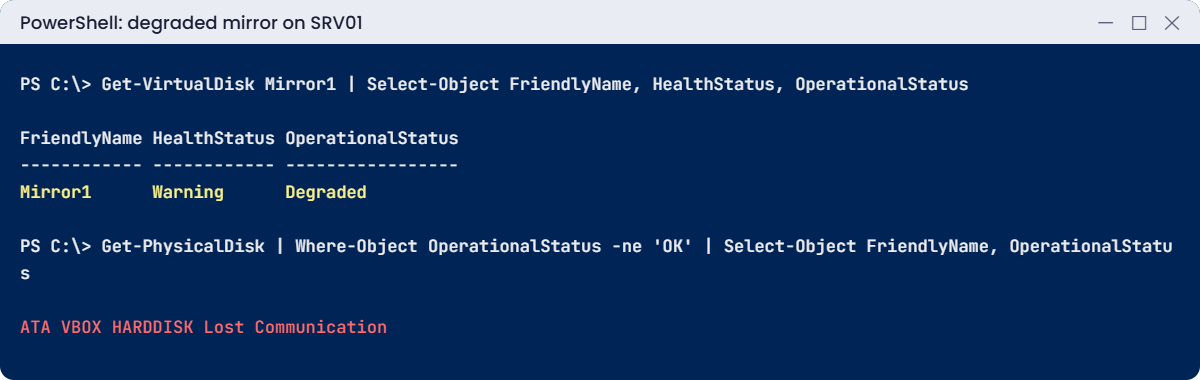
Get-VirtualDisk Mirror1 | Select-Object FriendlyName, HealthStatus, OperationalStatus
Get-PhysicalDisk | Where-Object OperationalStatus -ne 'OK' | Select-Object FriendlyName, OperationalStatus
Get-ChildItem F:\ | Select-Object -First 3 Name
You’ll see something like this:
FriendlyName HealthStatus OperationalStatus
------------ ------------ -----------------
Mirror1      Warning      Degraded

FriendlyName      OperationalStatus
------------      -----------------
ATA VBOX HARDDISK Lost Communication

Name
----
...your files are still here...
The mirror is Degraded but your data is still there, because every block had a second copy. The pool now has no spare copy for some data, so a second failure would lose it. Replace the disk quickly.
Fix it: add a new disk, retire the lost one and repair:
# on your laptop, with SRV01 shut down:
VBoxManage createmedium disk --filename C:\Lab\VMs\SRV01\SRV01-pool6.vdi --size 4096
VBoxManage storageattach SRV01 --storagectl SATA --port 6 --device 0 --type hdd --medium C:\Lab\VMs\SRV01\SRV01-pool6.vdi
# on SRV01, after starting it:
Add-PhysicalDisk -StoragePoolFriendlyName Pool1 -PhysicalDisks (Get-PhysicalDisk -CanPool $true)
$lost = Get-PhysicalDisk | Where-Object OperationalStatus -eq 'Lost Communication'
$lost | Set-PhysicalDisk -Usage Retired
Repair-VirtualDisk -FriendlyName Mirror1
Remove-PhysicalDisk -StoragePoolFriendlyName Pool1 -PhysicalDisks $lost -Confirm:$false
Get-VirtualDisk Mirror1 | Select-Object HealthStatus, OperationalStatus
You should see this when the repair finishes:
HealthStatus OperationalStatus
------------ -----------------
Healthy      OK
✅ Checkpoint: Mirror1 went Degraded with the disk missing, the files stayed readable, and it’s Healthy again after the repair.