Windows Server final project: check, break and fix a whole network

You’ve built a domain, file and print services, Group Policy, IIS, clustering, backups and monitoring, and you’ve fixed each one when it broke. This Windows Server final project puts it all together, the way a real job does: many services at once, and problems that don’t come with a label.

In this lesson you’ll write one health-check script for the whole lab, then use a fault script to break ten things at random. You’ll find and fix each one with the diagnostic workflow from Lesson 42, and finish with a report you can show in interviews.

TimeYou needBy the end you can
About 3 hours (you can split it over several days)DC01, DC02, SRV01, CL01, and NODE1 and NODE2 if you have the memoryRun, check and repair a small company’s Windows network, and prove it with a health report

What it is, in one line

The Windows Server final project is a full practice run: you check a working company network, ten faults are added without you knowing which, and you find and fix them all using the methods from this course.

In Simple Words

In Simple Words

Think of a driving test. You’ve practised turning, parking and reversing one at a time. In the test, the examiner mixes them up and you have to handle whatever comes next.

The final project is your driving test. Your partner (or a script) breaks things you can’t see, and you use what you learned to spot and fix each one.

The checklist at the end is like your driving licence: proof you can do it.

Engineer's View

Engineer’s View

The company: SaatLab Traders runs on the saatlab.internal domain you built. It has two DCs (DC01 at HQ, DC02 at Branch), DNS and DHCP with failover, departmental shares with NTFS and share permissions, Group Policy for users and computers, an intranet on IIS with HTTPS, a print server, a certificate authority, backups and monitoring.

Health checks: a script that tests outcomes, not settings: does the name resolve, does the port answer, is the user in the group, is replication enabled. Each check returns PASS or FAIL so the report is easy to read.

Faults: ten reversible faults, each from a lesson you’ve done: DNS, services, share permissions, Group Policy, Netlogon, firewall, lockout, print spooler, replication. The fault script only says how many it applied, never which.

Method: define, scope, what changed, test, fix and verify, document (Lesson 42). Write a one-line incident note for each fault: symptom, evidence, cause, fix.

Evidence: a final HTML report from the health script, with all checks passing, plus your incident notes. That’s a portfolio piece you can talk through in an interview.

How it works, step by step

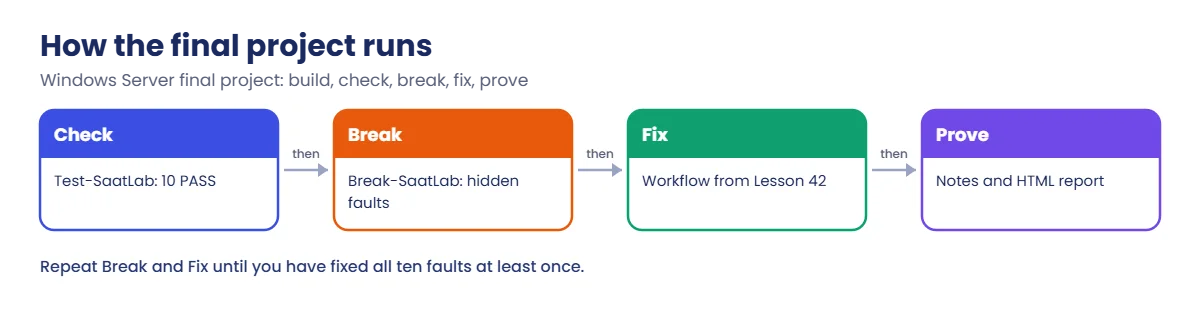
How the final project runs:

Windows Server final project flow: check, break, fix and prove

Build the checks first, while everything works. A check that fails on a healthy lab is a bad check, so fix it before you add faults.

Then let the fault script (or a friend) break things. The health report tells you what is broken; your job is to find why and fix it properly, without reading the fault script.

Fix one thing at a time and rerun the checks after each fix. Sometimes one fault hides another.

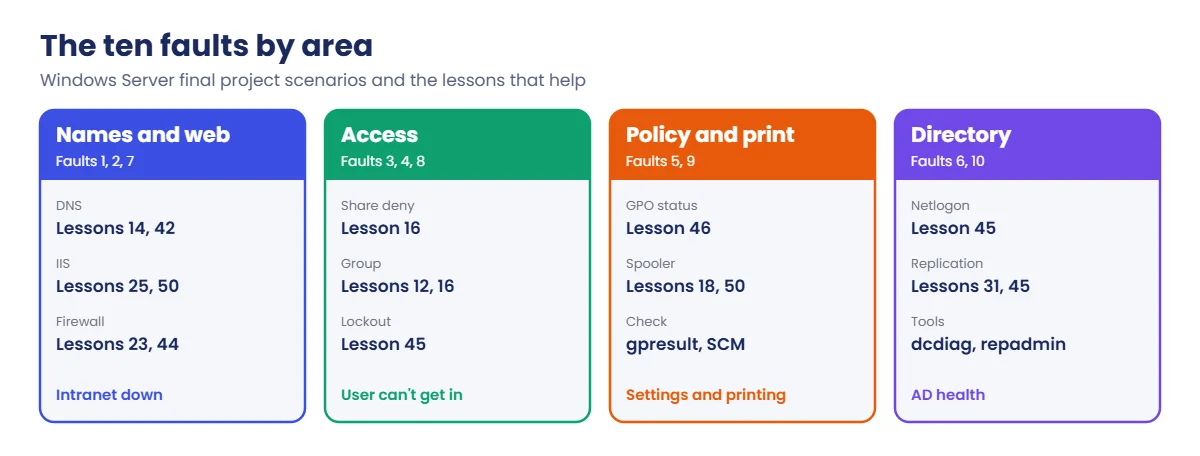
The ten faults and the lessons that help:

#AreaWhat you’ll noticeLesson to revisit
1DNSIntranet name doesn’t resolve14, 42
2IISIntranet service is down25, 42, 50
3SharesFinance can’t open Departments16
4GroupsPriya loses Finance access12, 16
5Group PolicyStaff settings stop applying19, 46
6ADBranch DC doesn’t advertise13, 45
7FirewallHTTPS blocked, ping works23, 44
8AccountsA user is locked out19, 45
9PrintingPrint spooler is stopped18, 50
10ReplicationChanges on DC02 don’t reach DC0131, 45
Windows Server final project: the ten faults grouped by area

In the lab you’ll:

  • Read the company brief.
  • Write and run Test-SaatLab.ps1, the health check.
  • Write Break-SaatLab.ps1, the fault script, and apply three random faults.
  • Find and fix them, with an incident note for each.
  • Produce your final HTML report.

Hands-on lab: the SaatLab Traders final project

Start DC01, DC02, SRV01 and CL01. Take a snapshot of every VM (“Before final project”). Work as SAATLAB\adm.rahul in PowerShell as administrator on DC01.

1Read the brief and prepare DC01

SaatLab Traders has 50 staff in Finance, IT and Sales. They need to sign in, open their department shares, print, use the intranet over HTTPS, and get their desktop settings from Group Policy, at both HQ and Branch.

Install the DHCP management tools on DC01 so it can check SRV01:

Install-WindowsFeature RSAT-DHCP | Select-Object Success
New-Item C:\Lab -ItemType Directory -Force | Out-Null

You’ll see something like this:

Success
-------
True

✅ Checkpoint: DC01 has the AD, Group Policy, DNS and DHCP tools, and C:\Lab exists.

2Write and run the health check

Save as C:\Lab\Test-SaatLab.ps1:

$checks = [ordered]@{
    '01 DNS: intranet resolves'        = { (Resolve-DnsName intranet.saatlab.internal -Type A -ErrorAction Stop).IPAddress -contains '10.0.0.20' }
    '02 IIS: W3SVC running on SRV01'   = { (Get-Service W3SVC -ComputerName SRV01).Status -eq 'Running' }
    '03 Shares: no deny on Departments'= { -not (Get-SmbShareAccess -CimSession SRV01 -Name Departments | Where-Object AccessControlType -eq 'Deny') }
    '04 Groups: Priya in GG_Finance'   = { (Get-ADGroupMember GG_Finance).SamAccountName -contains 'priya.sharma' }
    '05 GPO: U-Staff-Desktop enabled'  = { (Get-GPO -Name U-Staff-Desktop).GpoStatus -eq 'AllSettingsEnabled' }
    '06 AD: Netlogon running on DC02'  = { (Get-Service Netlogon -ComputerName DC02).Status -eq 'Running' }
    '07 Network: HTTPS open on SRV01'  = { Test-NetConnection SRV01 -Port 443 -InformationLevel Quiet -WarningAction SilentlyContinue }
    '08 Accounts: kiran.das unlocked'  = { -not (Get-ADUser kiran.das -Properties LockedOut).LockedOut }
    '09 Print: Spooler running on SRV01' = { (Get-Service Spooler -ComputerName SRV01).Status -eq 'Running' }
    '10 AD: DC02 outbound replication' = { -not ((repadmin /options DC02) -match 'DISABLE_OUTBOUND_REPL') }
}
$checks.GetEnumerator() | ForEach-Object {
    $ok = try { [bool](& $_.Value) } catch { $false }
    [pscustomobject]@{ Check = $_.Key; Result = if ($ok) { 'PASS' } else { 'FAIL' } }
}

Run it:

C:\Lab\Test-SaatLab.ps1 | Format-Table -AutoSize

You’ll see something like this:

Check                              Result
-----                              ------
01 DNS: intranet resolves          PASS
02 IIS: W3SVC running on SRV01     PASS
03 Shares: no deny on Departments  PASS
04 Groups: Priya in GG_Finance     PASS
05 GPO: U-Staff-Desktop enabled    PASS
06 AD: Netlogon running on DC02    PASS
07 Network: HTTPS open on SRV01    PASS
08 Accounts: kiran.das unlocked    PASS
09 Print: Spooler running on SRV01 PASS
10 AD: DC02 outbound replication   PASS

Every check must pass on a healthy lab. If one fails now, fix the lab (or the check) before you go on. Each check tests what users need, so a FAIL always means a real problem.

✅ Checkpoint: Test-SaatLab.ps1 shows 10 PASS results.

3Write the fault script and break three things

Save as C:\Lab\Break-SaatLab.ps1 (or ask a friend to write and run it, so you don’t know what it does):

param([int[]]$Fault = (1..10 | Get-Random -Count 3))
$faults = @{
    1  = { Remove-DnsServerResourceRecord -ZoneName saatlab.internal -Name intranet -RRType A -Force }
    2  = { Invoke-Command SRV01 { Stop-Service W3SVC; Set-Service W3SVC -StartupType Disabled } }
    3  = { Block-SmbShareAccess -CimSession SRV01 -Name Departments -AccountName 'SAATLAB\GG_Finance' -Force | Out-Null }
    4  = { Remove-ADGroupMember GG_Finance -Members priya.sharma -Confirm:$false }
    5  = { (Get-GPO -Name U-Staff-Desktop).GpoStatus = 'UserSettingsDisabled' }
    6  = { Invoke-Command DC02 { Stop-Service Netlogon } }
    7  = { Invoke-Command SRV01 { New-NetFirewallRule -DisplayName 'Final project rule' -Direction Inbound -Protocol TCP -LocalPort 443 -Action Block | Out-Null } }
    8  = { 1..11 | ForEach-Object { net use \\SRV01\IPC$ /user:SAATLAB\kiran.das WrongPass1 2>$null | Out-Null } }
    9  = { Invoke-Command SRV01 { Stop-Service Spooler -Force; Set-Service Spooler -StartupType Disabled } }
    10 = { repadmin /options DC02 +DISABLE_OUTBOUND_REPL | Out-Null }
}
foreach ($f in $Fault) { & $faults[$f] }
"Applied $($Fault.Count) fault(s). Good luck."

Run it without looking at which numbers it picks:

C:\Lab\Break-SaatLab.ps1
Clear-Host
C:\Lab\Test-SaatLab.ps1 | Where-Object Result -eq 'FAIL'

You’ll see something like this (yours will differ):

Check                              Result
-----                              ------
03 Shares: no deny on Departments  FAIL
06 AD: Netlogon running on DC02    FAIL
09 Print: Spooler running on SRV01 FAIL

The health check tells you what users would notice. It doesn’t tell you the cause or the fix: that’s your job.

✅ Checkpoint: Three checks fail after running Break-SaatLab.ps1.
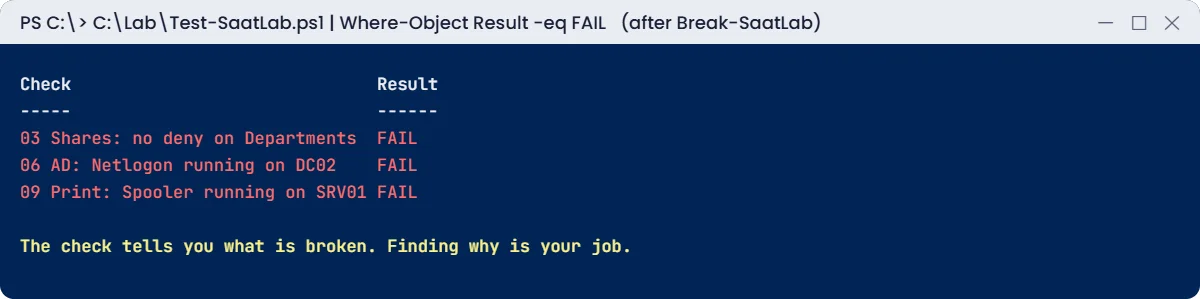
Windows Server final project lab: the health check shows three failed checks
Windows Server final project: three hidden faults show up as failed checks

4Find and fix each fault

For each FAIL, follow the workflow from Lesson 42. Confirm the symptom as a user would see it, scope it, find the evidence (events, settings, logs), fix the cause and rerun the health check. Use the lesson references in the table above if you get stuck.

Keep a short incident note for each fault, for example:

$notes = @'
INC-C1 | Print fails | Spooler stopped and Disabled on SRV01 (event 7040) | Set to Automatic, started | PASS 09
INC-C2 | Branch logons slow | Netlogon stopped on DC02 (dcdiag Advertising fail) | Started Netlogon | PASS 06
INC-C3 | Finance denied on Departments | Deny entry for GG_Finance on the share | Unblock-SmbShareAccess | PASS 03
'@
$notes | Set-Content C:\Lab\final-project-incidents.txt

After all fixes, run the full check again:

C:\Lab\Test-SaatLab.ps1 | Where-Object Result -eq 'FAIL' | Measure-Object | Select-Object Count

You should see this:

Count
-----
    0

Then run Break-SaatLab.ps1 again for three more faults, until you’ve fixed all ten at least once. Restore the “Before final project” snapshots if you get completely stuck.

✅ Checkpoint: All checks pass again, and C:\Lab\final-project-incidents.txt has a note for every fault you fixed.

5Produce your final report

Save the results as an HTML report:

$results = C:\Lab\Test-SaatLab.ps1
$results | ConvertTo-Html -Title 'SaatLab health report' -PreContent "<h1>SaatLab health report</h1><p>$(Get-Date)</p>" |
    Set-Content C:\Lab\SaatLab-Health.html
Start-Process C:\Lab\SaatLab-Health.html

Open the report in a browser: ten PASS rows with the date. Together with your incident notes and the scripts, it’s a portfolio you can show and explain in an interview. [Add your screenshot here]

✅ Checkpoint: C:\Lab\SaatLab-Health.html shows all ten checks passing.

Break It, Then Fix It

Here are two of the ten faults worked through in full, so you can see the method in action. Try them yourself first, then compare.

1Break it: fault 10, replication switched off

On DC01, apply only fault 10, then create a user on DC02 and force replication:

C:\Lab\Break-SaatLab.ps1 -Fault 10
New-ADUser cap.test -Path 'OU=Staff,OU=SAATLAB,DC=saatlab,DC=internal' -Server DC02
repadmin /replicate DC01 DC02 DC=saatlab,DC=internal

You’ll see something like this:

DsReplicaSync() failed with status 8456 (0x2108):
    The source server is currently rejecting replication requests.
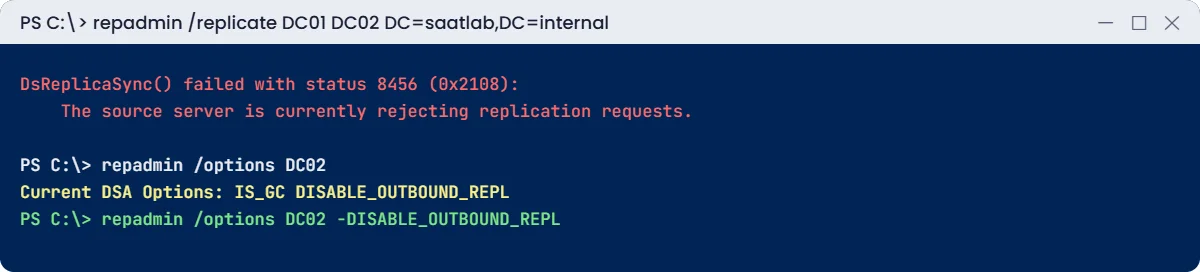
Windows Server final project break lab: replication error 8456 and the fix
Error 8456 points at the source DC, where outbound replication was switched off

The symptom is “changes on DC02 don’t reach DC01”. The error points at the source, DC02. Someone (or a tool) told DC02 to stop sending replication, which admins sometimes do before maintenance and forget to undo.

Find the evidence and fix it:

repadmin /options DC02
repadmin /options DC02 -DISABLE_OUTBOUND_REPL
repadmin /syncall DC02 /AdeP | Select-String 'terminated'
Get-ADUser cap.test -Server DC01 | Select-Object Name

You’ll see something like this:

Current DSA Options: IS_GC DISABLE_OUTBOUND_REPL
Current DSA Options: IS_GC
New DSA Options: IS_GC
SyncAll terminated with no errors.

Name
----
cap.test

Delete the test user with Remove-ADUser cap.test -Confirm:$false when you’re done.

✅ Checkpoint: Replication failed with 8456, repadmin /options showed DISABLE_OUTBOUND_REPL, and cap.test reached DC01 after the fix.

2Break it: fault 3, a deny on the share

On DC01, apply only fault 3:

C:\Lab\Break-SaatLab.ps1 -Fault 3

On CL01, sign in as SAATLAB\priya.sharma and open \\SRV01\Departments. Windows says access is denied, although NTFS permissions haven’t changed and Priya is still in GG_Finance.

Scope it: on DC01, check the share permissions, not just NTFS:

Get-SmbShareAccess -CimSession SRV01 -Name Departments | Select-Object AccountName, AccessControlType, AccessRight

You’ll see something like this:

AccountName                      AccessControlType AccessRight
-----------                      ----------------- -----------
SAATLAB\GG_Finance               Deny              Full
NT AUTHORITY\Authenticated Users Allow             Change
BUILTIN\Administrators           Allow             Full

A share-level Deny beats every Allow, so Finance users are blocked at the share before NTFS is even checked (Lesson 16). This kind of fault often comes from a hurried “block access during the audit” change.

Fix it and verify:

Unblock-SmbShareAccess -CimSession SRV01 -Name Departments -AccountName 'SAATLAB\GG_Finance' -Force | Out-Null
C:\Lab\Test-SaatLab.ps1 | Where-Object Check -like '03*'

You’ll see something like this:

Check                             Result
-----                             ------
03 Shares: no deny on Departments PASS

Priya opens the share again without signing out, because share permissions are checked on each connection.

✅ Checkpoint: Priya was denied by the share Deny entry, and the share works after Unblock-SmbShareAccess.

This happened at work

The new admin who started with a checklist

An admin joined a small manufacturing company as its only IT person. The previous admin had left without notes, and nobody knew what the servers did.

In her first week she didn’t change anything. She listed every server and service, wrote down what users needed, and turned it into a health-check script much like the one in this lesson, run every morning.

In week three, the script flagged that the intranet certificate expired in nine days, and that one DC hadn’t replicated for a month. Both were fixed quietly, before anyone noticed. Her manager later said those two “non-events” were why he trusted her with bigger projects.

The fix: a daily health report, a simple change log, and incident notes for every fix.

The lesson: learn and check the environment before you change it. Health checks turn surprises into routine work.

Common mistakes and troubleshooting

MistakeWhat happensWhat to do instead
Reading the fault script firstYou practise nothingLet a friend run it, or don’t look at the output
Fixing several things at onceYou don’t know what workedOne fix at a time, rerun the checks
Checks that test settings, not outcomesPASS while users are brokenTest what users need: names, ports, access
Skipping snapshotsHard to recover from mistakesSnapshot every VM before you start
No incident notesNothing to show in interviewsOne line per fault: symptom, evidence, cause, fix
Stopping at the first FAIL fixedOther faults stay hiddenRerun the full check after every fix
Leaving test objects behindClutter and confusion laterRemove test users, rules and groups
Running checks without admin rightsFalse FAILsRun as adm.rahul in an elevated window

Interview questions

Click a question to open it. Under each one you’ll find what the interviewer is really looking for, and one good way to answer.

Fresher level

1. Tell me about a lab you built.

What they’re really checking: Can you explain your work?

How you could answer: Describe the final project: two DCs, file and print, GPOs, IIS, cluster and backups, plus the health check and the faults you fixed.

2. How would you check that a Windows network is healthy?

What they’re really checking: Do you think in outcomes?

How you could answer: Test what users need: DNS, logons, shares, printing, web apps, replication, backups and certificates, ideally with a script.

3. How do you approach a problem you’ve never seen?

What they’re really checking: Do you have a method?

How you could answer: Define it, scope it, ask what changed, test one idea at a time, fix, verify and write it down.

2–5 years experience

4. Walk me through fixing replication error 8456.

What they’re really checking: Can you go deep on one fault?

How you could answer: The source is rejecting replication. Check repadmin /options on the source for DISABLE_OUTBOUND_REPL, remove it, then repadmin /syncall and verify.

5. A user is denied on a share but NTFS looks right. What next?

What they’re really checking: Do you know both permission layers?

How you could answer: Check share permissions and deny entries with Get-SmbShareAccess, group membership and token refresh, then Effective Access.

6. How would you turn your health check into monitoring?

What they’re really checking: Do you think about operations?

How you could answer: Schedule it, send FAIL results by email or to a monitoring system, keep history, and add checks after each incident.

Senior level

7. How would you take over an undocumented environment?

What they’re really checking: Do you plan before acting?

How you could answer: Inventory servers, roles and dependencies, document what users need, add health checks and backups, then plan changes with owners and rollbacks.

8. How do you decide which checks matter most?

What they’re really checking: Can you prioritise?

How you could answer: By business impact: sign-in, data access, line-of-business apps, then supporting services such as replication, backups and certificates.

9. How would you train a junior admin with this lab?

What they’re really checking: Can you mentor?

How you could answer: Have them build the health check, inject faults, coach the method instead of giving answers, and review their incident notes.

Quick quiz

Q1. What should every health check test?

  1. Settings only
  2. What users need, such as names, ports and access
  3. Only event logs
Show answer

B — Outcomes, not just settings.

Q2. What does replication error 8456 mean?

  1. DNS failure
  2. The source server is rejecting replication requests
  3. Time skew
Show answer

B — Check repadmin /options on the source.

Q3. Which permission wins: a share Deny or an NTFS Allow?

  1. NTFS Allow
  2. Share Deny
  3. Whichever is newer
Show answer

B — Deny at the share blocks first.

Q4. Why rerun the full check after each fix?

  1. It’s required
  2. One fault can hide another
  3. To slow down
Show answer

B — Fix one thing, then check everything.

Q5. What made the new admin in the work story trusted?

  1. A big redesign
  2. Daily health checks that caught problems early
  3. Overtime
Show answer

B — Non-events built trust.

Quick recap

  • The Windows Server final project combines everything: build, check, break, fix and document.
  • Health checks should test what users need and return clear PASS or FAIL results.
  • Use the Lesson 42 workflow for every fault, one fix at a time.
  • Keep a one-line incident note per fault.
  • Your scripts, notes and HTML report are a portfolio for interviews.

Next lesson

Lesson 54: Interview and certification prep → You’ll prepare for Windows Server interviews at every level, practise answering with real examples from your lab, and plan your next certification.

Further reading: Windows Server final project

Want to go deeper into Windows Server final project? Microsoft’s repadmin reference explains the replication options used here, and the Block-SmbShareAccess reference describes share deny entries. You can also see the full plan for this course on the Windows Server Administration course page.

Scroll to Top