Windows network troubleshooting: layer by layer with pktmon

“The network is slow” and “I can’t connect” are the most common tickets you’ll get. Good Windows network troubleshooting means checking one layer at a time, from the cable up to the application, instead of guessing.

In this lesson you’ll check link, IP, DNS, ports and the path from CL01 to SRV01, then capture real packets with pktmon, the packet capture tool built into Windows.

TimeYou needBy the end you can
About 75 minutesDC01, SRV01 (with the intranet site) and CL01Find which layer is broken in minutes and prove it with a packet capture

What it is, in one line

Windows network troubleshooting is checking a connection layer by layer (link, IP, name, route, port, application) until you find the first layer that fails.

In Simple Words

In Simple Words

Think of sending a letter to a friend. First you need a road from your house. Then you need the right address.

Then the post office must know the route. Finally your friend must be home to open the door.

If the letter doesn’t arrive, you don’t blame your friend first. You check: is the road open? Is the address right?

Did it take the right route? Is someone home?

Network checks work the same way, from the road up to the door.

Engineer's View

Engineer’s View

Link: Get-NetAdapter shows status and speed. Down or 10 Mbps on a server is a cable, switch or driver problem.

IP: Get-NetIPConfiguration shows address, gateway and DNS servers. 169.254.x.x (APIPA) means DHCP failed; a missing gateway means only the local subnet works.

Name: Resolve-DnsName uses DNS only (it skips NetBIOS, unlike ping). Use -Server to ask a specific DNS server and check the hosts file and client cache for stale answers.

Route: Get-NetRoute shows the routing table. tracert lists the hops, and pathping adds packet loss per hop over time.

Port: Test-NetConnection -Port tests a TCP handshake. If ping works but the port fails, either nothing is listening (check Get-NetTCPConnection -State Listen) or a firewall drops it.

Packets: pktmon captures traffic at each layer of the Windows network stack, including drops, and converts captures to pcapng for Wireshark. No install needed.

How it works, step by step

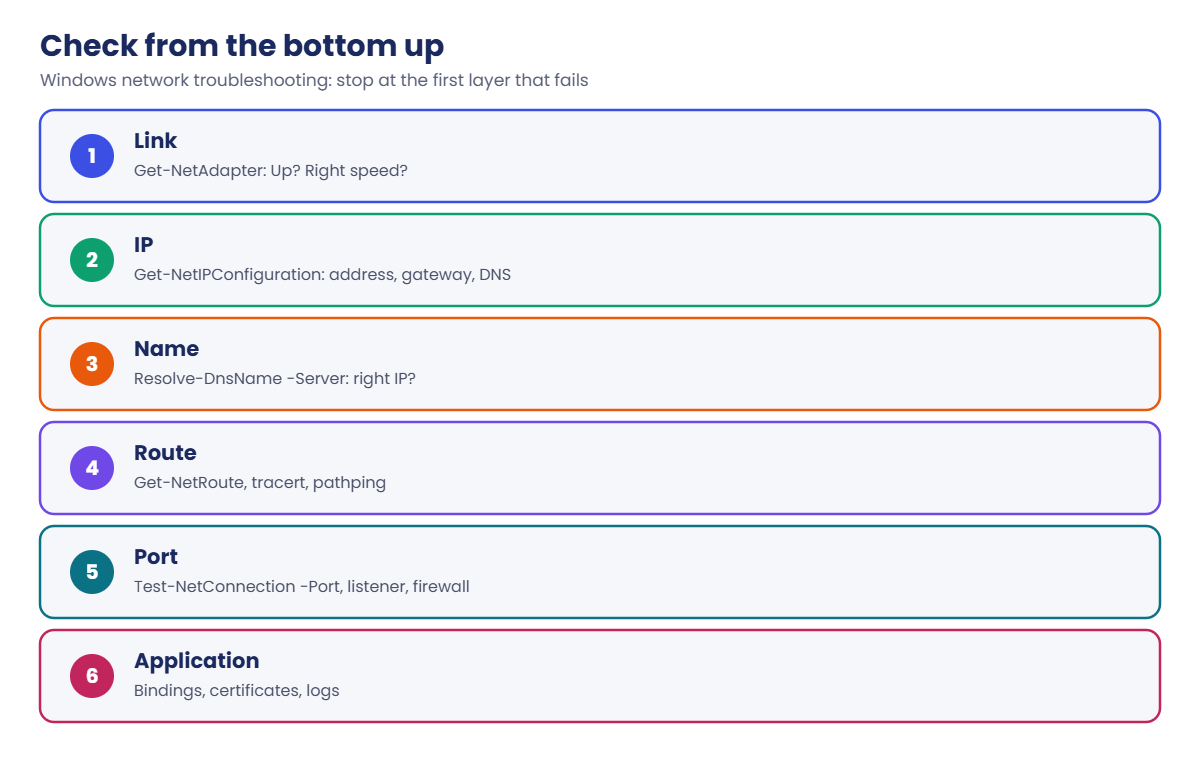
Check from the bottom up and stop at the first layer that fails:

Windows network troubleshooting layers: link, IP, name, route, port and application

Most problems sit in the middle layers. DNS answers the wrong IP, a firewall rule blocks one port, or a server has the wrong gateway. Bottom-up checks find them in a few commands.

Ping is a weak test. Many servers block ICMP, and a successful ping says nothing about port 443. Always test the actual port the application uses.

When the tests disagree with what the user sees, capture packets. A capture shows what really left and arrived, and it ends arguments between teams quickly.

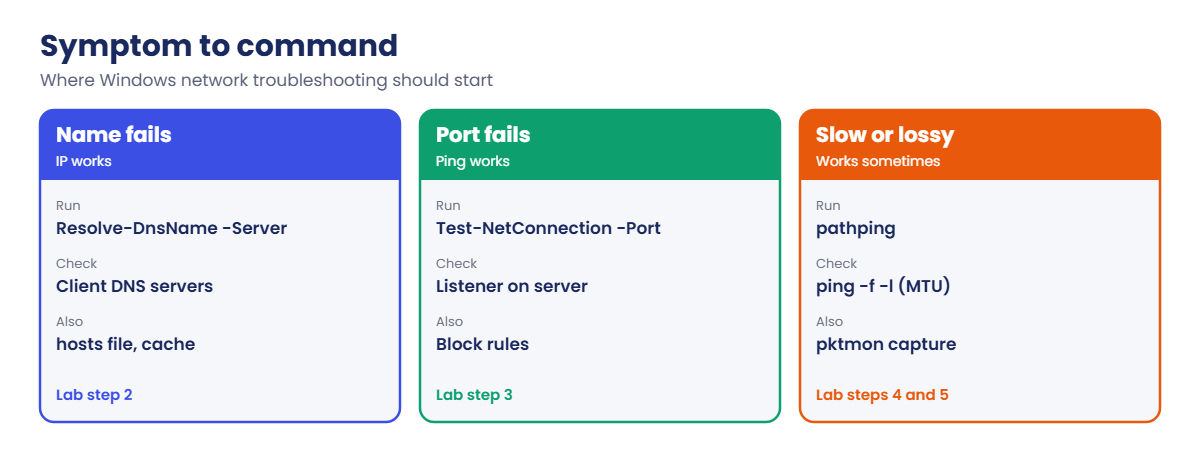
Which symptom points to which command:

Windows network troubleshooting: which command to run for each symptom

In the lab you’ll check each layer from CL01 to the intranet on SRV01:

  • Link and IP configuration on CL01.
  • Name resolution against each DNS server.
  • Ports, and which process is listening on SRV01.
  • The path to the internet with pathping.
  • A packet capture of HTTPS traffic with pktmon.

Hands-on lab: check every layer

Start DC01, DC02, SRV01 and CL01. Work as SAATLAB\adm.rahul in PowerShell as administrator.

1Check link and IP on CL01

On CL01:

Get-NetAdapter | Select-Object Name, Status, LinkSpeed
Get-NetIPConfiguration | Select-Object InterfaceAlias,
    @{ n = 'IPv4';    e = { $_.IPv4Address.IPAddress } },
    @{ n = 'Gateway'; e = { $_.IPv4DefaultGateway.NextHop } },
    @{ n = 'DNS';     e = { $_.DNSServer.ServerAddresses -join ', ' } }

You’ll see something like this:

Name     Status LinkSpeed
----     ------ ---------
Ethernet Up     1 Gbps

InterfaceAlias IPv4       Gateway  DNS
-------------- ----       -------  ---
Ethernet       10.0.0.150 10.0.0.1 10.0.0.10, 10.0.0.11

Link up, the reserved address from Lesson 15, a gateway and both DCs as DNS servers. The bottom two layers are fine.

✅ Checkpoint: CL01 shows Up, 10.0.0.150, gateway 10.0.0.1 and DNS 10.0.0.10 and 10.0.0.11.

2Check name resolution against each DNS server

On CL01, ask each DNS server directly and check the hosts file:

foreach ($s in '10.0.0.10', '10.0.0.11') {
    $r = Resolve-DnsName intranet.saatlab.internal -Server $s -DnsOnly
    [pscustomobject]@{ Server = $s; Name = $r.Name; IPAddress = $r.IPAddress }
}
Get-Content C:\Windows\System32\drivers\etc\hosts | Where-Object { $_ -notmatch '^\s*#' -and $_.Trim() }

You’ll see something like this:

Server    Name                      IPAddress
------    ----                      ---------
10.0.0.10 intranet.saatlab.internal 10.0.0.20
10.0.0.11 intranet.saatlab.internal 10.0.0.20

Both DNS servers give the same answer and the hosts file has no active entries. If the two servers disagreed, you’d check AD replication (Lesson 31) next.

✅ Checkpoint: Both DCs resolve intranet.saatlab.internal to 10.0.0.20, and the hosts file is empty.

3Check ports and who is listening

On CL01, test the ports SRV01 should offer:

foreach ($p in 443, 445, 3389, 5985) {
    $t = Test-NetConnection SRV01 -Port $p -WarningAction SilentlyContinue
    [pscustomobject]@{ Port = $p; Open = $t.TcpTestSucceeded }
}

You’ll see something like this:

Port Open
---- ----
 443 True
 445 True
3389 True
5985 True

On SRV01, see which process owns port 443:

Get-NetTCPConnection -State Listen -LocalPort 443 |
    Select-Object LocalAddress, LocalPort, OwningProcess,
        @{ n = 'Process'; e = { (Get-Process -Id $_.OwningProcess).ProcessName } }

You’ll see something like this:

LocalAddress LocalPort OwningProcess Process
------------ --------- ------------- -------
::                 443             4 System
0.0.0.0            443             4 System

IIS listens through HTTP.sys, the kernel web listener, so the owner shows as System (PID 4), not w3wp.exe. For other apps you’ll see the real process name, which tells you which service to check.

✅ Checkpoint: All four ports are open, and port 443 is owned by System (HTTP.sys).
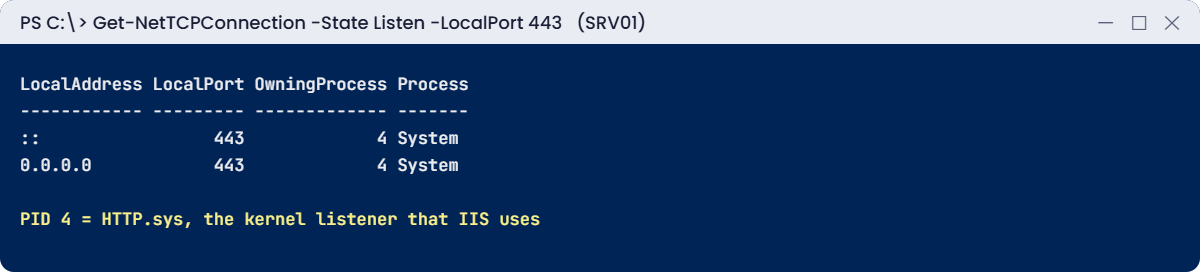
Windows network troubleshooting lab: port 443 listener owned by System on SRV01
Windows network troubleshooting: HTTP.sys (System, PID 4) listens on port 443

4Check the path with pathping

On CL01:

pathping -n -q 20 1.1.1.1

You’ll see something like this:

Tracing route to 1.1.1.1 over a maximum of 30 hops

  0  10.0.0.150
  1  10.0.0.1
  2  1.1.1.1

Computing statistics for 50 seconds...
            Source to Here   This Node/Link
Hop  RTT    Lost/Sent = Pct  Lost/Sent = Pct  Address
  0                                           10.0.0.150
                                0/  20 =  0%   |
  1    0ms     0/  20 =  0%     0/  20 =  0%  10.0.0.1
                                0/  20 =  0%   |
  2   12ms     0/  20 =  0%     0/  20 =  0%  1.1.1.1

VirtualBox NAT hides the real hops, so you’ll only see the gateway and the target. On a real network you’d see every router, and the “This Node/Link” column shows where packets are lost.

✅ Checkpoint: pathping shows each hop with 0% loss.

5Capture HTTPS packets with pktmon

On SRV01, add a filter for port 443 and start a capture:

pktmon filter add Web -p 443
pktmon start --capture --pkt-size 0 --file-name C:\Lab\web.etl

On CL01, make one request:

(Invoke-WebRequest https://intranet.saatlab.internal -UseDefaultCredentials -UseBasicParsing).StatusCode

Back on SRV01, stop, convert for Wireshark and remove the filter:

pktmon stop
pktmon etl2pcap C:\Lab\web.etl --out C:\Lab\web.pcapng
pktmon filter remove
Get-Item C:\Lab\web.* | Select-Object Name, Length

You’ll see something like this:

Name        Length
----        ------
web.etl    1052672
web.pcapng   48224

Copy web.pcapng to your laptop and open it in Wireshark. You’ll see the TCP handshake (SYN, SYN-ACK, ACK) from 10.0.0.150 to 10.0.0.20 and the TLS session.

[Add your screenshot here]

✅ Checkpoint: pktmon created web.etl and web.pcapng with the HTTPS conversation between CL01 and SRV01.

Break It, Then Fix It

Two classic faults: a client using the wrong DNS server, and a firewall rule that blocks one port while everything else works.

1Break it: CL01 uses a public DNS server

On CL01, point DNS at a public resolver (a common “quick fix” people try):

Set-DnsClientServerAddress -InterfaceAlias Ethernet -ServerAddresses 1.1.1.1
Clear-DnsClientCache
Resolve-DnsName intranet.saatlab.internal
Resolve-DnsName www.microsoft.com | Select-Object -First 1 Name, Type

You’ll see something like this:

Resolve-DnsName : intranet.saatlab.internal : DNS name does not exist

Name              Type
----              ----
www.microsoft.com CNAME

The internet works, so the user says “the network is fine but the intranet is broken”. Internal names, domain logons and Group Policy all fail, because only your DCs know saatlab.internal.

Fix it: check which DNS server the client uses, then go back to DHCP settings:

Get-DnsClientServerAddress -InterfaceAlias Ethernet -AddressFamily IPv4 | Select-Object ServerAddresses
Set-DnsClientServerAddress -InterfaceAlias Ethernet -ResetServerAddresses
Clear-DnsClientCache
(Resolve-DnsName intranet.saatlab.internal).IPAddress

You’ll see something like this:

ServerAddresses
---------------
{1.1.1.1}

10.0.0.20

✅ Checkpoint: With 1.1.1.1 the internal name failed; after resetting to DHCP it resolves to 10.0.0.20.

2Break it: a firewall rule blocks only HTTPS

On SRV01, add a block rule for port 443:

New-NetFirewallRule -DisplayName 'Block 443 test' -Direction Inbound -Protocol TCP -LocalPort 443 -Action Block

On CL01, test layer by layer:

Test-NetConnection SRV01 -Port 445 | Select-Object PingSucceeded, TcpTestSucceeded
Test-NetConnection SRV01 -Port 443 | Select-Object PingSucceeded, TcpTestSucceeded

You’ll see something like this:

PingSucceeded TcpTestSucceeded
------------- ----------------
True          True

PingSucceeded TcpTestSucceeded
------------- ----------------
True          False
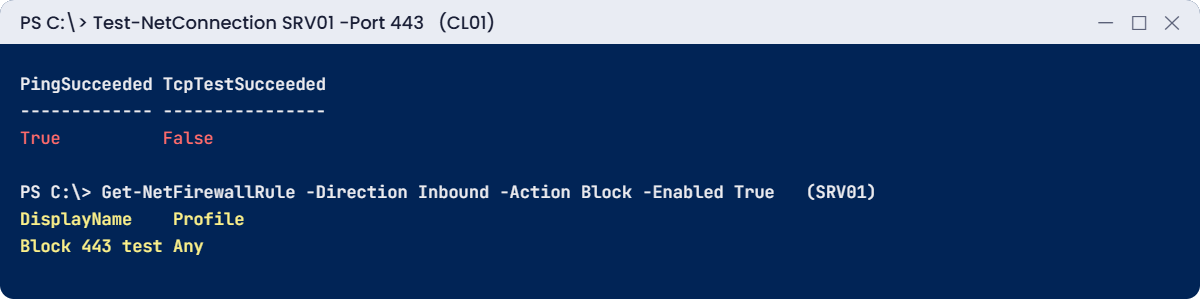
Windows network troubleshooting break lab: a block rule stops only port 443
Ping works, port 443 fails, and a block rule is the reason

Ping and SMB work, only 443 fails. In Step 3 of the lab you saw that something listens on 443, so the next suspect is the firewall. A block rule always wins over an allow rule.

Fix it: on SRV01, find enabled block rules for that port and remove the culprit:

Get-NetFirewallRule -Direction Inbound -Action Block -Enabled True |
    Where-Object { ($_ | Get-NetFirewallPortFilter).LocalPort -contains '443' } |
    Select-Object DisplayName, Profile
Remove-NetFirewallRule -DisplayName 'Block 443 test'

You’ll see something like this:

DisplayName    Profile
-----------    -------
Block 443 test Any

✅ Checkpoint: Only port 443 failed while the rule existed, and the test passes again after removing it.

This happened at work

The file copies that died at 99 KB

A branch office moved to a new VPN. Users could browse the intranet and open small files, but copying anything big from the head office file server hung after a few seconds.

Ping worked, DNS worked, and port 445 was open, so each team blamed the other. Then an engineer ran ping -f -l 1472 FILESRV. It failed with “Packet needs to be fragmented but DF set”, while -l 1350 worked.

The VPN tunnel had a smaller MTU, and a firewall dropped the ICMP messages that tell senders to use smaller packets. Small packets passed; full-size ones disappeared. That’s an MTU black hole.

The fix: the VPN team set TCP MSS clamping on the tunnel and allowed ICMP “fragmentation needed” messages.

The lesson: when small things work and big things hang, test packet size, not just reachability.

Common mistakes and troubleshooting

MistakeWhat happensWhat to do instead
Trusting ping aloneICMP may be blocked, or the port may still failTest the real port with Test-NetConnection -Port
Using nslookup onlyIt ignores the hosts file and client cacheUse Resolve-DnsName and check the cache and hosts file
Public DNS on domain machinesInternal names and logons failOnly internal DNS servers on members
Assuming no listener means firewallYou chase the wrong teamCheck Get-NetTCPConnection -State Listen first
Forgetting that block rules winAllow rules seem to be ignoredList enabled block rules for the port
Ignoring packet sizeLarge transfers hangTest with ping -f -l and check MTU
Leaving pktmon filters behindNext capture misses trafficRun pktmon filter remove after each capture
Capturing without a filter on busy serversHuge files and noiseFilter by port and IP

Interview questions

Click a question to open it. Under each one you’ll find what the interviewer is really looking for, and one good way to answer.

Fresher level

1. A user can’t reach a website. What do you check?

What they’re really checking: Do you work layer by layer?

How you could answer: Link, IP and gateway, DNS with Resolve-DnsName, ping, then the port with Test-NetConnection, then the application itself.

2. What does 169.254.x.x mean?

What they’re really checking: Do you know APIPA?

How you could answer: The client got no DHCP lease and gave itself an automatic private address. Check the DHCP server, scope and network path.

3. What is the difference between ping and Test-NetConnection -Port?

What they’re really checking: Do you test the right thing?

How you could answer: Ping tests ICMP reachability. -Port tests a TCP connection to the application’s port, which is what users need.

2–5 years experience

4. Ping works but the application port fails. What next?

What they’re really checking: Can you split the problem?

How you could answer: Check if something listens on the server (Get-NetTCPConnection), then firewall rules on the server and network, then the app’s binding.

5. How do you capture packets on Windows without installing anything?

What they’re really checking: Do you know built-in tools?

How you could answer: pktmon: add a filter, start a capture, reproduce, stop, convert with etl2pcap and open in Wireshark.

6. DNS gives different answers from two DCs. Why?

What they’re really checking: Do you link DNS to AD?

How you could answer: AD-integrated zones replicate with AD, so check replication, the record’s timestamp, scavenging, and whether one DC has a local or stale copy.

Senior level

7. Large file copies hang but small ones work over a VPN. What is it?

What they’re really checking: Do you know MTU problems?

How you could answer: Likely an MTU black hole. Test with ping -f -l, check tunnel MTU and MSS clamping, and ICMP filtering.

8. How would you prove to the network team that packets are dropped?

What they’re really checking: Can you use evidence?

How you could answer: Capture at both ends at the same time. If SYNs leave the client but never arrive at the server, the drop is in between.

9. How do you troubleshoot intermittent packet loss?

What they’re really checking: Do you think over time?

How you could answer: pathping or continuous tests with timestamps, interface error counters, NIC driver and offload settings, switch port stats and correlation with load.

Quick quiz

Q1. Which command tests a TCP port?

  1. ping
  2. Test-NetConnection -Port
  3. ipconfig
Show answer

B — It tests the handshake.

Q2. Why does port 443 show owner System (PID 4)?

  1. It’s a virus
  2. IIS listens through HTTP.sys in the kernel
  3. The firewall owns it
Show answer

B — HTTP.sys is the kernel listener.

Q3. In Break It step 1, why did the intranet fail but the internet worked?

  1. IIS was down
  2. CL01 used a public DNS server
  3. The gateway was wrong
Show answer

B — Only internal DNS knows saatlab.internal.

Q4. Which tool shows packet loss per hop over time?

  1. pathping
  2. Resolve-DnsName
  3. Get-NetAdapter
Show answer

A — It combines tracert with statistics.

Q5. In the work story, what caused hanging copies?

  1. DNS
  2. An MTU black hole
  3. SMB signing
Show answer

B — Big packets were dropped silently.

Quick recap

  • Windows network troubleshooting goes bottom up: link, IP, name, route, port, application.
  • Get-NetIPConfiguration and Resolve-DnsName -Server catch most config faults.
  • Test the real port, then check the listener and firewall rules.
  • pathping shows loss per hop; ping -f -l tests MTU.
  • pktmon captures packets with no install; convert to pcapng for Wireshark.

Next lesson

Lesson 45: AD and authentication troubleshooting → You’ll diagnose domain problems with dcdiag, repadmin, nltest, klist and w32tm, find a duplicate SPN, and trace an account lockout to its source.

Further reading: Windows network troubleshooting

Want to go deeper into Windows network troubleshooting? Microsoft’s Packet Monitor overview explains pktmon, and the pktmon start reference lists every capture option. You can also see the full plan for this course on the Windows Server Administration course page.

Scroll to Top