
1Plan: pick the release and the path
Start in Digital Advisor (formerly Active IQ). Its Upgrade Advisor reads your cluster’s AutoSupport data and builds a plan for the target release, with known issues and the exact steps for your configuration.
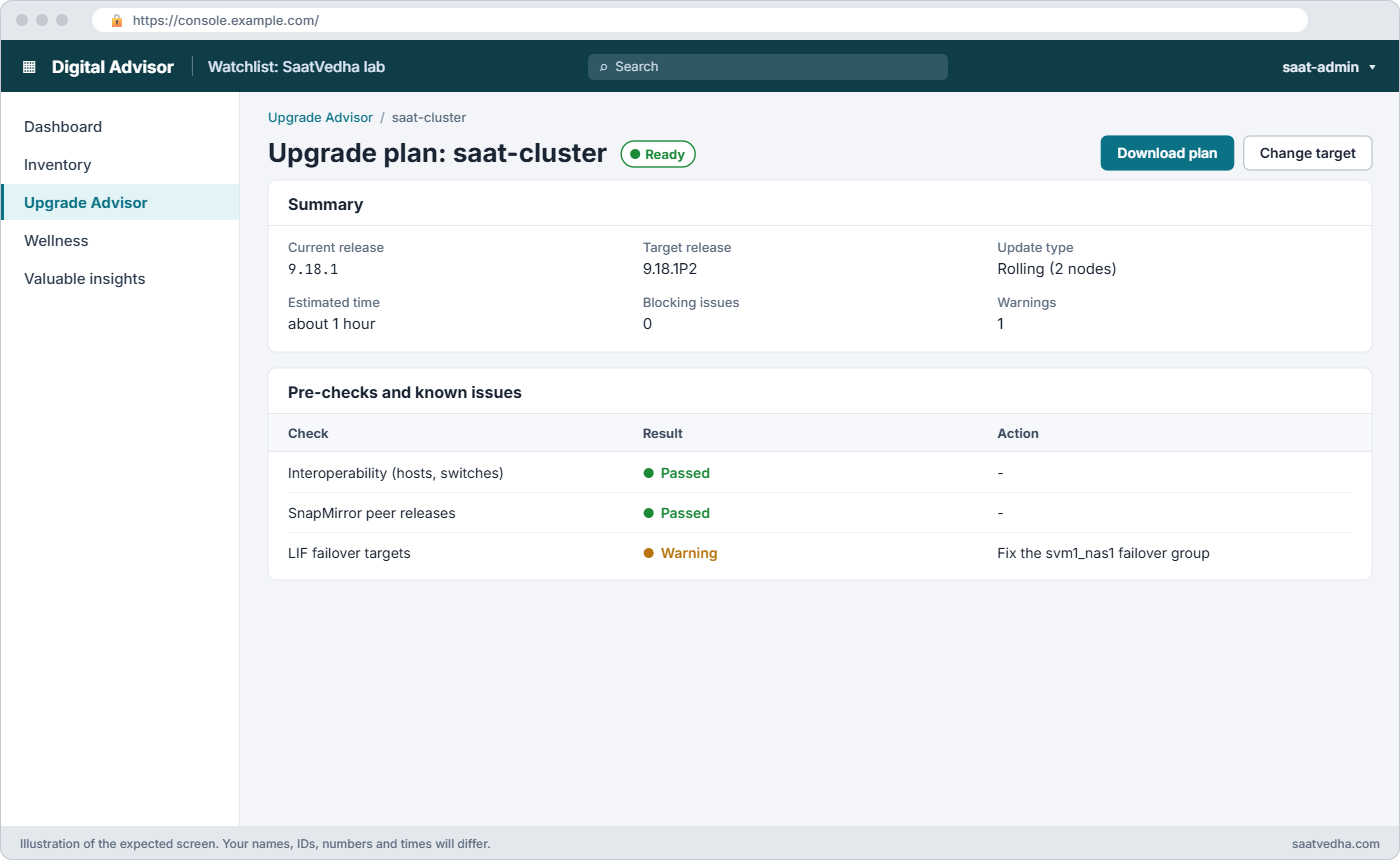
Then check three things it can’t fully decide for you.
The Hardware Universe must list your platform, shelves and adapters for the target release. The Interoperability Matrix Tool (IMT) must list your host OS, HBAs, multipath and backup software with that release. And your SnapMirror and SnapVault partners must be on releases that can still talk to the new one; when two clusters differ, upgrade the destination side first.

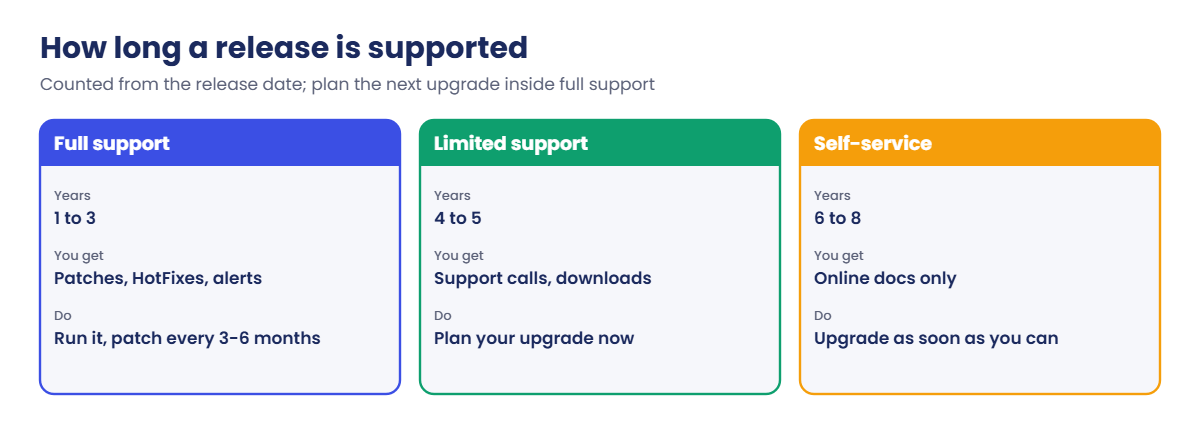
4Firmware, reverting and the GUI way
The ONTAP package carries firmware too. BIOS updates while a node boots, the Service Processor or BMC after the reboot if its auto-update is on, shelf firmware after the reboot if shelf auto-update is on, and disk firmware in the background during quiet I/O after the update finishes. The Disk Qualification Package (DQP), which teaches ONTAP about newly qualified drive models, is downloaded and updated separately from the support site.
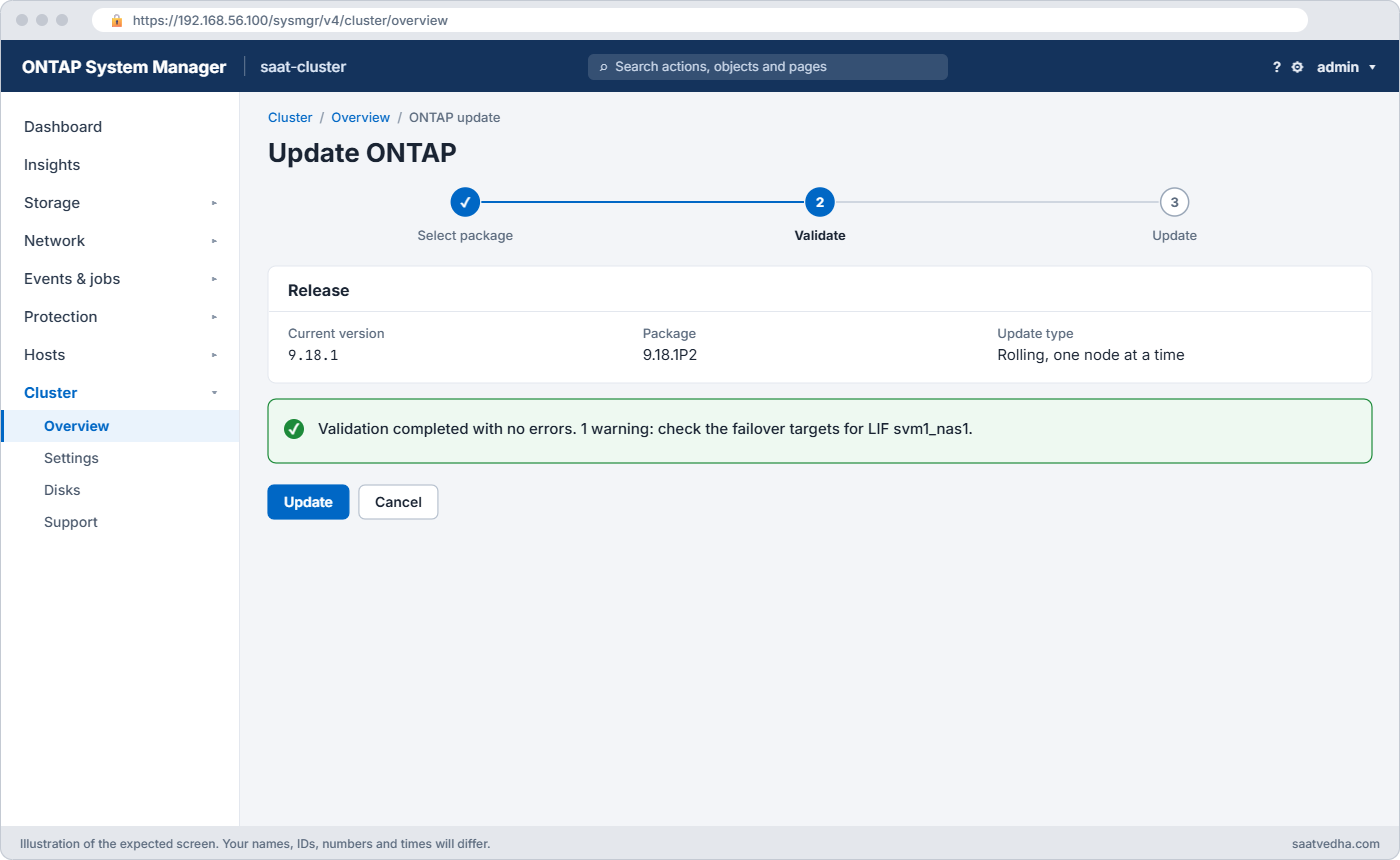
Going back is possible, but a revert has limits and its own procedure, so plan it with NetApp support rather than in a hurry; keep the old image on the nodes until you’re sure. In System Manager the whole update lives under Cluster › Overview › ONTAP update, where you upload or point to the package, validate and update.
Before you run any command, double-check it
Read every command twice before you press Enter. Check the target: the server name, the user, the disk or device name, the path and the sizes. These commands are for learning and were tested in our lab, not on your system. At work, run the read-only commands first, follow your change process, make sure a backup exists, and ask a second person to check anything that changes or deletes data. You run them at your own risk.
This lab uses the SaatVedha ONTAP practice shell, our own learning tool. It is not NetApp software: real ONTAP output looks like this but is not identical.
The practice shell 1.1 has a pretend web server on linux1 holding two patch packages, and it runs the update one step per simctl tick, about 10 minutes of real time each.
1Build a small lab
Create setup-upg.txt with the same seven lines as the REST deep dive’s setup-rest.txt (two aggregates, svm1, two NAS LIFs, NFS and an export rule), then run:
python ontapsim.py -c "simctl reset"
python ontapsim.py --run setup-upg.txt
✅ Checkpoint: No line of the output starts with Error.
2Look before you change anything
Log in to the shell and run:
version
cluster image show
system node image show
storage failover show
You should see this:
saat-cluster::> version
NetApp Release 9.18.1: Sat Nov 07 2026 (SaatVedha practice shell 1.1, not NetApp software)
saat-cluster::> cluster image show
                 Current                     Installation
Node             Version                     Date
---------------- --------------------------- -------------------
saat-cluster-01  9.18.1                      10/1/2026 09:12:44
saat-cluster-02  9.18.1                      10/1/2026 09:13:44
2 entries were displayed.
saat-cluster::> system node image show
                 Is      Is                                Install
Node     Image   Default Current Version                   Date
-------- ------- ------- ------- ------------------------- -------------------
saat-cluster-01
         image1  true    true    9.18.1                    10/1/2026 09:12:44
         image2  false   false   9.17.1P5                  6/12/2026 11:02:10
saat-cluster-02
         image1  true    true    9.18.1                    10/1/2026 09:13:44
         image2  false   false   9.17.1P5                  6/12/2026 11:03:10
4 entries were displayed.
saat-cluster::> storage failover show
                                Takeover
Node            Partner         Possible State Description
--------------- --------------- -------- -------------------------------------
saat-cluster-01 saat-cluster-02 true     Connected to saat-cluster-02
saat-cluster-02 saat-cluster-01 true     Connected to saat-cluster-01
2 entries were displayed.
Each node holds two boot images: image1 runs 9.18.1 and image2 still holds the previous release. Takeover is possible on both nodes, which is the first condition for a nondisruptive update.
✅ Checkpoint: Both nodes run 9.18.1 and Takeover Possible is true.
3Download the package
cluster image package get -url http://192.168.56.99/ontap/9181P2_q_image.tgz
simctl web list
cluster image package get -url http://192.168.56.21/ontap/9181P2_q_image.tgz
cluster image package show-repository
You should see this:
Error: command failed: Package download failed: unable to download http://192.168.56.99/ontap/9181P2_q_image.tgz. Check the URL and that the web server is reachable from the node management LIFs.
saat-cluster::> simctl web list
Lab web server on linux1 (http://192.168.56.21/ontap/):
  9181P2_q_image.tgz
  9181P3_q_image.tgz
saat-cluster::> cluster image package get -url http://192.168.56.21/ontap/9181P2_q_image.tgz

Software get http://192.168.56.21/ontap/9181P2_q_image.tgz started on node saat-cluster-01

Downloading package. This may take up to 20 minutes.
100% downloaded
...
Package download completed.
Package processing completed.
saat-cluster::> cluster image package show-repository
Package Version  Package Build Time
---------------- -------------------
9.18.1P2         11/7/2026 08:40:11
The first address was wrong on purpose: nothing at 192.168.56.99 serves the file. simctl web list plays the part of you checking your own web server.
✅ Checkpoint: show-repository lists 9.18.1P2.
4Validate
cluster image validate -version 9.18.1P2
cluster image show-update-progress
You should see this:
It can take several minutes to complete validation...
WARNING: There are additional manual upgrade validation checks that must be performed after these automated validation checks have completed successfully. Refer to the Upgrade Advisor Plan or the "What should I verify before I upgrade with or without Upgrade Advisor" section in the "Upgrade ONTAP" documentation for the remaining manual validation checks that need to be performed before update.
Validation checks started successfully. Run the "cluster image show-update-progress" command to check validation status.
saat-cluster::> cluster image show-update-progress

Pre-update Check         Status     Error-Action
------------------------ ---------- --------------------------------------------
Aggregate Health         OK         N/A
Aggregate Status         OK         N/A
CIFS Status              OK         N/A
Cluster/HA Health Status OK         N/A
Disk Status              OK         N/A
LIF Status               OK         N/A
SnapMirror Status        OK         N/A
Volume Status            OK         N/A
Manual checks            Warning    Read the ONTAP upgrade guide and the release notes before you update.
Overall Status           Warning    Warning
10 entries were displayed.
Every automatic check is OK. The one warning is a reminder that some checks, like host compatibility, are yours to do. Any Error here must be fixed before the update will start.
✅ Checkpoint: Every line except Manual checks shows OK.
5Start the update and watch the first takeover
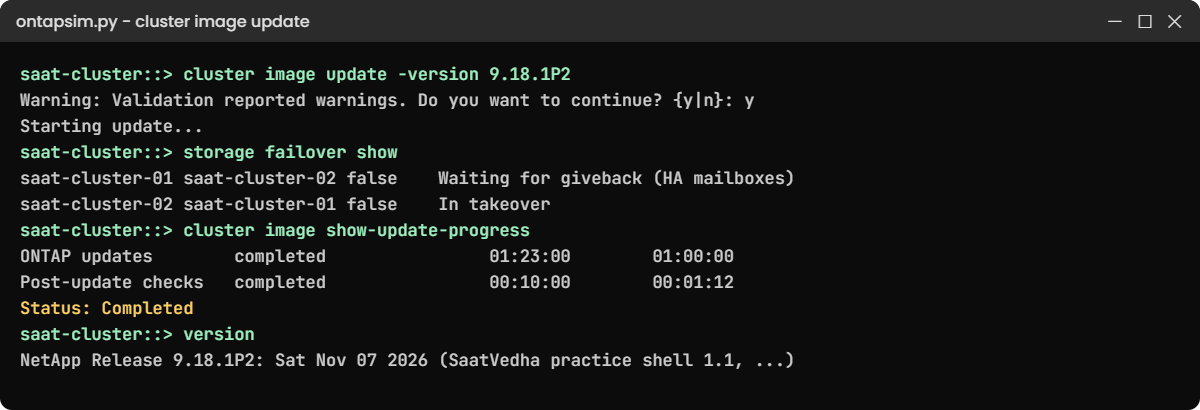
cluster image update -version 9.18.1P2
cluster image show-update-progress
simctl tick
storage failover show
network interface show -is-home false
Answer y to the warning question.
You should see this:
Warning: Validation reported warnings. Do you want to continue? {y|n}: y

Starting update...

Info: Run the "cluster image show-update-progress" command to check update status. In the practice shell, each "simctl tick" is about 10 minutes of update time.
saat-cluster::> cluster image show-update-progress

                                             Estimated         Elapsed
Update Phase         Status                   Duration        Duration
-------------------- ----------------- --------------- ---------------
Pre-update checks    completed                00:10:00        00:02:31
ONTAP updates        in-progress              01:23:00        00:00:00

Details:

Node name            Status            Status Description
-------------------- ----------------- ----------------------------------------
saat-cluster-01      waiting           -
saat-cluster-02      waiting           -

Status: In progress
saat-cluster::> simctl tick
simctl: time moved forward (1 step).
saat-cluster::> storage failover show
                                Takeover
Node            Partner         Possible State Description
--------------- --------------- -------- -------------------------------------
saat-cluster-01 saat-cluster-02 false    Waiting for giveback (HA mailboxes)
saat-cluster-02 saat-cluster-01 false    In takeover
2 entries were displayed.
saat-cluster::> network interface show -is-home false
            Logical    Status     Network            Current         Current Is
Vserver     Interface  Admin/Oper Address/Mask       Node            Port    Home
----------- ---------- ---------- ------------------ --------------- ------- ----
saat-cluster
            cluster_mgmt
                       up/up      192.168.56.100/24  saat-cluster-02 e0M     false
svm1
            svm1_nas1  up/up      192.168.56.130/24  saat-cluster-02 e0c     false
2 entries were displayed.
Node 02 has taken over node 01’s storage, and node 01’s NAS LIF and the cluster management LIF now run on node 02. NFS clients of 192.168.56.130 see a short pause and carry on. This is the moment to be watching, not drinking tea.
✅ Checkpoint: saat-cluster-02 shows In takeover and svm1_nas1 is on saat-cluster-02.
6Let it finish and check the result
simctl tick 2
cluster image show-update-progress
simctl tick 4
cluster image show-update-progress
cluster image show
version
system node image show
You should see this (the middle progress table trimmed):
Node name            Status            Status Description
-------------------- ----------------- ----------------------------------------
saat-cluster-01      completed         -
saat-cluster-02      waiting           -
...
saat-cluster::> cluster image show-update-progress

                                             Estimated         Elapsed
Update Phase         Status                   Duration        Duration
-------------------- ----------------- --------------- ---------------
Pre-update checks    completed                00:10:00        00:02:31
ONTAP updates        completed                01:23:00        01:00:00
Post-update checks   completed                00:10:00        00:01:12

Details:

Node name            Status            Status Description
-------------------- ----------------- ----------------------------------------
saat-cluster-01      completed         -
saat-cluster-02      completed         -

Status: Completed
saat-cluster::> cluster image show
                 Current                     Installation
Node             Version                     Date
---------------- --------------------------- -------------------
saat-cluster-01  9.18.1P2                    11/7/2026 08:37:11
saat-cluster-02  9.18.1P2                    11/7/2026 08:37:11
2 entries were displayed.
saat-cluster::> version
NetApp Release 9.18.1P2: Sat Nov 07 2026 (SaatVedha practice shell 1.1, not NetApp software)
saat-cluster::> system node image show
                 Is      Is                                Install
Node     Image   Default Current Version                   Date
-------- ------- ------- ------- ------------------------- -------------------
saat-cluster-01
         image1  false   false   9.18.1                    10/1/2026 09:12:44
         image2  true    true    9.18.1P2                  11/7/2026 08:37:11
saat-cluster-02
         image1  false   false   9.18.1                    10/1/2026 09:13:44
         image2  true    true    9.18.1P2                  11/7/2026 08:37:11
4 entries were displayed.
Both nodes now boot image2 with 9.18.1P2, and image1 still holds 9.18.1 in case you ever need it. version changes only once the whole cluster has finished, because a cluster runs at the level of its oldest node.
✅ Checkpoint: cluster image show lists 9.18.1P2 on both nodes.
7Check firmware and send the closing AutoSupport
storage disk show -fields firmware-revision -disk 1.0.0|1.1.0
system node service-processor image show
You should see this:
disk  firmware-revision
----- -----------------
1.0.0 NA02
1.1.0 NA54
2 entries were displayed.
saat-cluster::> system node service-processor image show
                  Is                                  Is       Update
Node     Image    Current  Version                    Primary  Status
-------- -------- -------- -------------------------- -------- ----------
saat-cluster-01
         primary  true     13.4                       true     installed
         backup   false    13.2                       false    installed
saat-cluster-02
         primary  true     13.4                       true     installed
         backup   false    13.2                       false    installed
4 entries were displayed.
On a real cluster, disk firmware keeps updating in the background for a while after the upgrade, so check it again the next day. Close the job with system node autosupport invoke -node * -type all -message "Finishing_NDU" so NetApp has the after picture.
✅ Checkpoint: You can name the disk firmware revisions and the SP version on each node.
Try it yourself: Run the cluster health check before and after your update.
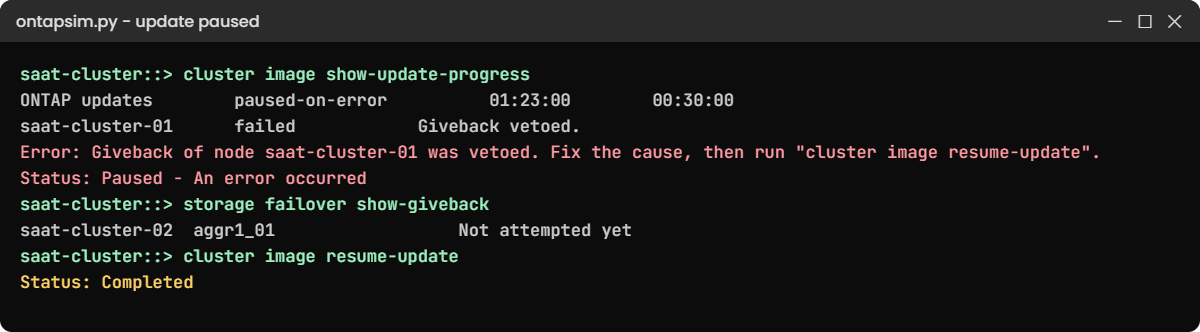
Updates stop for real reasons: a busy partner refuses to give back, a check fails, or a file isn’t where you said. Here you’ll make an update pause halfway and bring it home.
1Start an update with a hidden problem
Reset and rebuild the lab, then run these commands. simctl break giveback-veto makes a process on the partner refuse the giveback, as a busy subsystem sometimes does.
cluster image package get -url http://192.168.56.21/ontap/9181P2_q_image.tgz
simctl break giveback-veto
cluster image update -version 9.18.1P2
simctl tick 3
cluster image show-update-progress
Answer y to the warning question.
You’ll get this:
saat-cluster::> cluster image show-update-progress

                                             Estimated         Elapsed
Update Phase         Status                   Duration        Duration
-------------------- ----------------- --------------- ---------------
Pre-update checks    completed                00:10:00        00:02:31
ONTAP updates        paused-on-error          01:23:00        00:30:00

Details:

Node name            Status            Status Description
-------------------- ----------------- ----------------------------------------
saat-cluster-01      failed            Giveback vetoed.
saat-cluster-02      waiting           -

Error: Giveback of node saat-cluster-01 was vetoed. Fix the cause, then run "cluster image resume-update".

Status: Paused - An error occurred
Node 01 has rebooted on the new image, but its partner still holds node 01’s aggregates. Data is still online, served by node 02 alone, so nothing is down; you just have no HA protection until this is fixed.
✅ Checkpoint: Status says Paused – An error occurred.
2Find what is stuck
storage failover show
storage failover show-giveback
You’ll get this:
                                Takeover
Node            Partner         Possible State Description
--------------- --------------- -------- -------------------------------------
saat-cluster-01 saat-cluster-02 false    Waiting for giveback (HA mailboxes)
saat-cluster-02 saat-cluster-01 false    In takeover
2 entries were displayed.
saat-cluster::> storage failover show-giveback
               Partner                   Giveback
Node           Aggregate                 Status
-------------- ------------------------- ------------------------------
saat-cluster-01
               No aggregates to give back
saat-cluster-02
               aggr0_saat_cluster_01     Not attempted yet
saat-cluster-02
               aggr1_01                  Not attempted yet
3 entries were displayed.
On a real cluster, storage failover show-giveback and the event log name the subsystem that vetoed, such as a busy lock manager or a disk check. Most vetoes clear by themselves once that work finishes; forcing past one with -override-vetoes true is a decision to make with NetApp support, not a reflex.
✅ Checkpoint: You can say which node is waiting and which aggregates are still with the partner.
3Clear the cause and resume
In the shell, simctl fix giveback-veto plays the part of the busy process finishing. Then let ONTAP carry on:
simctl fix giveback-veto
cluster image resume-update
simctl tick 5
cluster image show-update-progress
version
You should see this:
Update Phase         Status                   Duration        Duration
-------------------- ----------------- --------------- ---------------
Pre-update checks    completed                00:10:00        00:02:31
ONTAP updates        completed                01:23:00        01:10:00
Post-update checks   completed                00:10:00        00:01:12

Details:

Node name            Status            Status Description
-------------------- ----------------- ----------------------------------------
saat-cluster-01      completed         -
saat-cluster-02      completed         -

Status: Completed
saat-cluster::> version
NetApp Release 9.18.1P2: Sat Nov 07 2026 (SaatVedha practice shell 1.1, not NetApp software)
Resume carries on from where it stopped, gives node 01 its storage back and updates node 02. Don’t mix manual takeover or giveback commands into an automated update you plan to resume; fix the cause and let ANDU drive.
✅ Checkpoint: The update completes and version shows 9.18.1P2.