Deduplication, compression and compaction

A VDI farm with 500 Windows desktops stores the same Windows files 500 times. Storage efficiency is how ONTAP keeps one copy of those blocks and turns 10 TB of logical data into a few terabytes on disk.

This lesson closes Phase 2. You’ll turn on deduplication, compression and compaction, scan data that’s already there, read the savings, and see why that scan should never run at 10 in the morning.

Where this lesson fits

Lesson 34 of 56 in NetApp ONTAP Storage Administration · Phase 2: Protocols and day-to-day administration · Before this: Lesson 33, Thin provisioning · Next: Lesson 35, Snapshots and restores (Phase 3)

TimeYou needBy the end you can
50 minutesThe practice shell with setup-29.txtTurn on volume efficiency, scan old data, read savings at volume and aggregate level, and stop a scan that hurts performance

What it is, in one line

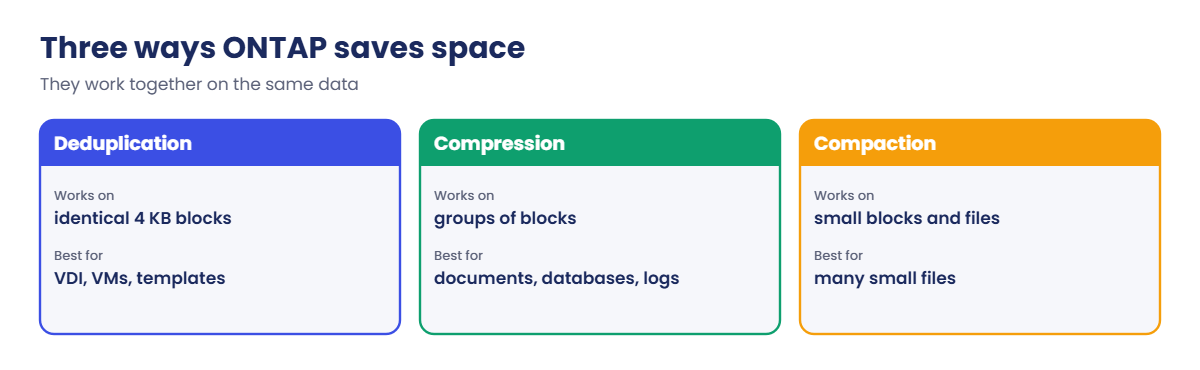
Deduplication stores identical 4 KB blocks once, compression squeezes blocks smaller, and compaction packs several small blocks into one, so the same data takes less physical space.

In Simple Words

Packing a suitcase

You’re packing for a family trip. Four people each pack the same phone charger, so you take one and share it (deduplication). You roll the clothes tightly so they take less room (compression).

Then you push socks into the gaps inside your shoes, so no corner is wasted (compaction). Same things, smaller suitcase. A box of glass bangles, though, won’t squeeze at all, just like videos or encrypted files.

Engineer's View

How an engineer describes it

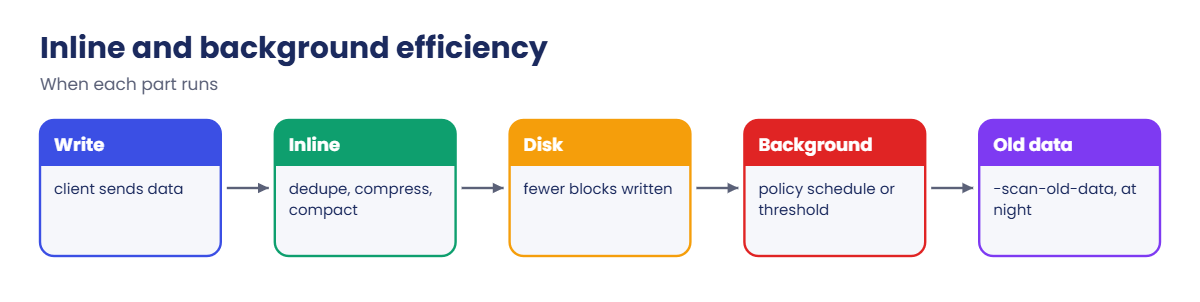
WAFL works in 4 KB blocks. Inline deduplication checks new blocks against a fingerprint catalogue as they’re written; on AFF systems it also works across volumes in the same aggregate. Background deduplication runs as a scheduled scan, set by an efficiency policy (default is daily, auto runs when enough new data arrives).

Compression compresses groups of blocks inline or in the background; newer AFF releases use temperature-sensitive storage efficiency, compressing cold data harder. Compaction fits several small compressed blocks or small files into one 4 KB physical block.

On AFF all three are on by default. On FAS (hard disks) background scans cost disk I/O, so schedule them at night. volume efficiency start -scan-old-data true processes data written before efficiency was on, and it’s heavy. Read savings with volume show -fields sis-space-saved,sis-space-saved-percent and storage aggregate show-efficiency.

How it works, step by step

1Turn efficiency on

volume efficiency on, then pick the features with volume efficiency modify.

ONTAP deduplication, compression and compaction compared

2Process existing data

Inline only catches new writes. Scan old data once, outside business hours.

3Let the schedule do the rest

The efficiency policy runs background dedupe on a schedule or a change threshold.

ONTAP deduplication inline and background flow

4Read the savings

Volume savings in GB and percent, and the aggregate’s data reduction ratio for the bigger picture.

Data typeTypical savingsWhy
VDI, VM templatesHighSame OS blocks repeated many times
Home and project sharesMediumDuplicate documents, compressible files
DatabasesLow to mediumCompression helps; dedupe less
Video, images, encrypted or already compressedNear zeroNo repeats and nothing left to squeeze

In System Manager: Storage › Volumes › Edit › Storage efficiency, and the savings show on the Dashboard and under Storage › Tiers.
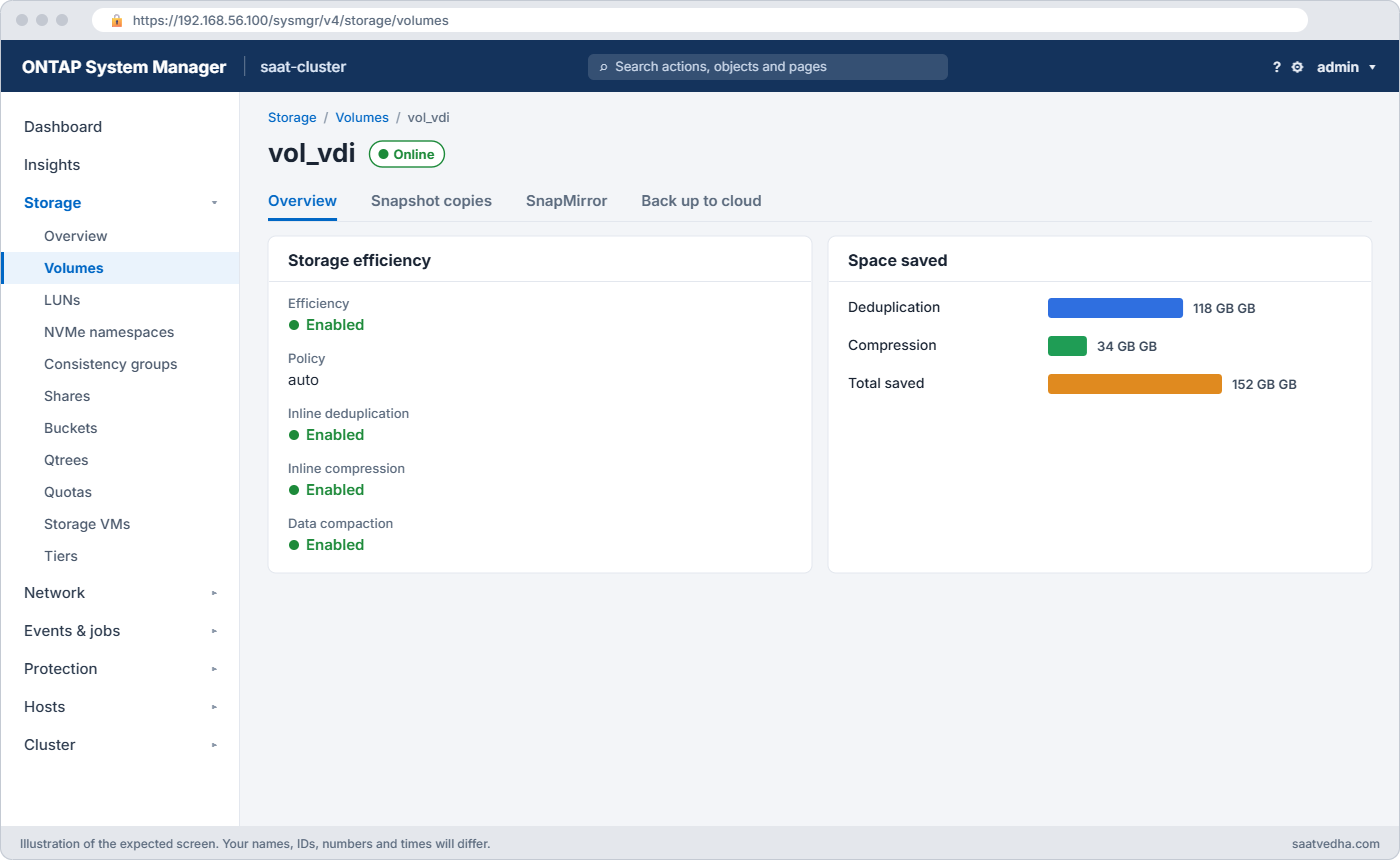
System Manager Edit volume vol_vdi storage efficiency settings and savings of about 152 GB
System Manager: Edit volume > Storage efficiency, with the savings for vol_vdi.

Good to know: logical space reporting for service providers

By default ONTAP reports how much physical space a volume uses after efficiency. A provider that bills by data written can switch a volume to show logical space instead with volume modify -is-space-reporting-logical true.

To stop a customer writing more logical data than they paid for, add -is-space-enforcement-logical true. ONTAP then warns as logical use passes 95% and 98%, and refuses writes at 100%, while the efficiency savings still stay with you.

Hands-on lab: turn on efficiency and read the savings

Before you run any command, double-check it

Read every command twice before you press Enter. Check the target: the server name, the user, the disk or device name, the path and the sizes. These commands are for learning and were tested in our lab, not on your system. At work, run the read-only commands first, follow your change process, make sure a backup exists, and ask a second person to check anything that changes or deletes data. You run them at your own risk.

This lab uses the SaatVedha ONTAP practice shell, our own learning tool. It is not NetApp software: real ONTAP output looks like this but is not identical.

1A volume with VDI-like data, efficiency off

Reset and run setup-29.txt, log in, then:

volume create -vserver svm1 -volume vol_vdi -aggregate aggr1_01 -size 500g -junction-path /vdi
simctl write svm1 vol_vdi 200g vdi
[Job 104] Job succeeded: Successful
saat-cluster::> simctl write svm1 vol_vdi 200g vdi
Client wrote 200GB to svm1:vol_vdi.

simctl write plays the desktops writing 200 GB of VDI data. Efficiency is off on this practice volume, like a FAS volume nobody configured.

2Turn it on and scan the old data

volume efficiency on -vserver svm1 -volume vol_vdi
volume efficiency modify -vserver svm1 -volume vol_vdi -inline-dedupe true -inline-compression true -compression true -data-compaction true
volume efficiency start -vserver svm1 -volume vol_vdi -scan-old-data true

You should see this:

Efficiency for volume "vol_vdi" of Vserver "svm1" is enabled.
saat-cluster::> volume efficiency modify -vserver svm1 -volume vol_vdi -inline-dedupe true -inline-compression true -compression true -data-compaction true
saat-cluster::> volume efficiency start -vserver svm1 -volume vol_vdi -scan-old-data true
The efficiency operation for volume "vol_vdi" of Vserver "svm1" has started.
Warning: Scanning existing data can take a long time and uses CPU and disk. Run it outside business hours.

✅ Checkpoint: The scan has started.

3Let it finish and read the savings

simctl tick 3
volume efficiency show -vserver svm1 -volume vol_vdi
volume show -vserver svm1 -volume vol_vdi -fields used,sis-space-saved,sis-space-saved-percent
storage aggregate show-efficiency -aggregate aggr1_01

You should see this (trimmed; ratios can differ):

                 State: Enabled
                Status: Idle
  Last Operation State: Success
     Logical Data Size: 200.2GB
           Compression: true
    Inline Compression: true
         Inline Dedupe: true
       Data Compaction: true
saat-cluster::> volume show -vserver svm1 -volume vol_vdi -fields used,sis-space-saved,sis-space-saved-percent
vserver volume  used    sis-space-saved sis-space-saved-percent
------- ------- ------- --------------- -----------------------
svm1    vol_vdi 200.2GB 152.1GB         43%
saat-cluster::> storage aggregate show-efficiency -aggregate aggr1_01
                                            Total Storage Data Reduction
Aggregate                 Size Available Efficiency Ratio          Ratio
-------------------- --------- --------- ---------------- --------------
aggr1_01                8.80TB    8.31TB           4.17:1         4.17:1

The scan saved about 152 GB on this volume. The aggregate ratio includes snapshots and other savings, so it’s bigger than the volume percentage; quote the right number to the right audience. (In the practice shell the used column stays at the logical size; on a real system it drops.)

✅ Checkpoint: sis-space-saved shows about 152 GB.

Practice shell: ONTAP deduplication savings on vol_vdi
About 152 GB saved on vol_vdi after the scan.

4Check the schedule

volume efficiency policy show

You should see this:

Vserver    Policy Name      Type      Job Schedule  Duration (Hours) QoS Policy
---------- ---------------- --------- ------------- --------- -----------
saat-cluster
           auto             threshold -             -         background
saat-cluster
           default          scheduled daily         -         best_effort
saat-cluster
           inline-only      -         -             -         -
3 entries were displayed.

vol_vdi uses default: a daily background run, as a best_effort job that gives way to client I/O.

Break It, Then Fix It

Someone starts a big scan in the middle of the working day. The desktops are busy.

1Normal load, then a scan at peak time

simctl load svm1 vol_vdi 3000 60
qos statistics volume latency show -iterations 1
simctl break efficiency-peak svm1 vol_vdi
qos statistics volume latency show -iterations 1

You’ll get something like this (columns after Disk trimmed; your numbers differ):

Workload            ID    Latency    Network    Cluster       Data       Disk
--------------- ------ ---------- ---------- ---------- ---------- ----------
-total-              -     7.46ms    60.31us        0ms   150.77us     7.25ms
vol_vdi-wid4829   4829     7.46ms    60.31us        0ms   150.77us     7.25ms
saat-cluster::> simctl break efficiency-peak svm1 vol_vdi
saat-cluster::> qos statistics volume latency show -iterations 1
Workload            ID    Latency    Network    Cluster       Data       Disk
--------------- ------ ---------- ---------- ---------- ---------- ----------
-total-              -    19.65ms    57.77us        0ms   455.43us    19.14ms
vol_vdi-wid4829   4829    19.65ms    57.77us        0ms   455.43us    19.14ms

Latency went from about 7 ms to nearly 20 ms, almost all of it in the Disk column. The users didn’t change what they do; something else is hitting the same disks.

Practice shell: an efficiency scan at peak time raises disk latency
Disk latency nearly triples while the scan runs.

2Find the scan and stop it

volume efficiency show -vserver svm1 -fields progress
volume efficiency stop -vserver svm1 -volume vol_vdi
simctl fix efficiency-peak
qos statistics volume latency show -iterations 1

You should see this (trimmed):

vserver volume  progress
------- ------- ---------------
svm1    vol_vdi 1.21 GB Scanned
saat-cluster::> volume efficiency stop -vserver svm1 -volume vol_vdi
The efficiency operation for volume "vol_vdi" of Vserver "svm1" is being stopped.
...
-total-              -     7.07ms    57.18us        0ms   142.95us     6.87ms

A progress value that says “Scanned” instead of Idle is a running scan. In the lab, simctl fix ends the fault after you stop it. Restart the scan at night, or let the efficiency policy schedule it.

✅ Checkpoint: Latency is back near 7 ms.

This happened at work

Ten in the morning in Nashik

A grape and wine exporter in Nashik ran 300 VDI desktops on a hybrid FAS system. Efficiency had never been turned on for the VDI volume, and the storage admin, new to the job, noticed the volume was 85 percent full on a Monday.

He turned efficiency on and started -scan-old-data true at about 10 a.m. Within twenty minutes the help desk had a queue of calls: logins taking two minutes, Outlook freezing, and the export documentation team unable to work.

The senior admin saw the Disk latency jump in qos statistics volume latency show and found the scan with volume efficiency show. He stopped it, and the desktops recovered in minutes. They restarted the scan on Friday night; by Monday it had saved more than half the volume’s space, and nobody noticed a thing.

Common mistakes and troubleshooting

MistakeWhat happensDo this instead
Running -scan-old-data in business hoursDisk and CPU load slow every volume on the nodeStart it at night or at the weekend
Expecting savings on video or encrypted dataHours of scanning for almost nothingSkip efficiency for incompressible data
Quoting the aggregate ratio as volume savingsWrong expectations in capacity plansUse sis-space-saved for volumes, show-efficiency for aggregates
Turning efficiency off on AFF to “speed it up”More space used, little or no gainLeave the AFF defaults on
Forgetting that snapshots lock old blocksSavings appear only after older snapshots expireExpect savings to grow over the snapshot retention period
Encrypting data on the host before it reaches ONTAPDedupe and compression stop workingUse ONTAP encryption (NVE/NAE) instead where possible

Interview questions

Click a question to open it. Each one is written the way an interviewer would ask it. Under it you will see why they ask it and one way you could answer, in your own words.

Fresher level

1. What’s the difference between deduplication and compression?

Why they ask this: They want to check you understand the two main efficiency features.

How you might answer: Deduplication finds identical 4 KB blocks and keeps one copy, so it works best where data repeats, like VDI. Compression makes each block or group of blocks smaller, so it helps even when nothing repeats, as long as the data can be squeezed.

2. What does -scan-old-data do, and when would you run it?

Why they ask this: They’re checking you know the heavy part of turning efficiency on.

How you might answer: It makes the efficiency job process the data that was already in the volume before efficiency was turned on. It uses a lot of CPU and disk, so I’d run it at night or over a weekend and watch latency while it runs.

2–5 years experience

3. Users complain of slowness every day at 10 a.m. on a FAS system. How would you check if storage efficiency is involved?

Why they ask this: They want to see you link a symptom to a background job.

How you might answer: I’d look at qos statistics volume latency show during the slow period to see if the Disk column jumps, then volume efficiency show -fields progress to see if a scan is running. If it is, I’d check which efficiency policy it uses and move the schedule to a quiet time.

4. A manager asks how much space dedupe is saving. Which numbers do you give?

Why they ask this: They’re testing whether you can report the right figure clearly.

How you might answer: For one volume I’d give sis-space-saved and the percentage from volume show. For the whole system I’d use storage aggregate show-efficiency, and I’d explain that the aggregate ratio includes snapshots and clones, so it’s always the bigger number.

Senior level

5. A customer wants to use host-side encryption on all VMs. What do you tell them about efficiency?

Why they ask this: They want to see you explain a trade-off between security and capacity.

How you might answer: Encrypted data looks random, so ONTAP can’t dedupe or compress it, and they’d lose most of their savings, which affects the capacity plan and cost. I’d suggest ONTAP’s own encryption, NVE or NAE, which encrypts after efficiency, or plan the extra capacity if host encryption is a hard requirement.

6. How would you plan efficiency settings for a mixed estate of AFF and FAS clusters?

Why they ask this: They’re checking that you match settings to hardware and workload.

How you might answer: On AFF I leave inline dedupe, compression and compaction on everywhere, since they’re designed to run inline. On FAS I enable efficiency where data benefits, VDI, home shares and VMs, use the default or auto policy with night-time schedules, and skip media and backup volumes that are already compressed.

Quick quiz

Q1. What does deduplication do?

  1. Compresses each file
  2. Stores identical blocks only once
  3. Moves cold data to S3
  4. Encrypts data
Show answer

B — dedupe keeps one copy of identical 4 KB blocks.

Q2. Which data saves the least with efficiency?

  1. VDI desktops
  2. Home folders
  3. Encrypted or video files
  4. VM templates
Show answer

C — they don’t repeat and can’t be compressed further.

Q3. What does -scan-old-data true do?

  1. Deletes old snapshots
  2. Processes data written before efficiency was on
  3. Scans for viruses
  4. Checks disks for errors
Show answer

B — it applies efficiency to existing data.

Q4. Which command shows space saved on a volume?

  1. volume show -fields sis-space-saved,sis-space-saved-percent
  2. lun show
  3. network port show
  4. vserver show
Show answer

A — sis-space-saved fields show the savings.

Q5. A scan at peak time raises latency mostly in which column?

  1. Network
  2. Cluster
  3. Disk
  4. QoS Max
Show answer

C — the scan competes for disk I/O.

Quick recap

  • Dedupe keeps one copy of repeated blocks; compression and compaction pack data tighter.
  • AFF runs all three inline by default; FAS needs scheduling with care.
  • -scan-old-data is heavy: run it at night.
  • Read savings with sis-space-saved and storage aggregate show-efficiency.
  • A sudden Disk latency jump with a scan running: stop it and reschedule.

Next lesson

Lesson 35: Snapshots and restores → Phase 3 starts: you’ll take snapshots, restore one file and a whole volume, and learn what SnapRestore throws away.

Further reading: ONTAP deduplication

Want to go deeper into ONTAP deduplication? Read NetApp’s ONTAP concepts guide for how WAFL and storage efficiency fit together, and try the efficiency task in the Command Builder. You can also see the full plan for this course on the NetApp ONTAP Storage Administration course page.

Scroll to Top

This website uses cookies

We use a few cookies to keep this site working. If you allow it, we also use Google Analytics to count visits so we can improve our lessons. You can accept all, deny the optional ones, or choose what to allow.