

4Bring the disk online
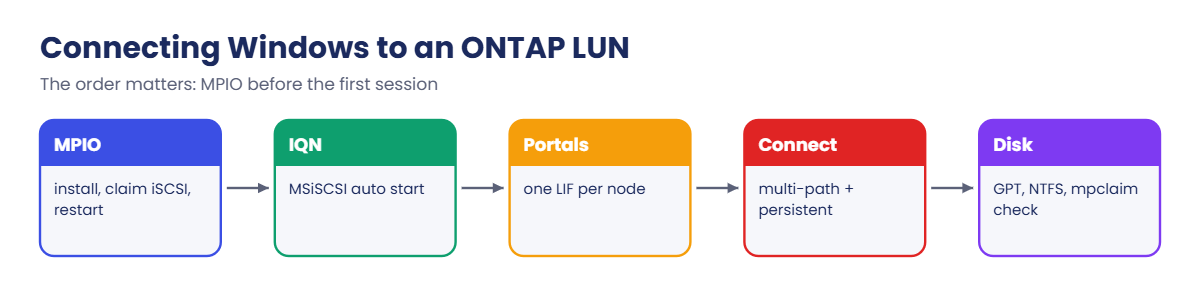
The LUN shows as an offline RAW disk. Initialize it as GPT, create a partition and format NTFS. Check mpclaim -s -d shows one MPIO disk.
| Job | GUI | PowerShell |
|---|---|---|
| Install MPIO | Server Manager › Add Roles and Features › Multipath I/O | Install-WindowsFeature Multipath-IO |
| Claim iSCSI disks | MPIO control panel › Discover Multi-Paths › Add support for iSCSI devices | Enable-MSDSMAutomaticClaim -BusType iSCSI |
| Add a portal | iSCSI Initiator › Discovery › Discover Portal | New-IscsiTargetPortal |
| Connect | iSCSI Initiator › Targets › Connect › Enable multi-path | Connect-IscsiTarget -IsMultipathEnabled $true -IsPersistent $true |
| New volume | Disk Management › Online, Initialize, New Simple Volume | Initialize-Disk, New-Partition, Format-Volume |
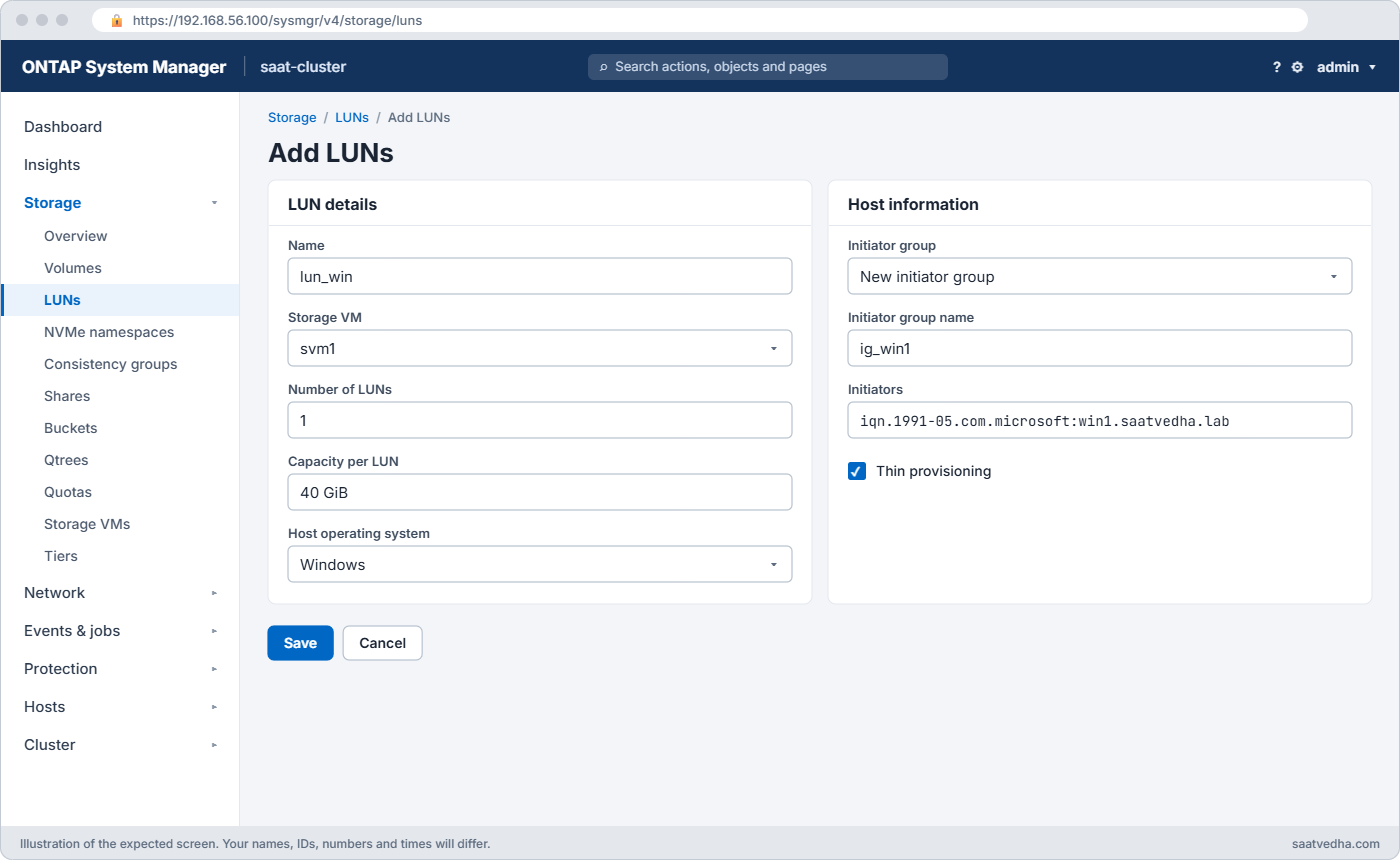
On the ONTAP side, System Manager’s Storage › LUNs › + Add with host operating system Windows creates the volume, LUN, igroup and mapping in one form.
Before you run any command, double-check it
Read every command twice before you press Enter. Check the target: the server name, the user, the disk or device name, the path and the sizes. These commands are for learning and were tested in our lab, not on your system. At work, run the read-only commands first, follow your change process, make sure a backup exists, and ask a second person to check anything that changes or deletes data. You run them at your own risk.
This lab uses the SaatVedha ONTAP practice shell, our own learning tool. It is not NetApp software: real ONTAP output looks like this but is not identical.
You’ll use two terminals. The first runs the cluster shell (python ontapsim.py).
The second runs python ontapsim.py --host win1, which opens an administrator PowerShell prompt on win1, a Windows Server 2025 machine at 192.168.56.31 joined to saatvedha.lab. Type the same cmdlets you would on a real server; restarts take a second instead of a minute.
1Build the storage side
Save these lines as setup-26.txt: two aggregates, an SVM with one iSCSI LIF per node, and a 50 GB LUN mapped to win1’s IQN. Note the windows_2008 OS type for the LUN and windows for the igroup, the values ONTAP uses for every current Windows Server release.
storage aggregate create -aggregate aggr1_01 -node saat-cluster-01 -diskcount 8 -disktype SAS
storage aggregate create -aggregate aggr1_02 -node saat-cluster-02 -diskcount 8 -disktype SAS
vserver create -vserver svm1 -aggregate aggr1_01 -rootvolume-security-style unix
network interface create -vserver svm1 -lif svm1_iscsi1 -service-policy default-data-iscsi -home-node saat-cluster-01 -home-port e0d -address 192.168.56.131 -netmask 255.255.255.0
network interface create -vserver svm1 -lif svm1_iscsi2 -service-policy default-data-iscsi -home-node saat-cluster-02 -home-port e0d -address 192.168.56.132 -netmask 255.255.255.0
vserver iscsi create -vserver svm1
volume create -vserver svm1 -volume vol_sql1 -aggregate aggr1_01 -size 60g -space-guarantee none -snapshot-policy none
lun create -vserver svm1 -path /vol/vol_sql1/lun_sql1 -size 50g -ostype windows_2008 -space-reserve disabled
lun igroup create -vserver svm1 -igroup ig_win1 -protocol iscsi -ostype windows -initiator iqn.1991-05.com.microsoft:win1.saatvedha.lab
lun mapping create -vserver svm1 -path /vol/vol_sql1/lun_sql1 -igroup ig_win1
Reset the lab and run it:
python ontapsim.py -c "simctl reset"
python ontapsim.py --run setup-26.txt
✅ Checkpoint: No line in the output starts with Error.
2Install MPIO first, then read the IQN
Open the second terminal with python ontapsim.py --host win1 and run:
Install-WindowsFeature -Name Multipath-IO
Set-Service MSiSCSI -StartupType Automatic
Start-Service MSiSCSI
Get-InitiatorPort
Restart-Computer
Enable-MSDSMAutomaticClaim -BusType iSCSI
Restart-Computer
You should see this:
PS C:\Users\Administrator> Install-WindowsFeature -Name Multipath-IO

Success Restart Needed Exit Code      Feature Result
------- -------------- ---------      --------------
True    Yes            SuccessRest... {Multipath I/O}
WARNING: You must restart this server to finish the installation process.
PS C:\Users\Administrator> Set-Service MSiSCSI -StartupType Automatic
PS C:\Users\Administrator> Start-Service MSiSCSI
PS C:\Users\Administrator> Get-InitiatorPort

InstanceName                                     NodeAddress                                    PortAddress                                    ConnectionType
------------                                     -----------                                    -----------                                    --------------
ROOT\ISCSIPRT\0000_0                             iqn.1991-05.com.microsoft:win1.saatvedha.lab   ISCSI ANY PORT                                 iSCSI
PS C:\Users\Administrator> Restart-Computer
(win1 restarts. You are logged on again after about a minute.)
PS C:\Users\Administrator> Enable-MSDSMAutomaticClaim -BusType iSCSI
PS C:\Users\Administrator> Restart-Computer
(win1 restarts. You are logged on again after about a minute.)
Order matters: MPIO and the automatic claim for iSCSI go in before the first login, with a restart after each. The NodeAddress column is win1’s IQN, the value the storage team puts in the igroup.
✅ Checkpoint: Install-WindowsFeature shows Success True and the IQN ends in win1.saatvedha.lab.
3Connect to both LIFs with multipath
Discovery from one LIF finds the target; then connect once through each LIF, with multipath and persistence turned on:
Test-NetConnection 192.168.56.131 -Port 3260
New-IscsiTargetPortal -TargetPortalAddress 192.168.56.131
Get-IscsiTarget
Connect-IscsiTarget -NodeAddress iqn.1992-08.com.netapp:sn.c84b2d40ac3f32ca940fcb7e13e6d933:vs.3 -TargetPortalAddress 192.168.56.131 -IsMultipathEnabled $true -IsPersistent $true
Connect-IscsiTarget -NodeAddress iqn.1992-08.com.netapp:sn.c84b2d40ac3f32ca940fcb7e13e6d933:vs.3 -TargetPortalAddress 192.168.56.132 -IsMultipathEnabled $true -IsPersistent $true
Get-Disk
mpclaim -s -d
mpclaim -s -d 0
You should see this:
PS C:\Users\Administrator> Test-NetConnection 192.168.56.131 -Port 3260

ComputerName     : 192.168.56.131
RemoteAddress    : 192.168.56.131
RemotePort       : 3260
InterfaceAlias   : Ethernet 2
SourceAddress    : 192.168.56.31
TcpTestSucceeded : True
PS C:\Users\Administrator> New-IscsiTargetPortal -TargetPortalAddress 192.168.56.131

InitiatorInstanceName  :
InitiatorPortalAddress :
IsDataDigest           : False
IsHeaderDigest         : False
TargetPortalAddress    : 192.168.56.131
TargetPortalPortNumber : 3260
PSComputerName         :
PS C:\Users\Administrator> Get-IscsiTarget

IsConnected NodeAddress                                                            PSComputerName
----------- -----------                                                            --------------
      False iqn.1992-08.com.netapp:sn.c84b2d40ac3f32ca940fcb7e13e6d933:vs.3
PS C:\Users\Administrator> Connect-IscsiTarget -NodeAddress iqn.1992-08.com.netapp:sn.c84b2d40ac3f32ca940fcb7e13e6d933:vs.3 -TargetPortalAddress 192.168.56.131 -IsMultipathEnabled $true -IsPersistent $true

AuthenticationType      : NONE
InitiatorInstanceName   : ROOT\ISCSIPRT\0000_0
InitiatorNodeAddress    : iqn.1991-05.com.microsoft:win1.saatvedha.lab
InitiatorPortalAddress  : 0.0.0.0
InitiatorSideIdentifier : 400001370000
IsConnected             : True
IsDataDigest            : False
IsDiscovered            : True
IsHeaderDigest          : False
IsPersistent            : True
NumberOfConnections     : 1
SessionIdentifier       : ffffb38d1b2b2010-4000013700000002
TargetNodeAddress       : iqn.1992-08.com.netapp:sn.c84b2d40ac3f32ca940fcb7e13e6d933:vs.3
TargetSideIdentifier    : 1e00
PSComputerName          :
PS C:\Users\Administrator> Connect-IscsiTarget -NodeAddress iqn.1992-08.com.netapp:sn.c84b2d40ac3f32ca940fcb7e13e6d933:vs.3 -TargetPortalAddress 192.168.56.132 -IsMultipathEnabled $true -IsPersistent $true

AuthenticationType      : NONE
InitiatorInstanceName   : ROOT\ISCSIPRT\0000_0
InitiatorNodeAddress    : iqn.1991-05.com.microsoft:win1.saatvedha.lab
InitiatorPortalAddress  : 0.0.0.0
InitiatorSideIdentifier : 400001370001
IsConnected             : True
IsDataDigest            : False
IsDiscovered            : True
IsHeaderDigest          : False
IsPersistent            : True
NumberOfConnections     : 1
SessionIdentifier       : ffffb38d1b2b2010-4000013700000003
TargetNodeAddress       : iqn.1992-08.com.netapp:sn.c84b2d40ac3f32ca940fcb7e13e6d933:vs.3
TargetSideIdentifier    : 1f00
PSComputerName          :
PS C:\Users\Administrator> Get-Disk

Number Friendly Name                        Serial Number                    HealthStatus         OperationalStatus      Total Size Partition
                                                                                                                                    Style
------ -------------                        -------------                    ------------         -----------------      ---------- ----------
0      VBOX HARDDISK                        VB4c3e0b2a-9d7f61c5              Healthy              Online                      50 GB GPT
1      NETAPP LUN C-Mode                    Dmi1wGdgb5T2                     Healthy              Offline                     50 GB RAW
PS C:\Users\Administrator> mpclaim -s -d

For more information about a particular disk, use 'mpclaim -s -d #' where # is the MPIO disk number.

MPIO Disk    System Disk  LB Policy    DSM Name
-------------------------------------------------------------------------------
MPIO Disk0   Disk 1       RRWS         Microsoft DSM
PS C:\Users\Administrator> mpclaim -s -d 0

MPIO Disk0: 02 Paths, Round Robin with Subset, Implicit Only
    Controlling DSM: Microsoft DSM
    SN: 600A0980446D69317747646762355432
    Supported Load Balance Policies: FOO RR RRWS LQD WP LB

    Path ID          State              SCSI Address      Weight
    ---------------------------------------------------------------------------
    0000000077030000 Active/Optimized   003|000|000|000   0
      TPG_State : Active/Optimized  , TPG_Id: 1007, : 2

    0000000077030001 Active/Unoptimized 003|000|001|000   0
      TPG_State : Active/Unoptimized, TPG_Id: 1008, : 3
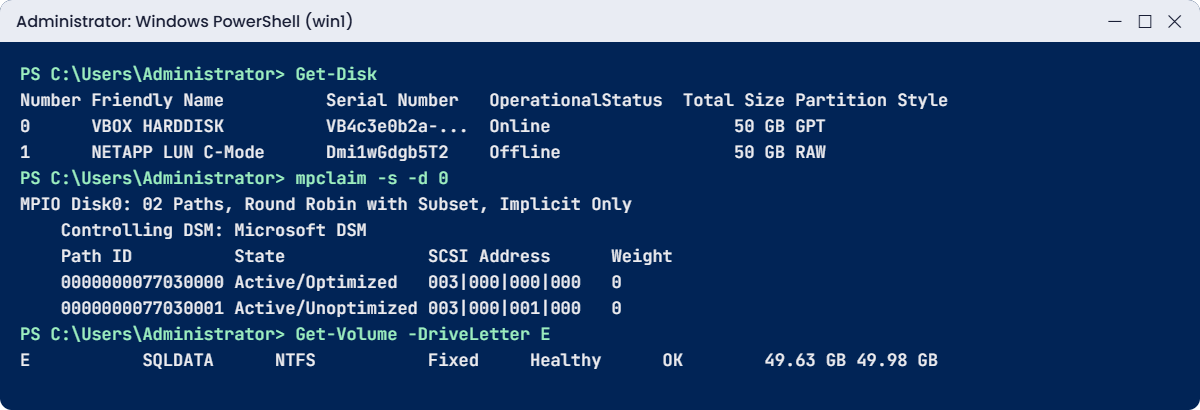
Two sessions, yet Get-Disk lists one NETAPP disk: MPIO joined the paths. mpclaim -s -d 0 shows the ALUA states from Lesson 24, one Active/Optimized path through the LUN’s node and one Active/Unoptimized through the partner. Round Robin with Subset uses only the optimized path until it fails.
The GUI way is the iSCSI Initiator (iscsicpl): Discovery › Discover Portal, then Targets › Connect with Enable multi-path ticked, once per portal under Advanced.

✅ Checkpoint: One NETAPP disk, and mpclaim shows MPIO Disk0 with 02 Paths.
4Bring the disk online as an NTFS volume
Set-Disk -Number 1 -IsOffline $false
Initialize-Disk -Number 1 -PartitionStyle GPT
New-Partition -DiskNumber 1 -UseMaximumSize -DriveLetter E
Format-Volume -DriveLetter E -FileSystem NTFS -NewFileSystemLabel SQLDATA -Confirm:$false
Get-Volume -DriveLetter E
You should see this:
PS C:\Users\Administrator> Set-Disk -Number 1 -IsOffline $false
PS C:\Users\Administrator> Initialize-Disk -Number 1 -PartitionStyle GPT
PS C:\Users\Administrator> New-Partition -DiskNumber 1 -UseMaximumSize -DriveLetter E


   DiskPath: \\?\mpio#disk&ven_netapp&prod_lun_c-mode&rev_9181#1&7f6ac24&0&446d693177476467#{53f56307-b6bf-11d0-94f2-00a0c91efb8b}

PartitionNumber  DriveLetter Offset                                                                           Size Type
---------------  ----------- ------                                                                           ---- ----
2                E           16777216                                                                       49.98 GB Basic
PS C:\Users\Administrator> Format-Volume -DriveLetter E -FileSystem NTFS -NewFileSystemLabel SQLDATA -Confirm:$false

DriveLetter FriendlyName FileSystemType DriveType HealthStatus OperationalStatus SizeRemaining     Size
----------- ------------ -------------- --------- ------------ ----------------- -------------     ----
E           SQLDATA      NTFS           Fixed     Healthy      OK                     49.63 GB 49.98 GB
PS C:\Users\Administrator> Get-Volume -DriveLetter E

DriveLetter FriendlyName FileSystemType DriveType HealthStatus OperationalStatus SizeRemaining     Size
----------- ------------ -------------- --------- ------------ ----------------- -------------     ----
E           SQLDATA      NTFS           Fixed     Healthy      OK                     49.63 GB 49.98 GB
Use the disk number Get-Disk gave you; on a real server, double-check it’s the NETAPP disk before you initialize anything. The DiskPath starts with mpio#disk, more proof that Windows is using the multipath device.
✅ Checkpoint: Drive E: labelled SQLDATA is Healthy, about 50 GB.
5See the sessions from ONTAP
In the cluster shell:
vserver iscsi session show -vserver svm1
lun igroup show -vserver svm1 -igroup ig_win1 -instance
You should see this:
saat-cluster::> vserver iscsi session show -vserver svm1
           Tpgroup            Initiator                                      Initiator
Vserver    Name          TSIH Name                                           Alias
---------- ------------- ---- ---------------------------------------------- ----------
svm1       svm1_iscsi1      1 iqn.1991-05.com.microsoft:win1.saatvedha.lab   win1
svm1       svm1_iscsi2      2 iqn.1991-05.com.microsoft:win1.saatvedha.lab   win1
2 entries were displayed.
saat-cluster::> lun igroup show -vserver svm1 -igroup ig_win1 -instance
          Vserver Name: svm1
           Igroup Name: ig_win1
              Protocol: iscsi
               OS Type: windows
Portset Binding Igroup: -
           Igroup UUID: 7a673985-526e-90db-4859-10580a4ef67b
            Initiators: iqn.1991-05.com.microsoft:win1.saatvedha.lab (logged in)
✅ Checkpoint: Two sessions from win1 and the initiator shows (logged in).
Try it yourself: Build the ONTAP side for a Windows LUN in the Command Builder (choose ostype windows).
The mistake that causes real data loss on Windows: a LUN reached through two paths without MPIO. Windows then sees two disks that are really one.
1Lose MPIO
In win1’s PowerShell, let simctl remove the MPIO feature, the way a rebuilt server or a skipped build step would, then restart:
simctl break no-mpio
Restart-Computer
Get-Disk
mpclaim -s -d
You’ll get this:
PS C:\Users\Administrator> simctl break no-mpio
simctl: fault "no-mpio" is active on win1. Now find it from the host and the cluster.
PS C:\Users\Administrator> Restart-Computer
(win1 restarts. You are logged on again after about a minute.)
PS C:\Users\Administrator> Get-Disk

Number Friendly Name                        Serial Number                    HealthStatus         OperationalStatus      Total Size Partition
                                                                                                                                    Style
------ -------------                        -------------                    ------------         -----------------      ---------- ----------
0      VBOX HARDDISK                        VB4c3e0b2a-9d7f61c5              Healthy              Online                      50 GB GPT
2      NETAPP LUN C-Mode                    Dmi1wGdgb5T2                     Healthy              Offline                     50 GB RAW
3      NETAPP LUN C-Mode                    Dmi1wGdgb5T2                     Healthy              Offline                     50 GB RAW
PS C:\Users\Administrator> mpclaim -s -d
mpclaim : The term 'mpclaim' is not recognized as the name of a cmdlet, function, script file, or operable program. Check
the spelling of the name, or if a path was included, verify that the path is correct and try again.
At line:1 char:1
+ mpclaim -s -d
+ ~~~~~~~
    + CategoryInfo          : ObjectNotFound: (mpclaim:String) [], CommandNotFoundException
    + FullyQualifiedErrorId : CommandNotFoundException
The same serial number twice: Disk 2 and Disk 3 are one LUN seen through each session. If someone brings one online and “formats the new disk”, they wipe the data under the other. mpclaim doesn’t even exist, because it ships with the MPIO feature.
✅ Checkpoint: Two NETAPP disks with the same serial number, and mpclaim is not recognized.

2Fix it: MPIO, claim, restart
Install-WindowsFeature -Name Multipath-IO
Restart-Computer
Enable-MSDSMAutomaticClaim -BusType iSCSI
Restart-Computer
Get-Disk
mpclaim -s -d
Get-Volume -DriveLetter E
simctl fix no-mpio
You should see this:
PS C:\Users\Administrator> Install-WindowsFeature -Name Multipath-IO

Success Restart Needed Exit Code      Feature Result
------- -------------- ---------      --------------
True    Yes            SuccessRest... {Multipath I/O}
WARNING: You must restart this server to finish the installation process.
PS C:\Users\Administrator> Restart-Computer
(win1 restarts. You are logged on again after about a minute.)
PS C:\Users\Administrator> Enable-MSDSMAutomaticClaim -BusType iSCSI
PS C:\Users\Administrator> Restart-Computer
(win1 restarts. You are logged on again after about a minute.)
PS C:\Users\Administrator> Get-Disk

Number Friendly Name                        Serial Number                    HealthStatus         OperationalStatus      Total Size Partition
                                                                                                                                    Style
------ -------------                        -------------                    ------------         -----------------      ---------- ----------
0      VBOX HARDDISK                        VB4c3e0b2a-9d7f61c5              Healthy              Online                      50 GB GPT
1      NETAPP LUN C-Mode                    Dmi1wGdgb5T2                     Healthy              Online                      50 GB GPT
PS C:\Users\Administrator> mpclaim -s -d

For more information about a particular disk, use 'mpclaim -s -d #' where # is the MPIO disk number.

MPIO Disk    System Disk  LB Policy    DSM Name
-------------------------------------------------------------------------------
MPIO Disk0   Disk 1       RRWS         Microsoft DSM
PS C:\Users\Administrator> Get-Volume -DriveLetter E

DriveLetter FriendlyName FileSystemType DriveType HealthStatus OperationalStatus SizeRemaining     Size
----------- ------------ -------------- --------- ------------ ----------------- -------------     ----
E           SQLDATA      NTFS           Fixed     Healthy      OK                     49.63 GB 49.98 GB
PS C:\Users\Administrator> simctl fix no-mpio
simctl: fixed no-mpio.
One disk again, back online with its GPT partition, and E: is still there with its data. The last line just tidies the lab.
✅ Checkpoint: Get-Disk shows one NETAPP disk and mpclaim lists MPIO Disk0.
If you ever see two identical NETAPP disks on a Windows host, stop and check MPIO before anyone touches Disk Management.