Your lab: ONTAP practice shell and VirtualBox hosts
-
Phase 0: Start here
-
Phase 1: Architecture and foundation
-
Phase 2: Protocols and day-to-day administration
-
Phase 3: Data protection and enterprise integrations
-
Phase 4: Troubleshooting blueprint
-
Phase 5: Final project and career
A NetApp ONTAP lab is hard to get at home. Real controllers cost lakhs, and NetApp’s ONTAP Simulator can only be downloaded by NetApp customers and partners, so most learners can’t use it.
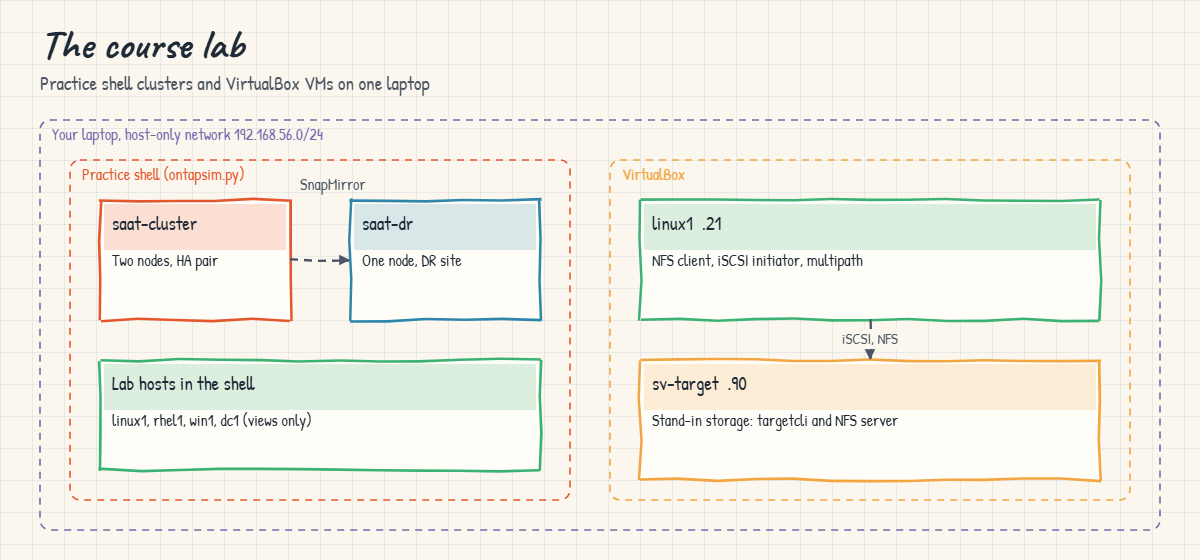
This course solves that with two pieces that fit on one laptop. The first is the SaatVedha ONTAP practice shell, which gives you two ONTAP-style clusters, lab hosts and faults you can switch on. The second is a pair of small Ubuntu VMs in VirtualBox, so you can run the real Linux commands for NFS mounts, iSCSI logins and multipath against a real target.
You’ll build both today and use them for the rest of the course. Set aside an hour, most of it for installing Ubuntu.
Where this lesson fits
Lesson 2 of 56 in NetApp ONTAP Storage Administration · Phase 0: Start here · Before this: Lesson 1, what ONTAP is · Next: the practice shell reference
| Time | You need | By the end you can |
|---|---|---|
| 60 to 90 minutes | 8 GB RAM laptop, 50 GB free disk, Python 3.8+, VirtualBox 7, Ubuntu Server 24.04 LTS ISO | Start both practice clusters, and have two Ubuntu VMs that can ping each other on 192.168.56.0/24 |
What it is, in one line
Your NetApp ONTAP lab has two halves: a practice shell for the storage side, and real Linux VMs for the host side.
In Simple Words
A driving simulator and a real car park
Driving schools often start learners on a simulator. You can practise the controls, stall the engine and even crash, and nothing gets hurt. Then you take a real car round an empty car park, where the clutch and brakes feel real.
The practice shell is the simulator: you can create aggregates, break a node, fill a volume or cut the DR link without risk. The VirtualBox VMs are the car park: when a lesson says “log in over iSCSI and check multipath”, you run the real Linux commands and see real output.
Engineer's View
What you’re building
Practice shell: ontapsim.py, one Python file, no extra packages. It holds two clusters: saat-cluster, a two-node HA pair at 192.168.56.100 (nodes saat-cluster-01 and -02, two disk shelves with SAS and SSD drives), and saat-dr, a one-node DR cluster at 192.168.57.100. It also knows four lab clients (linux1, rhel1, win1 and a domain controller dc1) and can show you what those clients would see.
VirtualBox: two Ubuntu Server 24.04 LTS VMs on the host-only network 192.168.56.0/24. linux1 (192.168.56.21) is the client with nfs-common, open-iscsi and multipath-tools. sv-target (192.168.56.90) is a stand-in storage server with targetcli-fb and nfs-kernel-server; in the SAN lessons you’ll set it up to present LUNs with the same vendor and product strings a NetApp LUN reports, so Linux treats them like ONTAP LUNs.
If you have a NetApp support account and the ONTAP Simulator, you can run the same commands on it. Lessons point out where real ONTAP behaves differently from the practice shell.
How it works, step by step
1The practice shell keeps state in a file
Everything you create is saved in ontapsim-state.json next to the script, so you can stop and continue later. simctl reset puts both clusters back to the starting point.
2Two clusters, two networks
Production lives on 192.168.56.x and DR on 192.168.57.x, like two sites. You log in to DR with --cluster saat-dr. In Phase 3 you’ll peer them and run SnapMirror between them.
3simctl is the lab remote control
Commands that start with simctl aren’t ONTAP commands. They control the lab: break something, add a workload, let time pass, or show what a client host would see.
4VirtualBox gives the hosts two network cards
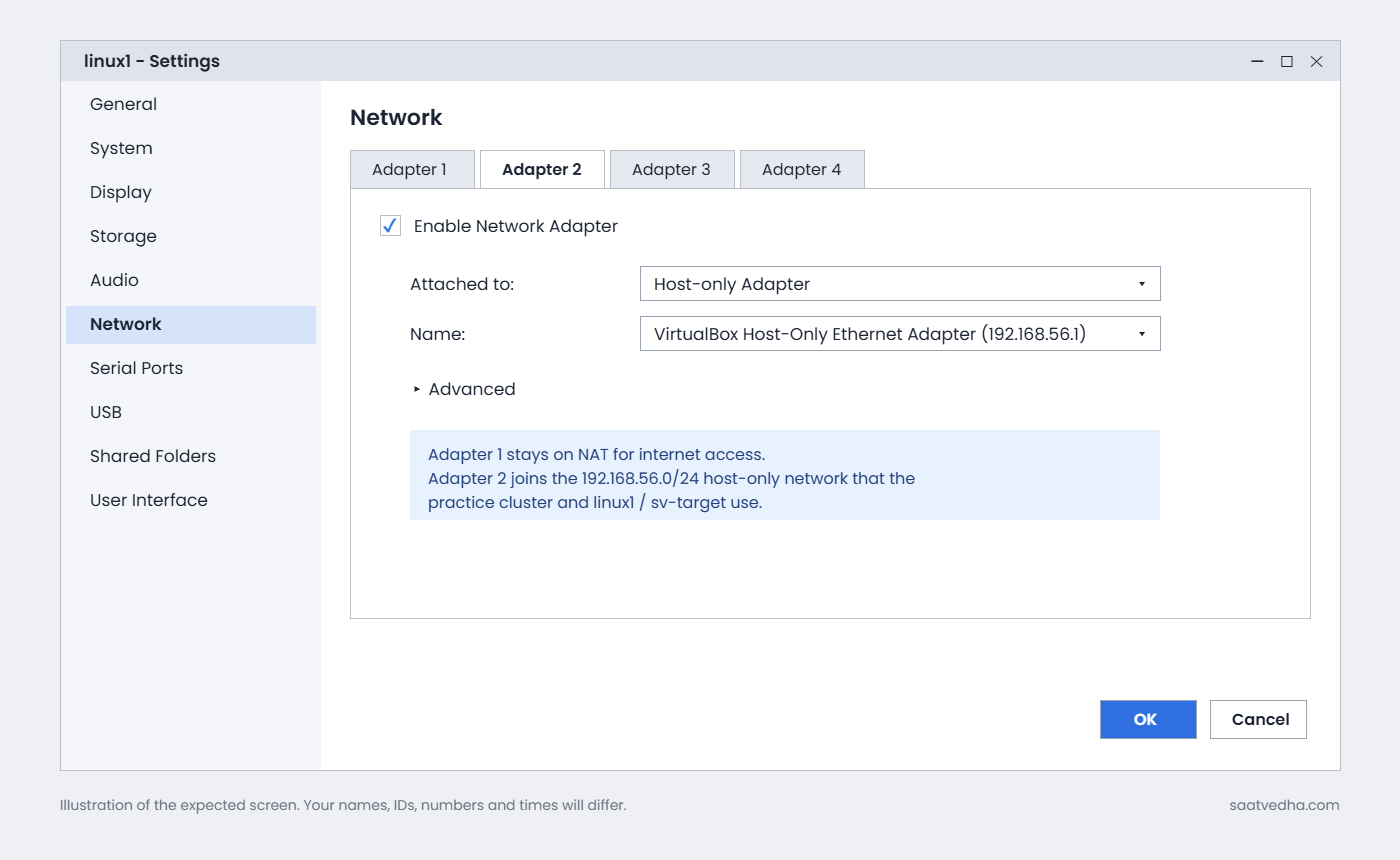
Adapter 1 is NAT, for internet access to install packages. Adapter 2 is host-only, a private network between your laptop and the VMs. Nothing on it can reach your office or home network, which keeps lab mistakes in the lab.
5Names match on purpose
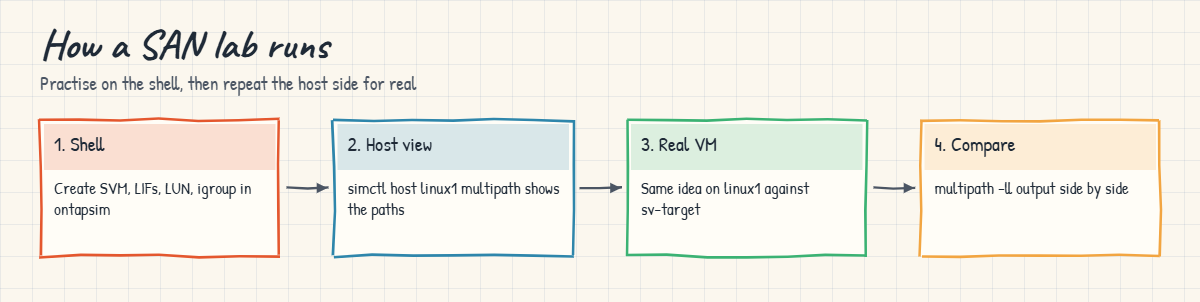
The VM you build is called linux1 with IP 192.168.56.21, the same name and IP the practice shell uses. When a lesson shows simctl host linux1 multipath in the shell, you can run sudo multipath -ll on the real linux1 and compare.
| Name | Where | IP address | Used for |
|---|---|---|---|
| saat-cluster | Practice shell | 192.168.56.100 (nodes .101, .102) | Production cluster, all phases |
| saat-dr | Practice shell | 192.168.57.100 | DR cluster, SnapMirror lessons |
| linux1 | VirtualBox VM (Ubuntu 24.04) | 192.168.56.21 | NFS client, iSCSI initiator, multipath |
| sv-target | VirtualBox VM (Ubuntu 24.04) | 192.168.56.90 | Stand-in storage for real host labs |
| rhel1, win1, dc1 | Practice shell only | 192.168.56.22, .31, .10 | RHEL, Windows and Active Directory views |
Hands-on lab: build the course lab
Before you run any command, double-check it
Read every command twice before you press Enter. Check the target: the server name, the user, the disk or device name, the path and the sizes. These commands are for learning and were tested in our lab, not on your system. At work, run the read-only commands first, follow your change process, make sure a backup exists, and ask a second person to check anything that changes or deletes data. You run them at your own risk.
This lab uses the SaatVedha ONTAP practice shell, our own learning tool. It is not NetApp software: real ONTAP output looks like this but is not identical.
Part A sets up the practice shell (10 minutes). Part B builds the two VMs (about an hour, mostly waiting for installs). If your laptop is short on RAM, do Part A now and Part B before Lesson 25, the first lesson that needs the VMs.
Part A: the practice shell
1Put the shell in its own folder
Download ontapsim.zip from the practice shell lesson and unzip it to C:\ontap-lab on Windows or ~/ontap-lab on macOS and Linux.
cd C:\ontap-lab
dirYou should see the two files (sizes may differ a little):
Directory of C:\ontap-lab
11/07/2026 10:20 1,082 README.txt
11/07/2026 10:20 334,912 ontapsim.py✅ Checkpoint: ontapsim.py and README.txt are in C:\ontap-lab.
2Log in to production and look at the lab hosts
python ontapsim.pyLog in as admin / saatlab1, then run:
simctl host list
simctl statusYou should see this:
saat-cluster::> simctl host list
linux1 Ubuntu 24.04 IP 192.168.56.21 IQN iqn.2004-10.com.ubuntu:01:5a7e1a2b3c4d WWPNs 21:00:00:24:ff:7a:10:01, 21:00:00:24:ff:7a:10:02
rhel1 Rocky Linux 9 IP 192.168.56.22 IQN iqn.1994-05.com.redhat:8f3d2c1b9a7e WWPNs 21:00:00:24:ff:7a:20:01, 21:00:00:24:ff:7a:20:02
win1 Windows Server 2025 IP 192.168.56.31 IQN iqn.1991-05.com.microsoft:win1.saatvedha.lab WWPNs 10:00:00:10:9b:3c:40:01, 10:00:00:10:9b:3c:40:02
dc1 Windows Server 2025 (Active Directory, DNS) IP 192.168.56.10
saat-cluster::> simctl status
Active faults: none
Clock offset: 0 s Clusters: saat-cluster, saat-drThese are the clients the shell knows about. Their IQNs and WWPNs are the ones you’ll type into igroups in Phase 2.
✅ Checkpoint: simctl status says Active faults: none.

3Log in to the DR cluster
exit
python ontapsim.py --cluster saat-drLog in with the same admin password, then:
cluster show
storage failover showYou should see this:
saat-dr::> cluster show
Node Health Eligibility
--------------------- ------- ------------
saat-dr-01 true true
saat-dr::> storage failover show
Takeover
Node Partner Possible State Description
--------------- --------------- -------- -------------------------------------
saat-dr-01 - - -The DR cluster is a single node, so it has no partner and no takeover. That’s common for small DR sites and fine for SnapMirror practice. Type exit when you’re done.
✅ Checkpoint: Your prompt read saat-dr::> and cluster show listed one node.
Part B: two Ubuntu VMs in VirtualBox
4Check the host-only network
Install VirtualBox 7 from virtualbox.org. In VirtualBox open File > Tools > Network Manager (or Tools > Network) and look at Host-only Networks. You need one with the address 192.168.56.1/24; VirtualBox usually creates it at install.
From a terminal you can also run:
VBoxManage list hostonlyifsYou should see something like this (Windows names shown; on Apple silicon Macs use VBoxManage list hostonlynets):
Name: VirtualBox Host-Only Ethernet Adapter
DHCP: Disabled
IPAddress: 192.168.56.1
NetworkMask: 255.255.255.0
Status: Up✅ Checkpoint: A host-only network on 192.168.56.1/24 exists and is Up.
5Create the two VMs
| Setting | linux1 | sv-target |
|---|---|---|
| ISO | Ubuntu Server 24.04 LTS | Ubuntu Server 24.04 LTS |
| CPU / RAM | 1 vCPU, 1536 MB | 1 vCPU, 1536 MB |
| Disk | 20 GB (dynamic) | 20 GB (dynamic) + a second 10 GB disk for LUNs |
| Adapter 1 | NAT | NAT |
| Adapter 2 | Host-only adapter, 192.168.56.1 network | Host-only adapter, same network |
| User during install | saat | saat |
Install Ubuntu with the defaults, tick Install OpenSSH server, and let the installer use DHCP on both adapters for now.
6Give each VM a fixed IP on the host-only network
Log in to linux1 and create a small netplan file. Use spaces, never tabs:
sudo tee /etc/netplan/60-hostonly.yaml >/dev/null <<'EOF'
network:
version: 2
ethernets:
enp0s8:
dhcp4: false
addresses: [192.168.56.21/24]
EOF
sudo chmod 600 /etc/netplan/60-hostonly.yaml
sudo netplan apply
ip -4 addr show enp0s8You should see something like this:
3: enp0s8: <BROADCAST,MULTICAST,UP,LOWER_UP> mtu 1500 qdisc fq_codel state UP group default qlen 1000
inet 192.168.56.21/24 brd 192.168.56.255 scope global enp0s8
valid_lft forever preferred_lft foreverDo the same on sv-target with 192.168.56.90/24. Ubuntu names the second VirtualBox adapter enp0s8; if ip link shows a different name, use that.
✅ Checkpoint: linux1 has 192.168.56.21 and sv-target has 192.168.56.90 on enp0s8.
7Install the tools
On linux1:
sudo apt update
sudo apt install -y nfs-common open-iscsi multipath-tools
cat /etc/iscsi/initiatorname.iscsiOn sv-target:
sudo apt update
sudo apt install -y targetcli-fb nfs-kernel-server
lsblkNote linux1’s real IQN from initiatorname.iscsi. It won’t match the practice shell’s linux1 IQN, and that’s fine: you’ll use the real one with sv-target and the shell’s one in the practice shell. On sv-target, lsblk should show the empty 10 GB disk, usually sdb.
✅ Checkpoint: Both installs finished without errors and sv-target shows a 10 GB sdb.
8Prove the two VMs can talk
ping -c 3 192.168.56.90From linux1 you should see something like this:
PING 192.168.56.90 (192.168.56.90) 56(84) bytes of data.
64 bytes from 192.168.56.90: icmp_seq=1 ttl=64 time=0.612 ms
64 bytes from 192.168.56.90: icmp_seq=2 ttl=64 time=0.540 ms
64 bytes from 192.168.56.90: icmp_seq=3 ttl=64 time=0.497 ms
--- 192.168.56.90 ping statistics ---
3 packets transmitted, 3 received, 0% packet loss, time 2034msTake a VirtualBox snapshot of both VMs now (Machine > Take Snapshot) and call it “clean”. If a later lab goes badly, you can roll back in a minute.
✅ Checkpoint: 0% packet loss, and both VMs have a snapshot called clean.
Break It, Then Fix It
Three problems people hit while building this lab. Cause each one, read the message, then fix it.
1Run the shell from the wrong folder
cd C:\
python ontapsim.pyYou’ll get something like this:
python: can't open file 'C:\ontapsim.py': [Errno 2] No such file or directoryPython looks for the file in the folder you’re in. cd C:\ontap-lab first, or give the full path: python C:\ontap-lab\ontapsim.py. The lab state file is always kept next to the script, so either way you get the same lab.
✅ Checkpoint: The login banner appears again.
2Forget to enable Adapter 2
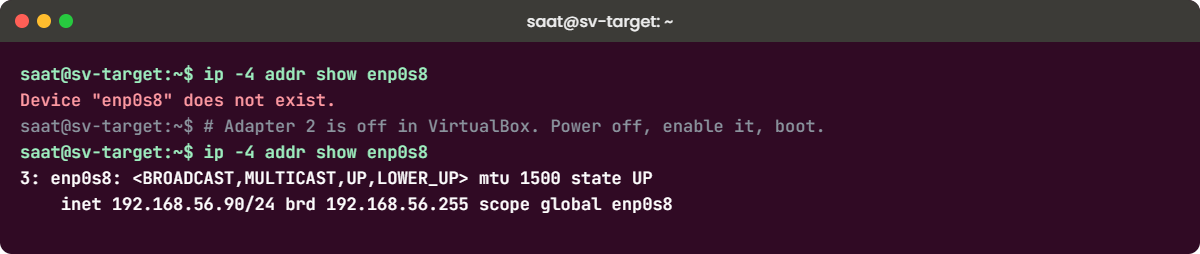
Power off sv-target, open Settings > Network, untick Enable Network Adapter on Adapter 2, and start it again. Then run:
ip -4 addr show enp0s8You’ll get this:
Device "enp0s8" does not exist.The VM only has the NAT card now, so nothing on 192.168.56.x can reach it, and a ping from linux1 says “Destination Host Unreachable”. Power off, tick the box again with Host-only Adapter selected, and boot. Netplan applies your file again at boot.
✅ Checkpoint: ip -4 addr show enp0s8 shows 192.168.56.90 again.
3A tab in the netplan file
Edit /etc/netplan/60-hostonly.yaml on linux1 and replace the spaces in front of addresses with a tab, then run sudo netplan apply.
You’ll get an error like this (the line and column depend on your file):
/etc/netplan/60-hostonly.yaml:7:1: Invalid YAML: tabs are not allowed for indent:
addresses: [192.168.56.21/24]
^YAML only allows spaces for indenting. Put the spaces back (two per level), run sudo netplan apply and check with ip -4 addr show enp0s8. Netplan refuses the whole file, so the old settings stay until you fix it.
✅ Checkpoint: netplan apply runs with no output and the IP is back.
This happened at work
The lab VM that took a real server’s address
A trainee at a services company in Hyderabad was building a storage lab on his office laptop. The tutorial he followed used a bridged adapter and a static IP, so he copied it: 10.20.1.15 on the office Wi-Fi network.
That address belonged to the branch’s print and scan server. For about an hour the server kept dropping off the network, and the help desk spent the time swapping cables and rebooting switches. A network engineer finally checked the switch’s ARP table and saw the address jumping between two MAC addresses, one of them a VirtualBox MAC.
After that the team wrote one rule for every lab: VMs talk to each other on a host-only network, and only NAT goes outside. It’s the same layout you just built.
Common mistakes and troubleshooting
| Mistake | What happens | Do this instead |
|---|---|---|
| Bridged adapter with a copied static IP | IP clash with a real device on your office or home network | Use host-only for the lab network and NAT for internet |
| Tabs in netplan YAML | netplan apply fails and the IP never changes | Indent with spaces only; check with sudo netplan get |
| Running out of RAM with three or four VMs | The laptop freezes and VMs pause | Two 1.5 GB VMs are enough; shut down VMs you aren’t using |
| No snapshot before a lab | A broken VM means reinstalling Ubuntu | Snapshot “clean” now and before each SAN lab |
| Treating practice shell output as exact ONTAP output | Confusion when a real system prints a slightly different table | Use the shell to learn the commands and the order; check details in NetApp’s docs |
Interview questions
Click a question to open it. Each one is written the way an interviewer would ask it. Under it you will see why they ask it and one way you could answer, in your own words.
Fresher level
1. How would you build a practice lab to learn NetApp if you don’t have access to real hardware?
Why they ask this: They want to see that you take learning seriously and can find practical ways around limits.
How you might answer: I’d use a lab that copies the ONTAP command line so I can practise the commands and the order of tasks, and Linux VMs in VirtualBox for the host side, NFS mounts, iSCSI logins and multipath. If my employer is a NetApp customer, I’d ask for the ONTAP Simulator through the support site.
2. Why do you give lab VMs two network adapters?
Why they ask this: They’re checking basic networking sense and awareness of how lab mistakes leak into real networks.
How you might answer: NAT gives the VM internet access for packages without exposing it. The host-only adapter is a private network between my laptop and the VMs, so static IPs and test services can’t clash with anything on the office network.
2–5 years experience
3. A colleague’s iSCSI lab VM can’t reach the target, but the target can reach the internet. What would you check?
Why they ask this: They want to see a step-by-step check from the bottom up.
How you might answer: First I’d run ip -4 addr on both VMs to see if they have addresses on the same subnet, and check the VirtualBox adapter settings, since a missing host-only adapter is common. Then a plain ping, and only after that iSCSI-level checks like the portal IP and port 3260.
4. What’s the risk of learning only from a simulator?
Why they ask this: They want to know you understand the gap between lab and production.
How you might answer: A simulator teaches commands and concepts, but it doesn’t show real timing, real hardware failures or the exact messages of every release. So I’d always check details in the official docs and practise on real systems in a test environment before touching production.
Senior level
5. You’re asked to design a shared training lab for a new storage team. What would you put in it?
Why they ask this: They’re judging planning, cost awareness and whether you think about safety and repeatability.
How you might answer: I’d give each person the same small setup: a practice cluster or ONTAP Simulator, two Linux hosts and one Windows host on an isolated network, with snapshots so anyone can reset in a minute. I’d script the setup so it’s identical for everyone and add a set of fault scenarios, because fixing broken things is what new engineers need most.
6. How would you stop lab work from ever touching production storage?
Why they ask this: They want to hear about technical and process controls, not just “be careful”.
How you might answer: Separate networks and credentials first: lab clusters on an isolated VLAN, different admin accounts, and no routes to production management IPs. Then process: labelled prompts or banners, and a rule that scripts take the cluster name as a parameter and print it before making changes.
Quick quiz
Q1. Which network does the course lab use between your laptop and the VMs?
- Bridged, 10.20.1.0/24
- Host-only, 192.168.56.0/24
- NAT only
- Internal network with no IPs
Show answer
B — the host-only network 192.168.56.0/24 keeps the lab private.
Q2. What does simctl do in the practice shell?
- It’s a real ONTAP command for statistics
- It controls the lab: faults, workloads, time and host views
- It restarts a node
- It opens System Manager
Show answer
B — simctl commands are lab controls, not ONTAP commands.
Q3. How do you log in to the DR cluster in the practice shell?
- python ontapsim.py
--clustersaat-dr - ssh saat-dr
- cluster switch saat-dr
- simctl dr
Show answer
A — the --cluster option picks which cluster you log in to.
Q4. “Device enp0s8 does not exist” on an Ubuntu VM most likely means:
- netplan is not installed
- Adapter 2 is not enabled in VirtualBox
- The IP is wrong
- The firewall blocks ICMP
Show answer
B — without the second adapter, the enp0s8 interface isn’t there at all.
Q5. Why is the NetApp ONTAP Simulator not used as the main lab here?
- It doesn’t run ONTAP
- Only NetApp customers and partners can download it
- It needs 128 GB of RAM
- It only shows the GUI
Show answer
B — guest accounts on the NetApp support site can’t download it.
Quick recap
- The practice shell gives you saat-cluster (two nodes) and saat-dr (one node).
- simctl controls the lab; everything else is ONTAP-style commands.
- linux1 (192.168.56.21) and sv-target (192.168.56.90) run real Linux host tools.
- Host-only for the lab, NAT for the internet, snapshots before risky labs.
Next lesson
Practice shell reference: download, commands and lab controls → Keep this page open while you work. After it comes Lesson 3, Scale-up vs scale-out: 7-Mode to clustered ONTAP.
Further reading: NetApp ONTAP lab
Want to go deeper into NetApp ONTAP lab? VirtualBox’s user manual explains host-only and NAT networking, and NetApp’s ONTAP 9 documentation is the place to check exact command behaviour. You can also see the full plan for this course on the NetApp ONTAP Storage Administration course page.
