Storage Management GUI tour and System Setup
-
Phase 0: Before you start
-
Phase 1: Plan and install
-
Phase 2: Build the storage
-
Phase 3: Copy Services
-
Phase 4: Run it day to day
-
Phase 5: Troubleshooting and career
The DS8000 Storage Management GUI is the web screen you open in a browser to set up and run an IBM DS8000. It lives on the two HMCs, so there’s nothing to install on your laptop, and on a brand-new system it’s the first thing you touch: you log in, change the default password and go through the System Setup wizard.
This is a guided tour of every menu, from the Dashboard to Settings. You’ll see what the wizard asks for, where the Fibre Channel port settings are tucked away and which screens to check before you build any storage, and then you’ll open the practice shell and read the same facts with the DS CLI, since every GUI screen has a command behind it.
You should have finished Lesson 7 (the configuration flow and worksheets) first. Keep your filled-in worksheet handy, because the wizard asks for the system name and licence keys that are on it.
| Time | You need | By the end you can |
|---|---|---|
| 60 to 75 minutes | The practice shell from Lesson 2 (Python 3 and ds8sim.py in your lab folder) and a browser | Log in to the DS GUI, finish System Setup, name every main menu and match the Properties, Licensed Functions and Fibre Channel Ports screens to showsi, lskey and lsioport |
What it is, in one line
The DS8000 Storage Management GUI (DS GUI) is a web application on the HMC that lets you set up, configure and monitor the whole storage system from a browser, while the DS CLI does the same jobs as commands.
In Simple Words
The control room at a bus depot
Think of a big city bus depot. The buses are out on the roads all day carrying people, which is the real work. In one corner of the depot there’s a small control room with a big screen showing every bus, driver and route, and from there the manager can rename a route, add a new bus or see which bus has a flat tyre. If the control room loses power the buses keep driving and the passengers don’t notice anything; the manager can’t make changes until the screen comes back, that’s all.
The DS GUI is that control room screen and the HMC is the room itself, while the buses are the reads and writes going between the servers and the DS8000. There are two control rooms in case one has a problem, and the manager can also type orders on a keyboard instead of clicking, which is what the DS CLI is.
Engineer's View
What the DS GUI really is
The DS GUI is a web application installed on the Hardware Management Console (HMC). Every DS8A00 has two HMCs, so you can reach the GUI at https://<HMC_IP> on either of them, and the IBM service representative (SSR) sets the HMC IP addresses during installation.
Key facts from the IBM Redbook for Release 10.1:
- Browsers: any recent Chrome, Edge or Firefox will do. IBM’s minimum levels are Firefox 68, Edge 44 and Chrome 76.
- First login: user
adminwith passwordadmin. The password expires straight away and you have to set a new one. - System Setup wizard: it starts on its own after that first password change, for a user with the Administrator role, and asks for three things: the system name, the licensed function keys and a final summary.
- Simpler storage model: the GUI rolls array site, array and rank into one object that it calls an array (or managed array), and it balances arrays and spares across the two processor nodes for you.
- Role-based menus: what you see depends on your role, so a Monitor user gets far fewer actions than an Administrator.
- Embedded DS CLI: a DS CLI window inside the GUI that’s always at the system’s code level. A few commands, such as
applykey,mksyslogserverandoffloadfile, can’t run there. - Reports: any role, Monitor included, can download the System Summary, Performance Summary, Easy Tier Summary and FC Connectivity reports as CSV files.
Anything you can click in the GUI can also be scripted with the DS CLI, which is why this course teaches the two side by side.
On DS8900F: the GUI looks and behaves almost the same. A few menu names have moved between releases, but Dashboard, Pools, Volumes, Hosts, Copy Services, Access and Settings are all there.
How it works, step by step
This is the path from a brand-new, empty DS8000 to the point where you can start building pools. Steps 1 to 4 you do once per system, and from step 5 on it’s the everyday tour.
1Open the GUI on an HMC
From any computer on the management network, open a browser and go to https://<HMC_IP>. The page you get is served by the HMC, not by the storage servers.
There are also two small icons on the login screen. The wrench is for IBM service people, and the other one opens IBM Copy Services Manager if it’s running on that HMC.
2Log in as admin and change the password
A new system has one user you can use: admin with password admin. The GUI accepts it once and asks for a new password straight away, so pick one that meets your company rules and put it in the team password vault there and then.
If two people try this at the same time on a new box, the second one finds the old password has stopped working, so agree beforehand who’s going to do it.
3Walk through the System Setup wizard
The wizard starts on its own after the password change. Apart from a Welcome pane, it has three screens that matter:
- System Name: it defaults to the serial number. Type in the name from your worksheet, for example
ds8k-g10-lab. - Licensed Functions: click Activate Licensed Functions and either import the key file (flat text or XML) or paste the keys. You downloaded these in Lesson 6 from IBM Entitled Systems Support (ESS), using the machine type, serial number and machine signature.
- Summary: check the name and the list of active licences and click Finish.
Once the wizard closes, the Dashboard opens, and that’s the screen you’ll land on every time you log in from now on.
4Set the Fibre Channel port protocols
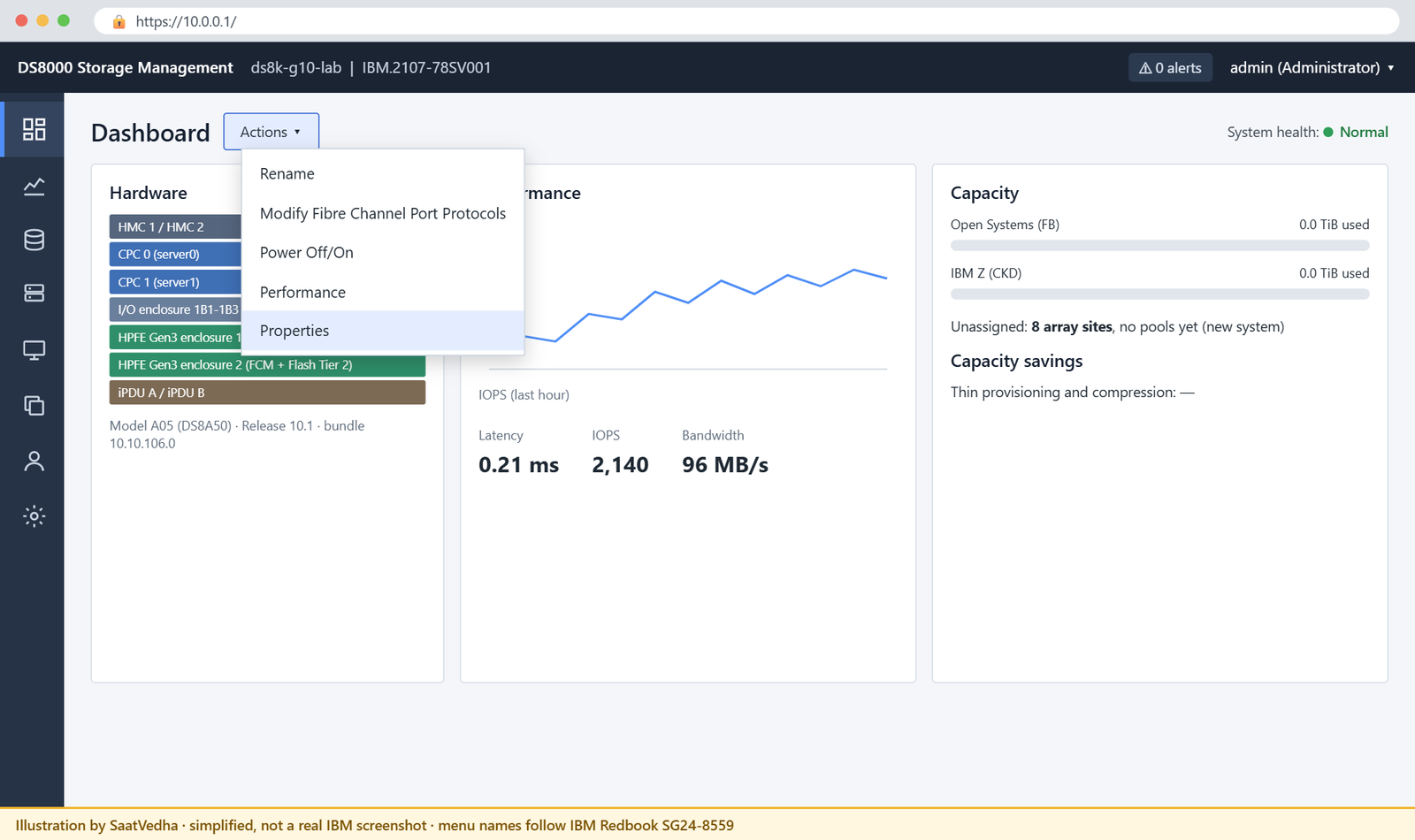
Before any host can connect, every host adapter port needs a protocol: SCSI-FCP for open systems (Linux, Windows, VMware, AIX, and Copy Services links) or FICON for IBM Z. The quickest way in is from the Dashboard, through Actions → Modify Fibre Channel Port Protocols.
You can also get there from Settings → Network → Fibre Channel Ports, or by right-clicking a port in the Hardware View. Lesson 10 goes through this job in detail with setioport.
5Learn the left-hand menu
After setup, the same set of icons sits down the left side of every GUI screen, and each menu lines up with one stage of the configuration flow from Lesson 7:
| Menu | What you find there | DS CLI twin |
|---|---|---|
| Dashboard | Hardware View, System Health View, performance tiles, capacity bar, Actions (Rename, Modify FC Port Protocols, Power Off/On, Properties) | showsi, lspnode, lsioenclosure |
| Monitoring | Events (sorted by severity) and Performance graphs | No lsproblem: use the GUI Events page |
| Pools | Arrays by Pool, Volumes by Pool | lsarray, lsrank, lsextpool |
| Volumes | Volumes, Volumes by Pool, by Host, by LSS | lsfbvol, lsckdvol |
| Hosts | Hosts and host clusters, host port logins | lshost, lshostport |
| Copy Services | FlashCopy, Mirroring, Mirroring Paths | lsflash, lspprc, lspprcpath |
| Access | Users, Roles, Remote Authentication, Dual Control | lsuser, mkuser |
| Settings | Network, Security, System, Notifications, Support, GUI Preferences | lsioport, lskey, chsp |
6Check the Settings tabs once
Settings is the place you keep coming back to during the project. On day one, these are the tabs that matter:
- Network: the Ethernet settings of both HMCs and the Fibre Channel Ports list (with Logged in WWPNs, Error Rates and a CSV download of every WWPN).
- Security: data-at-rest encryption, Fibre Channel Endpoint Security, local password rules and the HMC communication certificate. Turn encryption on before you create any pool, because you can’t change it later.
- System: Licensed Functions, Easy Tier, zHyperLink, Date and Time (point this at your NTP server) and Advanced (power control mode, Host pre-check, CUIR for IBM Z).
- Notifications: Call Home and up to eight Syslog servers. For Call Home, both HMCs need DNS or a route to esupport.ibm.com.
- Support: Remote Support Center, Assist On-site and the Troubleshooting tab (Restart HMC, Refresh GUI Cache, Reset Communications Path).
7Use help, reports and the embedded DS CLI
The question mark icon at the top right gives you context help for the screen you’re on, a What’s New page and a link to IBM Documentation. The download icon on the Dashboard builds the CSV reports, and the FC Connectivity report lists every path between the DS8000 and hosts, switches or other DS8000s, so keep a copy of it from before and after every change.
The embedded DS CLI icon opens a command window in the browser. It’s handy when you can’t install DS CLI on your own desk, and there’s less network delay. For scripts and automation, though, the installed DS CLI from Lesson 2 is still the better tool.
Hands-on lab: tour the GUI screens through the DS CLI
Before you run any command, double-check it
Read every command twice before you press Enter. Check the target: the system or account, the IDs, the names and the sizes. These commands are for learning and were tested in our lab, not on your system. At work, run the read-only list commands first, follow your change process, make sure a backup exists, and ask a second person to check anything that changes or deletes data. You run them at your own risk.
You can’t click through a real DS GUI without a real DS8000, so on your laptop you’ll read every important GUI screen through its DS CLI twin instead. Storage admins do the same when the GUI is slow or a change has to be scripted.
You’ll reset the practice DS8000 to factory state, repeat the first login, and then “tour” the Dashboard, Licensed Functions, Hardware View, Fibre Channel Ports, Support and Users screens from the command line.
Practice shell note: the practice shell is our own teaching tool, not IBM software, and real DS CLI output looks very close to this but isn’t identical. Messages starting with SIM, and some CMUN messages, come from the practice shell (see the practice shell page). Every output below is what the shell printed.
1Reset the practice DS8000 to factory state
Open PowerShell (or Terminal), go to your lab folder and log in with the password you set in Lesson 2. Then reset everything, users included, so you can repeat the first login as if it were a new box.
Run this:
cd C:\ds8k-lab
python ds8sim.py
simctl reset -all
quitYou should see this (after you log in):
dscli> simctl reset -all
SIM0100I simctl: factory state restored. Users are back to admin/admin; the next login must change the password.
dscli> quit✅ Checkpoint: The shell says users are back to admin/admin.
2Repeat the first login
The GUI does the same thing on a new DS8000: admin / admin works once and then you have to choose a new password. Use at least 8 characters with a letter and a number, for example Passw0rd1 (and something much stronger at work).
Run this:
python ds8sim.pyYou should see this:
SaatVedha DS8000 practice shell — not IBM software. Real DS CLI output looks like this but is not identical.
Enter the primary management console IP address: 10.0.0.1
Enter the secondary management console IP address:
Enter your username: admin
Enter your password:
CMUN00247W Your password has expired. You must change it now.
Enter a new password:
Re-enter the new password:
CMUC00249I Your password was changed successfully.
dscli>✅ Checkpoint: You are at the dscli> prompt with your new password.

3Read the Properties screen with showsi
In the GUI you’d click Dashboard and then Actions → Properties, and the DS CLI gives you the same facts.
Run this:
showsiYou should see this:
dscli> showsi
Date/Time: 24 October 2026 10:45:00 UTC IBM DSCLI Version: 7.10.10.348 DS: IBM.2107-78SV001
Name ds8k-g10-lab
desc SaatVedha practice DS8A50
ID IBM.2107-78SV001
Storage Unit IBM.2107-78SV000
Model A05
WWNN 5005076303FFF0DD
Signature 5a7e-0d5a-8a50-0001
State Online
ESSNet Enabled
Volume Group -
os400Serial 001
NVS Memory 64.0 GB
Cache Memory 832.0 GB
Processor Memory 1015.6 GB
MTS IBM.5341-78SV000
numegsupported 16
ETAutoMode tiered
ETMonitor automode
IOPMmode Disabled
ETCCMode -
ETHMTMode Enabled
ETSRMode Enabled
ETTierOrder High performance
ETAutoModeAccel Disabled
TDSAutoUpdate Enabled
TDSSendData Enabled
DualControl DisabledLook for the fields the wizard and IBM care about. Name is what you set on the System Name screen, and Signature and MTS (machine type 5341 and serial) are what you type on the ESS website to get licence keys.
WWNN is what the SAN team sees, and DualControl Disabled means no second approver is needed yet.
✅ Checkpoint: You can point to the Name, Signature, MTS and WWNN lines.
4Check the Licensed Functions screen with lskey
Run this:
lskeyYou should see this:
dscli> lskey
Date/Time: 24 October 2026 10:45:00 UTC IBM DSCLI Version: 7.10.10.348 DS: IBM.2107-78SV001
Activation Key Authorization Level (TB) Scope
============================================================
Base function 100.0 All
Copy services 100.0 All
Encryption Authorization on All
Global mirror (GM) 100.0 All
zHPF on CKD
IBM HyperPAV on CKD
Thin Provisioning on All
Easy Tier on All
(output shortened: 18 rows in total)It’s the same list the wizard’s Summary page shows. Numbers such as 100.0 are capacity licences in TB, “on” marks a yes/no feature, and the Scope column tells you whether a licence covers open systems (FB), IBM Z (CKD) or both.
✅ Checkpoint: Base function and Copy services show 100.0 TB with scope All, and you count 18 licence rows.
5Walk the Hardware View with lspnode and lsioenclosure
On the Dashboard you’d hover over parts of the frame picture, and here you list them instead.
Run this:
lspnode
lsioenclosureYou should see this:
dscli> lspnode
Date/Time: 24 October 2026 10:45:00 UTC IBM DSCLI Version: 7.10.10.348 DS: IBM.2107-78SV001
ID State Release Processor Memory Location
==============================================================
00 Online R10.1 Power9+ 20-core 512.0 GB U9009.42A.78SV00-P1
01 Online R10.1 Power9+ 20-core 512.0 GB U9009.42A.78SV01-P1
dscli> lsioenclosure
Date/Time: 24 October 2026 10:45:00 UTC IBM DSCLI Version: 7.10.10.348 DS: IBM.2107-78SV001
ID Frame State Host adapters Device adapters Location code S/N
========================================================================================
IBM.1400-1B1-78SV0 1 Online 1 2 U1400.1B1.78SV0 YE10SV0001
IBM.1400-1B2-78SV0 1 Online 1 2 U1400.1B2.78SV0 YE10SV0002
IBM.1400-1B3-78SV0 1 Online 2 0 U1400.1B3.78SV0 YE10SV0003
IBM.1400-1B4-78SV0 1 Online 0 0 U1400.1B4.78SV0 YE10SV0004The two processor nodes (00 and 01) are the two CPCs, both Online at R10.1, and the I/O enclosures hold the host adapters and device adapters. If any of them showed anything other than Online, the Dashboard’s Hardware View would show that part in red.
✅ Checkpoint: Both processor nodes and all four I/O enclosures are Online.

6Open the Fibre Channel Ports list
In the GUI this is Settings → Network → Fibre Channel Ports. The long listing adds speed and location, so you can tell which card each port sits on.
Run this:
lsioport -l
showioport I0032You should see this:
dscli> lsioport -l
Date/Time: 24 October 2026 10:45:00 UTC IBM DSCLI Version: 7.10.10.348 DS: IBM.2107-78SV001
ID WWPN State Type topo portgrp Speed Frame I/O Enclosure HA Card Security
===============================================================================================================================
I0010 50050763030130DD Offline Fibre Channel-LW - 0 32 Gb/s 1 1B1 C1 Disabled
I0011 50050763030170DD Offline Fibre Channel-LW - 0 32 Gb/s 1 1B1 C1 Disabled
I0012 500507630301B0DD Offline Fibre Channel-LW - 0 32 Gb/s 1 1B1 C1 Disabled
I0013 500507630301F0DD Offline Fibre Channel-LW - 0 32 Gb/s 1 1B1 C1 Disabled
I0030 50050763030330DD Communication established Fibre Channel-SW SCSI-FCP 0 32 Gb/s 1 1B2 C3 Disabled
I0031 50050763030370DD Offline Fibre Channel-SW - 0 32 Gb/s 1 1B2 C3 Disabled
I0032 500507630303B0DD Communication established Fibre Channel-SW SCSI-FCP 0 32 Gb/s 1 1B2 C3 Disabled
(output shortened)
dscli> showioport I0032
Date/Time: 24 October 2026 10:45:00 UTC IBM DSCLI Version: 7.10.10.348 DS: IBM.2107-78SV001
ID I0032
WWPN 500507630303B0DD
DA -
loc U1400.1B2.78SV0-P1-C3-T2
Type Fibre Channel-SW
Speed 32 Gb/s
State Communication established
topo SCSI-FCP
portgrp 0
unkSCSIlog -
Logins 2
Security DisabledI0031 has topology -, meaning no protocol has been set yet, which is how the wizard leaves unused ports. I0032 is SCSI-FCP with Logins 2, so two host ports are logged in, and the GUI shows them as “Logged in WWPNs” for that port.
✅ Checkpoint: You found one port with no protocol (I0031) and one with logins (I0032).
7Check the Support settings with lsaccess
Run this:
lsaccess -lYou should see this:
dscli> lsaccess -l
Date/Time: 24 October 2026 10:45:00 UTC IBM DSCLI Version: 7.10.10.348 DS: IBM.2107-78SV001
hmc cmdline wui modem cim aos rsc vpn
===============================================================
hmc1 enabled enabled disabled disabled enabled enabled disabled
hmc2 enabled enabled disabled disabled enabled enabled disabledThis matches Settings → Support. wui is the web GUI and cmdline is DS CLI access, while aos (Assist On-site) and rsc (Remote Support Center) are the two ways IBM can connect in to help, and your security team will want to know they’re enabled.
✅ Checkpoint: Both HMCs show cmdline and wui enabled.
8Add a read-only user, like Access → Users
It’s good practice from day one to give the operations team a Monitor login rather than the admin password.
Run this:
mkuser -pw Temp1234 -group monitor ward1
lsuser
quitYou should see this:
dscli> mkuser -pw Temp1234 -group monitor ward1
CMUC00133I mkuser: User ward1 successfully created.
dscli> lsuser
Date/Time: 24 October 2026 10:45:00 UTC IBM DSCLI Version: 7.10.10.348 DS: IBM.2107-78SV001
Name Group State
===========================
admin admin active
secadmin secadmin active
service ibm_service active
ward1 monitor active
dscli> quit✅ Checkpoint: ward1 is listed in group monitor.
Break It, Then Fix It
Two mistakes turn up on almost every new DS8000 project. Make both of them on purpose now, so you’ll recognise them at work.
1Break it: change a port as a Monitor user
Log in as ward1, the read-only user you just created. The shell asks for a new password because Temp1234 was temporary, so use Watch1234, and then try to set a protocol on port I0031.
Run this:
python ds8sim.py
lsioport I0031
setioport -topology scsifcp I0031
quitYou’ll get this error:
SaatVedha DS8000 practice shell — not IBM software. Real DS CLI output looks like this but is not identical.
Enter the primary management console IP address: 10.0.0.1
Enter the secondary management console IP address:
Enter your username: ward1
Enter your password:
CMUN00247W Your password has expired. You must change it now.
Enter a new password:
Re-enter the new password:
CMUC00249I Your password was changed successfully.
dscli> lsioport I0031
Date/Time: 24 October 2026 10:45:00 UTC IBM DSCLI Version: 7.10.10.348 DS: IBM.2107-78SV001
ID WWPN State Type topo portgrp Security
=====================================================================
I0031 50050763030370DD Offline Fibre Channel-SW - 0 Disabled
dscli> setioport -topology scsifcp I0031
CMUN00018E setioport: Unauthorized: Your user group (monitor) does not have the authority to run this command.
dscli> quitWhy: the Monitor role can look at everything but can’t change anything, so the list command worked and the change was refused. In the GUI the same user simply doesn’t get the Modify Protocol action, and people often think the menu has gone “missing”.
Fix: log in as a user whose role allows the change (admin here, or a storage operator at work) and run it again.
Run this (as admin):
setioport -topology scsifcp I0031
lsioport I0031You should see this:
dscli> setioport -topology scsifcp I0031
CMUC00011I setioport: I/O Port I0031 successfully configured.
dscli> lsioport I0031
Date/Time: 24 October 2026 10:45:00 UTC IBM DSCLI Version: 7.10.10.348 DS: IBM.2107-78SV001
ID WWPN State Type topo portgrp Security
=========================================================================
I0031 50050763030370DD Offline Fibre Channel-SW SCSI-FCP 0 Disabled✅ Checkpoint: I0031 now shows topo SCSI-FCP. The state stays Offline because no cable is plugged in.

2Break it: talk to the wrong storage image
Lots of sites have two or more DS8000s listed behind the same pair of HMC addresses in their notes, and sooner or later someone types the serial of the wrong box. Try a storage image ID that doesn’t exist on this HMC.
Run this:
lssi -dev IBM.2107-78SV010You’ll get this error:
dscli> lssi -dev IBM.2107-78SV010
CMUN00016E lssi: IBM.2107-78SV010: The storage image ID is not valid or is not managed by this management console.Why: an HMC only manages the storage image it belongs to. IBM.2107-78SV010 isn’t ours; our box is IBM.2107-78SV001, the ID you saw in showsi. In the GUI the same mistake looks different: you open the wrong HMC address, and the serial at the top of the Dashboard doesn’t match the one in your change ticket.
Fix: drop -dev (the shell then uses its own storage image) or type the correct ID, and always compare the serial with the change ticket before you click anything.
Run this:
lssiYou should see this:
dscli> lssi
Date/Time: 24 October 2026 10:45:00 UTC IBM DSCLI Version: 7.10.10.348 DS: IBM.2107-78SV001
Name ID Storage Unit Model WWNN State ESSNet
====================================================================================
ds8k-g10-lab IBM.2107-78SV001 IBM.2107-78SV000 A05 5005076303FFF0DD Online Enabled✅ Checkpoint: lssi shows IBM.2107-78SV001, the serial in your worksheet.
This happened at work
The wizard said “Finish”, the hospital said “where are my disks?”
A regional hospital group bought a DS8A50 to run its patient records system on VMware, plus a small IBM Z partition for billing. The SSR installed the hardware on a Thursday, and on Friday a new storage admin logged in to the DS GUI, changed the password, clicked through the System Setup wizard and was pleased to see the Dashboard turn green.
He went on to create pools and volumes in the GUI and asked the VMware team to scan, but nothing showed up.
The SAN team could see the ESXi HBAs logged in to the switch but not to the DS8000. After two hours of zoning checks, a senior admin opened Settings → Network → Fibre Channel Ports and spotted the cause almost at once.
The ports cabled to the VMware fabric were still set to FICON from an earlier test, and two other ports had no protocol at all. Nobody had run “Modify Fibre Channel Port Protocols” after the wizard, because the wizard never asks about ports.
Fixing it took five minutes: they set the four VMware-facing ports to SCSI-FCP, left the two FICON ports for billing, rescanned, and the datastores came up first time.
The team added one line to its build checklist: “After System Setup, check every port’s protocol against the cabling sheet, then export the FC Connectivity report.” The project lost half a day, but no patient data was ever at risk, since nothing had gone live yet.
Common mistakes and troubleshooting
| Symptom | Likely cause | What to check / fix |
|---|---|---|
| Browser shows a certificate warning on https://HMC_IP | The HMC still uses its self-signed certificate | Settings → Security → Communications Certificate: create a CSR, get it signed by your CA and import it |
| System Setup wizard never appears | The user who logged in is not an Administrator, or setup was already done | Log in as admin; check Settings → System → Licensed Functions to see if keys are already active |
| A menu or action is missing for one person | Their role hides it (for example Monitor) | Check Access → Users or run lsuser; give the right role, not the admin password |
| GUI shows old data after a DS CLI change | GUI cache out of sync | Settings → Support → Troubleshooting → Refresh GUI Cache |
| Hosts zoned but see no DS8000 ports | Port protocol still FICON or not set | Settings → Network → Fibre Channel Ports, or lsioport: set SCSI-FCP for open systems |
| Call Home test fails | HMCs can’t resolve or reach esupport.ibm.com | Enable DNS on both HMCs or open the firewall/proxy route |
| Can’t turn on encryption later | Pools already exist | Plan encryption before the first pool; it can’t be enabled or disabled afterwards |
Two habits will save you a lot of trouble. When HMC 1 is slow or down, open the GUI on HMC 2, because it’s the same application. And before and after every change, download the FC Connectivity report so you can compare the paths.
Interview questions
Click a question to open it. Each one is phrased the way an interviewer would ask it, and under it you’ll see why they ask and one way you could answer in your own words.
Fresher level
1. You log in to a brand-new DS8000 GUI for the first time. What happens, and what does it ask you for?
Why they ask this: They want to see that you know the first-day steps and won’t be caught out by the forced password change or the wizard.
How you might answer: I’d go to https:// plus the HMC IP and log in as admin with password admin. That password expires straight away, so I set a new one and save it in our vault.
After that the System Setup wizard opens and asks for the system name and the licence keys from IBM ESS, then shows a summary before I click Finish.
2. Where does the DS GUI run, and what happens to host I/O if it stops?
Why they ask this: They’re checking that you keep the management path and the data path apart, which is a classic beginner mix-up.
How you might answer: The DS GUI runs on the HMCs, and there are two of them. Even if the GUI or both HMCs stop, hosts keep reading and writing, because data flows through the host adapters and the CPCs. All I lose is the ability to manage and monitor until an HMC is back.
2–5 years experience
3. The wizard is done but the VMware team sees no DS8000 ports. Walk me through what you check in the GUI.
Why they ask this: They want a calm, ordered troubleshooting path that starts on the storage side before anyone blames the SAN.
How you might answer: I’d open Settings, Network, Fibre Channel Ports and check the protocol on the ports cabled to that fabric. If they’re FICON or unset, I’d change them to SCSI-FCP with Modify Protocol.
Then I’d look at Logged in WWPNs on those ports and download the FC Connectivity report. In the DS CLI I’d do the same with lsioport -l and showioport.
4. What is the difference between the GUI and the DS CLI, and when would you pick each?
Why they ask this: They want to know you can use both and that you pick by the task, not by habit.
How you might answer: The GUI is great for first setup, the Dashboard, health checks and one-off changes, and it simplifies arrays and ranks into one object. For repeatable work the DS CLI is better: building lots of volumes, scripting checks and keeping a record of the commands I ran. On projects I’ll often plan in the GUI and do the bulk work with DS CLI scripts.
Senior level
5. A security auditor says too many people use the admin login on your DS8000 GUI. How do you fix it?
Why they ask this: At senior level you own access control, and they want a practical plan that doesn’t break operations.
How you might answer: I’d give each person a named user with the smallest role that fits: monitor for operations, op_storage or op_volume for storage admins, and secadmin kept separate from admin. Then I’d set local password rules or connect LDAP under Remote Authentication.
For risky tasks I’d look at Dual Control, where a second person has to approve things like deleting volumes. Last, I’d change the admin password and lock it in the vault for emergencies.
6. Before you build any pool on a new DS8000, which GUI settings do you insist on checking, and why?
Why they ask this: They want to hear that you know which choices are hard to undo later.
How you might answer: Encryption comes first, because once pools exist it can’t be turned on or off. Then Date and Time with NTP so the logs line up, Call Home and Syslog so failures get reported, and the port protocols against the cabling plan. I’d also confirm under Settings, System, Licensed Functions that the licences cover the capacity and features we’re about to use.
Quick quiz
Q1. Where is the DS8000 Storage Management GUI installed?
- On each host server
- On the HMC
- On server0 only
- On a separate Windows PC
Show answer
B — The DS GUI is a web application on the HMCs. You open it with https://<HMC_IP>.
Q2. What are the default login and what happens after the first login?
- root/passw0rd, no change needed
- admin/admin, the password expires at once
- service/service, IBM sets the password
- monitor/monitor, read-only
Show answer
B — On a new system you log in as admin/admin and must change the password straight away.
Q3. Which three items does the System Setup wizard cover?
- Pools, volumes, hosts
- System name, licensed functions, summary
- Encryption, Call Home, Syslog
- Users, roles, LDAP
Show answer
B — The wizard sets the system name, activates the licence keys and shows a summary.
Q4. Where can you change a port from FICON to SCSI-FCP in the GUI?
- Pools → Arrays by Pool
- Access → Roles
- Settings → Network → Fibre Channel Ports
- Copy Services → Mirroring
Show answer
C — Settings → Network → Fibre Channel Ports, or Dashboard → Actions → Modify Fibre Channel Port Protocols.
Q5. Which setting must be decided before you create the first pool?
- Login message
- Data-at-rest encryption
- GUI logout time
- Easy Tier acceleration
Show answer
B — After pools exist, encryption can’t be enabled or disabled.
Quick recap
- The DS GUI runs on both HMCs; open it with https://<HMC_IP> in a recent browser.
- First login is admin/admin and the password expires at once.
- The System Setup wizard sets the system name and licence keys, then shows a summary.
- Port protocols are not in the wizard: set them right after, under Modify Fibre Channel Port Protocols.
- Menus: Dashboard, Monitoring, Pools, Volumes, Hosts, Copy Services, Access, Settings. What you see depends on your role.
- Every GUI screen has a DS CLI twin: showsi, lskey, lspnode, lsioport, lsaccess, lsuser.
Next lesson
Lesson 9: DS CLI basics: profile, modes, help, return codes → You set up a DS CLI profile, try the three modes and learn what each return code means.
Further reading: DS8000 Storage Management GUI
For more on the DS8000 Storage Management GUI, IBM Redbook SG24-8559, chapter 9 walks through every GUI screen with pictures. To go over the order of the build steps again, see Lesson 7: the configuration flow and worksheets.
You can also see the full plan for this course on the IBM DS8000 Implementation course page.
