Your lab: DS CLI, practice shell and VirtualBox

Before you run any command, double-check it

Read every command twice before you press Enter. Check the target: the system or account, the IDs, the names and the sizes. These commands are for learning and were tested in our lab, not on your system. At work, run the read-only list commands first, follow your change process, make sure a backup exists, and ask a second person to check anything that changes or deletes data. You run them at your own risk.

A DS CLI install is the first thing a DS8000 admin does on a new laptop or jump server. The DS CLI (Data Storage Command-Line Interface) is IBM’s command tool for the DS8000: you type commands like lssi or mkfbvol on your own machine and it sends them to the storage through the HMC.

You’ll see how the real DS CLI is installed at work, from the Java or Semeru check and the dsclisetup installer to the LAX_VM trick and where the profile files live. Then you set up your own lab for the rest of the course, with the SaatVedha practice shell, a proper profile and password file, and a VirtualBox Ubuntu VM called saat-host1 that plays the server in later lessons.

You’ll need about 40 GB of free disk space for the VM and a laptop that can run VirtualBox, and the rest is light.

TimeYou needBy the end you can
75 to 90 minutesWindows, macOS or Linux laptop with 8 GB RAM, Python 3.8+, VirtualBox 7 and the Ubuntu Server 24.04 ISOExplain how the DS CLI is installed and checked at work, run the practice shell with a profile and password file, and boot the saat-host1 VM

What it is, in one line

The DS CLI is a Java program you install on your own workstation; it logs in to the DS8000 HMC and lets you manage the storage with typed commands and scripts.

In Simple Words

A TV remote and the batteries

Your family buys a new TV and it comes with a remote, but the remote is useless until you put the right batteries in. Once they’re in, you point it at the TV and press buttons, and the TV only listens to its own remote, and only when you’re in the same room.

Now imagine you write the channel numbers on a sticky note on the back of the remote, so next time you don’t have to remember them.

The DS CLI is the remote for the DS8000, and Java is the battery, because without it the DS CLI won’t even start. The HMC is the TV’s sensor that picks up your button presses, and the sticky note is the profile, a small file that remembers the HMC address and your user name so you don’t have to type them every time.

Engineer's View

What the installer really needs

The DS CLI runs on AIX, Red Hat and SUSE Linux, IBM i, Oracle Solaris, VMware ESX, Microsoft Windows and IBM z/OS. On z/OS it’s a normal SMP/E install with its own FMID (HIWN63A), and it lives in /opt/IBM/CSMDSCLI under UNIX System Services.

  • Java: you need Java 8 or later, and for code bundles R10.11 and above Java 21 is required. IBM points you to the IBM Semeru Runtime, and the installer checks the Java level and refuses to install if it can’t find a suitable one.
  • Embedded Semeru: from R10.11 the code bundle includes a Semeru 21 runtime, which you get by using the installer in the VM subdirectory. The NoVM subdirectory holds the installer that uses your own Java.
  • Download: the DS CLI comes from IBM Fix Central. On Windows you run dsclisetup.exe, and on UNIX and Linux dsclisetup.bin. You can install interactively, with the GUI or silently with a response file, and it adds an uninstaller.
  • Versions: one current DS CLI normally works with all your systems, but if you suspect a mismatch, install the DS CLI that matches the LMC level. Several versions can sit side by side, each in its own folder, and ver -l shows the client, Storage Manager, HMC DS CLI and LMC levels together.
  • Profiles: the system profile is dscli.profile in the install folder (for example C:\Program Files (x86)\IBM\dscli or /opt/ibm/dscli/profile/dscli.profile). Your personal copy in <home>/dscli/profile/dscli.profile wins over the system one. Named profiles are loaded with -cfg.
  • Password file: managepwfile writes an encrypted security.dat, by default C:\Users\<User>\dscli\security.dat or $HOME/dscli/security.dat. A profile points to it with pwfile:.

There’s also an embedded DS CLI inside the DS GUI (bottom left of the dashboard). It needs no install, but some commands can’t run there; applykey, for example, needs the installed client.

On DS8900F: the install steps are the same. Use the DS CLI level that matches your LMC and check the Java requirement in the release notes for that level.

How it works, step by step

This is how you’d install the real DS CLI on a Windows jump server at work, and the Linux steps follow the same idea with dsclisetup.bin. You won’t run these on your laptop, because the DS CLI needs a real HMC to talk to, and that’s what the practice shell is for.

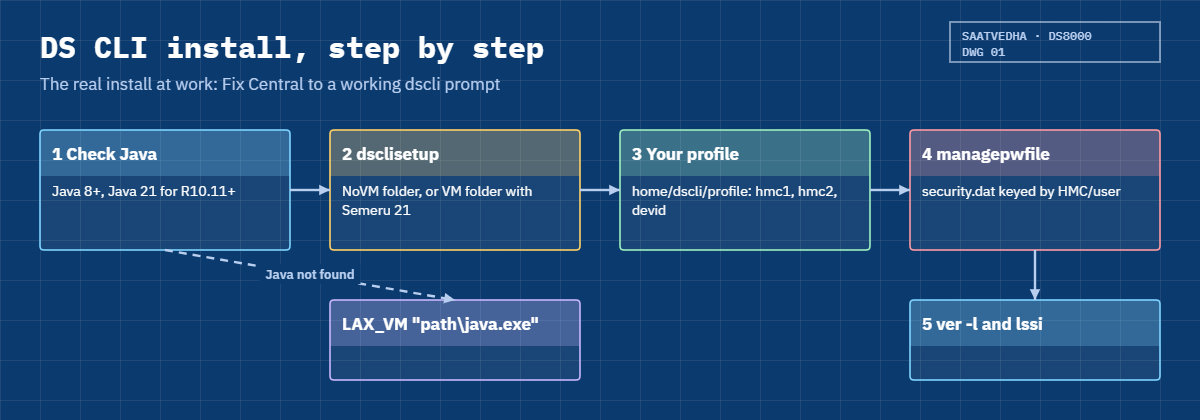
1Check Java first

Open a command prompt and run java -version. For an R10.1 system Java 8 or later is enough, while bundles R10.11 and later need Java 21, or you use the installer from the VM folder that brings its own Semeru 21.

If the installer can’t find Java, Windows shows a “LaunchAnywhere Error” saying it couldn’t find a valid Java virtual machine, and on Linux and UNIX the message says no Java virtual machine could be found in your PATH.

2Run dsclisetup, and point it at Java if needed

Download the DS CLI package from IBM Fix Central, unzip it and run dsclisetup.exe in the NoVM folder. If Java is installed but the installer can’t find it, pass its path with LAX_VM:

dsclisetup.exe LAX_VM "C:\Program Files\Semeru\jre-21\bin\java.exe"

The quotes are there because “Program Files” has a space in it. On Linux the same idea is ./dsclisetup.bin LAX_VM /opt/ibm-java/bin/java, or you add Java’s bin folder to PATH first. Be careful, though, because LAX_VM uses whatever Java you give it, even an old one, so the install may finish fine and then the DS CLI fails later with an “Unsupported Class Version” error.

DS CLI install steps: check Java, dsclisetup with LAX_VM, personal profile, managepwfile, ver -l

3Make your own profile

After the install, copy the system dscli.profile to your personal folder %USERPROFILE%\dscli\profile\ (Linux: $HOME/dscli/profile/). A new DS CLI version can overwrite the system profile, but it never touches yours.

Edit your copy with a text editor that handles UNIX line endings, and add the HMC addresses, the storage image ID and your user name:

hmc1: 10.0.0.1
hmc2: 10.0.0.2
devid: IBM.2107-78SV001
username: john
pwfile: C:\Users\john\dscli\security.dat

With hmc2 set, the DS CLI switches to the second HMC on its own when the first can’t be reached. If the profile has two hmc1 or devid lines, the one nearest the bottom wins, so uncomment them one at a time.

4Save the password safely

Never type your password into the profile. Log in once and run managepwfile -action add -name john -pw ..., which stores the password encrypted in security.dat under a key like 10.0.0.1/john (HMC address plus user), and from then on scripts can log in without a password in clear text.

5Test it: ver -l

Start dscli -cfg myds8k.profile and run ver -l, which shows the DS CLI client version, the Storage Manager level on the HMC, the HMC DS CLI and the LMC and bundle version. If your client is a lot older than the HMC DS CLI, update it before you do any real work.

DS8000 course lab: practice shell folder and saat-host1 VM with two host-only networks

And that’s the whole real install: Java, dsclisetup, a personal profile, a password file and a ver -l test. Your lab follows the same pattern with the practice shell, so the habits you build here are the ones you’ll use at work.

The VM part of the lab is a different story. The DS8000 itself can’t run on a laptop, but a Linux server can, and from Lesson 15 onwards saat-host1 plays the host that receives LUNs, runs multipath and shows you what a server admin sees, so you build it now to have it ready when you need it.

Hands-on lab: set up your DS CLI practice lab

Your lab has two parts. The practice shell stands in for the DS CLI and a DS8A50, and you set it up just like a real DS CLI, with a first login, version check, password file, profile and script, while the saat-host1 VM stands in for an application server.

Practice shell note: the practice shell is our teaching tool, not IBM software. Real DS CLI output looks very much like this but is not identical. The first-login and wrong-password messages (CMUN00247W, CMUC00249I, CMUN00244E) and the missing-profile message are practice shell messages; CMUC00206I is the real managepwfile message.

1Put the practice shell in your lab folder

Download ds8sim.zip from the DS8000 practice shell page and unzip it into C:\ds8k-lab (macOS and Linux: ~/ds8k-lab). If you did the Architecture course, it’s already there; start fresh by deleting ds8sim-state.json.

Run this (PowerShell):

cd C:\ds8k-lab
python ds8sim.py -h

You should see this:

SaatVedha DS8000 practice shell — not IBM software. Real DS CLI output looks like this but is not identical.
Usage: python ds8sim.py [-hmc1 ip] [-hmc2 ip] [-user name] [-passwd pw | -pwfile file] [-cfg profile] [-state file] [-script file | command ...]
Practice-only: -newpasswd PW answers the first-login password change without prompts (not a DS CLI option).

The options are the same ones the real dscli takes: -hmc1, -hmc2, -user, -passwd, -pwfile, -cfg and -script.

✅ Checkpoint: The usage line shows -cfg and -script.

2First login with both HMCs, then check versions

Start the shell without any options. Enter HMC 1 (10.0.0.1) and HMC 2 (10.0.0.2), user admin and password admin, and then choose your own password (8+ characters with a letter and a number).

Run this, then type ver -s and ver -l at the prompt:

python ds8sim.py

You should see this:

SaatVedha DS8000 practice shell — not IBM software. Real DS CLI output looks like this but is not identical.
Enter the primary management console IP address: 10.0.0.1
Enter the secondary management console IP address: 10.0.0.2
Enter your username: admin
Enter your password:
CMUN00247W Your password has expired. You must change it now.
Enter a new password:
Re-enter the new password:
CMUC00249I Your password was changed successfully.
dscli> ver -s
DSCLI 7.10.10.348
dscli> ver -l
Date/Time: 24 October 2026 10:53:09 UTC IBM DSCLI Version: 7.10.10.348 DS: IBM.2107-78SV001
DSCLI 7.10.10.348
StorageManager 10.2.2507181727
HMC DSCLI 7.10.10.348
==================Version==================
Storage Image    LMC         Bundle Version
===========================================
IBM.2107-78SV001 7.10.10.348 10.10.106.0

ver -s shows the client only, while ver -l adds the Storage Manager on the HMC, the HMC’s own DS CLI and the LMC and bundle on the storage image. Here the client and the HMC DS CLI match at 7.10.10.348, which is what you want to see.

✅ Checkpoint: You can read the DS CLI client version and the bundle version 10.10.106.0.

3Save your password in a password file

While you’re still at the dscli> prompt, store the new password you just chose.

Type this:

managepwfile -action add -name admin -pw <your password> -pwfile security.dat
quit

You should see this:

dscli> managepwfile -action add -name admin -pw <your password> -pwfile security.dat
CMUC00206I managepwfile: Record 10.0.0.1/admin successfully added to password file security.dat.
dscli> quit

The record key is 10.0.0.1/admin, the HMC address plus the user. On a real DS CLI the file is encrypted and, if you leave out -pwfile, it lands in your dscli folder. Our practice file is only obfuscated, so treat it as a teaching copy.

✅ Checkpoint: security.dat exists in C:\ds8k-lab.

4Write a profile, the way you would at work

Create lab.profile in the lab folder. It uses the same format as a real dscli.profile, one name: value per line with # for comments.

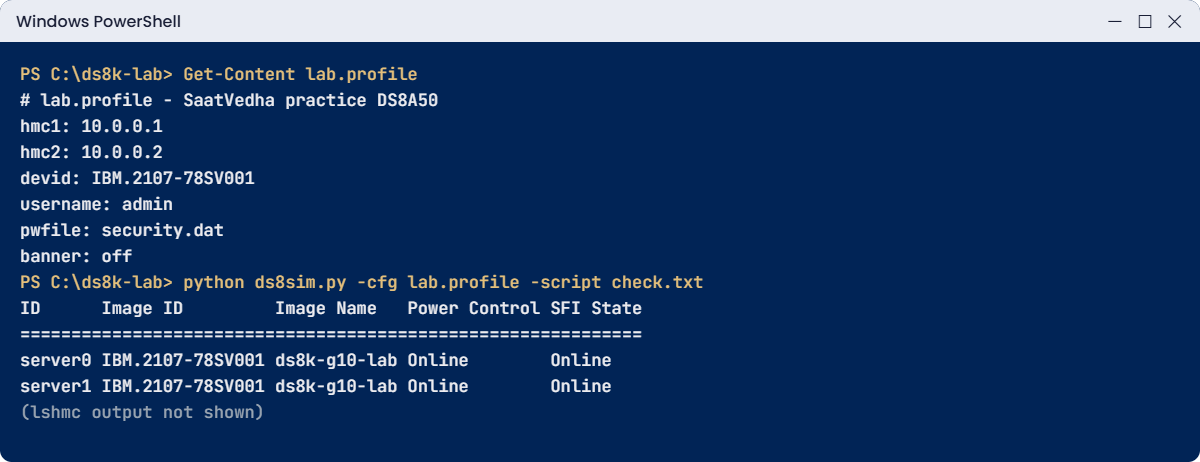
Save this as lab.profile:

# lab.profile - SaatVedha practice DS8A50
hmc1: 10.0.0.1
hmc2: 10.0.0.2
devid: IBM.2107-78SV001
username: admin
pwfile: security.dat
banner: off

banner: off drops the Date/Time line, which makes script output easier to read, and now one short command is all you need.

Run this:

python ds8sim.py -cfg lab.profile lssi

You should see this:

SaatVedha DS8000 practice shell — not IBM software. Real DS CLI output looks like this but is not identical.
Name         ID               Storage Unit     Model WWNN             State  ESSNet
====================================================================================
ds8k-g10-lab IBM.2107-78SV001 IBM.2107-78SV000 A05   5005076303FFF0DD Online Enabled

There’s no HMC prompt, no user prompt and no password prompt, because the profile supplied the HMCs and user and the password came from security.dat.

✅ Checkpoint: lssi runs with only -cfg lab.profile and no questions.

5Run a script through the profile

At a big site most daily DS CLI work runs as scripts started by a scheduler. Save this as check.txt:

# check.txt - quick health check
lsserver
lshmc

Run this:

python ds8sim.py -cfg lab.profile -script check.txt

You should see this (after the one-line notice):

ID      Image ID         Image Name   Power Control SFI State
=============================================================
server0 IBM.2107-78SV001 ds8k-g10-lab Online        Online
server1 IBM.2107-78SV001 ds8k-g10-lab Online        Online
Name          State  Role         Release                  Management-IP Location-Code    Machine-Type Machine-Model Memory Disk
================================================================================================================================
DS8A50-1A.LAB Online Primary(1)   R10.1 bundle 10.10.106.0 10.0.0.1      U7063CR2.78SV1DD 7063         CR2           33GB   1TB
DS8A50-1B.LAB Online Secondary(2) R10.1 bundle 10.10.106.0 10.0.0.2      U7063CR2.78SV2DD 7063         CR2           33GB   1TB

That’s one login for two commands, and this same pattern, dscli -cfg profile -script file, is what you’ll put in scheduled jobs at work.

✅ Checkpoint: Both servers and both HMCs show Online.
Practice shell lab.profile and a DS CLI script run with -cfg
Your lab.profile and a script run through it in the practice shell.

6Create the saat-host1 VM in VirtualBox

Install VirtualBox 7 from virtualbox.org and download the Ubuntu Server 24.04 ISO from ubuntu.com. The VM gets 2 vCPUs, 2 GB RAM, a 25 GB disk, one NAT adapter for updates and two host-only adapters, and later in the course those two host-only networks act as two separate SAN paths.

You can click through Machine > New in the VirtualBox window, or run these lines in PowerShell from the VirtualBox folder (C:\Program Files\Oracle\VirtualBox). Change the ISO path to wherever you saved it.

Run this (PowerShell):

$vm = "saat-host1"
VBoxManage createvm --name $vm --ostype Ubuntu_64 --register
VBoxManage modifyvm $vm --cpus 2 --memory 2048 --nic1 nat
VBoxManage hostonlyif create
VBoxManage hostonlyif ipconfig "VirtualBox Host-Only Ethernet Adapter #2" --ip 192.168.57.1 --netmask 255.255.255.0
VBoxManage modifyvm $vm --nic2 hostonly --hostonlyadapter2 "VirtualBox Host-Only Ethernet Adapter"
VBoxManage modifyvm $vm --nic3 hostonly --hostonlyadapter3 "VirtualBox Host-Only Ethernet Adapter #2"
VBoxManage createmedium disk --filename "$HOME\VirtualBox VMs\$vm\$vm.vdi" --size 25600
VBoxManage storagectl $vm --name SATA --add sata
VBoxManage storageattach $vm --storagectl SATA --port 0 --type hdd --medium "$HOME\VirtualBox VMs\$vm\$vm.vdi"
VBoxManage storageattach $vm --storagectl SATA --port 1 --type dvddrive --medium C:\ISO\ubuntu-24.04-live-server-amd64.iso
VBoxManage startvm $vm

On macOS and Linux the host-only adapters are called vboxnet0 and vboxnet1; create them in File > Tools > Network Manager with 192.168.56.1 and 192.168.57.1.

saat-host1 VirtualBox VM booting the Ubuntu 24.04 Server installer language screen
Illustration: saat-host1 boots from the Ubuntu Server ISO in its own window and opens the installer language screen. Pick English and press Enter.

✅ Checkpoint: saat-host1 boots from the Ubuntu ISO in its own window.

7Install Ubuntu and set the two lab IPs

In the installer, take the defaults, name the server saat-host1, create your user and tick Install OpenSSH server. After the reboot, log in and give the two host-only interfaces fixed addresses with a netplan file.

Save this as /etc/netplan/60-lab.yaml (sudo nano):

network:
  version: 2
  ethernets:
    enp0s8:
      addresses: [192.168.56.11/24]
    enp0s9:
      addresses: [192.168.57.11/24]

Then run:

sudo chmod 600 /etc/netplan/60-lab.yaml
sudo netplan apply
ip -br addr

You should see something like this:

lo               UNKNOWN        127.0.0.1/8 ::1/128
enp0s3           UP             10.0.2.15/24 ...
enp0s8           UP             192.168.56.11/24 ...
enp0s9           UP             192.168.57.11/24 ...

Interface names may be different on your machine, so match them to what ip -br addr shows. From your laptop, ssh youruser@192.168.56.11 should work now. Shut the VM down with sudo poweroff until Lesson 15.

✅ Checkpoint: saat-host1 answers on 192.168.56.11 and 192.168.57.11.

Break It, Then Fix It

Almost every new DS CLI user hits two problems in the first month, and both are about the files around the DS CLI rather than the commands.

1Break it: change the password, forget the password file

Company policy says passwords change every few months, so change yours with chuser and then try your profile again.

Run this (use your current password after -passwd):

python ds8sim.py -hmc1 10.0.0.1 -user admin -passwd <old password> chuser -pw Winter2026x admin
python ds8sim.py -cfg lab.profile lsserver

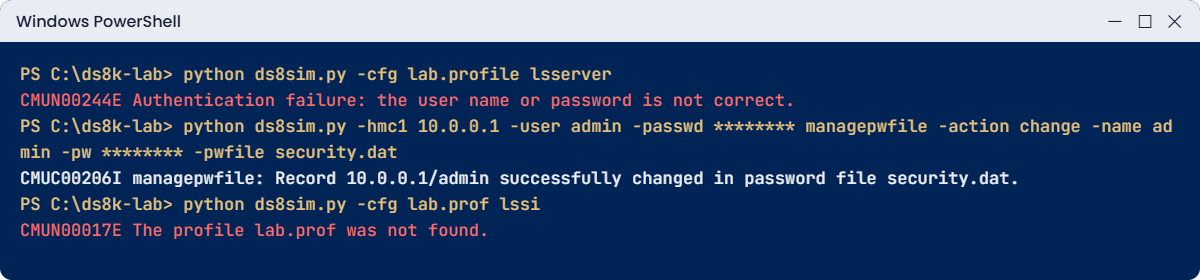
You’ll get this:

CMUC00134I chuser: User admin successfully modified.
CMUN00244E Authentication failure: the user name or password is not correct.

Why: the password on the HMC has changed, but security.dat still holds the old one, so every script using this profile now fails. On a real DS8000 it’s worse, because each failed login counts, and after the number in showpass (5 on our lab system) the account locks and every scheduled job stops at once.

One detail from real life: on a DS8000, a password set with chuser -pw is temporary, and the user has to change it at the next login. The practice shell skips that step, but the point holds, since whatever the final password is, the password file has to hold it.

Fix: update the record with -action change and run the profile again.

Run this:

python ds8sim.py -hmc1 10.0.0.1 -user admin -passwd Winter2026x managepwfile -action change -name admin -pw Winter2026x -pwfile security.dat
python ds8sim.py -cfg lab.profile lsserver

You should see this:

CMUC00206I managepwfile: Record 10.0.0.1/admin successfully changed in password file security.dat.
ID      Image ID         Image Name   Power Control SFI State
=============================================================
server0 IBM.2107-78SV001 ds8k-g10-lab Online        Online
server1 IBM.2107-78SV001 ds8k-g10-lab Online        Online

✅ Checkpoint: lsserver works through the profile with the new password.
DS CLI profile errors: stale password file and missing profile
Both breaks: a stale password file, and a profile name that does not exist.

2Break it: a profile name that does not exist

Someone copies the scheduled job from another server, and the profile file name is slightly different.

Run this:

python ds8sim.py -cfg lab.prof lssi

You’ll get this:

CMUN00017E The profile lab.prof was not found.

Why: -cfg takes a file name or path, and the file has to exist. On the real DS CLI a bare name is looked up in your personal profile folder, and if there’s no personal default profile, the system dscli.profile is used. That last rule causes quiet surprises, because you think you’re on one DS8000 while the system profile points at another.

Fix: use the exact name (-cfg lab.profile) or a full path, and always start scripts with lssi so the output tells you which box you’re on.

✅ Checkpoint: python ds8sim.py -cfg lab.profile lssi shows ds8k-g10-lab again.

This happened at work

The DS CLI that was two years old

A consultancy was hired to build Metro Mirror between two DS8000 systems for an insurance client. The consultant turned up with his own laptop and a DS CLI he’d installed for a previous customer two years before, while the client’s systems had just been upgraded to a new LMC level.

The simple list commands worked, so he carried on. Then some newer commands and options he needed came back as unknown, and one long Copy Services script stopped halfway with errors he’d never seen, so he spent the afternoon rewriting the script, thinking the syntax had changed.

It was the client’s storage admin who asked the obvious question: “What does ver -l say?” The client version turned out to be far behind the HMC DS CLI on both systems. The DS CLI is usually compatible across levels, but IBM can’t test every client against every LMC, and the Redbook tells you to install the level that matches your LMC when you suspect a problem.

They installed the matching DS CLI from Fix Central in its own folder next to the old one and pointed it at a fresh profile, and the original script ran first time. The afternoon was still lost, and the client logged the delay against the consultancy, which then added a line to its project start checklist: run ver -l on every system before the first change, and match the DS CLI to the LMC.

Common mistakes and troubleshooting

SymptomLikely causeWhat to check / fix
Installer says no Java virtual machine was foundJava missing or not in PATHInstall Java 8+ (Java 21 for R10.11+), add it to PATH or use LAX_VM; or use the VM folder installer with embedded Semeru.
DS CLI installs but fails with “Unsupported Class Version”LAX_VM pointed at an old JavaPoint LAX_VM at a supported Java and reinstall.
New commands or options are “unknown”DS CLI client older than the LMCCompare ver -l on both sides; install the matching level in its own folder.
Your profile edits disappear after an upgradeYou edited the system dscli.profileKeep your own copy in <home>/dscli/profile and use -cfg.
Scripts suddenly fail to log inPassword changed, password file not updatedmanagepwfile -action change; watch the failed-login limit in showpass.
DS CLI can’t connect when HMC 1 is downNo hmc2 in the profileAdd hmc2: so the DS CLI fails over to the second HMC.
Profile seems ignoredTwo hmc1 or devid lines; the bottom one winsKeep one active line each; comment the rest.

One habit pays off every time: make lssi (or ver -l) the first command of every script, so the log always shows which system and which code level the script really talked to.

Interview questions

Click a question to open it. Each one is worded the way an interviewer would ask it, and underneath you’ll see why they ask and one way you could answer in your own words.

Fresher level

1. You’ve been given a new jump server. Walk me through getting the DS CLI working on it.

Why they ask this: They want to see that you know the practical steps and the usual Java trap, not just the command names.

How you might answer: I’d check Java first: Java 8 or later, or Java 21 for R10.11 bundles, or else the installer in the VM folder that brings Semeru 21. Then I’d download the DS CLI from Fix Central and run dsclisetup, passing LAX_VM with the Java path if the installer can’t find it.

After that I’d copy dscli.profile into my own dscli/profile folder, add hmc1, hmc2 and devid, create a password file with managepwfile, and test it with ver -l and lssi.

2. What is a DS CLI profile and why would you use more than one?

Why they ask this: They’re checking that you understand profiles as a safety and convenience tool, especially with several systems.

How you might answer: It’s a text file with settings like hmc1, hmc2, devid, username, pwfile, banner and format, and I load it with -cfg so I don’t have to type the HMC and device every time.

When there are several DS8000 systems I keep one profile per system, so a script meant for the DR box can’t accidentally run against production.

2–5 years experience

3. A nightly DS CLI script started failing with authentication errors this morning. How do you troubleshoot it?

Why they ask this: They want a calm, ordered approach and awareness that repeated failures can lock the account.

How you might answer: First I’d stop the job, so it doesn’t keep failing and lock the user once it passes the failed-login limit in showpass. Then I’d check whether the password was changed or has expired, and whether the password file record still matches.

I’d try an interactive login with the same user, fix the record with managepwfile -action change, and if the account is locked, ask an admin to release it with chuser. Then I’d rerun the job by hand once before turning the schedule back on.

4. When would you install more than one DS CLI version on the same machine?

Why they ask this: They want to see you know about LMC compatibility and how to handle it without breaking other teams’ scripts.

How you might answer: Normally one current DS CLI works for everything, but IBM can’t test every combination. If I see odd errors with a system on a different LMC level, I’d install the DS CLI that matches that LMC in its own folder.

Each version gets its own profile and wrapper script, so the old jobs keep using the old client until they’ve been tested on the new one, and ver -l tells me the client and HMC levels.

Senior level

5. How would you design DS CLI access for a team of eight admins managing six DS8000 systems?

Why they ask this: Senior engineers think about security, audit and repeatability, not just getting a prompt.

How you might answer: Every admin gets a named user with the right role, ideally through LDAP, and never a shared admin. The profiles are standard per system and kept in version control without passwords, and each person has their own password file.

Automation runs under a separate service user with the smallest role it needs and its own protected password file, and every script starts with lssi and ver -l so the logs show which box and level it touched.

6. The DS GUI has an embedded DS CLI. Why still install the client?

Why they ask this: They’re testing whether you know the limits of the embedded CLI and the value of scripting from your own host.

How you might answer: The embedded DS CLI is handy for a quick command, but some commands, like applykey, can’t run there, and it isn’t where you keep scripts and logs. With an installed client I can run scripts from a scheduler, keep output files, use profiles for many systems and fall back to hmc2 if HMC 1 is down.

So the embedded one is for quick checks and the installed one is for real work.

Quick quiz

Q1. Which Java level does the DS CLI need for code bundles R10.11 and above?

  1. Java 6
  2. Java 8
  3. Java 11
  4. Java 21
Show answer

D — Java 8 or later is the base requirement, but R10.11 and later bundles need Java 21. A Semeru 21 runtime is included in the VM installer.

Q2. What does the LAX_VM option do?

  1. Sets the HMC address
  2. Tells dsclisetup which Java to use
  3. Enables silent install
  4. Turns off the banner
Show answer

B — LAX_VM passes the Java path to the installer. It uses that Java even if it is too old, so pick a supported one.

Q3. Which profile wins if you have dscli.profile in both the install folder and your home dscli/profile folder?

  1. The system profile
  2. Your personal profile
  3. The newest file
  4. Neither; the DS CLI asks
Show answer

B — Your personal default profile is loaded instead of the system one.

Q4. What does managepwfile store?

  1. The licence keys
  2. An encrypted password record for a user and HMC
  3. The DS CLI version
  4. The list of HMC users
Show answer

B — It writes an encrypted security.dat record keyed by HMC address and user, so scripts don’t need a clear-text password.

Q5. What happens when hmc2 is set in the profile and HMC 1 is unreachable?

  1. The DS CLI stops
  2. Host I/O stops
  3. The DS CLI communicates through HMC 2
  4. The storage fails over
Show answer

C — With hmc2 set, the DS CLI uses the second HMC automatically when the first can’t be reached.

Quick recap

  • The DS CLI is a Java program; check Java 8+ (Java 21 for R10.11+) before running dsclisetup.
  • Use LAX_VM to point the installer at the right Java, or the VM folder installer with embedded Semeru 21.
  • Keep your own profile in <home>/dscli/profile with hmc1, hmc2, devid, username and pwfile, and load it with -cfg.
  • Store passwords with managepwfile, and update the record whenever the password changes.
  • Run ver -l first; match the DS CLI level to the LMC if anything looks odd.
  • Your lab: the practice shell with lab.profile and security.dat in C:\ds8k-lab, plus the saat-host1 Ubuntu 24.04 VM with two host-only networks.

Next lesson

Lesson 3: Physical planning: floor, power, cables, WWPNs → You plan the room, power and cabling for a DS8A50 and decode its WWPNs with a small Python tool.

Further reading: DS CLI install

Want to go deeper into DS CLI install? Section 10.1 of IBM’s guide covers installation hints, profiles and the second HMC: IBM Storage DS8A00 Architecture and Implementation Guide (IBM Redbooks). To see where the DS CLI fits in a full project, read A DS8000 project from delivery to first LUN.

You can also see the full plan for this course on the IBM DS8000 Implementation course page.

Scroll to Top

This website uses cookies

We use a few cookies to keep this site working. If you allow it, we also use Google Analytics to count visits so we can improve our lessons. You can accept all, deny the optional ones, or choose what to allow.