Performance: metrics, Storage Insights, tuning

DS8000 performance monitoring is how you answer the complaint every storage admin hears sooner or later: “the application is slow, is it the storage?” Usually it isn’t, but you can only say so with numbers, and you have to know which numbers count: response time, IOPS, throughput, cache hits, port errors and pool balance.

Here you’ll see where the DS8000 keeps its performance data (the GUI Performance window, the DS CLI -metrics options, offloaded files and IBM Storage Insights), how to read the volume and port counters, and what’s worth tuning first. In the lab you read realistic counters in the practice shell and track down a sick port from its error counters.

You’ll need the practice shell. Lessons 12 and 15, on pools and multipath, will help too.

TimeYou needBy the end you can
60 to 75 minutesThe SaatVedha practice shell and the setup script belowRead showfbvol and showioport metrics, spot port errors and pool skew, and explain what Storage Insights adds

What it is, in one line

Performance monitoring means reading the counters for volumes, ports, ranks and pools over time, so you can prove where the delay sits and fix the right thing.

In Simple Words

The school canteen at lunch time

Lunch is slow and the children are getting angry. Is the cook slow, is the queue too long, or is one of the serving windows broken?

A smart teacher starts counting. She checks how many plates leave each window per minute and how long each child waits, and she counts how many plates are already sitting ready on the counter so children get them straight away. Those ready plates are the cache hit.

Then she notices window 2 keeps dropping plates because its tray is bent, which is a port with errors. She also sees all the children lining up at window 1 while window 3 stands empty, and that’s an unbalanced pool. If nobody counts, everyone simply blames the cook.

Engineer's View

The DS8000 performance toolbox

GUI. Monitoring → Performance shows IOPS (in thousands), latency in ms, transfer size, bandwidth in MBps, cache read hits and write delays. You can look at the whole system, pools, volumes (up to six at a time) or FC ports, and Network → Fibre Channel ports gives you error rates for the last 24 hours.

DS CLI. showfbvol -metrics and showckdvol -metrics give volume counters (read and write requests and hits, cache transfers, NVS space delays, bytes and time). showrank -metrics gives rank reads, writes, bytes and times. showioport -metrics gives port traffic per protocol, logins, FC error counters, current speed and adapter CPU use; 32 Gbps adapters add RDP light levels (showioport -rdp). help explains each counter.

Counters accumulate from the last reset, which happens at power-on or after a failover and failback. A single sample tells you very little, so take two a few minutes apart and subtract one from the other.

Port errors. Non-zero LinkFailErr, LossSyncErr, LossSigErr or PrimSeqErr usually mean HBAs are unstable and keep logging in and out. If InvTxWordErr goes up by more than 100 a day, you’ve got stray light, for example from an uncapped port.

CRCErr points to a bad cable or SFP somewhere between the last SAN SFP and the DS8000. LRSent and LRRec hint at faulty SAN hardware, while IllegalFrame, OutOrdData, DupFrame and SeqTimeout usually mean the SAN is congested.

Offload. offloadfile -perfdata exports the performance summary as a CSV file you can analyse yourself.

Storage Insights. This is a cloud service that gets its data from a collector you install on-premises (at least 1 GB RAM and 3 GB disk). If you own IBM block storage, the base edition comes included and shows events, tickets and the main capacity and performance metrics. Storage Insights Pro goes further with deeper performance analysis and alerting.

If you can’t send data to IBM, IBM Spectrum Control does the same job on-premises.

Design rules that matter. Build multi-rank pools with striping so no single rank gets hot, balance volumes across both rank groups, and give hosts two to four paths per LUN (up to eight when data rates are very high). Zone with single-initiator zones. Before you buy, IBM Storage Modeller (StorM) can predict latency and utilisation for you.

How it works, step by step

Say the finance team tells you their month-end reports are running 40% slower than last month. This is the order an experienced storage admin works through.

1Get the facts from the complaint

Pin down which host, which application and which time window, and ask what “slow” means in actual numbers. Get the host team to tell you their disk latency during the slow period, because if the host sees 2 ms, storage isn’t your problem.

2Look at the system view first

Open the GUI Performance window and check system latency, IOPS and bandwidth for that window against a normal day. If everything jumped at once, suspect the DS8000 or the SAN; if only one host jumped, look at that host or its paths.

DS8000 performance monitoring order: facts, system, volumes, ports, back end

3Drill into volumes

Find that host’s volumes and read their counters. Divide normrdhits by normrdrqts and you get the read hit ratio, where a high value means most reads are served from cache. If timeread or timewrite looks long next to the number of requests, each I/O is waiting longer than it should.

4Check the ports

Run showioport -metrics on the ports this host uses. Check whether both ports carry traffic or all the I/O sits on one, and whether any error counter grows between two samples.

A port with CRC errors slows every host on it.

5Check the back end

showrank -metrics and the pool view tell you if one rank is far busier than the rest (skew), though multi-rank pools with striping and Easy Tier normally keep things even. Look at lsextpool as well, since a thin pool that’s nearly full can slow down allocations.

6Compare with history

With Storage Insights, Spectrum Control or your own offloaded CSV files you can put this month next to last month. Without that history you’re only guessing whether a number is normal.

DS8000 port error counters and what they usually mean

7Fix the right thing, then measure again

The usual fixes are dull ones: clean or replace a cable, add a missing path, rebalance volumes across rank groups, move a hot workload somewhere else, or add capacity. Change one thing, measure again, and then you’ll know which change helped.

Storage Insights volume response time chart with a spike in the month-end window
Illustration: a volume response time chart for the slow month-end window, where one volume clearly stands out and shows you where to start digging.

Hands-on lab: read volume and port metrics

Before you run any command, double-check it

Read every command twice before you press Enter. Check the target: the system or account, the IDs, the names and the sizes. These commands are for learning and were tested in our lab, not on your system. At work, run the read-only list commands first, follow your change process, make sure a backup exists, and ask a second person to check anything that changes or deletes data. You run them at your own risk.

The lab system has two hosts, erp-db1 and win-app1, and each has one volume in each pool. You’ll read volume counters, compare two volumes and check both host ports, and in the Break It section you go after a sick port and an overfull pool.

Practice shell note: the practice shell is our own teaching tool, not IBM software. Its counters come from a simple formula so you can practise reading them, whereas real DS CLI output has more fields and real values. simctl io fakes host I/O, and long outputs are shortened.

1Start clean and load the setup script

setup-22.txt:

# setup-22.txt: a small working system with two hosts for Lesson 22
mkarray -raidtype 6 -arsite S1
mkarray -raidtype 6 -arsite S2
mkrank -array A0 -keygrp 1 -stgtype fb
mkrank -array A1 -keygrp 1 -stgtype fb
mkextpool -rankgrp 0 -keygrp 1 -stgtype fb FB_0
mkextpool -rankgrp 1 -keygrp 1 -stgtype fb FB_1
chrank -extpool P0 R0
chrank -extpool P1 R1
mkfbvol -extpool p0 -cap 100 -sam ese -name erp_#h 2000-2001
mkfbvol -extpool p1 -cap 100 -sam ese -name erp_#h 2100-2101
mkhost -type "Linux Server" -hostport 10000090FA13B914,10000090FA13B915 erp-db1
mkhost -type "Windows Server" -hostport 21000024FF2D0F86,21000024FF2D0F87 win-app1
chhost -action map -volume 2000,2100 erp-db1
chhost -action map -volume 2001,2101 win-app1

Run this:

python ds8sim.py   (then: simctl reset, quit)
python ds8sim.py -hmc1 10.0.0.1 -user admin -script setup-22.txt
python ds8sim.py

✅ Checkpoint: the script ends with two CMUC00531I lines.

2Read an idle volume

Run this:

showfbvol -metrics 2000

You should see this:

dscli> showfbvol -metrics 2000
Date/Time: 24 October 2026 11:18:57 UTC IBM DSCLI Version: 7.10.10.348 DS: IBM.2107-78SV001
ID            2000
Date          10/24/2026 11:18:57
normrdrqts    0
normrdhits    0
normwritereq  0
normwritehits 0
seqreadreqs   0
seqreadhits   0
cachetrans    0
NVSspadel     0
reccachemis   0
byteread      0
bytewrit      0
timeread      0
timewrite     0
(output shortened)

Every counter reads 0 because no host has done any I/O since the last reset. On a real system you’d see big numbers that keep growing until the next reset.

✅ Checkpoint: all counters for 2000 are 0.

3Make some I/O and read again

Run these:

simctl io 2000 500
showfbvol -metrics 2000

You should see this:

dscli> simctl io 2000 500
SIM0101I simctl: host I/O recorded on volume 2000 (in use for the next 5 minutes).
dscli> showfbvol -metrics 2000
Date/Time: 24 October 2026 11:18:57 UTC IBM DSCLI Version: 7.10.10.348 DS: IBM.2107-78SV001
ID            2000
Date          10/24/2026 11:18:57
normrdrqts    3500099
normrdhits    2500263
normwritereq  12500291
normwritehits 12500152
seqreadreqs   5500581
seqreadhits   5500670
cachetrans    7450000
NVSspadel     0
reccachemis   650000
byteread      2127000
bytewrit      3845000
timeread      168000
timewrite     709000
(output shortened)

Now work out the read hit ratio: normrdhits 2,500,263 ÷ normrdrqts 3,500,099 ≈ 71%, so about seven in ten normal reads came from cache. Writes are nearly all hits, since on a DS8000 a write lands in cache and NVS first.

✅ Checkpoint: you calculated a read hit ratio of about 71%.

Practice shell: showfbvol -metrics counters after host I/O
Volume counters before and after host I/O in the practice shell.

4Compare with a quieter volume

Run these:

simctl io 2100 200
showfbvol -metrics 2100

You should see this:

dscli> simctl io 2100 200
SIM0101I simctl: host I/O recorded on volume 2100 (in use for the next 5 minutes).
dscli> showfbvol -metrics 2100
Date/Time: 24 October 2026 11:18:57 UTC IBM DSCLI Version: 7.10.10.348 DS: IBM.2107-78SV001
ID            2100
Date          10/24/2026 11:18:57
normrdrqts    1400367
normrdhits    1000840
normwritereq  5000023
normwritehits 5000225
seqreadreqs   2200351
seqreadhits   2200125
cachetrans    2980000
NVSspadel     0
reccachemis   260000
byteread      850800
bytewrit      1538000
timeread      67200
timewrite     283600
(output shortened)

Volume 2100 handled fewer than half the requests of 2000. On a real system that’s how you find your busiest volumes: sort them by requests or bytes over the same time window.

✅ Checkpoint: 2100 shows about 5 million normwritereq versus 12.5 million on 2000.

5Check both host ports

Run these:

showioport -metrics I0032
showioport -metrics I0042

You should see this:

dscli> showioport -metrics I0032
Date/Time: 24 October 2026 11:18:57 UTC IBM DSCLI Version: 7.10.10.348 DS: IBM.2107-78SV001
ID                     I0032
Date                   10/24/2026 11:18:57
Logins (FC)            2
byteread (SCSI)        1389500
bytewrit (SCSI)        595700
Reads (SCSI)           22663200
Writes (SCSI)          2140600
LinkFailErr (FC)       0
LossSyncErr (FC)       0
LossSigErr (FC)        0
PrimSeqErr (FC)        0
InvTxWordErr (FC)      0
CRCErr (FC)            0
LRSent (FC)            0
LRRec (FC)             0
CurrentSpeed (FC)      32 Gbps
%UtilizeCPU (FC)       2 Dedicated
(output shortened)
dscli> showioport -metrics I0042
Date/Time: 24 October 2026 11:18:57 UTC IBM DSCLI Version: 7.10.10.348 DS: IBM.2107-78SV001
ID                     I0042
Date                   10/24/2026 11:18:57
Logins (FC)            2
byteread (SCSI)        1389500
bytewrit (SCSI)        595700
Reads (SCSI)           22663200
Writes (SCSI)          2140600
LinkFailErr (FC)       0
LossSyncErr (FC)       0
LossSigErr (FC)        0
PrimSeqErr (FC)        0
InvTxWordErr (FC)      0
CRCErr (FC)            0
LRSent (FC)            0
LRRec (FC)             0
CurrentSpeed (FC)      32 Gbps
%UtilizeCPU (FC)       2 Dedicated
(output shortened)

Both ports show 2 logins, the same traffic, 32 Gbps and no errors. Equal traffic means multipath is spreading the I/O over both paths, and if one port were carrying everything you’d go and check the host’s multipath policy.

✅ Checkpoint: I0032 and I0042 show the same traffic and zero error counters.

6Check the ranks and pools

Run these:

showrank -metrics R0
lsextpool

You should see this:

dscli> showrank -metrics R0
Date/Time: 24 October 2026 11:18:57 UTC IBM DSCLI Version: 7.10.10.348 DS: IBM.2107-78SV001
ID            R0
Date          10/24/2026 11:18:57
byteread      0
bytewrit      0
Reads         0
Writes        0
timeread      0
timewrite     0
dataencrypted yes
timeload      0
dscli> lsextpool
Date/Time: 24 October 2026 11:18:57 UTC IBM DSCLI Version: 7.10.10.348 DS: IBM.2107-78SV001
Name ID stgtype rankgrp status availstor (2^30B) %allocated available reserved numvols
======================================================================================
FB_0 P0 fb      0       below  99576             0          6372864   64       2
FB_1 P1 fb      1       below  99576             0          6372864   64       2

The practice shell leaves rank counters at 0. On a real DS8000 you’d compare Reads, Writes and times across the ranks to spot a hot one. Both pools are below their threshold.

✅ Checkpoint: both pools show status below.

7On a real system: export the data

dscli> offloadfile -perfdata c:\temp

You should see something like this:

CMUC00428I offloadfile: The perfdata file has been offloaded to c:\temp\....csv.

Open the CSV in a spreadsheet and chart latency and IOPS per volume. You’ll learn more from two samples an hour apart than from one big number.

✅ Checkpoint: you know how to export performance data.

8On a real system: add Storage Insights

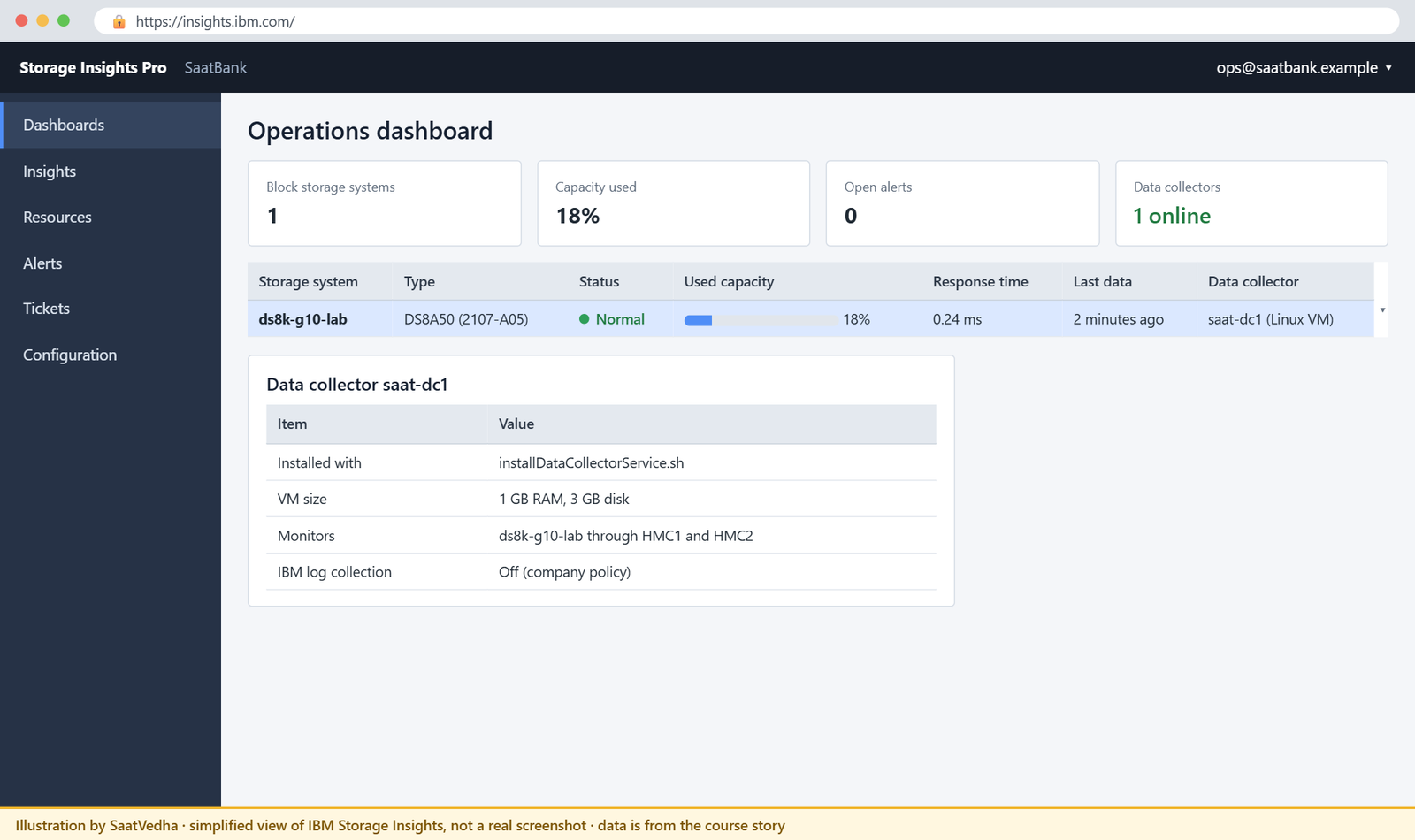
Register for Storage Insights with an IBMid, install the data collector on a small VM (1 GB RAM, 3 GB disk) using installDataCollectorService.sh or .bat, then add the DS8000. After that, history, alerts and support tickets all sit in one place. Turn on IBM log collection only if your policy allows it.
Storage Insights dashboard with the DS8000 added and the data collector online
Illustration: Storage Insights after you add the DS8000. One system, one data collector online, and history starts building from here.

✅ Checkpoint: you can list the three steps to start Storage Insights.

Break It, Then Fix It

Start fresh (simctl reset, then setup-22.txt). Sooner or later, most performance tickets turn out to be one of these two problems.

1Break it: a port with a bad cable

Run these:

simctl portfail I0042
lshostport -login
showioport -metrics I0042

You’ll see this:

dscli> simctl portfail I0042
SIM0105I simctl: I/O port I0042 has no light (cable or SFP problem).
dscli> lshostport -login
Date/Time: 24 October 2026 11:19:06 UTC IBM DSCLI Version: 7.10.10.348 DS: IBM.2107-78SV001
WWNN             WWPN             Host     I/O ports ESSIOport
==============================================================
20000024FF2D0F86 21000024FF2D0F86 win-app1 16 (all)  I0032
20000120FA13B914 10000090FA13B914 erp-db1  16 (all)  I0032
dscli> showioport -metrics I0042
Date/Time: 24 October 2026 11:19:06 UTC IBM DSCLI Version: 7.10.10.348 DS: IBM.2107-78SV001
ID                     I0042
Date                   10/24/2026 11:19:06
Logins (FC)            0
byteread (SCSI)        0
bytewrit (SCSI)        0
Reads (SCSI)           0
Writes (SCSI)          0
LinkFailErr (FC)       7
LossSyncErr (FC)       7
LossSigErr (FC)        7
PrimSeqErr (FC)        0
InvTxWordErr (FC)      0
CRCErr (FC)            0
LRSent (FC)            0
LRRec (FC)             0
CurrentSpeed (FC)      -
%UtilizeCPU (FC)       2 Dedicated
(output shortened)

Why: I0042 has no logins and no traffic, and its LinkFailErr, LossSyncErr and LossSigErr counters keep growing. That leaves every host with one path on I0032, so all the I/O squeezes through a single port and response times go up. On a real system a dirty connector often shows up first as a rising CRCErr, long before the link actually drops.

Fix: the SAN team cleans or swaps the cable or SFP. After that, check the counters again and make sure both paths are active on the hosts.

Run these:

simctl portfix I0042
showioport -metrics I0042

You should see this:

dscli> simctl portfix I0042
SIM0106I simctl: I/O port I0042 has light again.
dscli> showioport -metrics I0042
Date/Time: 24 October 2026 11:19:06 UTC IBM DSCLI Version: 7.10.10.348 DS: IBM.2107-78SV001
ID                     I0042
Date                   10/24/2026 11:19:06
Logins (FC)            2
byteread (SCSI)        0
bytewrit (SCSI)        0
Reads (SCSI)           0
Writes (SCSI)          0
LinkFailErr (FC)       0
LossSyncErr (FC)       0
LossSigErr (FC)        0
PrimSeqErr (FC)        0
InvTxWordErr (FC)      0
CRCErr (FC)            0
LRSent (FC)            0
LRRec (FC)             0
CurrentSpeed (FC)      32 Gbps
%UtilizeCPU (FC)       2 Dedicated
(output shortened)

✅ Checkpoint: I0042 shows 2 logins, 32 Gbps and zero errors.

Practice shell: showioport -metrics on a port with no light
A dark port: no logins, no traffic, link error counters growing.

2Break it: a thin pool running out of room

Run these:

simctl poolfill P0 90
lsextpool
mkfbvol -extpool p0 -cap 100 -sam ese -name erp_#h 2002
simctl write 2000 100
lsextpool

You’ll see this:

dscli> simctl poolfill P0 90
SIM0109I simctl: extent pool P0 is now 90% allocated (637287 extents available).
dscli> lsextpool
Date/Time: 24 October 2026 11:19:06 UTC IBM DSCLI Version: 7.10.10.348 DS: IBM.2107-78SV001
Name ID stgtype rankgrp status   availstor (2^30B) %allocated available reserved numvols
========================================================================================
FB_0 P0 fb      0       exceeded 9957              90         637287    64       2
FB_1 P1 fb      1       below    99576             0          6372864   64       2
dscli> mkfbvol -extpool p0 -cap 100 -sam ese -name erp_#h 2002
CMUC00025I mkfbvol: FB volume 2002 successfully created.
dscli> simctl write 2000 100
SIM0102I simctl: volume 2000 now has 6400 allocated extents (100 GiB written).
dscli> lsextpool
Date/Time: 24 October 2026 11:19:06 UTC IBM DSCLI Version: 7.10.10.348 DS: IBM.2107-78SV001
Name ID stgtype rankgrp status   availstor (2^30B) %allocated available reserved numvols
========================================================================================
FB_0 P0 fb      0       exceeded 9857              90         630887    64       3
FB_1 P1 fb      1       below    99576             0          6372864   64       2

Why: P0 is exceeded: it’s 90% allocated, which is past its warning threshold. Thin (ESE) volumes still let you create a new 100 GiB volume, and once the host wrote its 100 GiB those writes took real extents, so free space keeps shrinking. When a thin pool fills up, writes fail, and to the users that looks like a performance outage.

Fix: stop creating volumes in P0, then free up space (UNMAP on the hosts, or initfbvol on LUNs you can empty, Lesson 17), move volumes to the other pool, or add capacity. Set your alerts in the GUI or Storage Insights at a level that warns you weeks ahead, not hours.

✅ Checkpoint: you can name three ways to get a pool back below its threshold.

This happened at work

The slow tills and the dirty connector

This one was at a retailer whose store systems sent every sale to a central database on a DS8000. For two weeks the tills were slow every evening, with a card payment taking 6 to 8 seconds instead of 2. The database team blamed storage, storage blamed the network, and the network team blamed the tills.

In the end a new storage engineer took two showioport -metrics samples an hour apart on every port the database hosts used. On port I0231 the CRCErr count had grown by about 40,000 in that hour, and on every other port it hadn’t moved at all.

CRC errors on the DS8000 side mean frames got damaged somewhere between the last SAN SFP and the DS8000 port. They were resent, so nothing failed outright, but each resend added a bit of delay, and under the evening load people noticed. Multipath on the host kept sending half the I/O down that bad path. A cleaning kit and a new patch cable sorted it out in ten minutes, and payment times were back to normal that same evening.

Root cause: a fibre connector that got dirty during a rack move. Fix: port error counters now go into Storage Insights every hour with an alert on any CRC growth, and every cable move finishes with a clean-and-inspect step.

The lesson: check the error counters before you try anything clever. Two samples and a subtraction found what two weeks of meetings had missed.

Common mistakes and troubleshooting

SymptomLikely causeWhat to check / fix
Metrics look huge and meaninglessCounters accumulate since the last resetTake two samples and subtract; compare per minute or hour.
One host slow, others finePaths, multipath policy or that host’s own loadshowioport -metrics on its ports; host multipath status.
Rising CRCErr on one portDirty or damaged cable or SFPClean or replace the cable or SFP between the switch and the DS8000.
InvTxWordErr grows by hundreds a dayStray light, uncapped port or cableCap unused ports and cable ends.
One rank much busier than the othersSingle-rank pools or rotatevols allocationUse multi-rank pools with striping; let Easy Tier rebalance.
All ports busy, latency high everywhereThe workload outgrew the systemUse history to prove it; model with IBM Storage Modeller before buying.
Thin pool exceeded, writes start failingOver-provisioned pool filling upRelease space, move volumes, add capacity; alert earlier.

Keep a baseline. On a quiet, normal day, save the key numbers for each busy volume and port, so when someone says “slow” you can compare against them instead of arguing.

Interview questions

Click a question to open it. They’re worded the way an interviewer would ask them, and under each one you’ll find why they ask it and one way you could answer in your own words.

Fresher level

1. An application owner says “the storage is slow”. What’s the first thing you ask?

Why they ask this: They want to hear that you start with facts before you change anything.

How you might answer: I’d ask which host and application, at what time, and what disk latency the host sees in milliseconds. If the host sees low latency, the delay is somewhere above the storage. If it’s high, I’d look at that host’s volumes and ports on the DS8000 for the same time window.

2. Which DS CLI commands show performance counters?

Why they ask this: It’s a basic check that you know where the data lives.

How you might answer: For volumes it’s showfbvol -metrics or showckdvol -metrics, for ranks showrank -metrics, and for ports showioport -metrics, which includes the FC error counters. For history I’d go to offloadfile -perfdata or Storage Insights.

2–5 years experience

3. Walk me through finding a bad cable using only the DS8000.

Why they ask this: They’re listening for a method: taking samples, picking the right counters and knowing what each one means.

How you might answer: I’d run showioport -metrics on every port the affected hosts use, wait an hour and run it again. Any port where CRCErr, LinkFailErr, LossSyncErr or LossSigErr went up is a suspect.

CRC errors point at the cable or SFP between the last switch SFP and the DS8000 port, so I’d ask the SAN team to clean or replace that. On 32 Gbps ports I’d also look at showioport -rdp to see if RX power is low compared with TX.

4. How do you know if a pool is unbalanced, and how do you fix it?

Why they ask this: It shows whether you understand the back-end layout and how it affects performance.

How you might answer: I’d compare the rank metrics inside the pool and check whether the volumes sit mostly in one rank group, because then one server ends up doing most of the work. To fix it I’d use multi-rank pools with striping (rotateexts), a pool pair across both rank groups, and let Easy Tier rebalance. A volume that’s already hot I can move to a better pool with managefbvol -action migstart.

Senior level

5. The business wants to add a new analytics workload to an existing DS8000. How do you decide if it fits?

Why they ask this: At senior level you’re expected to plan capacity and performance before problems show up, and back it with evidence.

How you might answer: First I’d get the workload profile: IOPS, read/write mix, block size and peak times. Then I’d pull the current DS8000 history from Storage Insights or Spectrum Control and run both through IBM Storage Modeller to see the predicted latency and utilisation.

If it fits, I’d put it in separate pools or at least spread it across both rank groups, give it its own host ports if it’s heavy sequential work, and have alerts set up before go-live.

6. What’s the difference between Storage Insights, Storage Insights Pro and Spectrum Control, and when would you use each?

Why they ask this: They want to see that you can pick tools for the business, and not only use them.

How you might answer: Storage Insights is a cloud service that comes included if you own IBM block storage, and it gives you events, tickets and key metrics through a data collector on-premises. Pro is the paid version, with deeper performance analysis, capacity planning and more alerting. Spectrum Control runs fully on-premises and sends nothing to IBM, which suits sites that can’t use cloud tools, and its licence includes Storage Insights Pro.

Quick quiz

Q1. Why should you take two metric samples instead of one?

  1. The first one is always wrong
  2. Counters accumulate since the last reset, so you need a difference
  3. The DS CLI only shows half the counters
  4. To reset the counters
Show answer

B — Counters grow from the last reset; the difference over time gives the rate.

Q2. Which counter points most directly to a dirty cable or bad SFP?

  1. normrdhits
  2. CRCErr
  3. cachetrans
  4. Logins
Show answer

B — CRC errors happen between the last SAN SFP and the DS8000 port.

Q3. What does InvTxWordErr growing by more than 100 a day suggest?

  1. A full pool
  2. Stray light, such as an uncapped port
  3. A busy rank
  4. A failed CPC
Show answer

B — IBM says it means light from a source that is not an SFP, like an uncovered cable end.

Q4. How many paths per LUN does IBM suggest for most small to mid-size servers?

  1. One
  2. Two to four
  3. Sixteen
  4. As many as possible
Show answer

B — Two to four paths balance performance and manageability; more adds devices, not speed.

Q5. What does Storage Insights need on your site?

  1. Nothing
  2. A data collector on a server or VM
  3. A new HMC
  4. A FlashCopy target
Show answer

B — A data collector streams metrics and configuration to the cloud service.

Quick recap

  • Start every “slow” ticket with facts: the host, the time window and the latency the host sees.
  • showfbvol -metrics, showrank -metrics and showioport -metrics show counters; take two samples and subtract.
  • Port error counters (CRCErr, LinkFailErr, LossSync, LossSig) find bad cables and unstable HBAs.
  • Use multi-rank striped pools across both rank groups to avoid hot ranks.
  • Keep history with offloadfile -perfdata, Storage Insights or Spectrum Control.
  • Change one thing at a time, then measure again.

Next lesson

Lesson 23: Set up Ransomware Threat Detection → You switch on the DS8000 threat detection data feed and alerts in Storage Insights.

Further reading: DS8000 performance monitoring

Want to go deeper into DS8000 performance monitoring? IBM’s metric definitions and tuning advice are in sections 10.5 and 13 of the IBM Storage DS8A00 Architecture and Implementation Guide (IBM Redbooks). For path design, revisit Attach Linux, Windows and VMware hosts (multipath).

You can also see the full plan for this course on the IBM DS8000 Implementation course page.

Scroll to Top

This website uses cookies

We use a few cookies to keep this site working. If you allow it, we also use Google Analytics to count visits so we can improve our lessons. You can accept all, deny the optional ones, or choose what to allow.