DS8000 administration: daily, weekly and monthly checks

DS8000 administration is the quiet work that keeps a running system healthy, with short read-only checks every day, a deeper look every week, and evidence filed every month. When it’s done well nobody notices it, and when it’s skipped everybody does.

What you get here is a real runbook with the exact DS CLI checks and what “good” looks like for each. After that you turn the daily check into a small Python report that runs on a jump server and prints one OK or WARN line per item.

The lab has you run the daily and weekly checks by hand first and then through the script. In Break It you fill up a pool and kill a port, and watch the report catch both before any user does.

TimeYou needBy the end you can
60 to 75 minutesThe practice shell, Python 3 on your laptop, and Lesson 25 (or any system you’ve built)Run daily, weekly and monthly DS8000 checks, read their results, and schedule a Python report that warns you early

What it is, in one line

DS8000 administration is a repeating set of read-only checks (health, capacity, paths, copies, users, alerts, code) done on a fixed rhythm, so problems turn up in your report before they turn up in a ticket.

In Simple Words

The school bus depot

A school bus depot has twenty buses. Every morning, before the children climb on, the driver walks round his bus checking tyres, lights and fuel, which takes five minutes, and he does it even if the bus looked fine yesterday. Once a week the depot manager goes through the logbooks and checks who has a valid licence, and once a month a mechanic changes the oil and files a report so the inspector can see the work was done.

Nobody waits for a parent to ring up and say the bus ran out of fuel on the way to school, because a call like that means the morning walk-round didn’t happen.

DS8000 administration runs the same way. Your health, capacity and path check is the daily walk-round, users, password rules and alerts are the weekly logbook, and the config export, audit log and code level are the monthly service.

Engineer's View

What you check, and where the numbers come from

Capacity. lsextpool shows status as below, exceeded or full. You set the pool threshold with chextpool -threshold, and it warns when the unused real extents fall below that percentage (the default is 15). Give yourself an earlier warning, at around 80% allocated, so there’s time to order or move capacity.

Users and passwords. showpass gives you the expiry days, failed logins allowed, minimum length (default 8) and history, and showuser shows FailedLogin and DaysToExpire for a single account (SG24-8559-01, pp. 183 and 341-342).

Alerts. SNMP takes no more than two trap addresses (chsp -snmp on -snmpaddr, checked with showsp), and you can define up to eight syslog servers (p. 179). There’s no lsproblem command, so you’ll find events on the GUI Events page and the HMC.

Evidence. offloadfile -config exports two files, the advanced settings and the ICS install history (p. 434). For the audit log you use offloadauditlog or offloadfile -auditlog, and offloadfile -perfdata gives you one week of performance data at 1-minute intervals (pp. 391 and 444).

Code. ver -l shows the bundle, named PR.MM.FFF.EEEE, so 10.10.106.0 is Release 10.1 (pp. 400-401). Check it against the latest bundle IBM lists for your model.

Release 10.1 extra. Dual Control (maker/checker) can make a second person approve changes. lsdcreq lists the requests that are waiting, so if you switch the feature on, add it to the daily check (p. 395).

How it works, step by step

1Decide who owns each check

If a check has no owner, nobody does it. Put a name against every line of the runbook, and a deputy for holidays.

The daily checks belong to the on-call storage admin, and the weekly and monthly ones to the team lead, who signs them off.

2Keep checks read-only and use a monitor user

Every check starts with ls or show. Run them as a user in the monitor group, and then a typo or a script bug can’t ever change the configuration.

Any change you find you need goes through your change process, never through the check script.

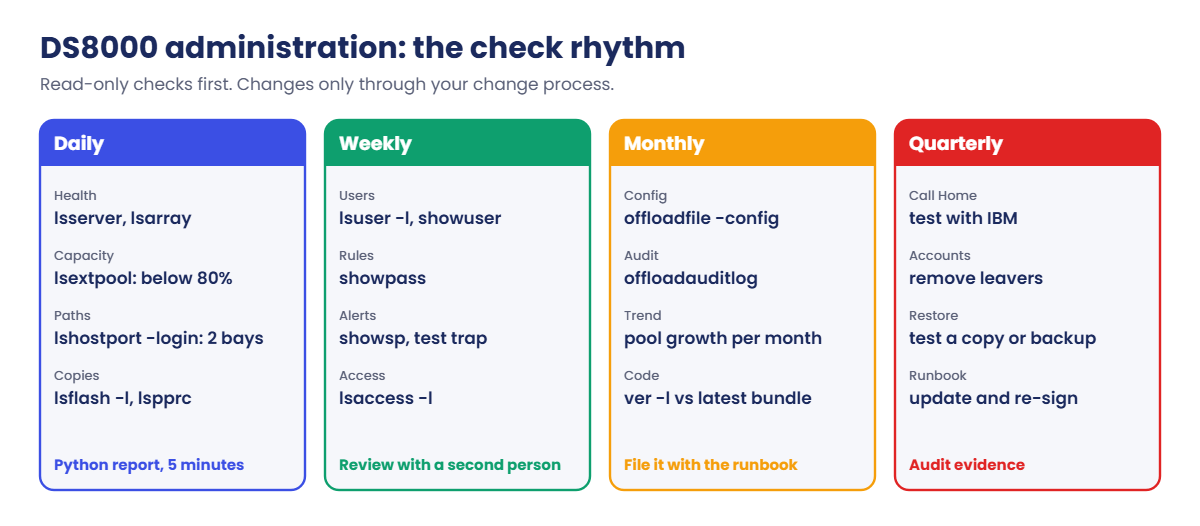
DS8000 administration check rhythm: daily, weekly, monthly and quarterly

This is the runbook. Copy it into your team wiki and set the limits to suit your company.

WhenCheckDS CLIGood looks like
DailyBoth CPCs uplsserverserver0 and server1 Online
DailyArrays and hardwarelsarray, lsioenclosureData Normal, enclosures Online
DailyPool capacitylsextpoolstatus below, under 80% allocated
DailyHost pathslshostport -login2+ logins per host, in 2 I/O enclosures
DailyCopy Serviceslsflash -l, lspprcState Valid, mirrors Full Duplex
WeeklyUsers and expirylsuser -l, showuserNo leavers, nobody locked
WeeklyPassword rulesshowpassMatches the company policy
WeeklyAlerts and accessshowsp, lsaccess -lSNMP Enabled, two targets, AOS as agreed
MonthlyConfig and auditoffloadfile -config, offloadauditlogFiles stored with the date
MonthlyCode levelver -lKnown bundle, upgrade planned if behind

By hand the daily part takes five minutes, and as a script it takes seconds, which is why it’s the first thing to automate.

3Automate the daily check from a jump server

The script runs on your workstation or a jump server and never on the DS8000 itself. It calls DS CLI with a profile (banner off, header on, delimited format), reads the CSV rows and checks each value against a rule.

The DS CLI password lives in an encrypted password file made with managepwfile, never in the script. Profiles and password files are explained in Lesson 9.

4Send the result where people look

If nobody reads the report, you may as well not have one. Mail it to the team, post it in the team chat, or have it open a ticket automatically whenever there’s a WARN line.

Hang on to the daily files for at least a few months, because they turn into your capacity trend and your audit evidence.

How the daily report runs on a jump server and talks to the DS8000 through DS CLI

5Look at the trend once a month

Today’s 62% doesn’t tell you much by itself. But 62% after 48% last month means you’ve got about two months before the 85% threshold, so it’s time to order capacity.

Put the monthly numbers for each pool into one table. Lesson 22 adds the performance side.

6Review and re-sign the runbook every quarter

Systems change over time, with new hosts, new pools and new mirrors. Every quarter, check the runbook still covers everything and the people named on it still work here.

Do one real test too: a Call Home test with IBM and a restore from a copy. Until you’ve restored a backup, it’s only a hope.

Hands-on lab: run the checks and a Python daily report

Before you run any command, double-check it

Read every command twice before you press Enter. Check the target: the system or account, the IDs, the names and the sizes. These commands are for learning and were tested in our lab, not on your system. At work, run the read-only list commands first, follow your change process, make sure a backup exists, and ask a second person to check anything that changes or deletes data. You run them at your own risk.

You’re the storage admin for a small ERP system, with a Linux database server erp-db1, a Windows app server win-app1, a pool pair and one FlashCopy that refreshes a copy of the database. You’ll run the checks by hand first so you understand what the script is doing for you.

Practice shell note: the practice shell is our teaching tool, not IBM software, and real DS CLI output is close but not identical. The simctl lines in the setup script are practice-only and log the second host port in through I0052, the way a SAN admin would zone it. The monthly items (offloadfile, offloadauditlog) only run on a real system.

1Load the running system

Reset the shell, do the first login, then save this as setup-26.txt:

# setup-26.txt: a small running system to administer (Lesson 26). Run after simctl reset.
mkarray -raidtype 6 -arsite S1
mkarray -raidtype 6 -arsite S2
mkrank -array A0 -keygrp 1 -stgtype fb
mkrank -array A1 -keygrp 1 -stgtype fb
mkextpool -rankgrp 0 -keygrp 1 -stgtype fb FB_0
mkextpool -rankgrp 1 -keygrp 1 -stgtype fb FB_1
chrank -extpool P0 R0
chrank -extpool P1 R1
mkfbvol -extpool P0 -cap 200 -sam ese -name erp_#h 2000-2001
mkfbvol -extpool P1 -cap 200 -sam ese -name erp_#h 2100
mkfbvol -extpool P0 -cap 200 -sam ese -name erpcopy_#h 2010
mkhost -type "Linux Server" -hostport 10000090FA13B914,10000090FA13B915 erp-db1
mkhost -type "Windows Server" -hostport 21000024FF2D0F86,21000024FF2D0F87 win-app1
chhost -action map -volume 2000,2100 erp-db1
chhost -action map -volume 2001 win-app1
mkflash -record -persist 2000:2010
mkuser -pw Temp1234 -group monitor noc_view
simctl logout 10000090FA13B915
simctl login 10000090FA13B915 I0052
simctl logout 21000024FF2D0F87
simctl login 21000024FF2D0F87 I0052

Run this:

python ds8sim.py   (then: simctl reset -all, quit)
python ds8sim.py -hmc1 10.0.0.1 -user admin -passwd admin -newpasswd Practice1 ver
python ds8sim.py -hmc1 10.0.0.1 -user admin -passwd Practice1 -script setup-26.txt

At the end of the script you should see CMUC00137I for the FlashCopy, CMUC00133I for the user, and four SIM lines for the logins.

✅ Checkpoint: no E messages in the setup output.

2Create the password file and the profile

Run this:

python ds8sim.py -hmc1 10.0.0.1 -user admin -passwd Practice1 managepwfile -action add -pwfile security.dat -name admin -pw Practice1

You should see this:

CMUC00206I managepwfile: Record 10.0.0.1/admin successfully added to password file security.dat.

Now save this as auto.profile in the same folder:

hmc1: 10.0.0.1
username: admin
pwfile: security.dat
devid: IBM.2107-78SV001
banner: off
header: on
format: delim
delim: ,

The lab profile uses admin to keep things short, but at work you’d point it at a monitor user such as noc_view.

✅ Checkpoint: security.dat and auto.profile sit next to ds8sim.py.

3Run the daily check by hand

Save the eight daily commands as daily-26.txt: lssi, lsserver, lsioenclosure, lsarray, lsextpool, lshost, lshostport -login, lsflash, one per line.

Run this:

python ds8sim.py -hmc1 10.0.0.1 -user admin -pwfile security.dat -script daily-26.txt

You should see this (shortened to the lines you judge):

Date/Time: 24 October 2026 20:00:33 UTC IBM DSCLI Version: 7.10.10.348 DS: IBM.2107-78SV001
ID      Image ID         Image Name   Power Control SFI State
=============================================================
server0 IBM.2107-78SV001 ds8k-g10-lab Online        Online
server1 IBM.2107-78SV001 ds8k-g10-lab Online        Online
Date/Time: 24 October 2026 20:00:33 UTC IBM DSCLI Version: 7.10.10.348 DS: IBM.2107-78SV001
Array State    Data   RAIDtype    arsite Rank DA Pair DDMcap (10^9B)
====================================================================
A0    Assigned Normal 6 (5+P+Q+S) S1     R0   0       4800.0
A1    Assigned Normal 6 (5+P+Q+S) S2     R1   0       4800.0
Date/Time: 24 October 2026 20:00:33 UTC IBM DSCLI Version: 7.10.10.348 DS: IBM.2107-78SV001
Name ID stgtype rankgrp status availstor (2^30B) %allocated available reserved numvols
======================================================================================
FB_0 P0 fb      0       below  99576             0          6372864   64       3
FB_1 P1 fb      1       below  99576             0          6372864   64       1
Date/Time: 24 October 2026 20:00:33 UTC IBM DSCLI Version: 7.10.10.348 DS: IBM.2107-78SV001
WWNN             WWPN             Host     I/O ports ESSIOport
==============================================================
20000024FF2D0F86 21000024FF2D0F86 win-app1 16 (all)  I0032
20000090FA13B915 10000090FA13B915 erp-db1  16 (all)  I0052
20000120FA13B914 10000090FA13B914 erp-db1  16 (all)  I0032
21000024FF2D0F87 21000024FF2D0F87 win-app1 16 (all)  I0052
(lsflash output shortened: 2000:2010 Recording Enabled, Persistent Enabled)

Read it the way the bus driver walks round his bus: both servers Online, both arrays Normal, both pools below threshold, and each host logged in on I0032 and I0052. I0032 is in I/O enclosure 1B2 and I0052 in 1B3, so every host keeps running if one enclosure goes down.

✅ Checkpoint: you can say in one sentence why each block is healthy.

4Run the weekly check

Save ver -l, lsuser -l, showpass, showsp and lsaccess -l as weekly-26.txt and run it the same way.

You should see this (shortened):

Storage Image    LMC         Bundle Version
===========================================
IBM.2107-78SV001 7.10.10.348 10.10.106.0
Name     Group       State  Scope
==================================
admin    admin       active *
noc_view monitor     active PUBLIC
secadmin secadmin    active *
service  ibm_service active *
Password Expiration   365 days
Failed Logins Allowed 5
SNMP           Disabled
SNMPadd        -
hmc  cmdline wui     modem    cim      aos     rsc     vpn
===============================================================
hmc1 enabled enabled disabled disabled enabled enabled disabled
hmc2 enabled enabled disabled disabled enabled enabled disabled

The weekly check has turned something up straight away: SNMP is Disabled, so this system sends no traps at all. A real admin would raise a change to fix it with chsp -snmp on -snmpaddr (see Lesson 21). Passwords that go a whole year without expiring may break your company policy too.

✅ Checkpoint: you noted two weekly findings: SNMP off, and a 365-day password expiry to compare with policy.

5Monthly: export evidence (real system)

On a real DS8000 the monthly part looks roughly like this. The commands follow the Redbook examples, and you run them from DS CLI on your workstation rather than the GUI's embedded DS CLI.

dscli> offloadfile -config c:\ds8k-admin\2026-10
dscli> offloadauditlog -logaddr smc1 c:\ds8k-admin\2026-10\audit.txt

The first one writes productSettings and ICSInstall.history, and the second writes the audit log. Keep both in a folder named after the month.

✅ Checkpoint: your runbook has a monthly folder rule and a named owner.

6Save the daily report script

Save this on your laptop in the lab folder, next to ds8sim.py. It runs there and not on the DS8000.

# daily_report.py: the DS8000 daily check as a short OK/WARN report.
# Runs on your workstation or jump server, not on the DS8000.
# It talks to the DS8000 only through the DS CLI (auto.profile: banner off, header on, format delim).
import csv, subprocess
DSCLI = ["python", "ds8sim.py", "-cfg", "auto.profile"]   # at work: ["dscli", "-cfg", "auto.profile"]

def dscli(*args):
    """Run one DS CLI command and return its rows as dictionaries."""
    out = subprocess.run(DSCLI + list(args), capture_output=True, text=True).stdout
    lines = [l for l in out.splitlines() if l and not l.startswith("SaatVedha") and not l.startswith("CMUC")]
    return list(csv.DictReader(lines))

POOL_WARN = 80          # warn before the pool threshold (default 85) is reached
warnings = 0

def report(ok, area, text):
    global warnings
    if not ok:
        warnings += 1
    print(("OK  " if ok else "WARN") + "  " + area.ljust(9) + text)

servers = dscli("lsserver")
up = [s for s in servers if s["SFI State"] == "Online"]
report(len(up) == 2, "servers", "%d of 2 CPCs online" % len(up))

for a in dscli("lsarray"):
    report(a["Data"] == "Normal", "array", "%s on %s: %s" % (a["Array"], a["arsite"], a["Data"]))

for p in dscli("lsextpool"):
    used = int(p["%allocated"])
    report(used < POOL_WARN and p["status"] == "below", "pool",
           "%s %s: %d%% allocated, status %s" % (p["ID"], p["Name"], used, p["status"]))

encl = {p["ID"]: p["I/O Enclosure"] for p in dscli("lsioport", "-l")}
paths = {}
for h in dscli("lshostport", "-login"):
    if h["Host"] != "-":
        paths.setdefault(h["Host"], set()).add(h["ESSIOport"])
for host, ports in sorted(paths.items()):
    bays = {encl[p] for p in ports}
    report(len(ports) >= 2 and len(bays) >= 2, "paths",
           "%s: %d logins on %s (%d I/O enclosures)" % (host, len(ports), ",".join(sorted(ports)), len(bays)))

for f in dscli("lsflash", "-l"):
    report(f["State"] == "Valid", "flash", "%s: %s" % (f["ID"], f["State"]))

for u in dscli("lsuser"):
    if u["State"] != "active":
        report(False, "user", "%s is %s" % (u["Name"], u["State"]))

print("Result: %s, %d warning(s)" % ("CHECK NEEDED" if warnings else "ALL OK", warnings))

The rules are where the learning is: two CPCs online, arrays Normal, pools under 80% and "below", at least two logins per host across two I/O enclosures, FlashCopy State Valid, and nobody locked out. On macOS or Linux, change "python" to "python3" in the DSCLI line.

✅ Checkpoint: daily_report.py is saved and the DSCLI line matches your system.

7Run the report

Run this:

python daily_report.py

You should see this:

OK    servers  2 of 2 CPCs online
OK    array    A0 on S1: Normal
OK    array    A1 on S2: Normal
OK    pool     P0 FB_0: 0% allocated, status below
OK    pool     P1 FB_1: 0% allocated, status below
OK    paths    erp-db1: 2 logins on I0032,I0052 (2 I/O enclosures)
OK    paths    win-app1: 2 logins on I0032,I0052 (2 I/O enclosures)
OK    flash    2000:2010: Valid
Result: ALL OK, 0 warning(s)

✅ Checkpoint: nine lines, all OK, result ALL OK.

Python daily report with all checks OK in the practice shell
The daily report on the jump server: nine checks, all OK. Practice shell output.

8Schedule it (at work)

At work a scheduler on the jump server would run it every morning and mail out the result, something like this (you don't need to run it in the lab):

schtasks /create /tn "DS8000 daily report" /sc daily /st 07:00 /tr "cmd /c cd /d C:\ds8k-admin && python daily_report.py > daily.txt"
0 7 * * * cd ~/ds8k-admin && python3 daily_report.py | mail -s "DS8000 daily" storage-team@example.com

The first line is for Windows Task Scheduler and the second is a Linux cron entry. Run the job as a service account that can read the password file, and make sure a WARN line reaches a person and doesn't just land in a folder.

✅ Checkpoint: you know where the job would run, as which user, and who reads the result.

Break It, Then Fix It

A report is only any good if it turns red when it should, so you’ll cause two real problems and check the script catches each of them.

1Break: fill pool P0 to 90%

The practice-only simctl poolfill pretends other data has filled up the pool, much like a month-end batch that wrote far more than normal.

Run this:

python ds8sim.py -cfg auto.profile simctl poolfill P0 90
python daily_report.py

You should see this:

SIM0109I simctl: extent pool P0 is now 90% allocated (637287 extents available).
OK    servers  2 of 2 CPCs online
OK    array    A0 on S1: Normal
OK    array    A1 on S2: Normal
WARN  pool     P0 FB_0: 90% allocated, status exceeded
OK    pool     P1 FB_1: 0% allocated, status below
OK    paths    erp-db1: 2 logins on I0032,I0052 (2 I/O enclosures)
OK    paths    win-app1: 2 logins on I0032,I0052 (2 I/O enclosures)
OK    flash    2000:2010: Valid
Result: CHECK NEEDED, 1 warning(s)

Why: 90% is past your 80% rule and also past the system’s own 85% threshold, so lsextpool reports exceeded. Every volume here is thin (ESE), which means once the pool is full, the next host write that needs a new extent will fail. Catch it at 80% and you’ve got days to act, but catch it at 100% and you’ve got an outage.

2Fix: add a rank to the pool

The proper fix is more capacity (or moving volumes, see Lesson 27). Save this as addcap-26.txt:

# addcap-26.txt: add one rank to pool P0
mkarray -raidtype 6 -arsite S3
mkrank -array A2 -keygrp 1 -stgtype fb
chrank -extpool P0 R2
lsextpool

Run this:

python ds8sim.py -cfg auto.profile -script addcap-26.txt
python daily_report.py

You should see this:

CMUC00004I mkarray: Array A2 successfully created.
CMUC00007I mkrank: Rank R2 successfully created.
CMUC00008I chrank: Rank R2 successfully modified.
Name,ID,stgtype,rankgrp,status,availstor (2^30B),%allocated,available,reserved,numvols
FB_0,P0,fb,0,below,129449,41,8284737,128,3
FB_1,P1,fb,1,below,99576,0,6372864,64,1
OK    servers  2 of 2 CPCs online
OK    array    A0 on S1: Normal
OK    array    A1 on S2: Normal
OK    array    A2 on S3: Normal
OK    pool     P0 FB_0: 41% allocated, status below
(output shortened: the other lines are OK)
Result: ALL OK, 0 warning(s)

The lsextpool output comes out comma-separated because the profile says format: delim, and that’s what the script reads. At work you’d add a matching rank to P1 too, to keep the two rank groups balanced.

✅ Checkpoint: P0 is back to 41%, status below, and the report says ALL OK.

3Break: port I0052 loses light

Run this:

python ds8sim.py -cfg auto.profile simctl portfail I0052
python daily_report.py

You should see this:

SIM0105I simctl: I/O port I0052 has no light (cable or SFP problem).
OK    servers  2 of 2 CPCs online
OK    array    A0 on S1: Normal
OK    array    A1 on S2: Normal
OK    array    A2 on S3: Normal
OK    pool     P0 FB_0: 41% allocated, status below
OK    pool     P1 FB_1: 0% allocated, status below
WARN  paths    erp-db1: 1 logins on I0032 (1 I/O enclosures)
WARN  paths    win-app1: 1 logins on I0032 (1 I/O enclosures)
OK    flash    2000:2010: Valid
Result: CHECK NEEDED, 2 warning(s)
Daily report warns about single paths after a port loses light
The daily report goes yellow when port I0052 loses light, with both hosts down to one path in one I/O enclosure. Practice shell output.

Why: both hosts still work through I0032 alone and no user notices a thing, and that’s the danger. The next failure on I0032, or any service work on enclosure 1B2, takes both servers down.

Confirm it on the port itself with showioport I0052, which shows State “No light detected” and Logins 0.

4Fix: restore the light, then rerun

At work this means swapping a cable or SFP. You or the SAN team handle the cable, and the IBM SSR comes in if the host adapter part is faulty. In the shell:

python ds8sim.py -cfg auto.profile simctl portfix I0052
python daily_report.py

You should see this:

SIM0106I simctl: I/O port I0052 has light again.
(output shortened: servers, arrays and pools OK)
OK    paths    erp-db1: 2 logins on I0032,I0052 (2 I/O enclosures)
OK    paths    win-app1: 2 logins on I0032,I0052 (2 I/O enclosures)
OK    flash    2000:2010: Valid
Result: ALL OK, 0 warning(s)

✅ Checkpoint: both hosts are back to two logins in two I/O enclosures.

This happened at work

The pool that users found first

This happened at an insurer that kept its scanned claim documents on thin volumes in one DS8000 pool. Their weekly check was a junior admin copying the pool figure from the GUI dashboard into a spreadsheet every Monday, and that Monday the pool showed 78%, so the line in the sheet was green.

On Tuesday a new month-end job kicked off. It scanned and OCR-processed a backlog of paper claims and wrote three times the usual amount, and by Wednesday the pool status had turned “exceeded”, but nobody opened the GUI between Mondays.

At 8:15 a.m. on Thursday the claims team rang the help desk because document uploads were timing out. When the storage team logged in they found the pool at 97% and climbing by about a point an hour, which gave them roughly three hours before the thin volumes would start failing writes.

They stopped the OCR job, then checked and deleted an old 6 TB test clone with two people watching, which brought the pool down to 89%. IBM installed more capacity the following week, but about 1,900 claim documents had to be scanned again.

Root cause: capacity, which can change within a day, was checked by hand once a week, and no automatic warning ever reached a person.

Fix: a daily report from the jump server that warns at 80% and goes to the on-call channel, along with a monthly growth table. New batch jobs now need a capacity estimate before they go live.

Lesson: check things as often as they can change. Capacity and paths need a daily look, while users and rules can be weekly.

Common mistakes and troubleshooting

SymptomLikely causeWhat to check / fix
Report says ALL OK but a host lost disksPath rule counts logins only, not I/O enclosuresMap each login port to its enclosure with lsioport -l
Script fails with KeyErrorProfile not in delim format, or a column name changedCheck format: delim and header: on; print the header row
Script prints nothing at allPassword expired or wrong in the password fileLog in by hand, then update the record with managepwfile
Nobody saw the WARNOutput written to a file nobody opensSend WARN lines to mail, chat or a ticket
Pool full overnightThreshold met but checked only weeklyDaily check at 80%; monthly trend per pool
Looking for lsproblemThat command does not existUse the GUI Events page or the HMC for events

Tip: whenever you add a rule to the script, break it on purpose once in the practice shell. If you’ve never seen a rule turn yellow, you can’t be sure it ever will.

Interview questions

Click a question to open it. They’re worded the way an interviewer would ask them, and under each one you’ll find why they ask it and one way you could answer in your own words.

Fresher level

1. What do you check on a DS8000 every morning, and why those things?

Why they ask this: They want to know whether you have a routine or just wait for tickets.

How you might answer: I check both CPCs with lsserver, the arrays with lsarray, pool capacity with lsextpool, host logins with lshostport -login, and copy states with lsflash -l and lspprc.

Those are the things that can go wrong overnight without anyone noticing, like a failed part, a pool filling up, a lost path or a suspended mirror.

2. Why should a monitoring script log in as a monitor user and not as admin?

Why they ask this: They’re testing whether you think about safety as well as convenience.

How you might answer: A monitor user can only run ls and show commands, so even if my script has a bug or someone edits it badly, it can’t delete a volume or change a port. It keeps the audit log honest too, since the report user is obviously not a person making changes.

2–5 years experience

3. Your daily report shows WARN for one host: one login on one port. The application team says everything works. What do you do?

Why they ask this: They’re checking you understand redundancy and won’t brush off a warning just because users are happy.

How you might answer: I’d agree it works today, but there’s no redundancy left. I’d check the port with showioport for light and logins, then look at the switch side with the SAN team. Until it’s fixed, I’d tell the app team they’re one failure away from an outage and put off any service on the I/O enclosure holding the remaining path.

4. How would you decide the warning level for pool capacity?

Why they ask this: They want to see you reason from lead time instead of just picking a number.

How you might answer: I’d start with how long it takes to get capacity, since an order and install can take weeks and moving volumes takes days. Then I’d look at monthly growth and set the warning so I’ve still got at least that lead time before the 85% threshold. In the lab I used 80%, but a pool that grows fast might need 70%.

Senior level

5. Design the administration routine for a team of three that runs four DS8000s across two sites.

Why they ask this: Seniors get judged on whether a routine survives holidays, people leaving and growth.

How you might answer: I’d have one read-only report script a day covering all four systems, run from a jump server at each site, with WARN lines going to the on-call channel. On top of that, a weekly user and alert review by a named owner with a deputy, a monthly config and audit export filed by date, and a Call Home and restore test every quarter.

The runbook lives in the wiki with its owners, and I get it re-signed every quarter.

6. An auditor asks you to prove that your DS8000 checks really happen. What do you show?

Why they ask this: They’re testing whether your routine leaves evidence behind or only memories.

How you might answer: I’d show the dated daily report files from the jump server, the monthly folders with the offloadfile -config output and the audit log export, and the weekly review notes with names on them. For alerts I’d show a test trap that arrived on the monitoring system, plus IBM’s confirmation of the last Call Home test.

Quick quiz

Q1. Which command shows if a pool is below, exceeded or full?

  1. lsrank
  2. lsextpool
  3. showpass
  4. lsserver
Show answer

B — lsextpool has a status column with below, exceeded or full.

Q2. Why does the report check I/O enclosures, not just the number of logins?

  1. Enclosures are faster
  2. Two logins in one enclosure are lost together if that enclosure fails
  3. DS CLI needs it
  4. It is a licence rule
Show answer

B — Real redundancy means paths through different I/O enclosures.

Q3. Where should the daily report script run?

  1. On the DS8000 CPC
  2. On the HMC
  3. On a jump server or workstation
  4. Inside the GUI
Show answer

C — The DS8000 never runs your Python. The script calls DS CLI from outside.

Q4. Which DS CLI setting makes the output easy for a script to parse?

  1. format: delim with header on
  2. banner: on
  3. format: stanza with header off
  4. -s
Show answer

A — Delimited output with one header row turns straight into CSV rows.

Q5. What is the default pool threshold that marks a pool as exceeded?

  1. 50%
  2. 70%
  3. 85% allocated (15% free)
  4. 99%
Show answer

C — chextpool -threshold defaults to 15, so the status changes at about 85% allocated.

Quick recap

  • Administration runs on a rhythm: health, capacity and paths daily, users and alerts weekly, evidence monthly and tests quarterly.
  • Every check is read-only and runs as a monitor user.
  • Warn on pools before the 85% threshold, based on your lead time for new capacity.
  • Count paths per I/O enclosure, and not only per host.
  • Automate the daily check from a jump server with DS CLI, a profile and a password file.
  • A WARN line has to reach a person, and every rule should be tested once by breaking it.

Next lesson

Lesson 27: DS8000 operations: capacity, migration, power and service tasks → Next you move from checking to doing: the routine changes you make on a running system.

Further reading: DS8000 administration

Want to go deeper into DS8000 administration? IBM Redbook SG24-8559-01 covers users and password rules in Chapter 10 (pp. 340-342) and monitoring, Call Home and data offload in Chapter 12. IBM Documentation: chextpool explains the pool threshold.

On SaatVedha, Lesson 22: DS8000 performance monitoring adds the performance checks. You can also see the full plan for this course on the IBM DS8000 Implementation course page.

Scroll to Top

This website uses cookies

We use a few cookies to keep this site working. If you allow it, we also use Google Analytics to count visits so we can improve our lessons. You can accept all, deny the optional ones, or choose what to allow.