
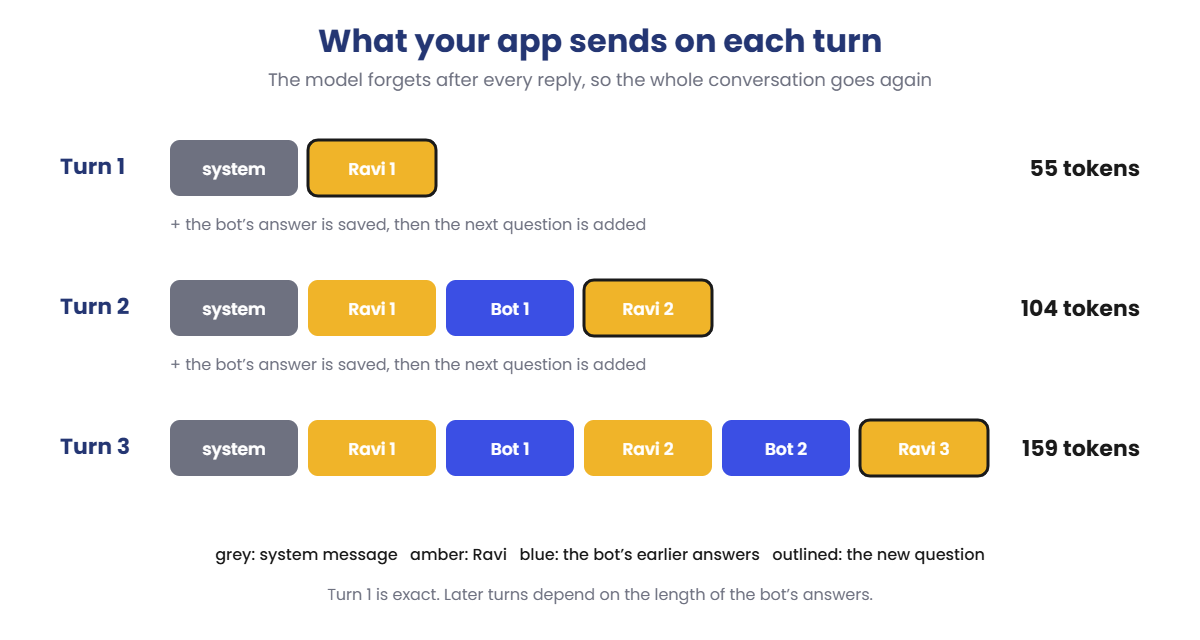
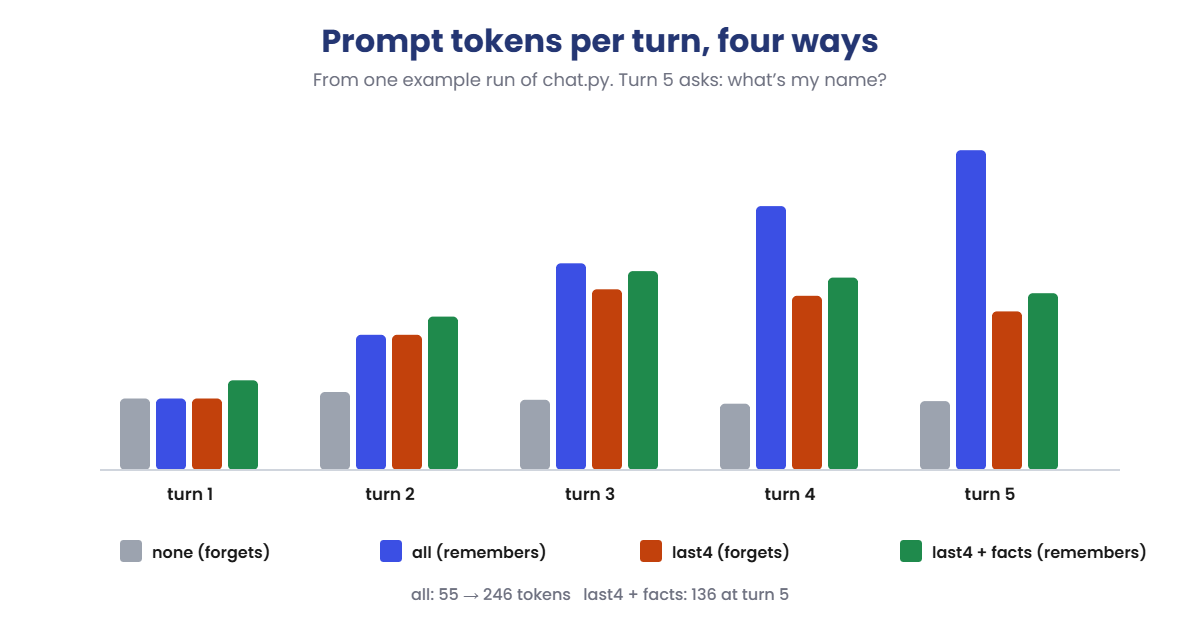
You’ll run one script, chat.py, that plays a fixed five-turn conversation with llama3.2:1b. Ravi introduces himself, asks three questions about his switch, and then asks the bot what his name is.
You’ll change one setting at a time and watch two things: whether the bot remembers, and how many prompt tokens each turn costs. On macOS or Linux, use python3 and nano.
1Chat with no history
Run this:
mkdir C:\ai-lab\history
cd C:\ai-lab\history
notepad chat.py
Paste this whole block into chat.py, then save:
import json
import urllib.request

MODEL = "llama3.2:1b"
SYSTEM = "You are a helpful IT support assistant. Keep every answer to two sentences."
FACTS = ""          # facts to pin into the system message
HISTORY = "none"    # "none", "all" or "last4"
NUM_CTX = 4096      # the model's context window, in tokens

TURNS = [
    "Hi, I'm Ravi. I look after the Hyderabad office network.",
    "Our main switch is a Cisco Catalyst 9300. How do I see which ports are down?",
    "Thanks. How do I save the config after I change a port?",
    "Which command shows how long the switch has been running?",
    "What's my name, and which office do I look after?",
]


def ask(messages):
    body = {"model": MODEL, "messages": messages, "stream": False,
            "options": {"temperature": 0, "num_ctx": NUM_CTX}}
    req = urllib.request.Request("http://localhost:11434/api/chat", data=json.dumps(body).encode(),
                                 headers={"Content-Type": "application/json"})
    with urllib.request.urlopen(req) as r:
        return json.load(r)


system = {"role": "system", "content": SYSTEM + (" " + FACTS if FACTS else "")}
history = []      # everything said so far, without the system message
total = 0
for turn, text in enumerate(TURNS, 1):
    history.append({"role": "user", "content": text})
    if HISTORY == "all":
        sent = history
    elif HISTORY == "last4":
        sent = history[-4:]
    else:
        sent = history[-1:]
    messages = [system] + sent
    r = ask(messages)
    reply = r["message"]["content"].strip()
    history.append({"role": "assistant", "content": reply})
    total += r["prompt_eval_count"]
    print(f"Turn {turn} | messages sent: {len(messages):>2} | prompt tokens: {r['prompt_eval_count']:>4}")
    print(f"  You: {text}")
    print(f"  Bot: {reply}")
print(f"History: {HISTORY} | Total prompt tokens for {len(TURNS)} turns: {total}")
With HISTORY = "none", each turn sends only the system message and the new question, the way a single API call works.
Run this:
python chat.pyYou should see something like this (with no history, the prompt tokens are exact):
Turn 1 | messages sent:  2 | prompt tokens:   55
  You: Hi, I'm Ravi. I look after the Hyderabad office network.
  Bot: Nice to meet you, Ravi. How can I help with the Hyderabad office network today?
Turn 2 | messages sent:  2 | prompt tokens:   60
  You: Our main switch is a Cisco Catalyst 9300. How do I see which ports are down?
  Bot: Run show interfaces status and look for ports marked notconnect or err-disabled. For more detail on one port, use show interfaces followed by the port name.
Turn 3 | messages sent:  2 | prompt tokens:   54
  You: Thanks. How do I save the config after I change a port?
  Bot: Use copy running-config startup-config, or the shorter write memory. Both save your changes so they survive a reboot.
Turn 4 | messages sent:  2 | prompt tokens:   51
  You: Which command shows how long the switch has been running?
  Bot: Run show version. The uptime line near the top tells you how long the switch has been running.
Turn 5 | messages sent:  2 | prompt tokens:   53
  You: What's my name, and which office do I look after?
  Bot: I'm sorry, I don't know your name or which office you look after. Could you tell me?
History: none | Total prompt tokens for 5 turns: 273
The bot greeted Ravi by name in turn 1, and four turns later it has no idea who he is. Nothing was remembered, because nothing was sent. Every prompt is about the same size, 51 to 60 tokens.
✅ Checkpoint: Turn 5 doesn’t know the name, and the total is 273 prompt tokens.
2Send the whole history
Change this line:
HISTORY = "all"Run this:
python chat.py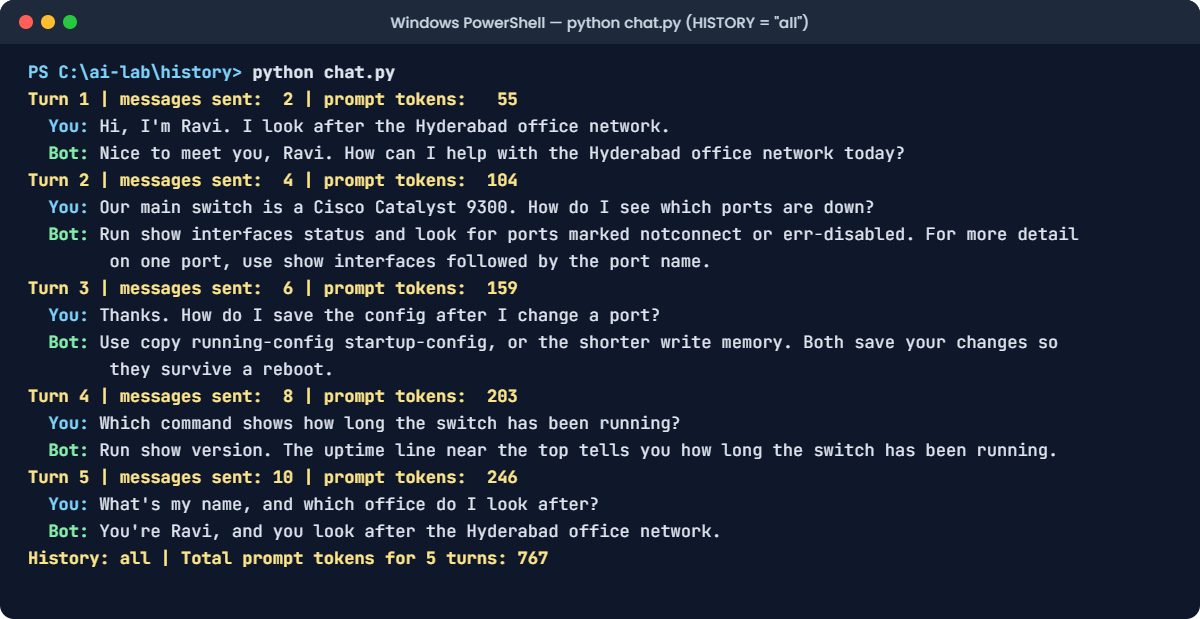
You should see something like this (the replies, and so the later token counts, will differ a little):
Turn 1 | messages sent:  2 | prompt tokens:   55
  You: Hi, I'm Ravi. I look after the Hyderabad office network.
  Bot: Nice to meet you, Ravi. How can I help with the Hyderabad office network today?
Turn 2 | messages sent:  4 | prompt tokens:  104
  You: Our main switch is a Cisco Catalyst 9300. How do I see which ports are down?
  Bot: Run show interfaces status and look for ports marked notconnect or err-disabled. For more detail on one port, use show interfaces followed by the port name.
Turn 3 | messages sent:  6 | prompt tokens:  159
  You: Thanks. How do I save the config after I change a port?
  Bot: Use copy running-config startup-config, or the shorter write memory. Both save your changes so they survive a reboot.
Turn 4 | messages sent:  8 | prompt tokens:  203
  You: Which command shows how long the switch has been running?
  Bot: Run show version. The uptime line near the top tells you how long the switch has been running.
Turn 5 | messages sent: 10 | prompt tokens:  246
  You: What's my name, and which office do I look after?
  Bot: You're Ravi, and you look after the Hyderabad office network.
History: all | Total prompt tokens for 5 turns: 767
Now the bot remembers. Look at the counts: messages sent goes 2, 4, 6, 8, 10, and the prompt grows from 55 to 246 tokens.
The whole conversation cost 767 prompt tokens, almost three times as much as step 1, for the same five questions. Turn 1 is exact; the later counts depend on how long the bot’s answers were.
✅ Checkpoint: Turn 5 knows Ravi’s name, and the prompt tokens grow every turn.
3Keep only the last four messages
Change this line:
HISTORY = "last4"Run this:
python chat.pyYou should see something like this (the replies, and so the later token counts, will differ a little):
Turn 1 | messages sent:  2 | prompt tokens:   55
  You: Hi, I'm Ravi. I look after the Hyderabad office network.
  Bot: Nice to meet you, Ravi. How can I help with the Hyderabad office network today?
Turn 2 | messages sent:  4 | prompt tokens:  104
  You: Our main switch is a Cisco Catalyst 9300. How do I see which ports are down?
  Bot: Run show interfaces status and look for ports marked notconnect or err-disabled. For more detail on one port, use show interfaces followed by the port name.
Turn 3 | messages sent:  5 | prompt tokens:  139
  You: Thanks. How do I save the config after I change a port?
  Bot: Use copy running-config startup-config, or the shorter write memory. Both save your changes so they survive a reboot.
Turn 4 | messages sent:  5 | prompt tokens:  134
  You: Which command shows how long the switch has been running?
  Bot: Run show version. The uptime line near the top tells you how long the switch has been running.
Turn 5 | messages sent:  5 | prompt tokens:  122
  You: What's my name, and which office do I look after?
  Bot: I'm sorry, I don't know your name or which office you look after. Could you tell me?
History: last4 | Total prompt tokens for 5 turns: 554
A sliding window. After turn 3, the prompt stops growing, and the total drops to 554.
But turn 5 has forgotten Ravi again: his introduction was more than four messages ago, so it fell off the edge. Cheap, but the oldest facts are exactly the ones a window throws away.
✅ Checkpoint: The prompt tokens stop growing after turn 3, and turn 5 forgets the name.
4Pin the facts that matter
Keep the window, and put the important facts in the system message, where they’re sent every turn:
Change this line:
FACTS = "The user is Ravi, who looks after the Hyderabad office network."Run this:
python chat.pyYou should see something like this (the replies, and so the later token counts, will differ a little):
Turn 1 | messages sent:  2 | prompt tokens:   69
  You: Hi, I'm Ravi. I look after the Hyderabad office network.
  Bot: Nice to meet you, Ravi. How can I help with the Hyderabad office network today?
Turn 2 | messages sent:  4 | prompt tokens:  118
  You: Our main switch is a Cisco Catalyst 9300. How do I see which ports are down?
  Bot: Run show interfaces status and look for ports marked notconnect or err-disabled. For more detail on one port, use show interfaces followed by the port name.
Turn 3 | messages sent:  5 | prompt tokens:  153
  You: Thanks. How do I save the config after I change a port?
  Bot: Use copy running-config startup-config, or the shorter write memory. Both save your changes so they survive a reboot.
Turn 4 | messages sent:  5 | prompt tokens:  148
  You: Which command shows how long the switch has been running?
  Bot: Run show version. The uptime line near the top tells you how long the switch has been running.
Turn 5 | messages sent:  5 | prompt tokens:  136
  You: What's my name, and which office do I look after?
  Bot: You're Ravi, and you look after the Hyderabad office network.
History: last4 | Total prompt tokens for 5 turns: 624
The best of both: the prompt stays small, and the bot knows who Ravi is. The facts cost 14 tokens on every turn, which is nothing compared with re-sending a long conversation. Real systems fill this in automatically, for example from the user’s login, the open ticket, or a summary the model wrote of the older messages.
✅ Checkpoint: With FACTS set, turn 5 knows the name again, and the first prompt is 14 tokens bigger: 69 instead of 55.
Two failures from real chat systems. The first loses memory without telling anyone. The second shares memory with the wrong person.
1Break it: the context window fills up
Go back to full history, remove the facts, and shrink the context window. 200 tokens is tiny on purpose, so you hit the limit in five turns instead of fifty:
Change these three lines:
FACTS = ""
HISTORY = "all"
NUM_CTX = 200
Run this:
python chat.pyYou’ll see something like this:
Turn 1 | messages sent:  2 | prompt tokens:   55
  You: Hi, I'm Ravi. I look after the Hyderabad office network.
  Bot: Nice to meet you, Ravi. How can I help with the Hyderabad office network today?
Turn 2 | messages sent:  4 | prompt tokens:  104
  You: Our main switch is a Cisco Catalyst 9300. How do I see which ports are down?
  Bot: Run show interfaces status and look for ports marked notconnect or err-disabled. For more detail on one port, use show interfaces followed by the port name.
Turn 3 | messages sent:  6 | prompt tokens:  159
  You: Thanks. How do I save the config after I change a port?
  Bot: Use copy running-config startup-config, or the shorter write memory. Both save your changes so they survive a reboot.
Turn 4 | messages sent:  8 | prompt tokens:  183
  You: Which command shows how long the switch has been running?
  Bot: Run show version. The uptime line near the top tells you how long the switch has been running.
Turn 5 | messages sent: 10 | prompt tokens:  177
  You: What's my name, and which office do I look after?
  Bot: I'm sorry, I don't know your name or which office you look after. Could you tell me?
History: all | Total prompt tokens for 5 turns: 678
No error anywhere, and yet the bot forgot Ravi. Look at turns 4 and 5: the script sent 8 and then 10 messages, but the prompt was only 183 and then 177 tokens, against 203 and 246 in step 2. It even shrank.
Ollama quietly dropped the oldest messages to make the prompt fit, and Ravi’s introduction was the first to go. In a real bot this happens after a long conversation, and it looks like the model got confused.
The fix: first, make it visible. Add these two lines to the loop, right after the line print(f" Bot: {reply}"), with the same indent:
Add these two lines:
    if r["prompt_eval_count"] > 0.75 * NUM_CTX:
        print(f"  WARNING: prompt uses {r['prompt_eval_count'] / NUM_CTX:.0%} of the context window. Old messages may be dropped.")
Run this:
python chat.pyYou’ll see something like this:
Turn 1 | messages sent:  2 | prompt tokens:   55
  You: Hi, I'm Ravi. I look after the Hyderabad office network.
  Bot: Nice to meet you, Ravi. How can I help with the Hyderabad office network today?
Turn 2 | messages sent:  4 | prompt tokens:  104
  You: Our main switch is a Cisco Catalyst 9300. How do I see which ports are down?
  Bot: Run show interfaces status and look for ports marked notconnect or err-disabled. For more detail on one port, use show interfaces followed by the port name.
Turn 3 | messages sent:  6 | prompt tokens:  159
  You: Thanks. How do I save the config after I change a port?
  Bot: Use copy running-config startup-config, or the shorter write memory. Both save your changes so they survive a reboot.
  WARNING: prompt uses 80% of the context window. Old messages may be dropped.
Turn 4 | messages sent:  8 | prompt tokens:  183
  You: Which command shows how long the switch has been running?
  Bot: Run show version. The uptime line near the top tells you how long the switch has been running.
  WARNING: prompt uses 92% of the context window. Old messages may be dropped.
Turn 5 | messages sent: 10 | prompt tokens:  177
  You: What's my name, and which office do I look after?
  Bot: I'm sorry, I don't know your name or which office you look after. Could you tell me?
  WARNING: prompt uses 88% of the context window. Old messages may be dropped.
History: all | Total prompt tokens for 5 turns: 678
Now your logs say what happened. Then fix the cause: give the model a sensible window with NUM_CTX = 4096, and manage the history yourself with a window and pinned facts, so you choose what gets dropped. With NUM_CTX = 4096 the warnings disappear and turn 5 remembers Ravi again.
✅ Checkpoint: With NUM_CTX = 200 the warning appears and the bot forgets. With 4096, no warnings, and it remembers.
2Break it again: one history for everybody
A web developer turns the chat loop into a help desk page. They keep the history in one list at the top of the file, and test it alone.
It works. Then two people use it at the same time:
Run this:
notepad app.pyPaste this whole block, then save:
import json
import urllib.request

MODEL = "llama3.2:1b"
SYSTEM = "You are a helpful IT support assistant. Keep every answer to two sentences."
HISTORY = []        # one list for everybody


def ask(messages):
    body = {"model": MODEL, "messages": messages, "stream": False, "options": {"temperature": 0}}
    req = urllib.request.Request("http://localhost:11434/api/chat", data=json.dumps(body).encode(),
                                 headers={"Content-Type": "application/json"})
    with urllib.request.urlopen(req) as r:
        return json.load(r)["message"]["content"].strip()


def handle(user, text):
    HISTORY.append({"role": "user", "content": text})
    reply = ask([{"role": "system", "content": SYSTEM}] + HISTORY)
    HISTORY.append({"role": "assistant", "content": reply})
    print(f"[{user}] {text}\n  Bot: {reply}")


# Two people use the help desk web page at the same time
handle("ravi", "Hi, I'm Ravi from the Hyderabad office. My VPN token stopped working.")
handle("anita", "Hello! Do you know my name and where I work?")
Run this:
python app.py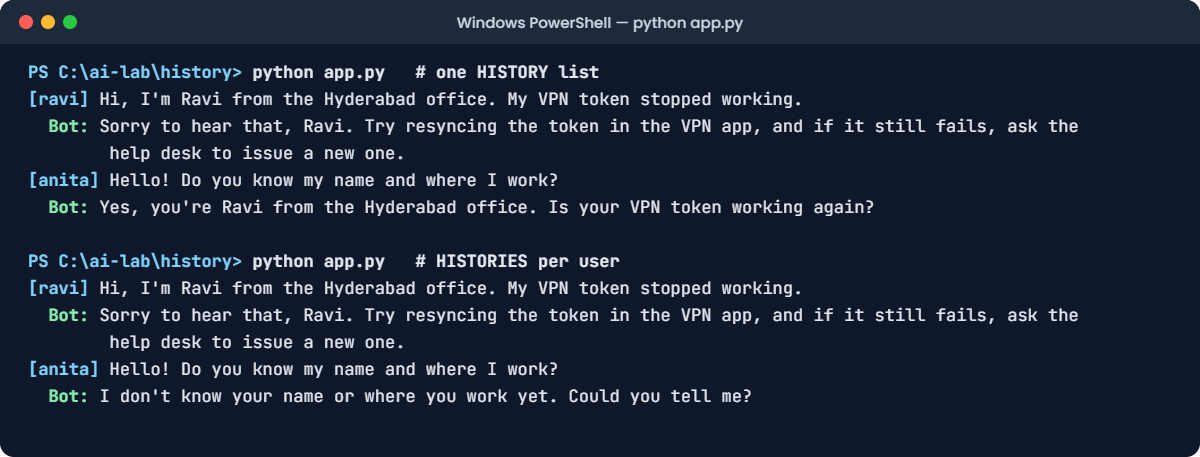
The text version of the first run:
[ravi] Hi, I'm Ravi from the Hyderabad office. My VPN token stopped working.
  Bot: Sorry to hear that, Ravi. Try resyncing the token in the VPN app, and if it still fails, ask the help desk to issue a new one.
[anita] Hello! Do you know my name and where I work?
  Bot: Yes, you're Ravi from the Hyderabad office. Is your VPN token working again?
Anita has never met this bot, and it greets her as Ravi and asks about his VPN token. Both users share one HISTORY list, so Anita’s question was sent together with Ravi’s conversation. In a real company that’s a privacy incident: one employee seeing another’s name, problem, or worse.
The fix: keep one history per user (or per chat session). Replace the HISTORY = [] line and the handle function with this:
Replace them with this:
HISTORIES = {}      # one list per user


def handle(user, text):
    history = HISTORIES.setdefault(user, [])
    history.append({"role": "user", "content": text})
    reply = ask([{"role": "system", "content": SYSTEM}] + history)
    history.append({"role": "assistant", "content": reply})
    print(f"[{user}] {text}\n  Bot: {reply}")
Run this:
python app.pyYou should see something like this:
[ravi] Hi, I'm Ravi from the Hyderabad office. My VPN token stopped working.
  Bot: Sorry to hear that, Ravi. Try resyncing the token in the VPN app, and if it still fails, ask the help desk to issue a new one.
[anita] Hello! Do you know my name and where I work?
  Bot: I don't know your name or where you work yet. Could you tell me?
Now each user has their own notebook. In a real web app, the key is the signed-in user or a random session ID, never something the user can type or guess.
✅ Checkpoint: With HISTORIES, Anita’s bot doesn’t know Ravi exists.