Zabbix alerts by email: media types, actions and message macros
-
Phase 1: Zabbix server and agents
-
Phase 2: Items, triggers, templates and dashboards
-
Phase 3: Alerts, proxies, SNMP and automation
Zabbix email alerts turn a problem on a screen into a message in someone’s inbox, at the right severity, to the right people, at the right time of day. A trigger by itself only changes a colour in the frontend; nobody gets woken up until you connect a media type, a user’s media and an action.
In this lesson you install Mailpit on zbx01, a small test mail server that catches every email in a web page so the lab needs no real mailbox. Then you configure the Email media type, give Admin an address, build a trigger action with an escalation, recovery and update messages, and read Reports > Action log when things go wrong. The SMTP send and its “wrong port” error were captured by calling Zabbix 8.0’s own email code against a real Mailpit.
Where this lesson fits
Lesson 16 of 24 in Zabbix Monitoring · Phase 3: Alerts, proxies, SNMP and automation · Before this: Lesson 15, low-level discovery · Next: Lesson 17, webhook and Telegram alerts
| Time | You need | By the end you can |
|---|---|---|
| About 80 minutes | zbx01 and web01 from Lessons 1 to 15, triggers from Lessons 8 and 10 (for example “Nginx is down on web01”) | Configure email alerting end to end, design an action with escalations, and find out why a mail was not sent |
What it is, in one line
Zabbix email alerts are sent when a trigger action matches a problem and runs an operation that sends a message through the Email media type to a user’s email media.
In Simple Words
The society’s emergency phone tree
A housing society in Pune has a rule written on the notice board: if the water tank alarm rings, first call the plumber; if he doesn’t fix it in 30 minutes, call the secretary as well; and when it’s fixed, send a message to the residents’ group.
The alarm is the trigger, the notice-board rule is the action, the phone is the media type, and each person’s number written in the register is their media. If the secretary’s number is missing from the register, the rule is fine but nobody gets called.
Zabbix needs all four pieces in place for an email to leave the server.
Engineer's View
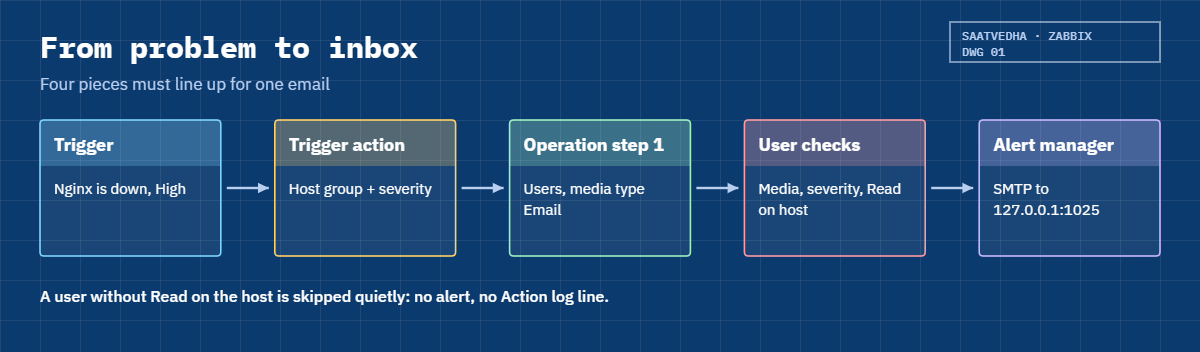
Four pieces must line up
When a trigger goes into PROBLEM, the server creates a problem event. Every enabled trigger action checks its conditions against that event; for each matching action, an escalation starts and runs the action’s operations step by step. A “send message” operation picks users or user groups and a media type, and for each user the server looks up their media of that type, checks the severity filter and the “When active” time period, checks that the user can read the host, and queues an alert for the alert manager to send.
| Piece | Where | What it holds |
|---|---|---|
| Media type | Alerts > Media types | How to send: Email via SMTP server, port, helo, from address, security, message templates |
| User media | Users > Users > (user) > Media | Where to send for that user: address, severities, When active (default 1-7,00:00-24:00) |
| Trigger action | Alerts > Actions > Trigger actions | When and to whom: conditions, operations with steps, recovery and update operations |
| Permissions | User group host permissions | The user must have at least Read on the host, or no message is created for them |
Zabbix 8.0 ships Email and Email (HTML) media types pointing at mail.example.com, plus Gmail and Office365 presets with OAuth or app passwords. Each media type has message templates for Problem, Problem recovery, Problem update and other event types, so actions don’t need a custom message. Since 8.0 the email headers also carry a Message-ID and In-Reply-To, so mail clients thread a problem’s emails together.
How it works, step by step
1A trigger fires and an action matches
“Nginx is down on web01” goes into PROBLEM. The server checks each enabled trigger action’s conditions, such as host group “Lab/Web” and severity at least Average. A matching action starts an escalation for this problem.
2Operations run step by step
Step 1 runs immediately: send to user group “Zabbix administrators” via Email. If the problem is still open after the default operation step duration (say 30 minutes), step 2 runs: send to a manager. The diagram below follows one problem from the trigger to Mailpit.
3Messages are built from templates and macros
The media type’s Problem template is Problem: {EVENT.NAME} for the subject, and the body lists {EVENT.TIME}, {HOST.NAME}, {EVENT.SEVERITY}, {EVENT.OPDATA} and {EVENT.ID}. Macros are resolved at send time for each user, in that user’s time zone.
4The alert manager sends and retries
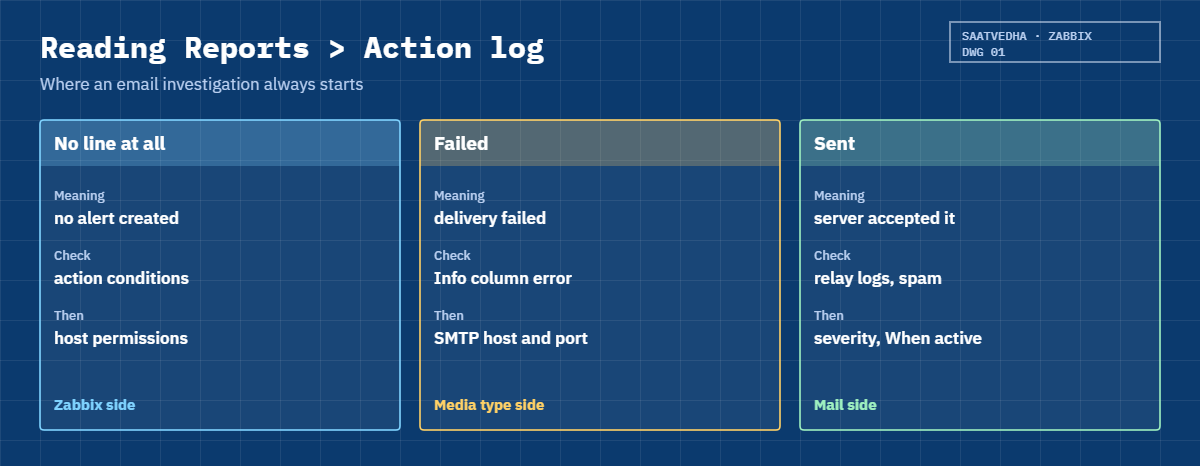
Queued alerts go to the alert manager and its alerter processes, which talk SMTP to the mail server. If sending fails, Zabbix retries (Attempts, 3 by default, with the Attempt interval between them) and then marks the alert Failed with the error text. Everything shows up in Reports > Action log, the second diagram’s last stop.
5Recovery and update messages
When the problem resolves, recovery operations run, typically “Notify all involved”, which sends the recovery message to everyone who got the problem message. Update operations run when someone acknowledges, comments or changes severity.
| Operation type | Runs when | Typical use |
|---|---|---|
| Operations (steps) | The problem is open, step by step | Page L1 now, escalate to L2 after 30 minutes |
| Recovery operations | The problem is resolved | Notify all involved |
| Update operations | Someone acknowledges, comments or changes the problem | Tell the team who took it |
Hands-on lab: email alerts through Mailpit with escalation
Before you run any command, double-check it
Read every command twice before you press Enter. Check the target: the server name, the user, the disk or device name, the path and the sizes. These commands are for learning and were tested in our lab, not on your system. At work, run the read-only commands first, follow your change process, make sure a backup exists, and ask a second person to check anything that changes or deletes data. You run them at your own risk.
Mailpit runs on zbx01 and listens for SMTP on 127.0.0.1:1025 with a web page on port 8025. The frontend work is at https://zbx01.lab. Lab addresses like oncall@lab.local go nowhere outside Mailpit.
1Install Mailpit on zbx01
Run this on zbx01:
sudo sh < <(curl -sL https://raw.githubusercontent.com/axllent/mailpit/develop/install.sh)
mailpit versionYou should see this (your version may be newer):
Mailpit v1.33.1 installed successfully to "/usr/local/bin/mailpit".
mailpit v1.33.1 compiled with go1.27.3 on linux/amd64This is the install method from the Mailpit README; it drops one binary in /usr/local/bin. Both lines are from the release I ran for this lesson.
✅ Checkpoint: mailpit version prints a version number on zbx01.
2Run Mailpit as a service
Run this on zbx01:
sudo useradd --system --home /var/lib/mailpit --create-home --shell /usr/sbin/nologin mailpit
sudo tee /etc/systemd/system/mailpit.service >/dev/null <<'EOF'
[Unit]
Description=Mailpit test mail server
After=network.target
[Service]
User=mailpit
ExecStart=/usr/local/bin/mailpit --smtp 127.0.0.1:1025 --listen 192.168.56.80:8025 --database /var/lib/mailpit/mailpit.db
Restart=on-failure
[Install]
WantedBy=multi-user.target
EOF
sudo systemctl daemon-reload
sudo systemctl enable --now mailpit
sudo ufw allow from 192.168.56.0/24 to any port 8025 proto tcp
journalctl -u mailpit -n 3 --no-pagerYou should see this (your PID and times will differ):
Nov 08 12:21:34 zbx01 mailpit[2241]: time="2026/11/08 12:21:34" level=info msg="[smtpd] starting on 127.0.0.1:1025 (no encryption)"
Nov 08 12:21:34 zbx01 mailpit[2241]: time="2026/11/08 12:21:34" level=info msg="[http] starting on 192.168.56.80:8025"
Nov 08 12:21:34 zbx01 mailpit[2241]: time="2026/11/08 12:21:34" level=info msg="[http] accessible via http://192.168.56.80:8025/"SMTP listens only on localhost, because only the Zabbix server on the same VM needs it; the web page listens on the host-only address so your laptop can open http://192.168.56.80:8025.
✅ Checkpoint: Mailpit is active and http://192.168.56.80:8025 shows an empty inbox from your laptop.

3Configure the Email media type
Open Alerts > Media types, click Email and set:
| Field | Value |
|---|---|
| Email provider | Generic SMTP |
| SMTP server | 127.0.0.1 |
| SMTP server port | 1025 |
| zabbix@lab.local | |
| SMTP helo | zbx01.lab |
| Connection security | None |
| Authentication | None |
| Message format | Plain text |
| Enabled | ticked |
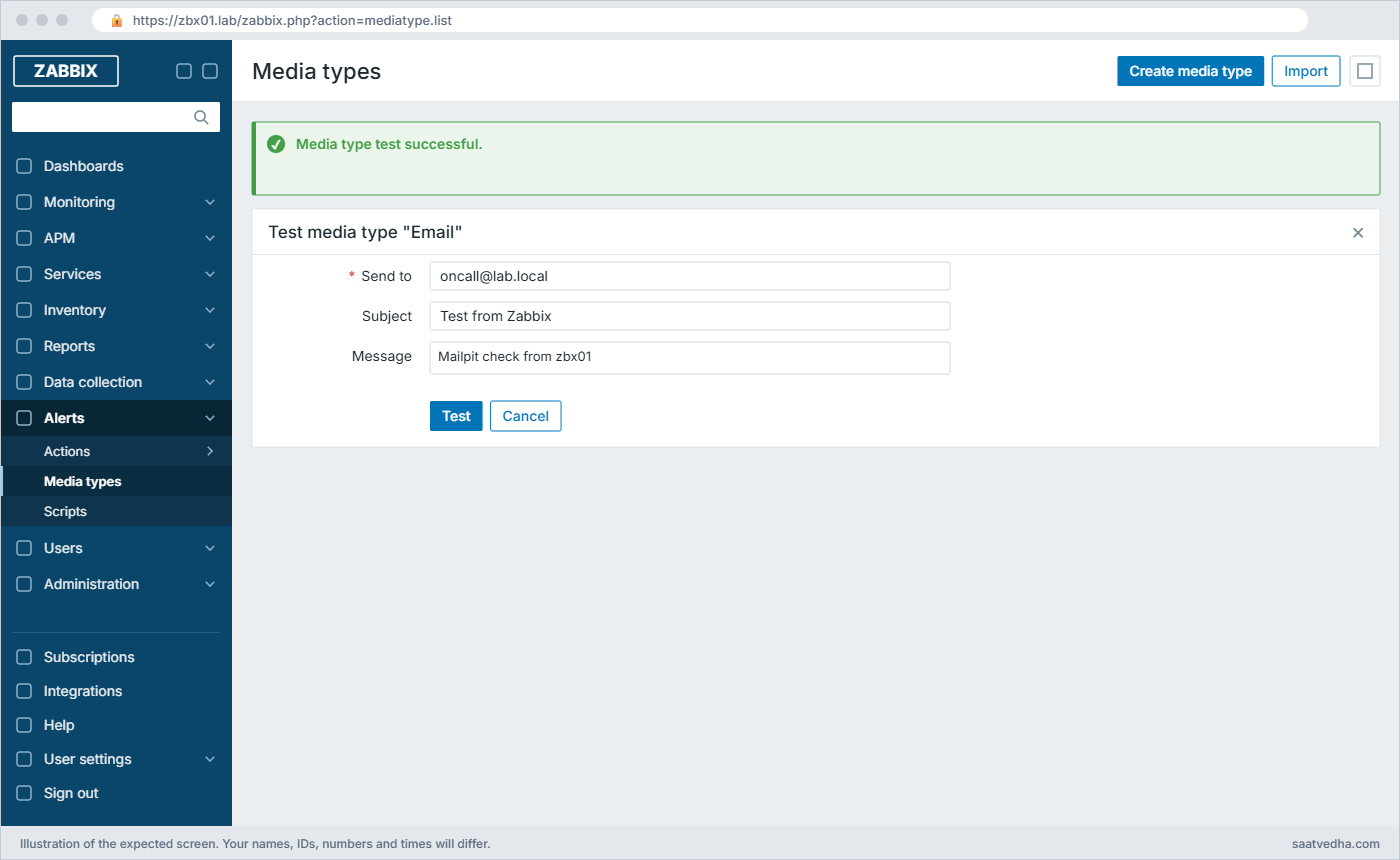
Press Update, then click Test in the Email row. Send to oncall@lab.local, Subject Test from Zabbix, any message, and press Test.
A green message box at the top of the dialog says:
Media type test successful.Refresh the Mailpit page and the test mail is there, from zabbix@lab.local. At work the SMTP server is your company relay, usually with STARTTLS on port 587 and authentication.
✅ Checkpoint: The media type test is successful and the mail is in Mailpit.
4Give Admin an email address
Go to Users > Users > Admin > Media, press Add and fill in: Type Email, Send to oncall@lab.local, When active 1-7,00:00-24:00, Use if severity: tick Average, High and Disaster only. Press Add, then Update on the user.
“When active” uses days 1-7 (Monday to Sunday) and 24-hour times; 1-5,09:00-18:00 would mean office hours only. Admin is in “Zabbix administrators”, a Super admin, so permissions aren’t a problem here (they are in Break It step 3).
✅ Checkpoint: Admin has one Email media for oncall@lab.local with Average, High and Disaster ticked.
5Create the trigger action
Alerts > Actions > Trigger actions > Create action. On the Action tab: Name Lab web problems to on-call, conditions: Host group equals Lab/Web and Trigger severity is greater than or equals Average (type of calculation And/Or).
On the Operations tab set Default operation step duration 30m and add:
| Section | Steps | Details |
|---|---|---|
| Operations | 1 – 1 | Send to user groups: Zabbix administrators, Send to media type: Email |
| Operations | 2 – 0 (until resolved) | Send to users: Admin, custom message on, Subject: STILL OPEN after 30 min: {EVENT.NAME} |
| Recovery operations | Notify all involved | |
| Update operations | Notify all involved |
Press Add. Step 2 with “to 0” repeats every 30 minutes until the problem closes; in real life that would go to a manager or a different team.
✅ Checkpoint: The action is enabled with two conditions, two operation steps, a recovery and an update operation.
6Fire a real problem and read the mail
Run this on web01:
sudo systemctl stop nginxWithin about two minutes, “Nginx is down on web01” (High, from Lesson 10) opens and Mailpit receives a mail.
In Mailpit, open the mail and click Raw. Along with the other headers you’ll find these lines:
From: <zabbix@lab.local>
To: <oncall@lab.local>
Subject: Problem: Nginx is down on web01
Content-Type: text/plain; charset="UTF-8"
Problem started at 10:41:07 on 2026.11.08
Problem name: Nginx is down on web01
Host: web01
Severity: High
Operational data: 0
Original problem ID: 4127The headers are what Zabbix 8.0’s email code sent to Mailpit in my test, and the body follows the default Problem template. In the Problems view, acknowledge the problem with the message “Checking, Ravi”, and a second mail with the update arrives.
✅ Checkpoint: Mailpit shows a Problem mail and an Update mail for Nginx is down on web01.
7Recover and check the Action log
Run this on web01:
sudo systemctl start nginxA “Resolved in 3m 12s: Nginx is down on web01” mail arrives. Now open Reports > Action log and filter on the action.
The Action log lists three Sent rows, newest first (the Message column also shows each body):
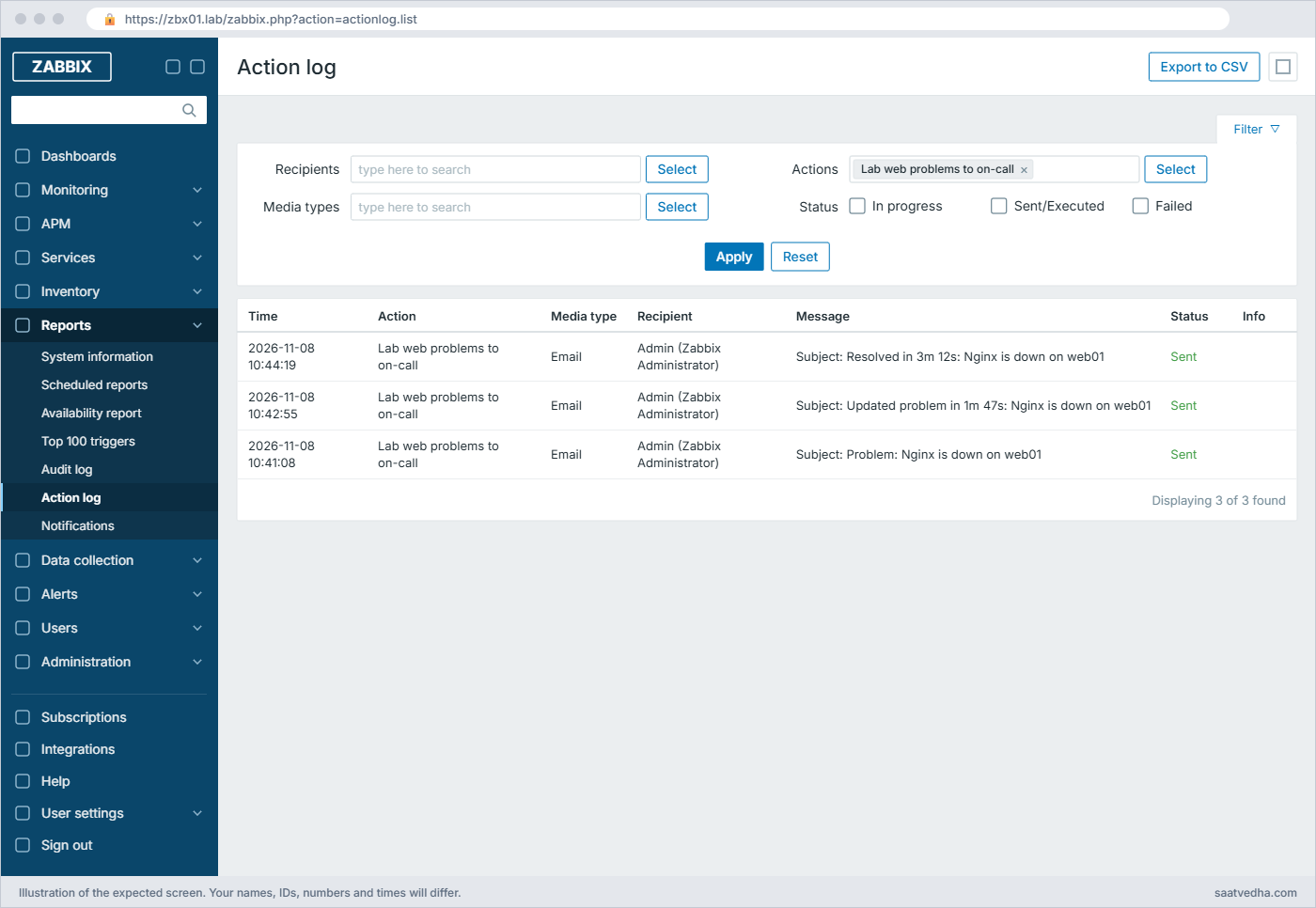
The Action log is where you start every “I didn’t get the mail” investigation: no line means the action or permissions didn’t create an alert; a Failed line means the media type couldn’t deliver, with the error in the Info column.
✅ Checkpoint: Three mails are in Mailpit and the Action log shows three Sent lines.
Break It, Then Fix It
Three reasons mail doesn’t arrive. Each shows up in a different place, which is the main lesson.
1Wrong SMTP port: “cannot connect to SMTP server”
Edit the Email media type and set SMTP server port to 1026, then press Test again.
You’ll get this error:
Media type test failed.
cannot connect to SMTP server "127.0.0.1": cannot connect to [[127.0.0.1]:1026]: connection error (POLLERR,POLLHUP)That second line is what Zabbix 8.0’s email function returned in my test when nothing listened on the port. It’s what you see when the relay is down, the port is wrong, a firewall blocks it, or (common on cloud VMs) outbound port 25 is blocked by the provider. During a real problem, the alert shows as Failed in the Action log with the same text after the retries run out.
Fix:
Set the port back to 1025. On a real server, test the path first with nc -vz relay.example.com 587 from the Zabbix server, not from your laptop.
✅ Checkpoint: Test succeeds again and a new mail reaches Mailpit.
2Action condition never matches
Edit the action and change the host group condition to Linux servers. Stop Nginx on web01 again.
You’ll get this:
Monitoring > Problems: High web01 Nginx is down on web01 (problem is there)
Mailpit: (nothing new)
Reports > Action log: (no new line at all)No line in the Action log is the key clue: the action never started for this event, so no alert was ever created. web01 is in Lab/Web (and maybe not in Linux servers), so the condition is false. The same happens with a severity condition that’s too high, a tag condition with a typo, or a disabled action.
Fix:
Put the condition back to Lab/Web. To check quickly, open the problem’s event details: the Actions column lists which actions ran for it, and an empty list means no action matched.
✅ Checkpoint: With the condition fixed, the next problem produces a mail and an Action log line.
3The user can’t see the host, so no mail is sent
Create a user noc01 with role User role, in a new group NOC with no host permissions, and give noc01 an Email media noc@lab.local. Add NOC to step 1 of the action. Stop Nginx again.
You’ll get this:
Mailpit: mail to oncall@lab.local only, nothing for noc@lab.local
Reports > Action log: a line for Admin, no line for noc01Before creating a message for a user, the escalator checks that the user can read the trigger’s host; if not, it skips that user without an error, so there’s no Failed line to find. This is deliberate: people shouldn’t get mail about hosts they aren’t allowed to see. It surprises everyone the first time a new team is added to an action and stays silent.
Fix:
Give the NOC group Read on Lab/Web under Users > User groups > NOC > Host permissions. If a user has permissions but no media of the chosen type, you do get an Action log line, with the error “No media defined for user.”
✅ Checkpoint: After granting Read, both oncall@lab.local and noc@lab.local receive the problem mail.
This happened at work
The boiler alarm that emailed nobody
A colleague who ran Zabbix for a manufacturing plant in Pune told me this one. The plant monitored its boiler controllers and compressors through Zabbix, and a new maintenance shift team was added to the alert action one Monday. On Thursday night a compressor’s oil pressure dropped, the trigger fired, and the maintenance team got nothing.
The control room saw the problem on the wall dashboard after 25 minutes. The first suspicion was the plant’s mail relay, but the IT team showed it had delivered every other Zabbix mail that night, and the media type test worked.
The Action log had a line for the IT on-call group and no line at all for the maintenance team, which pointed away from mail and towards Zabbix. Their user group had been created with no host permissions, because the person who set it up expected the action to “decide” who gets mail. Zabbix checks permissions first and quietly skips users who can’t read the host.
The fix was Read permission on the “Plant/Utilities” host group for that team. They also added a step to their onboarding checklist: after adding a group to an action, fire a test problem on a test host in each host group and check every recipient in Mailpit’s equivalent, their shared test mailbox.
Common mistakes and troubleshooting
| Mistake | What happens | What to do instead |
|---|---|---|
| Leaving the media type at mail.example.com | Every alert fails with cannot connect or a DNS error | Set your relay and press Test before building actions |
| Adding a user group to an action without host permissions | Those users silently get nothing | Give the group at least Read on the host groups the action covers |
| User media with all severities ticked | Information and Warning mails train people to ignore email | Tick only the severities that need a human |
| No recovery operation | People never learn the problem closed | Add “Notify all involved” as a recovery operation |
| One giant action for everything | Hard to read, and every change risks all alerts | Separate actions by team or host group with clear conditions |
| Testing only the media type | The action may never match real events | Fire a real problem on a test host and read the Action log |
| Escalation step to 0 with a 1 minute step duration | Inbox flooded every minute until resolved | Use 30m or more for repeats, and send to a different person at later steps |
Interview questions
Click a question to open it. Each one is written the way an interviewer would ask it. Under it you will see why they ask it and one way you could answer, in your own words.
Fresher level
1. What do you need to configure for Zabbix to send an email when a trigger fires?
Why they ask this: The four pieces and how they connect.
How you might answer: Four things: the Email media type with the SMTP server, a media entry on the user with the address and severities, a trigger action with conditions and a send-message operation, and Read permission for the user on the host.
I test the media type first with the Test button, then fire a real problem on a test host and check Reports > Action log.
2. What is the difference between operations, recovery operations and update operations?
Why they ask this: Basic action structure.
How you might answer: Operations run while the problem is open, step by step, for example notify on-call now and a manager after 30 minutes. Recovery operations run once when the problem resolves, usually Notify all involved.
Update operations run when someone acknowledges, comments or changes severity, so the team knows who is working on it.
2–5 years experience
3. A user says they didn’t get an alert email. How do you investigate?
Why they ask this: A structured troubleshooting order.
How you might answer: I start in Reports > Action log for that problem. No line for the user means the action didn’t match or the user was skipped, so I check the action conditions, the event’s Actions list and the user’s host permissions. A Failed line means delivery failed, and the Info column has the SMTP error.
If the line says Sent, I check the mail relay logs and the user’s spam folder, and the media’s severity and When active settings.
4. How would you design escalations for a payment service?
Why they ask this: Practical escalation design.
How you might answer: Step 1 immediately to the L1 on-call via email and a chat webhook. If not acknowledged in 15 minutes, step 2 to the L2 engineer; at 45 minutes step 3 to the service manager. I’d use the condition “Event is not acknowledged” on later steps so an acknowledged problem doesn’t keep escalating.
Recovery goes to all involved, and update operations tell everyone who acknowledged and what they wrote.
Senior level
5. Your company has 40 teams. How do you keep Zabbix alerting manageable?
Why they ask this: Senior design: routing by tags and groups.
How you might answer: I’d route by tags rather than by host lists: triggers and templates carry tags like team and service, and each team’s action has a condition on tag team equals its name, plus a severity floor. Teams get user groups with permissions matching their host groups, and media with sensible severities and hours.
Shared settings like message templates live in the media types, actions stay small, and I review the Action log and alert volume per team every month.
6. Email alerts arrive 20 minutes late during big incidents. Where do you look?
Why they ask this: Performance and capacity of the alerting path.
How you might answer: First the Action log timestamps versus problem times, to see whether the delay is in Zabbix or after. In Zabbix I check the alert manager and alerter process busy percent and the media type’s concurrent sessions and attempt settings; many slow SMTP sessions can queue thousands of alerts.
Then I reduce noise with better trigger dependencies and severities, raise concurrent sessions or alerters if the relay can take it, and move urgent paging to a webhook or push channel.
Quick quiz
Q1. Where do you set the address an email goes to for one user?
- Alerts > Media types
- Users > Users > (user) > Media
- The action’s conditions
- zabbix_server.conf
Show answer
B — Each user has media entries with the address, severities and When active period.
Q2. A problem appears but no line exists in Reports > Action log. What does that tell you?
- The SMTP server is down
- No alert was created: the action didn’t match or the user was skipped
- The mail is in spam
- The media type is HTML
Show answer
B — A delivery failure creates a Failed line; no line means no alert was created.
Q3. What does “Notify all involved” do as a recovery operation?
- Emails every Zabbix user
- Sends the recovery message to everyone who got a message about the problem
- Sends only to Admin
- Restarts the escalation
Show answer
B — It reaches the same recipients who were notified about the problem.
Q4. A user in the action has an email media but no Read permission on the host. What happens?
- They get the mail anyway
- They are skipped and get nothing
- The action fails for everyone
- Zabbix grants permission
Show answer
B — The escalator checks host permissions before creating a message.
Q5. Which media type test result means Zabbix could not reach the mail server at all?
- Media type test successful.
- cannot connect to SMTP server …: connection error
- No media defined for user.
- Message-ID missing
Show answer
B — A connect error means nothing answered on that host and port.
Quick recap
- Email alerts need four pieces: the Email media type, the user’s media, a trigger action, and Read permission on the host.
- Operations run in steps for escalation; recovery and update operations tell people when things change.
- Mailpit on 127.0.0.1:1025 gives a safe lab inbox you can read at port 8025.
- Reports > Action log tells you whether an alert was created and whether it was sent or failed.
- Users without host permissions are skipped silently, so check permissions whenever a team gets nothing.
Next lesson
Lesson 17: Slack, Telegram and webhook alerts in Zabbix → You send alerts to Telegram, Slack and your own webhook receiver, and learn how webhook media types run JavaScript on the server.
Further reading: Zabbix email alerts
Want to go deeper into Zabbix email alerts? The official Email media type, Actions and Escalations pages cover every option, and the Mailpit project documents the test mail server. Compare with the Prometheus way of routing alerts in Prometheus Alertmanager, and review triggers in Zabbix triggers.
You can also see the full plan for this course on the Zabbix Monitoring course page.
