Zabbix agent on Windows behind a firewall (active mode)
-
Phase 1: Zabbix server and agents
-
Phase 2: Items, triggers, templates and dashboards
-
Phase 3: Alerts, proxies, SNMP and automation
Windows servers in factories, plants and branch offices often sit behind firewalls where nobody will open an inbound port for you. In this lesson you install the Zabbix agent on Windows (agent 2, from the official MSI) in active-only mode, so it only ever makes outgoing connections to the server on port 10051. You’ll link the “Windows by Zabbix agent active” template and look at services and performance counters.
The Windows VM (win01) is optional because it needs 4 GB of RAM. If you skip it, read the steps and the expected output: the Linux side and the frontend steps are the same, and Lesson 13 uses this host only for an optional Event log example.
Where this lesson fits
Lesson 5 of 24 in Zabbix Monitoring · Phase 1: Zabbix server and agents · Before this: Lesson 4, Zabbix agent 2 on Linux · Next: Lesson 6, Zabbix auto-registration
| Time | You need | By the end you can |
|---|---|---|
| About 90 minutes (plus Windows install time) | zbx01 from Lesson 4; optionally a Windows Server 2025 evaluation VM (win01, 4 GB RAM) | Install and configure agent 2 on Windows silently, run it active-only, and fix the three classic Windows agent problems |
What it is, in one line
The Zabbix agent on Windows is a Windows service that reads performance counters, services, WMI and event logs; in active-only mode it never listens on a port and only connects out to the Zabbix server.
In Simple Words
The courier who only sends parcels
A pharma plant has strict gate security: no outsider walks in, ever. Head office still needs a daily report from the plant, so the plant’s own courier carries an envelope out every morning and drops it at head office, then picks up a note listing what head office wants in tomorrow’s report.
Nobody from head office ever needs a gate pass, so security stays happy. The plant only needs permission to send its courier out, and the courier must write the plant’s name on the envelope exactly the way head office files it.
Engineer's View
Agent 2 on Windows: what is different
| Item | Windows value |
|---|---|
| Installer | zabbix_agent2-8.0.x-windows-amd64-openssl.msi (64-bit; agent 2 needs Windows 10 or Server 2016 and later) |
| Install folder | C:\Program Files\Zabbix Agent 2\ (default) |
| Config file | C:\Program Files\Zabbix Agent 2\zabbix_agent2.conf; plugin configs in zabbix_agent2.d\plugins.d\ |
| Service | Zabbix Agent 2, startup type Automatic |
| Shipped defaults | Server=127.0.0.1, ServerActive=127.0.0.1, Hostname=Windows host (the MSI replaces these with what you pass) |
| Extra item keys | perf_counter_en[], service.info[], service.discovery, wmi.get[], wmi.getall[], eventlog[], registry.data[], vm.vmemory.size[] |
| Template | Windows by Zabbix agent active (or Windows by Zabbix agent for passive) |
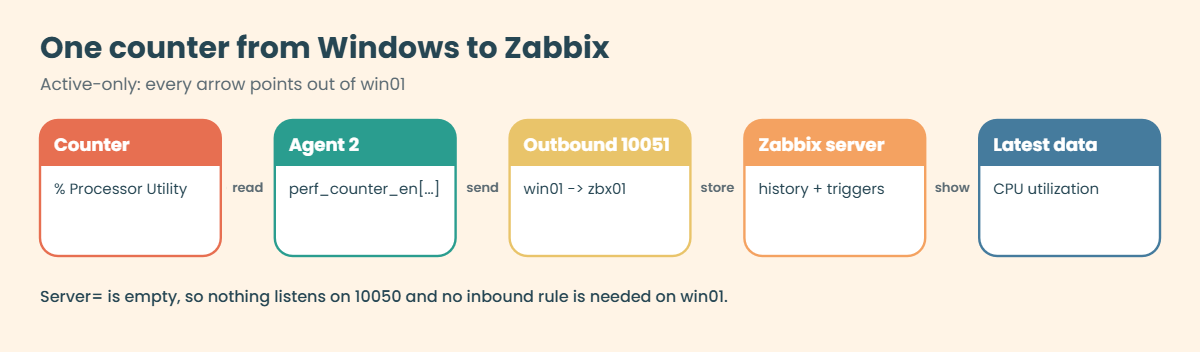
Active-only means: leave Server empty, so the agent doesn’t open port 10050 at all, and set ServerActive to the server. Data only flows from win01 to zbx01:10051, which is the one rule the Windows firewall and any network firewall in between must allow. The perf_counter_en key uses English counter names, so the same template works on a Windows server installed in Hindi, Japanese or German, where the localised counter names differ.
How it works, step by step
1The MSI writes the config and registers the service
The MSI copies the agent into Program Files, writes zabbix_agent2.conf with the values you give it (on the command line or in the wizard), registers the “Zabbix Agent 2” service and starts it. With a silent install (/qn) you can push the same command to hundreds of servers through Group Policy, SCCM/Intune or a PowerShell remoting loop.
2The agent reaches out to the server
Once running, the agent connects to ServerActive on 10051, sends its Hostname and receives the list of active items. Windows Firewall allows outbound traffic by default, so on a stock Windows Server this just works; on hardened builds with outbound filtering you need an outbound allow rule. The diagram below follows one counter value from Windows to the frontend.
3Performance counters and services
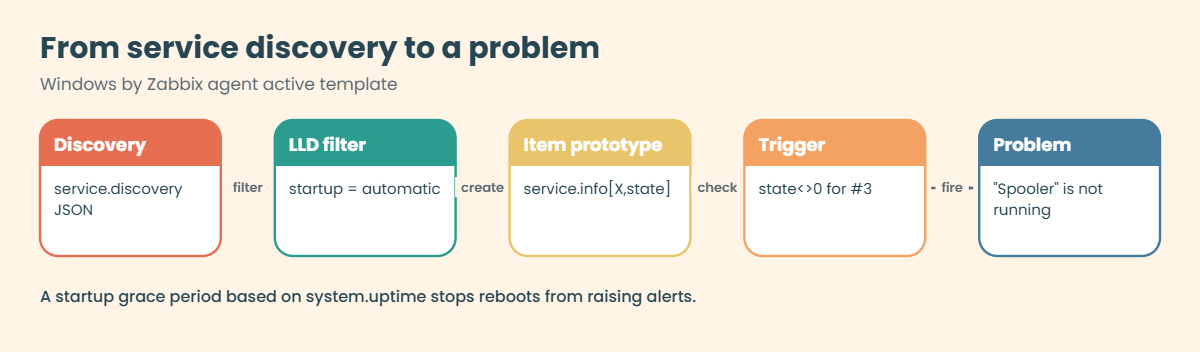
A key like perf_counter_en["\Processor Information(_total)\% User Time"] reads a Windows performance counter. Rate counters need two samples, so the agent keeps a short history in memory. Services are found with service.discovery, which returns every service as JSON, and the template then creates a service.info["{#SERVICE.NAME}",state] item for each service whose startup type is automatic.
4How the template decides what is a problem
For each discovered service the template has the trigger “Windows: “{#SERVICE.NAME}” ({#SERVICE.DISPLAYNAME}) is not running”. It fires when the state isn’t 0 (running) for three checks in a row, and only after the server has been up longer than a grace period, so a reboot doesn’t flood you with alerts. The diagram below shows the discovery and trigger chain.
5Event logs (preview)
Agent 2 can also read Windows event logs with the active-only key eventlog[name,<regexp>,<severity>,<source>,<eventid>], for example failed logons (event ID 4625) in the Security log. Lesson 13 covers log monitoring properly; for now it’s enough to know the key exists and only works as an active check.
| Useful key | What it returns |
|---|---|
| perf_counter_en[“\Memory\Available MBytes”] | Free memory in MB |
| service.info[Spooler,state] | 0 = running, 1 = paused, … 6 = stopped, 7 = unknown, 255 = no such service |
| wmi.get[root\cimv2,”select Caption from Win32_OperatingSystem”] | The OS name |
| vfs.fs.size[C:,pused] | Percent used on drive C: |
| system.uptime | Seconds since boot |
Hands-on lab: agent 2 on win01 in active-only mode
Before you run any command, double-check it
Read every command twice before you press Enter. Check the target: the server name, the user, the disk or device name, the path and the sizes. These commands are for learning and were tested in our lab, not on your system. At work, run the read-only commands first, follow your change process, make sure a backup exists, and ask a second person to check anything that changes or deletes data. You run them at your own risk.
This lab uses the optional win01 VM (192.168.56.83). Download the Windows Server 2025 evaluation ISO from Microsoft’s Evaluation Center (180-day licence), create a VM with 4096 MB RAM, 2 CPUs and a 40 GB disk, Adapter 1 NAT and Adapter 2 Host-only, and install “Windows Server 2025 Standard Evaluation (Desktop Experience)”. Commands are PowerShell, run as Administrator, unless the step says zbx01.
1Give win01 its lab address and name
Run this in PowerShell on win01 (as Administrator):
Get-NetAdapter | Format-Table Name, InterfaceDescription, Status
# The host-only card is usually "Ethernet 2"
New-NetIPAddress -InterfaceAlias "Ethernet 2" -IPAddress 192.168.56.83 -PrefixLength 24
Add-Content C:\Windows\System32\drivers\etc\hosts "192.168.56.80 zbx01 zbx01.lab"
Rename-Computer -NewName win01 -RestartAfter the reboot, log in and test the path to the server’s active port:
Run this on win01:
Test-NetConnection zbx01 -Port 10051You should see:
ComputerName : zbx01
RemoteAddress : 192.168.56.80
RemotePort : 10051
InterfaceAlias : Ethernet 2
SourceAddress : 192.168.56.83
TcpTestSucceeded : True“TcpTestSucceeded : True” proves that zbx01’s ufw rule from Lesson 3 lets the lab network reach 10051. If it says False, check that rule before going further.
✅ Checkpoint: win01 is named win01, has 192.168.56.83, and Test-NetConnection to zbx01 port 10051 succeeds.
2Download the agent 2 MSI
On win01, open the Zabbix download page (zabbix.com > Download > Zabbix agents), choose Windows, amd64, version 8.0, encryption OpenSSL, package MSI, and download zabbix_agent2-8.0.x-windows-amd64-openssl.msi to C:\Temp. Check the SHA256 shown on the page against your file:
Run this on win01:
(Get-FileHash C:\Temp\zabbix_agent2-8.0.*-windows-amd64-openssl.msi -Algorithm SHA256).HashIt prints one line of 64 hex characters, and it must match the SHA256 on the download page character for character.
✅ Checkpoint: The MSI is in C:\Temp and its SHA256 matches the download page.
3Install silently in active-only mode
Run this on win01:
cd C:\Temp
$msi = (Get-ChildItem zabbix_agent2-8.0.*-windows-amd64-openssl.msi).Name
msiexec /i $msi /qn /l*v C:\Temp\zabbix-agent2-install.log SERVER=127.0.0.1 SERVERACTIVE=192.168.56.80 HOSTNAME=win01 STARTUPTYPE=automatic SKIP=fw INSTALLFOLDER="C:\Program Files\Zabbix Agent 2"
Start-Sleep 20
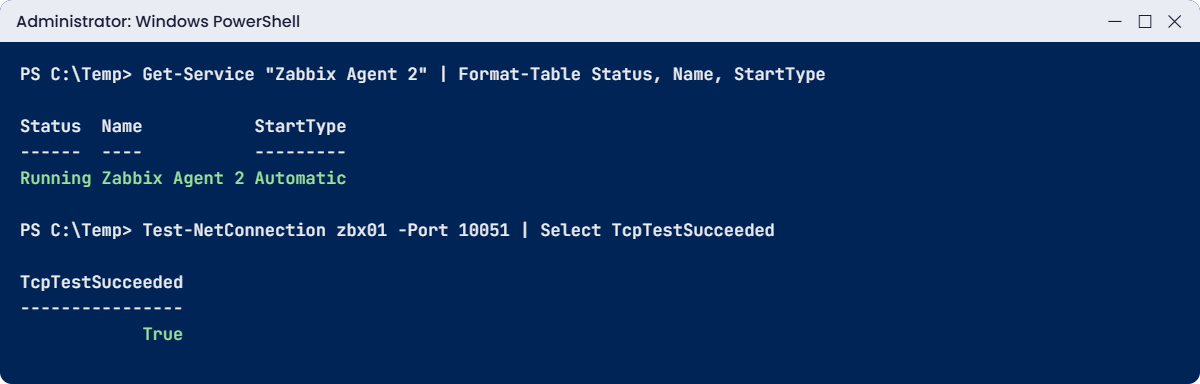
Get-Service "Zabbix Agent 2" | Format-Table Status, Name, StartTypeYou should see:
Status Name StartType
------ ---- ---------
Running Zabbix Agent 2 Automatic/qn means no user interface, and /l*v writes a verbose log you’ll want if anything fails. The MSI properties SERVER, SERVERACTIVE and HOSTNAME become the matching lines in the config file. The 8.0 docs list SERVER as mandatory (the STARTAGENTS=0 way out is for the classic agent only), so you install with 127.0.0.1 and blank it in the next step.
STARTUPTYPE=automatic replaces the MSI default of delayed start, SKIP=fw stops the installer adding a Windows Firewall rule for the agent port, which an active-only agent doesn’t need, and INSTALLFOLDER pins the path the rest of this lesson uses.
✅ Checkpoint: The “Zabbix Agent 2” service is Running with StartType Automatic.
4Check the config file
Run this on win01:
$conf = "C:\Program Files\Zabbix Agent 2\zabbix_agent2.conf"
(Get-Content $conf) -replace '^Server=.*','Server=' | Set-Content $conf
Restart-Service "Zabbix Agent 2"
Select-String -Path $conf -Pattern '^(Server|ServerActive|Hostname)=' | ForEach-Object LineYou should see:
Server=
ServerActive=192.168.56.80
Hostname=win01The first line rewrote Server=127.0.0.1 from the installer to an empty Server=, which turns passive checks and the listener off completely. That is what “active-only” means.
Then confirm nothing listens on 10050:
Get-NetTCPConnection -LocalPort 10050 -State Listen -ErrorAction SilentlyContinue
Get-NetTCPConnection -RemotePort 10051 | Select-Object -First 2 State, RemoteAddressState RemoteAddress
----- -------------
Established 192.168.56.80
TimeWait 192.168.56.80✅ Checkpoint: Server= is empty, nothing listens on 10050, and win01 has connections to 192.168.56.80:10051.
5Create win01 in the frontend
In https://zbx01.lab open Data collection > Hosts > Create host:
| Field | Value |
|---|---|
| Host name | win01 (exactly as HOSTNAME in the MSI) |
| Templates | Windows by Zabbix agent active |
| Host groups | Create a new group: Windows servers |
| Interfaces | None needed for active-only. Add an Agent interface 192.168.56.83 only if you want the IP shown in maps and macros |
Click Add. Because there’s no passive interface, the ZBX icon stays grey for passive and the active status turns green when the agent fetches its list (hover to see it).
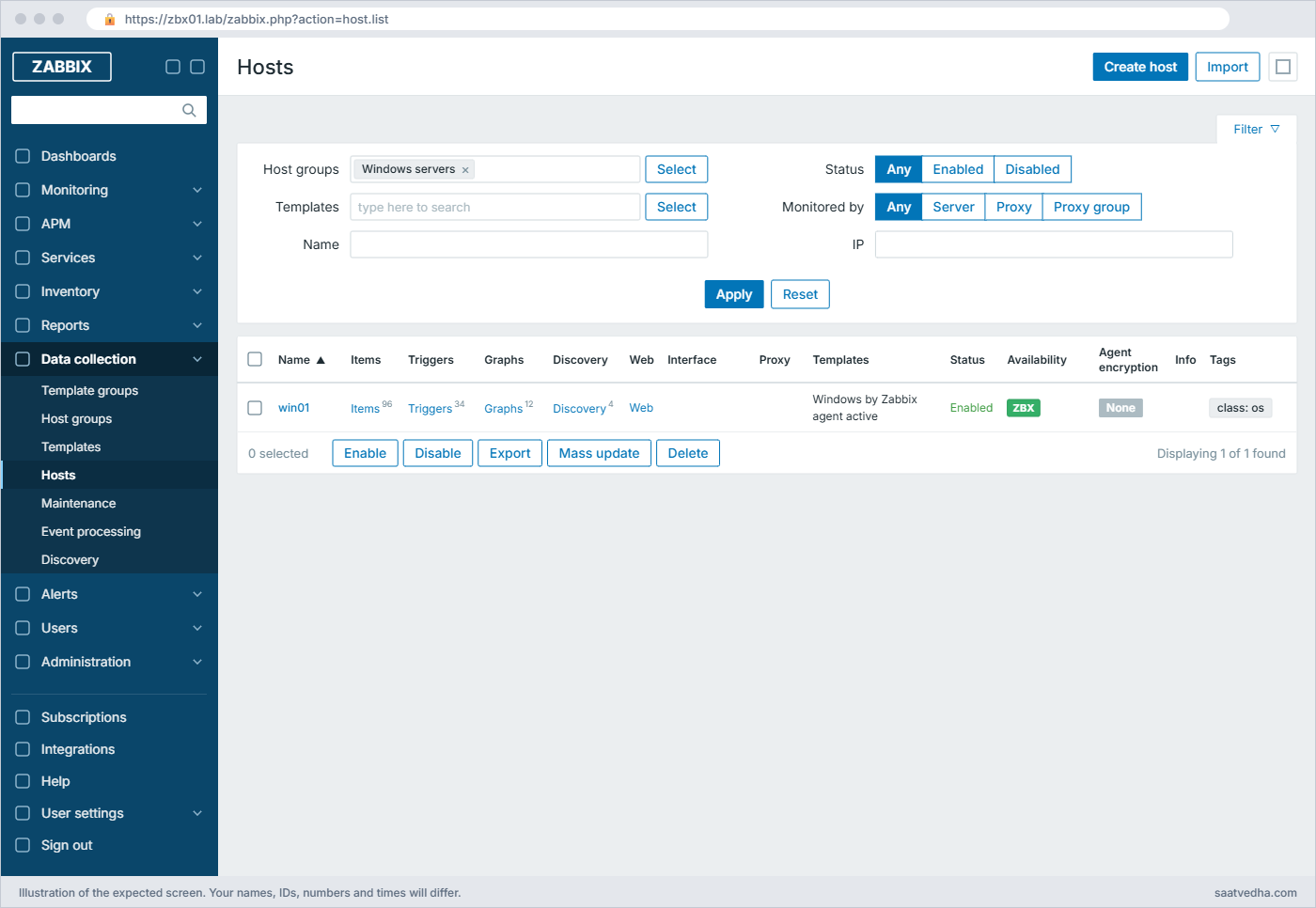
Data collection > Hosts: win01 has no interface, and the ZBX badge turns green once the active agent fetches its checks✅ Checkpoint: win01 exists with the Windows by Zabbix agent active template, and its active availability is green.
6Look at counters and services
Open Monitoring > Latest data for host win01. After the discovery rules run (allow 5 to 10 minutes on a fresh host), you’ll see counters and one item per automatic service.

Compare with Windows itself on win01:
Get-Counter '\Processor Information(_total)\% Processor Utility' -SampleInterval 2 -MaxSamples 1
Get-Service Spooler, W32Time | Format-Table Status, NameThe numbers won’t match exactly (different moments, different counters), but they should be in the same range. The service list confirms the state values: 0 means running.
✅ Checkpoint: Latest data for win01 shows CPU, memory, drive C: and service states.
7Test one key locally with the agent
Run this on win01:
cd "C:\Program Files\Zabbix Agent 2"
.\zabbix_agent2.exe -c .\zabbix_agent2.conf -t 'service.info[Spooler,state]'
.\zabbix_agent2.exe -c .\zabbix_agent2.conf -t 'perf_counter_en["\Memory\Available MBytes"]'The first line should look like this:
service.info[Spooler,state] [s|0]The second line has the same form, with the free memory in MB inside the brackets.
-t runs one check and prints the result, without the server involved. It’s the Windows version of zabbix_get for an active-only agent, and it tells you straight away whether a key or counter name is right.
✅ Checkpoint: zabbix_agent2.exe -t returns values for service.info and perf_counter_en.
8Stop a service and watch the trigger
Run this on win01:
Stop-Service Spooler
Start-Sleep 300
Start-Service SpoolerWithin about three minutes, Monitoring > Problems shows “Windows: “Spooler” (Print Spooler) is not running (startup type automatic)” for win01. When you start the service again, the problem resolves on the next check. Take a snapshot of win01 called agent.
✅ Checkpoint: Stopping Spooler raised a problem for win01 and starting it again resolved it.
Break It, Then Fix It
Three Windows agent failures you’ll see in real plants and offices. Each one is easy to fix once you know where Windows hides the evidence.
1The service won’t start after a config edit
Open the config in Notepad as Administrator and add a typo line at the end, for example Hostnme=win01. Save it and restart:
Run this on win01:
Restart-Service "Zabbix Agent 2"You’ll get this error:
Restart-Service : Failed to start service 'Zabbix Agent 2 (Zabbix Agent 2)'.PowerShell doesn’t say why. The reason is in the agent’s own config test and in the agent log:
Run this on win01:
cd "C:\Program Files\Zabbix Agent 2"
.\zabbix_agent2.exe -c .\zabbix_agent2.conf -TYou’ll get this first line:
Validating configuration file ".\\zabbix_agent2.conf"The line under it is the error, and it names the unknown parameter Hostnme and its line number. Agent 2 prints the path the way Go quotes strings, so each backslash shows twice.
Agent 2 loads its config strictly and refuses unknown parameters, so one typo stops the whole service. Always run -T after editing. The same text goes to the Windows Application event log under the source “Zabbix Agent 2”.
Fix: remove the bad line, then:
.\zabbix_agent2.exe -c .\zabbix_agent2.conf -T
Start-Service "Zabbix Agent 2"✅ Checkpoint: The config test is clean and the service is Running again.
2Hostname case and outbound firewall
Windows doesn’t care about the case of computer names, but Zabbix does. Change Hostname=win01 to Hostname=WIN01 and restart the service. On zbx01 the server log shows:
4702:20261108:131902.311 cannot send list of active checks to "192.168.56.83": host [WIN01] not foundWindows admins often type names in capitals, and HostnameItem=system.hostname on Windows returns the NetBIOS name in upper case, so this is very common. Put Hostname=win01 back and restart.
Now block outbound traffic to the server, the way a hardened plant build might:
Run this on win01:
New-NetFirewallRule -DisplayName "Block Zabbix out (test)" -Direction Outbound -RemoteAddress 192.168.56.80 -Protocol TCP -RemotePort 10051 -Action Block
Restart-Service "Zabbix Agent 2"; Start-Sleep 15
Get-Content "C:\Program Files\Zabbix Agent 2\zabbix_agent2.log" -Tail 3You’ll get these lines in the agent log, after the date, time and a [number] tag:
cannot connect to [192.168.56.80:10051]: dial tcp :0->192.168.56.80:10051: i/o timeout
active check configuration update from host [win01] started to failFix:
Remove-NetFirewallRule -DisplayName "Block Zabbix out (test)"
# On hardened builds that block outbound by default, allow it explicitly:
New-NetFirewallRule -DisplayName "Zabbix agent 2 to server" -Direction Outbound -RemoteAddress 192.168.56.80 -Protocol TCP -RemotePort 10051 -Action Allow✅ Checkpoint: The agent log shows “is working again” and win01 data updates in Latest data.
3Wrong ServerActive port
Set ServerActive=192.168.56.80:10050 (the passive port by mistake, a very common slip) and restart the service.
You’ll get these lines in the agent log, after the date, time and a [number] tag:
cannot connect to [192.168.56.80:10050]: dial tcp :0->192.168.56.80:10050: i/o timeout
active check configuration update from host [win01] started to failNothing on zbx01 listens on 10050 for remote agents, and ufw drops it anyway, so the connection times out. ServerActive takes host:port and the port defaults to 10051, so the cleanest fix is to leave the port off entirely. If you see “connection refused” instead of a timeout, the port is reachable but nothing listens on it, which points at the same mistake on a host without a firewall.
Fix:
(Get-Content $conf) -replace '^ServerActive=.*','ServerActive=192.168.56.80' | Set-Content $conf
Restart-Service "Zabbix Agent 2"✅ Checkpoint: ServerActive has no port (or :10051) and the agent log no longer shows connection errors.
This happened at work
The plant that nobody could reach
My team lead had this one at a pharma plant near Vadodara. The plant network was isolated for regulatory reasons, and the IT security policy said no inbound connections from the corporate network to any plant server, full stop. Their Windows servers ran the batch recording and SCADA historian software, and corporate IT had no monitoring on them at all.
The first proposal was passive agents with a firewall exception for 10050. It went to the change board twice and was rejected twice. Someone then suggested running a script on each server that emailed a report every hour, which nobody wanted to maintain.
The working design was active-only agent 2: Server= left empty so no port listened, ServerActive pointing to a Zabbix proxy in the plant DMZ, PSK encryption, and one outbound rule from the plant VLAN to the proxy on 10051. The security team approved it in one meeting, because nothing could connect into the plant.
The first week showed two historian services that restarted every night and a C: drive at 94%, both of which the plant team had been living with for months. The lesson my team lead took away was to design monitoring around the network rules you have, rather than asking the network to bend around the monitoring.
Common mistakes and troubleshooting
| Mistake | What happens | What to do instead |
|---|---|---|
| Using the 32-bit MSI on 64-bit Windows | The installer refuses to run | Use the amd64 MSI for 64-bit Windows |
| Leaving Hostname=Windows host or an upper-case name | Active checks fail with “host […] not found” | Set Hostname to the exact frontend host name, usually lower case |
| Editing the config without running -T | The service fails to start with no clear message in PowerShell | Run zabbix_agent2.exe -c with the config path and -T after every change |
| Putting 10050 in ServerActive | Active checks time out or are refused | Leave the port off (10051 is the default) or use :10051 |
| Linking the passive Windows template to an active-only agent | Items stay “not supported” or the host shows red ZBX | Use Windows by Zabbix agent active when Server is empty |
| Using perf_counter with English names on a localised Windows | Counter not found on non-English systems | Use perf_counter_en, which always takes English names |
| Forgetting the evaluation licence expires | The VM starts shutting down every hour after 180 days | Rebuild the lab VM or use slmgr /rearm while learning |
Interview questions
Click a question to open it. Each one is written the way an interviewer would ask it. Under it you will see why they ask it and one way you could answer, in your own words.
Fresher level
1. How do you configure a Windows agent so that no inbound port is opened on the server?
Why they ask this: They check that you understand active-only mode.
How you might answer: I leave Server empty in zabbix_agent2.conf, which disables passive checks and the listener, and set ServerActive to the Zabbix server or proxy. Then only outbound TCP 10051 from the Windows host is needed, and I link the Windows by Zabbix agent active template.
2. What is the difference between perf_counter and perf_counter_en?
Why they ask this: A practical Windows-specific check.
How you might answer: perf_counter takes the counter path in the language of the Windows installation, so it breaks on localised systems. perf_counter_en always takes the English counter names, so one template works on any language of Windows, which is why the official templates use it.
2–5 years experience
3. The Zabbix Agent 2 service on a Windows server fails to start after a change. How do you troubleshoot it?
Why they ask this: They want a method, not guessing.
How you might answer: I run zabbix_agent2.exe -c with the config path and -T, which validates the config and names any unknown parameter and line. Then I check the agent log file and the System event log for service control manager errors.
Common causes are a typo in a parameter, a wrong path in an Include line, or a TLS PSK file that the service account can’t read.
4. How would you roll out the agent to 300 Windows servers?
Why they ask this: They are checking automation and consistency.
How you might answer: I’d use the MSI with a silent command line, /qn plus SERVER, SERVERACTIVE and HOSTNAME properties, pushed through SCCM, Intune or a GPO startup script, with Hostname set from the computer name in lower case. Auto-registration with HostMetadata would then add the hosts to the right group and link the Windows template.
I’d keep the install logs with /l*v and track version and availability on a dashboard so failed installs stand out.
Senior level
5. Your company forbids inbound connections into a plant network but wants its Windows servers monitored with alerting within five minutes. Design it.
Why they ask this: They are testing architecture under real constraints.
How you might answer: I’d put a Zabbix proxy in the plant DMZ or on the plant side, with agents in active-only mode sending to it on 10051, PSK or certificate encryption, and the proxy in active mode connecting out to the central server. Only outbound connections cross each boundary.
The proxy buffers data if the WAN link drops, and I’d set nodata triggers on the proxy and on key agents so a silent site is itself an alert.
6. How do you avoid alert storms from Windows service triggers after patch reboots?
Why they ask this: They want to hear about tuning templates, not just muting alerts.
How you might answer: The official template already waits for three failed checks and a startup grace period based on system.uptime, so a normal reboot doesn’t alert. I’d also use maintenance periods for patch windows and filter service discovery with the SERVICE.NAME macros so only services we care about get triggers.
For services that are meant to be stopped, I’d set user macros with context per service instead of disabling the trigger for the whole host.
Quick quiz
Q1. How do you make agent 2 on Windows active-only?
- Set ServerActive empty
- Set Server empty and ServerActive to the server
- Set ListenPort=0
- Install the 32-bit MSI
Show answer
B — An empty Server disables passive checks and the listener; ServerActive tells the agent where to send data.
Q2. Which port must be allowed outbound from an active-only Windows host?
- 10050
- 10051
- 443
- 135
Show answer
B — Active agents connect to the server or proxy on 10051.
Q3. Which key reads performance counters using English names on any Windows language?
- perf_counter
- perf_counter_en
- wmi.get
- system.cpu.util
Show answer
B — perf_counter_en always uses English counter paths.
Q4. The agent log says “host [WIN01] not found”. What is wrong?
- The firewall blocks 10051
- The Hostname case doesn’t match the Zabbix host name
- The MSI is 32-bit
- The service is stopped
Show answer
B — Zabbix host names are case-sensitive.
Q5. What does service.info[Spooler,state] return when the service is running?
- 1
- 0
- 6
- 255
Show answer
B — 0 means running; 6 is stopped and 255 means the service doesn’t exist.
Quick recap
- Agent 2 on Windows installs from the MSI and runs as the “Zabbix Agent 2” service, with its config in C:\Program Files\Zabbix Agent 2.
- Active-only means Server empty and ServerActive set, so only outbound 10051 is needed.
- Use the Windows by Zabbix agent active template; it discovers automatic services and reads counters with perf_counter_en.
- zabbix_agent2.exe -T checks the config and -t tests one key without the server.
- Upper-case hostnames, outbound firewall rules and 10050 in ServerActive are the three classic Windows faults.
Next lesson
Lesson 6: Zabbix auto-registration and PSK encryption → Agents register themselves using HostMetadata, an action puts them in the right group with the right template, and PSK encrypts the traffic.
Further reading: Zabbix agent Windows
Want to go deeper into Zabbix agent Windows? The Zabbix manual has pages on Windows agent installation from MSI (with the full list of MSI properties), agent 2 Windows configuration parameters and Windows-specific item keys. Microsoft’s Evaluation Center has the Windows Server ISO.
For the Linux side of agents, go back to Zabbix agent 2 on Linux. You can also see the full plan for this course on the Zabbix Monitoring course page.
