Zabbix auto-registration and PSK encryption

Creating hosts by hand works for two VMs, not for two hundred. Zabbix auto registration lets an agent introduce itself to the server, and an action you write once decides which group it joins and which template it gets. In this lesson web01 re-registers itself from scratch using HostMetadata, and then you encrypt everything between web01 and zbx01 with a pre-shared key (PSK).

Both features are what a real rollout looks like at a managed service provider: the agent is installed by automation with a metadata string, the host appears in the right place in a minute, and nothing travels in clear text.

Where this lesson fits

Lesson 6 of 24 in Zabbix Monitoring · Phase 1: Zabbix server and agents · Before this: Lesson 5, Zabbix agent on Windows · Next: Lesson 7, Zabbix items

TimeYou needBy the end you can
About 80 minuteszbx01 and web01 from Lesson 4 (web01 has agent 2 in active mode)Build an autoregistration action, secure agent traffic with PSK, and read the TLS and autoregistration errors in the logs

What it is, in one line

Auto-registration is an active agent asking the server to create its host, with an action using the agent’s host metadata to choose groups and templates; PSK encryption secures that traffic with a shared secret key.

In Simple Words

New joiners and the office ID card

On a new employee’s first day at a big IT company, they walk to the reception desk and say “I’m Priya, joining the cloud team”. Reception has a standing rule from HR: anyone who says “cloud team” gets a desk on the 4th floor and the cloud team’s access card. Nobody had to prepare her desk in advance.

Later, to enter the floor, she taps her ID card and the door checks a code only she and the building system know. If her card says “Priya” but carries someone else’s code, the door stays shut. The words at reception are the host metadata, HR’s rule is the autoregistration action, and the card code is the PSK.

Engineer's View

How the pieces fit

PieceWhereWhat it does
HostMetadataAgent configA free text string (up to 2034 bytes) sent with the autoregistration request, e.g. “linux-lab”
HostMetadataItemAgent configAlternative: an item key whose value becomes the metadata, e.g. system.uname
Autoregistration actionAlerts > Actions > Autoregistration actionsConditions (Host metadata contains, Host name, Proxy) and operations (Add host, Add to host group, Link template, Remove from group, Set inventory mode, Enable/Disable host)
Autoregistration encryptionAdministration > General > AutoregistrationWhich connection types may autoregister: No encryption, PSK, or both; plus the autoregistration PSK identity and key
Host encryptionHost > Encryption tabConnections to host (passive) and Connections from host (active): No encryption, PSK or Certificate
TLS agent settingsAgent configTLSConnect, TLSAccept, TLSPSKIdentity, TLSPSKFile

Autoregistration only works with active agents, because it piggybacks on the active-check request: when the server receives a request from an unknown host name, it raises an autoregistration event, and matching actions run. If no action matches, nothing is created and the agent keeps getting “host not found”.

A PSK is a random secret of at least 32 hex digits (Zabbix recommends 256 bits, which is 64 hex digits) plus an identity string. Both sides must have the same identity and the same key. The identity travels in clear text during the handshake, so don’t put anything secret in it.

How it works, step by step

1The agent asks for checks as an unknown host

web01’s agent starts and sends its active-check request with Hostname=web01 and HostMetadata=linux-lab. The server doesn’t know any host called web01, so instead of only answering “not found” it records an autoregistration event with the host name, IP, port and metadata.

2The action matches the metadata

The autoregistration action has the condition “Host metadata contains linux-lab”. It matches, so its operations run in order: add the host with an agent interface using the IP it connected from, add it to the group Lab/Web, link the template Linux by Zabbix agent active. The next active-check request from web01 finds the host and gets its item list.

The diagram below shows the full sequence.

Zabbix auto registration flow from active request to autoreg event, action, operations and item list

3Re-registration updates, it doesn’t duplicate

If a host with that name already exists, autoregistration doesn’t create a second one. The server only re-runs the action when something important changed (metadata, IP or port, or the host was disabled), which makes it safe to leave the action on permanently.

4PSK protects both directions

With PSK the agent and server do a TLS handshake before any Zabbix data is exchanged. The agent sends its identity (PSK web01), the server looks up the key it has stored for that identity, and the handshake only succeeds if both keys are identical. TLSConnect controls how the agent connects out (active checks), and TLSAccept controls what it accepts in (passive checks).

The diagram below shows where each setting lives.

Zabbix auto registration and PSK settings on the agent, the host Encryption tab and Administration autoregistration

5Autoregistration and PSK together

When autoregistration is set to accept PSK only, the agent’s very first connection must already be encrypted, using the identity and key from Administration > General > Autoregistration. The newly created host then inherits those PSK settings. At a provider with thousands of hosts you’d use one shared autoregistration PSK per customer and optionally rotate to per-host keys later; in this lab you keep it simple and use the same identity PSK web01 and key in both places.

Agent TLSConnectHost “Connections from host”Result
unencryptedNo encryption tickedWorks, data in clear text
unencryptedOnly PSK tickedRejected: connection of type “unencrypted” is not allowed
psk (right identity and key)PSK tickedWorks, encrypted
psk (wrong identity or key)PSK tickedTLS handshake failure on both sides

Hands-on lab: web01 registers itself and switches to PSK

Before you run any command, double-check it

Read every command twice before you press Enter. Check the target: the server name, the user, the disk or device name, the path and the sizes. These commands are for learning and were tested in our lab, not on your system. At work, run the read-only commands first, follow your change process, make sure a backup exists, and ask a second person to check anything that changes or deletes data. You run them at your own risk.

You’ll delete web01 from the frontend, let it register itself back, then turn on PSK. Commands run on web01 or zbx01 as marked. If you skipped Lesson 4, install agent 2 on web01 as shown there first.

1Create the Lab/Web host group

In https://zbx01.lab open Data collection > Host groups, click Create host group, enter Lab/Web and click Add. The slash makes it a nested group: Zabbix shows it under “Lab” in group pickers, and permissions on “Lab” can include its subgroups.

✅ Checkpoint: Data collection > Host groups lists Lab/Web.

2Create the autoregistration action

Open Alerts > Actions > Autoregistration actions and click Create action.

TabSettingValue
ActionNameAuto-register Linux lab
ActionConditionsAdd: Host metadata, contains, linux-lab
OperationsOperation 1Add host
OperationsOperation 2Add to host group: Lab/Web
OperationsOperation 3Link template: Linux by Zabbix agent active
OperationsOperation 4Remove from host group: Discovered hosts

Click Add. Without operation 4, new hosts also land in the “Discovered hosts” group, which is the default group for hosts that Zabbix creates on its own; removing them keeps that group clean for network discovery later.
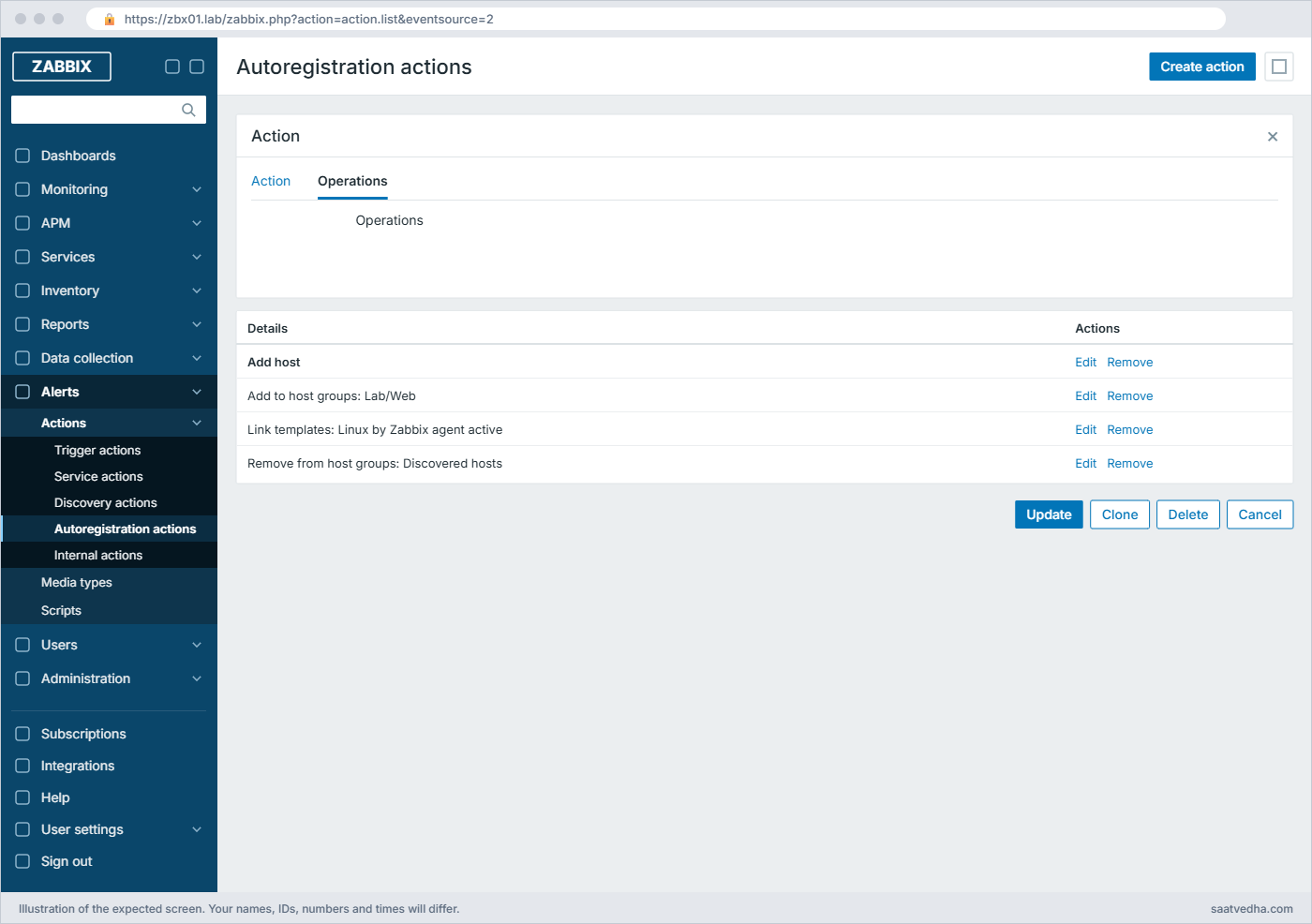
Zabbix auto registration action Operations tab: add host, add to Lab/Web, link template, remove from Discovered hosts
The Operations tab of the autoregistration action with its four operations

✅ Checkpoint: The action “Auto-register Linux lab” is listed and Enabled.

3Delete web01 and add metadata to the agent

In Data collection > Hosts, tick web01 and click Delete (this removes its history, which is fine in the lab). Then on web01 add the metadata line to the drop-in file from Lesson 4:

Run this on web01:

echo 'HostMetadata=linux-lab' | sudo tee -a /etc/zabbix/zabbix_agent2.d/10-lab.conf
cat /etc/zabbix/zabbix_agent2.d/10-lab.conf
sudo zabbix_agent2 -T -c /etc/zabbix/zabbix_agent2.conf && sudo systemctl restart zabbix-agent2

You should see this (tee echoes the new line first, then cat prints the file):

HostMetadata=linux-lab
Server=192.168.56.80
ServerActive=192.168.56.80
Hostname=web01
HostMetadata=linux-lab
Validating configuration file "/etc/zabbix/zabbix_agent2.conf"
Validation successful

✅ Checkpoint: 10-lab.conf contains HostMetadata=linux-lab and agent 2 restarted cleanly.

4Watch web01 register itself

Wait about a minute, then open Data collection > Hosts. web01 is back, created by Zabbix, in the group Lab/Web with the template Linux by Zabbix agent active and an agent interface 192.168.56.81:10050 built from the connection it made.

Check the audit trail on zbx01 too:

sudo grep -i web01 /var/log/zabbix/zabbix_server.log | tail -3

You should see these lines for a short time (your PIDs and times will differ):

  4702:20261108:140102.311 cannot send list of active checks to "192.168.56.81": host [web01] not found
  4702:20261108:140107.312 cannot send list of active checks to "192.168.56.81": host [web01] not found

The “not found” lines are from the seconds between deleting the host and the action running; after that they stop. Reports > Audit log shows the host creation with the user “System”, and Reports > Action log lists the autoregistration operations.

✅ Checkpoint: web01 exists again in Lab/Web with Linux by Zabbix agent active, and Latest data is updating.

5Generate a PSK on web01

Run this on web01:

openssl rand -hex 32 | sudo tee /etc/zabbix/zabbix_agent2.d/web01.psk
sudo chown zabbix:zabbix /etc/zabbix/zabbix_agent2.d/web01.psk
sudo chmod 640 /etc/zabbix/zabbix_agent2.d/web01.psk
ls -l /etc/zabbix/zabbix_agent2.d/

You should see this (your key and times will differ):

5d1c0b6e2a94f7d83b1e6c40a9f25d7e8c3b16a04f9e2d7c6b58a1e30f4d92c7
total 12
-rw-r--r-- 1 root   root     86 Nov  8 14:03 10-lab.conf
drwxr-xr-x 2 root   root   4096 Nov  8 11:40 plugins.d
-rw-r----- 1 zabbix zabbix   65 Nov  8 14:05 web01.psk

64 hex characters is 256 bits, the strength Zabbix recommends. The file sits in the include directory, but the Include pattern only reads *.conf files, so the agent won’t try to parse it as config. Copy the key value somewhere for the next step; your key will differ from the one shown.

✅ Checkpoint: web01.psk holds 64 hex characters and is readable only by zabbix and root.

Zabbix auto registration lab: 256-bit PSK generated with openssl and stored for agent 2 on web01
The PSK file on web01, readable only by zabbix and root

6Turn on PSK in the agent

Run this on web01:

sudo tee -a /etc/zabbix/zabbix_agent2.d/10-lab.conf >/dev/null <<'EOF'
TLSConnect=psk
TLSAccept=psk
TLSPSKIdentity=PSK web01
TLSPSKFile=/etc/zabbix/zabbix_agent2.d/web01.psk
EOF
sudo zabbix_agent2 -T -c /etc/zabbix/zabbix_agent2.conf && sudo systemctl restart zabbix-agent2

From this moment the agent only connects out with PSK and only accepts PSK connections in. Active checks will fail until the server side has the same key, which is the next step, so do it promptly.

✅ Checkpoint: Agent 2 restarted with TLSConnect=psk and TLSAccept=psk.

7Set the host’s Encryption tab

Open web01 in Data collection > Hosts, go to the Encryption tab and set:

FieldValue
Connections to hostPSK
Connections from hostPSK only (untick No encryption)
PSK identityPSK web01
PSKthe 64 hex characters from web01.psk

Click Update. The key is stored in the Zabbix database and is write-only in the frontend: you can replace it with Change PSK, but nobody can read it back, which is why you keep the file on the host as the source of truth.

Zabbix auto registration lab: web01 Encryption tab with PSK both ways and identity PSK web01
The Encryption tab of web01 with PSK for both directions

✅ Checkpoint: web01’s Encryption tab shows PSK for both directions with identity PSK web01.

8Verify the encryption

Run this on zbx01:

sudo apt install -y zabbix-get
zabbix_get -s 192.168.56.81 -k agent.ping
echo 'PASTE_THE_64_HEX_KEY_HERE' > /tmp/web01.psk; chmod 600 /tmp/web01.psk
zabbix_get -s 192.168.56.81 -k agent.ping --tls-connect psk --tls-psk-identity "PSK web01" --tls-psk-file /tmp/web01.psk
rm /tmp/web01.psk

You should see this:

ZBX_NOTSUPPORTED: Received empty response from Zabbix Agent at [192.168.56.81]. Assuming that agent dropped connection because of access permissions.
1

The plain request is refused (agent 2 logs that it cannot accept an unencrypted connection), and the encrypted one works. In Data collection > Hosts the Agent encryption column for web01 now shows PSK, and Latest data keeps updating, which proves the active path is encrypted too.

✅ Checkpoint: Plain zabbix_get is refused, PSK zabbix_get returns 1, and web01 data is still arriving.

9Require PSK for autoregistration

Open Administration > General > Autoregistration, tick PSK and untick No encryption under Encryption level, enter PSK identity PSK web01 and the same key, then Update. From now on an agent can only register itself if it already holds this key, so a random machine on the network can’t add itself to your monitoring. Take a snapshot of web01 and zbx01 called psk.

✅ Checkpoint: Autoregistration accepts PSK only, and both VMs have a snapshot called psk.

Break It, Then Fix It

Three failures from real rollouts. Take the psk snapshot first so you can roll back if the keys get muddled.

1PSK identity mismatch: TLS handshake failure

Run this on web01:

sudo sed -i 's/^TLSPSKIdentity=.*/TLSPSKIdentity=PSK Web01/' /etc/zabbix/zabbix_agent2.d/10-lab.conf
sudo systemctl restart zabbix-agent2
sleep 10; sudo tail -2 /var/log/zabbix/zabbix_agent2.log

You’ll get this error (web01 agent log):

... cannot connect to [192.168.56.80:10051]: ... sslv3 alert handshake failure ... TLS read fatal alert "handshake failure"
... active check configuration update from host [web01] started to fail

And on zbx01:

sudo grep -E 'PSK identity|handshake' /var/log/zabbix/zabbix_server.log | tail -2
  4688:20261108:142406.249 cannot find requested PSK identity "PSK Web01"
  4688:20261108:142406.249 failed to accept an incoming connection: from 192.168.56.81: TLS handshake set result code to 1: file ../ssl/t1_lib.c line 3252 func tls_choose_sigalg: error:0A000076:SSL routines::no suitable signature algorithm: TLS write fatal alert "handshake failure"

The second server line is OpenSSL’s generic way of saying “I had no key for that identity”. The first line is the one that tells you the real cause, and it shows the identity exactly as the agent sent it, so a capital letter or an extra space is easy to spot. A wrong key with the right identity gives the same handshake failure without the “cannot find” line.

Fix:

sudo sed -i 's/^TLSPSKIdentity=.*/TLSPSKIdentity=PSK web01/' /etc/zabbix/zabbix_agent2.d/10-lab.conf
sudo systemctl restart zabbix-agent2

✅ Checkpoint: The server log has no new “cannot find requested PSK identity” lines and web01 data flows again.

2Unencrypted connection rejected

Comment out the four TLS lines on web01 (so the agent goes back to plain text) while the host still requires PSK:

Run this on web01:

sudo sed -i -E 's/^(TLS)/# \1/' /etc/zabbix/zabbix_agent2.d/10-lab.conf
sudo systemctl restart zabbix-agent2

You’ll get this error (zbx01 server log):

  4693:20261108:143749.355 cannot send list of active checks to "192.168.56.81": connection of type "unencrypted" is not allowed for host "web01"

This is the server protecting you: the host says “PSK only”, so a plain connection claiming to be web01 is refused even though the name matches. You’d see the same when someone reinstalls an agent from a golden image that has no TLS settings.

Fix:

sudo sed -i -E 's/^# (TLS)/\1/' /etc/zabbix/zabbix_agent2.d/10-lab.conf
sudo systemctl restart zabbix-agent2

✅ Checkpoint: The “unencrypted is not allowed” lines stop and Latest data for web01 updates.

3Metadata typo: the action never matches

Delete web01 in the frontend again, and on web01 change the metadata to linux_lab (underscore instead of hyphen):

Run this on web01:

sudo sed -i 's/^HostMetadata=.*/HostMetadata=linux_lab/' /etc/zabbix/zabbix_agent2.d/10-lab.conf
sudo systemctl restart zabbix-agent2

You’ll see only this, repeating, on zbx01:

  4688:20261108:145905.431 cannot send list of active checks to "192.168.56.81": host [web01] not found

No error says “metadata didn’t match”, and no host appears. The autoregistration event happened, but no action’s conditions matched, so no operation ran. When a host refuses to appear, check Reports > Action log (nothing logged for web01 means no action fired) and compare the agent’s HostMetadata with the action condition character by character.

Fix:

sudo sed -i 's/^HostMetadata=.*/HostMetadata=linux-lab/' /etc/zabbix/zabbix_agent2.d/10-lab.conf
sudo systemctl restart zabbix-agent2

Within a minute web01 is created again, in Lab/Web, with PSK settings taken from the autoregistration configuration.

✅ Checkpoint: web01 re-registers itself in Lab/Web with PSK encryption.

This happened at work

Six hundred hosts in “Discovered hosts”

A friend who runs the monitoring desk at a cloud MSP in Gurugram told me this one. They had onboarded a retail customer with about 600 Linux VMs over a weekend, using an Ansible role that installed agent 2 and set HostMetadata to the customer code. On Monday morning the customer’s dashboards were empty, and every new host was sitting in the “Discovered hosts” group with no template.

The first theory was that the Ansible run had failed, so the team re-ran it on 50 VMs. Nothing changed. Someone then checked the agent logs and found no errors at all: the agents were connected and happily getting an empty item list.

The action condition said “Host metadata contains RTL-NORTH”, and Ansible had written “rtl-north”. The “contains” check is case-sensitive, so no action matched; a second, catch-all action the team had built for testing did match and added the hosts with no template. They fixed the condition, used Reports > Action log to confirm the matches, and deleted the catch-all action.

The changes afterwards were small but useful: metadata strings in lower case only, a regex-based condition per customer, PSK required for autoregistration so only agents deployed by their own automation could register, and a trigger on the number of hosts in “Discovered hosts” so a silent mis-match shows up as a problem.

Common mistakes and troubleshooting

MistakeWhat happensWhat to do instead
Using autoregistration with passive-only agentsNothing happens; autoregistration rides on active checksSet ServerActive on the agent
Different case in metadata and action conditionNo action matches and no host is created, with no errorUse lower-case metadata and check Reports > Action log
Putting a secret in the PSK identityThe identity is sent in clear text during the handshakeUse a plain label like “PSK web01” and keep the secret in the key
A PSK shorter than 32 hex digitsThe agent refuses to start (“too short. Minimum is 32 hex-digits”)Use openssl rand -hex 32 for a 256-bit key
PSK file readable by everyoneAny local user can read the key and impersonate the hostchown zabbix:zabbix and chmod 640
Forgetting “Remove from host group: Discovered hosts”Autoregistered hosts pile up in Discovered hostsAdd the remove operation, or use a separate group for discovered devices
Leaving autoregistration open to “No encryption”Any machine that can reach 10051 can add itself to your monitoringRequire PSK for autoregistration once your agents have keys

Interview questions

Click a question to open it. Each one is written the way an interviewer would ask it. Under it you will see why they ask it and one way you could answer, in your own words.

Fresher level

1. What is Zabbix autoregistration and what do you need for it to work?

Why they ask this: A basic check that you know it’s for active agents and driven by actions.

How you might answer: Autoregistration lets an active agent that the server doesn’t know yet create its own host. The agent needs ServerActive pointing at the server or proxy, a Hostname, and usually HostMetadata, and on the server there must be an autoregistration action whose conditions match, with operations like Add host, Add to host group and Link template.

2. What is the difference between TLSConnect and TLSAccept in the agent?

Why they ask this: They check you understand which direction each setting covers.

How you might answer: TLSConnect is how the agent connects out, so it covers active checks and autoregistration. TLSAccept is which connection types the agent accepts in, so it covers passive checks from the server or proxy. On the host in the frontend the same idea appears as Connections to host and Connections from host.

2–5 years experience

3. A colleague deployed 200 agents with HostMetadata but no hosts appeared in Zabbix. How would you investigate?

Why they ask this: They want a structured method, starting with the right evidence.

How you might answer: I’d first check one agent’s log: if it shows “host not found” without TLS errors, the agent is fine and the problem is on the action side. Then I’d look at Reports > Action log for autoregistration actions, and compare the condition (operator, case, spelling) with the metadata string.

I’d also check Administration > General > Autoregistration to see whether it requires PSK and the agents are unencrypted, which shows as “denied” in the server log.

4. The server log shows “cannot find requested PSK identity”. What does it mean and how do you fix it?

Why they ask this: A practical TLS troubleshooting question.

How you might answer: The agent sent a PSK identity that the server has no key for, either because the host’s Encryption tab has a different identity or because a typo or case difference crept in. I compare TLSPSKIdentity in the agent config with the host’s PSK identity exactly, and if they match I re-enter the key on the host from the agent’s PSK file, because the key itself may differ.

Senior level

5. How would you design onboarding and encryption for 5,000 agents across 40 customers at an MSP?

Why they ask this: They are testing scale thinking: automation, isolation and key management.

How you might answer: Each customer would have its own proxy, host group tree and autoregistration action, with metadata like the customer code plus OS, matched with a regex condition. Agents would be deployed by automation with ServerActive pointing to the customer proxy, and autoregistration would require PSK, with one key per customer stored in a vault.

After registration, a script using the API could rotate each host to its own PSK if the customer requires it. I’d monitor the Discovered hosts group and autoregistration denials so mis-matches show up quickly.

6. When would you choose certificates over PSK for agent encryption?

Why they ask this: They want trade-offs, not a preference.

How you might answer: PSK is simple and fast to roll out, but every key has to be distributed and stored in Zabbix, and anyone with the key can impersonate the host. Certificates fit organisations that already run a PKI: each agent gets its own certificate, the server checks the issuer and subject, and revoking one host doesn’t touch the others.

For a lab or a small estate I use PSK; for a bank or a large enterprise with an internal CA I’d use certificates with subject checks per host.

Quick quiz

Q1. Autoregistration works with which kind of agent checks?

  1. Passive only
  2. Active
  3. SNMP
  4. Both, but passive is preferred
Show answer

B — Autoregistration is triggered by an active agent’s request from an unknown host name.

Q2. Where do you create the action that adds autoregistered hosts to groups?

  1. Data collection > Discovery
  2. Alerts > Actions > Autoregistration actions
  3. Administration > General > Autoregistration
  4. Users > User roles
Show answer

B — Autoregistration actions live under Alerts > Actions.

Q3. What does openssl rand -hex 32 produce?

  1. 32 hex characters
  2. A 256-bit key as 64 hex characters
  3. A certificate
  4. A PSK identity
Show answer

B — 32 random bytes printed as 64 hex characters, which is 256 bits.

Q4. The server log says connection of type “unencrypted” is not allowed for host “web01”. What is wrong?

  1. The host requires PSK but the agent is sending in plain text
  2. The PSK is too short
  3. The metadata is wrong
  4. Port 10051 is closed
Show answer

A — The host’s “Connections from host” allows only PSK, but the agent isn’t using TLS.

Q5. Which agent parameter controls encryption for active checks?

  1. TLSAccept
  2. TLSConnect
  3. TLSPSKFile
  4. HostMetadata
Show answer

B — TLSConnect covers outgoing connections, which is how active checks are sent.

Quick recap

  • Active agents send HostMetadata; an autoregistration action matching it adds the host, its groups and its template.
  • If no action matches, nothing is created and nothing complains, so check Reports > Action log and the exact metadata string.
  • PSK needs the same identity and the same key on both sides; generate a 256-bit key with openssl rand -hex 32.
  • TLSConnect covers active checks, TLSAccept covers passive checks, and the host’s Encryption tab mirrors them.
  • web01 now registers itself into Lab/Web with Linux by Zabbix agent active and talks to zbx01 only over PSK.

Next lesson

Lesson 7: Zabbix items: types, keys and intervals → You learn how items are built (types, keys, value types, intervals, history and trends) and create your own items for Nginx on web01.

Further reading: Zabbix auto registration

Want to go deeper into Zabbix auto registration? The Zabbix manual covers active agent autoregistration, using pre-shared keys and action conditions. Lesson 19 reuses the same ideas for the proxy, so you may want to read Zabbix proxy for remote sites next, and if you skipped it, go back to Zabbix agent 2 on Linux.

You can also see the full plan for this course on the Zabbix Monitoring course page.

Scroll to Top

This website uses cookies

We use a few cookies to keep this site working. If you allow it, we also use Google Analytics to count visits so we can improve our lessons. You can accept all, deny the optional ones, or choose what to allow.