Users, groups, roles and global scripts

Zabbix user roles decide what each person sees and can click in the frontend, and user groups decide which hosts they can see at all. Get them wrong and either the night shift can delete templates by accident, or the new NOC engineer logs in to an empty screen and thinks Zabbix is broken.

In this lesson you build a proper NOC setup: a custom role that can read and acknowledge but not change configuration, a user group with read-only rights on your lab hosts, and a NOC user. Then you add global scripts (ping, traceroute and a confirmed Nginx restart on web01 through agent 2) and check every change in the audit log.

Where this lesson fits

Lesson 18 of 24 in Zabbix Monitoring · Phase 3: Alerts, proxies, SNMP and automation · Before this: Lesson 17, webhook alerts · Next: Lesson 19, Zabbix proxy for remote sites

TimeYou needBy the end you can
About 90 minuteszbx01 and web01 from Lessons 1 to 17 (web01 in host group “Lab/Web” with the Linux and Nginx templates), Admin password from Lesson 3A NOC user who sees only lab hosts, can acknowledge but not edit, and can run a safe Nginx restart script that the agent allows by an exact AllowKey rule

What it is, in one line

In Zabbix a user role controls which menus, actions and API methods a user may use, a user group controls which host groups they can read or write, and both together decide what a person can do.

In Simple Words

The hospital ID card

Think of a big hospital. Your ID card says what kind of staff you are (nurse, doctor, visitor), and that decides what you’re allowed to do: a nurse can read a patient’s chart and add a note, but can’t change the medicine plan. Separately, your ward assignment decides which floors your card opens at all.

A nurse from the children’s ward can do nurse things, but only on the children’s floor. A visitor with the same floor access still can’t touch any chart.

In Zabbix the role is the staff type, the user group’s host permissions are the ward assignment, and you always need both to be right.

Engineer's View

How Zabbix decides what a user can do

Every user has one role, and every role has a User type: User, Admin or Super admin. The type sets the ceiling (a User type role can never edit hosts, an Admin type can edit only hosts its groups allow, a Super admin sees everything), and inside that ceiling the role switches individual UI elements, actions and API access on or off. Zabbix ships four roles: User role, Admin role, Super admin role (read-only, can’t be edited) and Guest role.

Host visibility comes from user groups. Each group has Host permissions per host group (Read, Read-write or Deny) and, since 6.2, separate Template permissions per template group. If a user is in several groups, Deny wins over everything, otherwise the highest permission wins.

A Problem tag filter on the group can narrow which problems they see, for example only problems with tag team: noc.

LayerSet inControlsExample in this lab
User type (inside the role)Users > User rolesUpper limit: User, Admin or Super adminNOC read-only role = type User
Access to UI elementsUsers > User rolesWhich menu pages openMonitoring and Dashboards yes, Data collection no
Access to actionsUsers > User rolesAcknowledge, close, change severity, execute scripts, create dashboards…Acknowledge yes, Close problems no
Access to APIUsers > User rolesAPI on/off and allow or deny list of methodsDisabled
Host permissionsUsers > User groupsWhich host groups are visible and editableLab/Web: Read
Problem tag filterUsers > User groupsWhich problems in those groups are shownAll tags (none set)
Script permissionsAlerts > ScriptsWhich user group may run it, and Read or Write on the hostRestart Nginx: NOC operators, Read

Two 8.0 changes matter here. Access to API is now off by default in every shipped role except Super admin role, so a custom role used for automation must switch it on (Lesson 22 does that). And the shipped zabbix_server.conf contains EnableGlobalScripts=0, so scripts that run on the Zabbix server (including the built-in Ping and Traceroute) are disabled until you change it; on 7.0 those worked out of the box.

How it works, step by step

1The user logs in and gets a role

When the NOC user logs in, the frontend reads the role and builds the menu from it. Pages that the role hides don’t appear in the menu, and if someone types the URL directly they get “Access denied”. The role also decides which buttons appear in the problem update window, so a role without “Close problems” never sees that checkbox.

2User groups decide which hosts they see

Every list (Problems, Hosts, Latest data, dashboards, maps) is filtered through the user’s groups. A user with a perfect role but no host permissions sees empty pages without any error, which is the most common support call after creating a new user. The diagram below stacks the layers in the order Zabbix checks them.

Zabbix user roles and user groups: the permission layers from user type to problem tag filter

3A global script runs on a host

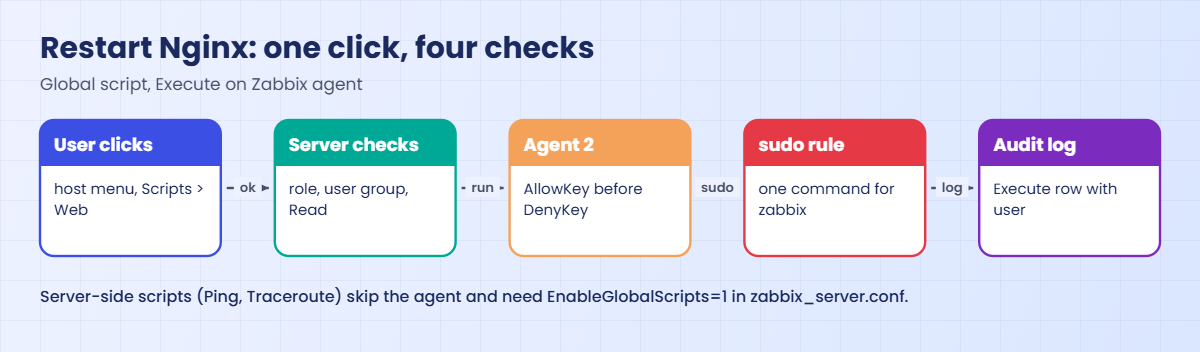
A global script is a stored command that appears in the host or event menu. When a user clicks it, the frontend sends the request to the server, and the server checks three things: the user’s role has Execute scripts, the user is in the script’s allowed user group, and the user has at least the script’s Required host permissions on that host.

4Where the command executes

For type Script, Execute on picks the place: Zabbix agent sends system.run[...] to the agent on the host (passive, or through the active connection since 7.0), Zabbix server runs it on zbx01 (needs EnableGlobalScripts=1), and Zabbix proxy or server runs it on the proxy if the host is monitored by one. On the agent side, system.run is blocked by the default DenyKey=system.run[*], so the agent needs an AllowKey line for each command you permit. The second diagram shows this path.

Zabbix user roles and global scripts: checks from the click to agent 2 AllowKey, sudo and the audit log

5Everything lands in the audit log

Reports > Audit log records who logged in, failed logins, every add, update and delete of configuration objects, and every script execution with the user, the IP and the host. When something changes at 3 am and nobody admits to it, this is where you look, and it’s the page auditors ask for in banks and hospitals.

Built-in script (8.0)CommandRuns onWorks out of the box?
Pingping -c 3 {HOST.CONN}; case $? in [01]) true;; *) false;; esacZabbix serverNo, needs EnableGlobalScripts=1
Traceroute/usr/bin/traceroute {HOST.CONN}Zabbix serverNo, needs EnableGlobalScripts=1 and the traceroute package
Detect operating systemsudo /usr/bin/nmap -O {HOST.CONN}Zabbix serverNo, also needs nmap and a sudoers rule; limited to Zabbix administrators

Hands-on lab: a NOC role, a read-only group and a safe restart script

Before you run any command, double-check it

Read every command twice before you press Enter. Check the target: the server name, the user, the disk or device name, the path and the sizes. These commands are for learning and were tested in our lab, not on your system. At work, run the read-only commands first, follow your change process, make sure a backup exists, and ask a second person to check anything that changes or deletes data. You run them at your own risk.

You’ll create a role, a user group and a user for the NOC, then three scripts. Configuration happens in the frontend on zbx01 (log in as Admin), and two small config changes happen on the command line of zbx01 and web01. Use a private browser window for the NOC user so you can stay logged in as Admin in the normal one.

1Create the “NOC read-only” role

Go to Users > User roles and click Create user role. Name it NOC read-only and set User type to User. Under Access to UI elements keep Dashboards, Monitoring (Problems, Hosts, Latest data, Maps, Discovery) and Reports > Availability report and Top 100 triggers; untick Services, Inventory and the rest of Reports.

User type User already hides Data collection, Alerts, Users and Administration.

Under Access to actions leave these ticked: Add problem comments, Acknowledge problems, Execute scripts. Untick Create and edit dashboards, Create and edit maps, Change severity, Suppress problems, Close problems, Change problem ranking, Manage scheduled reports, Manage SLA and Manage API tokens. Leave Access to API disabled and click Add.

Name:           NOC read-only
User type:      User
UI elements:    Dashboards, Monitoring (Problems, Hosts, Latest data, Maps, Discovery),
                Reports (Availability report, Top 100 triggers)
Actions:        Add problem comments, Acknowledge problems, Execute scripts
Access to API:  Disabled

✅ Checkpoint: Users > User roles lists “NOC read-only” with User type User.

2Create the “NOC operators” user group

Go to Users > User groups, Create user group. Group name NOC operators, Frontend access Default. On the Host permissions tab add host group Lab/Web with Read.

Leave Template permissions and Problem tag filter empty for now and click Add.
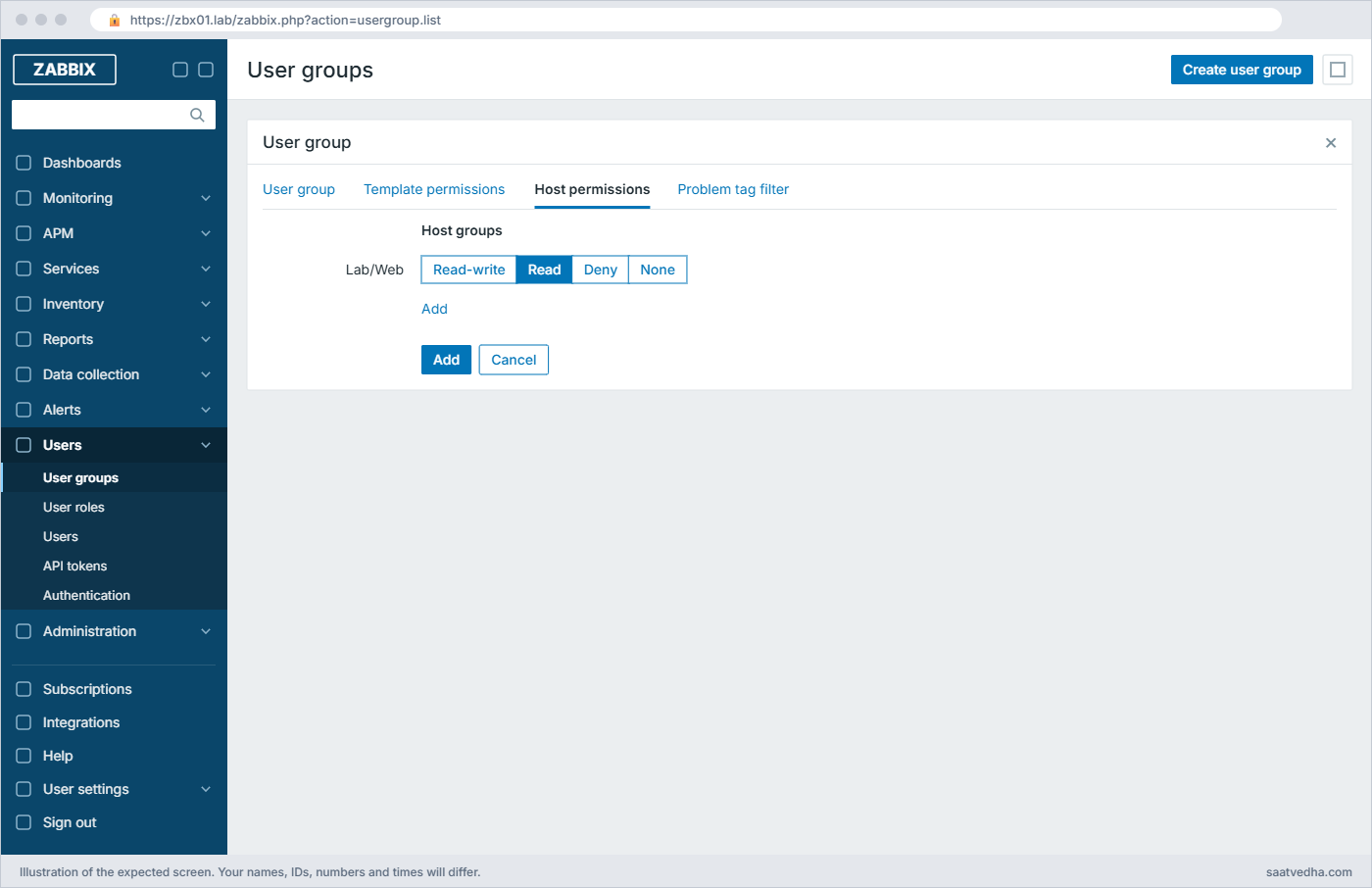
Zabbix user roles lab: NOC operators user group with Read on Lab/Web
Host permissions of “NOC operators”: Read on Lab/Web

Read is enough to see hosts, latest data and problems, acknowledge problems and run scripts that need Read. Read-write would also let an Admin-type user edit those hosts, which this group never needs.

✅ Checkpoint: Users > User groups lists “NOC operators” with one host permission: Lab/Web Read.

3Create the NOC user and log in as it

Go to Users > Users, Create user. Username noc.priya, Name Priya, Groups NOC operators, password Noc@Lab2026 (lab only), and on the Permissions tab choose role NOC read-only. Click Add, then log in as noc.priya in a private browser window at https://zbx01.lab.

As noc.priya, the left menu shows only these sections:
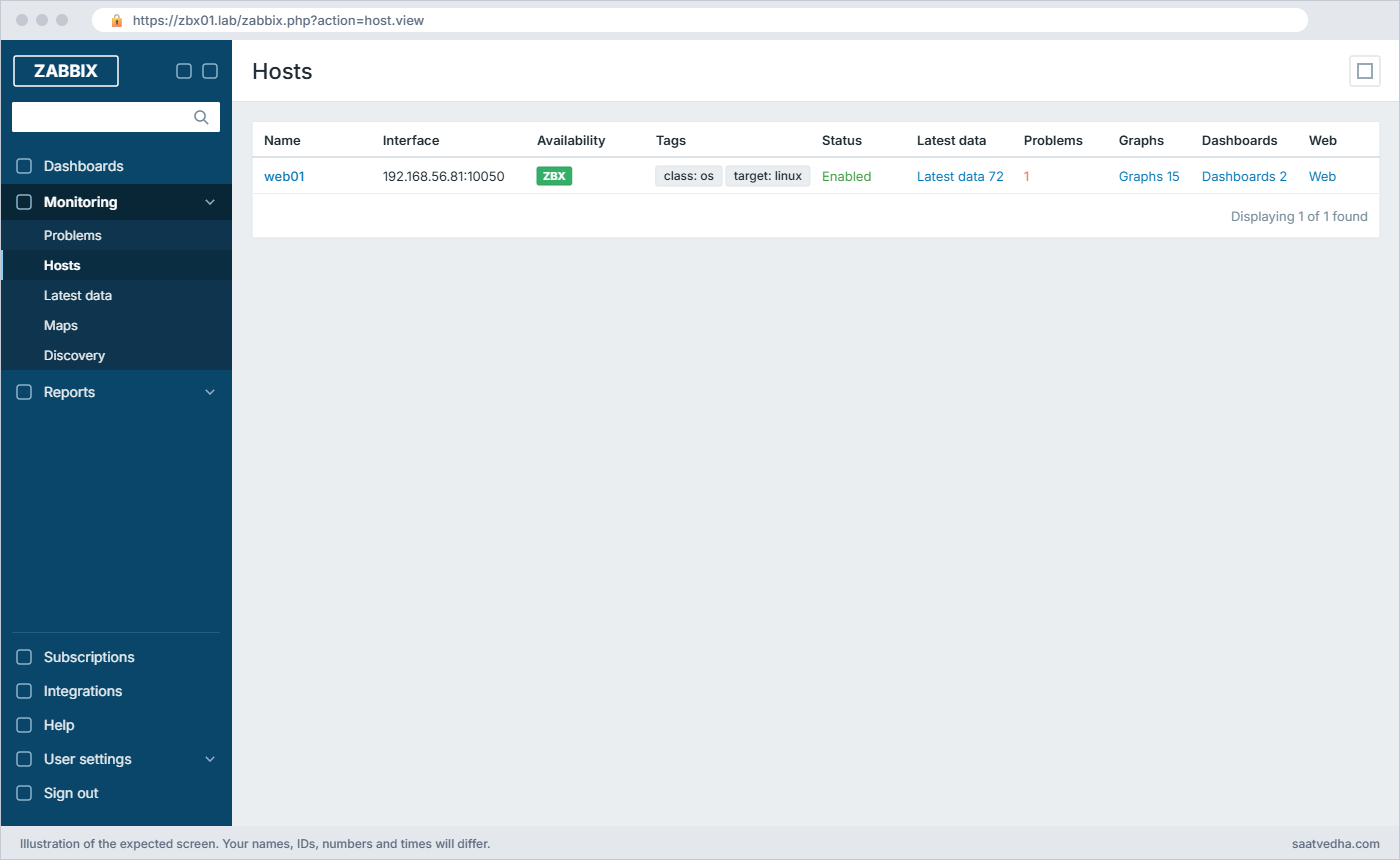
Zabbix user roles lab: noc.priya sees only Dashboards, Monitoring and Reports and only web01
Logged in as noc.priya: a short menu and only web01 in Monitoring > Hosts

Open Monitoring > Hosts: only web01 appears, because only Lab/Web is in her groups. zbx01 is in “Zabbix servers” (and possibly Linux servers), which she can’t see.

✅ Checkpoint: noc.priya sees web01 in Monitoring > Hosts and has no Data collection, Alerts, Users or Administration menu.

4Acknowledge a problem as noc.priya

Create a problem on web01 by stopping Nginx (sudo systemctl stop nginx on web01). As noc.priya open Monitoring > Problems, click the Update link in the Nginx problem’s row and look at the update window.
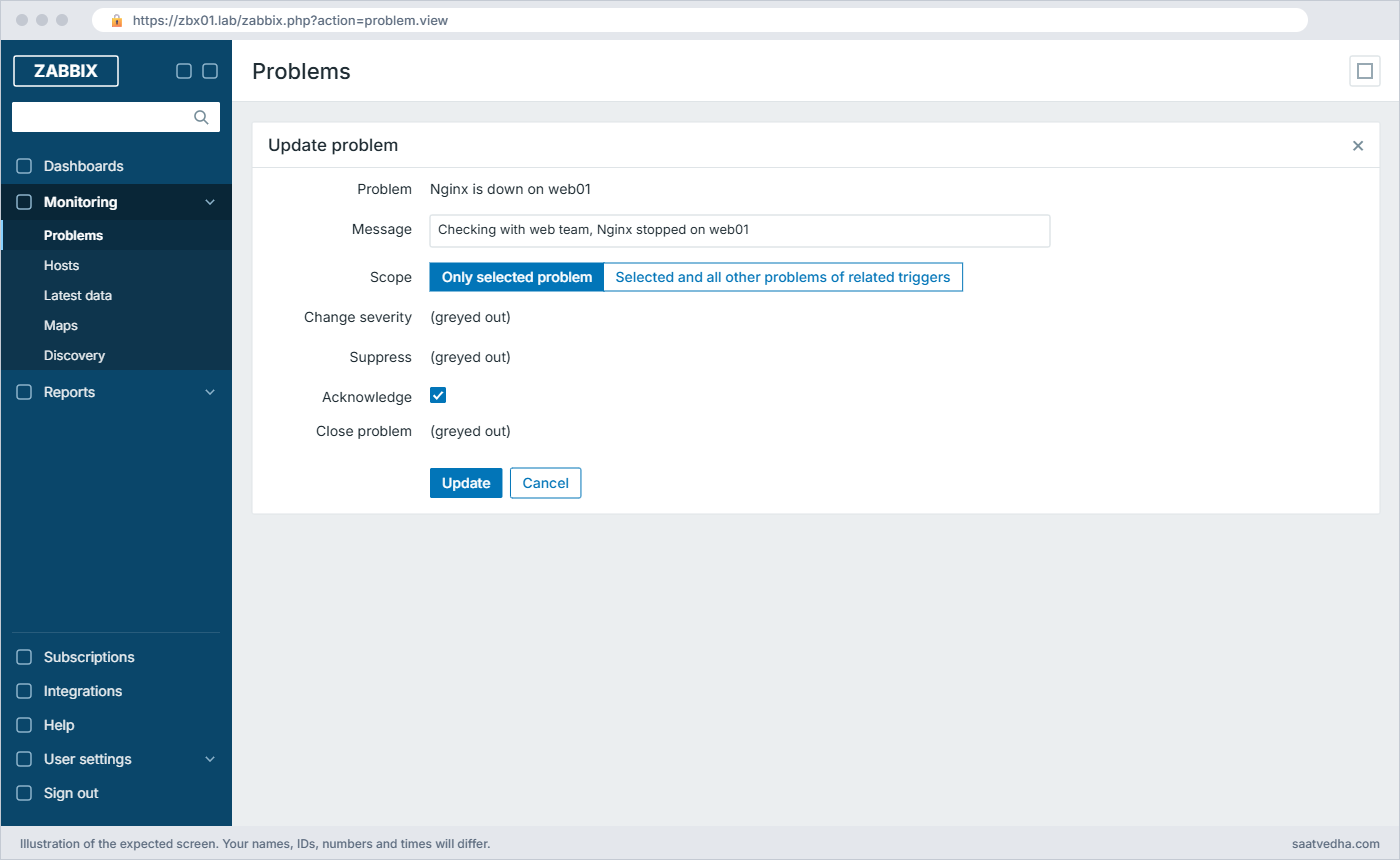
Zabbix user roles lab: Update problem window for noc.priya with only Acknowledge allowed
The Update problem window as noc.priya: the role allows only messages and Acknowledge

Type a message, tick Acknowledge and click Update. Change severity, Suppress and Close problem are greyed out because the role doesn’t allow them, which is the whole point of a NOC role.

✅ Checkpoint: The problem shows Ack “Yes” and the message history has noc.priya’s comment.

5Enable server-side scripts on zbx01

The built-in Ping and Traceroute run on the Zabbix server, and the 8.0 package ships them switched off. Turn them on and install traceroute.

Run this on zbx01:

grep -n '^EnableGlobalScripts' /etc/zabbix/zabbix_server.conf
sudo sed -i 's/^EnableGlobalScripts=0/EnableGlobalScripts=1/' /etc/zabbix/zabbix_server.conf
sudo apt install -y traceroute
sudo systemctl restart zabbix-server
grep -n '^EnableGlobalScripts' /etc/zabbix/zabbix_server.conf

You should see this (the line number can differ slightly):

1157:EnableGlobalScripts=0
...
Setting up traceroute (1:2.1.6-1build1) ...
1157:EnableGlobalScripts=1

The line number may differ slightly on your system. Global scripts on the server run as the zabbix user, so they can only do what that user can do, which is good.

✅ Checkpoint: zabbix_server.conf on zbx01 has EnableGlobalScripts=1 and zabbix-server is running again.

6Run Ping on web01 as the NOC user

The built-in Ping and Traceroute have User group All and Required host permissions Read, so noc.priya can use them. In Monitoring > Hosts click web01 to open the host menu and choose Scripts > Ping.

The result window shows (your times will differ):

PING 192.168.56.81 (192.168.56.81) 56(84) bytes of data.
64 bytes from 192.168.56.81: icmp_seq=1 ttl=64 time=0.512 ms
64 bytes from 192.168.56.81: icmp_seq=2 ttl=64 time=0.447 ms
64 bytes from 192.168.56.81: icmp_seq=3 ttl=64 time=0.468 ms

--- 192.168.56.81 ping statistics ---
3 packets transmitted, 3 received, 0% packet loss, time 2030ms
rtt min/avg/max/mdev = 0.447/0.475/0.512/0.027 ms

The ping came from zbx01, not from your laptop, because Execute on is Zabbix server. {HOST.CONN} was replaced with web01’s interface address.

✅ Checkpoint: Ping from the host menu shows 3 packets received from 192.168.56.81.

7Allow one remote command on web01

Agent 2 denies system.run by default. Add one exact AllowKey for the Nginx restart, keep the deny for everything else, and give the zabbix user a sudo rule for that one command only.

Paste this whole block on web01:

sudo tee /etc/zabbix/zabbix_agent2.d/remote-commands.conf >/dev/null <<'EOF'
AllowKey=system.run[sudo /usr/bin/systemctl restart nginx]
DenyKey=system.run[*]
Plugins.SystemRun.LogRemoteCommands=1
EOF
echo 'zabbix ALL=(root) NOPASSWD: /usr/bin/systemctl restart nginx' | sudo tee /etc/sudoers.d/zabbix-nginx
sudo chmod 440 /etc/sudoers.d/zabbix-nginx
sudo visudo -cf /etc/sudoers.d/zabbix-nginx
sudo systemctl restart zabbix-agent2

You should see:

zabbix ALL=(root) NOPASSWD: /usr/bin/systemctl restart nginx
/etc/sudoers.d/zabbix-nginx: parsed OK

Rules are checked in order and the first match wins, so the specific AllowKey must come before the DenyKey=system.run[*]. The key text must match the script command character for character, including spaces and the full path.

✅ Checkpoint: visudo says “parsed OK” and zabbix-agent2 on web01 restarted without errors.

Zabbix user roles lab: agent 2 AllowKey for one remote command and the sudoers check on web01
Terminal output: the AllowKey file and sudoers check on web01 before creating the script

8Create the “Restart Nginx” global script

As Admin go to Alerts > Scripts, Create script, and fill it in like this, then click Add.

FieldValue
NameRestart Nginx
ScopeManual host action
Menu pathWeb
TypeScript
Execute onZabbix agent
Commandssudo /usr/bin/systemctl restart nginx
Host groupSelected: Lab/Web
User groupNOC operators
Required host permissionsRead
Enable confirmationTicked, text: Restart Nginx on {HOST.NAME}? Users will see errors for a few seconds.

Click Test confirmation to see the pop-up text. Limiting the script to host group Lab/Web means it doesn’t even appear on hosts where Nginx doesn’t exist.

✅ Checkpoint: Alerts > Scripts lists “Restart Nginx” with scope Manual host action and execute on Zabbix agent.

9Run it as noc.priya

In the private window, open the host menu for web01 and choose Scripts > Web > Restart Nginx. Confirm the pop-up.

You should see the result window, then check web01:

systemctl is-active nginx
sudo grep -i 'executing command' /var/log/zabbix/zabbix_agent2.log | tail -1

You should see this (your time will differ):

active
2026/11/08 15:12:44.215918 [SystemRun] Executing command:'sudo /usr/bin/systemctl restart nginx'

The result window in the frontend is empty with a green success message, because systemctl restart prints nothing when it works. The agent log line exists because of Plugins.SystemRun.LogRemoteCommands=1, and the Nginx problem from step 4 resolves within a minute.

✅ Checkpoint: nginx is active on web01 and the agent log shows “Executing command:’sudo /usr/bin/systemctl restart nginx'”.

10Check the audit log

As Admin open Reports > Audit log, set the filter to the last hour and look at the newest rows.

Zabbix user roles lab: Audit log with Execute rows by noc.priya
Reports > Audit log: the objects Admin created and noc.priya’s Login and Execute rows

The IDs will differ on your system. Click Details on an Execute row to see the host and command. Audit log settings (how long to keep it, whether to log system actions) are under Administration > Audit log.

✅ Checkpoint: Reports > Audit log shows the role, group, user and script you added, plus noc.priya’s Login and Execute rows.

Break It, Then Fix It

Three real problems. Take a snapshot of zbx01 and web01 first (call it “roles”) so you can roll back if a permission change goes wrong.

1The new user sees no hosts

As Admin edit the NOC operators group and remove the Lab/Web host permission (or create a second user in a new group with no host permissions). Log in as that user and open Monitoring > Problems and Monitoring > Hosts.

You’ll see this (no error at all):

Monitoring > Hosts
No data found

Zabbix doesn’t complain, it filters silently, which is why new users think the system is down. If the user opens a dashboard built by someone else, widgets show “No permissions to referred object or it does not exist!” for the hosts they can’t read.

Fix:

Users > User groups > NOC operators > Host permissions
  Add: Lab/Web   Read     > Update

To check quickly, open Users > Users as Admin, edit the user and look at the Permissions tab, which lists the effective host group permissions from all groups and the role’s UI access.

✅ Checkpoint: noc.priya sees web01 again in Monitoring > Hosts.

2The script fails because system.run is denied

On web01, rename the remote-commands file so the AllowKey disappears, restart the agent and run Restart Nginx again as noc.priya.

Run this on web01, then run the script in the frontend:

sudo mv /etc/zabbix/zabbix_agent2.d/remote-commands.conf /etc/zabbix/zabbix_agent2.d/remote-commands.conf.off
sudo systemctl restart zabbix-agent2

You’ll get this error in the script result window:

Unsupported item key.

Agent 2 treats a denied key the same as an unknown key, so the message says “Unsupported item key.” and not “permission denied”. The default DenyKey=system.run[*] is active again because no other system.run rule exists. You can confirm from zbx01 with zabbix_get, using web01’s PSK from Lesson 6 (key in /tmp/web01.psk):

Run this on zbx01:

zabbix_get -s 192.168.56.81 -k 'system.run[sudo /usr/bin/systemctl restart nginx]' \
  --tls-connect psk --tls-psk-identity "PSK web01" --tls-psk-file /tmp/web01.psk
ZBX_NOTSUPPORTED: Unsupported item key.

Fix:

sudo mv /etc/zabbix/zabbix_agent2.d/remote-commands.conf.off /etc/zabbix/zabbix_agent2.d/remote-commands.conf
sudo systemctl restart zabbix-agent2

If you see “Unsupported item key.” even with the file in place, compare the script command with the AllowKey text: one extra space, or systemctl without /usr/bin/, is enough to miss the rule. A server-side script on a server with EnableGlobalScripts=0 fails differently, with “Global script execution on Zabbix server is disabled by server configuration”.

✅ Checkpoint: Restart Nginx works again for noc.priya and the agent log shows the Executing command line.

3The role blocks a page someone needs

The team lead asks why noc.priya can’t open the Action log to check whether an alert was sent. As noc.priya, type the address directly: https://zbx01.lab/zabbix.php?action=actionlog.list.

You’ll get this page:

Access denied
You are logged in as "noc.priya". You have no permissions to access this page.
If you think this message is wrong, please consult your administrators about getting the necessary permissions.

The role hides Reports > Action log, and hiding a menu item also blocks its URL. This is the correct behaviour, so the fix is a decision, not a bug fix.

Fix (if the business agrees):

Users > User roles > NOC read-only > Access to UI elements
  Reports: tick Action log      > Update

Changing a role affects every user who has it, so for one-off needs it’s often better to create a second role (for example “NOC lead”) than to widen the shared one.

✅ Checkpoint: noc.priya can open Reports > Action log after the role change, or you decided to keep it hidden.

This happened at work

The night the NOC closed a real problem

My team lead tells this one from a bank NOC in Mumbai. Around 1:30 am on a Saturday, the core banking batch job slowed down, and a trigger for “DB connection pool near limit” fired. A night-shift engineer, two weeks into the job, saw a wall of red and clicked Close problem on it because he thought it was a duplicate.

The trigger allowed manual close, so the problem disappeared, the escalation to the DBA on-call stopped, and nobody looked again until branches opened at 9:30 with slow account lookups. The first theory in the morning was that the alert never fired, and they lost an hour checking media types and the mail server.

The audit log answered it in two minutes: the problem was closed manually at 1:34 by that user. The real cause was that every NOC engineer had the shipped Admin role, which allows closing problems, changing severity and editing hosts.

They built a NOC role like the one in this lesson (acknowledge and comment only), moved twenty people to it, and kept close rights for two shift leads. They also started reading the audit log every Monday, which caught a few other surprises.

Common mistakes and troubleshooting

MistakeWhat happensWhat to do instead
Creating a user without any host permissionsUser sees empty pages and thinks Zabbix is downAdd the user to a group with Read on the right host groups, then check the Permissions tab
Giving everyone the Admin rolePeople can close problems, change severity and edit hosts by accidentMake a custom role per job (NOC, app team, read-only) with only the actions they need
Adding AllowKey=system.run[*] to make scripts workAnyone with script rights can run any command as the zabbix user on every agentAllow exact commands only, and keep DenyKey=system.run[*] after them
Expecting Ping and Traceroute to work on a fresh 8.0 install“Global script execution on Zabbix server is disabled by server configuration”Set EnableGlobalScripts=1 in zabbix_server.conf if you want server-side scripts
Using a Deny permission for one host group in a shared groupDeny wins over everything, so users lose access they had through other groupsPrefer giving Read where needed instead of using Deny broadly
Turning on API access in a NOC role “just in case”Users can script mass changes or pull data with their own tokenKeep API off, and use a separate API role with an allow list (Lesson 22)
Never checking Reports > Audit logNobody knows who changed or closed whatReview it after incidents and weekly; set retention in Administration > Audit log

Interview questions

Click a question to open it. Each one is written the way an interviewer would ask it. Under it you will see why they ask it and one way you could answer, in your own words.

Fresher level

1. What is the difference between a user role and a user group in Zabbix?

Why they ask this: They want to hear that roles control features and groups control hosts.

How you might answer: The role controls what kind of things a user can do: which menus open, which actions like acknowledge or close are allowed, and whether the API is on. The user group controls which host groups the user can see and with what level, Read, Read-write or Deny.

A user has one role but can be in several groups, and you need both set correctly, otherwise you get a user with the right buttons and no hosts.

2. A new engineer says Zabbix shows no problems at all, but you can see many. What do you check?

Why they ask this: A simple permissions troubleshooting check.

How you might answer: I open Users > Users, edit that user and check the Permissions tab, which shows the effective host group permissions from all their groups. Most of the time the user is in a group with no host permissions, or only in a group that has Deny on the host group.

I also check whether their group has a Problem tag filter that hides everything, and whether the role allows Monitoring > Problems at all.

2–5 years experience

3. Walk me through setting up a safe “restart service” button for the NOC.

Why they ask this: They are checking that you understand the full chain: role, script permissions, agent AllowKey and sudo.

How you might answer: I create a global script of type Script with scope Manual host action, Execute on Zabbix agent, the exact command like sudo /usr/bin/systemctl restart nginx, limited to the right host group and the NOC user group, with Read permission and a confirmation text. The NOC role needs the Execute scripts action.

On the agents I add an exact AllowKey for that command before DenyKey=system.run[*], a sudoers rule for that one command for the zabbix user, and LogRemoteCommands so it shows in the agent log. Then I test it as a NOC user and check the audit log row.

4. A script works for you but returns “Unsupported item key.” for everyone. Why?

Why they ask this: They want to see you know agent 2 hides denied keys as unsupported.

How you might answer: On agent 2, a system.run command that doesn’t match an AllowKey rule is denied and reported as “Unsupported item key.”, the same as a key that doesn’t exist. If it worked for me, maybe I tested on a different host where the AllowKey file exists, or on a server-side script.

I’d compare the exact command text with the AllowKey line on that host, check rule order, restart the agent and test with zabbix_get from the server.

Senior level

5. How would you design Zabbix access for a bank with NOC, DBA, application teams and auditors?

Why they ask this: They are checking least privilege thinking and use of tags for large setups.

How you might answer: I’d create roles by job: NOC with acknowledge and comment only, DBA and app teams with User type plus their own dashboards, a small Admin role for the monitoring team, and an auditor role that sees reports and the audit log. Host access comes from user groups mapped to host groups per team, and where teams share hosts I’d use problem tag filters, for example service: payments.

Super admin stays with two or three people, API access is only in dedicated API roles with an allow list, and with LDAP or SAML I’d map directory groups to these Zabbix groups so joiners and leavers are handled automatically.

6. What are the security risks of global scripts and how do you control them?

Why they ask this: They want concrete controls, not “be careful”.

How you might answer: Scripts run commands as the zabbix user on agents, proxies or the server, so a loose rule like AllowKey=system.run[*] turns Zabbix into a remote shell for anyone with script rights. I allow exact commands only, use sudo for one command at a time, keep EnableGlobalScripts off on the server unless we need it, and limit each script by host group, user group and required permission.

I also use confirmations for anything that restarts or changes a service, turn on LogRemoteCommands, and review Execute entries in the audit log.

Quick quiz

Q1. Where do you control which host groups a user can see?

  1. User role
  2. User group, Host permissions tab
  3. User profile
  4. Alerts > Scripts
Show answer

B — Host visibility comes from the user groups’ host permissions; the role controls features.

Q2. A user is in two groups: one gives Read on Lab/Web, the other Deny on Lab/Web. What is the result?

  1. Read
  2. Read-write
  3. Deny
  4. Whichever group was created first
Show answer

C — Deny always wins over Read and Read-write.

Q3. In 8.0, why does the built-in Ping script fail on a fresh install?

  1. Ping is not installed
  2. EnableGlobalScripts=0 in the shipped zabbix_server.conf
  3. The agent denies system.run
  4. Guest user is disabled
Show answer

B — Ping runs on the Zabbix server, and server-side global scripts are disabled by the shipped config.

Q4. What does agent 2 return for a system.run command that is not allowed?

  1. Permission denied
  2. Unsupported item key.
  3. Access denied
  4. Nothing, it times out
Show answer

B — Denied keys are reported the same way as unknown keys.

Q5. Which page shows who executed a script on which host?

  1. Reports > Action log
  2. Reports > Audit log
  3. Monitoring > Problems
  4. Administration > Queue
Show answer

B — The audit log records Execute actions with user, IP and details.

Quick recap

  • A role (with User type inside it) decides menus, actions and API access; user groups decide which host groups are visible and at what level.
  • Deny beats everything, and a user with no host permissions sees empty pages without any error.
  • 8.0 ships API access off for all roles except Super admin, and EnableGlobalScripts=0 in zabbix_server.conf.
  • Remote commands through agent 2 need an exact AllowKey before DenyKey=system.run[*], plus a sudo rule for privileged commands.
  • Reports > Audit log shows logins, configuration changes and every script execution.

Next lesson

Lesson 19: Zabbix proxy for remote sites → You build zbxprx01 as an active proxy with PSK, move web01 behind it and see how a proxy buffers data when the link to the server drops.

Further reading: Zabbix user roles

Want to go deeper into Zabbix user roles? The Zabbix manual covers user roles, permissions and scripts. The agent side of remote commands is in Lesson 14, and the API roles you’ll need for automation come in Lesson 22.

For Linux sudo and user basics, see the Linux Administration course. You can also see the full plan for this course on the Zabbix Monitoring course page.

Scroll to Top

This website uses cookies

We use a few cookies to keep this site working. If you allow it, we also use Google Analytics to count visits so we can improve our lessons. You can accept all, deny the optional ones, or choose what to allow.