Easy Tier: automatic data placement

DS8000 Easy Tier is the part of the DS8000 that watches which pieces of your data are busy and moves them, extent by extent, to wherever they run best, without you scheduling anything or moving data by hand. It comes with the Base Function licence, and on FlashCore Module pools it has to be switched on.

In earlier lessons you built pools and saw volumes striped over ranks, and Easy Tier takes that a step further. It keeps learning which extents are hot and which are cold, then spreads the hot ones over ranks that can cope with them or lifts them to a faster flash tier in a mixed pool. Here you’ll see how it makes those decisions, what its settings mean and how to read its effect.

Phase 2 roadmap: 9 Virtualization → 10 RAID → 11 Ranks and extents → 12 Extent pools → 13 FB and CKD volumes → 14 LSS and LCU → 15 Thin provisioning → 16 Easy Tier (you are here) → 17 Volume groups.

TimeYou needBy the end you can
60 minutesPython 3 and the practice shell in C:\ds8k-lab (set up in Lesson 1)Explain Easy Tier automatic and manual modes, the three flash tiers, the main storage image settings, and why skewed workloads benefit, with a small heat model in Python

What it is, in one line

Easy Tier is the DS8000 function that measures how busy each extent is and moves extents automatically, between ranks of one tier and between flash tiers in a mixed pool, so that hot data sits where it’s served fastest.

In Simple Words

The busy books near the library desk

A school library has one small shelf right next to the desk and big shelves at the back.

She keeps a notebook and puts a tick next to a book’s name every time it’s borrowed, and after a few weeks the pattern is obvious: the same 50 books get most of the ticks, things like exam guides, the latest comics and one famous story book.

So she moves those 50 books to the shelf by the desk, and now most students have their book in seconds while the quiet ones go to the back where there’s plenty of room. When exams finish, the exam guides go quiet and some new comic gets popular, and she spots it in her notebook and swaps them round. Nobody has to ask her, because she never stops watching.

Her notebook is Easy Tier’s heat map and the ticks are I/O counts per extent, while the shelf by the desk is the faster flash tier and moving books around is extent migration.

Engineer's View

Easy Tier on DS8A00

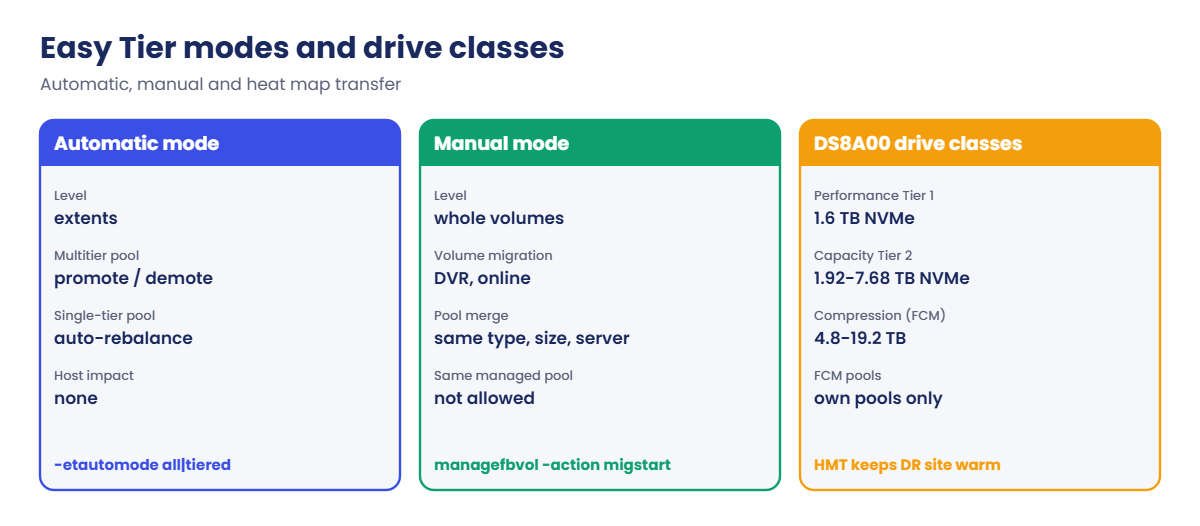
  • Automatic mode works at extent level. In a multitier (hybrid) pool it moves the most-accessed extents to the upper tier, and in a single-tier pool it auto-rebalances extents across ranks to get rid of hot spots. It’s non-disruptive, so hosts keep running throughout.
  • Manual mode works on whole volumes. Dynamic Volume Relocation (DVR, “migrate volume”) moves a volume to another pool or restripes it online, and dynamic pool merge combines matching pools. You can’t run manual DVR inside the same pool when it’s a managed multitier pool, because automatic mode already does that job.
  • Heat Map Transfer (HMT) copies the heat map to a remote DS8000, so the DR site is already tuned if you fail over.
  • Tiers on DS8A00 (drive classes) are Performance Flash Tier 1 (1.6 TB NVMe), Capacity Flash Tier 2 (1.92, 3.84 and 7.68 TB) and the Compression Flash Tier (FCM, 4.8, 9.6 and 19.2 TB). DS CLI tier commands use the keywords flashtier0, flashtier1 and flashtier2, so check the command reference to see which keyword matches which class on your system.
  • A multitier pool is made of industry-standard drives from different tiers. You can’t mix FCM capacity into the same pool, and Easy Tier won’t move data between separate pools by itself.
  • The storage image settings live in chsi: -etautomode all|tiered|none (which pools are managed), -etmonitor all|automode|none, -etsrmode (reserve space for moves, on by default), -ettierorder highperf|highutil (where new data lands first, with all-flash defaulting to high performance), -etautomodeaccel (temporary faster migration) and -ethmtmode (heat map transfer). Note there’s no chextpool -etmanage.
  • For pools and volumes you have manageextpool -action etmigpause|etmigresume|etmonpause|etmonresume|etmonreset. showextpool -tier and showfbvol -tier show the tier mix, and managefbvol -action tierassign -tier flashtier0 pins a volume to a tier.
  • For reports, offload with offloadfile -etdataCSV to get the workload categorization, workload skew curve and data movement CSV files.

On DS8900F: the modes and settings are the same, but the drive classes and their names depend on the flash you have installed.

How it works, step by step

Picture a media company’s DS8000. All day long a news website reads a small set of hot articles and videos, and once a month a big batch job rebuilds the archive. Here’s how Easy Tier handles it.

1Monitor every extent

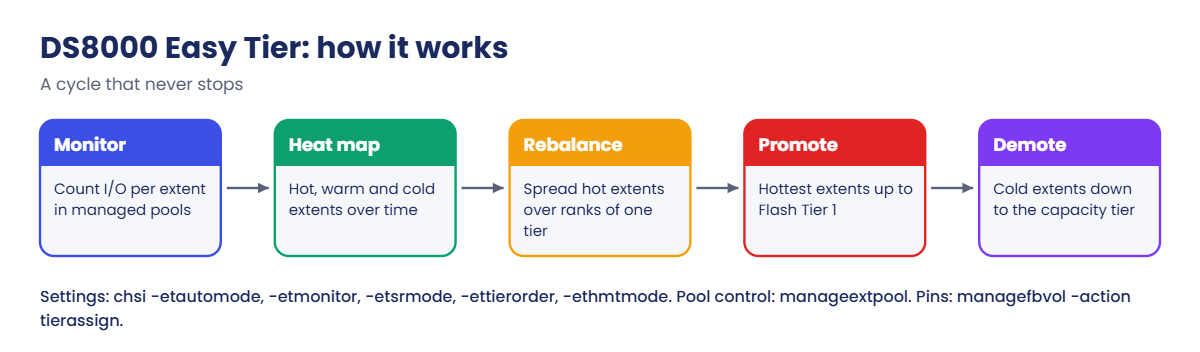
Easy Tier counts I/O for every extent in the pools it monitors (-etmonitor) and builds a heat map of hot, warm and cold extents from those counts. It decides based on what it has seen over time, not on one busy minute.

2Move as little as possible

IBM designed Easy Tier to keep the workload spread balanced and stable while moving as little data as it can, so it never shuffles the whole pool. With -etsrmode on, the pool holds back some free space for these moves.

DS8000 Easy Tier cycle: monitor, heat map, rebalance, promote and demote

3Rebalance inside one tier

In a single-tier pool, if one rank is much busier than the rest, Easy Tier moves some of its hot extents to quieter ranks. This is auto-rebalance, and it works even in an all-flash, single-tier pool, fixing skew between ranks that striping alone can’t.

4Promote and demote across tiers

In a multitier pool the hottest extents go up to Flash Tier 1 and the coldest go down to the capacity tier. That lets a small fast tier carry most of the I/O, because in real workloads a small slice of the data does most of the work.

5Place new data by allocation order

New extents land according to -ettierorder. High performance fills the fastest tier first, while high utilization fills Tier 1, then Tier 2, then Tier 0, and Easy Tier adjusts placement later as it learns the real heat.

6Let people override when they must

Sometimes you know better than Easy Tier, say when a month-end volume has to be fast from day one. managefbvol -action tierassign pins it to a tier and tierunassign hands it back to Easy Tier. Go easy on pins, though, because every pinned extent is one Easy Tier can’t optimise.

Easy Tier automatic mode, manual mode and DS8A00 drive classes

7Watch, pause and report

You can pause migrations or monitoring for a pool with manageextpool, for instance during a one-off load you don’t want Easy Tier learning from. The GUI shows data activity and data movement per pool and per volume, and offloadfile -etdataCSV exports the full reports.

Heat Map Transfer sends what the primary site has learned over to the DR site, so the remote DS8000 doesn’t start cold after a failover.

Hands-on lab: read Easy Tier settings and model extent heat

Before you run any command, double-check it

Read every command twice before you press Enter. Check the target: the system or account, the IDs, the names and the sizes. These commands are for learning and were tested in our lab, not on your system. At work, run the read-only list commands first, follow your change process, make sure a backup exists, and ask a second person to check anything that changes or deletes data. You run them at your own risk.

Easy Tier needs days of real I/O before you see its effect, so no laptop lab can show it migrating. What you’ll do instead is read Easy Tier’s settings, see why a pool needs more than one rank, and use a small Python model to see why moving heat is worth it. Start in C:\ds8k-lab (shell setup is in Lesson 1).

Practice shell note: the practice shell is our own teaching tool, not IBM software, and real DS CLI output looks very close to this without being identical. The shell shows Easy Tier settings but doesn’t run Easy Tier or the chsi and tier commands, so you’ll only see those as real syntax here. CMUN02037E in the break lab is a practice shell message.

1Read the Easy Tier settings

Type these at the dscli> prompt:

simctl reset
showsi

You should see this:

dscli> showsi
Date/Time: 24 October 2026 13:55:48 UTC IBM DSCLI Version: 7.10.10.348 DS: IBM.2107-78SV001
Name             ds8k-g10-lab
...
Model            A05
...
ETAutoMode       tiered
ETMonitor        automode
IOPMmode         Disabled
ETCCMode         -
ETHMTMode        Enabled
ETSRMode         Enabled
ETTierOrder      High performance
ETAutoModeAccel  Disabled
...

The shortened showsi output is where Easy Tier lives at system level. ETAutoMode tiered means automatic mode only manages multitier pools, and ETMonitor automode means Easy Tier monitors the volumes in the pools it manages.

ETSRMode Enabled reserves space for extent moves, ETTierOrder High performance sends new data to the fastest tier first (the all-flash default), and ETHMTMode Enabled allows heat maps to go to a remote DS8000.

ETAutoModeAccel Disabled is the normal state, since acceleration is only a short-term boost. IOPMmode Disabled refers to the old I/O Priority Manager, which has been discontinued since Release 9.

✅ Checkpoint: You can say what ETAutoMode tiered means.

2See how you would change them on a real DS8000

The practice shell doesn’t include chsi, so only read these. It’s the verified DS CLI syntax for a real system:

chsi -etautomode all -etmonitor all IBM.2107-78SV001
chsi -ettierorder highutil IBM.2107-78SV001
manageextpool -action etmigpause -duration 1H IBM.2107-78SV001/P0
managefbvol -action tierassign -tier flashtier0 2000
offloadfile -etdataCSV C:\temp

Line 1 lets Easy Tier manage and monitor every pool, single-tier ones included, so it can auto-rebalance them. Line 2 changes where new data lands, line 3 pauses migrations in pool P0 for an hour, line 4 pins volume 2000 to the top tier, and line 5 downloads the Easy Tier report CSV files and Excel tool.

On a real system chsi replies with a CMUC00042I “successfully modified” message.
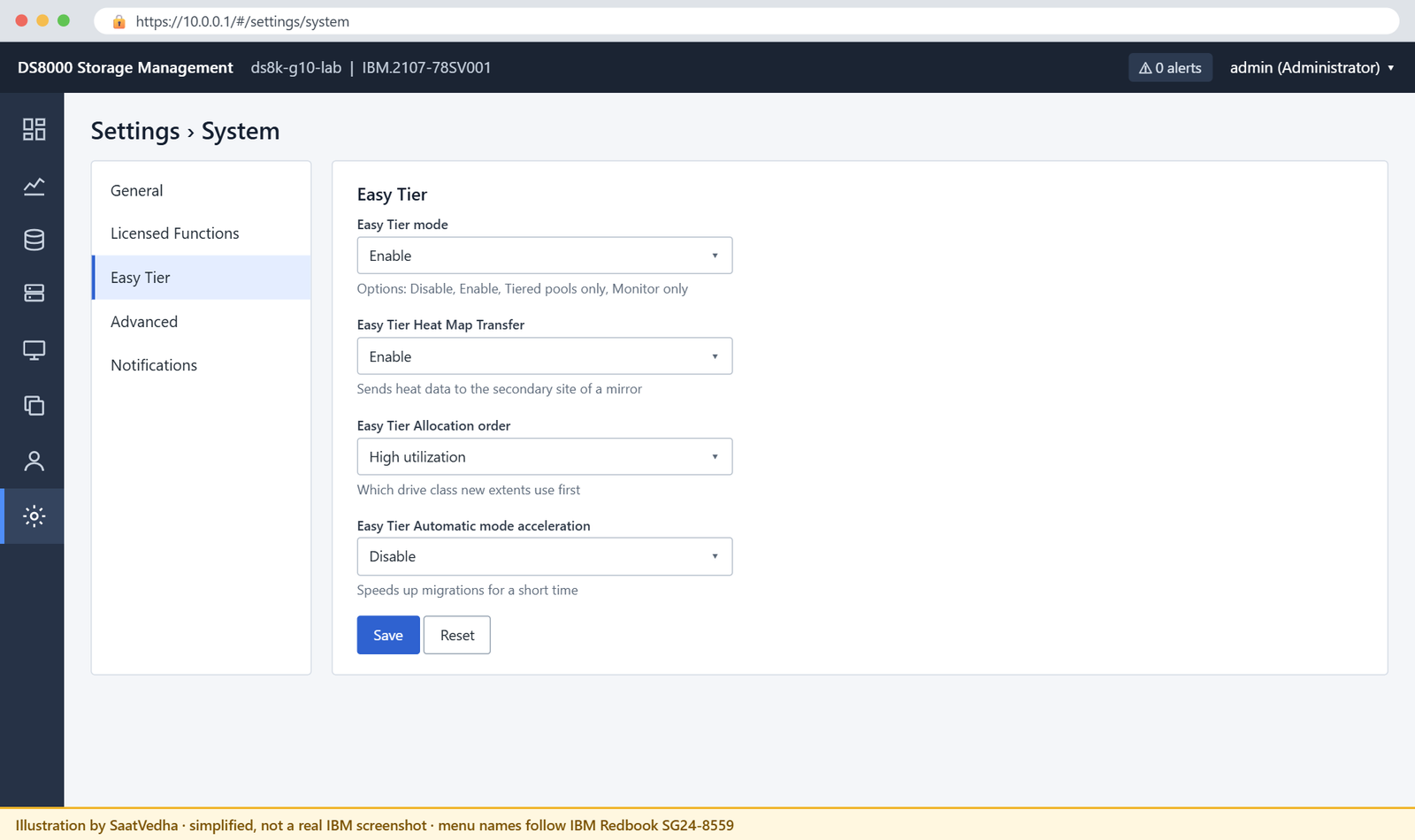
DS8000 GUI Settings System Easy Tier tab with mode, heat map transfer and allocation order
Illustration: Settings, System, Easy Tier. The same choices you set with chsi -etautomode and -ettierorder in DS CLI.

✅ Checkpoint: You can name the command that changes Easy Tier settings for the whole system.

3One rank: nothing to balance

Save this as C:\ds8k-lab\setup-16.txt, then quit, run it with -script like in earlier lessons and log in again. It builds two Flash Tier 2 ranks but only puts R0 in pool P0.

mkarray -raidtype 6 -arsite S7
mkarray -raidtype 6 -arsite S8
mkrank -array A0 -keygrp 1 -stgtype fb
mkrank -array A1 -keygrp 1 -stgtype fb
mkextpool -rankgrp 0 -keygrp 1 -stgtype fb t2_0
chrank -extpool P0 R0

Type these at the dscli> prompt:

mkfbvol -extpool P0 -cap 100 -name db_#h 2000
showfbvol -rank 2000

You should see this:

dscli> mkfbvol -extpool P0 -cap 100 -name db_#h 2000
CMUC00025I mkfbvol: FB volume 2000 successfully created.
dscli> showfbvol -rank 2000
Date/Time: 24 October 2026 13:56:33 UTC IBM DSCLI Version: 7.10.10.348 DS: IBM.2107-78SV001
...
eam                        rotateexts
...
==============Rank extents==============
rank extents capacity (MiB/cyl) metadata
========================================
R0   6400    102400             yes

All 6,400 extents of the volume are on R0, because R0 is the only rank, so if this volume gets busy R0 gets busy and Easy Tier has nowhere to move anything. That’s why the Redbook tells you to put more than one rank in a pool if you want Easy Tier to optimize rank use.

✅ Checkpoint: All 6,400 extents are on R0.

4Add a second rank

Type these at the dscli> prompt:

chrank -extpool P0 R1
mkfbvol -extpool P0 -cap 100 -name db_#h 2001
showfbvol -rank 2001
showextpool P0

You should see this:

dscli> chrank -extpool P0 R1
CMUC00008I chrank: Rank R1 successfully modified.
dscli> mkfbvol -extpool P0 -cap 100 -name db_#h 2001
CMUC00025I mkfbvol: FB volume 2001 successfully created.
dscli> showfbvol -rank 2001
Date/Time: 24 October 2026 13:56:34 UTC IBM DSCLI Version: 7.10.10.348 DS: IBM.2107-78SV001
...
eam                        rotateexts
...
==============Rank extents==============
rank extents capacity (MiB/cyl) metadata
========================================
R0   3200    51200              yes
R1   3200    51200              no
dscli> showextpool P0
Date/Time: 24 October 2026 13:56:34 UTC IBM DSCLI Version: 7.10.10.348 DS: IBM.2107-78SV001
Name                      t2_0
...
numranks                  2
...
numtiers                  1
etmanaged                 yes
extsize                   16MiB
...

The new volume is split 3,200 and 3,200 across R0 and R1, while volume 2000 is still only on R0, since the practice shell doesn’t run Easy Tier and nothing moves it. On a real DS8000 with Easy Tier managing this pool, auto-rebalance would shift some of 2000’s hot extents to R1 over time.

showextpool (shortened) confirms numtiers 1, meaning a single-tier pool, and etmanaged yes.

✅ Checkpoint: volume 2001 has 3,200 extents on each rank.
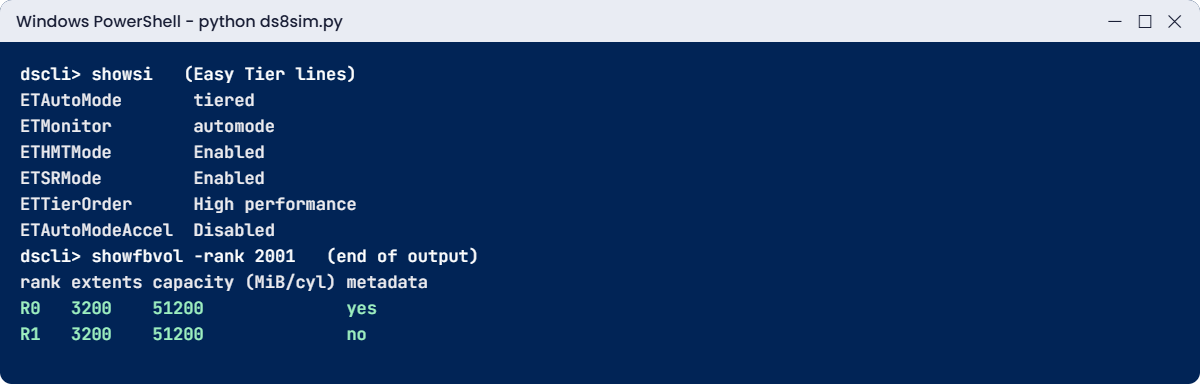
Practice shell showsi Easy Tier settings and a volume striped over two ranks
Easy Tier settings in showsi, and a new volume striped over two ranks.

5See why moving heat pays off

Real workloads are skewed, with a few extents doing most of the work, and this small model (ours, not IBM’s algorithm) shows what that means. Save it as C:\ds8k-lab\heat.py, next to ds8sim.py.

It runs right there on your laptop, not on the DS8000. The model part doesn’t need a DS8000 at all, and the --check part reads your pools through the DS CLI the way outside automation would.

The script:

# heat.py - why Easy Tier works: a toy model (ours, not IBM's algorithm) plus a pool check
# Runs on your workstation or jump server, not on the DS8000.
# The model needs no DS8000. --check talks to it only through the DS CLI (auto.profile: banner off, header on, format delim).
import csv, random, subprocess, sys
DSCLI = ["python", "ds8sim.py", "-cfg", "auto.profile"]   # at work: ["dscli", "-cfg", "auto.profile"]

def dscli(*args):
    """Run one DS CLI command and return its rows as dictionaries."""
    out = subprocess.run(DSCLI + list(args), capture_output=True, text=True).stdout
    lines = [l for l in out.splitlines() if l and not l.startswith("SaatVedha") and not l.startswith("CMUC")]
    return list(csv.DictReader(lines))

def model():
    # 1,000 extents; a few are very busy ("hot"), most are quiet. Skew is normal in real workloads.
    random.seed(16)
    extents = 1000
    fast_slots = 100                       # the fast tier holds 10% of the extents
    # I/O count per extent in one day: a small hot set, a warm middle, a long cold tail
    io = [random.randint(5000, 9000) if i < 50 else
          random.randint(500, 1500) if i < 200 else
          random.randint(0, 60) for i in range(extents)]
    random.shuffle(io)                     # data lands in random places at first
    total = sum(io)
    def fast_share(placement):
        return 100 * sum(io[i] for i in placement) / total
    first_100 = range(fast_slots)                                   # whatever landed there first
    hottest_100 = sorted(range(extents), key=lambda i: io[i], reverse=True)[:fast_slots]
    print(f"Total I/Os per day         : {total:,}")
    print(f"Fast tier before learning  : {fast_share(first_100):5.1f}% of I/O")
    print(f"Fast tier after moving heat: {fast_share(hottest_100):5.1f}% of I/O")
    top5 = sorted(io, reverse=True)[:extents // 20]
    print(f"Busiest 5% of extents carry: {100 * sum(top5) / total:5.1f}% of I/O")

def check():
    # Can Easy Tier move heat in each pool? It needs more than one rank (or more than one tier).
    ranks = dscli("lsrank", "-l")
    for p in dscli("lsextpool"):
        pool = dscli("showextpool", p["ID"])[0]
        mine = [r for r in ranks if r["extpoolID"] == p["ID"]]
        print(f"Pool {p['ID']} {p['Name']}: {pool['numranks']} rank(s), {pool['numtiers']} tier(s), "
              f"Easy Tier managed {pool['etmanaged']}")
        for r in mine:
            print(f"  {r['ID']} used extents {int(r['usedexts']):>6,}")
        if int(pool["numranks"]) < 2 and int(pool["numtiers"]) < 2:
            print("  -> one rank, one tier: Easy Tier has nowhere to move hot extents")
        else:
            print("  -> Easy Tier can move hot extents between ranks or tiers here")

if "--check" in sys.argv:
    check()
else:
    model()

For the check you need a saved password and a profile a script can read. Use the password you picked in Lesson 1, and if the shell says the record already exists, you’ve saved it before, so carry on.

Type these at the dscli> prompt:

managepwfile -action add -name admin -pw <your password> -pwfile security.dat
quit

You should see this:

dscli> managepwfile -action add -name admin -pw <your password> -pwfile security.dat
CMUC00206I managepwfile: Record 10.0.0.1/admin successfully added to password file security.dat.
dscli> quit

Save this as auto.profile in the lab folder:

hmc1: 10.0.0.1
username: admin
pwfile: security.dat
devid: IBM.2107-78SV001
banner: off
header: on
format: delim
delim: ,

Banner off, header on and format delim make the DS CLI print one header row followed by plain comma-separated rows, which is easy for a script to read. Implementation Lesson 2 explains every line.

Run this:

python heat.py
python heat.py --check

You should see this:

Total I/Os per day         : 512,602
Fast tier before learning  :   7.3% of I/O
Fast tier after moving heat:  80.0% of I/O
Busiest 5% of extents carry:  67.1% of I/O
Pool P0 t2_0: 2 rank(s), 1 tier(s), Easy Tier managed yes
  R0 used extents  9,600
  R1 used extents  3,200
  -> Easy Tier can move hot extents between ranks or tiers here

With random placement the fast tier (10% of capacity) serves only about 7% of the I/O, but once the hottest 100 extents move there, the same 10% serves 80%. That’s what Easy Tier is about: a small amount of the fastest flash can carry most of the work as long as the right extents live on it.

The check ran lsextpool, showextpool P0 and lsrank -l for you. P0 has two ranks, so Easy Tier has somewhere to move heat. R0 holds 9,600 used extents (all of volume 2000 plus half of 2001) and R1 holds 3,200, and on a real DS8000 auto-rebalance would even that out by heat over time.

Change random.seed(16) to some other number and run it again. The exact values will change but the pattern stays the same. At work a scheduler on the jump server can run python heat.py --check every morning and mail the report, so a pool left with a single rank gets noticed.

✅ Checkpoint: Your script shows 80.0% after moving heat, and the check shows 2 ranks in P0.

Break It, Then Fix It

Easy Tier can’t help if it has nothing to work with, and these two mistakes take its tools away. Keep the shell from the lab open.

1Break it: pin a volume to one rank

A DBA has read an old blog post and asks for “rotate volumes” so each LUN sits on one rank.

Type these at the dscli> prompt:

mkfbvol -extpool P0 -cap 100 -eam rotatevols -name rv_#h 2002
showfbvol -rank 2002

You’ll get this:

dscli> mkfbvol -extpool P0 -cap 100 -eam rotatevols -name rv_#h 2002
CMUC00025I mkfbvol: FB volume 2002 successfully created.
dscli> showfbvol -rank 2002
Date/Time: 24 October 2026 13:56:34 UTC IBM DSCLI Version: 7.10.10.348 DS: IBM.2107-78SV001
...
eam                        rotatevols
...
==============Rank extents==============
rank extents capacity (MiB/cyl) metadata
========================================
R0   6400    102400             yes
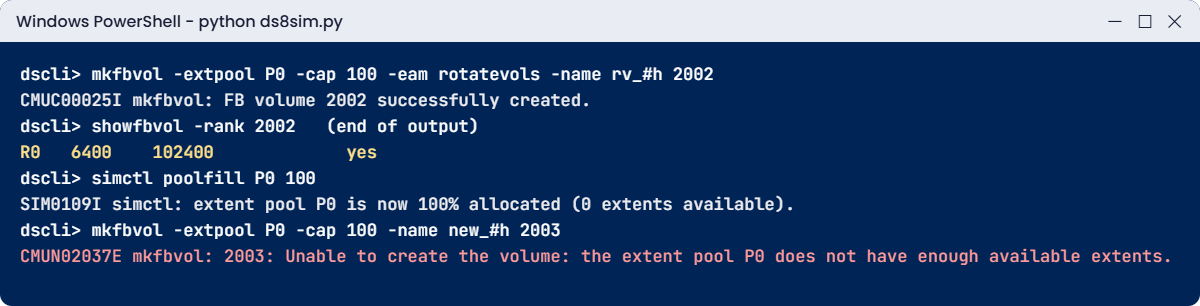
Practice shell: rotatevols volume on one rank and a full pool with CMUN02037E
Two ways to take Easy Tier’s tools away: one-rank volumes and a full pool.

There’s no error, and that’s exactly the problem. eam rotatevols put all 6,400 extents on R0 even though R1 is in the pool. The Redbook describes rotate volumes as a choice for people who want to manage performance by hand, with the risk of a bottleneck on one rank, and says Easy Tier is now the preferred way to manage extents.

To fix it, create volumes with the default rotateexts and let Easy Tier manage the pool. If a volume was already created this way, a real DS8000 can restripe it online with Easy Tier’s volume migration (managefbvol -action migstart -extpool P0 -eam rotateexts 2002), and in a managed multitier pool auto mode handles it for you.

✅ Checkpoint: You can explain why rotatevols gives Easy Tier less to work with.

2Break it: leave no free space for moves

simctl poolfill pretends other volumes have filled the pool to 100%.

Type these at the dscli> prompt:

simctl poolfill P0 100
lsextpool
mkfbvol -extpool P0 -cap 100 -name new_#h 2003

You’ll get this:

dscli> simctl poolfill P0 100
SIM0109I simctl: extent pool P0 is now 100% allocated (0 extents available).
dscli> lsextpool
Date/Time: 24 October 2026 13:56:34 UTC IBM DSCLI Version: 7.10.10.348 DS: IBM.2107-78SV001
Name ID stgtype rankgrp status availstor (2^30B) %allocated available reserved numvols
======================================================================================
t2_0 P0 fb      0       full   0                 100        0         128      3
dscli> mkfbvol -extpool P0 -cap 100 -name new_#h 2003
CMUN02037E mkfbvol: 2003: Unable to create the volume: the extent pool P0 does not have enough available extents.

New volumes fail, and something quieter fails along with them, because Easy Tier needs free extents to move data around and a pool with no free space can’t be rebalanced. That’s why ETSRMode (space reservation for Easy Tier) is on by default, and why you shouldn’t fill pools to the brim.

To fix it, bring the pool back to a healthy level and retry:

simctl poolfill P0 70
lsextpool
mkfbvol -extpool P0 -cap 100 -name new_#h 2003

You should see this:

dscli> simctl poolfill P0 70
SIM0109I simctl: extent pool P0 is now 70% allocated (679741 extents available).
dscli> lsextpool
Date/Time: 24 October 2026 13:56:34 UTC IBM DSCLI Version: 7.10.10.348 DS: IBM.2107-78SV001
Name ID stgtype rankgrp status availstor (2^30B) %allocated available reserved numvols
======================================================================================
t2_0 P0 fb      0       below  10620             70         679741    128      3
dscli> mkfbvol -extpool P0 -cap 100 -name new_#h 2003
CMUC00025I mkfbvol: FB volume 2003 successfully created.

In real life “bring the pool back” means adding ranks or moving volumes, like you saw in Lessons 12 and 15. At 70% the pool is below its threshold again and Easy Tier has room to work.

✅ Checkpoint: lsextpool shows status below and 70% allocated.

This happened at work

The monthly batch that taught Easy Tier the wrong lesson

This happened at a media streaming company that ran its catalogue database and video metadata service on a DS8000 with a multitier pool, a small Flash Tier 1 layer over a large capacity tier. Day to day Easy Tier kept the hot catalogue extents on Tier 1 and response times were excellent. Then once a month a big royalty batch scanned years of viewing history, running for three nights and reading huge amounts of data nobody touched the rest of the month.

Easy Tier did what it’s built to do. It saw the batch data getting hot and promoted it, and the catalogue extents, quiet at night, got pushed down to make room. So on the fourth morning, when the batch finished and viewers came back, part of the catalogue was sitting on the capacity tier, and website response times doubled until Easy Tier slowly relearned the daytime pattern.

Impact: two slow days every month, complaints from the app team and a request to “switch Easy Tier off”, which would have made every normal day worse.

Root cause: nobody had told Easy Tier the batch was a one-off pattern, so its heat map treated three nights of scanning as the new normal.

Fix: the storage team ran manageextpool -action etmonpause for the batch window so Easy Tier stopped learning from it, and pinned the most critical catalogue volumes to the top tier with managefbvol -action tierassign. Response times stayed flat right through the next month-end.

Lesson: Easy Tier learns from what it sees. For short, unusual workloads you know about in advance, pause its monitoring or migrations rather than switching it off, and only pin the few volumes that really need it.

Common mistakes and troubleshooting

SymptomLikely causeWhat to check / fix
One rank much busier than the othersPool with one rank, or volumes created with rotatevolsAdd ranks, use rotateexts and let Easy Tier auto-rebalance (-etautomode all).
Easy Tier never rebalances a single-tier poolETAutoMode set to tiered (multitier pools only)Check showsi, and use chsi -etautomode all if you want single-tier rebalancing.
Hot data slow after a monthly batchEasy Tier learned from a one-off scanPause monitoring or migration for that window with manageextpool.
Someone asks for chextpool -etmanageCommand doesn’t existEasy Tier settings live in chsi and manageextpool.
Pinned volumes everywhere, little improvementToo many tierassign pinsRemove most of the pins and let Easy Tier manage the pool.
No room for Easy Tier movesPool nearly full, space reservation offKeep ETSRMode on and keep pools below threshold.
DR site slow after failoverHeat map not transferredEnable Heat Map Transfer (ETHMTMode).

Before you blame Easy Tier, look at its reports. The data movement and workload skew reports usually tell you whether it’s moving the right data or getting fooled by an unusual pattern.

Interview questions

Click a question to open it. Each is phrased the way an interviewer might ask it, and underneath you’ll find why they ask it and one way to answer in your own words.

Fresher level

1. What does Easy Tier do on a DS8000?

Why they ask this: They want the basic purpose in plain words.

How you might answer: It watches how busy each extent is and moves extents automatically without disrupting hosts. In a multitier pool it puts the hottest extents on the fastest flash tier, and in a single-tier pool it rebalances extents across ranks to get rid of hot spots.

It comes with the Base Function licence, and FCM pools need it switched on.

2. What’s the difference between Easy Tier automatic mode and manual mode?

Why they ask this: They’re checking you know both tools and the level each works at.

How you might answer: Automatic mode works at extent level and runs on its own, promoting, demoting and rebalancing extents by heat. Manual mode works on whole volumes, so that’s volume migration (DVR) to another pool or restriping, plus dynamic pool merge.

In a managed multitier pool you don’t do manual migration inside the same pool, because automatic mode looks after placement there.

2–5 years experience

3. A pool has four ranks but one rank is at 90% busy. What do you check?

Why they ask this: It’s real performance troubleshooting with Easy Tier in the picture.

How you might answer: First I’d check whether Easy Tier manages that pool at all, using showsi for ETAutoMode, because tiered only covers multitier pools. I’d also look at how the hot volumes were created, since rotatevols keeps a volume on one rank, and whether the pool has free space for moves.

If Easy Tier isn’t managing the pool, chsi -etautomode all lets it auto-rebalance, and any rotatevols volumes I’d restripe with volume migration.

4. How would you protect performance during a known monthly batch job?

Why they ask this: They want practical control without switching Easy Tier off.

How you might answer: I’d pause Easy Tier monitoring or migration for the batch window with manageextpool -action etmonpause or etmigpause, so it doesn’t learn the one-off pattern, and if a few critical volumes have to stay fast I’d pin them with managefbvol -action tierassign.

Afterwards I’d resume it and check the data movement report to make sure placement still looks sensible.

Senior level

5. How do you decide between one multitier pool and separate pools per tier?

Why they ask this: It’s a senior design trade-off.

How you might answer: A multitier pool lets Easy Tier move extents between tiers automatically, which makes the best use of a small fast tier for skewed, mixed workloads. Separate pools give you strict control, but Easy Tier won’t move data between pools by itself.

On DS8A00 you can’t mix FCM with other flash in one pool, so FCM gets its own pools. For industry-standard Tier 1 and Tier 2 drives I’d normally go with multitier pool pairs and only split out a workload that needs strict isolation.

6. How do you make sure the DR site performs well after a failover?

Why they ask this: They’re checking you think beyond the primary site.

How you might answer: I’d turn on Easy Tier Heat Map Transfer so the remote DS8000 gets the primary’s heat map and places data the same way. Without it the DR site starts cold and has to learn the workload at the worst possible moment.

I’d also make sure the DR pools have a similar tier mix and free space, and test performance in DR drills, not only whether the data’s there.

Quick quiz

Q1. At what level does Easy Tier automatic mode move data?

  1. Whole pools
  2. Whole volumes
  3. Extents
  4. Single blocks
Show answer

C: automatic mode works at the extent (subvolume) level.

Q2. Which command changes Easy Tier settings for the whole storage image?

  1. chextpool -etmanage
  2. chsi
  3. mkextpool -et
  4. setet
Show answer

B: system-wide Easy Tier settings are in chsi (-etautomode, -etmonitor, -ettierorder …).

Q3. ETAutoMode is “tiered”. What does Easy Tier manage automatically?

  1. All pools
  2. Only multitier pools
  3. Only FCM pools
  4. Nothing
Show answer

B: tiered means automatic mode only manages multitier (hybrid) pools.

Q4. What does Heat Map Transfer do?

  1. Moves volumes between pools
  2. Copies the heat map to a remote DS8000
  3. Cools the drives
  4. Deletes cold data
Show answer

B: HMT keeps the remote site tuned after a failover.

Q5. Why does Easy Tier need free space in a pool?

  1. To store logs
  2. To move extents between ranks or tiers
  3. For RAID parity
  4. It doesn’t
Show answer

B: moving extents needs free extents, and ETSRMode reserves space for that.

Quick recap

  • Easy Tier measures extent heat and moves extents automatically without affecting hosts.
  • Automatic mode: promote and demote across tiers in multitier pools, rebalance across ranks in single-tier pools.
  • Manual mode: volume migration (DVR) and dynamic pool merge.
  • Settings live in chsi (-etautomode, -etmonitor, -etsrmode, -ettierorder, -ethmtmode); pool control in manageextpool.
  • Give Easy Tier several ranks, rotateexts volumes and free space to work with.
  • For one-off workloads, pause monitoring rather than switching Easy Tier off.

Next lesson

Lesson 17: How hosts see volumes: hosts, ports, volume groups → Next you connect a host to its volumes and see the volume groups the GUI hides from you.

Further reading: DS8000 Easy Tier

Want to go deeper into DS8000 Easy Tier? IBM’s IBM Storage DS8A00 Architecture and Implementation Guide (IBM Redbooks) covers Easy Tier modes, settings and reports in sections 3.4, 7 and 9.13. For the pools Easy Tier works in, go back to Lesson 12: DS8000 extent pools.

You can also see the full plan for this course on the IBM DS8000 Architecture course page.

Scroll to Top

This website uses cookies

We use a few cookies to keep this site working. If you allow it, we also use Google Analytics to count visits so we can improve our lessons. You can accept all, deny the optional ones, or choose what to allow.